This guide explains how to configure Google Ads offline conversion actions directly in the Google Ads interface. It is a standalone platform-side setup and does not include HighLevel configuration steps. After completing this setup, use the links in Next Steps to connect conversions from HighLevel via Ad Manager or Workflows.
TABLE OF CONTENTS
What is Google Ads Conversion Actions?
Google Ads conversion actions define the events you want to track and optimize for—such as leads, calls, form submissions, or offline sales. Creating a clear, well-scoped conversion action ensures Google Ads can attribute performance correctly and helps your campaigns bid toward meaningful outcomes.
A conversion action is a rule in Google Ads that records when a desired action occurs. For offline conversions (e.g., a deal marked won in your CRM), Google Ads matches identifiers like GCLID/GBRAID/WBRAID to attribute results back to ads and keywords.
Key Benefits of Google Ads Conversion Actions
Benefits focus on data quality, optimization, and reporting. Establishing the right conversion actions improves bidding signals, clarifies measurement, and prevents noisy or duplicated data.
Accurate Optimization: Feeds Google Ads with clean signals for Smart Bidding.
Clear Reporting: Separates primary outcomes (e.g., qualified leads) from secondary events.
Control Over Counting: Decide whether to count Every or One conversion per ad interaction.
Flexible Attribution: Choose a model that fits your funnel and data volume.
Offline Compatibility: Supports uploading server-side/CRM events using IDs like GCLID/GBRAID/WBRAID.
Prerequisites on the Google Side
Preparing your Google Ads account prevents rework later. Confirm access, account structure, and goal taxonomy before creating actions.
Admin or standard access to the correct Google Ads account.
Agreement on goal taxonomy (e.g., Lead vs Submit lead form vs Qualified lead).
Decision on whether this action should be marked as a Primary action used for bidding.
Clarity on identifiers you’ll send later (e.g., GCLID/GBRAID/WBRAID) when posting offline conversions from HighLevel.
How To Set Up Google Ads Offline Conversion Actions (Google Platform-Side)
Follow these steps in Google Ads to create the conversion action you’ll later send data to from HighLevel. Proper setup ensures clean attribution and reliable bidding signals.
Note: This is a Google platform-side guide only. To setup offline conversions in HighLevel Ad Manager, checkout our article on HighLevel Ad Manager - Create & Manage Google Ads Offline Conversions.

To setup and track Google Ads Conversion Actions like form submissions, number pool calling, chat widget replies etc, directly inside HighLevel Workflows, checkout our article on Workflow Action - Add To Google Ads.
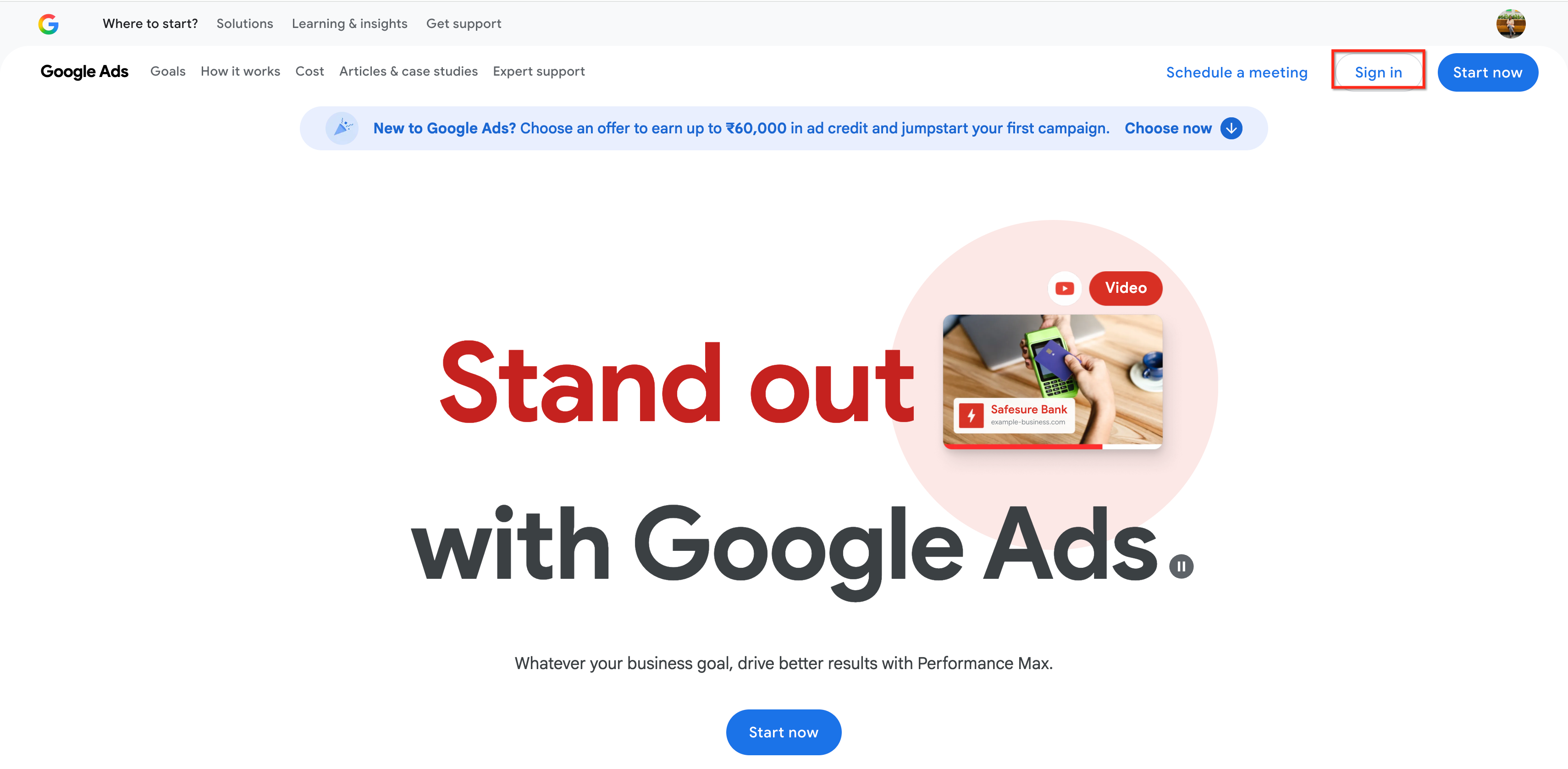
Head into your Google Adwords account or open ads.google.com.
Click on "Sign In" to sign into your google ads account or click on "Start Now" to start creating a new google ads account.
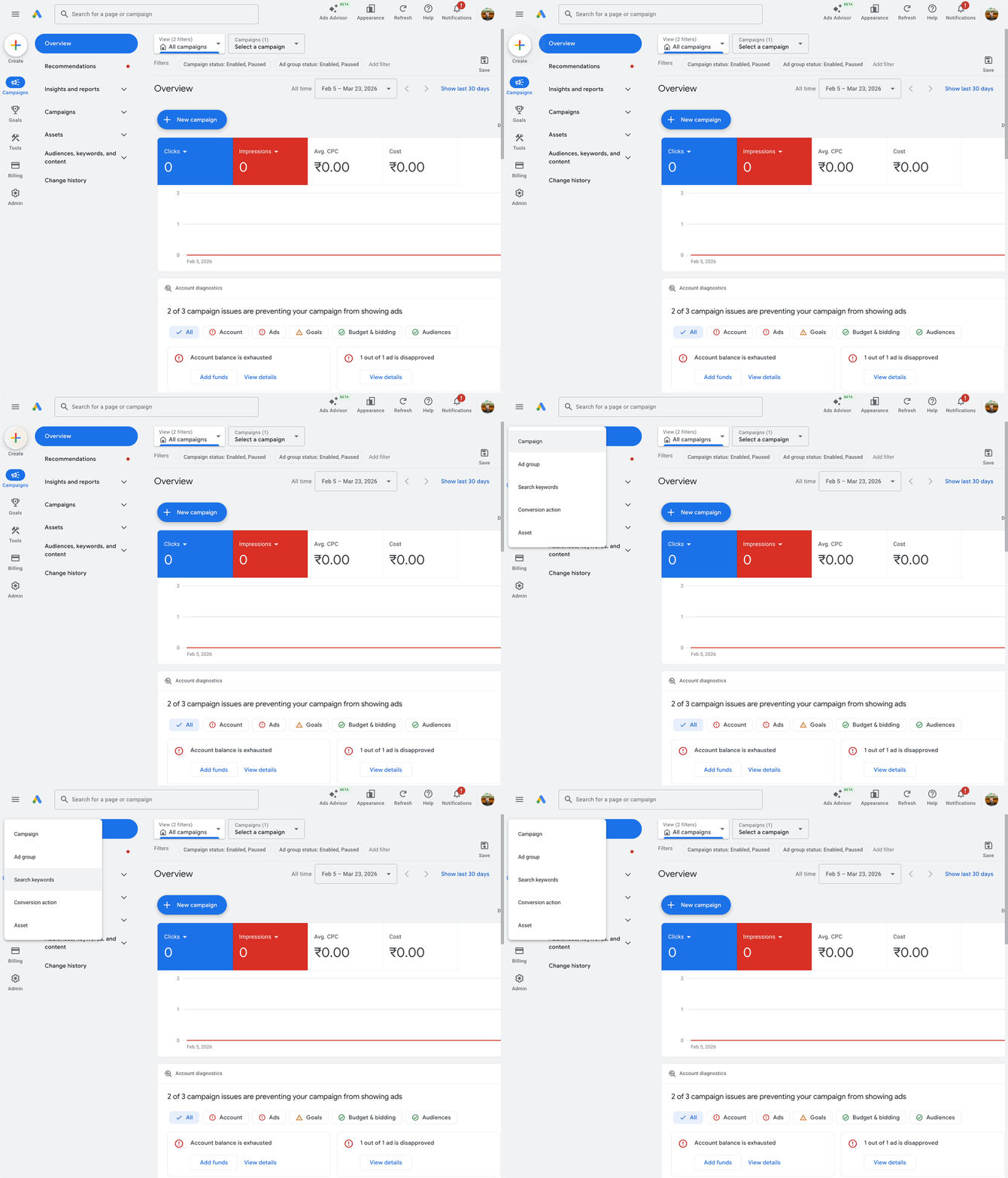
Click the "+" and Navigate to Conversion Action from the dropdown.
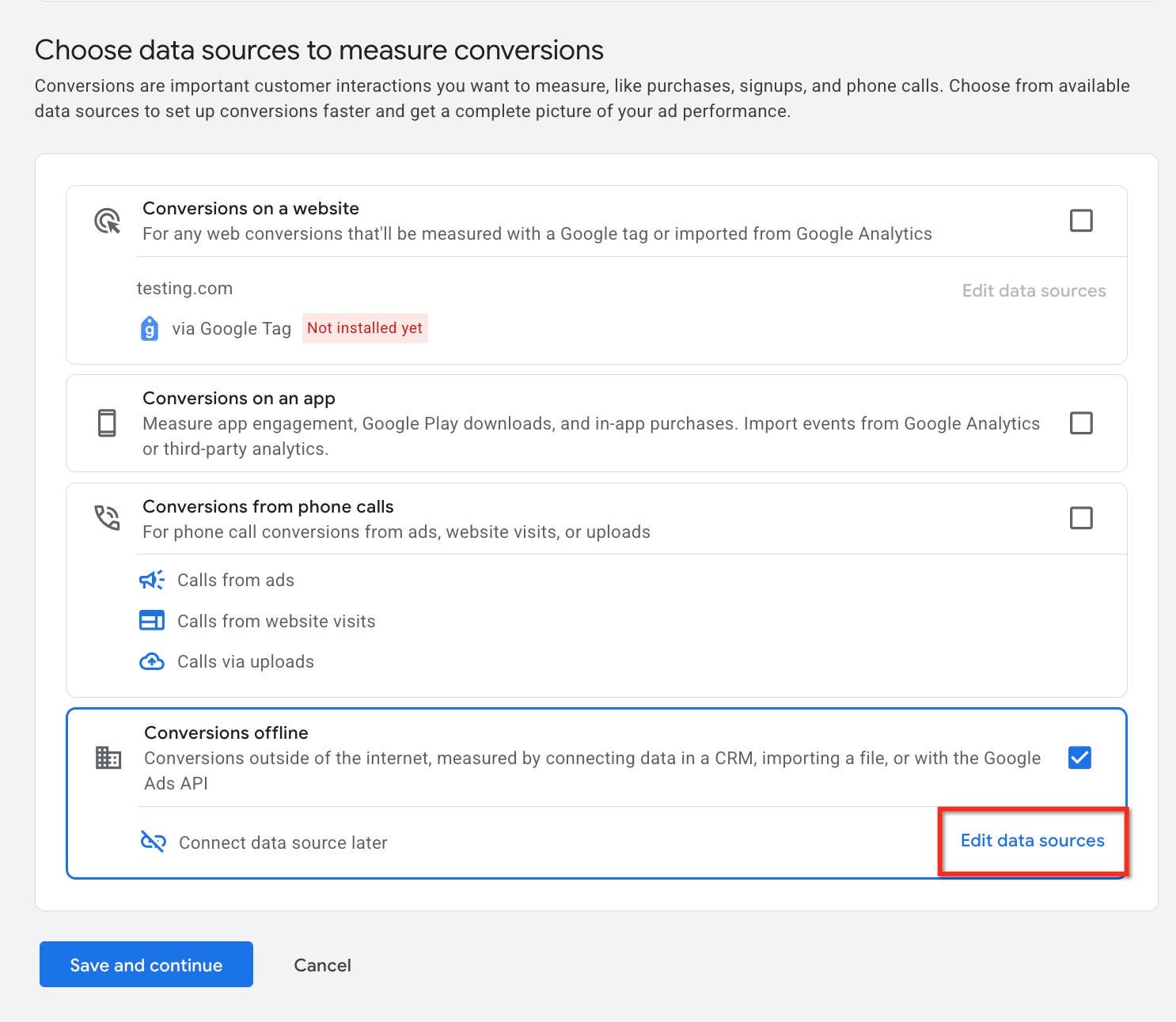
Choose data sources to measure conversions depending on your current Google Ads UI prompt.
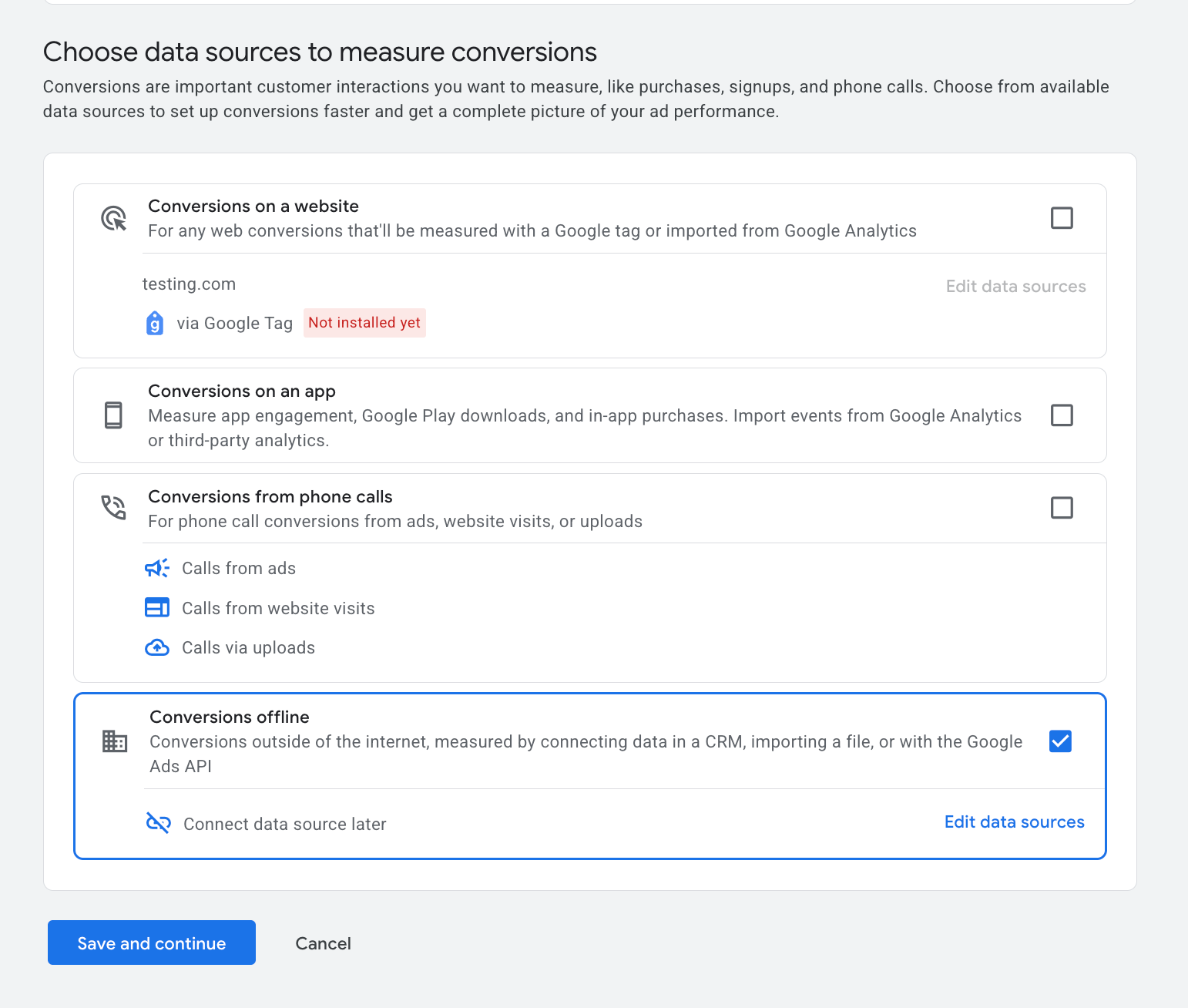
To start tracking conversions, we need to choose the Conversions offline option.
Please Note: HighLevel supports Offline Conversions only. Website, app, phone call, and other conversion sources are not supported.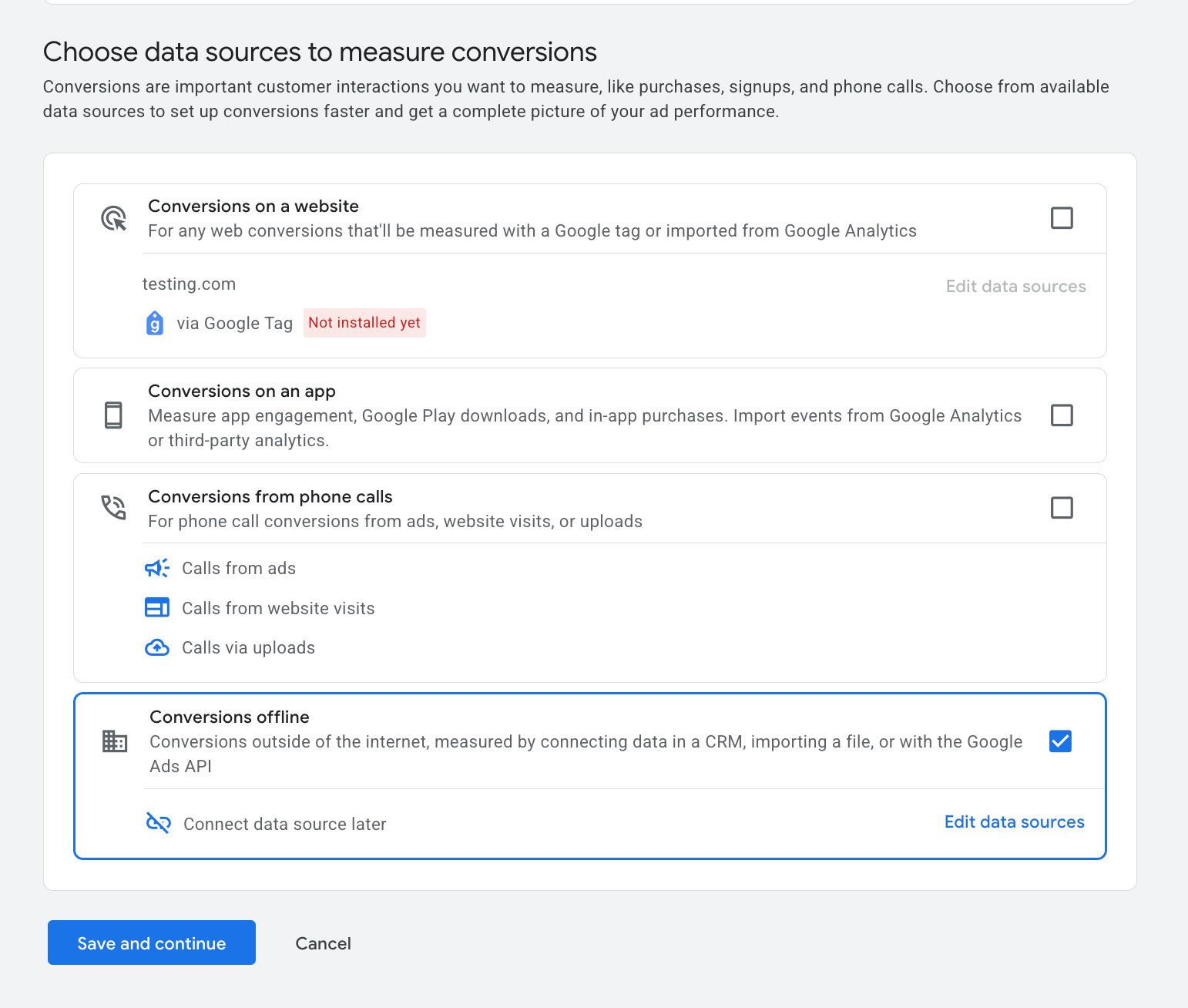
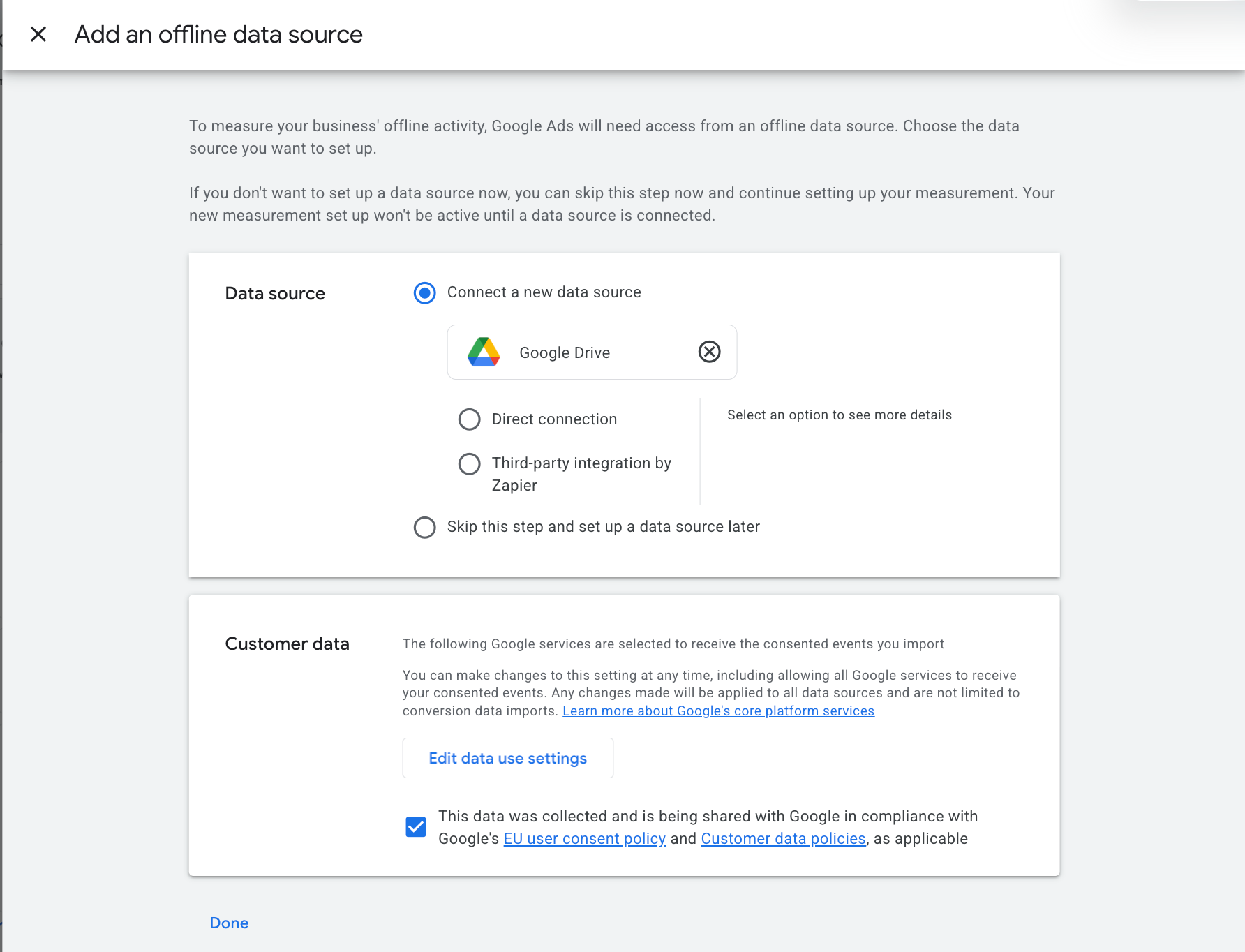
Click on Edit Data Sources to add an offline data source and select 'Skip this step and set up a data source later.'
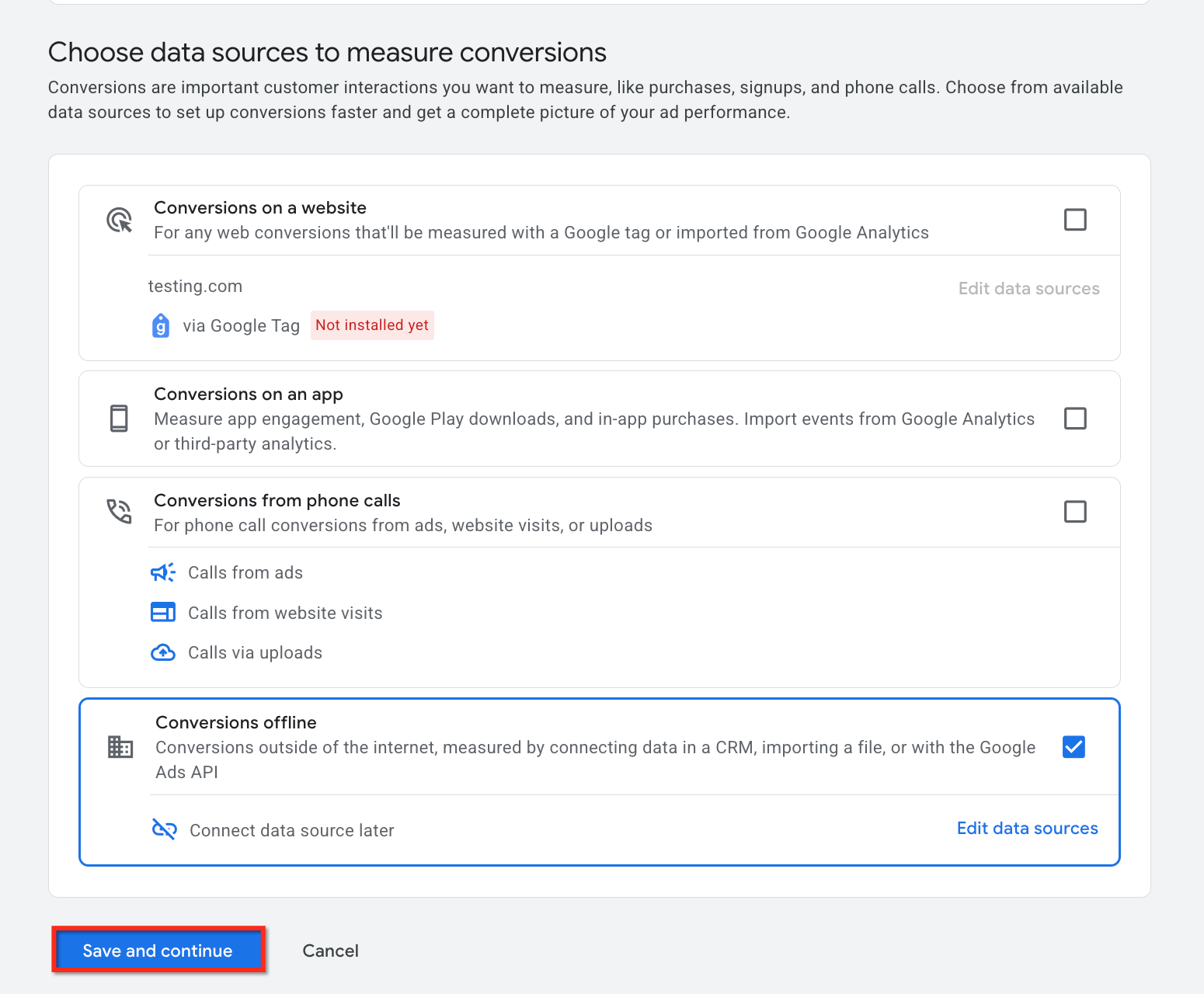
- Click "Save and Continue".
Select the Conversion Category. This step is to define, "What do you want to measure?". Click "See all" to access the entire list of conversion categories.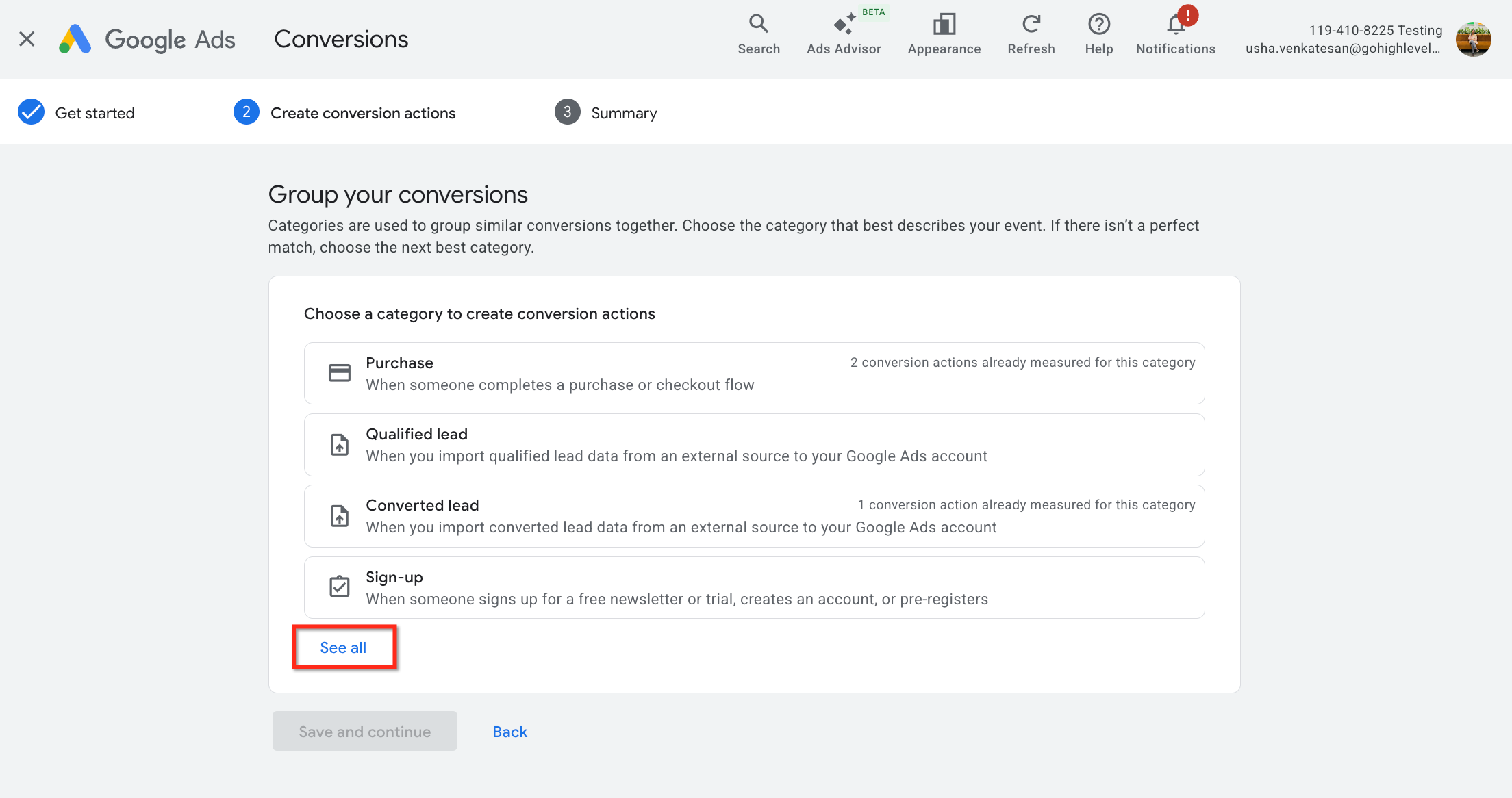
Post selection of the conversion category, you need to add data source to the category.
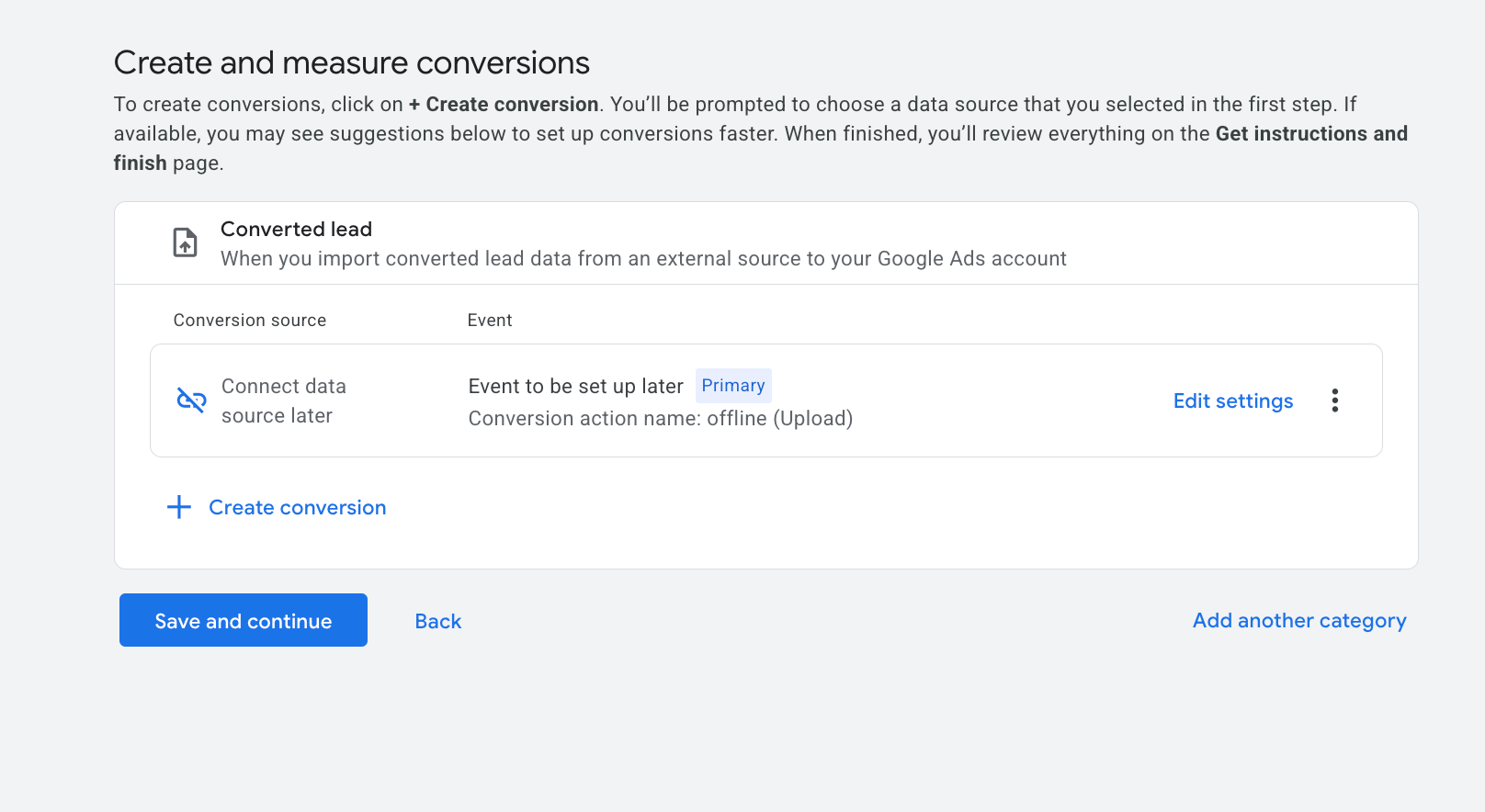
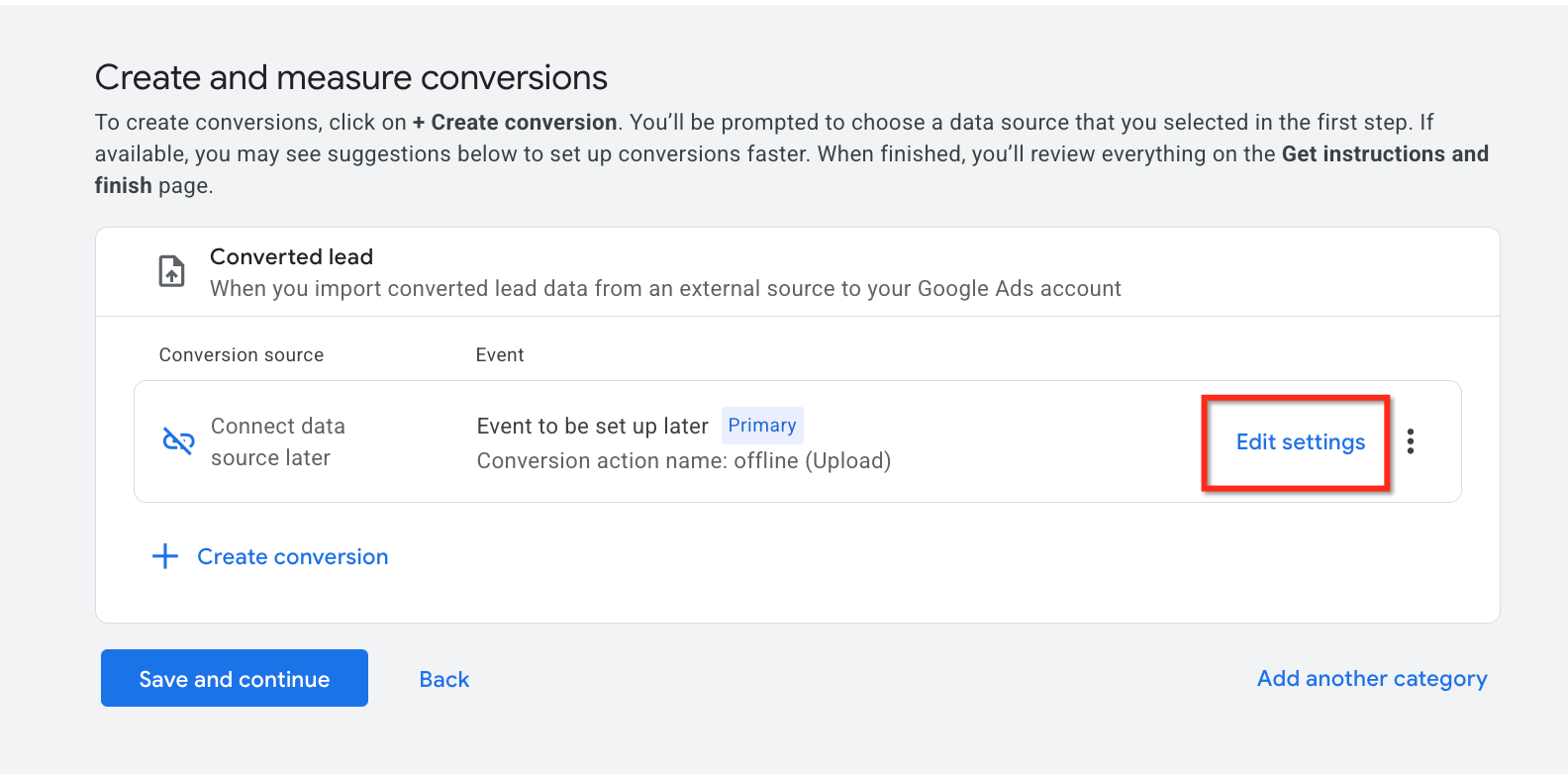
Click on Edit settings to define the details.
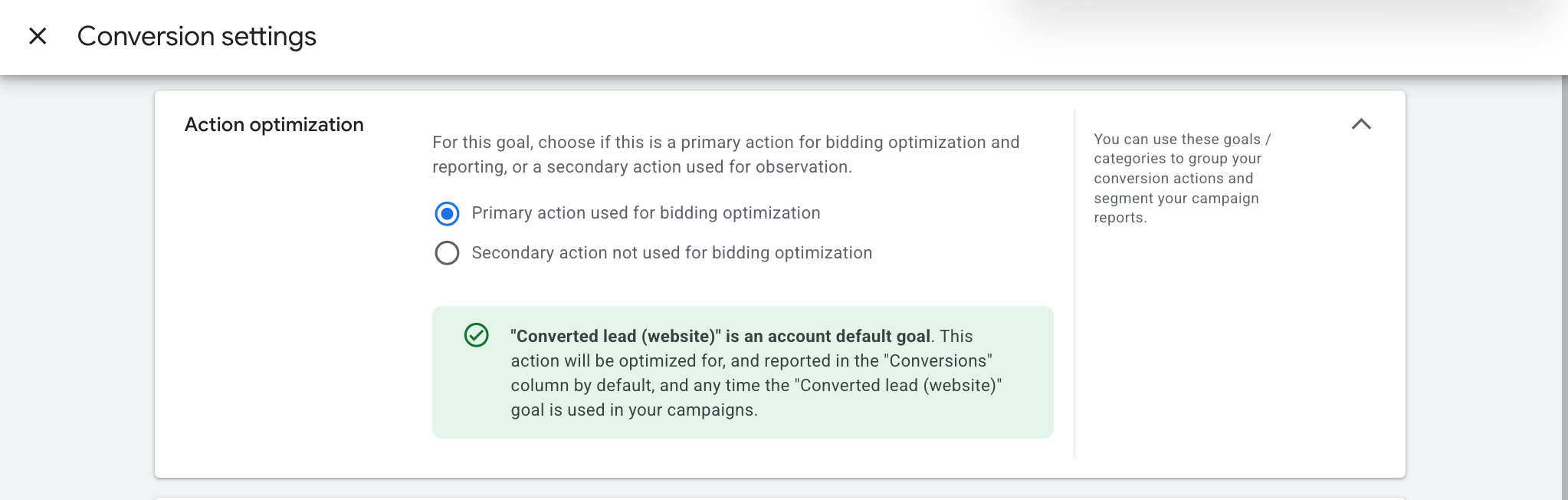
This section shows the action optimisation which shows the 'Conversion Goal' selected in the earlier steps. Let the radio button be 'Primary action used for bidding optimisation' as the selected choice.
Give this Conversion a name. Please type in the name of your conversion. In this example, we are calling it "Conversion Test".
Note: Once you have completed this step, please copy and paste your conversion name somewhere close.
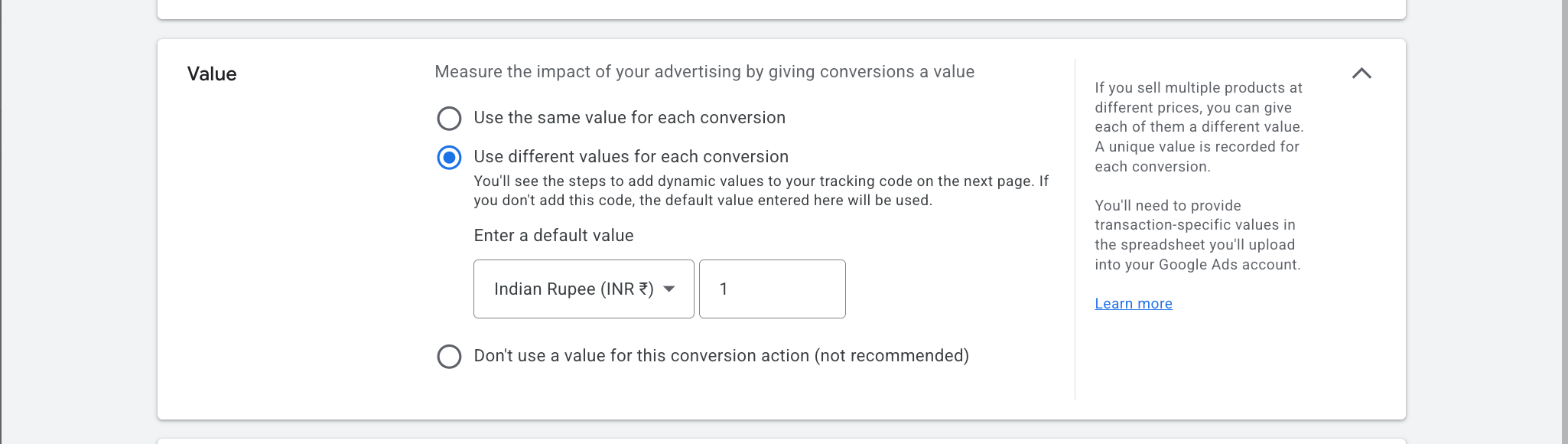
Select the value for your conversion. Select from: same, different, or don't use a value... More info
Select the count, we recommend always choosing option "Every".

Setup the conversion window and attribution model.
1. Set the click-through conversion window to "90 days"
2. Select engaged view conversion window from the dropdown.
3. Next, set the Attribution model as "Last Click" or "Data Driven" (recommended).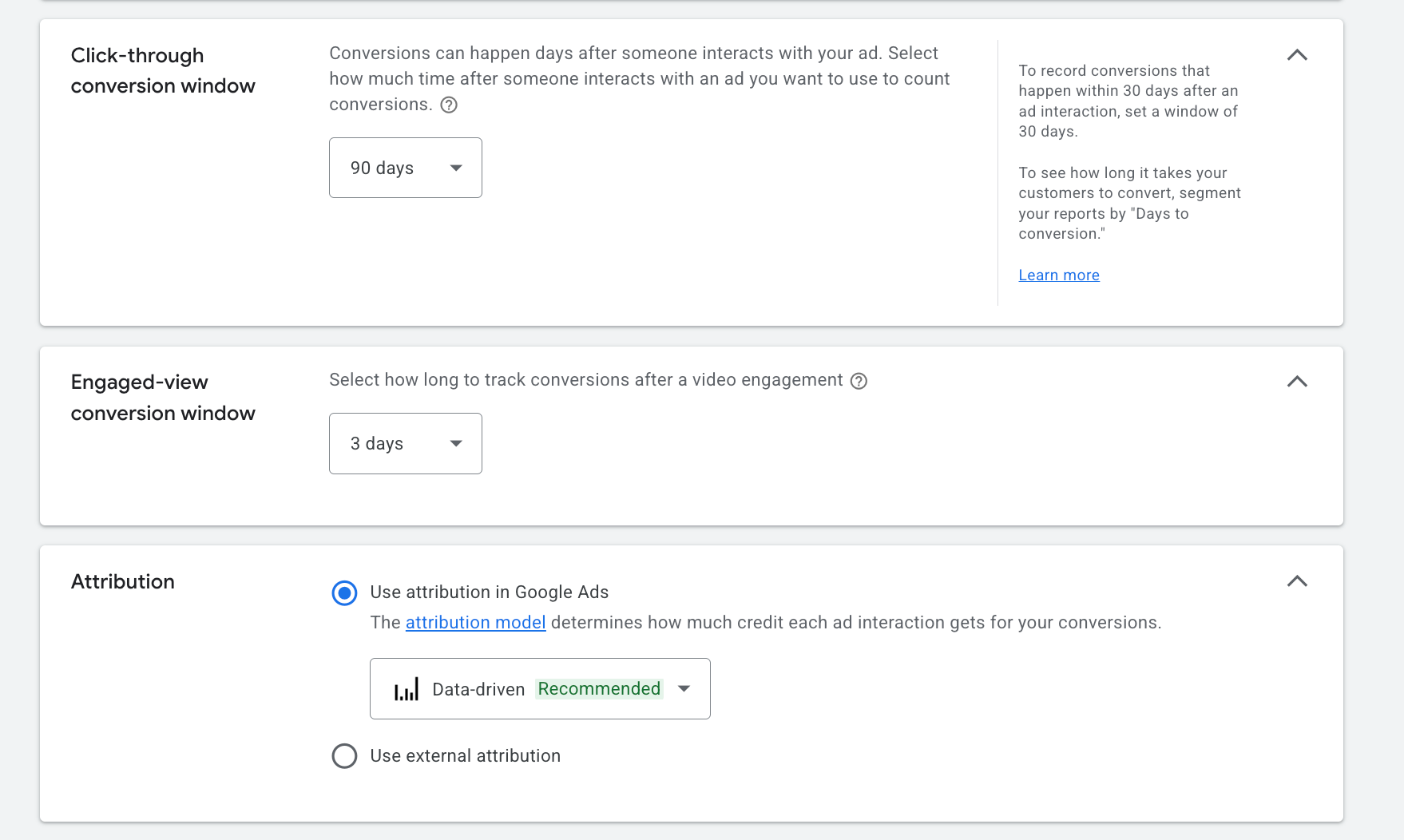
Click on "Done" and the conversion settings are defined and saved.

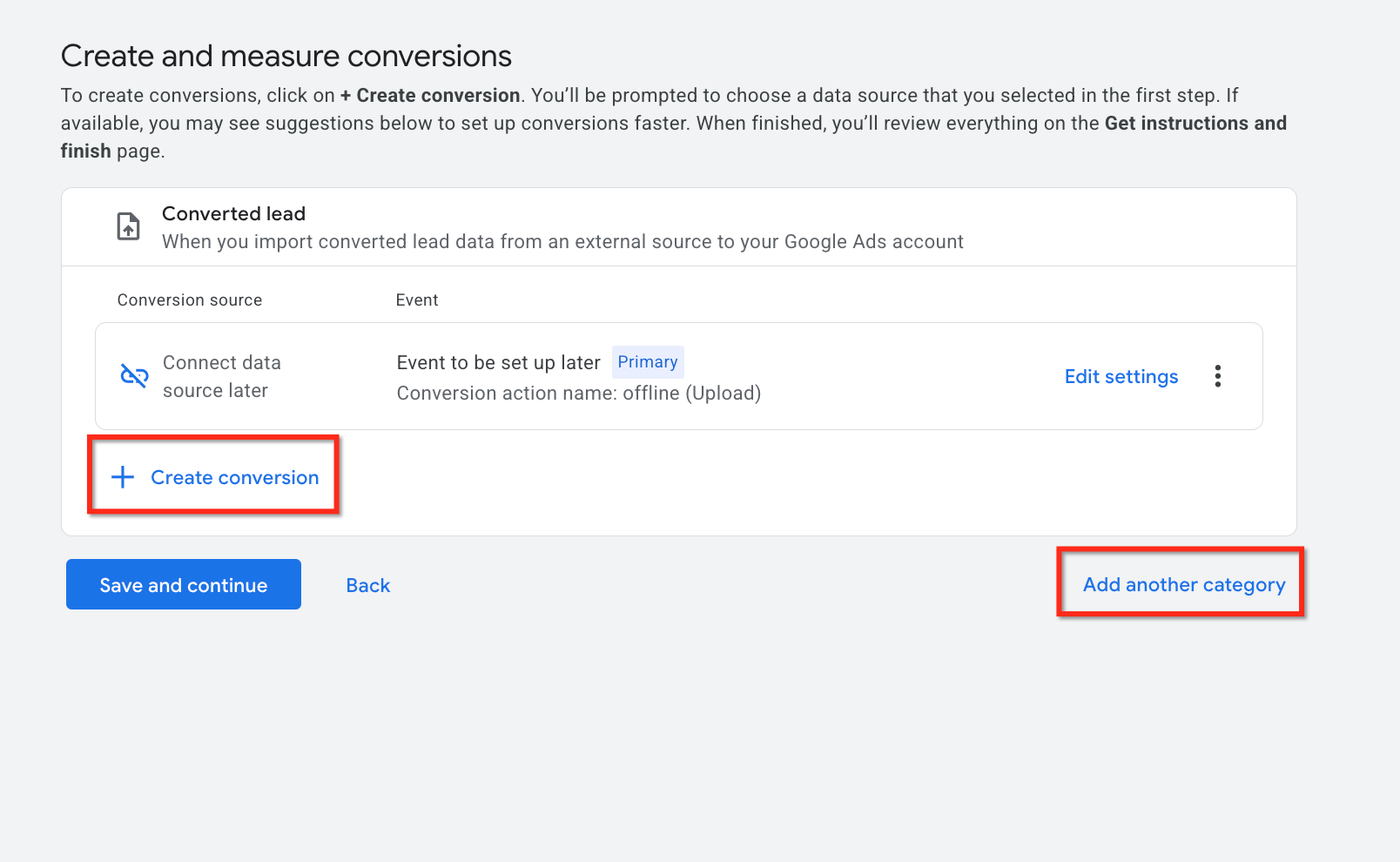
Click on Save and continue to proceed with the changes. Choose "Create Conversion" to create a new conversion. Click on "Add Another Category" to add more conversion categories.
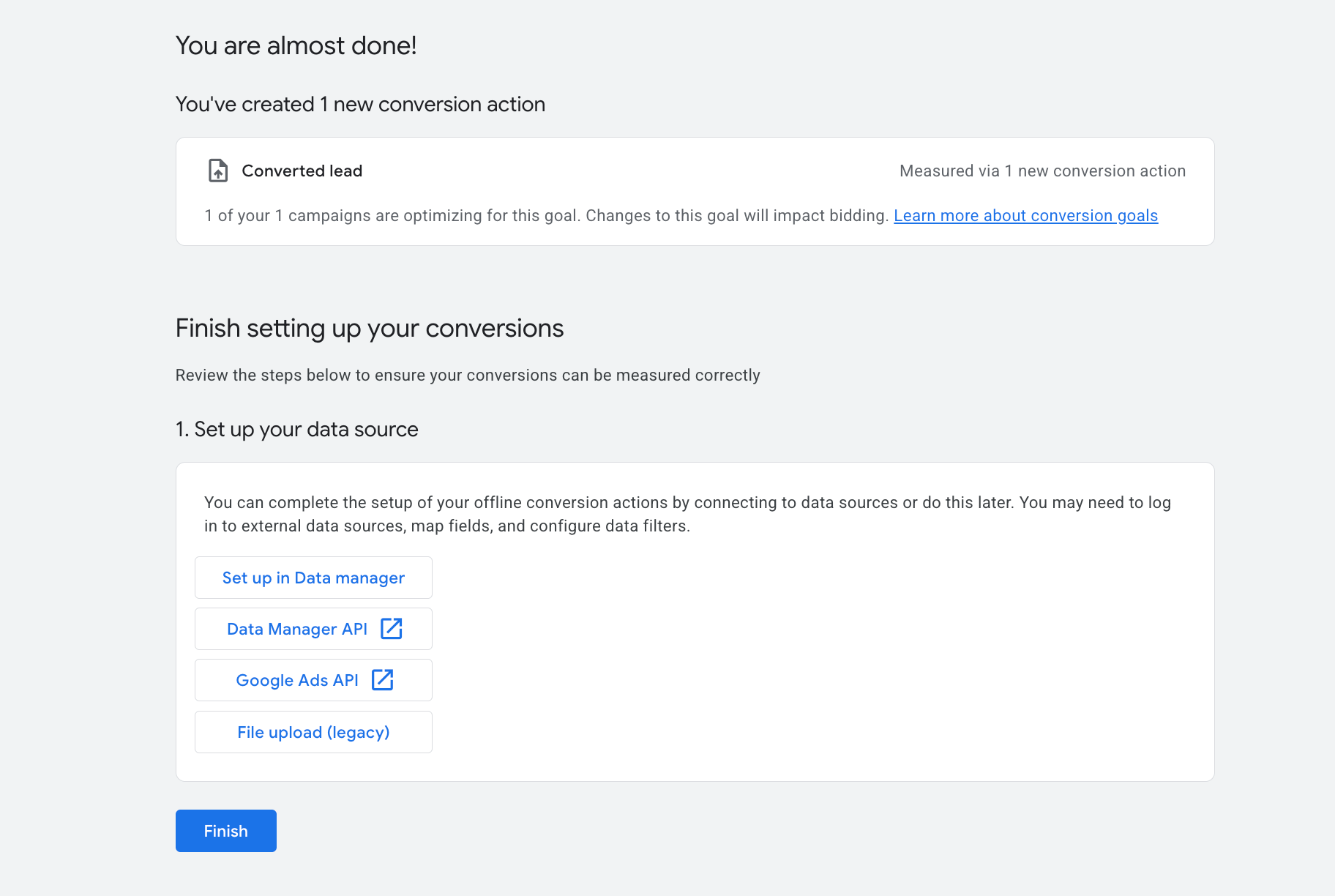
Click on Finish to conclude the conversion creation process.|
Frequently Asked Questions
Q: What should I set for Count—Every or One?
Use One for lead generation to avoid inflating conversions when a contact repeats the same event. Use Every for revenue events like purchases.
Q: How long until I see conversions in Google Ads?
Processing can take from a few hours up to 24–48 hours depending on volume and method. Reporting latency is normal; use absolute dates when checking reports.
Q: Do I need GCLID, GBRAID, or WBRAID to upload offline conversions?
Yes—at least one identifier is needed for reliable matching. Capture and store whichever is available on first touch, then include it when sending the conversion from HighLevel.
Q: Where do I verify that conversions are being recorded?
In Google Ads: Tools & Settings > Conversions and in campaign reports using Conversion columns. In HighLevel, use Ad Manager reporting for visibility once HL-side sending is configured (see Related Articles).
Q: Should I use HighLevel Ad Manager or Workflows to send conversions?
Use Ad Manager if you prefer a centralized ads workspace and built-in mapping. Use Workflows if you need granular automation or custom logic. Both can send to the same Google conversion action.
Q: Why don’t my uploads match or show results?
Common issues include missing identifiers, incorrect timezones, currency/value mismatches, or sending to the wrong conversion action. Confirm the conversion ID/name, identifier presence, and event timestamps.
Related Articles
Was this article helpful?
That’s Great!
Thank you for your feedback
Sorry! We couldn't be helpful
Thank you for your feedback
Feedback sent
We appreciate your effort and will try to fix the article