HighLevel's Ad Manager allows you to create, manage, and edit Google Ads offline conversion actions — directly from within the platform. This helps you define which offline events, such as qualified leads and sales, you want Google Ads to measure. To record those events, you must also send conversion data to Google Ads. This article explains how to create and manage offline conversion actions in Ad Manager.
Note: Before creating conversion actions in Ad Manager, connect your Google account and the appropriate Google Ads account to HighLevel. For setup instructions, see How to Connect Google Ads to Ad Manager.TABLE OF CONTENTS
- What is Creating & Managing Google Ads Offline Conversions in HighLevel Ad Manager?
- Key Benefits of Managing Google Ads Offline Conversions in HighLevel Ad Manager
- How to Create and Manage Google Ads Offline Conversions in HighLevel Ad Manager
- How to Edit or Delete a Conversion
- Frequently Asked Questions
- Related Articles
What is Creating & Managing Google Ads Offline Conversions in HighLevel Ad Manager?
Creating and managing Google Ads offline conversions in HighLevel Ad Manager lets you set up and maintain offline conversion actions directly in HighLevel—without switching to Google Ads. Offline conversions are actions such as qualified leads, booked appointments, or closed deals that occur outside your website or app and help you measure the full customer journey.
With this feature, you can create, edit, and view offline conversion actions in one place. Once conversion events are sent to Google Ads, they can support reporting and optimization alongside your HighLevel workflows.
Note: This flow creates offline conversion actions (the events Google Ads should measure), not the conversion events themselves. Actions created here are synced to your connected Google Ads account. To send actual conversion events, set up the Add to Google Ads workflow action or another supported import method. Existing Google Ads conversion actions can also appear in this view.
Key Benefits of Managing Google Ads Offline Conversions in HighLevel Ad Manager
- Seamless Setup: No need to switch to the Google Ads interface—everything is managed within HighLevel.
- Consistent Tracking: Define conversion actions that can be used with HighLevel workflow events.
- Time-Saving: Quickly create and manage conversions in just a few clicks.
- Advanced Reporting: Supports optimization and attribution when offline conversion events are successfully sent to Google Ads.
- Centralized Management: View synced conversion actions and manage supported actions in one place.
- Automatic Sync: Conversion actions created in HighLevel are synced to your connected Google Ads account.
How to Create and Manage Google Ads Offline Conversions in HighLevel Ad Manager
Use the steps below to create an offline conversion action in HighLevel. After creating it, configure how the actual conversion events will be sent to Google Ads.
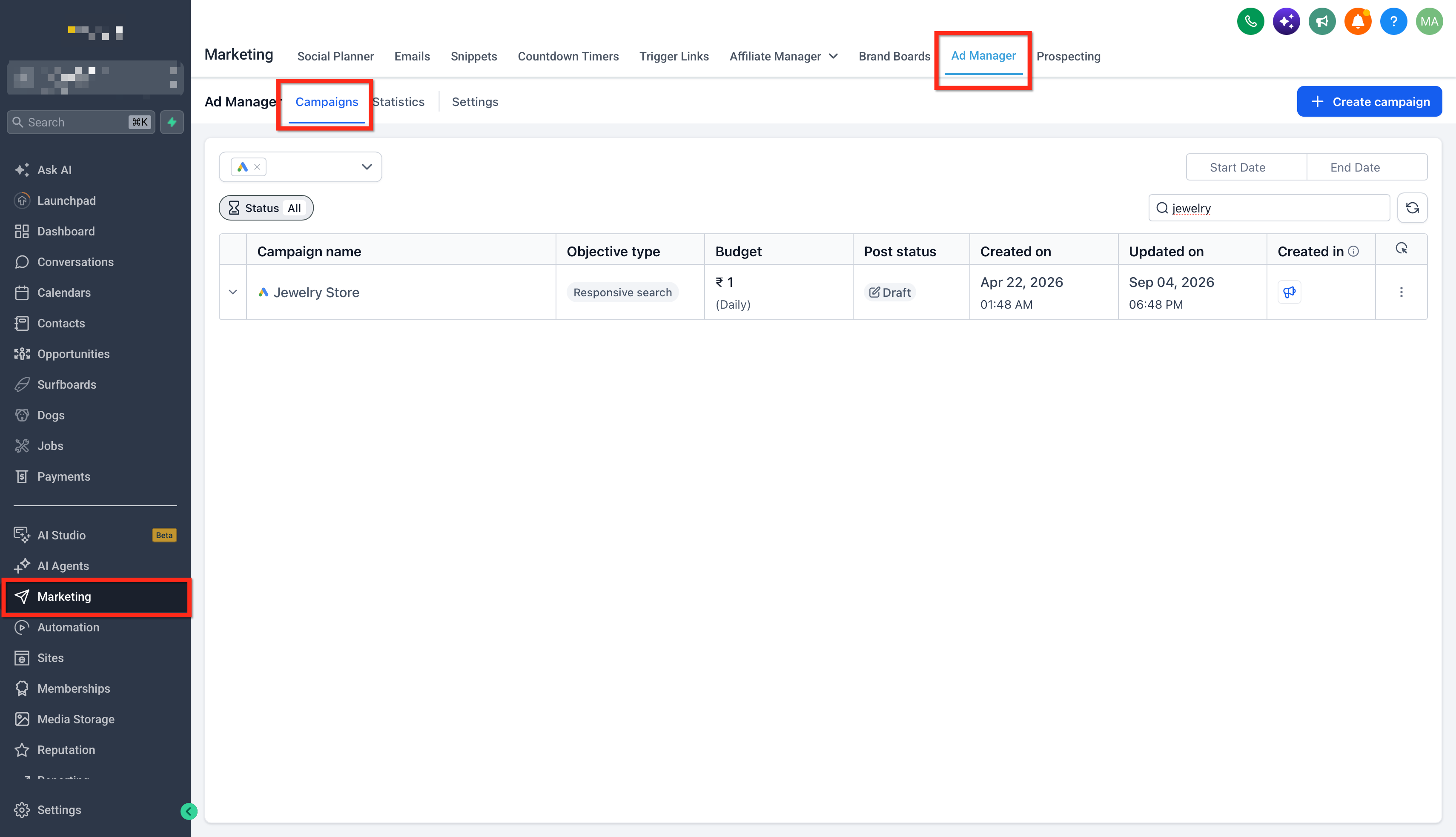
Step 1: Access Ad Manager
- Navigate to the Marketing section from the main left-hand menu.
- Click on Ad Manager in the top navigation bar. This will take you to the campaign dashboard where your ad tools are located.
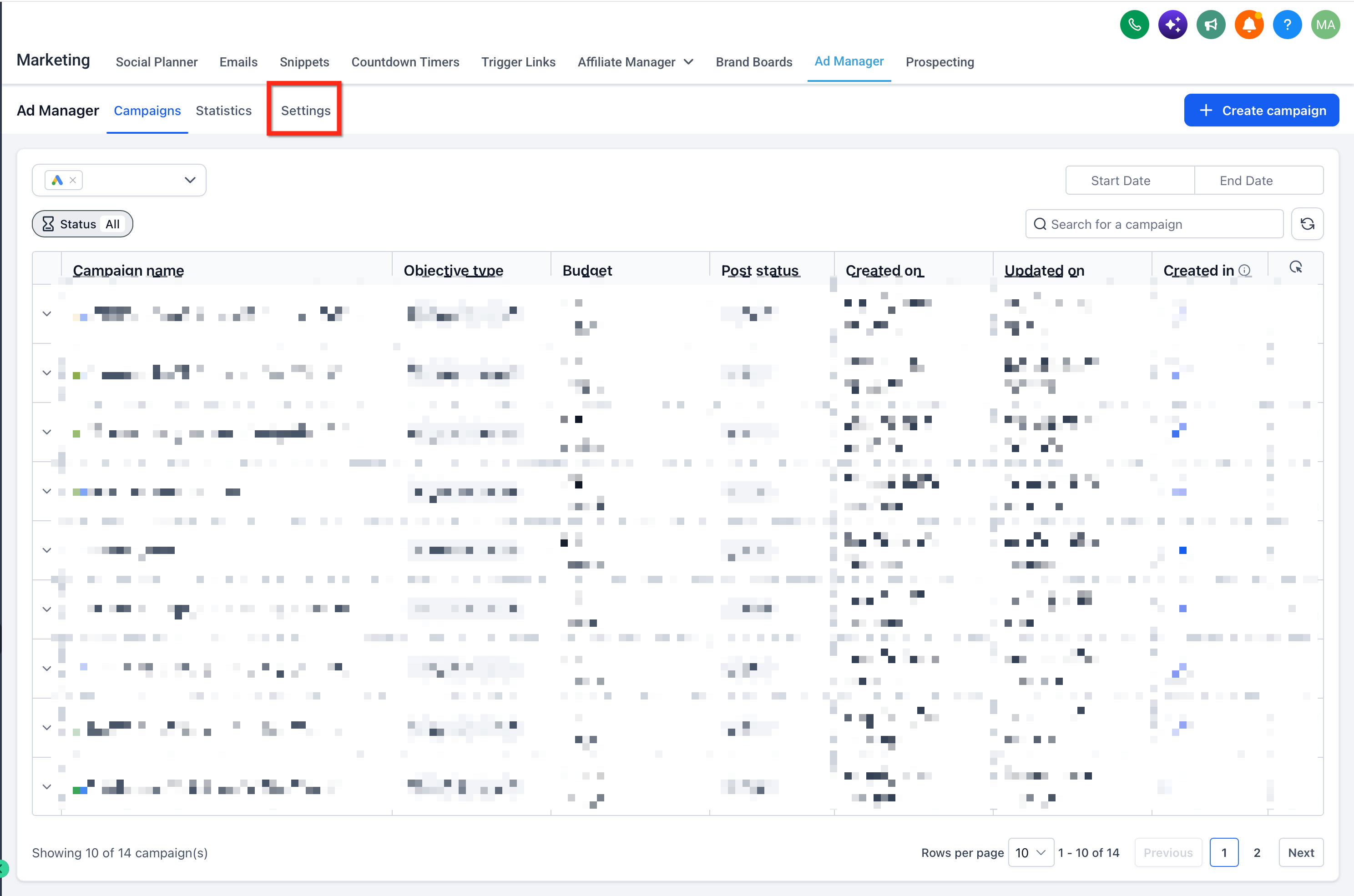
Step 2: Open Ad Manager Settings
- In the Ad Manager dashboard, click the Settings gear icon next to the Create Campaign button.
- This opens the Ad Manager settings where you can configure conversion tracking and platform preferences.
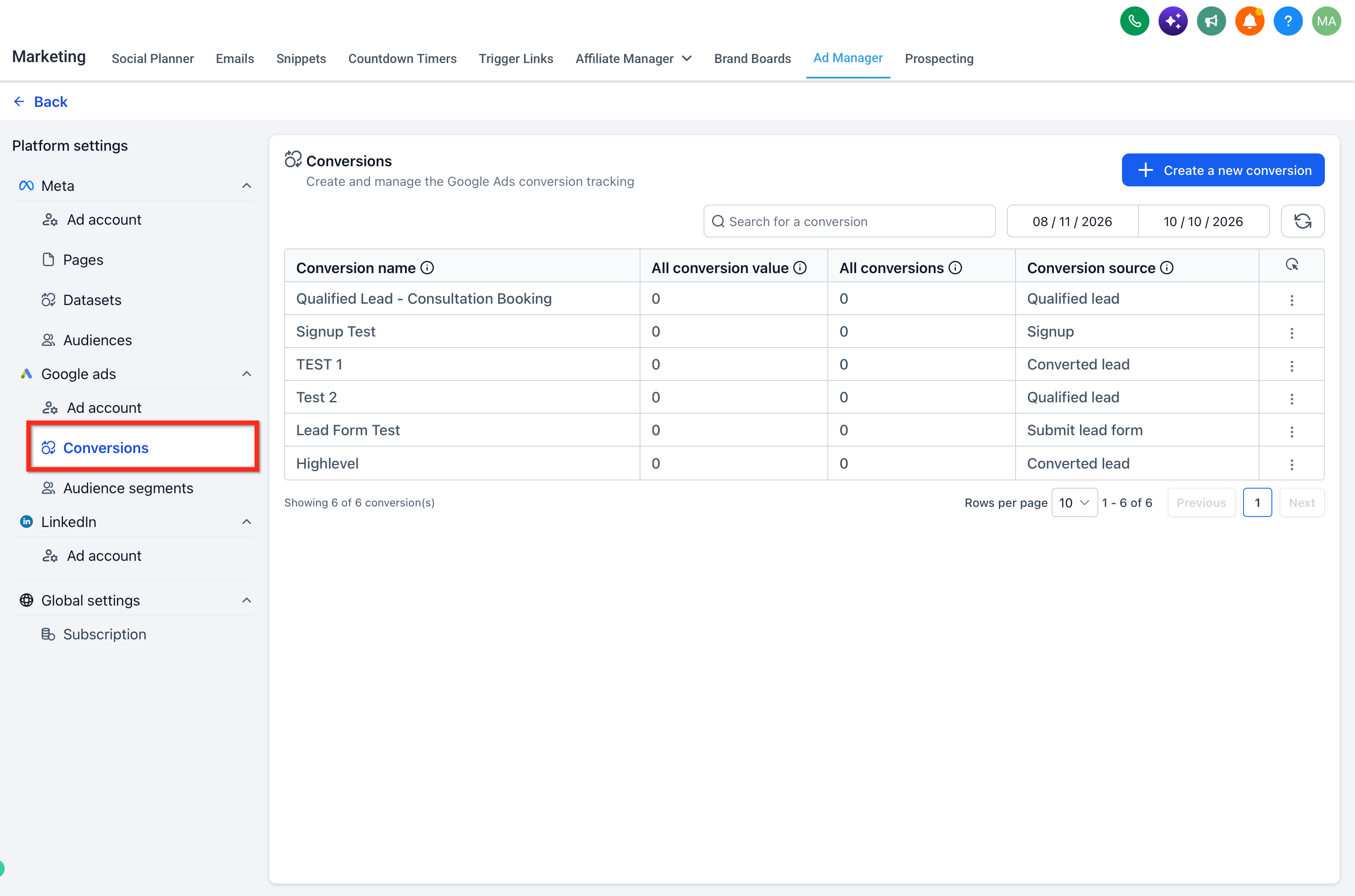
Step 3: Select Google Ads Conversions
- Inside the Ad Manager settings, click on Google Ads under Platform Settings,
- Switch to the Conversions tab. This view lists available conversion actions synced from your connected Google Ads account, including actions you create through Ad Manager.
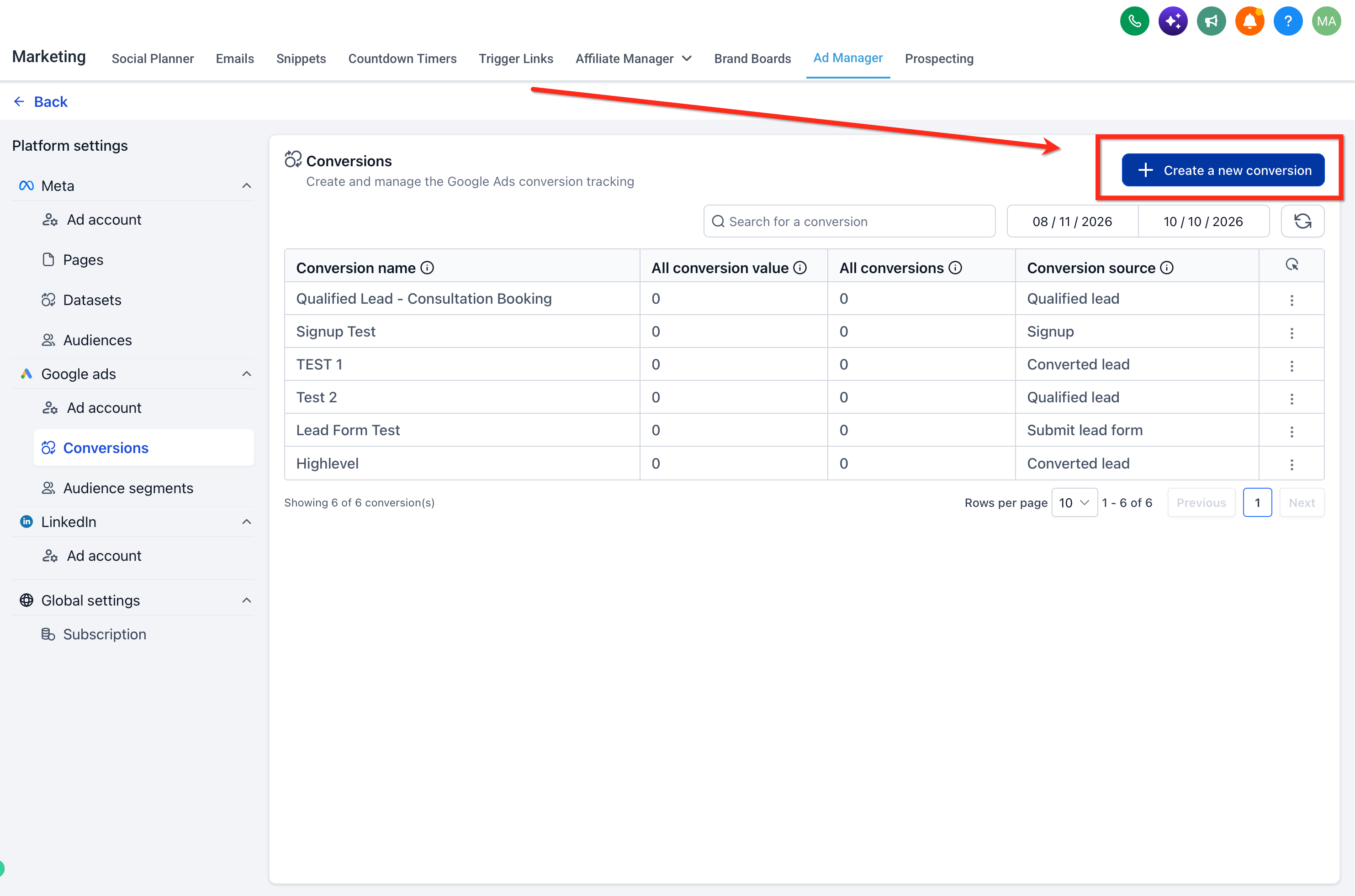
Step 4: Create a New Conversion
- Click the “+ Create a new conversion” button in the top-right corner of the Conversions screen.
Step 5: Enter Conversion Name
- At the top of the form, give your conversion a clear and descriptive name. This helps you easily identify it later in reports and workflows.
Example: Qualified Lead - Consultation Booking

Step 6: Choose Conversion Source
- Select an option from the Conversion Source dropdown shown in the form.
- Options such as Converted lead, Qualified lead, Purchase, and Signup describe the category of conversion being measured. Choose the one that best matches the event you want to track.

Step 7: Set Conversion Count
- Choose how conversions are counted per ad click.
- Use Many per click when multiple conversions from the same ad click should count, such as repeat purchases. Use One per click to count only one conversion per ad click for that action, such as a qualified lead.

Step 8: Set Conversion Value
- Use same value for each conversion: This option lets you apply a fixed monetary value to every conversion. You’ll need to enter a Value (e.g., 50) and select a Currency Code (e.g., USD). It’s ideal when all conversions have roughly the same worth — such as when each lead, booking, or sale contributes consistent revenue.

- Use different value for each conversion: Choose this when each conversion might have a different revenue value — for example, sales of varying amounts. You’ll still need to enter a default Value and Currency Code, which will be used if no custom value is provided. To use varying values, send the actual value with each conversion event through a supported workflow or integration.

- Do not use value for this conversion action: This option tracks conversions purely by count, without assigning any monetary value. It disables the value and currency fields, making setup simple. Use this when your goal is to measure user actions like signups or downloads, rather than calculate revenue or return on ad spend (ROAS).

Step 9: Conversion Window
- Conversions can happen some time after an ad click. Choose how long you want to track conversions after someone clicks your ad. You can select a timeframe from the dropdown — such as 30, 60, or 90 days, or set a custom duration.

Step 10: Save the Conversion Action
- Once all fields are filled out, click the Create button to save your new offline conversion action. The conversion action is created in your connected Google Ads account. Reporting will include conversion events only after valid conversion data is sent and processed.
- HighLevel creates the conversion action in Google Ads through the API, so you do not need to create the same action manually in the Google Ads interface.

Next step: Creating a conversion action does not automatically record conversions. To send conversion events from HighLevel, configure the Add to Google Ads workflow action with the appropriate trigger and conversion action. Ensure the required Google ad click identifiers are captured for attribution.How to Edit or Delete a Conversion
Note: In this Ad Manager flow, the attribution model is Data-driven and is not editable here. This does not mean that every Google Ads conversion action uses the same attribution model.
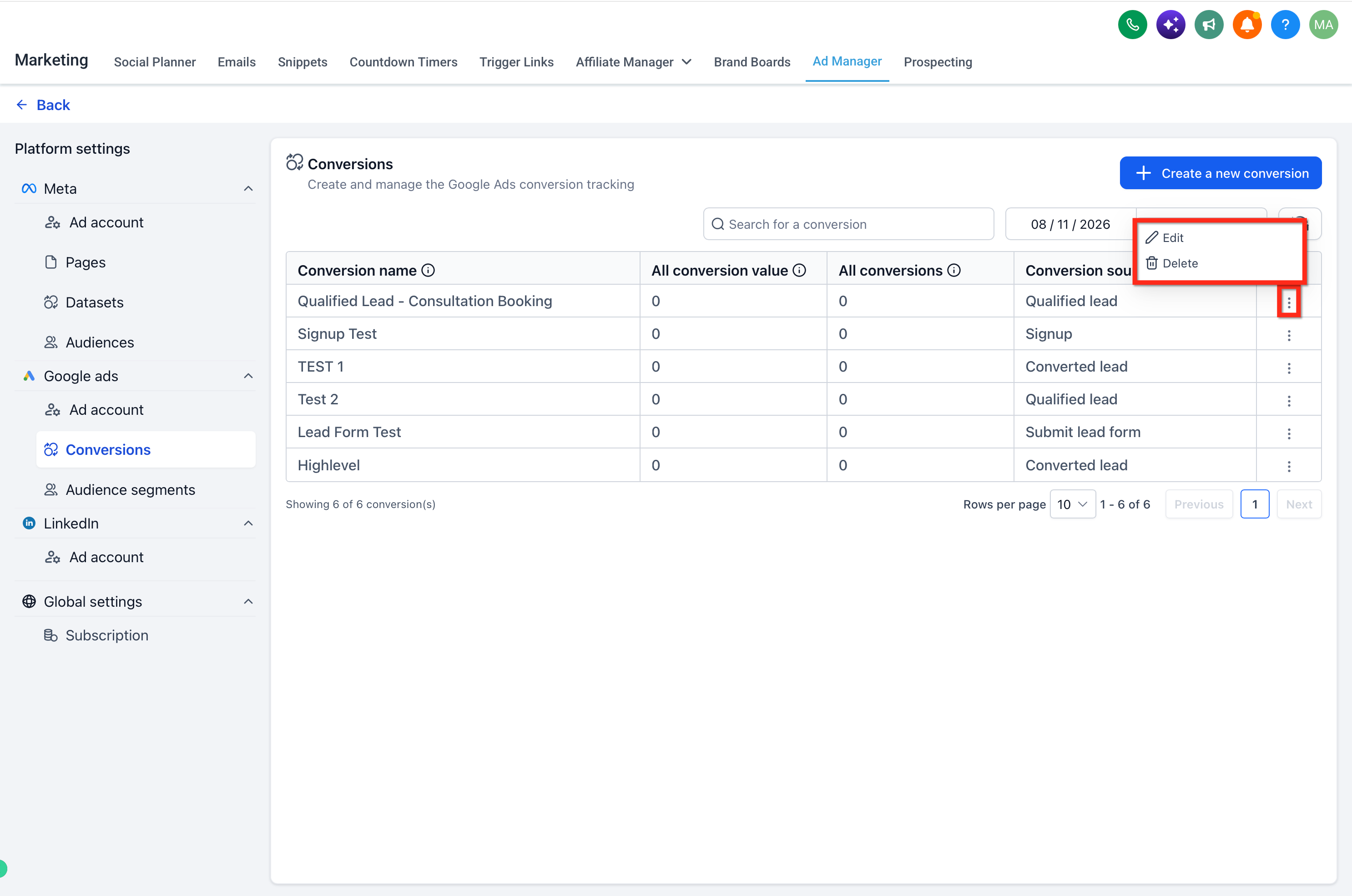
You can edit or delete conversion actions created through HighLevel when these options are available. Existing actions created directly in Google Ads may also appear in the list, but their available management options can differ:
- Click the 3-dot menu next to the conversion.
- Choose Edit or Delete.
Frequently Asked Questions
Q. Can I set up website conversion actions with this feature?
No. This Ad Manager flow is for offline conversion actions only. Website conversion tracking must be configured separately through the appropriate Google Ads tracking setup.
Q. Will conversions created in HighLevel appear in Google Ads?
Yes. The conversion action is created in your connected Google Ads account through the API. It will appear in reporting when matching conversion events are successfully sent and processed.
Q. Does creating a conversion action automatically send conversion events?
No. Creating the action defines what Google Ads should measure. You must configure the Add to Google Ads workflow action or another supported import method to send actual conversion events.
Q. Can I edit or delete existing Google Ads conversions from HighLevel?
You can view available Google Ads conversion actions in HighLevel. For actions created through HighLevel, use the three-dot menu to edit or delete them. For actions created directly in Google Ads, check which management options are available; not every action may support the same controls.
Q. What types of offline conversions can I track?
You can create actions for offline events such as qualified leads, booked appointments, and purchases recorded in your CRM. These events must also be sent to Google Ads through a supported method to be counted.
Q. Will changes made in Google Ads reflect in HighLevel?
Supported conversion actions from the connected Google Ads account appear in this view when synchronized. If an update made in Google Ads is not yet visible in HighLevel, check the connected account and allow time for the information to refresh.
Related Articles
Was this article helpful?
That’s Great!
Thank you for your feedback
Sorry! We couldn't be helpful
Thank you for your feedback
Feedback sent
We appreciate your effort and will try to fix the article