Kickstart your content strategy with Blogs in HighLevel. This guide walks you through creating your blog, writing posts, adding authors and categories, placing the Blog Post List on a page, and setting essential SEO so your articles can be discovered.
TABLE OF CONTENTS
- What is Blogs in HighLevel?
- Key Benefits of Blogs in HighLevel
- How to Create a Blog in HighLevel
- How to Update a Published or Draft Blog Post Details
- Frequently Asked Questions
- Related Articles
What is Blogs in HighLevel?
HighLevel Blogs is a built‑in publishing system for writing and organizing articles on your website or funnels. It lets you manage authors, categories, SEO, and design so you can publish consistently and route traffic to the right pages.
Key Benefits of Blogs in HighLevel
Centralized publishing: Manage all posts, authors, categories, and SEO in one place.
Flexible placement: Show posts on any website page or funnel step using the Blog Post List element.
Built‑in SEO fields: Set slugs, meta data, and canonical URLs to improve discoverability.
Design options: Choose Standard or Compact layouts for your list and post views.
Scalable workflows: Draft, schedule, publish, or import in bulk as your library grows.
How to Create a Blog in HighLevel
If you're new to blogging or want to start your own blog but don't know where to begin, follow the steps to get started:
Step 1: Create your Blog Site(container)
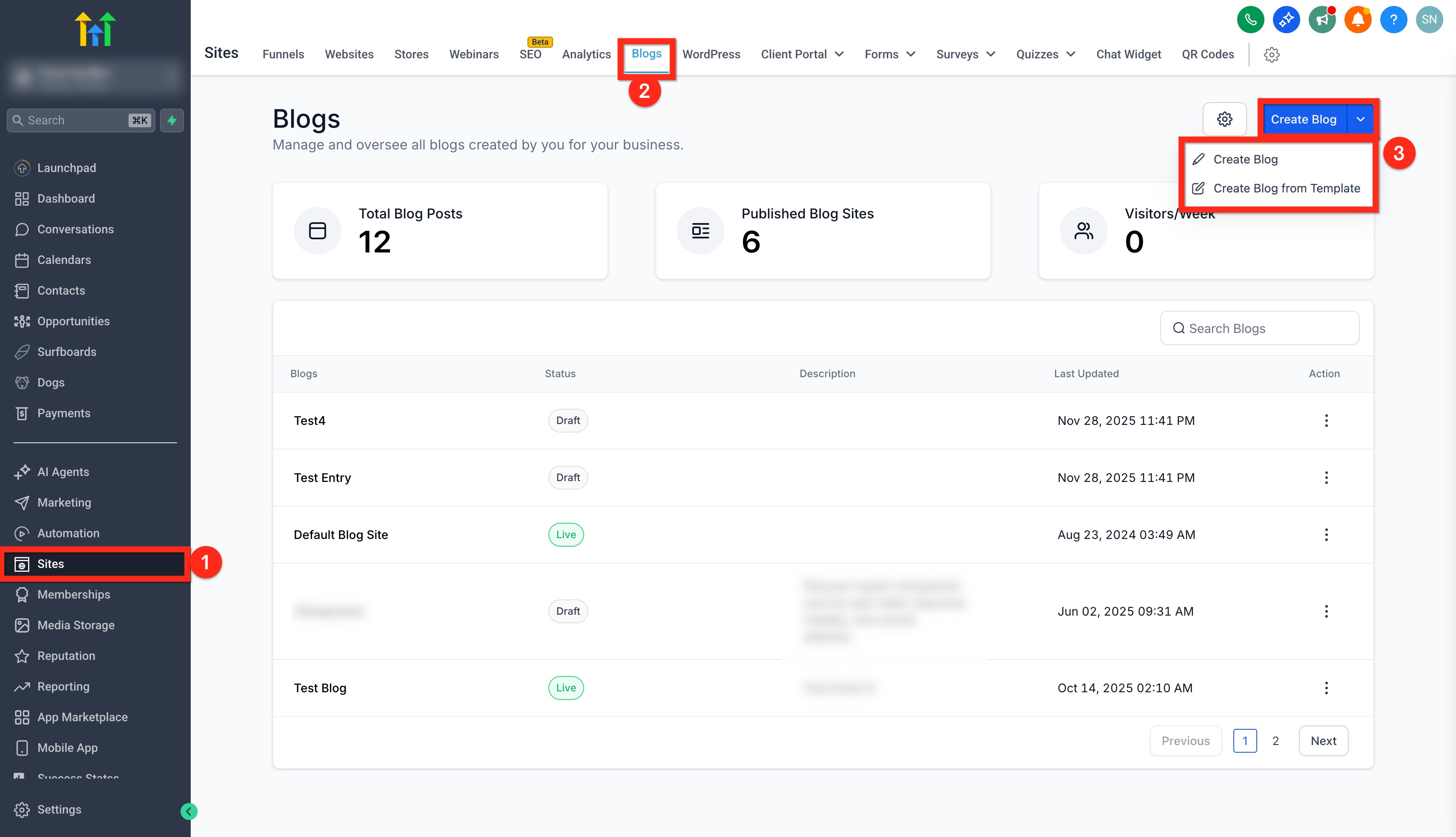
Go to Sites.
Click on Blogs
Click on Create Blog. Create from scratch or choose from template.
Step 2: Add Blog Site Details
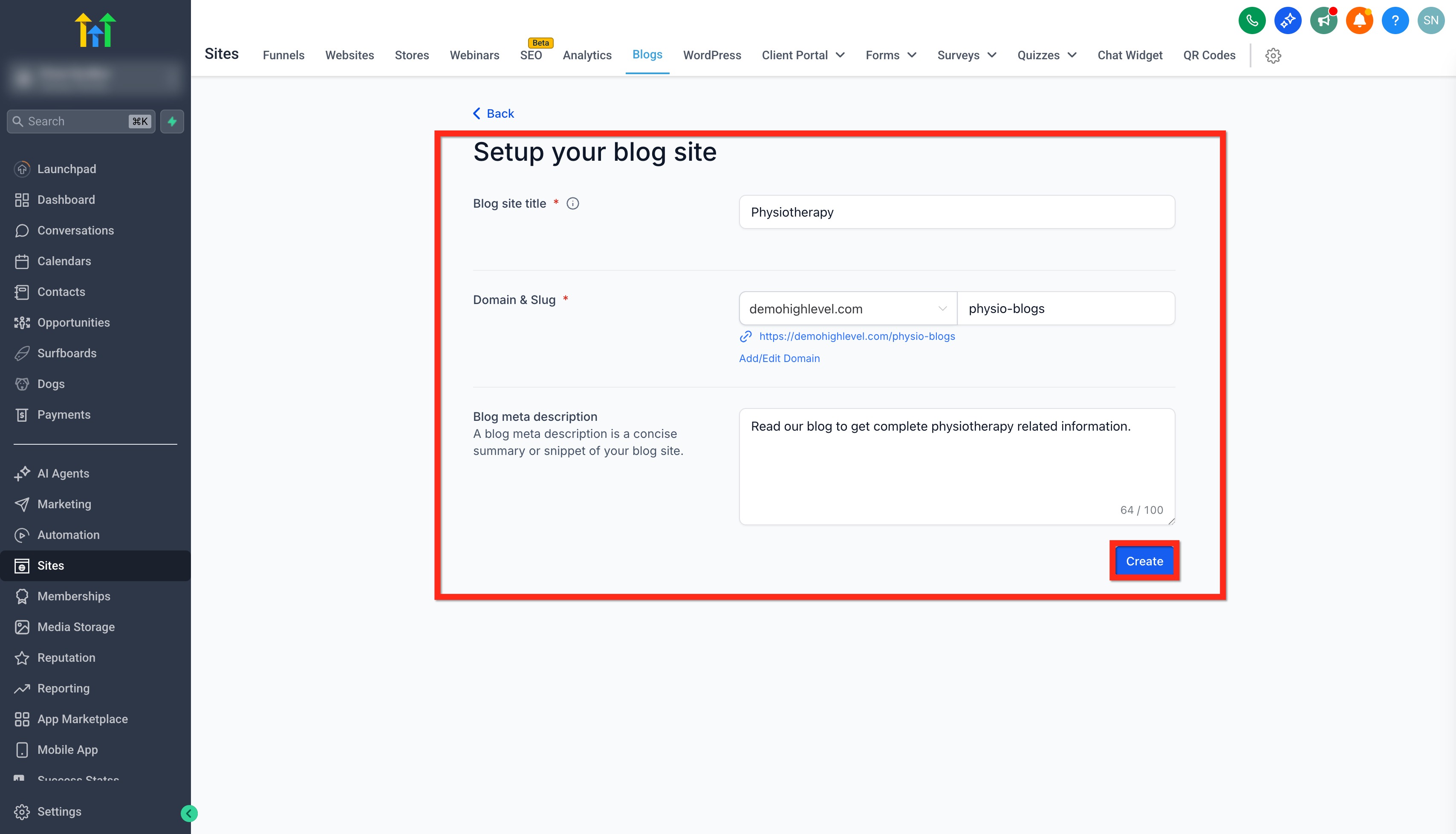
- Add Blog SiteTitle. (This is what appears in a browser tab title barand search results)
- Select or Add/Edit Domain. (Optional you can connect a domain later in Blog Settings.)
- Domain management: You can connect a domain at creation time or later from Blog Settings. If you need to switch domains, use Remove Domain in Blog Settings and then connect the new domain.
- Add Slug.
- Add a Blog Meta Description. (Optional but recommended)
Step 3: Create Blog Post
Go to Sites → Blogs.
Click on the Blog Site you created from the list or any other existing blog site you want to add the blog post to.

Click on New Post.
Click + New Post to create a blog post from scratch. You can also Import Blog Posts from URL or Import Blog Posts from CSV.
To create a blog post from scratch or edit one, check out our article on Creating Blog Posts.

Step 4: Add Blog Post Details
- Once you are done adding and formatting content of the blog post in the editor, click on Continue.

- Add blog post URL Slug.

- Select or Create Category and Author.

- Edit Canonical Link or keep as it is.
- Add Keywords.

Step 5: Add SEO Details
- Add SEO Title.
- Add Post Description.
- Add Cover Image and it's Alt Text.

Step 6: Publish Blog Post
- You can keep the post in Draft to make further edits at a later time.
- You can Publish the post immediately or Schedule it for a future time.
Note: To add a blog to a Funnel or Website, checkout our detailed guide.

How to Update a Published or Draft Blog Post Details
- Go to the Blog Post and click on the three dots beside the post and click on Update Post.
- Make edits to the blog post content in the editor.
- To make changes to blog post details like author, category, slug, SEO etc, click in the Update Settings button.
- Make necessary updates and click on Publish.

Frequently Asked Questions
Q: How does the domain work with the blog?
The Domain will be added to the Funnel or Website where the blog list element is added.
Blog URL formats:
| Domain | Slug of Blog Post | Final URL |
| abc.com | b/sample-now | abc.com/b/sample-now |
| abc.com/xyz | b/sample-now | abc.com/xyz/b/sample-now |
| blog.abc.com | b/sample-now | blog.abc.com/b/sample-now |
Q: Can I have separate blog pages for each category?
That is not currently supported. In the upcoming updates, we will allow users to create a funnel/website page based on a Category filter with the slug and SEO details.
Q: Is it optional to add an Author, Category, or Keywords?
URL Slug, Category, Author, Title and Post Description are mandatory.
Q: Can I use custom values in a blog post?
No, Custom Values are not supported in blog posts at the moment. You cannot use values like {{contact. name}} or {{custom_values.xyz}}
Q: How to add Forms, Surveys, or Custom Code to my blog post?
Forms or Surveys cannot be added to blog posts at the moment. The option to add custom code will be out soon.
Q: What is the recommended image size for a blog post?
We don't have a recommended size. However, the page width inside the blog post editor is 736 px.
Related Articles
Was this article helpful?
That’s Great!
Thank you for your feedback
Sorry! We couldn't be helpful
Thank you for your feedback
Feedback sent
We appreciate your effort and will try to fix the article