If you are on the Pro Plan and have a sub-account in SaaS mode, you can enable any of the 3 SaaS plans for them. Once added to a SaaS plan from the system, their Subscription is handled at the Stripe level. You can toggle on a setting that lets them Upgrade (only) their Subscription on their end. If you need to upgrade/downgrade their account on your side, you must do this from Stripe.
TABLE OF CONTENTS
- What is Upgrading/Downgrading a SaaS Plan for a Location?
- Key Benefits of Upgrade / Downgrade SaaS Plan
- How to Allow All Clients/Locations to Changes Plans Themselves
- How to Allow Specific Clients/Locations to Changes Plans Themselves
- How Clients/Locations Can Upgrade the Subscription
- How to change the SaaS plan from your end:
- Frequently Asked Questions
- Related Articles
What is Upgrading/Downgrading a SaaS Plan for a Location?
Upgrading or downgrading a SaaS plan lets an agency or client move a HighLevel location (sub-account) to a different subscription tier. This impacts billing, feature access, and available usage limits. Understanding who can change plans, when charges apply, and why certain plans appear (or don’t) helps avoid surprises for both you and your clients.
SaaS V2 billing Interval Limitation: SaaS V2 subscriptions can only be upgraded or downgraded within the same billing interval.Supported SaaS V2 Plan Changes:
Monthly → Monthly
Yearly → Yearly
SaaS V2 does not currently support billing interval changes on existing subscriptions. Monthly → Yearly and Yearly → Monthly options are hidden in the upgrade flow to prevent incorrect billing. This limitation applies only to SaaS V2 subscriptions. SaaS V1 subscriptions are unaffected because Stripe manages interval changes natively.
Key Benefits of Upgrade / Downgrade SaaS Plan
- Revenue growth: Enabling self-serve upgrades inside Company Billing helps clients access more features the moment they need them.
- Billing accuracy: Proration rules ensure clients are fairly charged or credited when moving between plans.
- Feature control: Plan-based permissions add or remove features as soon as the change takes effect.
- Churn reduction: Downgrade reasons and optional save/discount offers help retain customers at risk of cancellation.
- Operational clarity: Clear category/level settings and Stripe product alignment prevent missing or incorrect plan options.
How to Allow All Clients/Locations to Changes Plans Themselves
Agencies can now allow their SaaS clients to upgrade their SaaS subscriptions from the company billing page. This setting is controlled on the Agency SaaS Configurator.
Note: This will apply this setting to all SAAS accounts that will be created using your SAAS configurator moving forward.- Login to your Agency account.
- Click on SaaS Configurator.
- Click on the AdvancedSettings tab.

- Enable the option to Allow sub-account admins to upgrade their subscription.
- If you want to give access to the new feature and apps to the client upon upgrading right away, enable the option to Add New Plans Features and Apps Upon Upgrading.

How to Allow Specific Clients/Locations to Changes Plans Themselves
This setting can also be personalized at a per-client level by Going to:
- Login to your agency account.
- Click on Sub-accounts.
- For the sub-account you want to enable self-serve plan upgrade, click on the ThreeDots > ManageClient.

- Enable the option to Allow sub-account admins to upgrade their subscription.
- If you want to give access to the new feature and apps to the client upon upgrading right away, enable the option to Add New Plans Features and Apps Upon Upgrading.

How Clients/Locations Can Upgrade the Subscription
- Login to your sub-account
- Settings > Company Billing.
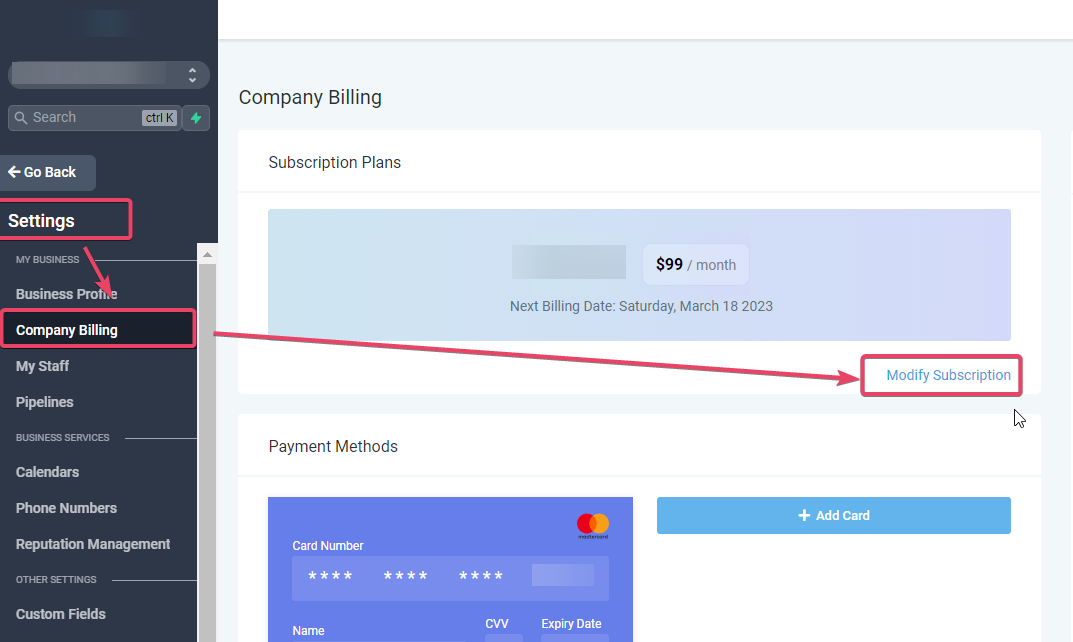
- Click on Upgrade.
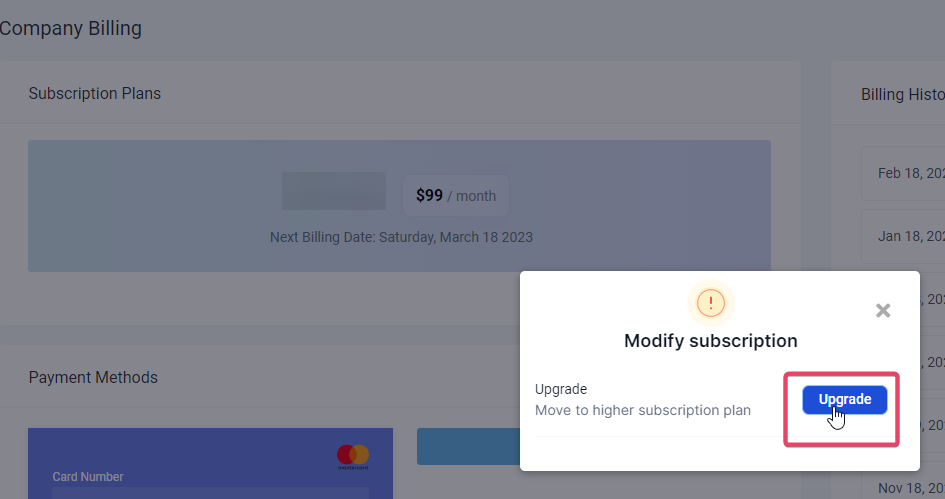
- Choose the desired plan.
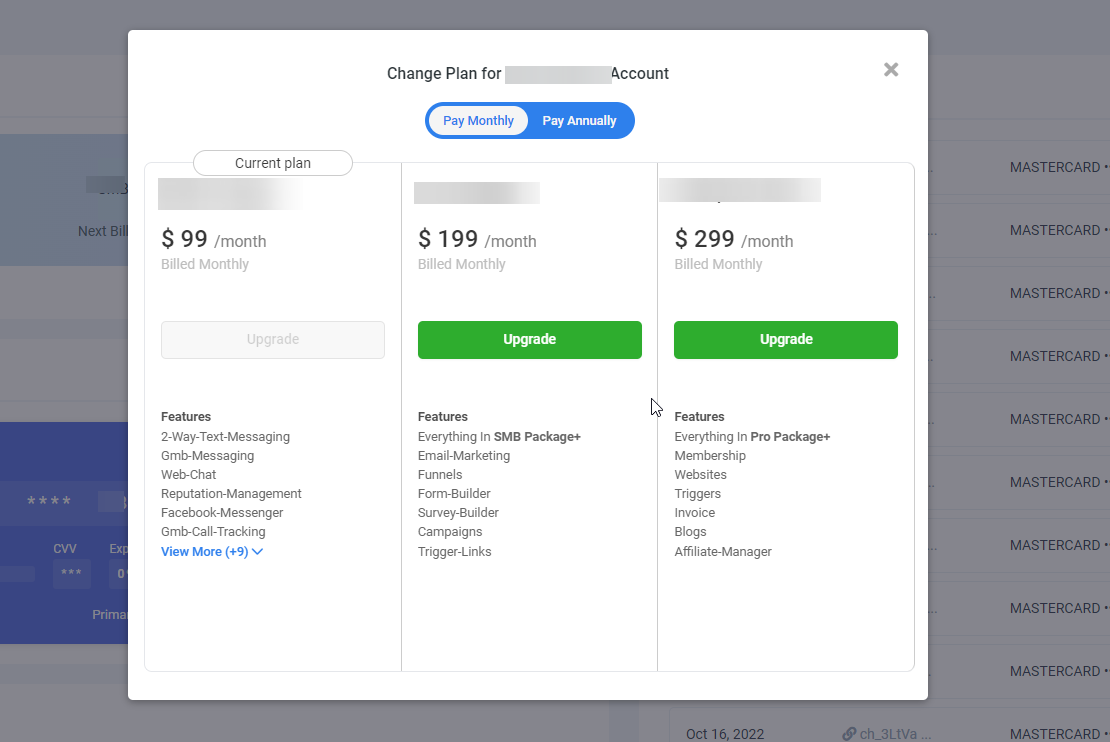
- Upon choosing their desired plan, they will see a confirmation message which will also allow them to choose between the Monthly and the annual variant of your created plan:

- Clicking on Confirm & Pay will charge them and you can then unlock the features associated with that plan in their account.

How to change the SaaS plan from your end:
In this example, we have 3 SaaS plans, Standard, Professional, and Premium. Each higher plan has more features offered.

We have a location on the Standard plan with basic features only.

To upgrade this location to the Professional plan, we will need to go into our Stripe account and open the customer associated with this location.
Finding the Stripe Customer
You can search the customer in Stripe using your client's email. However, the preferred method is to search for the invoice ID for this location and get the customer ID from there.
1. Go into Subaccount Settings > Company Billing and click "View" for any invoice shown in the Billing History.

2. Copy the invoice number.

3. Search for the invoice number on Stripe and click on the invoice to open the details.

4. Click on the customer email shown in the 'Billed to' column on the invoice; it will take you to the customer's profile in Stripe.

Changing the subscription plan
Now that we are in the customer profile on Stripe, we have updated the client's subscription plan.
1. Click on the pencil icon to update the subscription plan.

2. Remove the current price and add the new plan's price.

3. Review your changes, prorate changes if you want to adjust the billing difference in the next invoice, and then hit the update button.

4. On your agency account, go to the Accounts tab > View details for the location. The plan is now upgraded, but you still need to update their accessible features according to the new plan:

5. Save the updated feature set for this location, and then you're good to go!

Frequently Asked Questions
Q: Can clients upgrade immediately and get features right away?
Yes, if you enable the option to Add New Plans Features and Apps Upon Upgrading.
Q: Why doesn’t the destination plan appear for my client?
Check Category/Level alignment, currency match, self-serve permissions, and whether the Stripe price has been imported into HighLevel.
Q: Can I block clients from downgrading on their own?
Yes. Disable self-downgrades and handle plan changes through agency support instead.
Q: What if we changed prices in Stripe and the new price isn’t showing?
Import the updated price into HighLevel and ensure the correct currency and price ID are selected for the plan.
Q: What happens if a payment fails after changing plans?
The account may auto-pause. Update the payment method, retry the charge, and resume the account.
Related Articles
Was this article helpful?
That’s Great!
Thank you for your feedback
Sorry! We couldn't be helpful
Thank you for your feedback
Feedback sent
We appreciate your effort and will try to fix the article