Your Agency Relationship Number is a unique 7-digit identifier assigned to your HighLevel agency account. It typically appears in this format:
X-XXX-XXX
HighLevel Support, Services, Customer Success, or Product teams may ask for your Relationship Number to identify the correct agency account.
Important: Every agency has a different Relationship Number. Only Agency Admins and Agency Owners have permission to view it.Method 1: Find the Relationship Number in Company Settings
You can find your agency's Relationship Number from your Company settings:
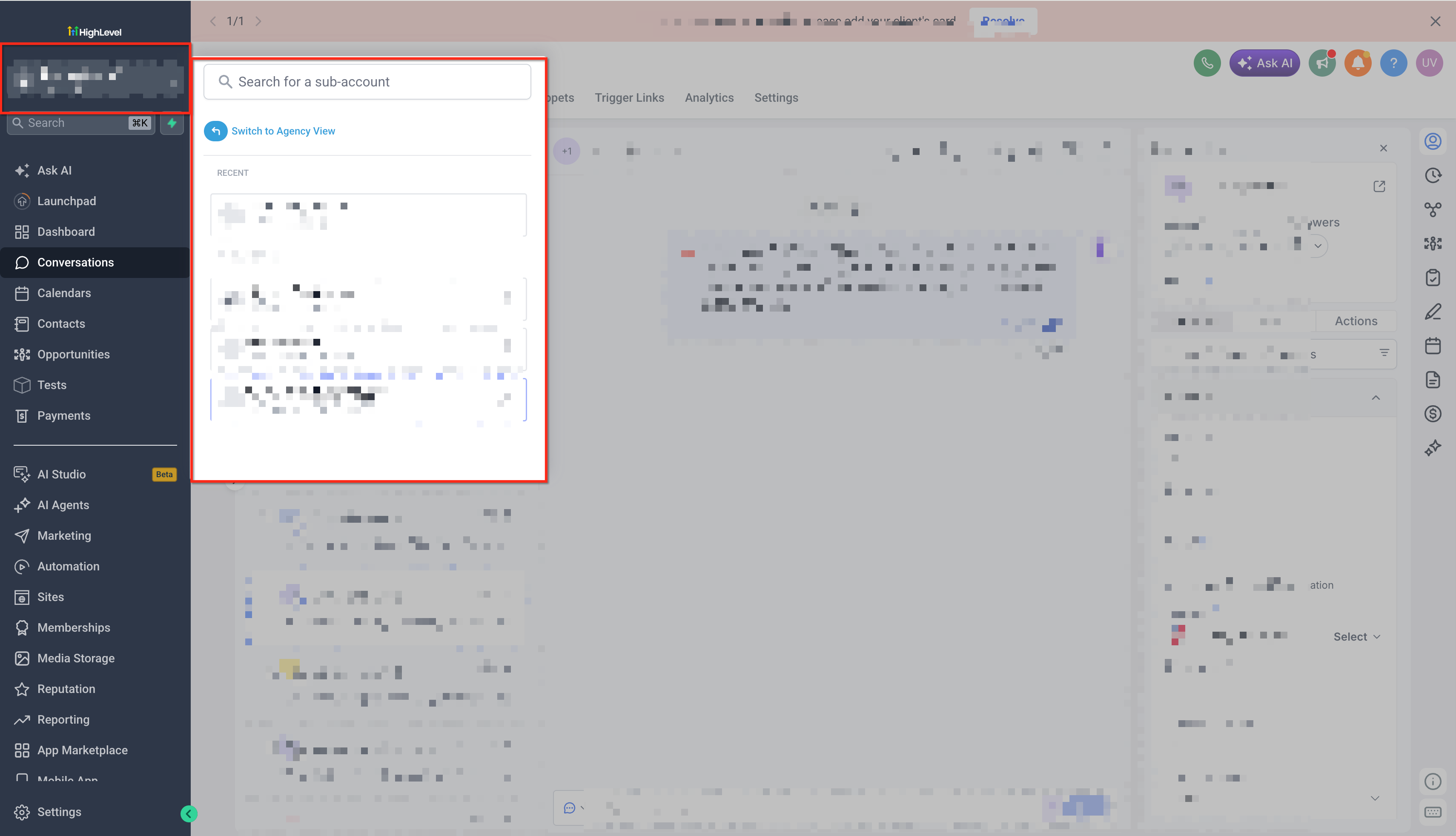
Click the Sub-Account Switcher in the upper-left corner of the navigation menu.
Select Switch to Agency View.
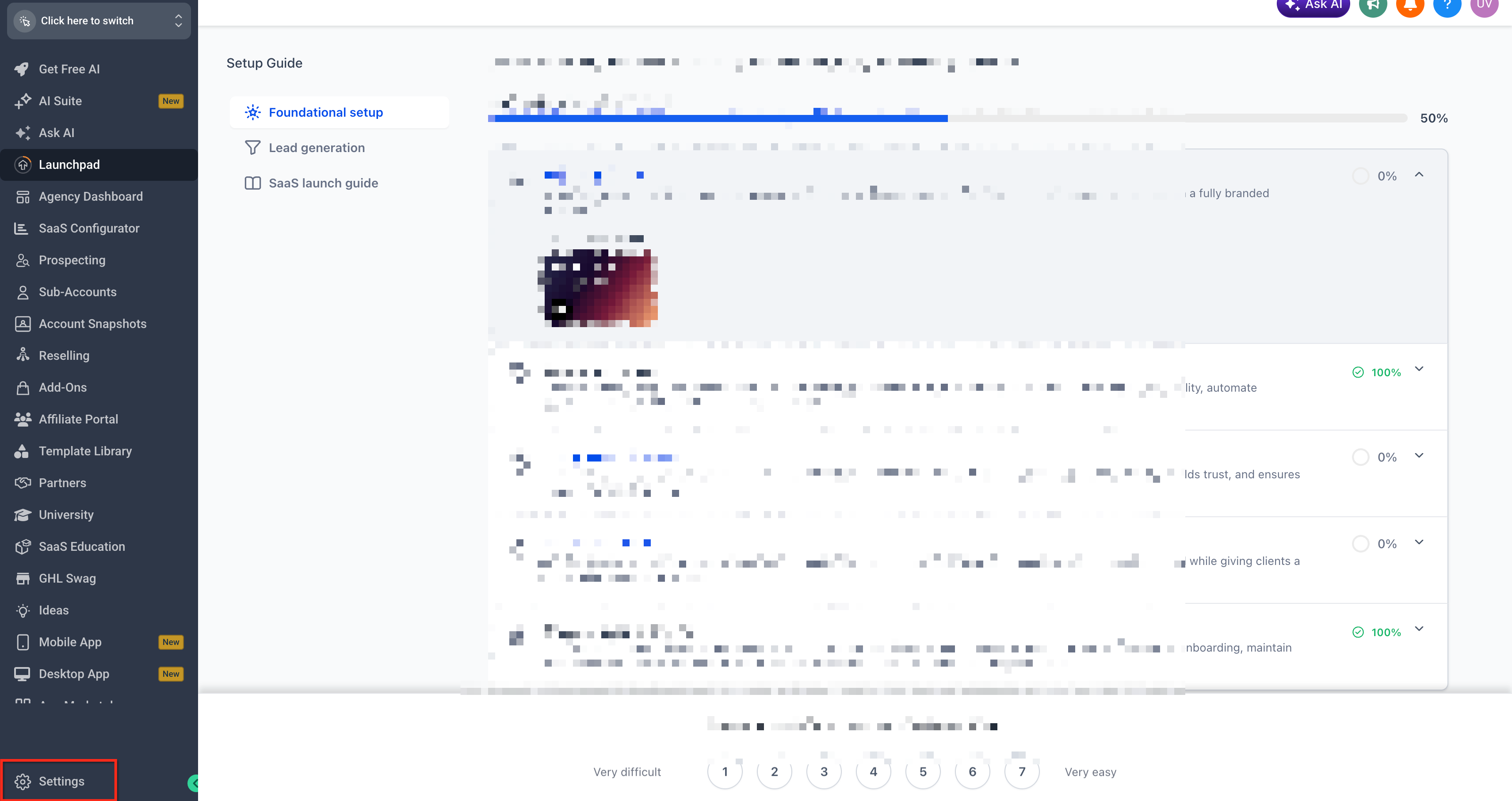
Click Settings at the bottom-left of the navigation menu.
Select Company.
Locate the Relationship Number under Company Data.
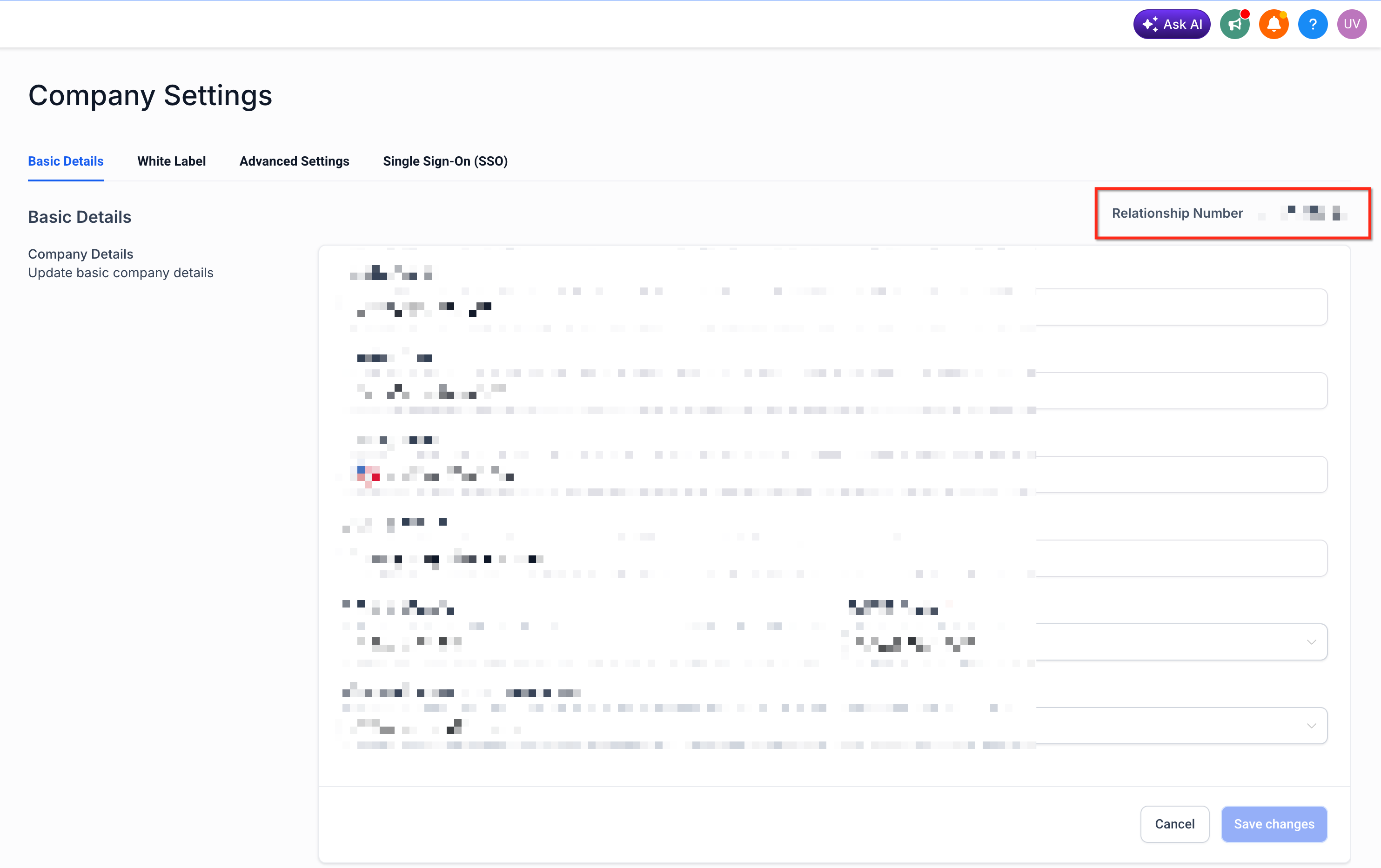
Click the copy icon next to the Relationship Number to copy it.
Tip: If you have access to multiple agencies, confirm that you're in the correct Agency View before copying the Relationship Number.Method 2: Find the Relationship Number From the Help Menu
Agency Admins can also quickly access the Relationship Number from the Help menu:
Make sure you're logged in with the appropriate agency-level access.
Click the blue question mark (?) in the upper-right corner of HighLevel.
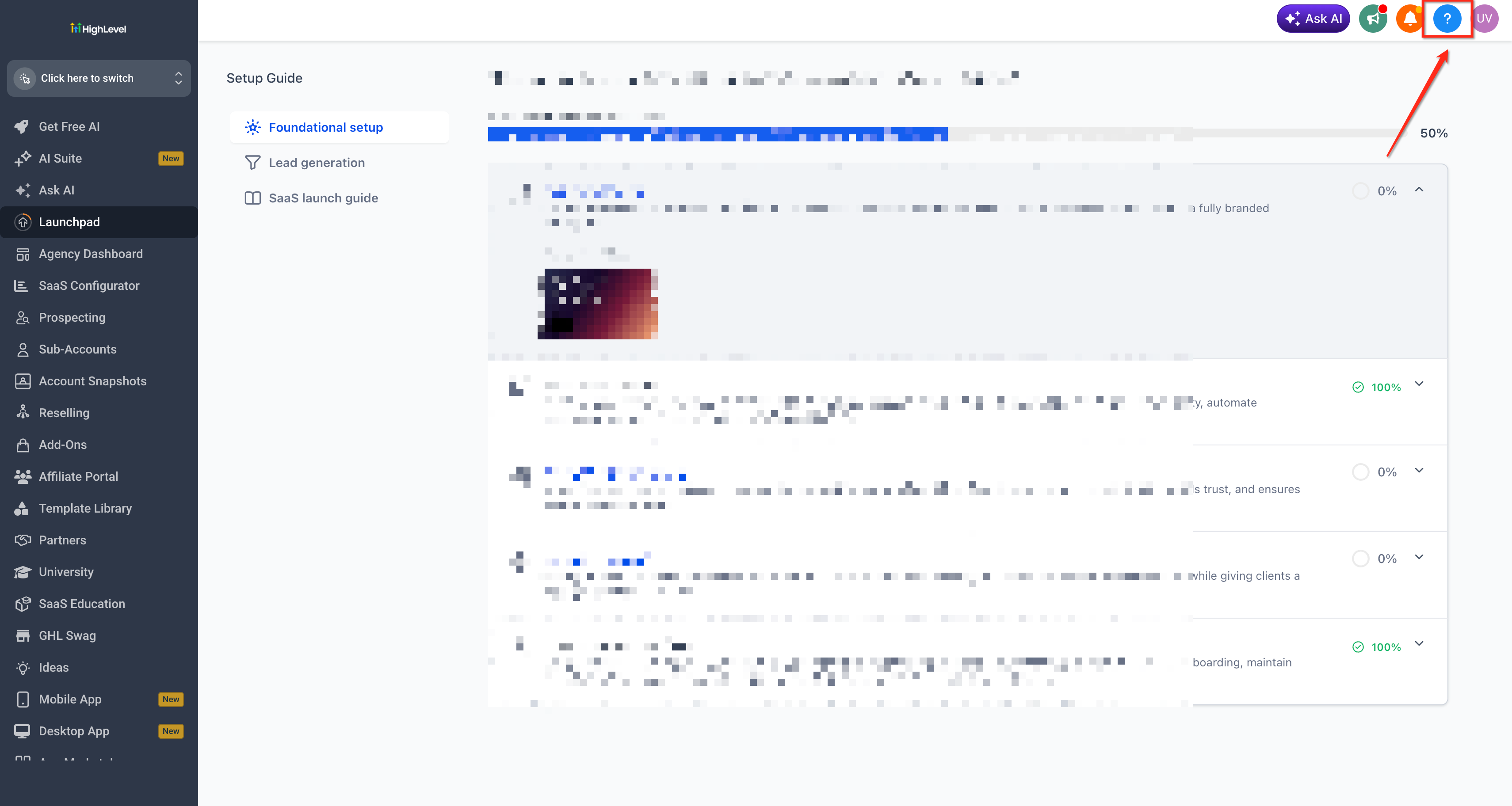
Locate your agency information and Relationship Number.
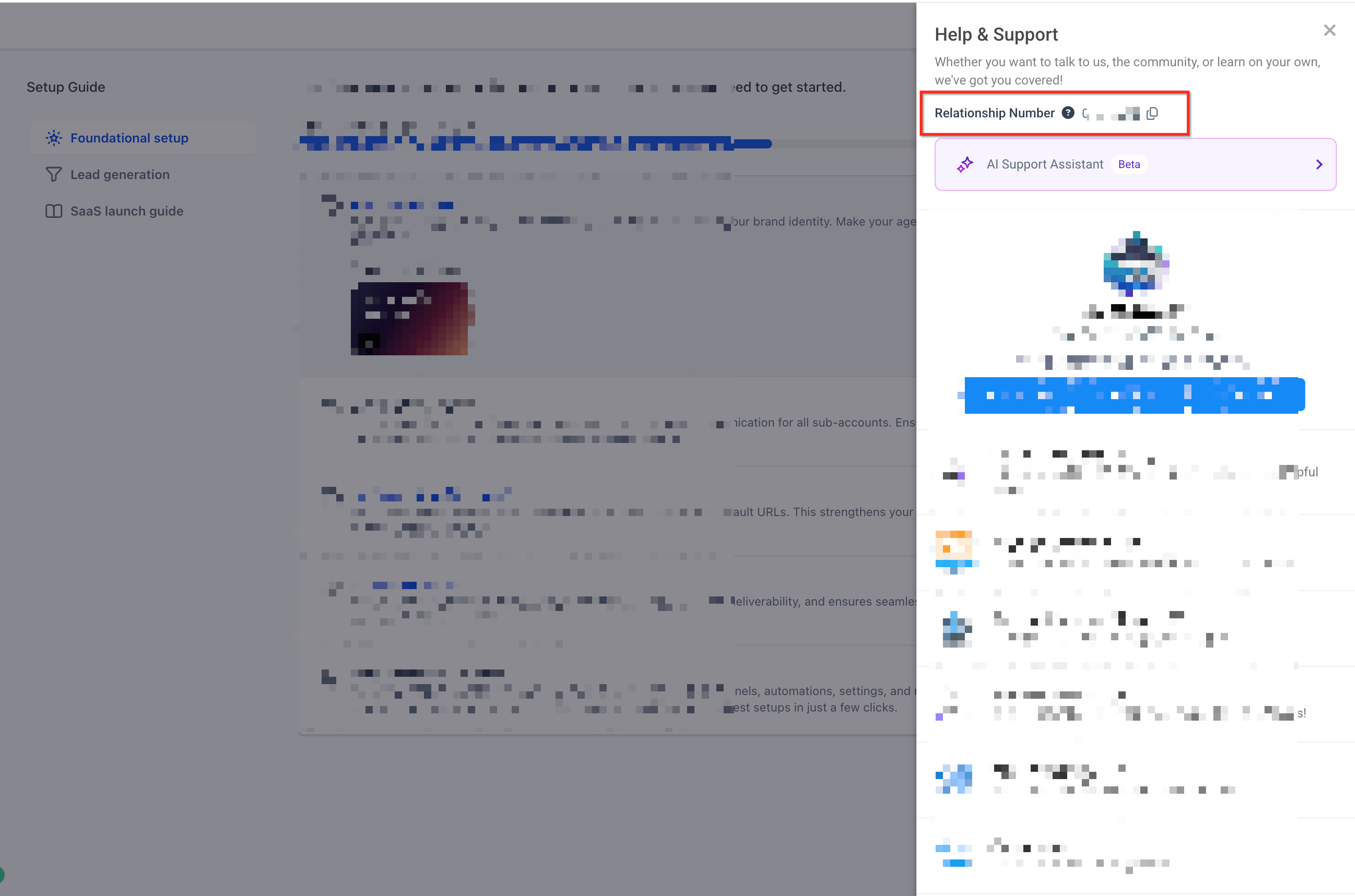
Copy the Relationship Number as needed.
Can't Find Your Relationship Number?
If the Relationship Number isn't visible, check the following:
Confirm Your User Permissions
Only Agency Admins and Agency Owners can view the Relationship Number. If you don't have one of these roles, contact an Agency Admin or Agency Owner and ask them to retrieve the Relationship Number for you.
Make Sure You're in Agency View
The Relationship Number identifies the agency, not an individual sub-account. If you're currently inside a sub-account:
Open the Sub-Account Switcher.
Select Switch to Agency View.
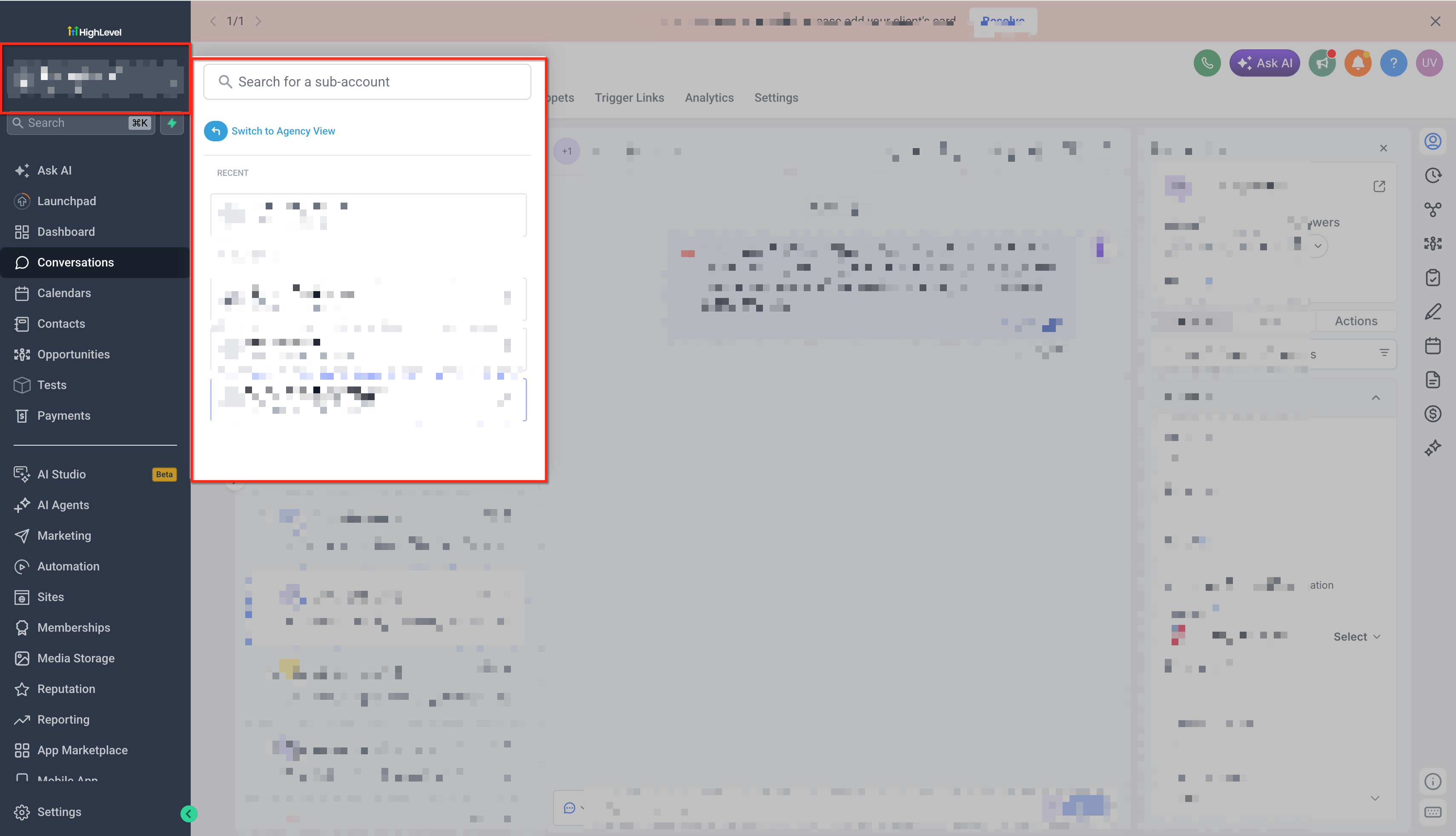
Go to Settings → Company.
Look for the Relationship Number under Company Data.
Verify the Correct Agency
If you have access to more than one agency, make sure you're viewing the correct agency before copying the Relationship Number. Because each agency has its own unique Relationship Number, copying the number from the wrong Agency View could identify a different agency account.
Relationship Number vs. Location ID
A Relationship Number and a Location ID identify different levels of your HighLevel account.
| Identifier | What It Identifies | Example |
|---|---|---|
| Relationship Number | Your HighLevel agency account | X-XXX-XXX |
| Location ID | A specific sub-account/location within an agency | Unique alphanumeric ID |
If HighLevel Support or another HighLevel workflow asks you for an identifier, make sure you provide the specific type requested.
Not sure which one you need? If you're being asked to identify your agency, use the Relationship Number. If you're being asked to identify a specific sub-account/location, use its Location ID.Frequently Asked Questions
Q. Who can view the Agency Relationship Number?
A. Only Agency Admins and Agency Owners have permission to view the Relationship Number.
Q. Does every sub-account have a different Relationship Number?
A. No. The Relationship Number identifies the agency account. Individual sub-accounts are identified using their respective Location IDs.
Q. I have access to multiple agencies. Which Relationship Number should I use?
A. Switch to the Agency View for the agency you need to identify and retrieve its Relationship Number from Settings → Company → Company Data.
Q. What should I do if I'm not an Agency Admin or Agency Owner?
A. Contact an Agency Admin or Agency Owner for the appropriate agency and ask them to retrieve the Relationship Number for you.
Q. Where is the most reliable place to find my Relationship Number?
A. Go to Agency View → Settings → Company and locate the Relationship Number under Company Data.
Was this article helpful?
That’s Great!
Thank you for your feedback
Sorry! We couldn't be helpful
Thank you for your feedback
Feedback sent
We appreciate your effort and will try to fix the article