TABLE OF CONTENTS
- Steps to Transfer a Sub-Account to Another Agency (Send)
- Steps to Receive a Sub-Account from Another Agency
- What Information and Assets are Transferred Over?
- What Information and Assets are Not Transferred Over?
- Phone Number Transfers
- Email Services Transfer
- Frequently Asked Questions
- Related Articles
Who Can Request or Complete Sub-Account Transfers?
Transfer permissions protect client data by limiting who can move a sub-account between agencies.
By default, only the Agency Owner can request or complete a sub-account transfer.
The Agency Owner can grant sub-account transfer permission to specific Agency Admins. Agency Admins without this permission cannot submit or approve transfer requests.
The receiving agency must be active and eligible to accept the additional sub-account. Before starting the transfer, confirm that the receiving agency has the required account capacity, compliance add-ons, and active account status.
Note: You must be the Agency Owner or an Agency Admin with sub-account transfer permission to perform this action.Steps to Transfer a Sub-Account to Another Agency (Send)
If you are unable to access the Sub-Account Requestor Form or encounter any issues during the transfer process, please reach out to HighLevel Support for assistance.
- Go to Agency Level > Sub-Accounts. Go to Manage Client for the sub-account that needs to be transferred.

- Select Actions > Transfer Sub-account

- Enter the Relationship Number of the agency that you need to transfer the sub-account to. For more information, read this article: How do I find my Agency's Relationship Number?

- A request will be sent to the receiving agency upon confirming the action. The sub-account will be transferred as soon as the request is approved.

- Tracking:
In order to track your sub-account transfer requests, go to Agency Level > Sub-Accounts. Select the Sub-account Transfers option. Navigate to the Send tab.
Transfer requests can also be canceled by selecting 3-Dot Menu > Cancel Request.

We do support Bulk Location Transfer in-app .To learn how to transfer sub-accounts in bulk, please refer Bulk Sub-account Transfers.Steps to Receive a Sub-Account from Another Agency
- The releasing agency needs to follow the above steps to raise a transfer request.
- Once the request has been raised, you will get an email regarding the same. Click on the Review Request button.

Alternatively, go to Agency Level > Sub-Accounts and select the Sub-account Transfers option.
- On the Transfer Requests page, Approve the request. Sub-account will be transferred to your agency as soon as the request is approved.

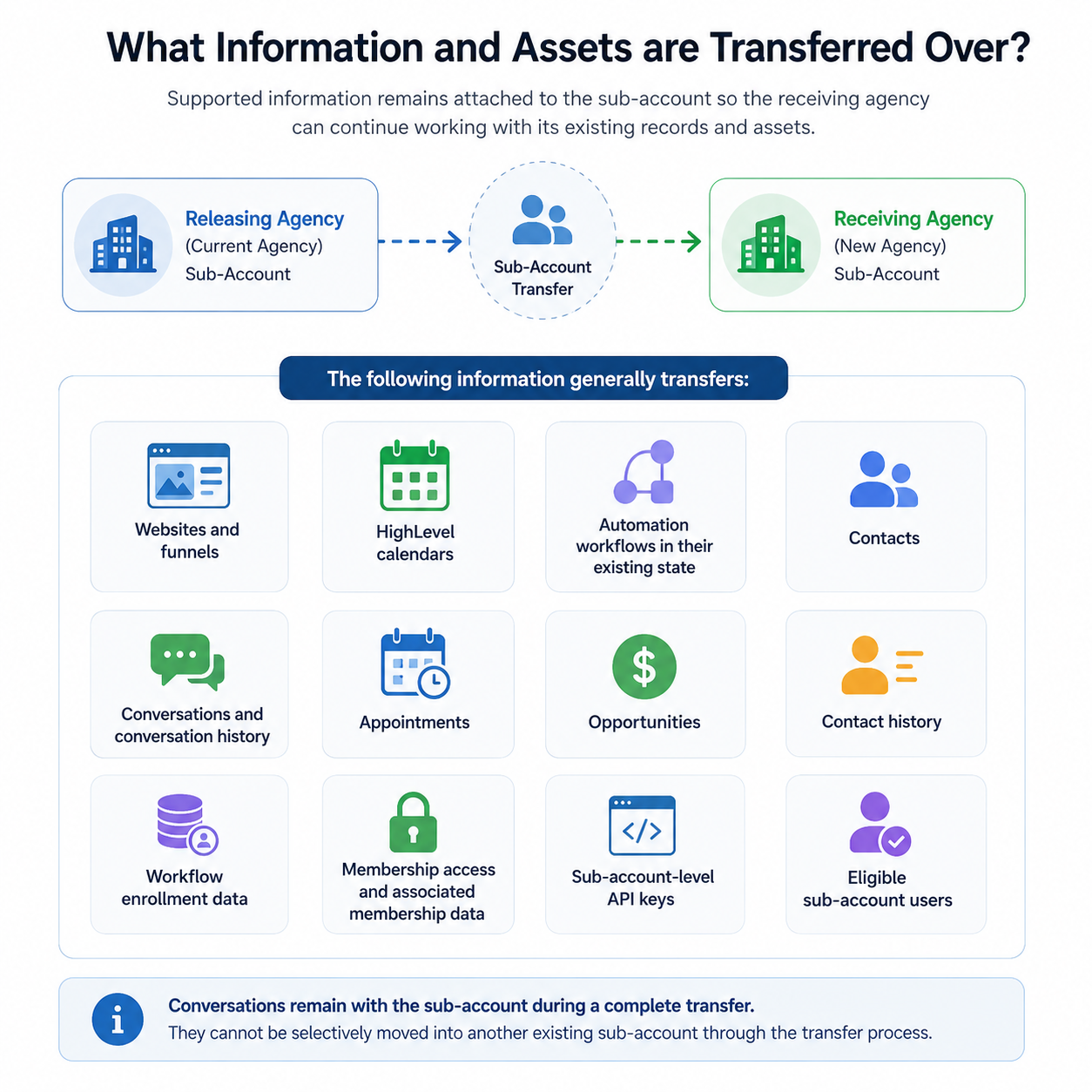
What Information and Assets are Transferred Over?
Supported information remains attached to the sub-account so the receiving agency can continue working with its existing records and assets.
The following information generally transfers:
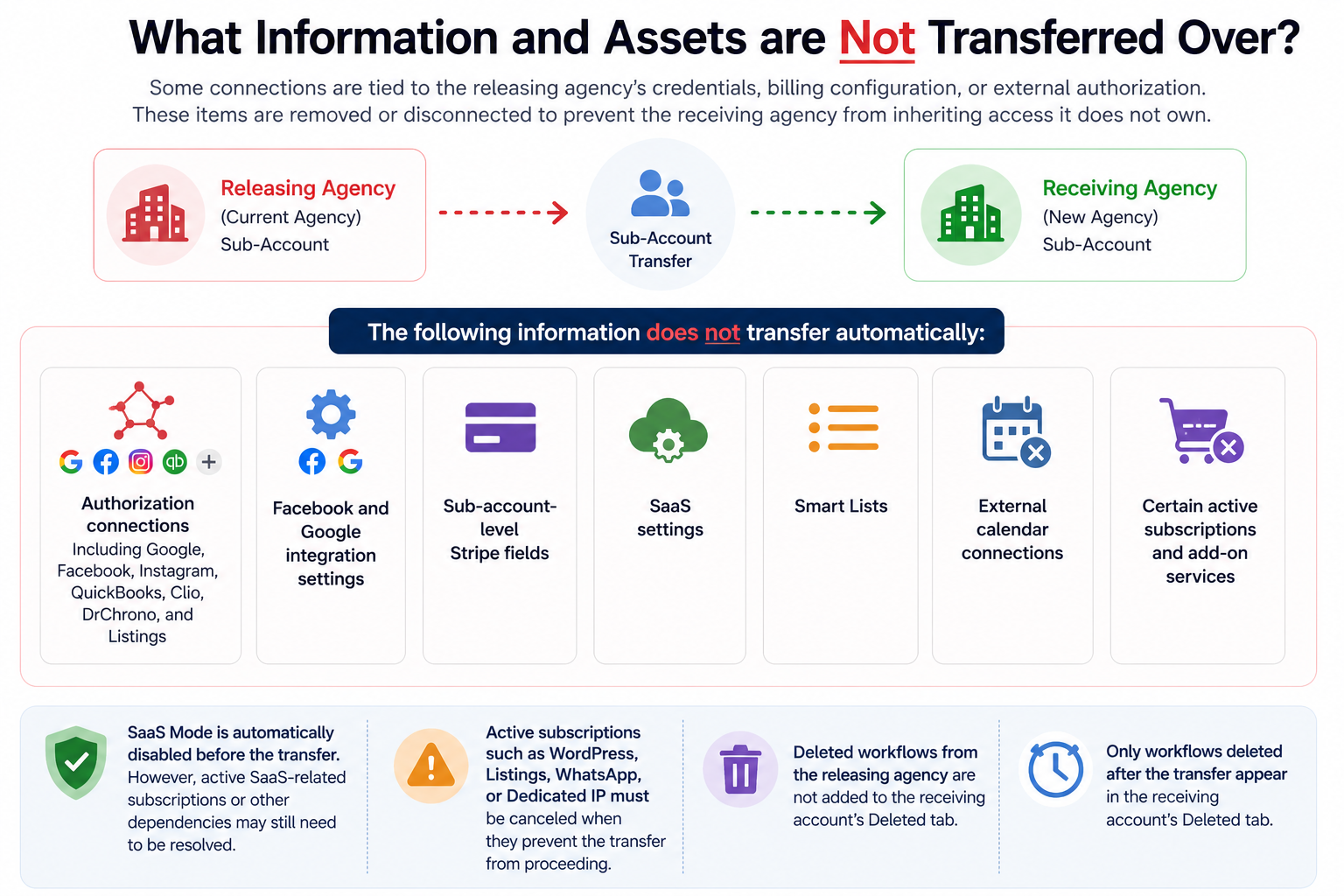
What Information and Assets are Not Transferred Over?
Phone Number Transfers
NOTE: Phone numbers may transfer automatically depending on the phone provider used by both agencies.
If Both Agencies Use LC Phone
Phone numbers transfer with the sub-account.
Eligible A2P registration stays with the numbers.
Future phone usage is billed to the receiving agency.
If Either Agency Uses Twilio
Phone numbers do not transfer automatically. The agencies and Twilio account owner must coordinate the move separately.
For detailed requirements, see the Moving Phone Numbers: Migration Guide.
Email Services Transfer
Email Service Transfers
Email settings may change depending on whether the sub-account and receiving agency use LC Email or another email provider.
If the Sub-Account Uses LC Email
Agency-assigned dedicated domain: The domain is removed during the transfer.
Sub-account-owned dedicated domain: The domain transfers with the sub-account.
Dedicated IP: The IP is unassigned and the related subscription is removed.
Email verification: The existing On or Off setting is preserved.
After transfer: If the receiving agency uses LC Email, the sub-account stays on LC Email. If the receiving agency uses another provider, the sub-account switches to that provider.
If the Sub-Account Uses Mailgun or SMTP
Existing Mailgun or SMTP configurations are removed.
The sub-account adopts the receiving agency’s default email provider.
For additional assistance, contact HighLevel Support.
Frequently Asked Questions
Q: Can I merge one sub-account with another?
No. A transfer moves the entire sub-account from one agency to another. It does not combine the transferred account’s data with another sub-account.
Q: Can I transfer only part of a sub-account?
No. Partial sub-account transfers are not supported. The complete sub-account and its supported data move together.
Q: Can I transfer a HIPAA-enabled sub-account?
Yes. The receiving agency must have the required HIPAA Compliance add-on before the transfer can be completed.
Q: How long does a sub-account transfer take, and how can I check its status?
The sub-account transfers after the receiving agency approves the request. Timing may vary if eligibility requirements or account dependencies need to be resolved.
You can monitor the request from Agency Level > Sub-Accounts > Sub-Account Transfers to see its current status.
Q: How will I know when the transfer is complete?
The receiving agency receives an email when the transfer request is submitted. Both agencies can monitor the request from the Sub-Account Transfers page.
Review the transfer record to determine whether the request is pending, completed, rejected, canceled, or blocked.
Related Articles
Was this article helpful?
That’s Great!
Thank you for your feedback
Sorry! We couldn't be helpful
Thank you for your feedback
Feedback sent
We appreciate your effort and will try to fix the article