Workflows are now live in all accounts. You can do everything Triggers and Campaigns do — and more — all in one builder.
Which sender email gets used when you send to a lead — manual vs automated, assigned vs unassigned — and the priority order each one follows.
Then a tour of every place you can configure the sender email: Conversations, Email Templates, Bulk Send, Workflow settings, and Workflow Send Email actions.
Which Sender Email Should the Leads Be Receiving Emails From?
The sender email a contact sees depends on (a) whether the email is manual or automated, and (b) whether the contact is assigned to a user. Use the priority table below as the canonical reference.
| Email Type | Sender source | Unassigned Contact | Assigned Contact |
|---|---|---|---|
| Manual Emails | Logged-in user email | 1st priority | 1st priority |
| Location email | N/A | N/A | |
| Assigned user email | N/A | N/A | |
| Agency email | N/A | N/A | |
| Automated Emails | Campaign / workflow settings | 1st priority | 1st priority |
| Assigned user email | N/A | 2nd priority | |
| Location email | 2nd priority | 3rd priority | |
| Agency email | 3rd priority | 4th priority | |
| Review Request Emails | Always uses the logged-in user email as the sender. | ||
| Appointment Confirmation Emails (Calendar Settings → 3. Confirmation) | Uses do-not-reply@replies.domain.com based on the Mailgun subdomain set up for the location, or the SMTP integrated email if one is connected. | ||
Not sure how to connect your SMTP provider? Follow these steps to set it up.
If you are using Mailgun or LC Email, the Business email is used as the sender if the lead is not assigned:
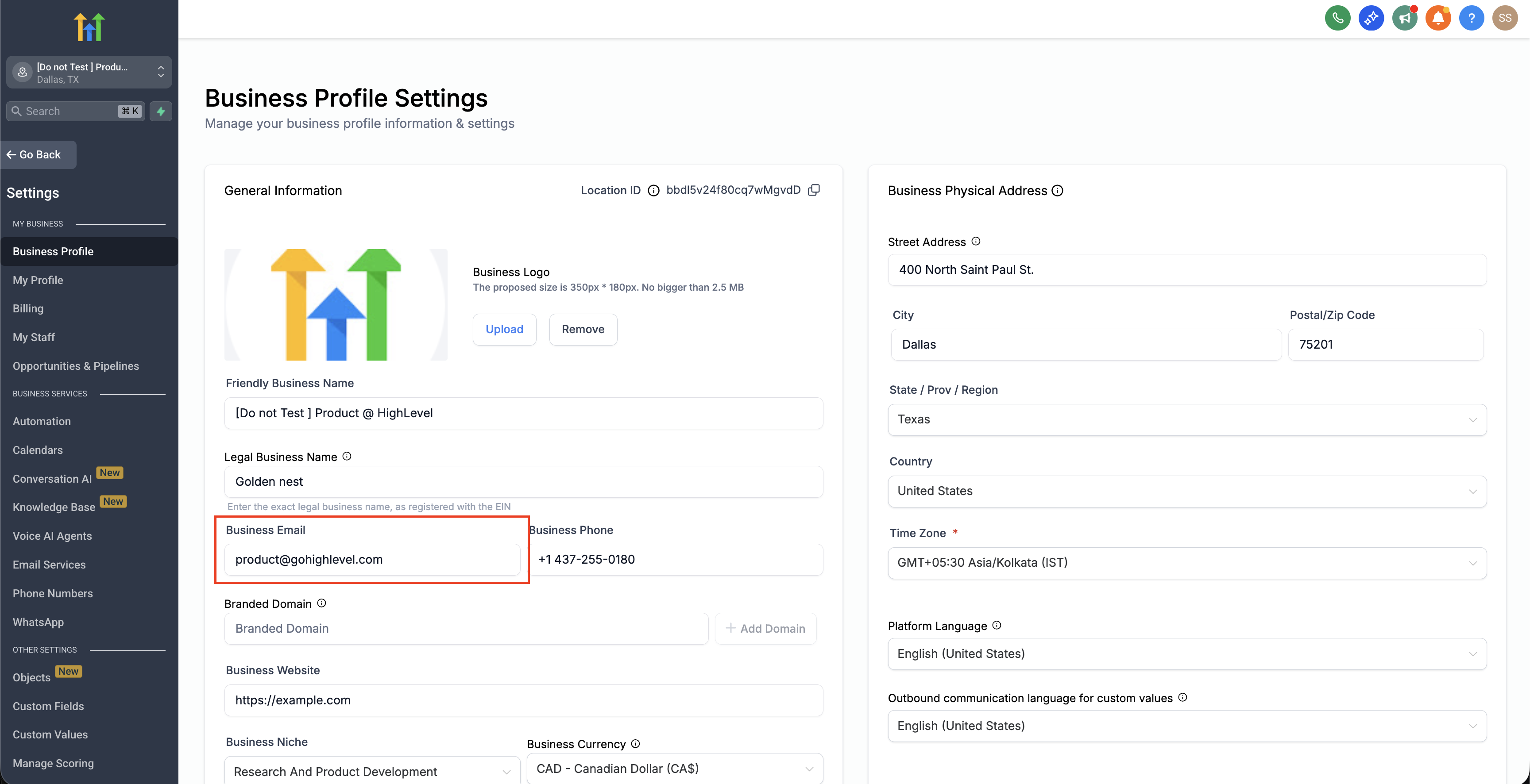
How to Check If Contacts Are Assigned or Unassigned
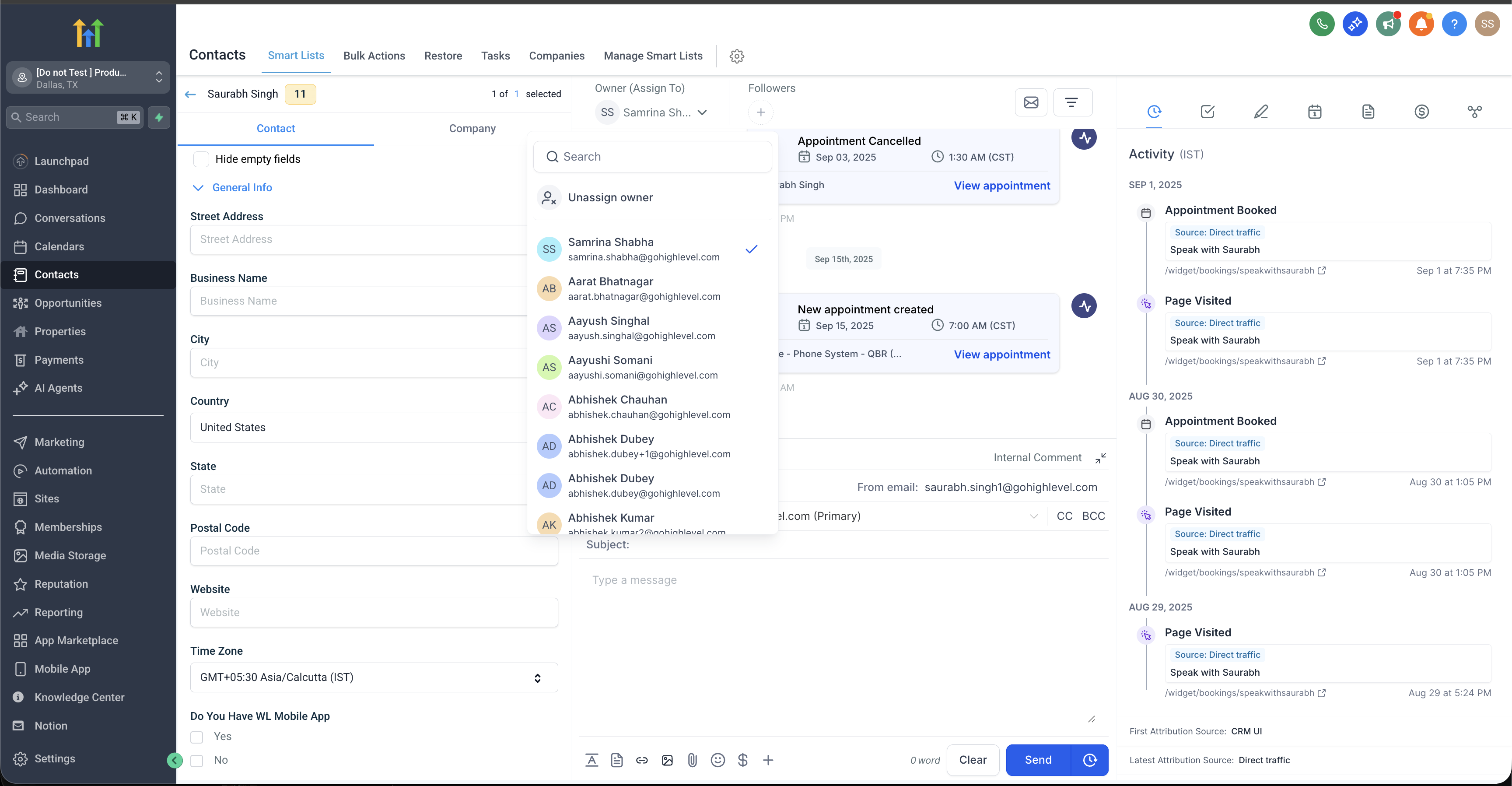
Open Contacts → Smart Lists and locate the contact you want to check.

Open Conversations and click the icon on the right to view the contact's details panel.
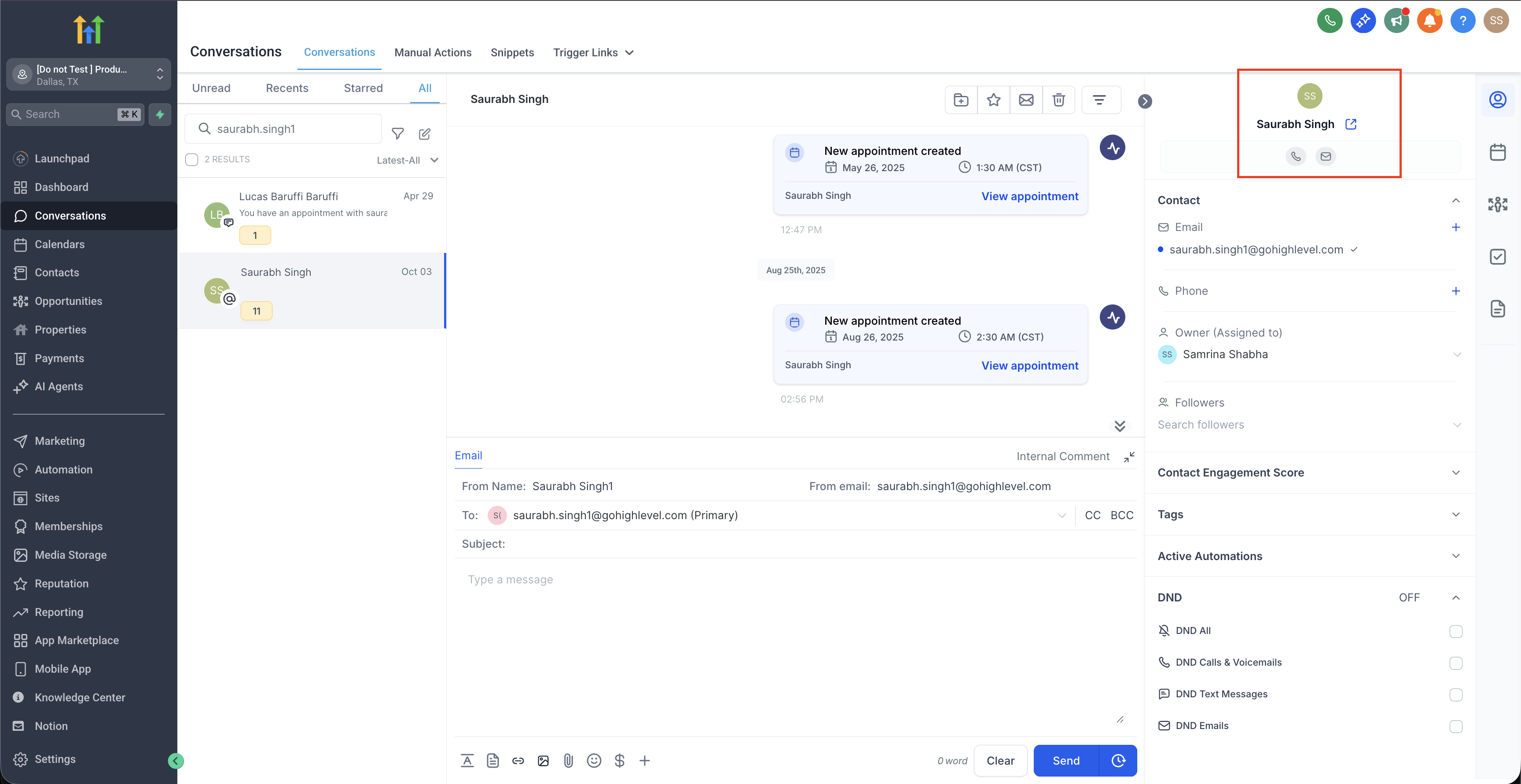
In the details panel, check the Assigned User field. A populated value means the contact is assigned; a blank value means it's unassigned.
Manual Email — The Conversation Tab
When you send a one-off email from the Conversation tab, the From address defaults to your logged-in user email:
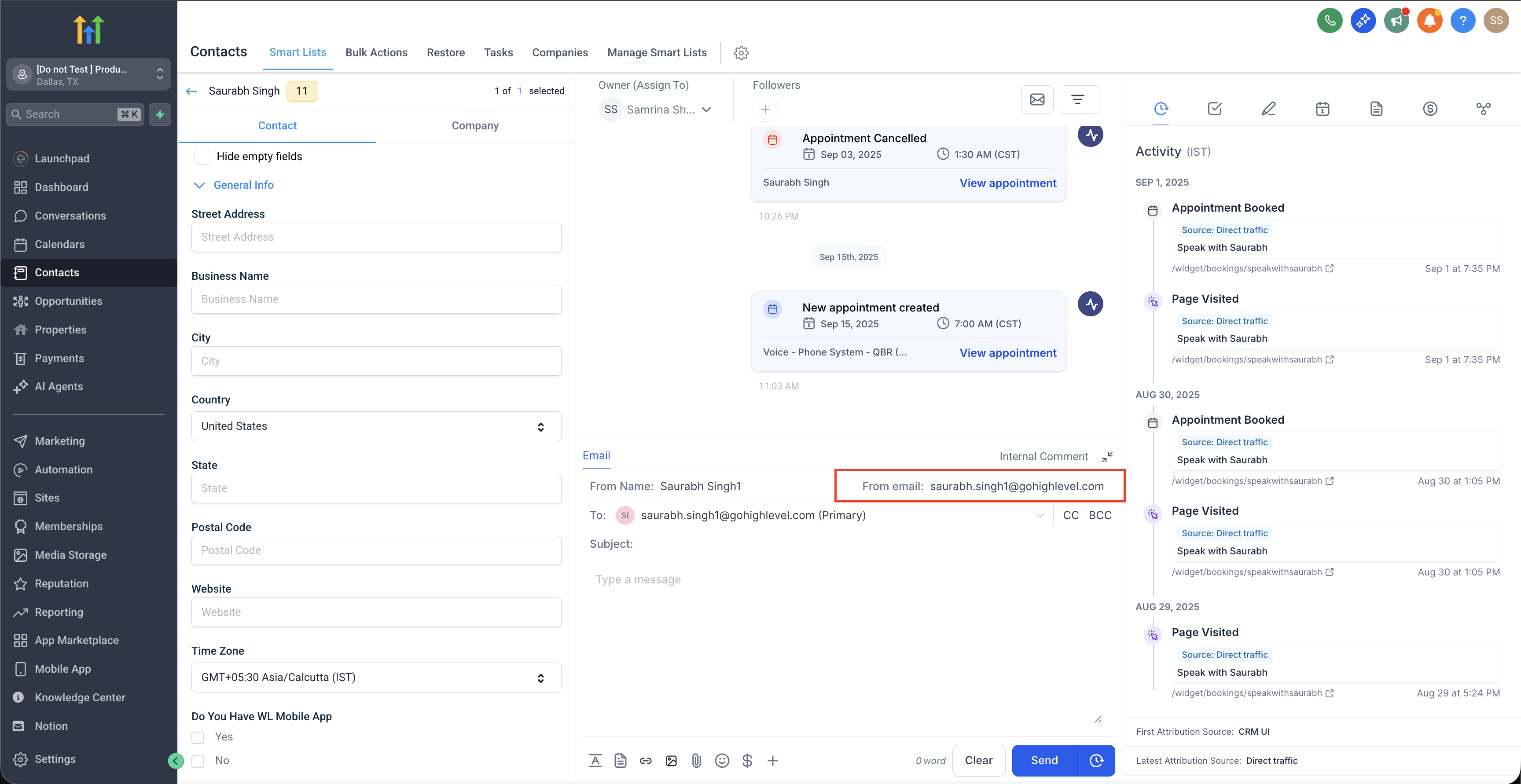
If you have 2-way email sync configured, the From email will show your integrated email instead.
Set up Two-Way Email Sync for Gmail · Set up Two-Way Email Sync for Outlook
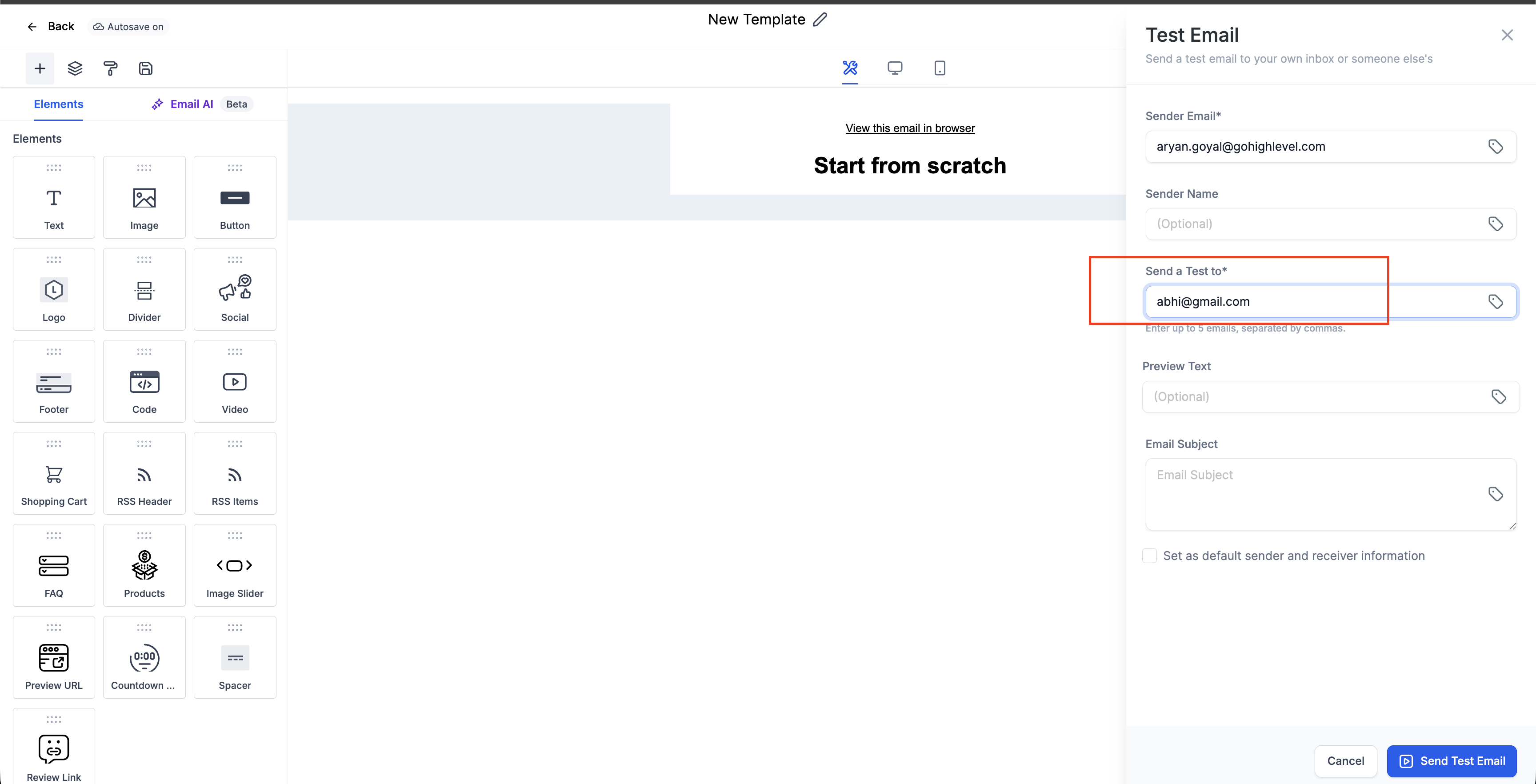
Automated Email — Email Templates
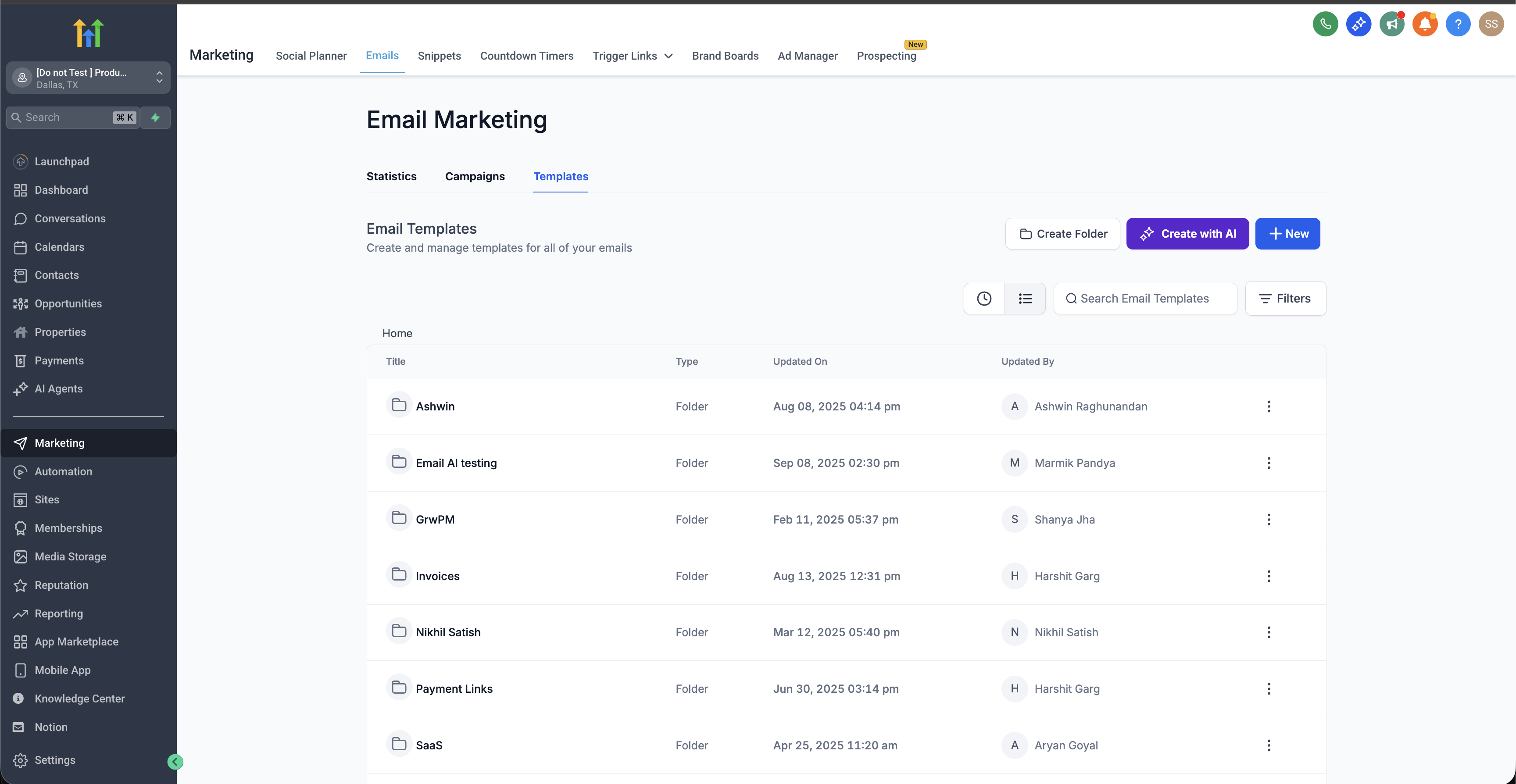
Navigate to Marketing → Emails → Templates → + New to start a new template.
Automated Email — Bulk Action: Send Email
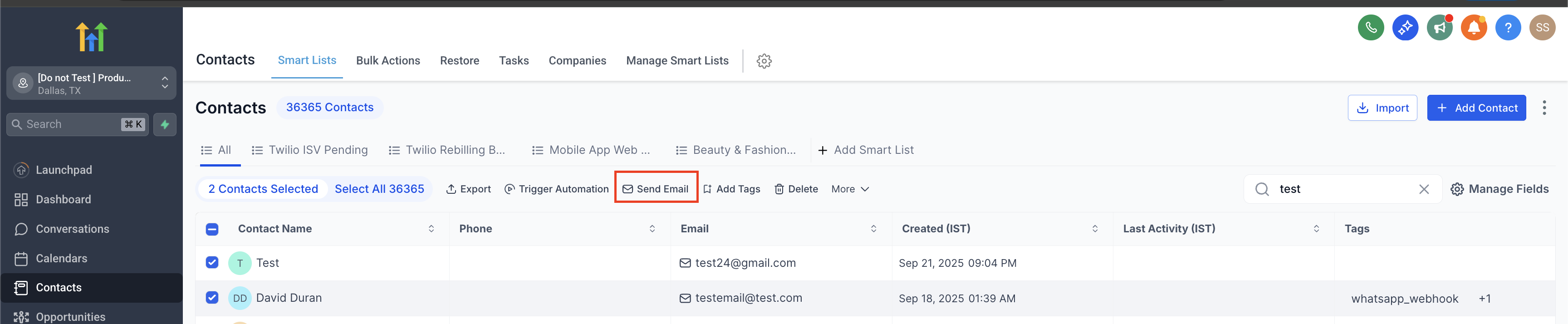
Go to Contacts → Smart Lists, select the contacts you want to email, then click Send Email.
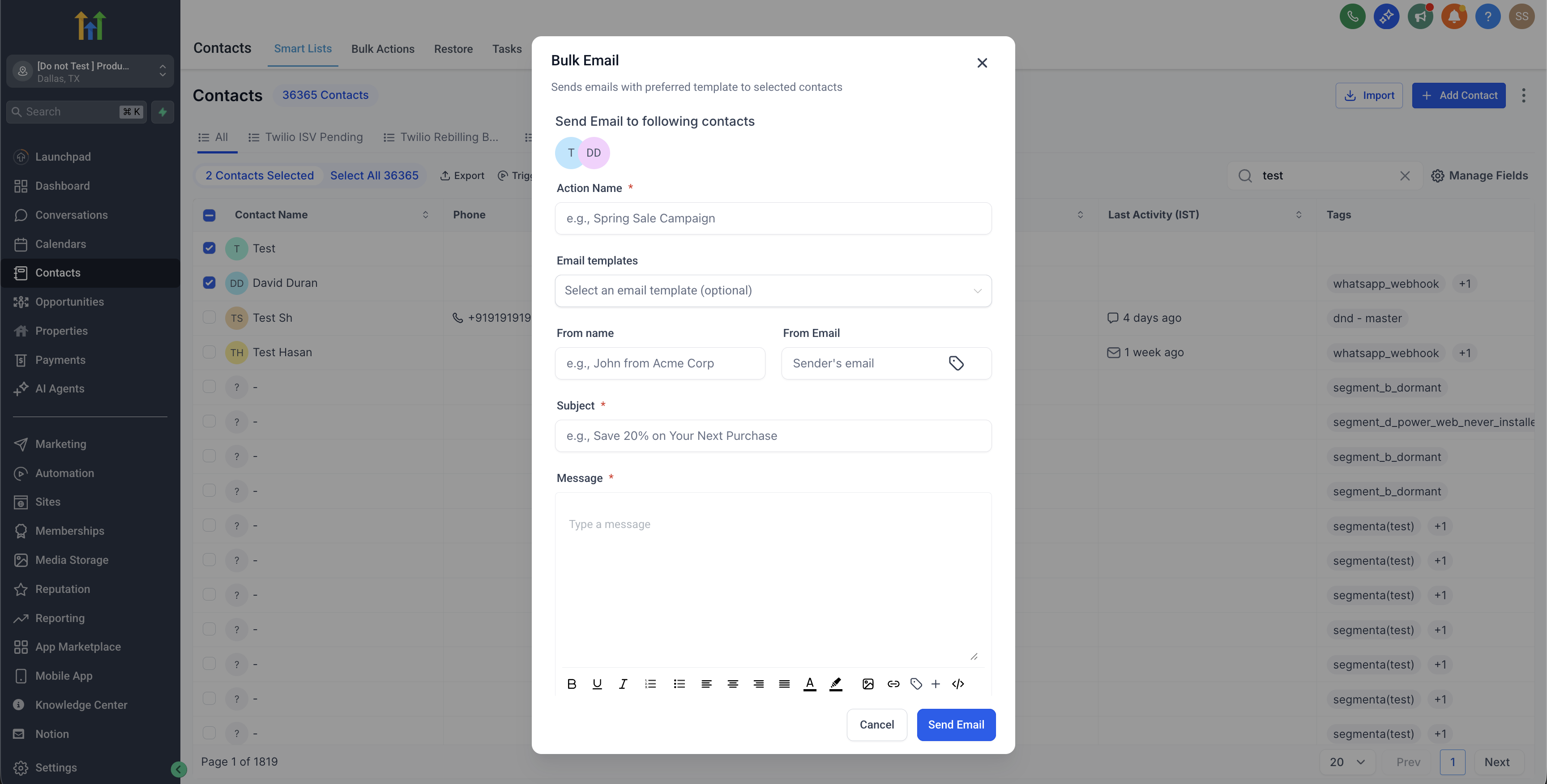
In the bulk-send dialog, fill in the From Name and From Email. These override the default sender for this send.
Automated Email — Workflow Settings
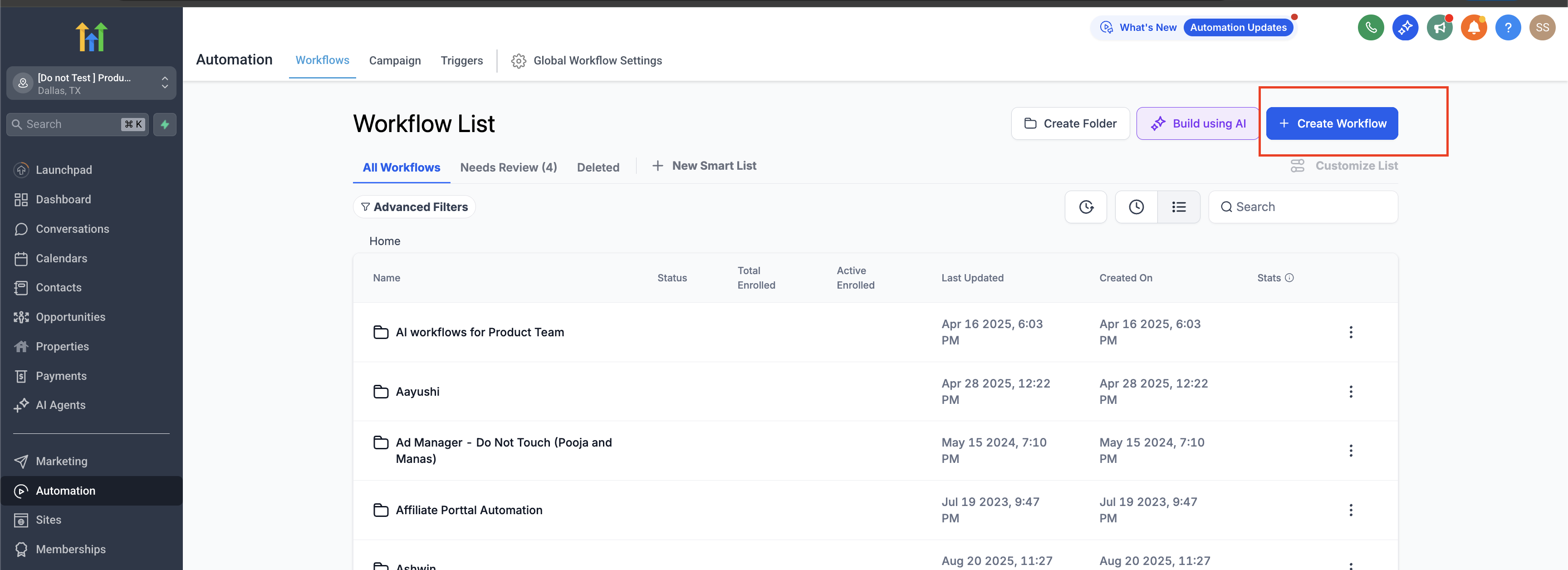
Go to Automation → Workflows and click Create Workflow.
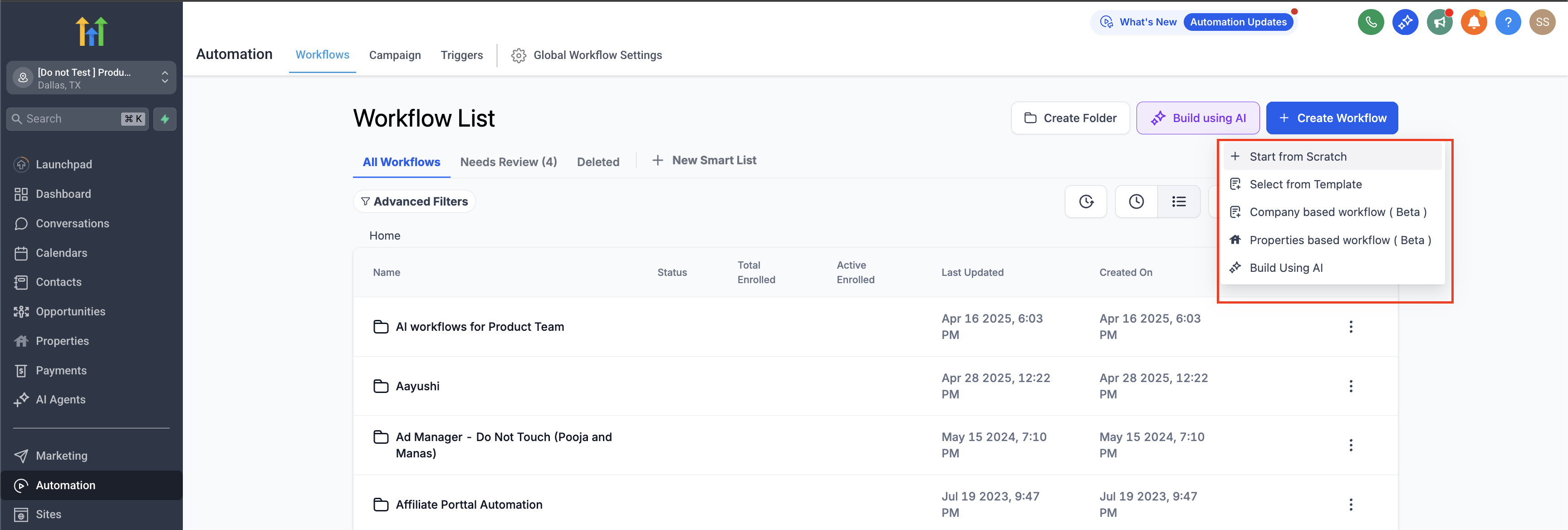
Choose Start from scratch and click Create new workflow.
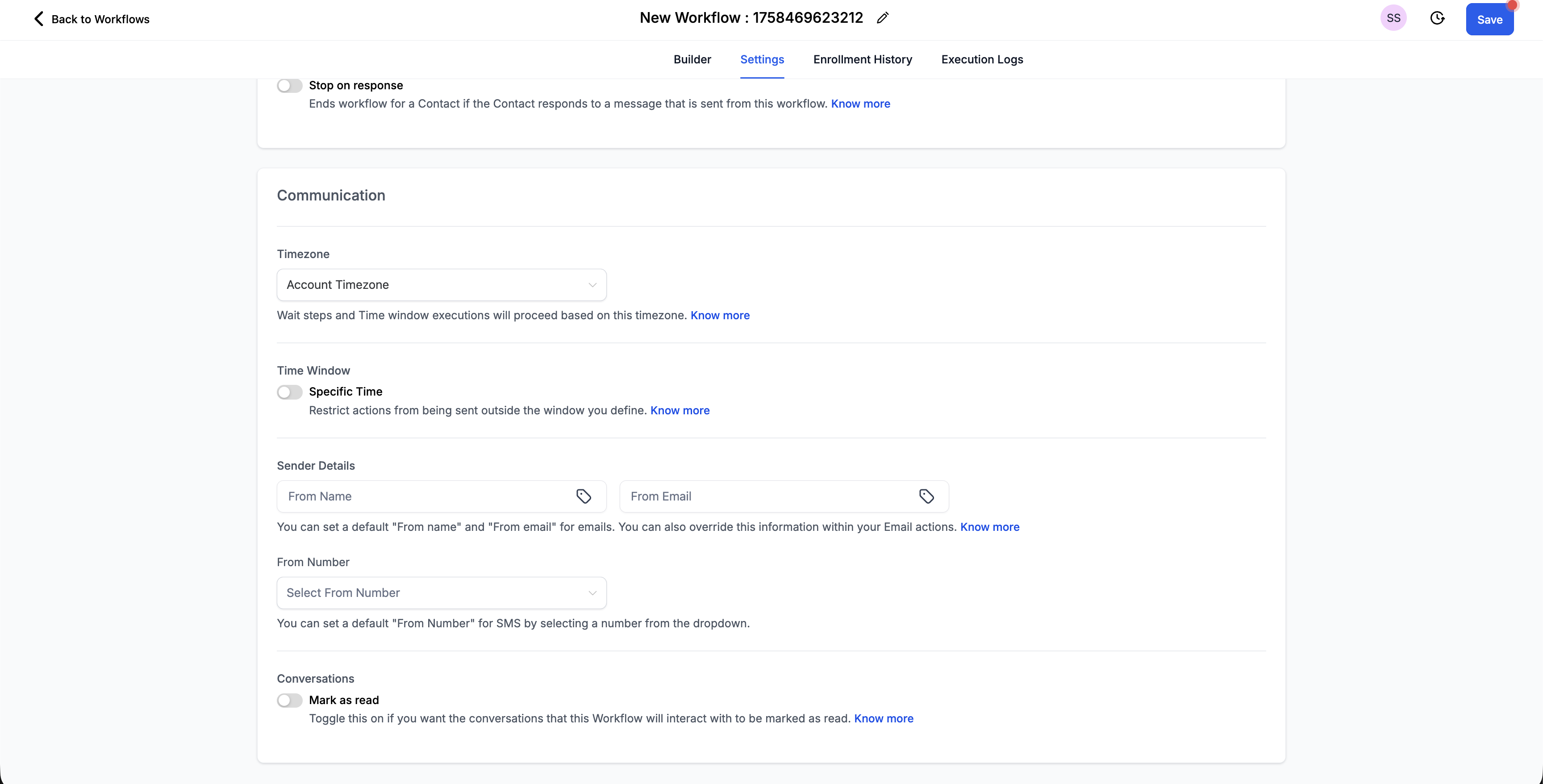
In the workflow builder, click Settings → Configure Sender Address to set the From details for every email this workflow sends.
Automated Email — Workflow Send Email Action
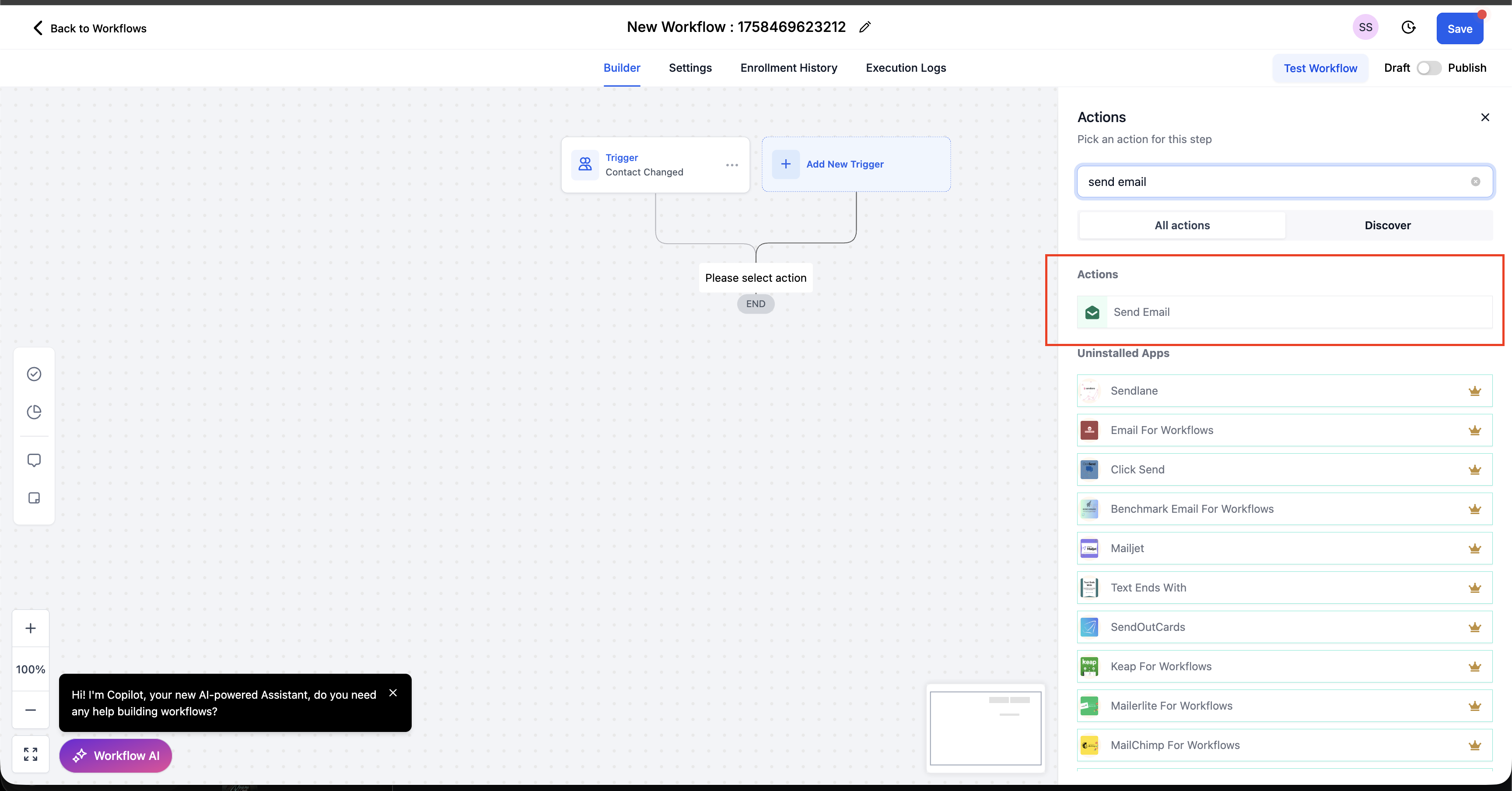
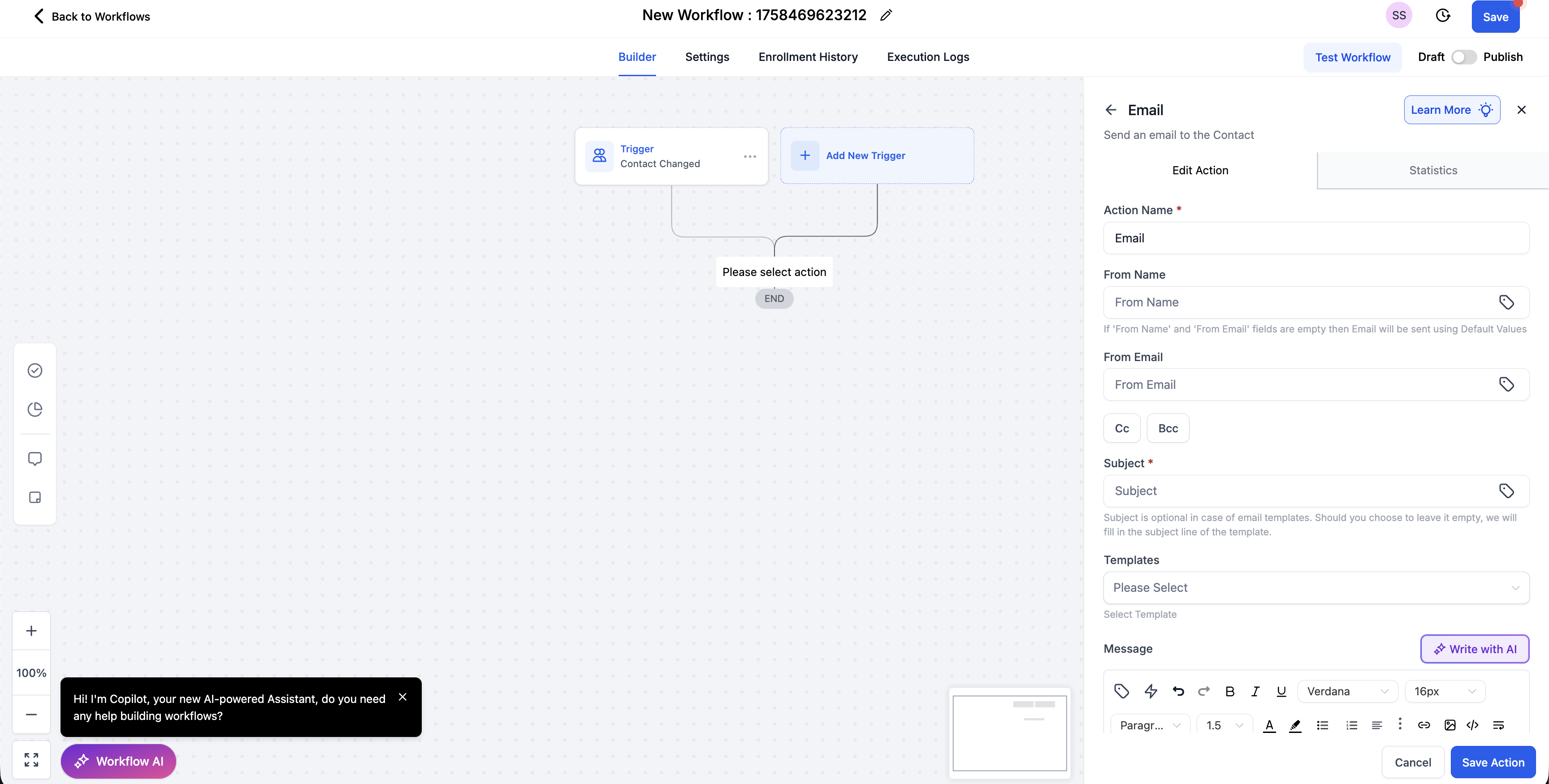
Click the + button in your workflow and select Send Email.
Inside the action, fill in the From Name and From Email. These take precedence over the workflow-level sender address.
Frequently Asked Questions


Was this article helpful?
That’s Great!
Thank you for your feedback
Sorry! We couldn't be helpful
Thank you for your feedback
Feedback sent
We appreciate your effort and will try to fix the article