Introducing Enhanced Sub-Account Filtering: Manage Email Providers with Ease!

Modified on: Wed, 6 May, 2026 at 11:34 PM

Agency · Email Management
Filter Sub-Accounts by Email Provider
Quickly find and bulk-manage sub-accounts by their email provider, domain, and verification status — all from one agency view.
What's New

Agency users can now filter sub-accounts based on their email provider — LC, Mailgun, or Others (Gmail, SMTP, and any other provider).

Once filtered, you can bulk-update domains, switch providers, and toggle email verification — saving hours of manual sub-account-by-sub-account work.

1

The Three Filter Criteria

You can narrow your sub-account list using any combination of these filters:

Filter 1
Provider

Easily filter sub-accounts by specifying the email provider they belong to — LC, Mailgun, or Others.

Filter 2
Domain

Filter sub-accounts by their associated sending domain.

Filter 3
Email Verification

Filter by whether email verification is enabled or disabled for the sub-account.

Provider Coverage
What You Can Do for Each Provider
Different providers expose different bulk actions. Pick the one that matches your sub-accounts.
2

Filtering by LC (LeadConnector)

When filtering for sub-accounts on the LC provider, you can:

Filter — show only sub-accounts that are using LC.
Bulk-update domain — change the sending domain for selected sub-accounts.
Toggle email verification — enable or disable verification on the selected sub-accounts.
3

Filtering by Mailgun

When filtering for sub-accounts on Mailgun, you can:

Filter — show only sub-accounts that are using Mailgun.
Switch provider to LC — migrate the selected sub-accounts off Mailgun.
Modify the Mailgun domain — bulk-update the Mailgun domain for the chosen sub-accounts.
4

Filtering by Others (Gmail, SMTP, etc.)

For any sub-accounts that aren't on LC or Mailgun — Gmail integrations, custom SMTP, or any other provider — select Others. From there you can:

Filter — show only sub-accounts using a non-LC, non-Mailgun provider.
Switch provider to LC — migrate these sub-accounts onto LC in bulk.
Why This Helps

This combination of filtering and bulk actions gives agencies more flexibility and customization to manage every sub-account's email service efficiently — without opening each one individually.

5

What the Filter View Looks Like

A preview of the new agency-level sub-account filter and bulk-action panel:
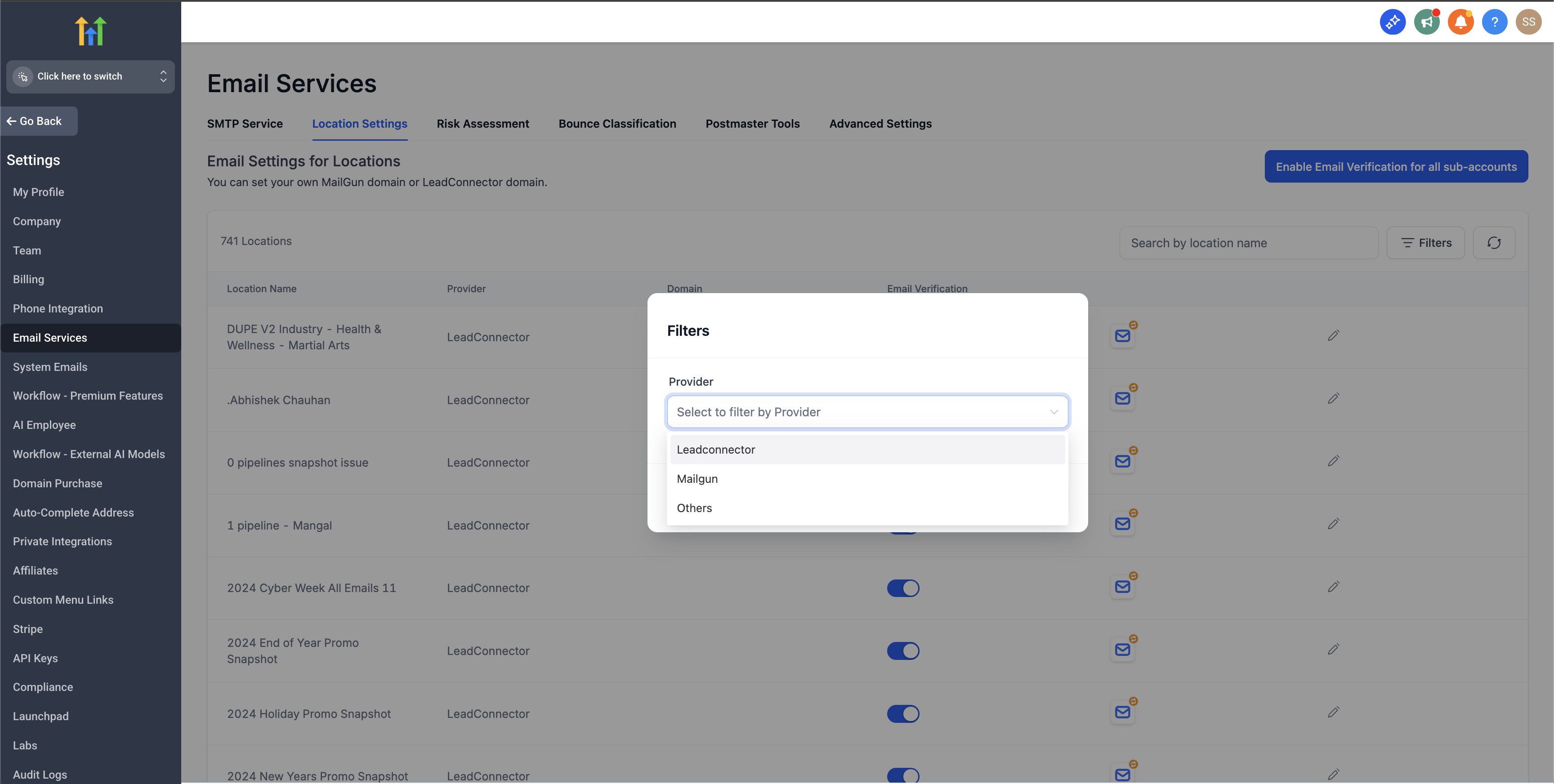
Agency view — filter sub-accounts by email provider, domain, and verification status
6

Frequently Asked Questions

Q: Where do I find the new filter?
It lives at the agency level. Open the agency sub-accounts list and you'll see a new filter panel with Provider, Domain, and Email Verification dropdowns.
Q: Can I combine all three filters at once?
Yes. The filters compose — for example, you can show all Mailgun sub-accounts on a specific domain that have email verification disabled, then act on that exact slice.
Q: What providers does "Others" include?
Anything that isn't LC or Mailgun — Gmail, custom SMTP integrations, and any other connected email provider. The agency-level bulk action available for "Others" is switching the provider over to LC.
Q: Do the bulk actions affect every sub-account in my filter result?
Only the sub-accounts you explicitly select. The filter narrows the list; you then check the boxes next to the specific sub-accounts you want to update before applying a bulk action.
Q: Will switching a sub-account from Mailgun to LC affect emails already sent or scheduled?
No. The provider change only affects future outgoing emails. Emails already delivered are unaffected, and emails already in flight finish on the previous provider.
Q: Can I undo a bulk action?
There's no one-click undo — you'd need to filter the same sub-accounts again and reapply the original setting. Treat bulk actions as deliberate and double-check your selection before confirming.
Q: Is there an audit trail of who changed what?
Bulk provider, domain, and verification changes are tracked in the agency activity log. Each entry records the agency user who initiated the action, the affected sub-accounts, and the timestamp.

Was this article helpful?

That’s Great!

Thank you for your feedback

Sorry! We couldn't be helpful

Thank you for your feedback

Let us know how can we improve this article!

Select at least one of the reasons
CAPTCHA verification is required.

Feedback sent

We appreciate your effort and will try to fix the article