Share & Preview Product Pages Directly from Stores
You can now preview or copy the live Product Detail Page (PDP) link directly from the Stores → Products section, eliminating the need to open the Store Builder every time you want to share a product.
This article explains how to use the Preview and Copy link actions, how HighLevel resolves product URLs using custom domains and SEO handles, and what to expect when products are mapped to custom PDPs.
What is Product Page Sharing?
Product Page Sharing allows you to quickly preview and copy live Product Detail Page (PDP) links directly from the Stores → Products section. This streamlines your workflow by eliminating the need to open the Store Builder every time you want to share or verify a product page.
The feature provides two core actions for each included product: Preview opens the live product page in a new browser tab, while Copy link copies the resolved URL to your clipboard and displays a confirmation message.
HighLevel automatically respects custom PDP mappings and resolves URLs using your store's custom domain or preview domain, ensuring that the links you share are accurate and ready for distribution.
Key Benefits
Product Page Sharing delivers several workflow and accuracy improvements for store owners:
How Product URLs are Resolved
HighLevel uses a consistent URL resolution process to ensure that product links are accurate and reflect your store's domain and page configuration:
If a product is mapped to a custom Product Detail Page, HighLevel automatically uses that page instead of the default PDP template when generating the product URL.
The product's SEO handle is used as the URL slug, creating clean, search-engine-friendly URLs that match your product naming conventions.
URLs resolve using your custom domain first. If no custom domain is connected to the store, HighLevel automatically uses the preview domain instead.
To ensure product links use your branded domain, connect a custom domain to your store before sharing product pages with customers or marketing campaigns.
How to Preview & Copy Product Links
Follow these steps to preview or share a live product page link from the Products section:
In your HighLevel account, go to Stores → Products. The section opens on the Included tab by default, displaying all products currently included in your store.
Find the product you want to preview or share from the list of included products. Only products in the Included tab display the Preview and Copy link actions.
Each product offers two actions:
- Preview — Opens the live Product Detail Page in a new browser tab so you can verify the page before sharing.
- Copy link — Copies the resolved product URL to your clipboard and displays a "Product link copied" confirmation message.
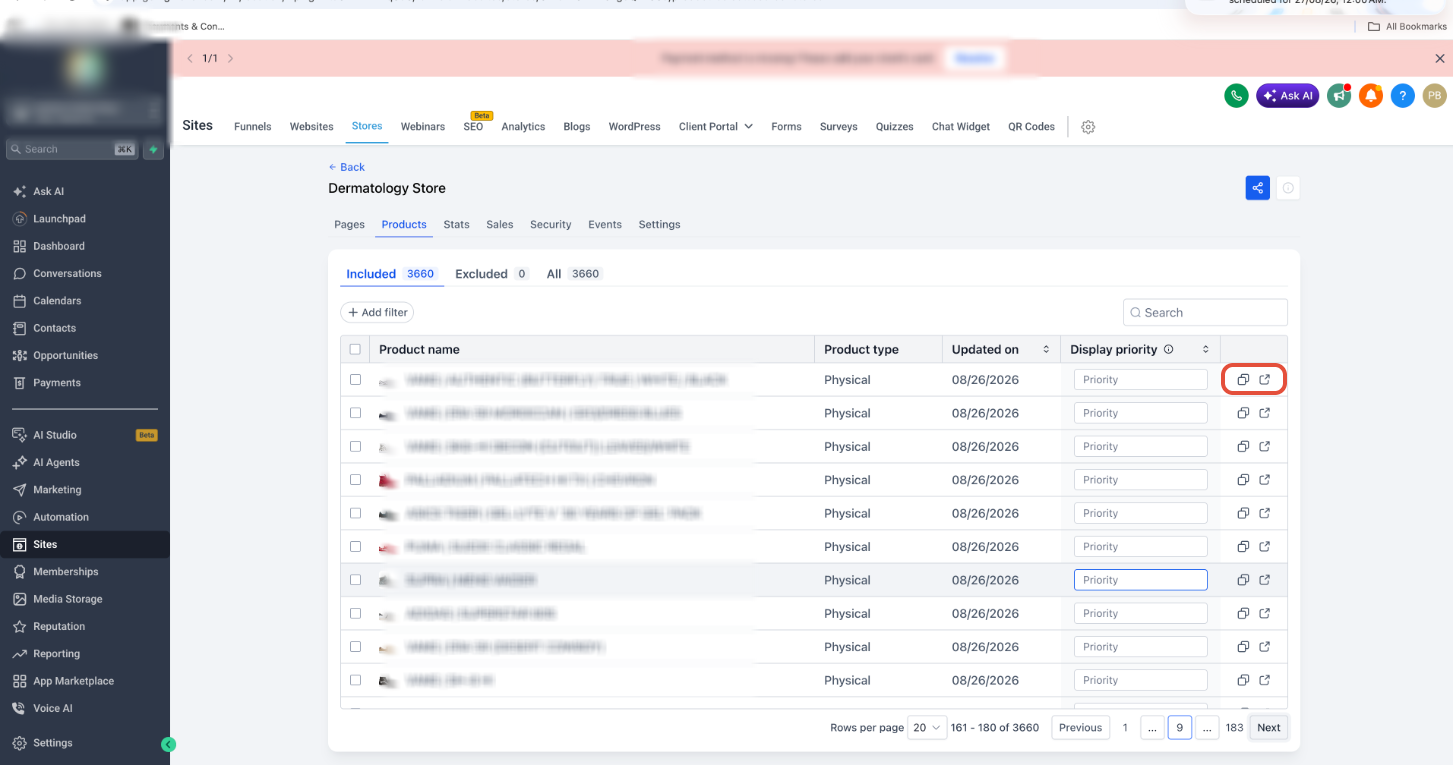
After copying the link, paste it into your marketing campaigns, email sequences, or social media posts. If you used Preview, review the live page to ensure it displays correctly before sharing with customers.
Preview and Copy link actions are available only for products in the Included tab. Products in the Excluded or All tabs do not display these actions.
Updated Product Tabs & Preview Behavior
The Products section includes several interface and behavior improvements to streamline product management and preview workflows:
The Products section opens on the Included tab by default, followed by Excluded and All. This prioritizes the products that are live and available for preview or sharing.
Preview and Copy link actions are available only for products in the Included tab. This ensures you only share or preview products that are currently active in your store.
When you preview a product from the Store Builder, HighLevel now opens the correct Product Detail Page for products mapped to a custom PDP, instead of defaulting to the Product List Page.
These improvements create a more intuitive workflow by keeping live products front and center and ensuring that previews always reflect the correct product page configuration.
Frequently Asked Questions
Was this article helpful?
That’s Great!
Thank you for your feedback
Sorry! We couldn't be helpful
Thank you for your feedback
Feedback sent
We appreciate your effort and will try to fix the article