HighLevel allows ecommerce store owners to define manual delivery charges based on multiple criteria—such as shipping zones, states/provinces, and product weights. This feature gives merchants full control over how shipping is charged at checkout, ensuring fairness, flexibility, and accuracy.
TABLE OF CONTENTS
- What Are Shipping Zones?
- Setting Up Shipping Zones
- Buyer’s Preview on the Checkout Page
- Limit Shipping Zones by ZIP/Postcode
- Setting Up Conditional Pricing for Shipping Rates
- Notes and Best Practices
- Frequently Asked Questions
- Related Articles
What Are Shipping Zones?
Shipping zones let store owners define delivery regions where shipping costs vary. For example, you can charge different rates for different states or regions within a country.
By creating multiple zones, you can assign rates that reflect your actual delivery costs while giving customers transparent pricing at checkout.
Setting Up Shipping Zones
Shipping zones group together specific countries, states, or provinces that share the same delivery rules. Once a zone is created, you can define flat or conditional rates for that region.
Steps to Create a Shipping Zone:
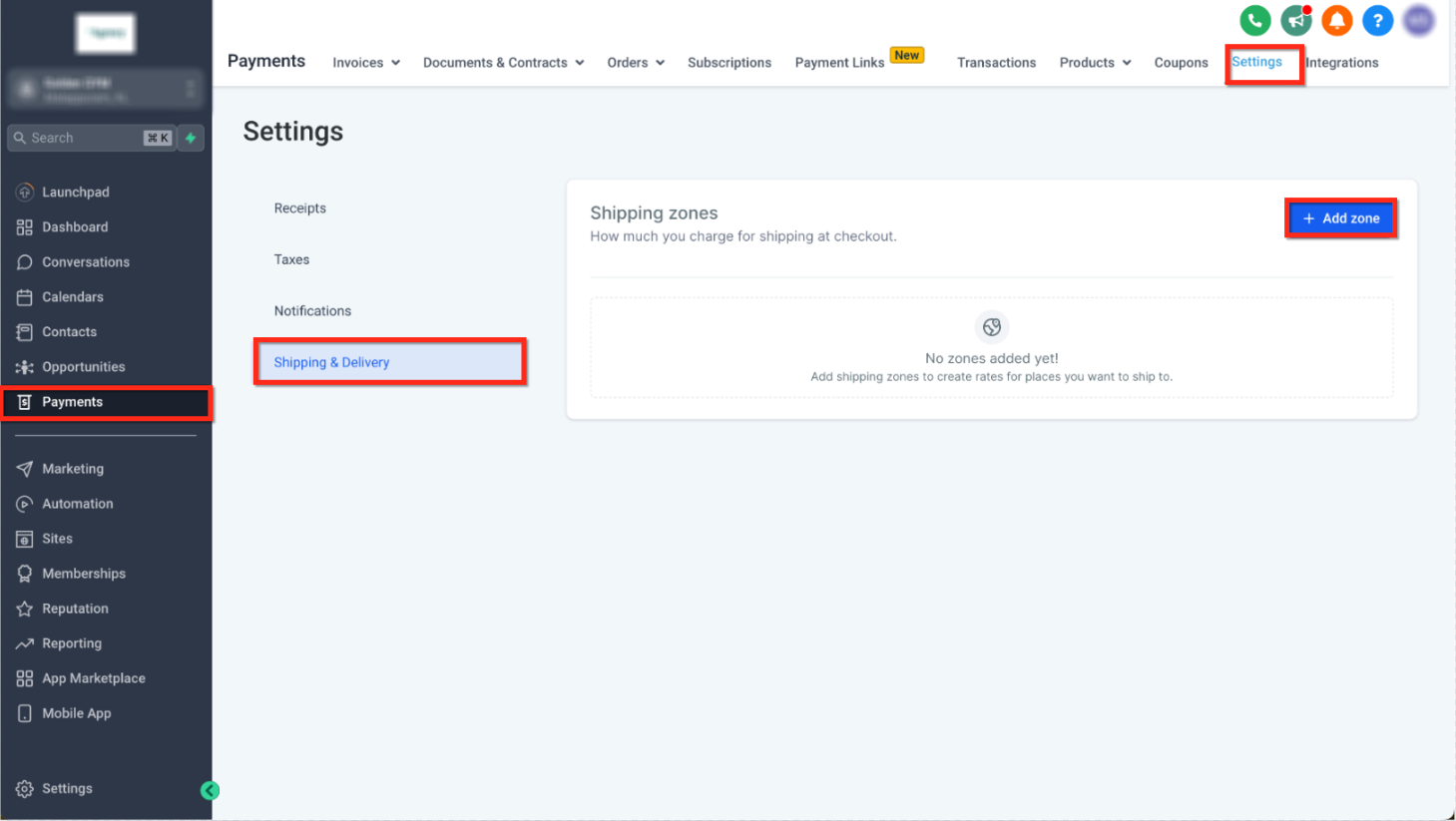
Go to Sub-Account → Payments → Settings → Shipping & Delivery.
Click Add Zone.
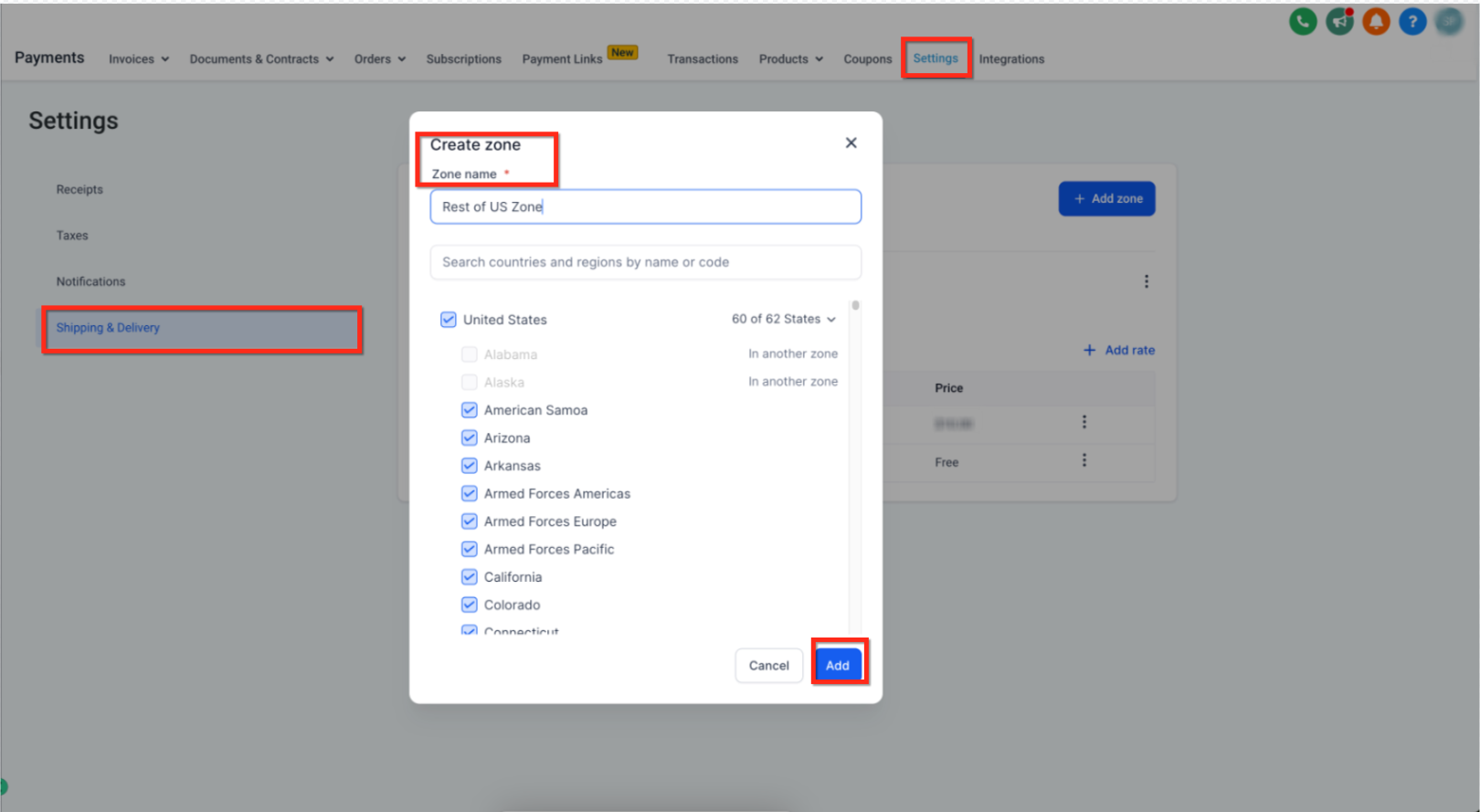
Enter a zone name (for example, “US East Coast” or “Canada West”).
Select one or more countries and the relevant states/provinces for that zone.
Click Add Rate to define shipping costs for this region.
(Optional) Add conditional pricing based on weight or total order value.
Buyer’s Preview on the Checkout Page
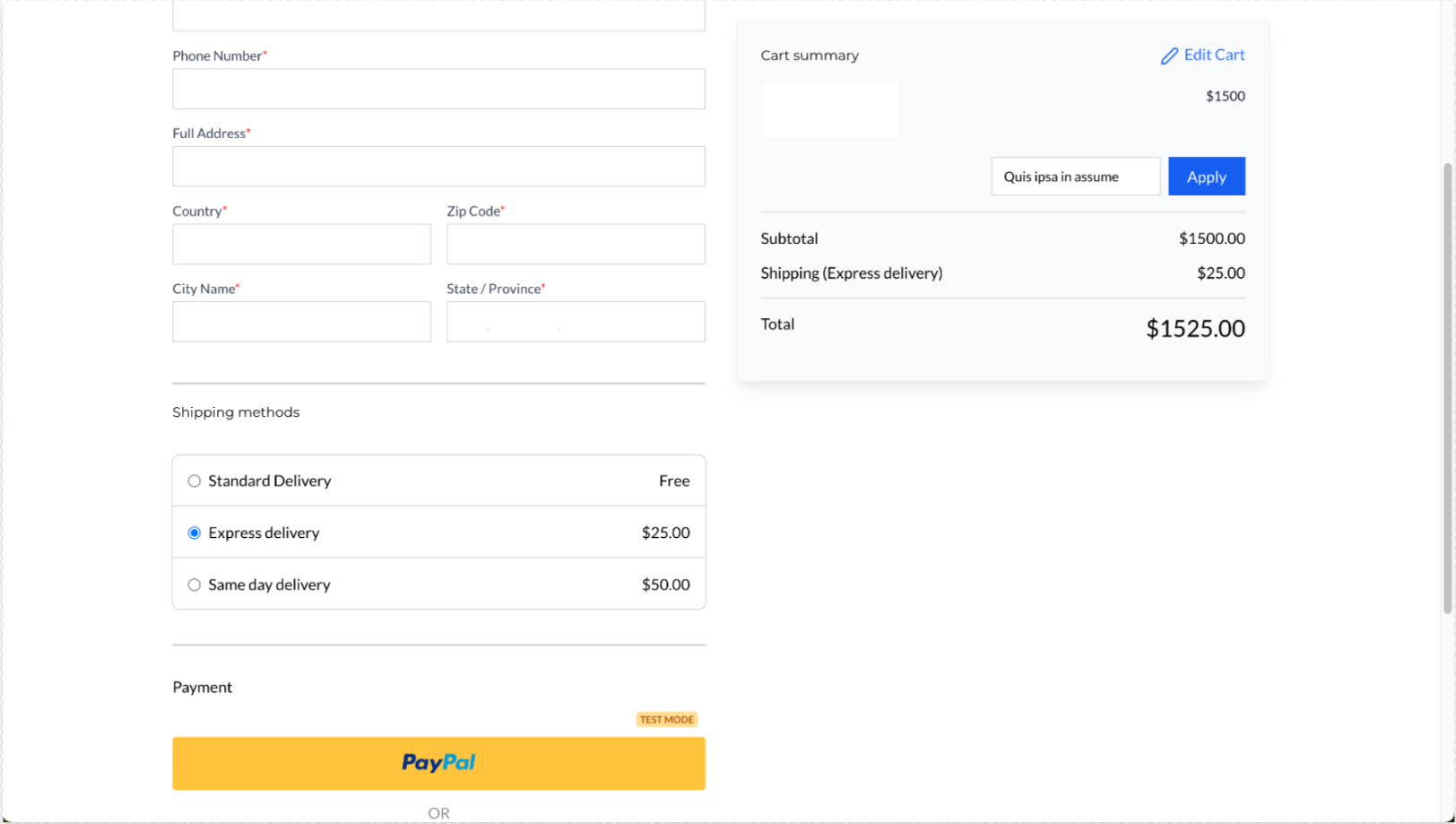
Once your zones and rates are configured, customers automatically see the available shipping options at checkout. The system applies the correct rate based on their address and cart details.
Shipping Option Order and Default Selection
Checkout automatically sorts shipping options by price (lowest first) and selects the lowest-cost option by default.
- If Free Shipping is available, it appears first and is selected by default.
- If rates update after an address change or cart update, checkout reapplies sorting and the default selection.
- If only one option is available, it is selected automatically.
- If multiple options have the same price, checkout keeps the provider order and selects the first option in that price group.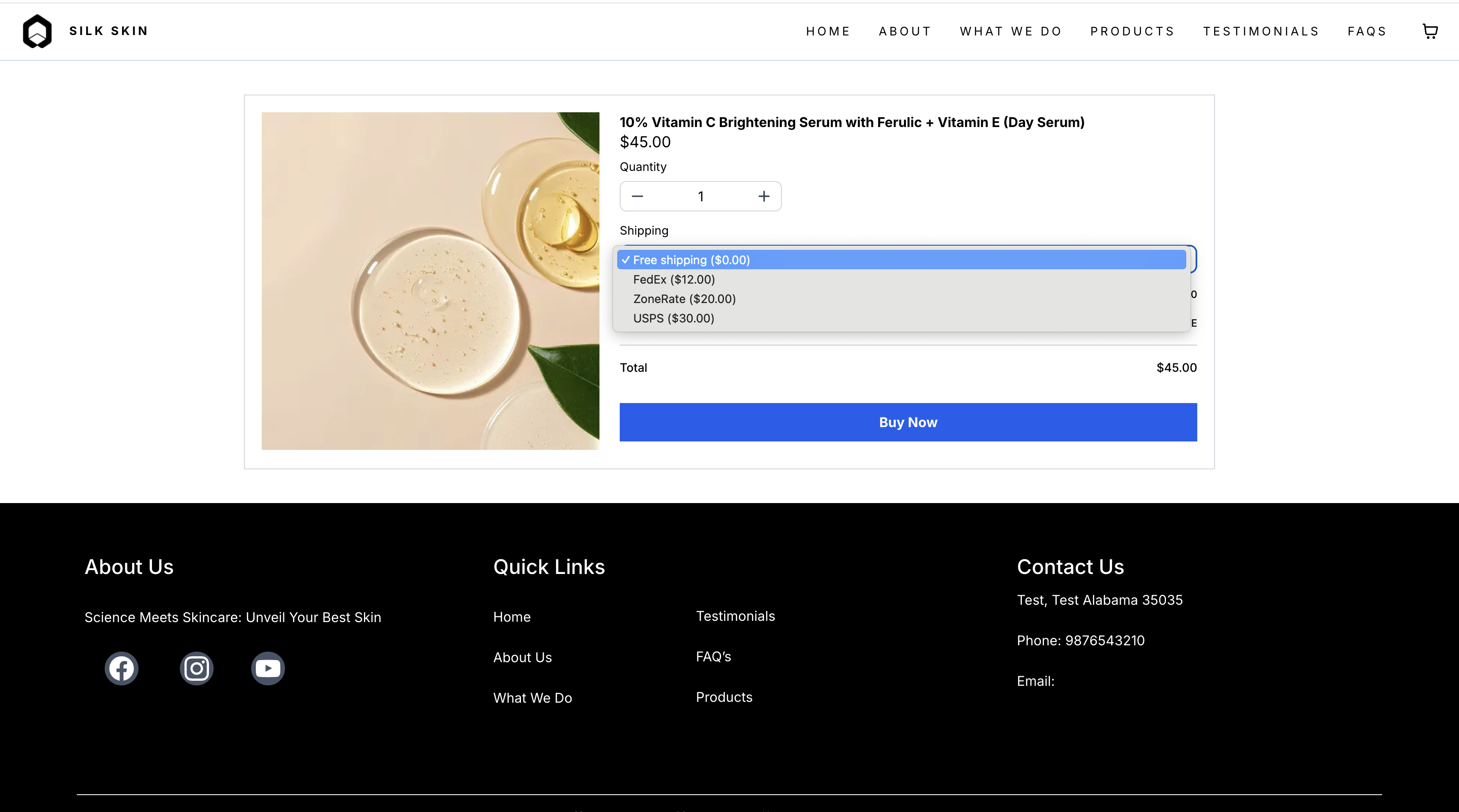
Limit Shipping Zones by ZIP/Postcode
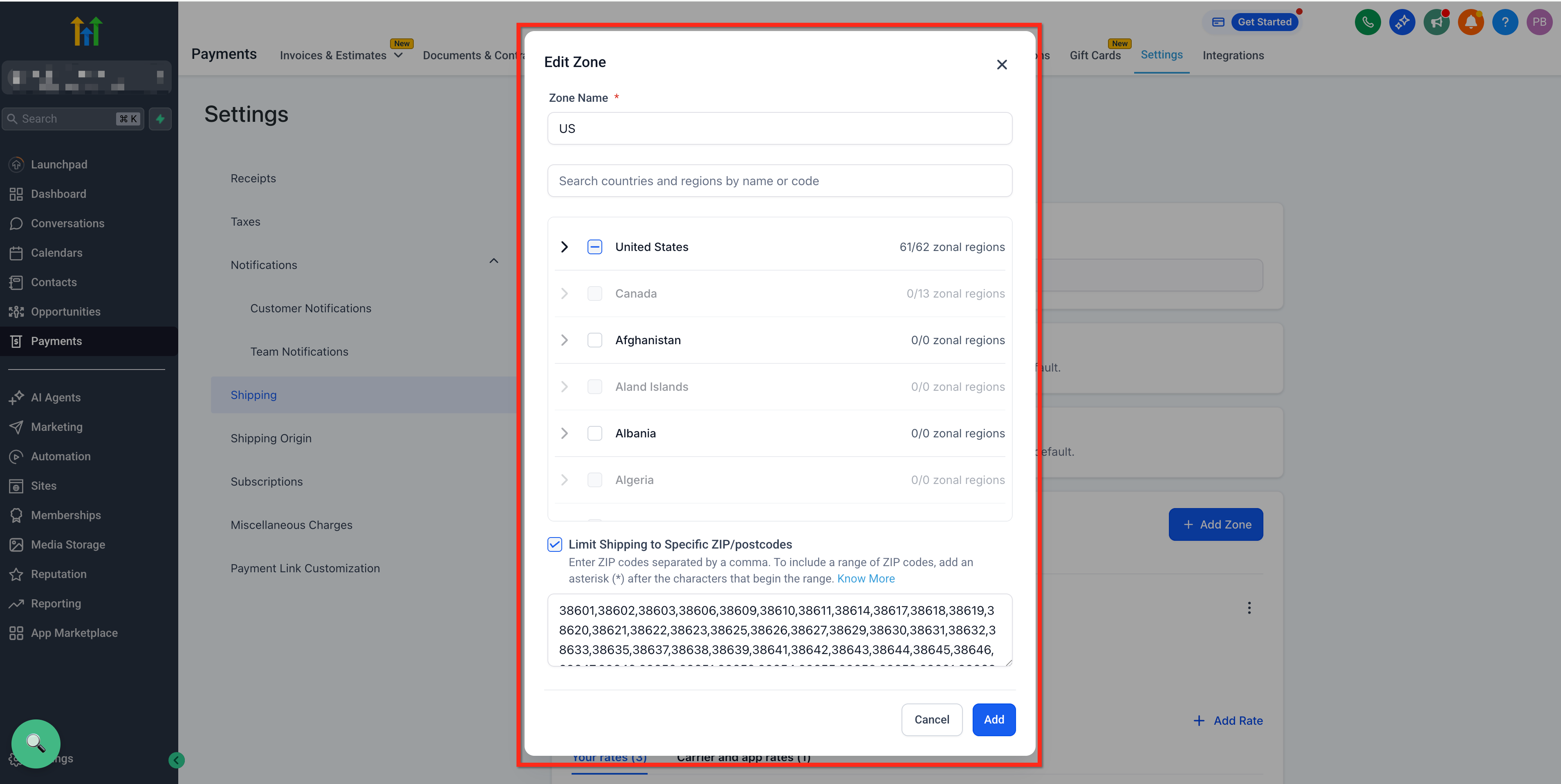
When creating or editing a shipping zone, you can restrict the zone so it only applies to specific ZIP/postcodes. This helps you support hyper-local deliveries or prevent shipping to certain areas by controlling where a zone applies.
Enable ZIP/Postcode Restriction
1. Go to Payments → Settings → Shipping & Delivery.
2. Open your Shipping Profile (General or Custom), then go to Shipping Zones.
3. Create a zone or edit an existing zone.
4. Enable Limit Shipping to Specific ZIP/Postcodes.
5. Enter ZIP/postcodes using commas to separate values.
Accepted Input Formats
Single code (example: "100210")
Comma-separated codes (example: "100210,122021")
Wildcard prefix (example: 46* to match all ZIP/postcodes starting with "46")
Validation Rules
The wildcard asterisk (`*`) is allowed only at the end of an entry (example: 56*).
Duplicate or invalid values are blocked.
If ZIP/postcode restriction is enabled, the zone cannot be saved unless at least one valid ZIP/postcode is entered.
If the customer ZIP/postcode does not match the configured entries, that shipping zone does not apply.
Setting Up Conditional Pricing for Shipping Rates
Conditional pricing allows you to adjust shipping costs dynamically based on the total order amount or the total weight of items in the cart. This helps you set fair delivery charges while rewarding higher-value purchases or managing costs for heavier shipments.
You can configure shipping rates in two ways:
By Order Price — Set rates based on how much the customer spends.
By Item Weight — Set rates based on the total product weight in the order.
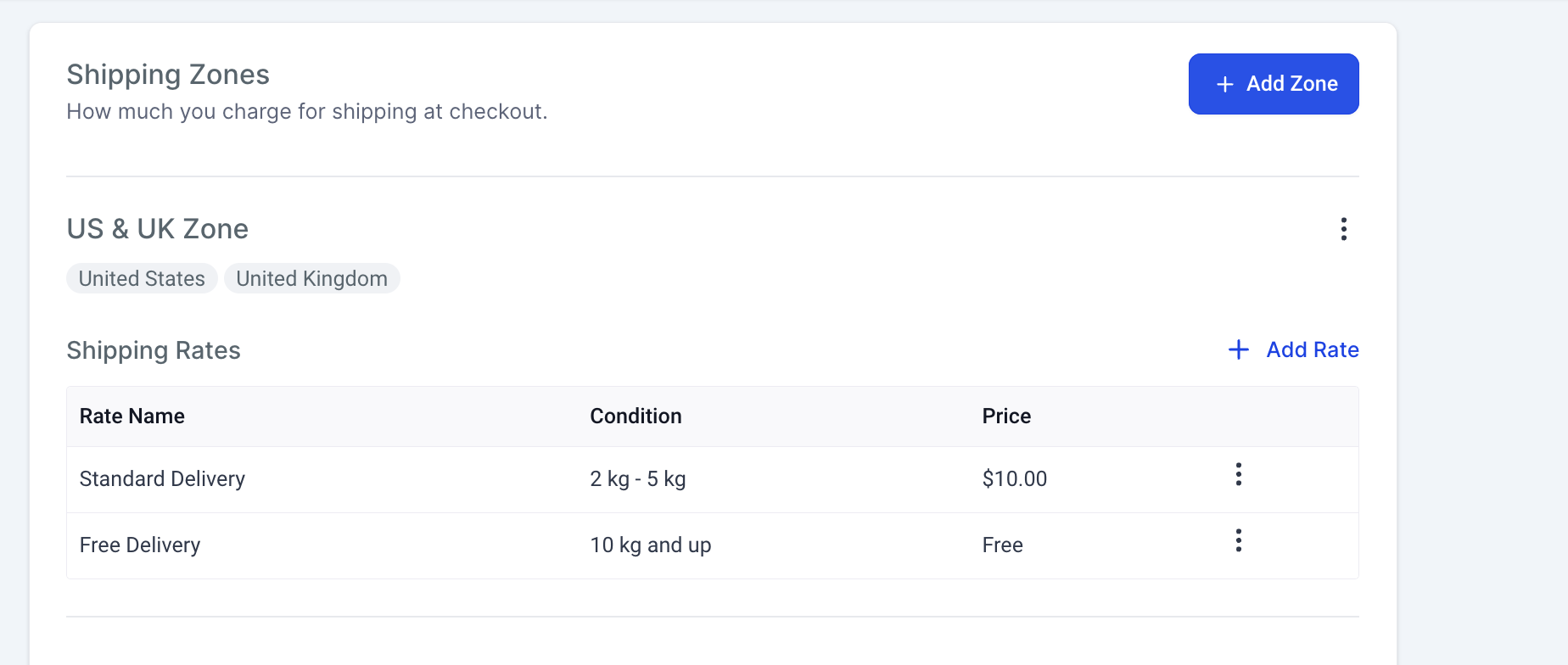
For example, you can offer free shipping for higher-value or heavier orders, and apply a standard rate for smaller ones.
Free Shipping: Orders over $500 or weighing 10 kg and above.
Standard Shipping: Charge $10 for orders below $500 or weighing less than 10 kg.
How to Add Conditional Pricing
Navigate to Sub-Account → Payments → Settings → Shipping & Delivery.
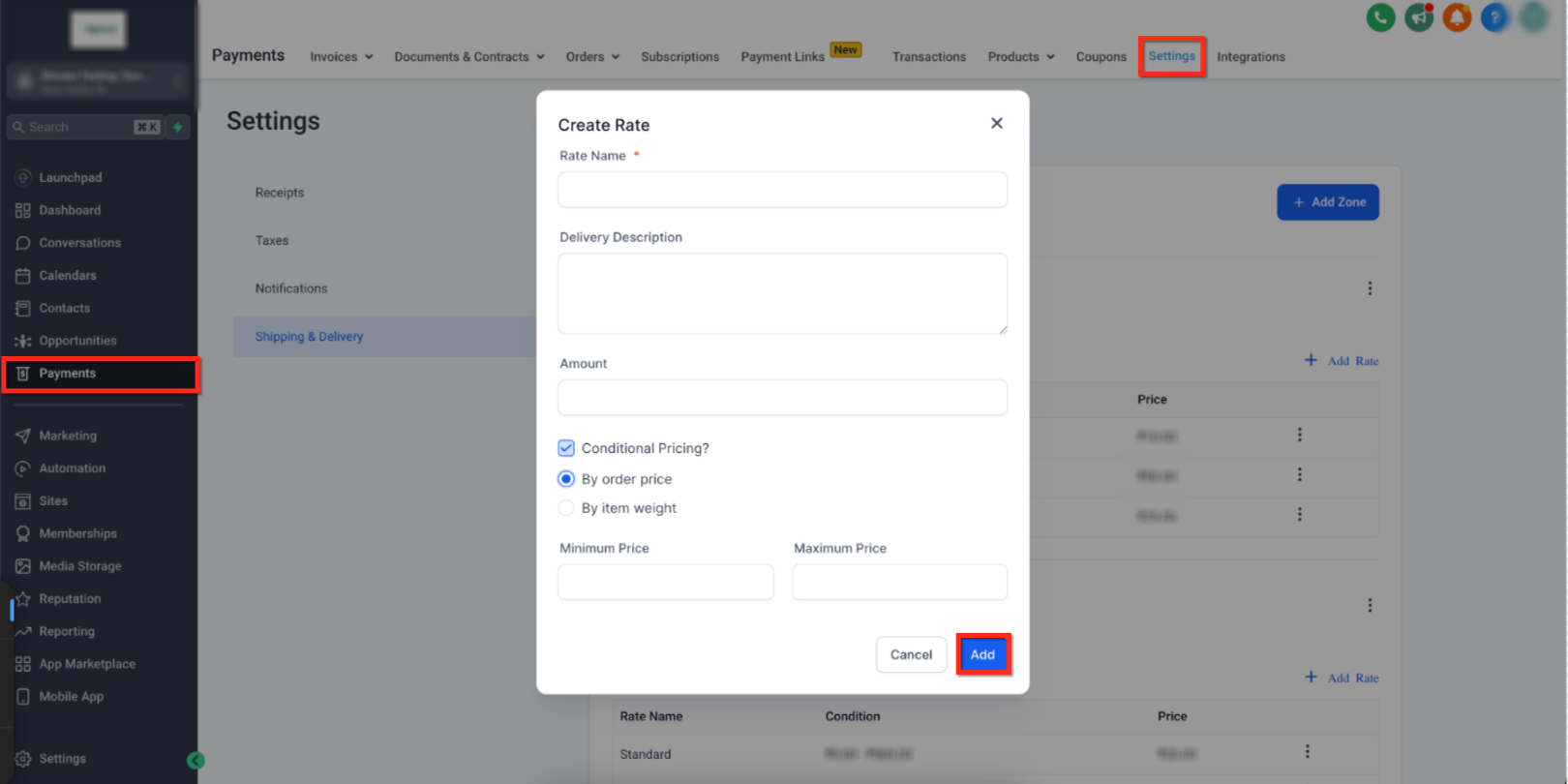
Under your shipping zone, click Add Rate and enable Conditional Pricing.
Choose whether you want to condition the rate By Order Price or By Item Weight.
Define the Minimum and (optional) Maximum values for your range.
Example: 0–10 kg for weight-based, or $0–$500 for price-based.
Enter the rate amount that applies to that condition (e.g., $10 for standard delivery).
Click Add to save your rate.
Once saved, these rates will automatically apply at checkout based on the customer’s cart details and location.
Notes and Best Practices
Keep these tips in mind to prevent setup conflicts and ensure accurate pricing:
You can create different zones for each region and assign unique rates.
Once a state/province is assigned to one zone, it cannot be reused in another.
You can define multiple weight or price ranges within a single zone.
Always test checkout after adding new zones or conditions to confirm correct rate display.
Frequently Asked Questions
Q1: Can I set both weight-based and price-based conditions in the same zone?
Yes. You can create multiple rates within a zone, each using different conditions—one by price, another by weight. This lets you mix and match based on your store’s needs.
Q2: What happens if a customer’s address doesn’t fall into any defined shipping zone?
If a buyer’s address isn’t covered by a custom zone, the system will not display a rate. To prevent this, create a default fallback zone that covers all remaining countries or states.
Q3: Can I offer free shipping for select products only?
Currently, free shipping is applied at the zone or condition level, not per individual product. To create product-specific free shipping, group those products into a dedicated zone and assign a “Free” rate.
Q4: What’s the best way to handle multiple countries with similar shipping costs?
Group them under one zone (e.g., “US & UK Zone”) and assign shared rates. This keeps your setup organized and prevents duplicate configurations.
Q5: How can I test my setup?
Add products to a test order and go through checkout using different addresses to verify the rates appear correctly based on your zones and conditions.
Related Articles
Was this article helpful?
That’s Great!
Thank you for your feedback
Sorry! We couldn't be helpful
Thank you for your feedback
Feedback sent
We appreciate your effort and will try to fix the article