Ask AI Multi-Threading & Background Sessions
Ask AI Mobile also supports parallel chats, so you can start another question while an earlier response continues processing and monitor each session from Chat History.
This guide explains how Ask AI's multi-threading capabilities transform your workflow by allowing multiple simultaneous conversations, background processing, and intelligent notifications that keep you informed without interrupting your focus.
You'll discover how to run parallel tasks, monitor progress through visual indicators, respond to input requests, and seamlessly switch between accounts while maintaining complete conversation separation.
What is Ask AI Multi-Threading?
Ask AI multi-threading transforms how you interact with HighLevel's AI assistant by enabling parallel conversation processing. Instead of waiting for one task to complete before starting another, you can initiate up to 10 simultaneous conversations that run independently.
Each conversation maintains its own context, scroll position, and history. You can draft a blog post in one conversation, generate a report in another, and schedule appointments in a third — all running concurrently. When you close the Ask AI panel or switch to different tools, your conversations continue processing in the background.
The system automatically saves completed conversations and notifies you when they finish or require your input, ensuring no work is lost and nothing fails silently.
Key Capabilities
Multi-threading delivers several powerful capabilities that streamline your AI-assisted workflow:
Understanding Background Notifications
Ask AI's background notifications are conversation-specific alerts that differ from standard platform notifications in several important ways:
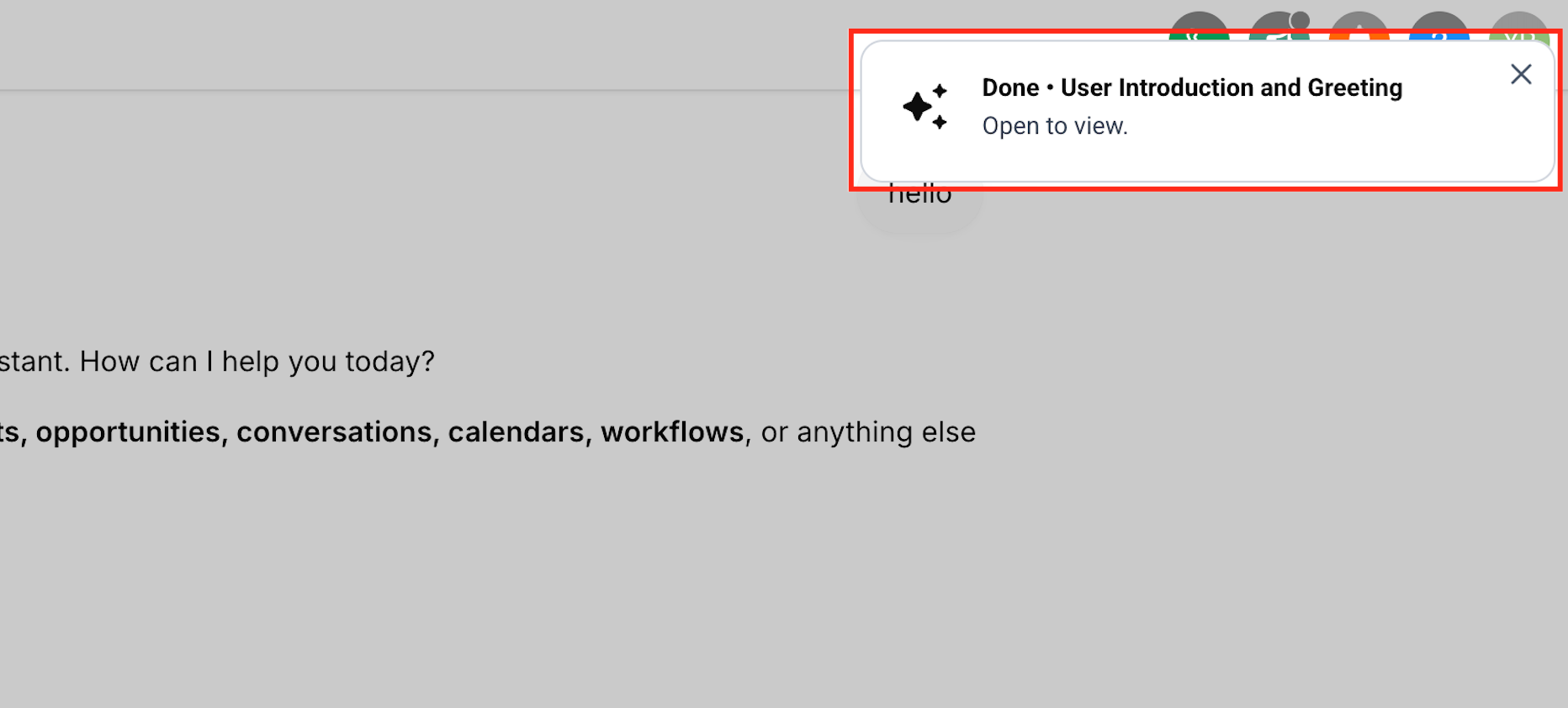
Notifications are clickable and navigate directly to the specific conversation that triggered them. A notification reading "Done • Create launch blog post" takes you straight to that completed conversation when clicked.
Notifications are tied to the account where the work was initiated. A conversation running in one sub-account will not trigger notifications while you're viewing a different sub-account.
If a conversation completes while you're away from Ask AI, the notification waits and replays when you return instead of disappearing. This ensures you never miss completed work.
Notifications only appear when you're working outside Ask AI. If you're already viewing the Ask AI panel, notifications are suppressed to avoid redundant alerts.
When a background conversation completes successfully, you'll see a toast notification like "Done • Create launch blog post" with an "Open to view" link. If a session encounters an error, you'll receive a "Background session failed" message instead, ensuring complete transparency about conversation status.
How Input-Needed Notifications Work
Sometimes Ask AI reaches a point in a conversation where it requires additional information or a decision from you before it can proceed. Rather than stalling silently, the system surfaces an "Input needed" notification.
For example, if Ask AI is updating pipeline stages and needs clarification on stage names or settings, you'll receive a notification like "Update pipeline stages needs your response. Open it." Clicking the notification takes you directly to the waiting conversation where you can provide the required input.
Input-needed notifications take priority over standard completion notifications. This ensures conversations requiring your attention are always surfaced before those that completed successfully on their own.
Input-needed notifications work even when you're viewing a different sub-account than where the conversation originated. This ensures you're always alerted when Ask AI needs your input, regardless of which account you're currently working in.
Once you provide the requested information, Ask AI resumes processing the conversation automatically, continuing from exactly where it paused.
Live Status Indicators
HighLevel provides visual status indicators throughout the interface so you can monitor Ask AI activity without keeping the panel open:
The Ask AI button in the top navigation bar pulses gently while at least one conversation is actively processing. This provides immediate visual feedback that work is in progress.
When background conversations finish while you're working elsewhere in HighLevel, a red dot appears on the Ask AI button in the top navigation, signaling there's completed work ready to review.
The Ask AI icon in the sidebar turns blue while conversations are actively running. This provides a secondary visual cue visible regardless of which navigation you're using.
A small blue dot appears next to the sidebar Ask AI icon when background sessions complete and you haven't reviewed them yet. The dot disappears once you open Ask AI.
Mobile Chat History Indicators
Chat History on mobile shows which Ask AI conversations are still processing and which finished while you were viewing another chat.
- Spinner: The chat is still working on a response.
- Dot: The response finished while you were elsewhere and is ready to review.
All status indicators are account-specific. The badges and dots you see reflect only the sub-account or agency view you're currently in. Switching accounts instantly updates the indicators to show the correct status for that account.
When you're already viewing the Ask AI screen, status dots are hidden since you're already in context. They reappear when you navigate away to signal when new activity occurs.
Account Switching & Conversation Isolation
Ask AI maintains complete conversation isolation across accounts, allowing you to switch freely between sub-accounts and agency views without mixing up work or losing context.
Each account maintains its own independent set of conversations, history, scroll positions, and error states. When you switch accounts, all active conversations in the previous account continue running in the background and finish there.
You can confidently manage multiple client accounts simultaneously, knowing that conversations and their results will never bleed across account boundaries. Each account operates as a completely independent workspace.
Voice Mode Enhancements
Voice mode receives several improvements that make the experience more consistent and flexible when mixing typed and spoken input.
When you type a message in voice mode instead of speaking it, Ask AI now reads its reply out loud. This maintains audio consistency throughout the conversation regardless of input method.
If you switch to another conversation while Ask AI is speaking a voice response, the system waits for the response to finish naturally instead of cutting it off mid-sentence.
Ask AI now confirms before ending a live voice session, preventing accidental disconnections and giving you a chance to continue the conversation if needed.
Plain text conversations outside voice mode remain silent as before. Audio responses only occur when voice mode is active, ensuring quiet operation when you're working in text-only mode.
How to Use Multi-Threading
Follow these steps to take advantage of Ask AI's multi-threading capabilities:
Click the Ask AI button in your top navigation bar or sidebar to open the Ask AI panel.
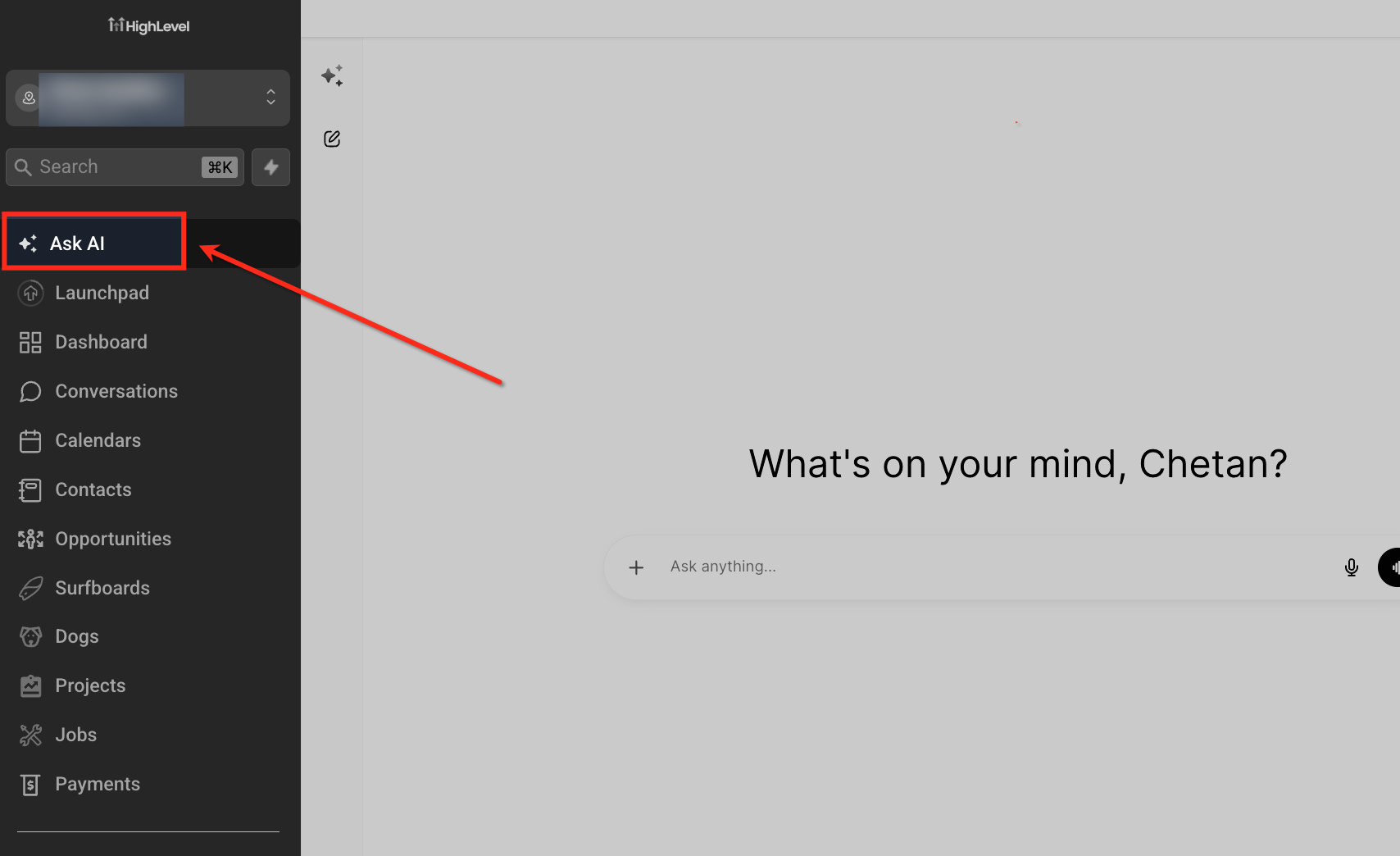
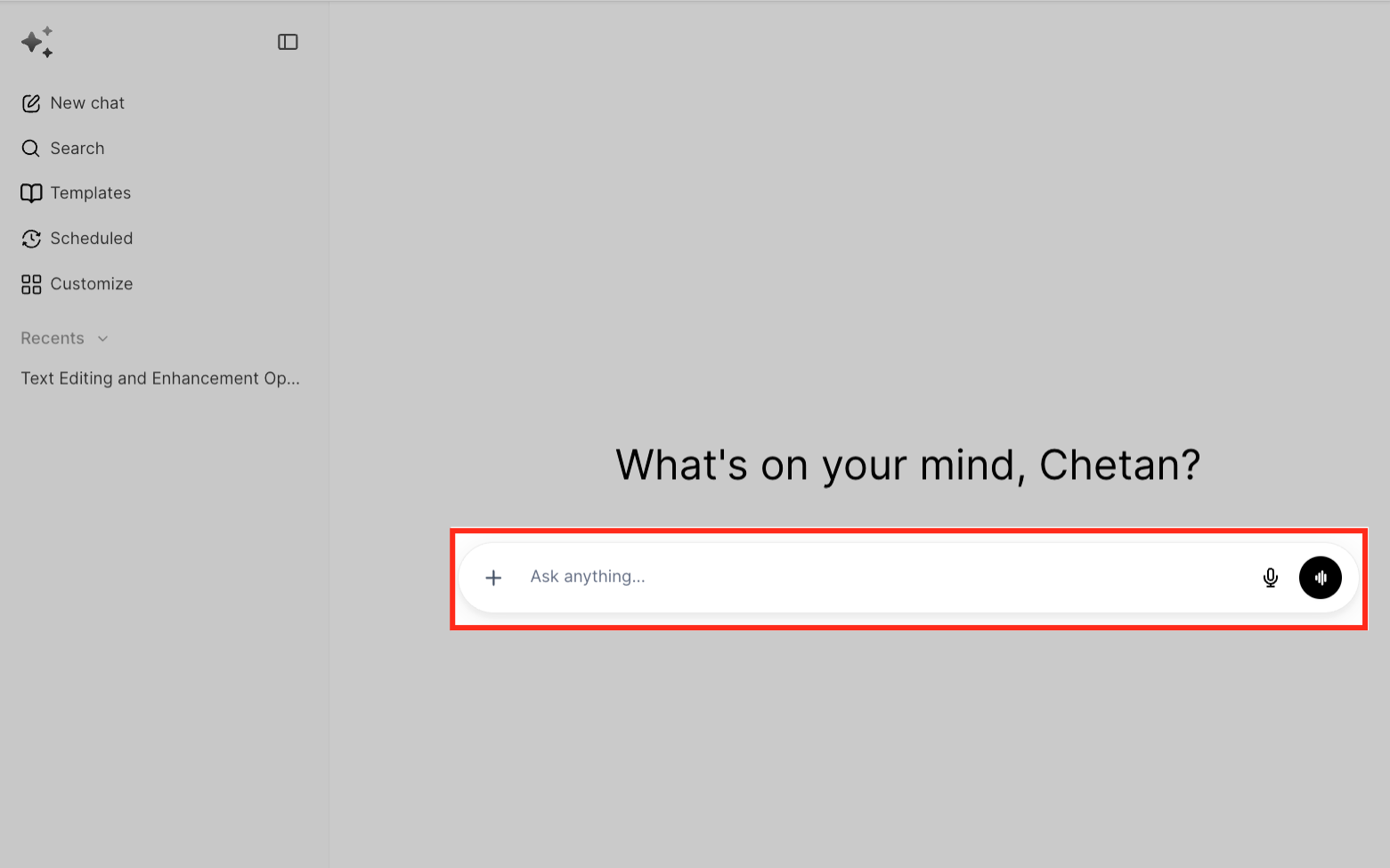
Type or speak your first request — for example, "Draft a blog post about email marketing best practices." Ask AI begins processing immediately.
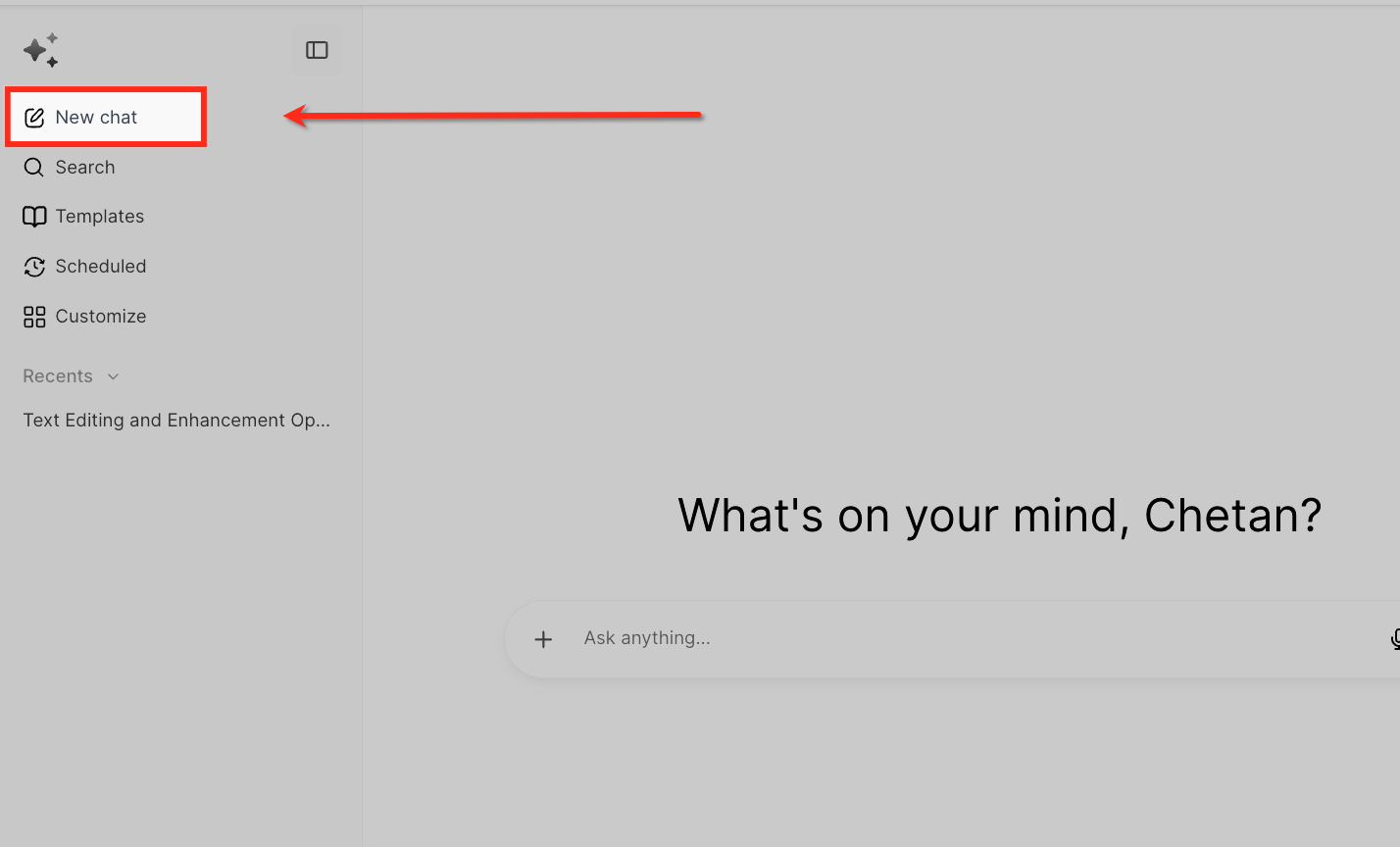
Start new conversations by clicking the "New conversation" button or using the keyboard shortcut. Each conversation runs independently. You can create up to 10 parallel conversations.
Close the Ask AI panel, navigate to other HighLevel tools, or switch to different accounts. Your conversations continue processing in the background.
Watch for the pulsing Ask AI button (active processing) and red dot (completed work) in your navigation bar. The sidebar icon turns blue during active processing and shows a blue dot when conversations finish.

When you see a "Done" or "Input needed" notification, click "Open to view" to jump directly to the relevant conversation. For input-needed notifications, provide the requested information to allow Ask AI to continue.
Open Ask AI to review finished conversations. Each conversation preserves its full history and scroll position, so you can immediately see results without scrolling or searching.
Parallel Sessions in Ask AI Mobile
Parallel sessions let you start another Ask AI request without waiting for the current response to finish. Each chat runs independently, so switching conversations does not cancel work that is already processing.
The mobile parallel-session experience is available in version 4.23.0 and above for the HighLevel, LeadConnector, and WL App.
Run Multiple Ask AI Chats on Mobile
Starting another conversation lets you keep asking questions while earlier requests continue processing.
- Open the mobile app.
- Open Ask AI from the App Drawer.
- Send your first question.
- Open Chat History.
- Tap New Chat.
- Send another question. The first chat continues processing independently.
- Open Chat History whenever you want to move between conversations.
- Look for a spinner to identify chats still processing and a dot to identify responses that finished while you were elsewhere.
Use descriptive conversation titles or opening messages to make it easy to identify conversations later. When you receive a notification like "Done • Create launch blog post," you'll immediately know which task completed.
Frequently Asked Questions
Was this article helpful?
That’s Great!
Thank you for your feedback
Sorry! We couldn't be helpful
Thank you for your feedback
Feedback sent
We appreciate your effort and will try to fix the article