Community Editor Enhancements: Rich Text Toolbar & Moderation Tools
The HighLevel community editor includes several enhancements designed to streamline content creation, moderation, and discussion management. These tools help you format posts more easily, moderate communities without leaving the feed, and interact with recordings directly from posts.
This article covers the floating rich text formatting toolbar, direct user banning from posts, recording downloads, and improved keyboard shortcuts for the comment editor.
Rich Text Formatting Toolbar
The floating formatting toolbar eliminates the need to memorize keyboard shortcuts or navigate away from your content. When you select text in the editor, a toolbar appears with common formatting options, making it faster to create well-structured, visually appealing posts and comments.
The toolbar provides instant access to the following formatting styles:
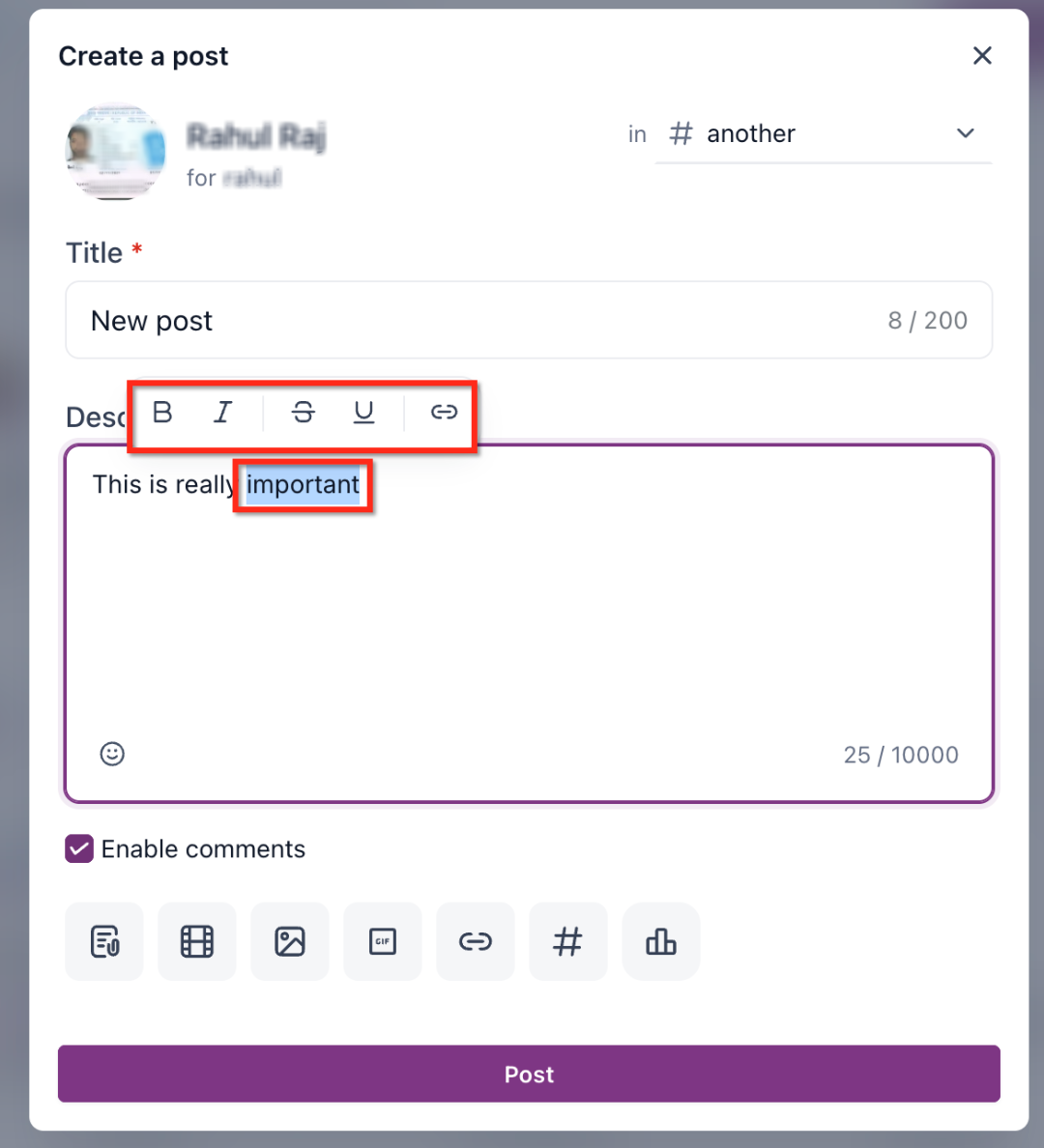
The formatting toolbar appears automatically when you highlight text with your cursor. You can also use traditional keyboard shortcuts if you prefer.
Ban Spammers Directly from Posts
Community moderators can ban users immediately without leaving the discussion feed or navigating to the Members tab. This streamlines moderation workflows and allows you to address spam or inappropriate content quickly.
When you ban a user, HighLevel provides the option to delete all content created by that user, ensuring spam or policy violations are removed comprehensively.
Locate the post from the user you want to ban and click the three-dot menu (⋮) in the top-right corner of the post.
Choose "Ban User" from the dropdown menu. A confirmation dialog appears with the user's profile and username.
Check the "Delete all content created by this user" box if you want to remove all posts, comments, and recordings from the user. Click "Yes, Ban" to complete the action.
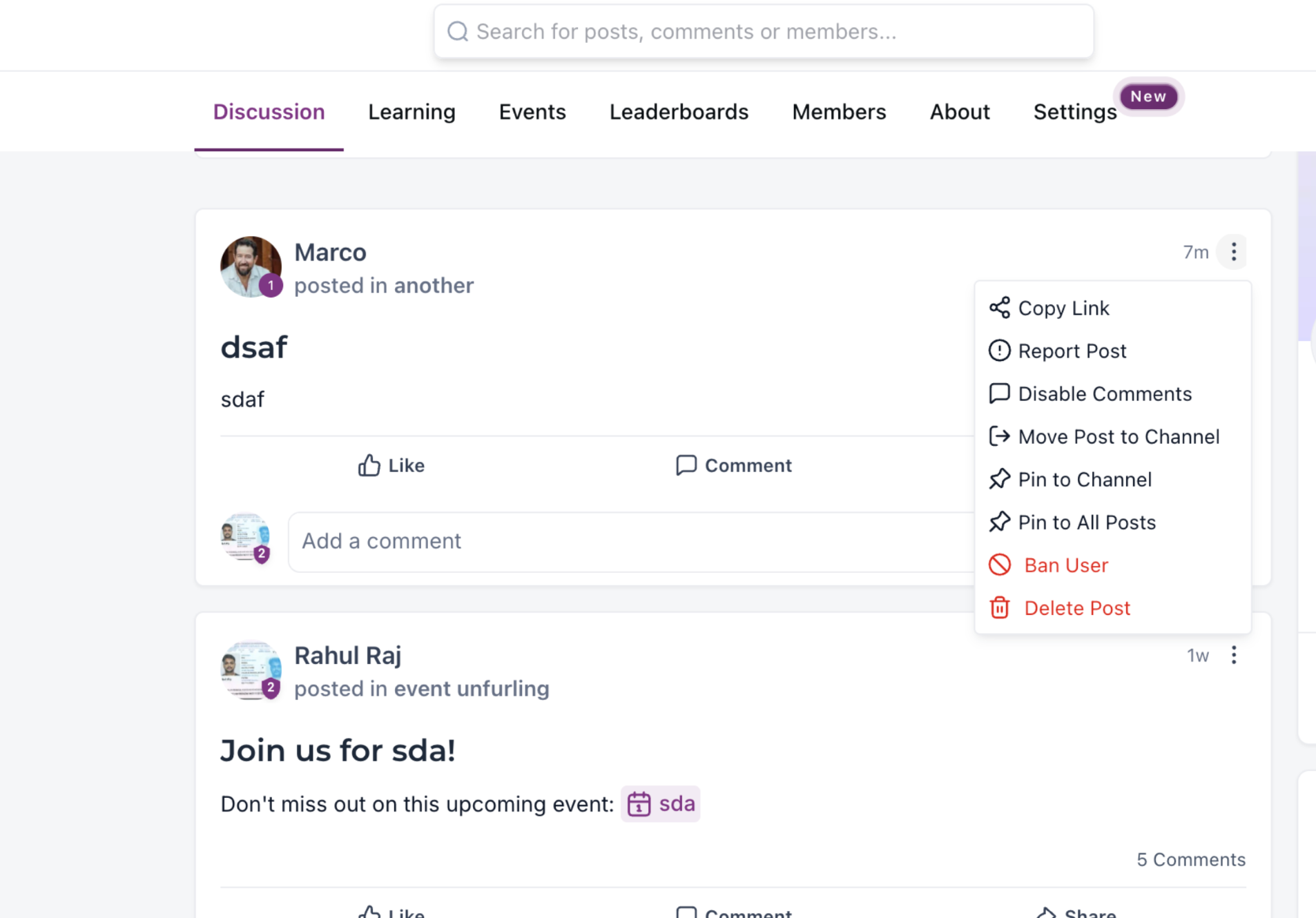
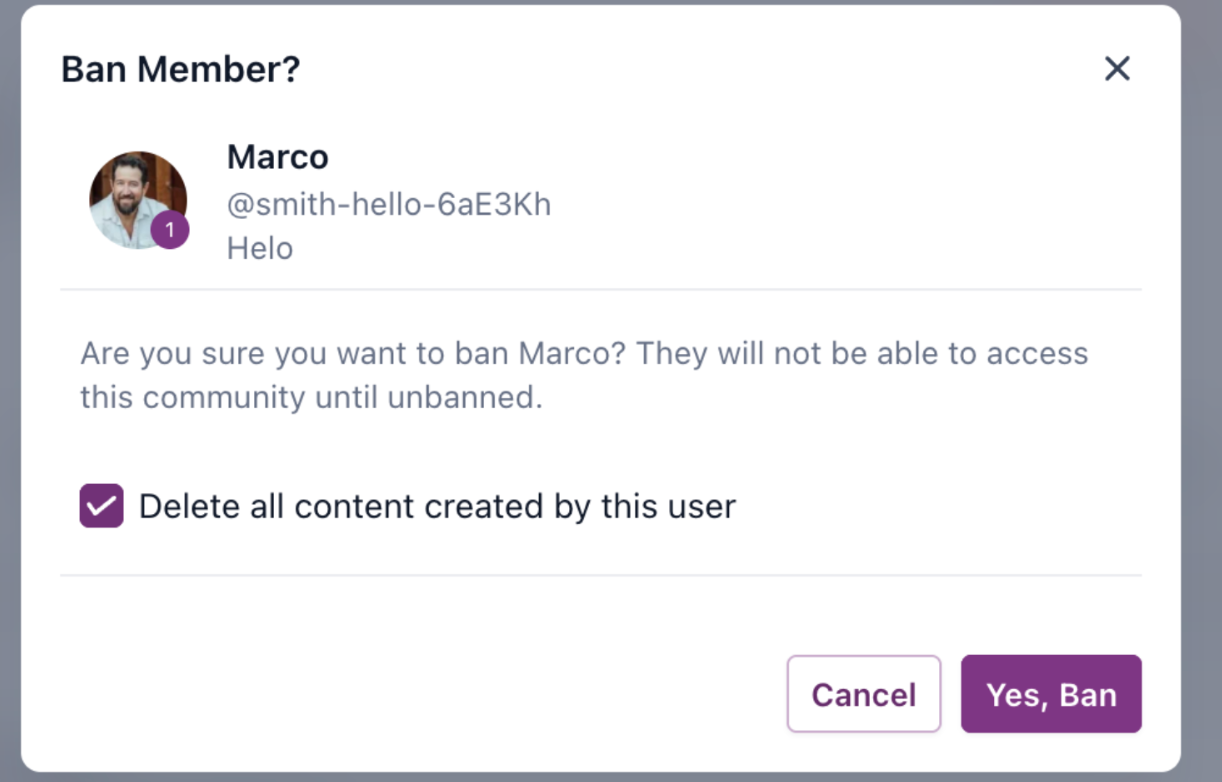
Banned users cannot access the community until unbanned. All their content is permanently removed if you select the delete option during the ban process.
Download Recordings from Posts
Video and audio recordings shared in community posts can be downloaded directly from the post menu. This allows you to save recordings for offline viewing, archiving, or repurposing content without additional steps.
Navigate to the post that contains the recording you want to download.
Click the three-dot menu (⋮) in the top-right corner of the post.
Choose "Download Recording" from the dropdown menu. The recording file downloads immediately to your device.
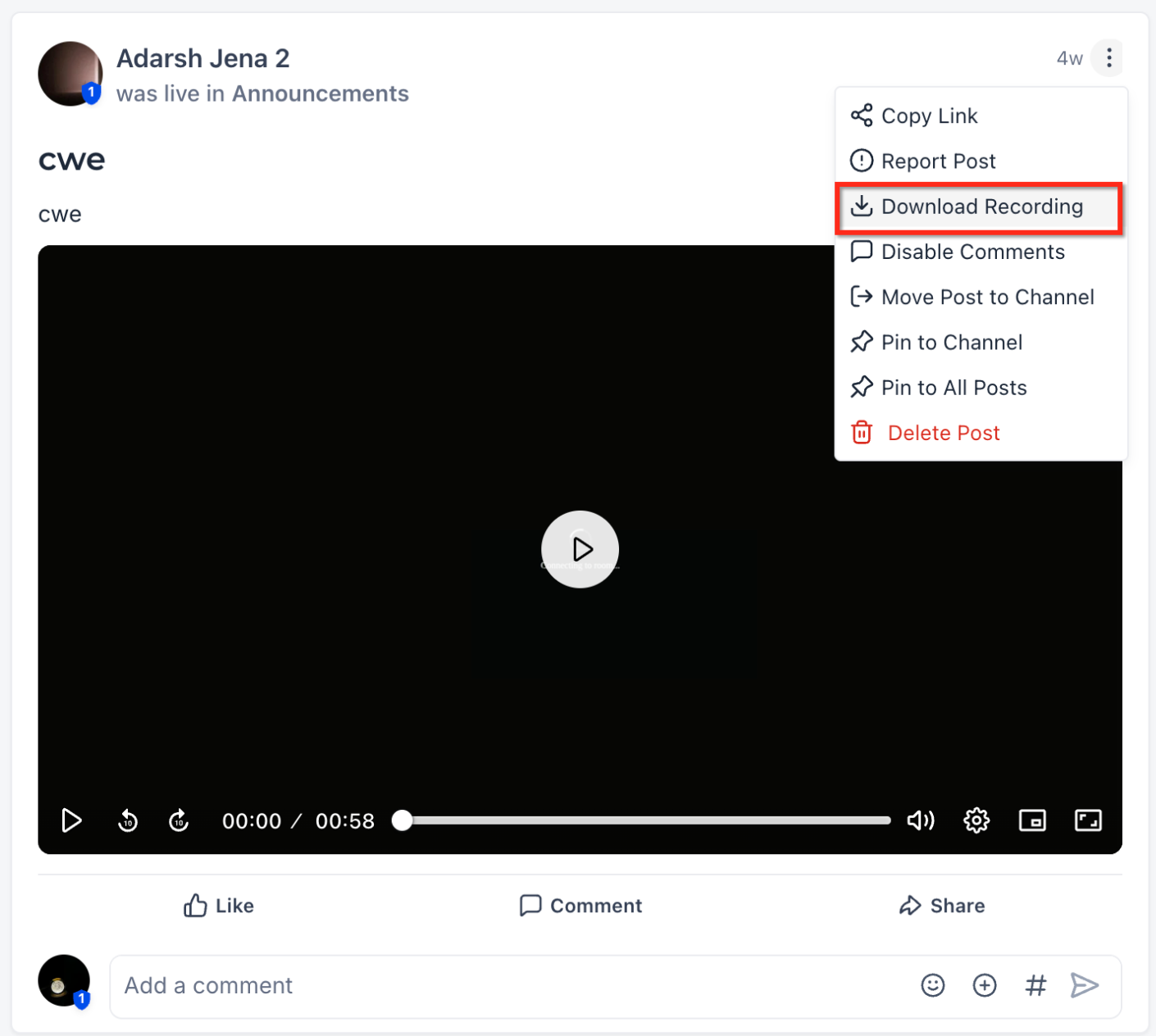
Recording downloads are available for both video and audio posts. The file format depends on the original recording type.
Improved Comment Editor Keyboard Shortcuts
Based on user feedback, HighLevel has updated the comment editor keyboard shortcuts to align with common text editing behaviors. The updated shortcuts provide a more intuitive writing experience and reduce confusion when drafting comments.
Pressing Enter creates a new paragraph block with vertical spacing, matching standard word processing behavior.
Pressing Shift + Enter inserts a line break within the same paragraph, allowing you to separate lines without creating a new paragraph block.
Pressing Ctrl + Enter (or Cmd + Enter on Mac) submits the comment immediately, providing a keyboard alternative to clicking the "Post" button.
The updated keyboard shortcuts align with familiar text editor conventions, reducing the learning curve and helping users write comments faster without accidental submissions.
Frequently Asked Questions
Was this article helpful?
That’s Great!
Thank you for your feedback
Sorry! We couldn't be helpful
Thank you for your feedback
Feedback sent
We appreciate your effort and will try to fix the article