AI Studio Form Submitted Workflow Trigger

Modified on: Wed, 29 Jul, 2026 at 4:59 AM

Workflow Automation

AI Studio Form Submitted Workflow Trigger

Start a workflow automatically when a visitor submits a connected form on an AI Studio site
What You'll Learn

This article explains how to use the AI Studio Form Submitted trigger to start workflows automatically when visitors submit forms on AI Studio (Vibe) websites. You'll learn how to set up the trigger, configure filters for specific projects, forms, page paths, or domains, and automate follow-up actions like sending emails, SMS messages, adding tags, or creating opportunities.

Existing forms will continue to work with the External Tracking form trigger — there is no need to update them if you want to keep using that trigger. Only re-trigger the form integration and reconnect to CRM if you want an existing form to use the new AI Studio Form Submitted trigger.

1

What is the AI Studio Form Submitted Trigger?

The AI Studio Form Submitted trigger starts a workflow automatically whenever a visitor submits a connected form on an AI Studio (Vibe) site. This trigger is specifically designed for AI Studio form submissions and provides a dedicated way to automate follow-up actions for leads captured through AI Studio sites.

You can optionally limit the workflow to a specific AI Studio project, form, page path, or domain using the available filters.

The trigger works alongside the existing External Tracking functionality. Existing forms will continue to work with the External Tracking form trigger — there is no need to update them if you want to keep using that trigger. Only re-trigger the form integration and reconnect to CRM if you want an existing form to use the new AI Studio Form Submitted trigger.

2

Key Benefits

The AI Studio Form Submitted trigger provides several advantages for managing AI Studio leads:

Dedicated AI Studio Integration — A trigger specifically designed for AI Studio form submissions, making it easier to manage workflows for AI Studio websites separately from other form sources.
Automated Follow-Up Actions — Automatically send notifications, emails, SMS messages, add tags, create opportunities, or trigger any other workflow action when a form is submitted.
Advanced Filtering Options — Filter workflows to run only for specific AI Studio projects, forms, page paths, or domains, giving you precise control over which submissions trigger which workflows.
Streamlined Lead Management — Capture and process AI Studio leads directly in your CRM with automated contact creation and workflow execution.
Works Alongside External Tracking — The trigger complements the existing External Tracking functionality, so you can use both methods based on your workflow needs without conflicts.
3

Before You Begin

Before creating a workflow with the AI Studio Form Submitted trigger, complete these requirements:

Make sure AI Studio is enabled for your sub-account.
Make sure your AI Studio project has a form.
Connect the form to CRM tracking.
Publish the project.
Submit a test form entry so the trigger can load available filter options.
4

Reconnect Existing Forms

If your AI Studio project already had a connected form before the AI Studio Form Submitted trigger was available, reconnect the form integration. This refreshes the form tracking setup and adds the information needed for the trigger to identify the AI Studio project and form correctly.

Important

Existing forms will continue to work with the External Tracking form trigger. There is no need to update them if you want to keep using that trigger. Only re-trigger the form integration and reconnect to CRM if you want an existing form to use the new AI Studio Form Submitted trigger.

Reconnect each existing AI Studio form that you want to use with this trigger.

Step 1
Open Your AI Studio Project

Navigate to the AI Studio project that contains the form you want to update.

Step 2
Request Form Integration Re-Trigger

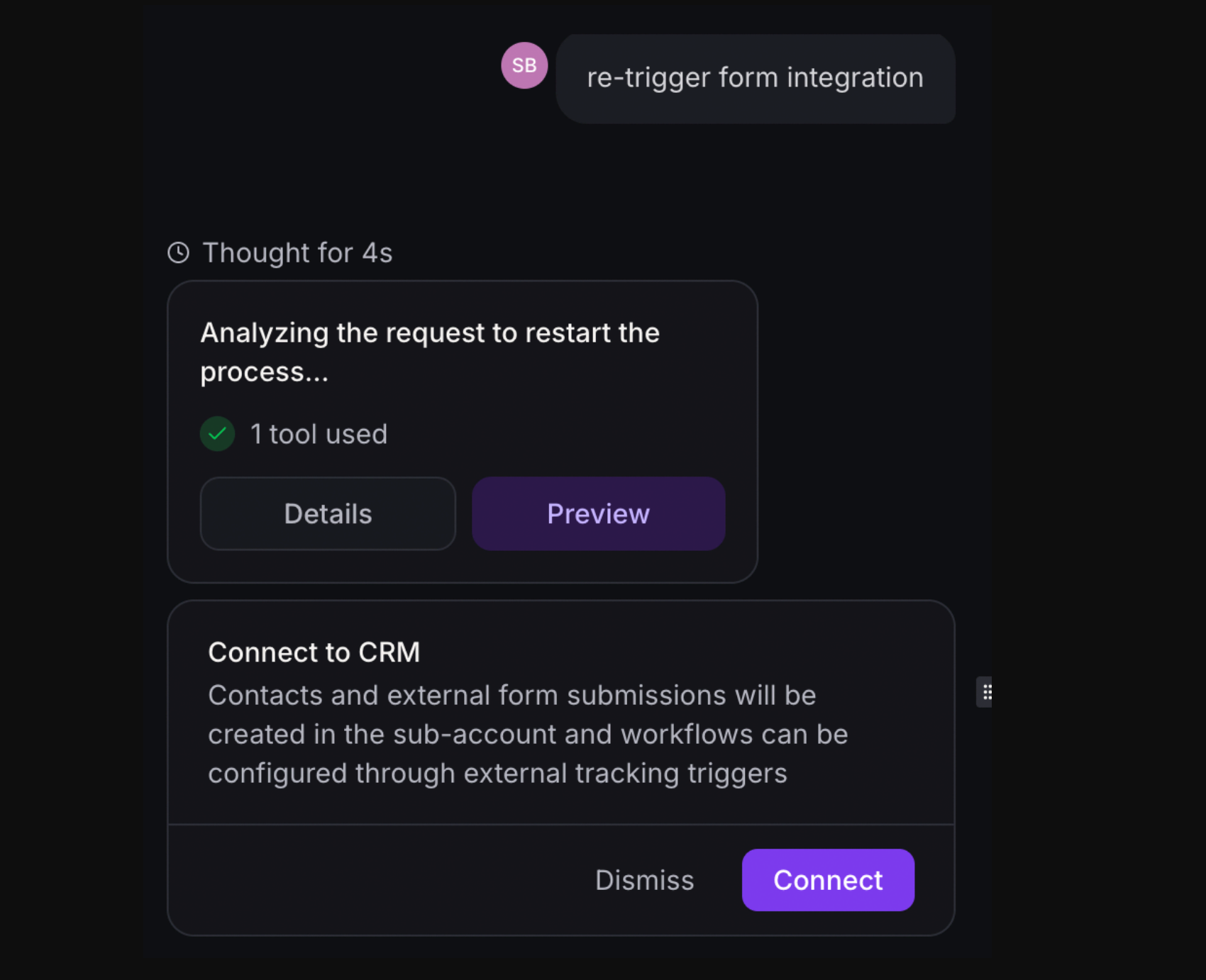
In the AI Studio chat interface, ask AI Studio to re-trigger the form integration. Use this prompt: "Re-trigger form integration." Allow AI Studio to analyze the request and update the form integration.

Step 3
Connect Form to CRM Tracking

After AI Studio processes the request, connect the form to CRM tracking again. This refreshes the integration and enables compatibility with the AI Studio Form Submitted trigger.

Step 4
Publish the Project

Publish the AI Studio project again to apply the updated tracking configuration to the live website.

Step 5
Submit a Test Form Entry

Visit the published AI Studio website and submit a test entry after publishing to verify that the tracking is working correctly.

5

Create the Workflow

Follow these steps to create a workflow with the AI Studio Form Submitted trigger:

Step 1
Create or Open a Workflow

Navigate to Automation > Workflows in your HighLevel account. Create a new workflow or open an existing workflow where you want to add the trigger.

Step 2
Add the AI Studio Form Submitted Trigger

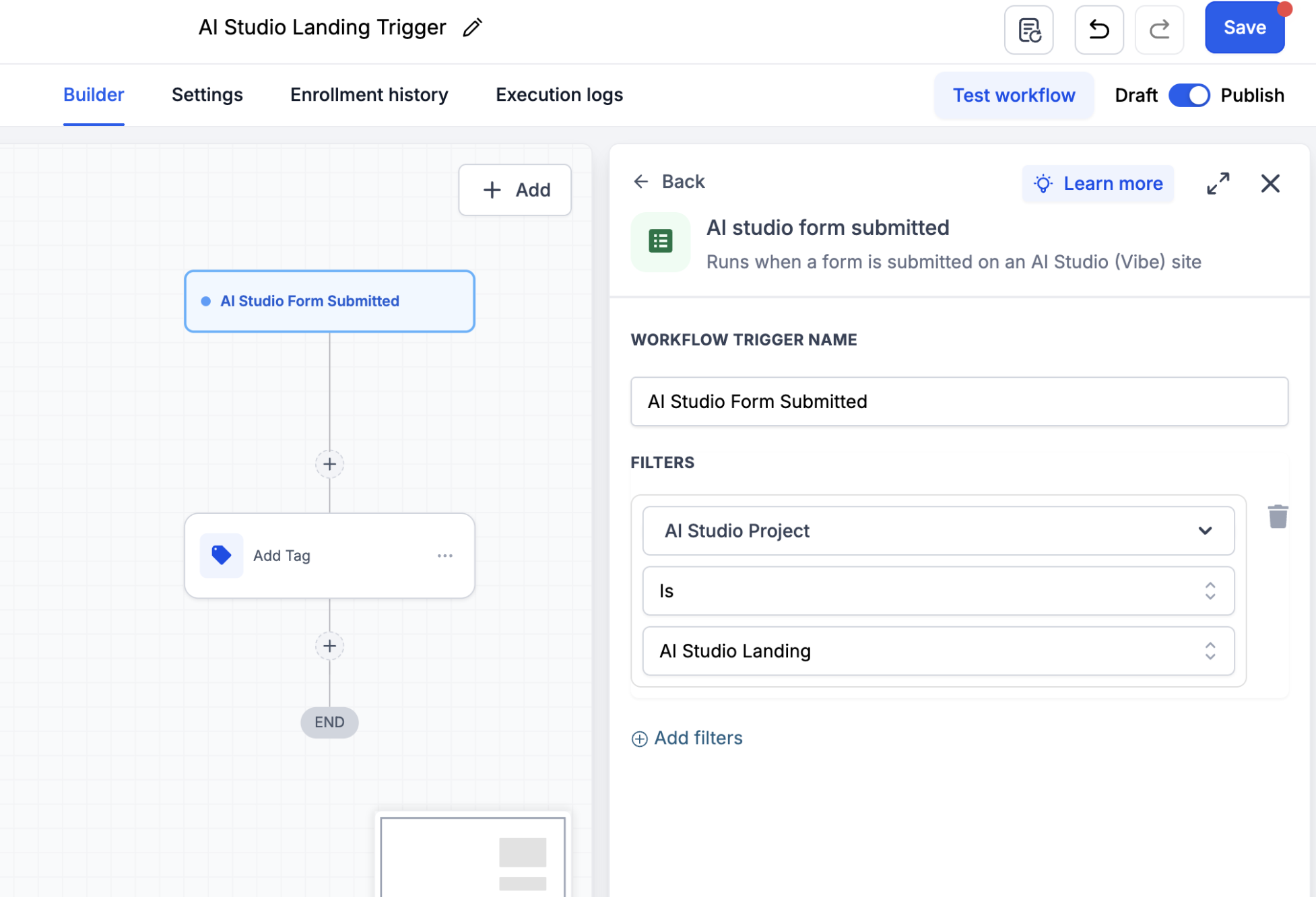
In the workflow builder, click Add New Trigger. Search for and select AI Studio Form Submitted from the list of available triggers.
Step 3
Add Filters (Optional)

Add filters if needed to specify which AI Studio submissions should trigger the workflow. You can filter by project, form, page path, or domain. See the Available Filters section below for details. If no filters are added, the workflow will trigger for form submissions from all AI Studio projects.

Step 4
Add Your Workflow Actions

After the trigger is configured, add your workflow actions. Common actions include sending emails or SMS messages, adding tags, creating opportunities, updating contact fields, or assigning contacts to team members.

Step 5
Save and Publish the Workflow

Save your changes and toggle the workflow to Published to activate it.

Success

Your workflow will now start automatically whenever a visitor submits a form on your AI Studio website that matches the configured filters.

6

Available Filters

Use one or more filters to control which AI Studio submissions enter the workflow. Filters help you target specific projects, forms, pages, or domains.

FilterDescription
AI Studio ProjectRuns the workflow only for submissions from a selected AI Studio project.
AI Studio FormRuns the workflow only when a selected form is submitted.
Page PathRuns the workflow only for submissions from selected page paths.
DomainRuns the workflow only for submissions from selected domains.
Note

Select an AI Studio Project first to narrow the available form, page path, and domain options in the other filters.

7

Troubleshooting

I do not see my project or form in the filter list

If your project or form doesn't appear in the filter options:

  • Confirm the form is connected to CRM tracking.
  • For existing forms, ask AI Studio to re-trigger form integration.
  • Connect the form to CRM tracking again.
  • Submit a new test form entry.
  • Refresh the workflow builder and try again.
The workflow does not run after a submission

If the workflow doesn't trigger after a form submission:

  • Confirm the workflow is published.
  • Confirm the form is connected to CRM tracking.
  • For an existing form, re-trigger the form integration and connect it to CRM tracking again.
  • Submit a new entry through the published AI Studio page.
  • Check that selected filters match the project, form, page path, or domain used for the test submission.
9

Frequently Asked Questions

Q: Does the AI Studio Form Submitted trigger replace External Tracking?
No, the AI Studio Form Submitted trigger works alongside the existing External Tracking functionality. Existing forms will continue to work with the External Tracking form trigger. There is no need to update them if you want to keep using that trigger. Only re-trigger the form integration and reconnect to CRM if you want an existing form to use the new AI Studio Form Submitted trigger. The new trigger provides a dedicated option specifically designed for AI Studio form submissions, giving you more flexibility in how you manage workflows.
Q: What happens to contacts created from AI Studio form submissions?
When a visitor submits an AI Studio form with CRM tracking enabled, a contact record is created in the sub-account automatically. The workflow trigger fires based on this form submission event, allowing you to automate follow-up actions for that contact immediately.
Q: What filters can I use with this trigger?
The trigger includes filters for AI Studio Project, AI Studio Form, Page Path, and Domain. You can use these filters individually or in combination to ensure workflows only run for specific submissions. If no filters are applied, the workflow will trigger for all AI Studio form submissions in the account.
Q: Do I need to reconnect all my AI Studio forms to use this trigger?
Only forms that were connected to CRM tracking before the AI Studio Form Submitted trigger was released need to be reconnected. Use the "Re-trigger form integration" command in AI Studio to refresh the tracking setup for those forms. Any forms connected after the trigger release will work automatically without requiring reconnection.
Q: What types of actions can I automate with this trigger?
You can automate any workflow action supported by HighLevel, including sending email or SMS notifications, adding tags, creating opportunities, updating contact fields, assigning contacts to team members, adding contacts to pipelines or campaigns, and triggering additional workflows. The trigger provides the same action capabilities as other workflow triggers.
Q: How do I test if the trigger is working correctly?
After setting up the workflow and publishing it, visit your AI Studio website and submit a test form entry. Check the workflow's Execution Logs tab to verify that the workflow was triggered and the actions executed successfully. You can also verify that the contact was created or updated correctly in the CRM.
Q: Can I use this trigger for forms embedded on non-AI Studio websites?
No, the AI Studio Form Submitted trigger is designed specifically for forms submitted on AI Studio (Vibe) websites. For forms on other websites or landing pages built with HighLevel's standard builder, use the standard form submission triggers or External Tracking triggers instead.
Q: What should I do if my project doesn't appear after re-triggering?
If the project doesn't appear after following the re-triggering steps, verify that the AI Studio project is published and that the form is properly connected to CRM tracking. Try submitting another test form entry and then refresh the workflow builder again. If the issue persists, contact HighLevel support for assistance.

Was this article helpful?

That’s Great!

Thank you for your feedback

Sorry! We couldn't be helpful

Thank you for your feedback

Let us know how can we improve this article!

Select at least one of the reasons
CAPTCHA verification is required.

Feedback sent

We appreciate your effort and will try to fix the article