Bulk Edit Availability in HighLevel helps you update availability for multiple team members from one calendar settings area. It is designed for teams that need to adjust Weekly Working Hours or Date-Specific Hours without editing each user one at a time. The enhanced bulk edit experience adds clearer warnings, better visibility into date-based exceptions, and safer save behavior to help prevent accidental schedule changes.
Bulk Edit Availability is especially useful when multiple users share similar schedules, need the same special availability on a specific date, or require coordinated updates across a calendar.
TABLE OF CONTENTS
- What is Bulk Edit Availability?
- Key Benefits of Bulk Edit Availability
- Weekly Working Hours in Bulk Edit Availability
- Date-Specific Hours in Bulk Edit Availability
- Adding Date-Specific Hours in Bulk
- Smarter Save Logic for Bulk Availability Edits
- How To Setup Bulk Edit Availability
- Frequently Asked Questions
What is Bulk Edit Availability?
Bulk Edit Availability allows you to update calendar availability for multiple selected team members from the Availability tab inside a calendar. Instead of opening each team member’s availability settings individually, you can select users, edit their hours, and save the changes from one workflow.
This feature supports two important availability types: Weekly Working Hours and Date-Specific Hours. Weekly Working Hours control the regular recurring schedule, while Date-Specific Hours are used for exceptions on specific dates, such as holidays, events, vacations, extended hours, or one-time closures.
Key Benefits of Bulk Edit Availability
Bulk Edit Availability helps calendar admins and managers make schedule updates faster while reducing the risk of accidental changes. The enhanced experience gives users more context before saving and more control over how availability updates are applied.
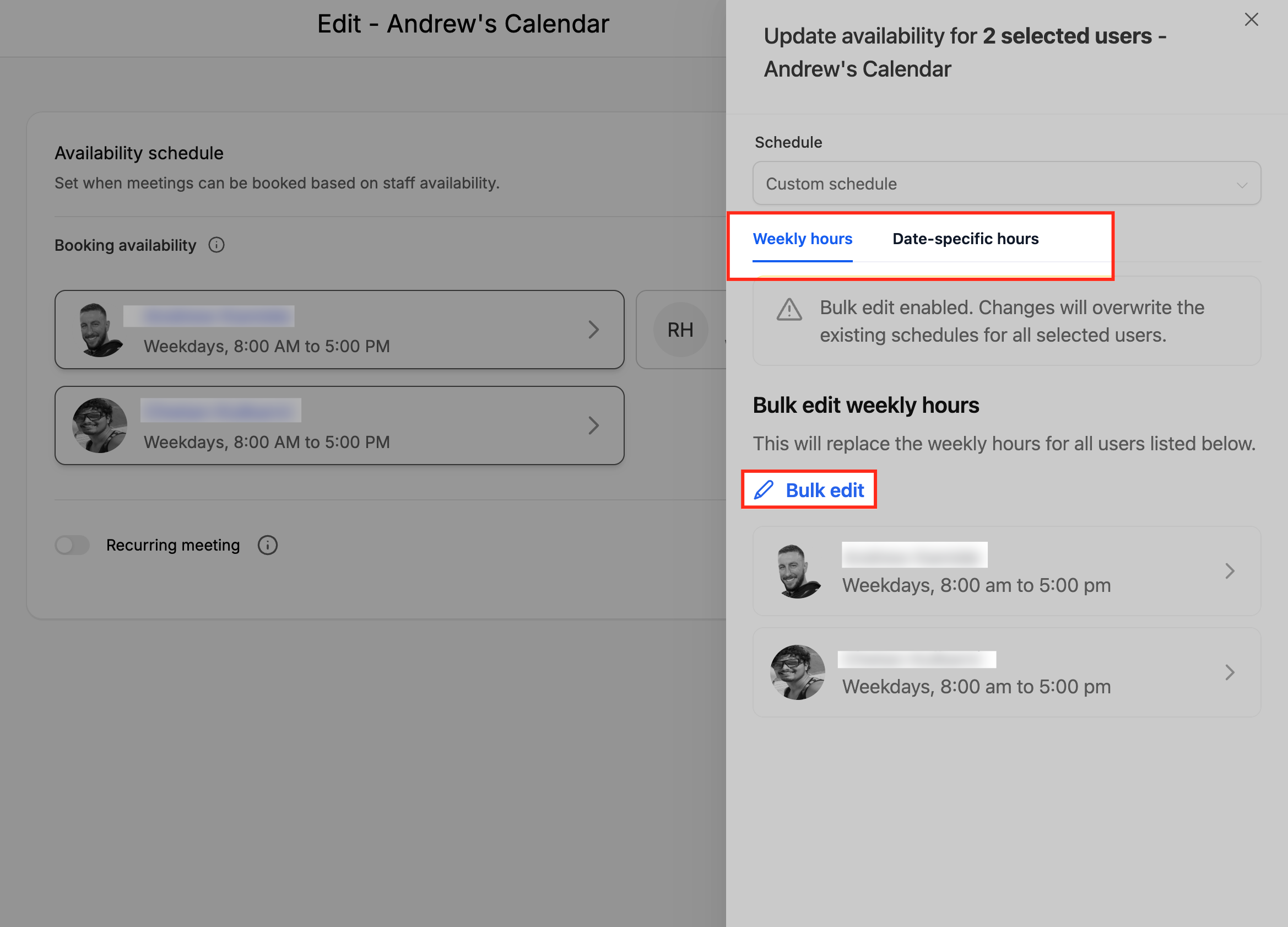
- Clearer schedule updates: An informational banner appears when editing Weekly Working Hours so you know changes will apply to all selected users.
- Safer bulk editing: Section-specific save behavior helps prevent Weekly Working Hours and Date-Specific Hours from overwriting each other.
- Better date exception visibility: Date-Specific Hours are grouped by date so you can review exceptions across selected users more easily.
- Faster team availability management: Add Date-Specific Hours once and apply them to all selected users at the same time.
- More user-level control: Edit or delete Date-Specific Hours for individual users after they are added in bulk.
- Reduced accidental overrides: Smarter save logic helps protect schedule data that was not edited.
Weekly Working Hours in Bulk Edit Availability
Weekly Working Hours define the regular recurring availability for selected team members. These hours are typically used for standard workdays, normal business hours, or recurring appointment availability.
When editing Weekly Working Hours in Bulk Edit mode, HighLevel displays an informational banner to make the impact clear. Any changes made to Weekly Working Hours apply to all selected users when saved. This helps ensure you understand the scope of the update before applying it.
Use Weekly Working Hours when you need to update a recurring schedule, such as:
- Changing standard working hours for multiple team members
- Adding or removing regular availability on certain weekdays
- Aligning team schedules across a shared calendar
- Updating regular appointment availability after a staffing or business hours change
Important: Updating Weekly Working Hours only modifies the weekly schedule. It does not update Date-Specific Hours.
Date-Specific Hours in Bulk Edit Availability
Date-Specific Hours are used to manage availability exceptions for specific calendar dates. These are helpful when a user or team has different availability than their normal Weekly Working Hours on a particular day.
The enhanced Bulk Edit Availability experience displays Date-Specific Hours in a grouped-by-date format across all selected users. This gives you a clearer view of which users have availability set for each date before you make
changes.
For each date, you can:
- See how many selected users have availability set
- View individual user time blocks under that date
- Edit entries for a specific user
- Delete entries for a specific user
This structure makes it easier to manage exceptions such as holidays, special events, limited availability days, extended hours, or temporary schedule changes.
Important: Updating Date-Specific Hours only modifies date-based exceptions. It does not update Weekly Working Hours.
Adding Date-Specific Hours in Bulk
Adding Date-Specific Hours in bulk lets you apply the same date-based availability block to every selected user at once. This is useful when multiple team members need the same special availability or unavailable time on a specific date.
When you add a new Date-Specific Hours time block in Bulk Edit mode, HighLevel applies that time block to all selected users. After the entry is created, you can still edit or remove the entry for individual users as needed.
Use this when:
- A team is available for special event appointments on the same date
- A business location has adjusted holiday hours
- Multiple staff members need the same one-time availability exception
- Selected users need a temporary schedule change for a specific day
Smarter Save Logic for Bulk Availability Edits
Bulk availability updates now use section-specific save behavior. This means HighLevel only updates the availability section you changed, helping prevent accidental schedule loss when editing multiple users.
For example, if you update Weekly Working Hours, only the weekly schedule is modified. If you update Date-Specific Hours, only the date-based exceptions are modified.
This save behavior is important because Weekly Working Hours and Date-Specific Hours serve different purposes. Keeping the save logic separate gives you more control and helps protect existing availability details that were not part of your current update.
Section-specific save behavior works as follows:
- Updating Weekly Working Hours only modifies weekly schedules.
- Updating Date-Specific Hours only modifies date exceptions.
- Unedited availability sections are not changed by that save action.
How To Setup Bulk Edit Availability
Properly setting up Bulk Edit Availability helps ensure the right team members receive the intended schedule updates. Before saving, review the selected users and confirm whether you are editing recurring Weekly Working Hours or Date-Specific Hours for specific dates.
- In HighLevel, go to Calendars.
- Open Calendar Settings.
- Select the calendar you want to update.
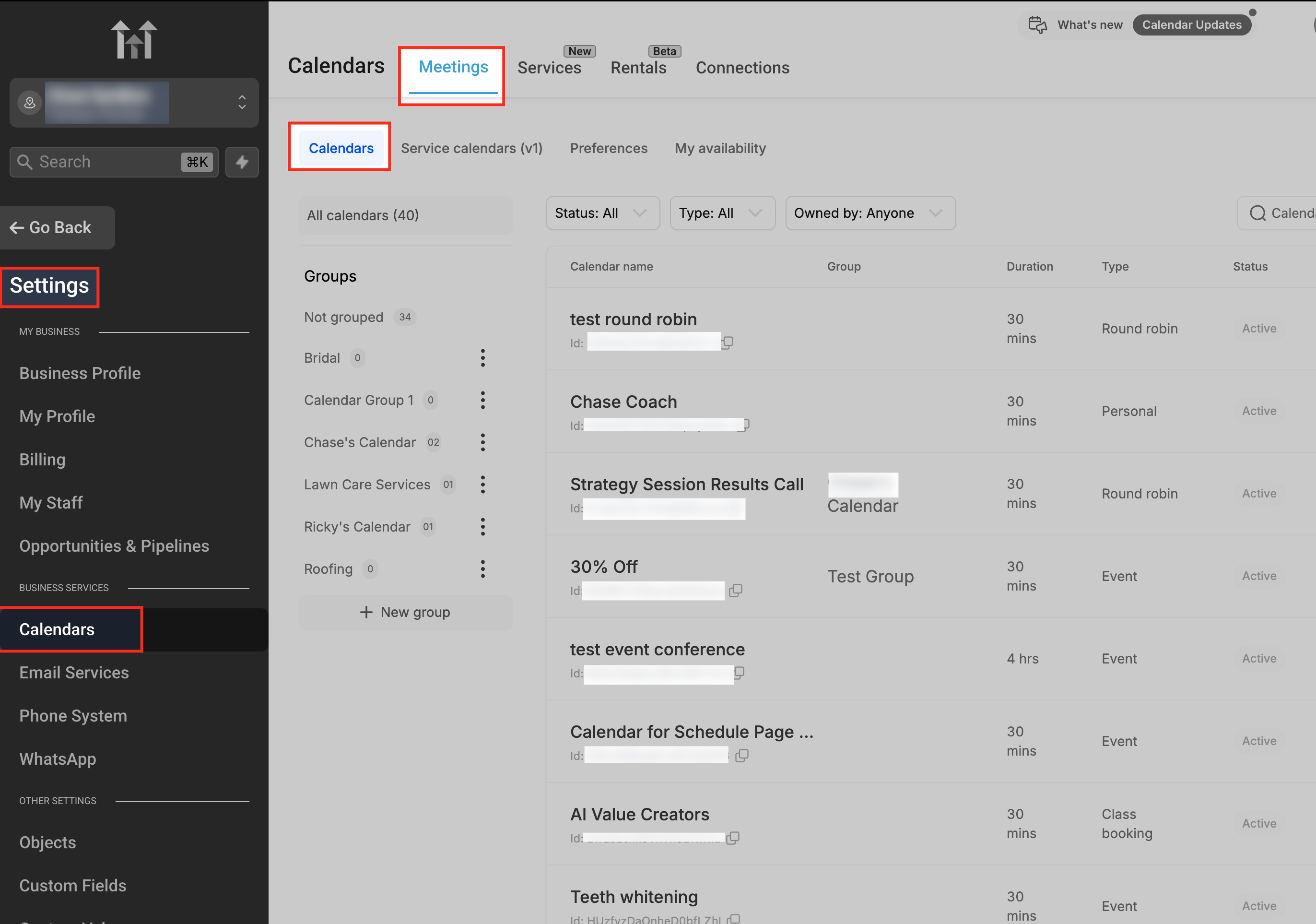
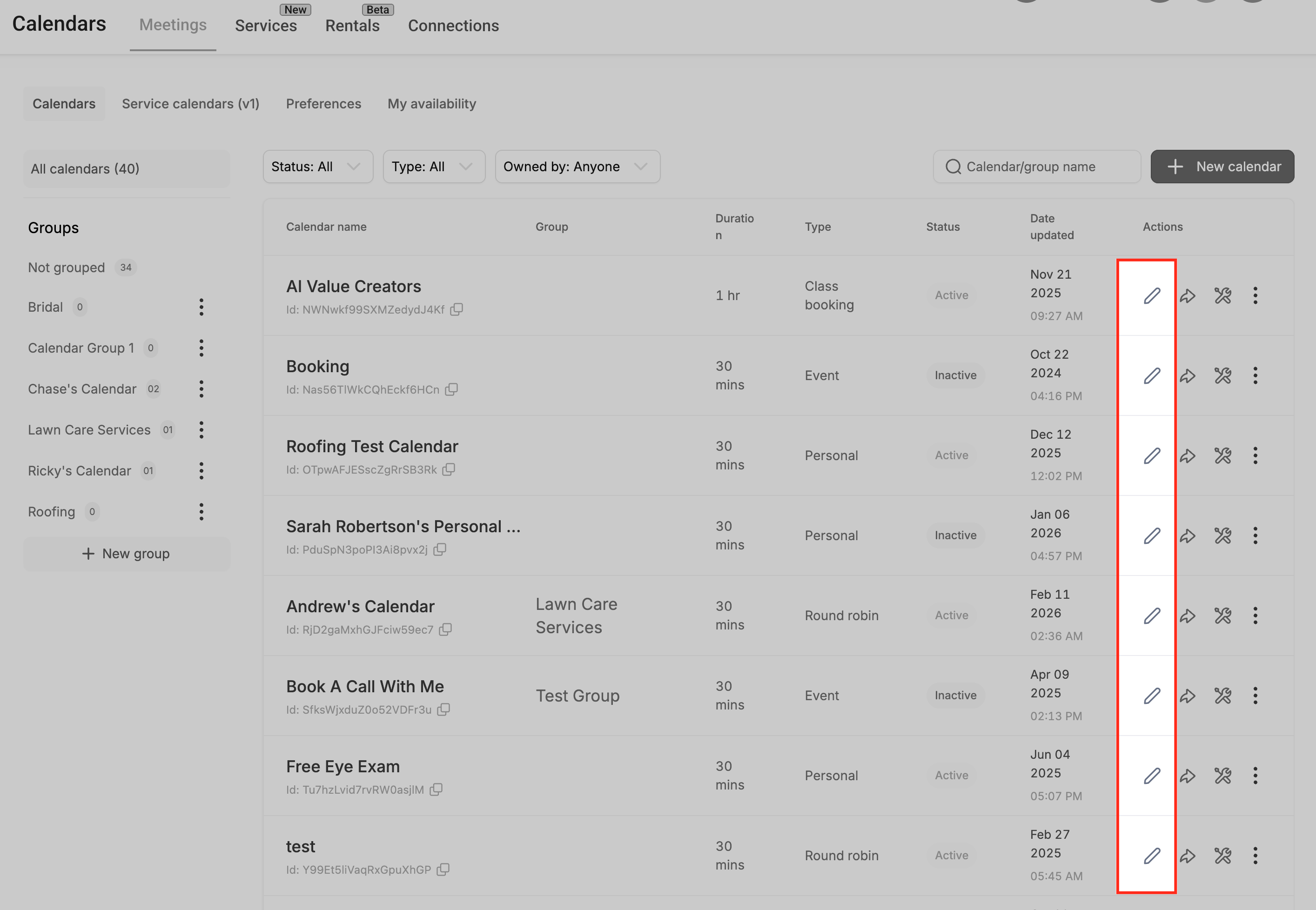
- Click Pencil Icon to Edit your desired calendar.
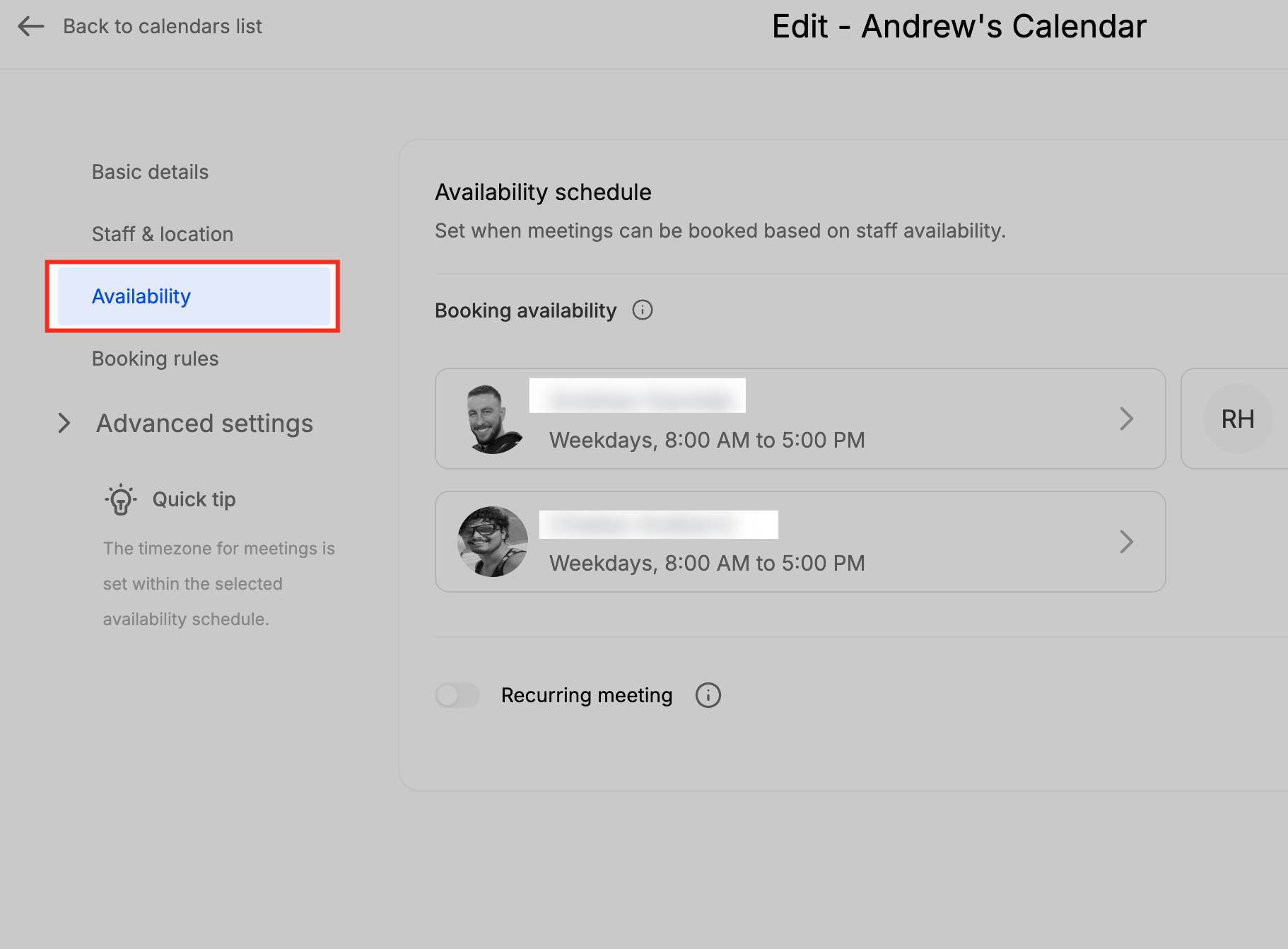
- Go to the Availability tab.
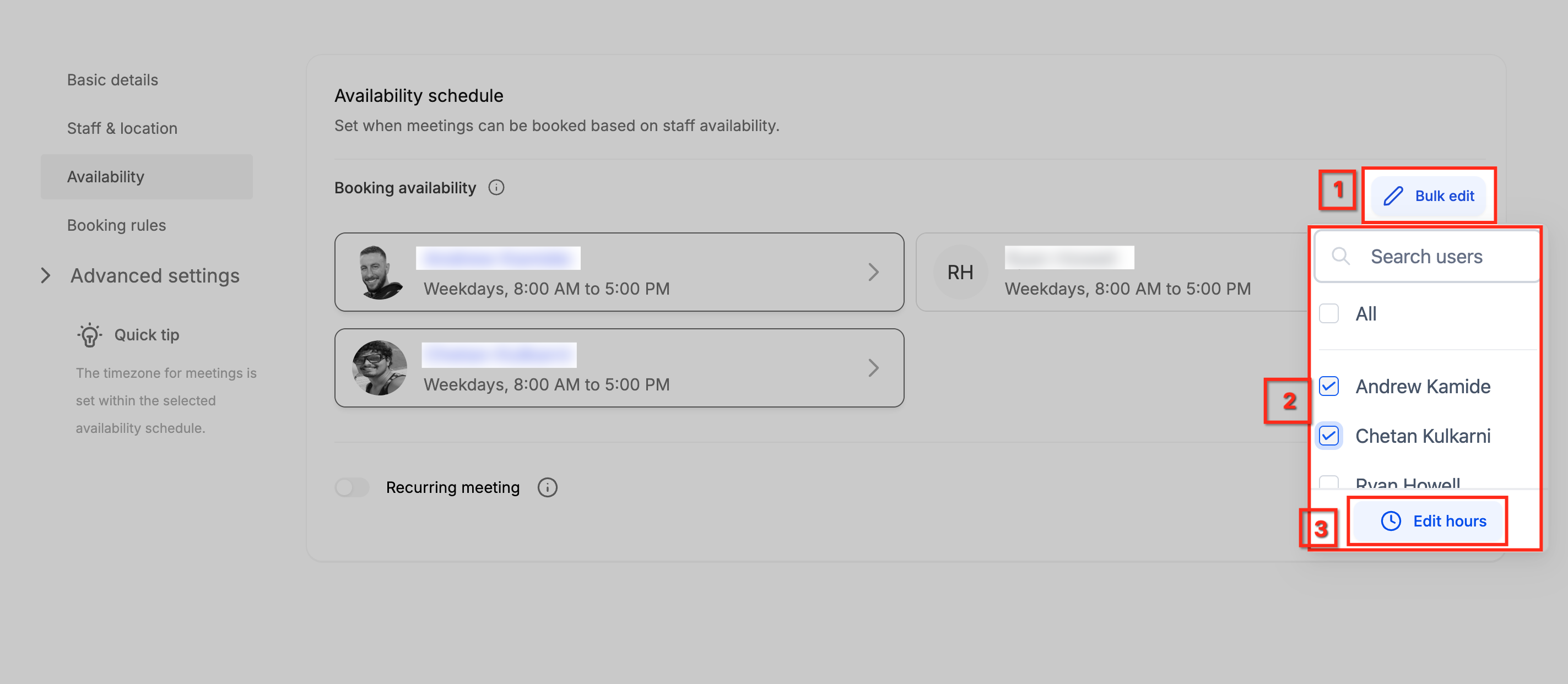
- Click Bulk edit.
- Select the team members you want to update.
- Click Edit hours.
- Update either Weekly Working Hours or Date-Specific Hours.
- Review the selected users and availability changes.
- Click Save Changes.
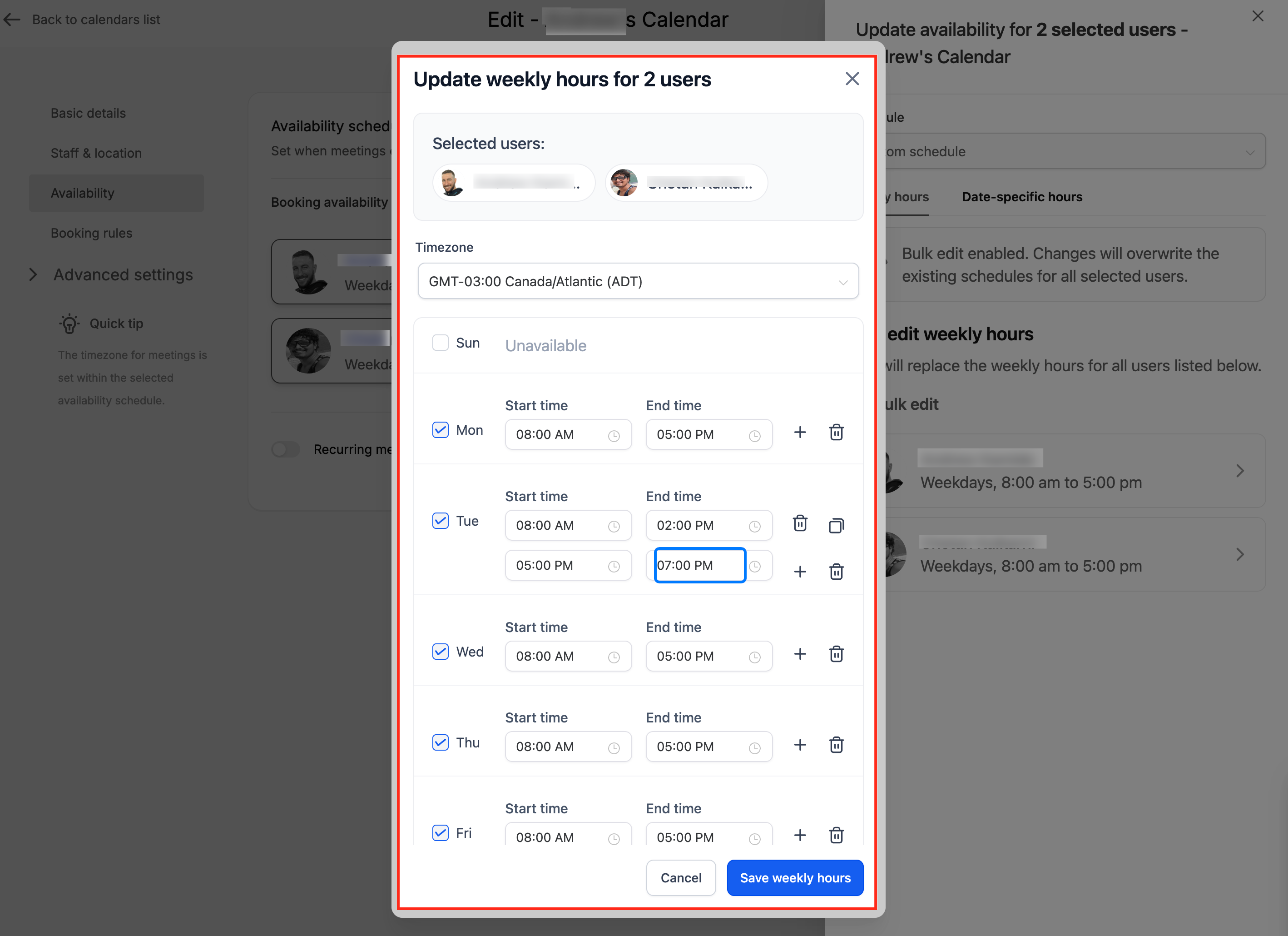
Only the edited availability section will be updated. For example, saving Weekly Working Hours will not remove Date-Specific Hours, and saving Date-Specific Hours will not change Weekly Working Hours.
Frequently Asked Questions
Q: Do Weekly Working Hours changes apply to every selected user?
Yes. When you edit Weekly Working Hours in Bulk Edit mode, the changes apply to all selected users after you save.
Q: Can I edit Date-Specific Hours for one user after adding them in bulk?
Yes. New Date-Specific Hours apply to all selected users, but you can later edit individual user time blocks if someone needs a different schedule.
Q: Can I delete Date-Specific Hours for only one user?
Yes. Date-Specific Hours are displayed by date with individual user time blocks, allowing you to delete an entry for a specific user when needed.
Q: Will saving Weekly Working Hours delete Date-Specific Hours?
No. Save behavior is section-specific. Updating Weekly Working Hours only modifies weekly schedules.
Q: Will saving Date-Specific Hours change Weekly Working Hours?
No. Updating Date-Specific Hours only modifies date-based exceptions.
Q: Why are appointment slots still missing after I update availability?
Availability is one part of booking slot visibility. Connected calendars, conflict calendars, buffers, appointment limits, calendar settings, and other restrictions may still prevent certain slots from appearing.
Q: Should I use Weekly Working Hours or Date-Specific Hours?
Use Weekly Working Hours for regular recurring schedules. Use Date-Specific Hours for one-time changes on specific dates.
Q: Does Bulk Edit Availability change existing booked appointments?
The release note describes updates to availability settings. It does not state that existing booked appointments are changed. Review your calendar after saving if you need to confirm how availability changes affect future booking options.
Related Articles
Was this article helpful?
That’s Great!
Thank you for your feedback
Sorry! We couldn't be helpful
Thank you for your feedback
Feedback sent
We appreciate your effort and will try to fix the article