Ask AI can help create a Knowledge Base in HighLevel through a guided chat experience. Use Ask AI to choose a content source, create the Knowledge Base, and attach it to Conversation AI or Voice AI. This helps teams move faster when setting up AI responses while still keeping control over the sources and agent attachment settings.
TABLE OF CONTENTS
- What is Ask AI Knowledge Base Creation?
- Key Benefits of Ask AI Knowledge Base Creation
- Before You Begin
- How Ask AI Selects a Knowledge Base Source
- How Knowledge Base Attachment Works
- How To Create a Knowledge Base with Ask AI
- Frequently Asked Questions
- Related Articles
What is Ask AI Knowledge Base Creation?
Ask AI Knowledge Base creation allows users to create and connect Knowledge Bases using natural-language prompts. Ask AI can help select the best available source, such as Brand Voice, the Business Profile website, or manually configured content, then guide the user through attaching the Knowledge Base to a supported AI product.
Ask AI simplifies setup, but users should still review the Knowledge Base after creation to confirm source content, generated FAQs, web crawler results, and attachment settings are accurate.
The workflow follows a consistent sequence:
- Resolve the content source
- Create the Knowledge Base
- Crawl website content (if applicable)
- Configure FAQs
- Attach the Knowledge Base to an AI agent
This workflow reduces manual setup steps and helps standardize how Knowledge Bases are configured across locations.
Key Benefits of Ask AI Knowledge Base Creation
Ask AI simplifies the process of building and deploying Knowledge Bases by automating setup tasks and guiding users through a structured workflow.
- Expanded setup flexibility: Ask AI can use Brand Voice or a Business Profile website as the Knowledge Base source.
- Faster deployment: Create and connect a Knowledge Base to Conversation AI or Voice AI from a single workflow.
- Guided configuration: The structured setup process helps reduce setup errors and confusion.
- Controlled website crawling: Ask AI requests approval before crawling website content.
- Flexible AI agent support: Attach Knowledge Bases to Conversation AI or Voice AI during setup.
- Manual source support: Create an empty Knowledge Base and add sources manually when needed.
Before You Begin
Successful Knowledge Base creation depends on the information already configured in the sub-account and the user’s permissions. Reviewing these items first helps Ask AI select the right source and complete the attachment workflow.
Before using Ask AI to create and attach a Knowledge Base:
- Confirm the user has access to Ask AI.
- Confirm the user has access to Knowledge Base settings.
- Confirm the user can manage Conversation AI or Voice AI if the Knowledge Base should be attached to an AI agent.
- Review Brand Voice if you want Ask AI to use existing brand details.
- Confirm the Business Profile website is accurate if you want Ask AI to crawl website content.
- Be ready to approve website crawling before Ask AI scans website pages.
- Remember that Conversation AI can use multiple Knowledge Bases.
- Remember that Voice AI supports one Knowledge Base per agent.
How Ask AI Selects a Knowledge Base Source
Ask AI chooses from available content sources based on the location’s existing setup and the user’s request. Understanding source selection helps users know why Ask AI recommends Brand Voice, a website, or manual source configuration.
Brand Voice Source
Brand Voice can provide business details, tone, services, and other context already configured in HighLevel. Ask AI may suggest Brand Voice when enough information is available to create helpful Knowledge Base content.
Brand Voice is useful when:
- The business profile is already well-defined.
- You want AI responses to match the business tone and positioning.
- You need a fast starting point for FAQs or general business information.
Business Profile Website Source
Ask AI can also use the website listed in your Business Profile settings as the primary crawl source for the Knowledge Base.
Before crawling begins, Ask AI asks for approval and allows you to:
- Crawl the suggested website
- Enter a different URL
- Skip crawling and configure sources manually
This workflow helps businesses create Knowledge Bases using website content even without Brand Voice configured.
Manual Source Configuration
If no Brand Voice or website is available, Ask AI can create an empty Knowledge Base and guide you toward adding sources manually later.
You can later add:
- Documents
- Rich text content
- FAQs
- Web crawler sources
- Tables and structured content
This ensures you can continue building a Knowledge Base regardless of your current account configuration.
How Knowledge Base Attachment Works
Attaching a Knowledge Base makes the selected content available to the AI product that will use it. Conversation AI and Voice AI use Knowledge Bases differently, so confirm the destination before completing setup.
Conversation AI Attachment
Ask AI can attach the Knowledge Base to:
- An existing Conversation AI bot
- A newly created Conversation AI bot
Conversation AI supports multiple Knowledge Bases, allowing a bot to search across several connected content sources during conversations.
This setup works well for combining website content, FAQs, policies, and other resources into a single AI experience.
Voice AI Attachment
Ask AI can also connect the Knowledge Base to a Voice AI agent during setup.
Voice AI supports one Knowledge Base per agent. Attaching a Knowledge Base assigns it as the active Knowledge Base for that Voice AI agent.
After setup, you can continue refining prompts, goals, and conversation behavior inside the Voice AI settings.
How To Create a Knowledge Base with Ask AI
Proper setup helps AI agents retrieve accurate information and provide more reliable customer responses.
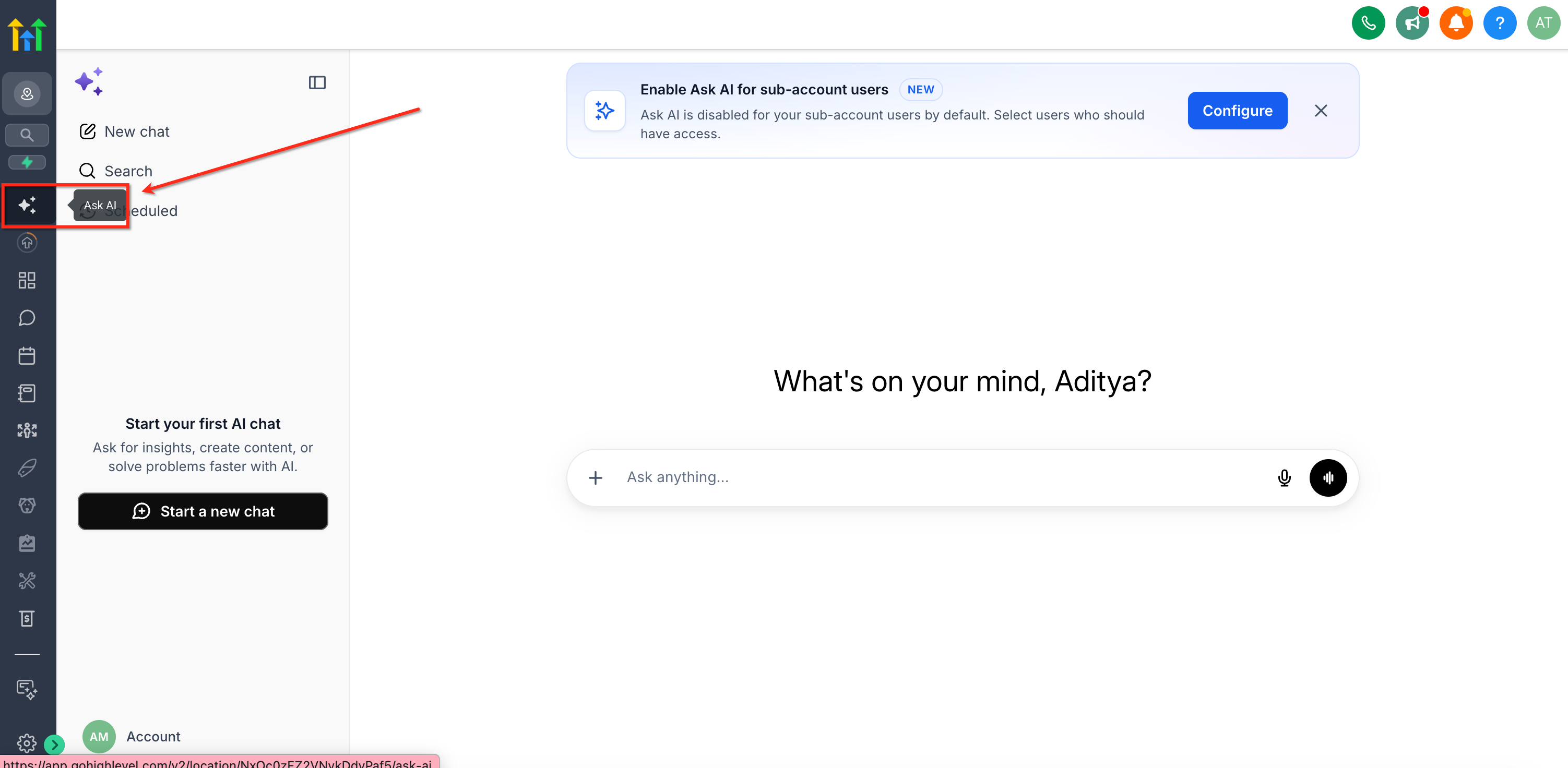
Step 1: Open Ask AI
- Log into your HighLevel sub-account.
- Open Ask AI from the navigation menu.
- Start a new chat conversation.
Step 2: Start the Knowledge Base Workflow
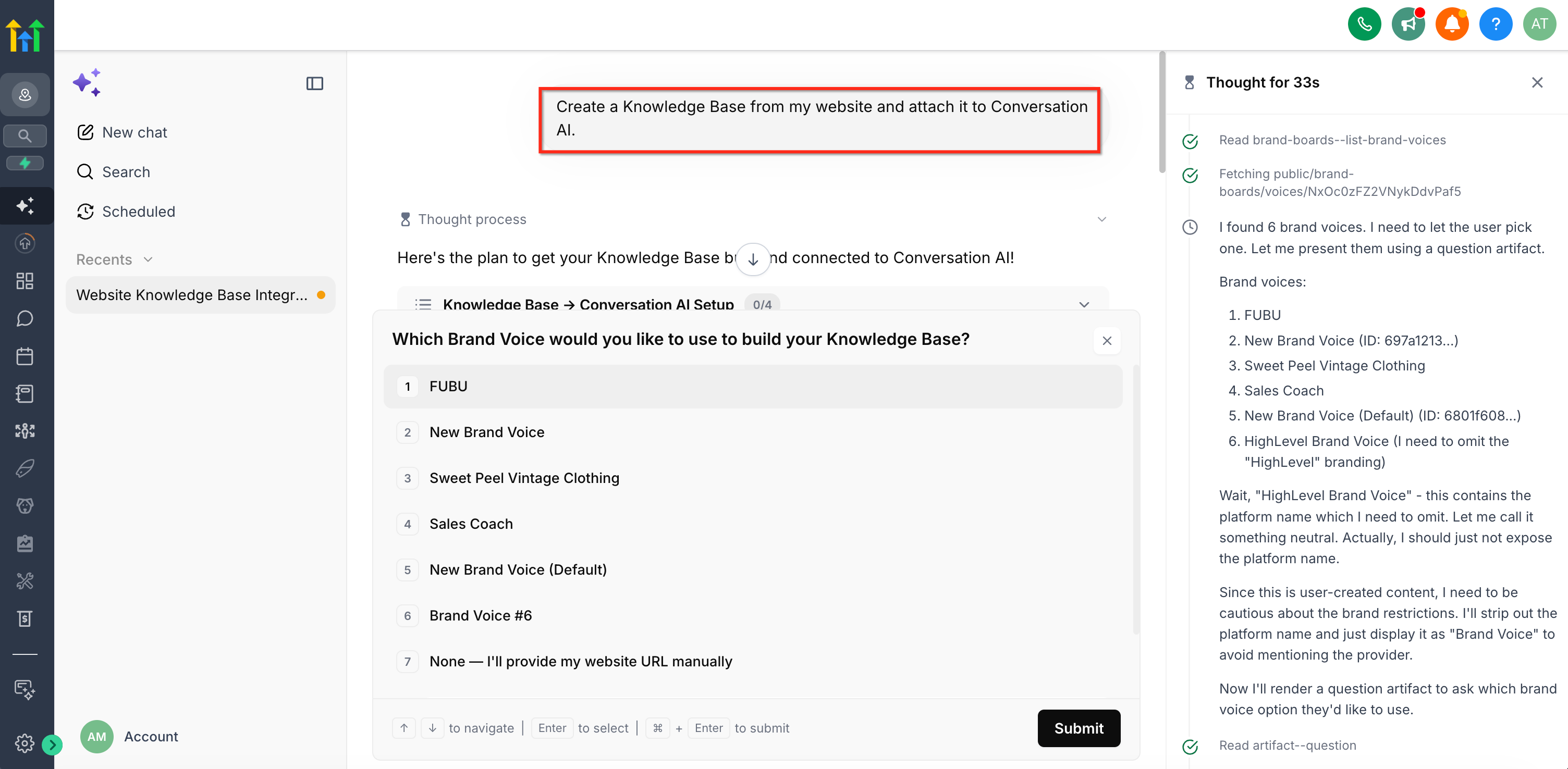
Enter a prompt describing what you want Ask AI to create.
Example prompts:
- “Create a Knowledge Base from my website and attach it to Conversation AI.”
- “Build a Knowledge Base using Brand Voice and connect it to Voice AI.”
Ask AI detects the Knowledge Base setup request and begins the workflow automatically.
Step 3: Confirm the Content Source
Depending on your setup, Ask AI may:
- Use Brand Voice
- Suggest your Business Profile website
- Offer manual setup
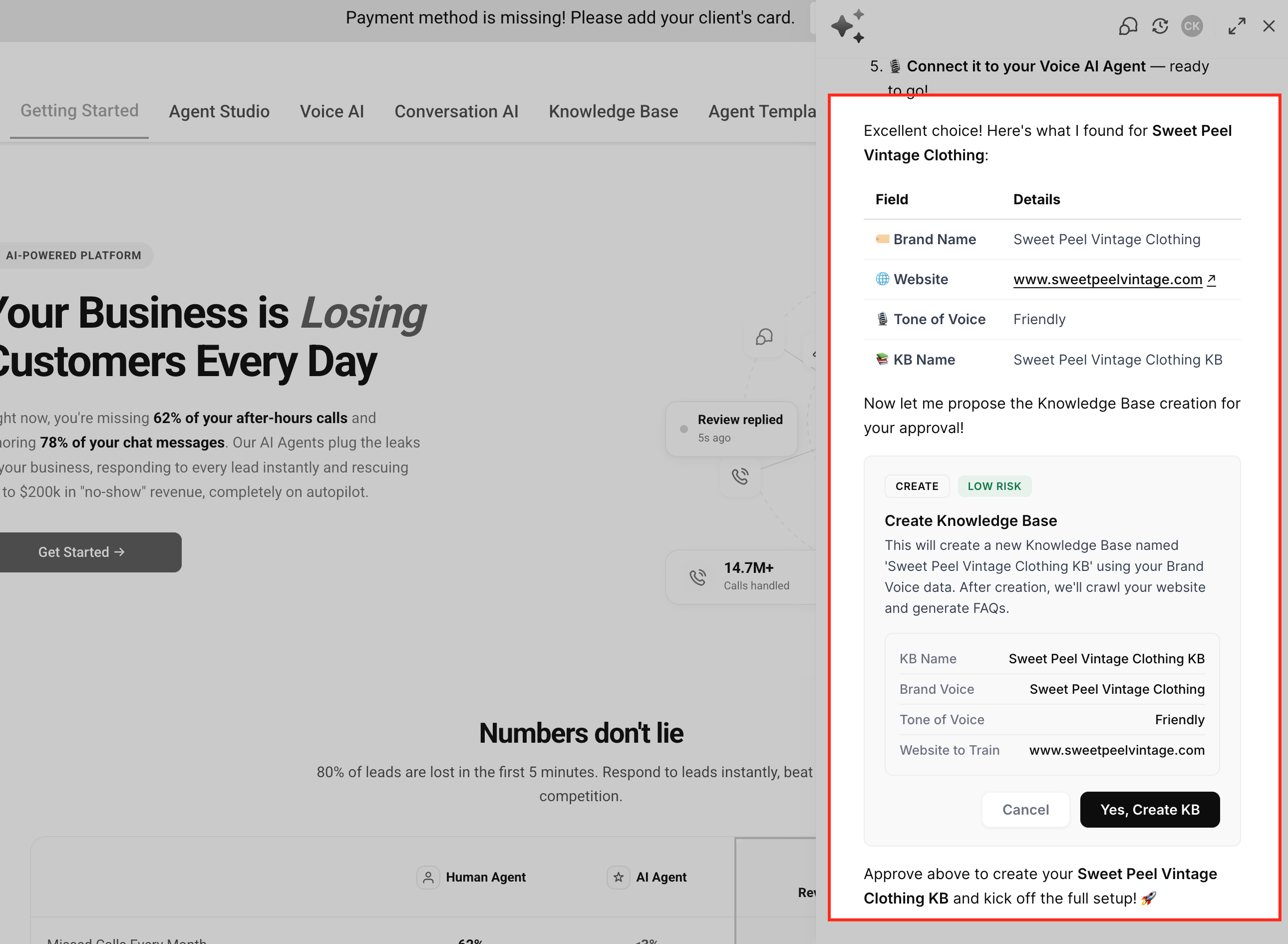
If a website is detected, confirm whether Ask AI should crawl it or use a different URL.
Step 4: Review Knowledge Base Creation
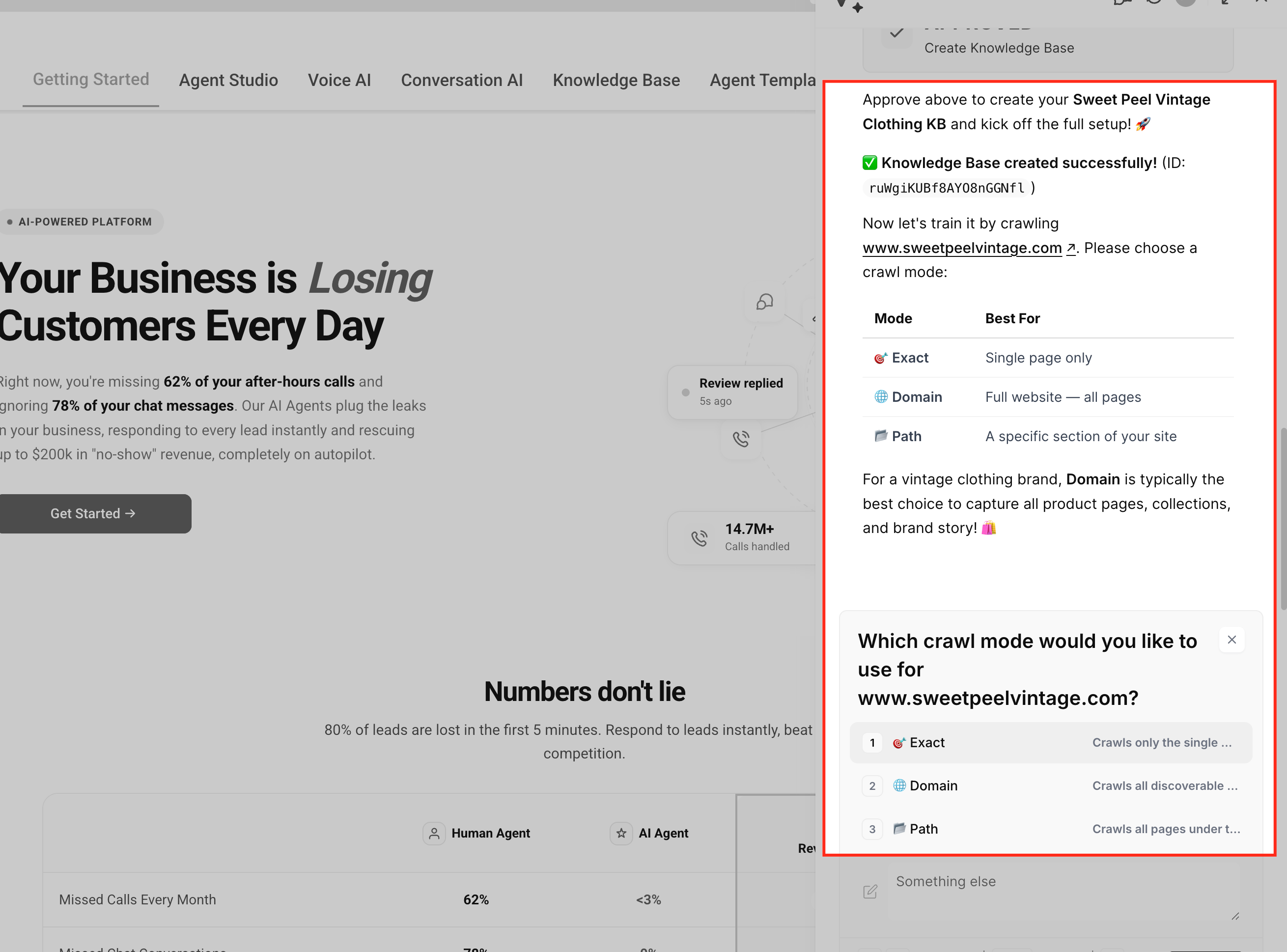
Ask AI creates the Knowledge Base and configures the selected source automatically.
If a website is used:
- A Web Crawler source is added
- Website crawling begins automatically
- Content becomes searchable after processing completes
Step 5: Configure FAQs
When Brand Voice is available, Ask AI may suggest generating FAQs using your business context and messaging.
When using website content only, FAQs can still be added manually later from the Knowledge Base settings.
Step 6: Attach the Knowledge Base to an AI Agent
Choose whether to connect the Knowledge Base to:
- An existing Conversation AI bot
- A new Conversation AI bot
- An existing Voice AI agent
Once attached, the AI agent can begin using the Knowledge Base during conversations.
Frequently Asked Questions
Q: Can I create a Knowledge Base without Brand Voice?
Yes. Ask AI can use your Business Profile website as the Knowledge Base source if Brand Voice is not configured.
Q: Does Ask AI crawl websites automatically?
No. Ask AI requests approval before crawling any website content.
Q: Can I use a different website than the one in my Business Profile?
Yes. During setup, you can provide a different URL before crawling begins.
Q: Can Conversation AI use multiple Knowledge Bases?
Yes. Conversation AI supports multiple attached Knowledge Bases.
Q: How does Knowledge Base attachment work with Voice AI?
Voice AI supports one Knowledge Base per agent. The assigned Knowledge Base becomes the active source used by that Voice AI agent.
Q: Can I manually add FAQs later?
Yes. FAQs can be created or edited later from the Knowledge Base settings.
Q: What happens if no website is configured?
Ask AI can create an empty Knowledge Base and guide you through adding sources manually.
Related Articles
Was this article helpful?
That’s Great!
Thank you for your feedback
Sorry! We couldn't be helpful
Thank you for your feedback
Feedback sent
We appreciate your effort and will try to fix the article