This article explains how the Sequential Node works within Agent Studio and how to use it to build structured, step-by-step flows. It covers how to configure the node effectively, when to use it, and how to design flows that execute reliably and deliver a smooth user experience.
TABLE OF CONTENTS
- What is Sequential Node in Agent Studio
- Key Benefits of Sequential Node
- Core Elements of Sequential Node
- Processing Node Types in Sequential Node
- How to Configure the Sequential Node
- Frequently Asked Questions
- Related Articles
What is Sequential Node in Agent Studio
The Sequential Node is a core component in Agent Studio that allows you to execute multiple actions in a fixed, step-by-step order within a single node. It acts as the execution layer of the agent, where each step is predefined and runs sequentially without relying on dynamic decision-making.
Agent Studio enables you to build agents using triggers and nodes. The Sequential Node runs when it receives input from a trigger or another node and begins executing its configured steps from top to bottom.
Instead of adapting based on context, the Sequential Node follows a structured path. This makes it ideal for scenarios where the flow is predictable and needs to be controlled, such as collecting user information, performing API calls, or executing a series of actions in order.
At its core, the Sequential Node is built using processing nodes, where each processing node represents a single step in the sequence.
Before using the Sequential Node, ensure A trigger is configured to start the agent.Key Benefits of Sequential Node
The Sequential Node provides a structured way to design agent flows where consistency and control are important.
- Executes steps in a clear, predefined order
- Ensures predictable and repeatable outcomes
- Simplifies flow design by grouping multiple steps into a single node
- Enables clean and structured data collection
- Reduces complexity compared to managing multiple separate nodes
Core Elements of Sequential Node
Processing Nodes
Each step inside a Sequential Node is created using a processing node. These processing nodes define the individual actions that will be executed in sequence, such as capturing input, making an API call, or generating content.
Step Execution (Order of Steps)
The Sequential Node executes all processing nodes in the order they are added, starting from the top and moving downward. Each step must complete before the next one begins, making the flow predictable and controlled.
Processing Node Types (Overview)
You can build different types of steps within a Sequential Node depending on your use case.
- Capture Information → Collect user input such as email, phone number, or selections
- Actions & API → Perform operations or send data to external systems
- AI Generation → Generate text, images, video, or audio
Processing Node Types in Sequential Node
Email Address
The Email Address processing node is used to capture a valid email from the user during the sequence. It validates the input format and ensures that only properly structured email addresses are accepted before moving to the next step.
Use this node when your flow requires reliable user identification or communication details. Configure the prompt message naturally and define an error message, as the captured email is stored as a runtime variable for later use.
Phone Number
The Phone Number processing node collects a user’s phone number with validation, typically requiring a country code for accuracy. It ensures that the number format is correct before allowing the flow to proceed, helping maintain clean and usable data.
Use this node when you need direct contact information for follow-up or automation. Configure the prompt clearly and include an error message, as the captured number becomes a runtime variable for later use.
Text Input
The Text Input processing node allows users to enter free-form responses within the flow. It supports minimum and maximum length settings, giving you control over how much input is required.
Use this node when you need flexible input that cannot be predefined. Configure the prompt clearly and set length limits if needed, as the response is stored as a runtime variable for later steps.
Single Choice
The Single Choice processing node allows users to select one option from a predefined set of choices. It presents options as selectable buttons, ensuring a clear and structured input.
Use this node when you want users to choose from specific options such as service types or preferences. Configure the choices and prompt message, as the selected option is stored as a runtime variable for routing or processing.
API Call
The API Call processing node sends a request to an external system and retrieves a response. It allows you to send and receive data within the flow without any AI interpretation.
Use this node when integrating with external services such as CRMs or third-party platforms. Configure the endpoint, headers, and request body, and use variables to make the request dynamic.
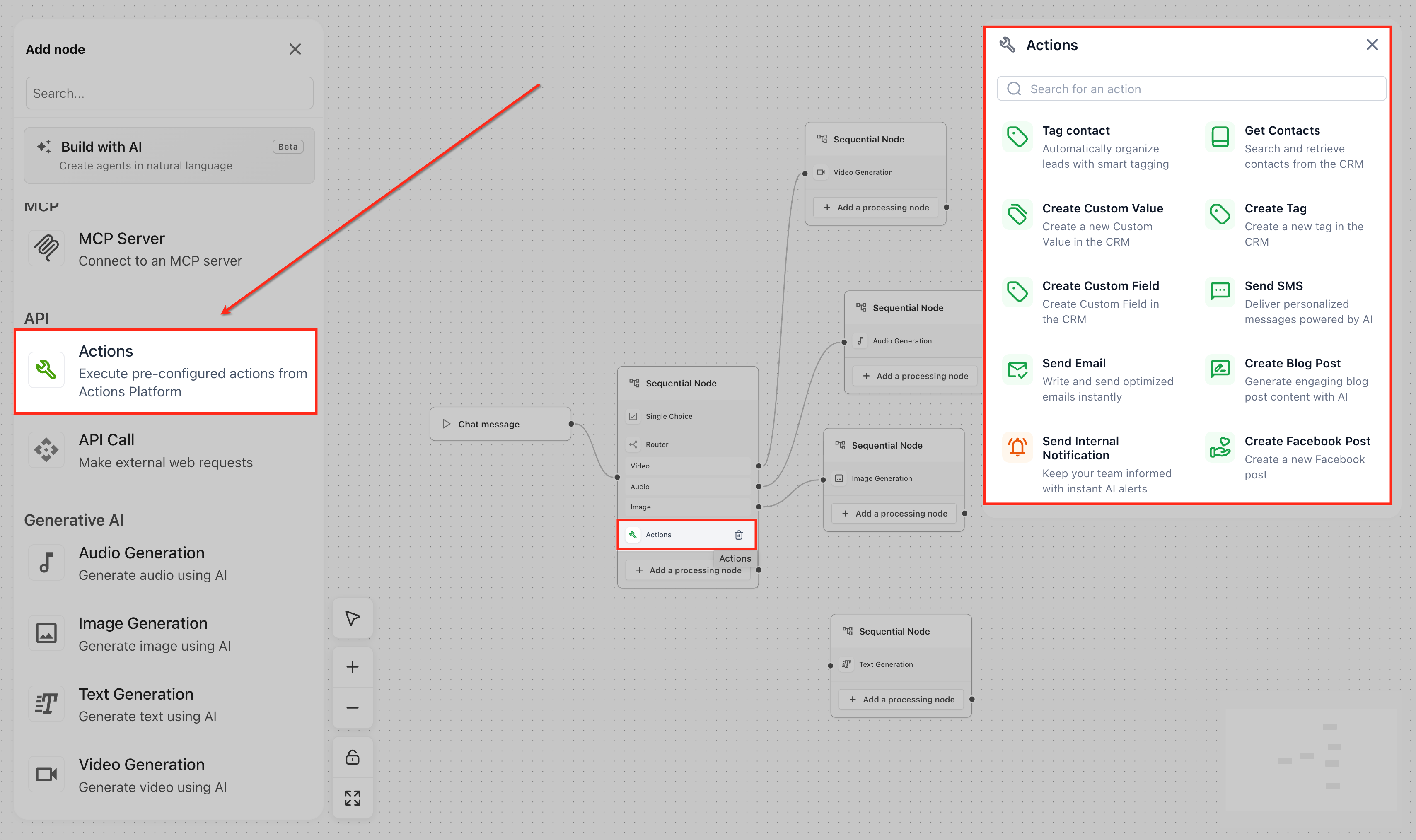
Actions
The Actions processing node performs predefined operations within the system. It is used to convert collected data into actual system-level changes such as updates or triggers.
Use this node when you want the flow to perform an operation after processing data. Configure the action based on the desired outcome to ensure the flow executes meaningful tasks.
Text Generation
The Text Generation processing node uses AI to generate written content based on a given prompt or input. It produces dynamic outputs rather than collecting input.
Use this node when you need to generate content such as responses or summaries. Configure the prompt and use variables to personalize the output before passing it to the next step.
Image Generation
The Image Generation processing node creates images based on a defined prompt using AI models. The output is typically returned as a URL or visual asset.
Use this node when your flow requires dynamic visual content. Configure the prompt clearly and use variables to customize the generated image.
Video Generation
The Video Generation processing node creates videos based on a defined prompt using AI models. It supports configuration such as resolution and aspect ratio.
Use this node when generating video content within your flow. Configure the prompt and settings, and use variables if the output needs to be dynamic.
Audio Generation (Text-to-Speech)
The Audio Generation processing node converts text into spoken audio using text-to-speech models. It generates voice outputs dynamically within the flow.
Use this node when you want to provide audio responses. Configure the text and voice settings, and use variables to personalize the output if needed.
Variables (Data Flow Between Steps)
Each processing node automatically creates a runtime variable that stores its output. These variables can be used in subsequent steps, allowing data to flow through the sequence.
For example, if a user provides their email in one step, that value can be reused in a confirmation message or an API request in the next step.
Node Connections
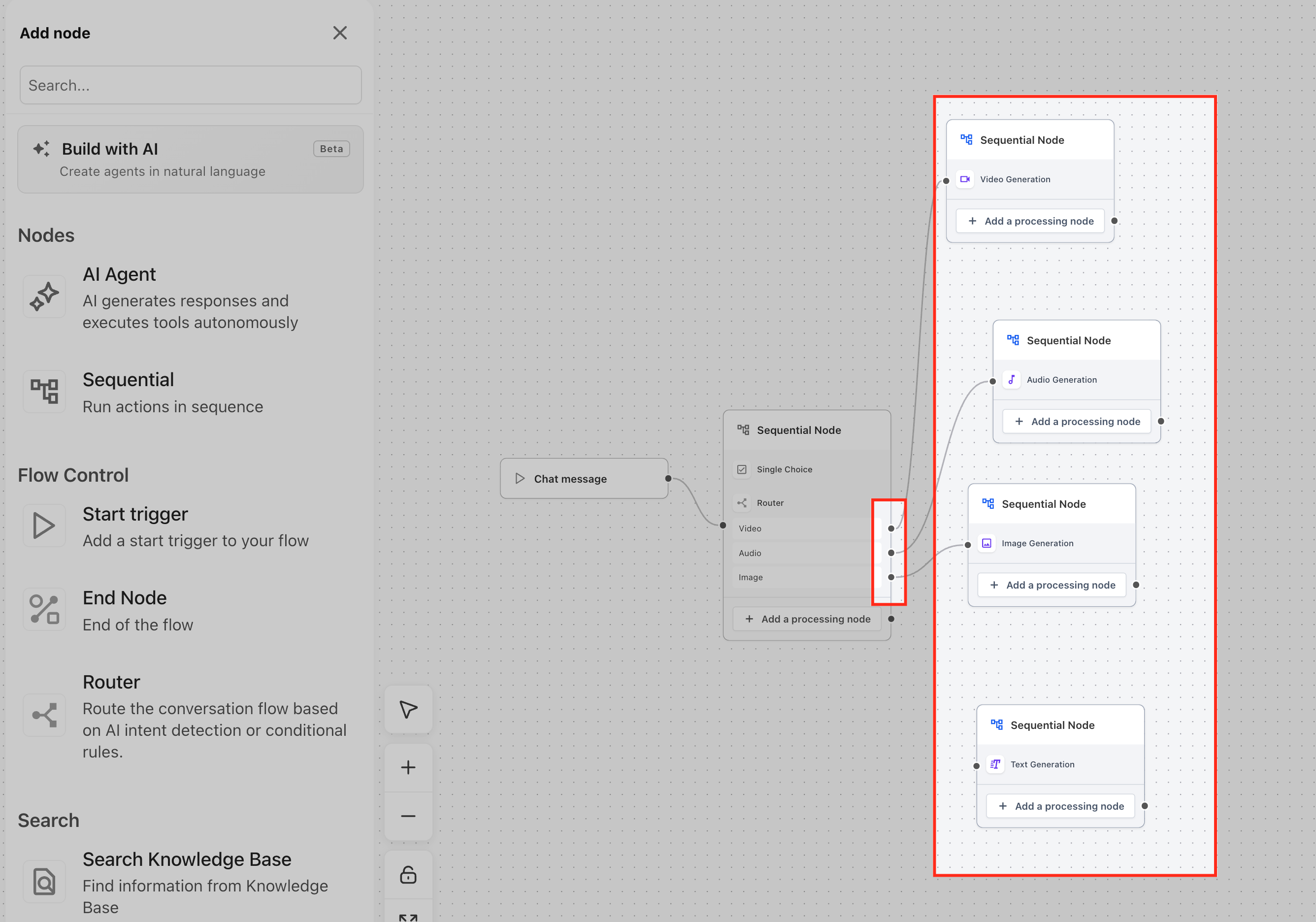
Once all steps are executed, the Sequential Node passes its output to the next node in the agent flow for further processing.
How to Configure the Sequential Node
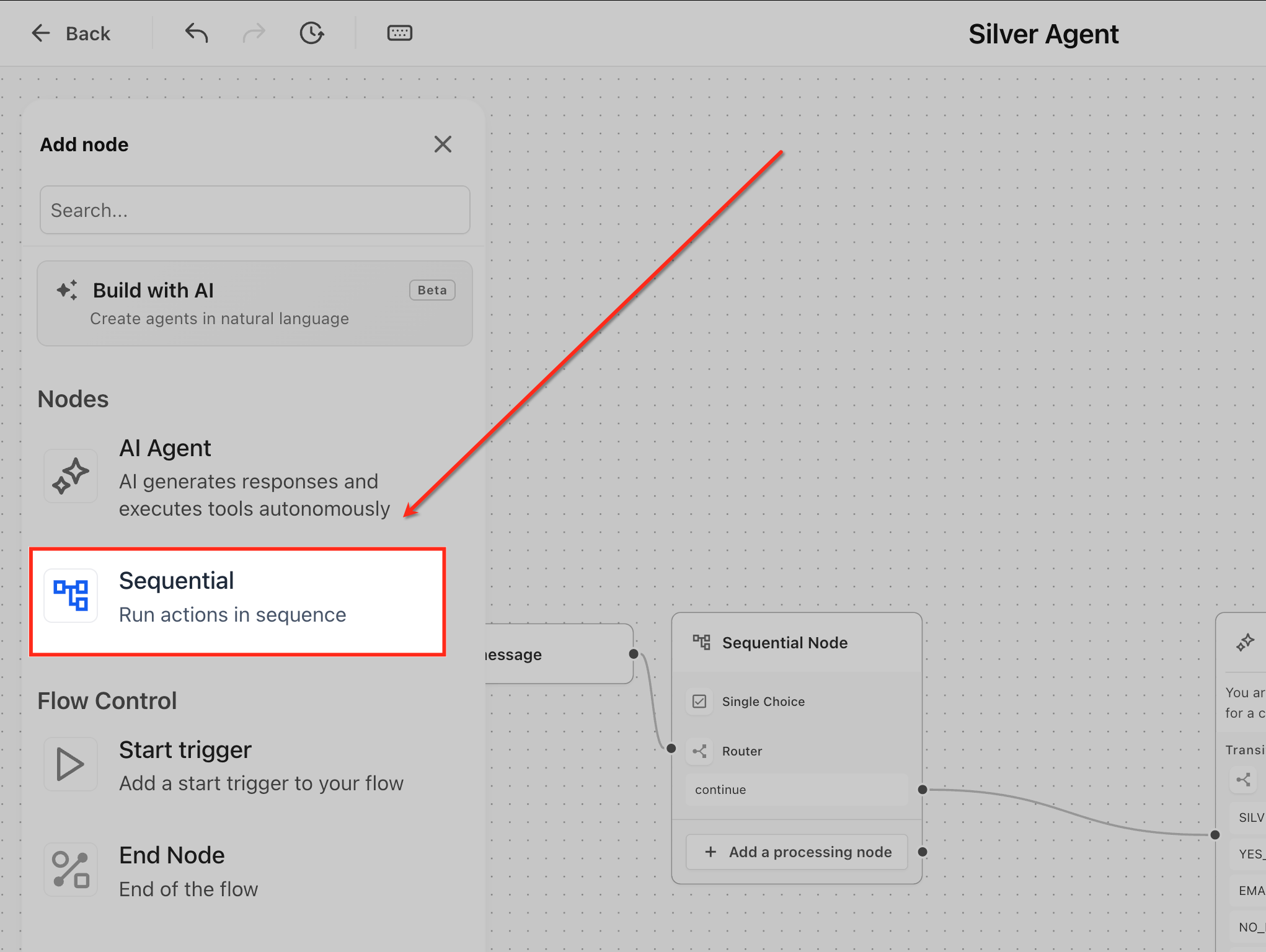
Step 1: Add the Sequential Node
Add the Sequential Node from the Nodes panel and connect it to a trigger or previous node.
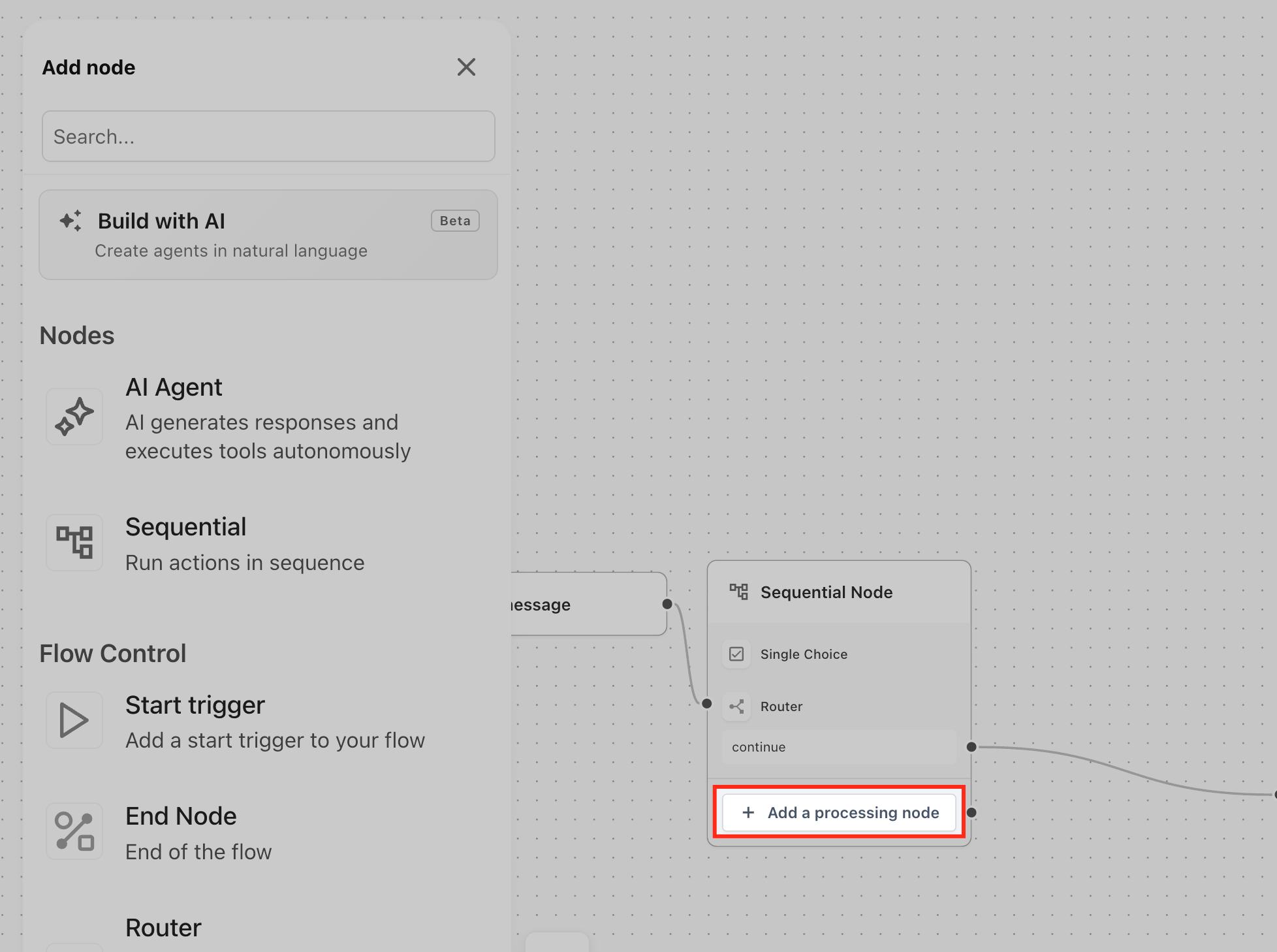
Step 2: Add Processing Nodes
Click “Add a processing node” to start building your sequence.
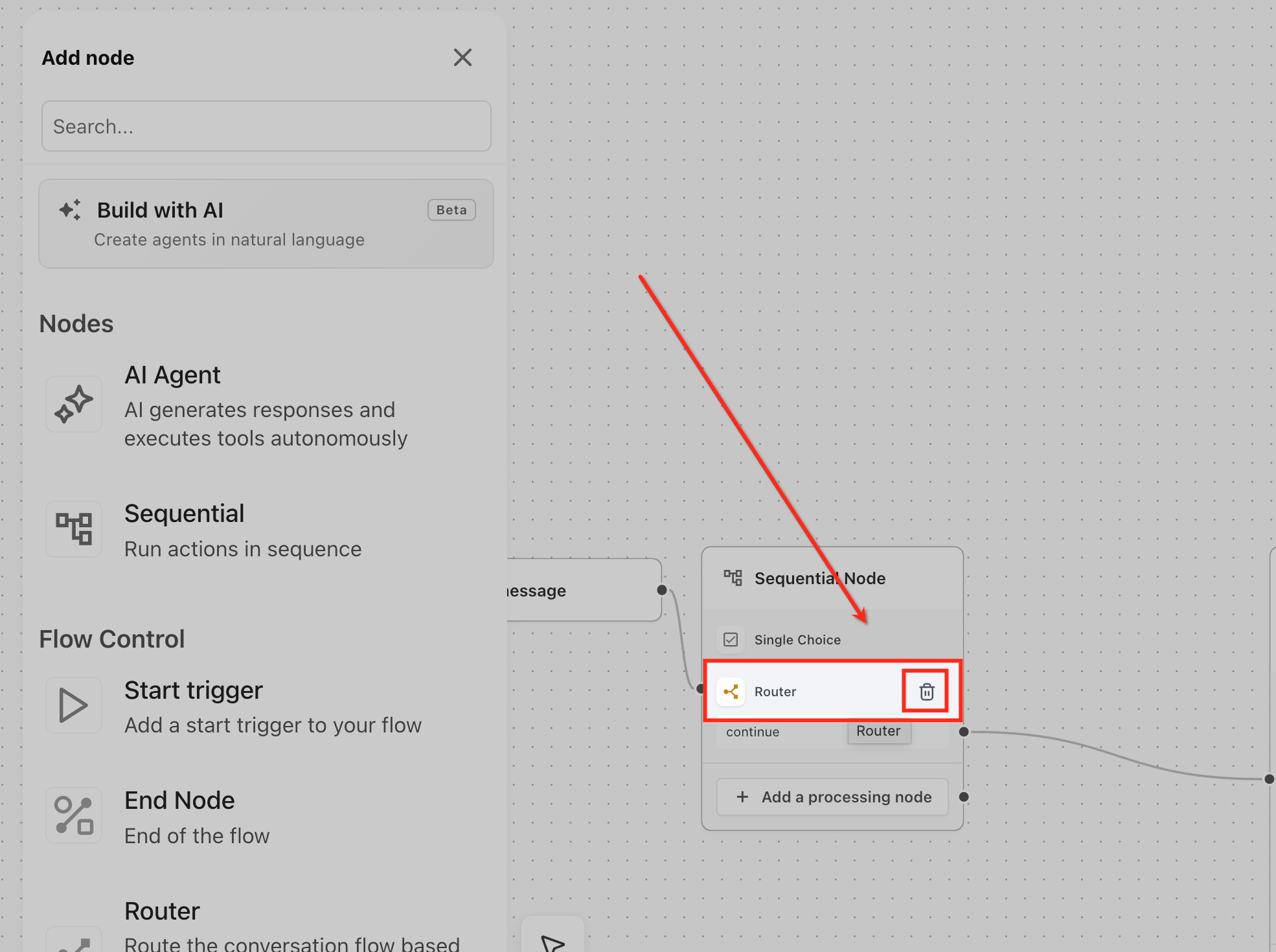
Managing Processing Nodes
- Add steps via button or drag-and-drop
- Click nodes to configure
- Hover and delete unwanted nodes
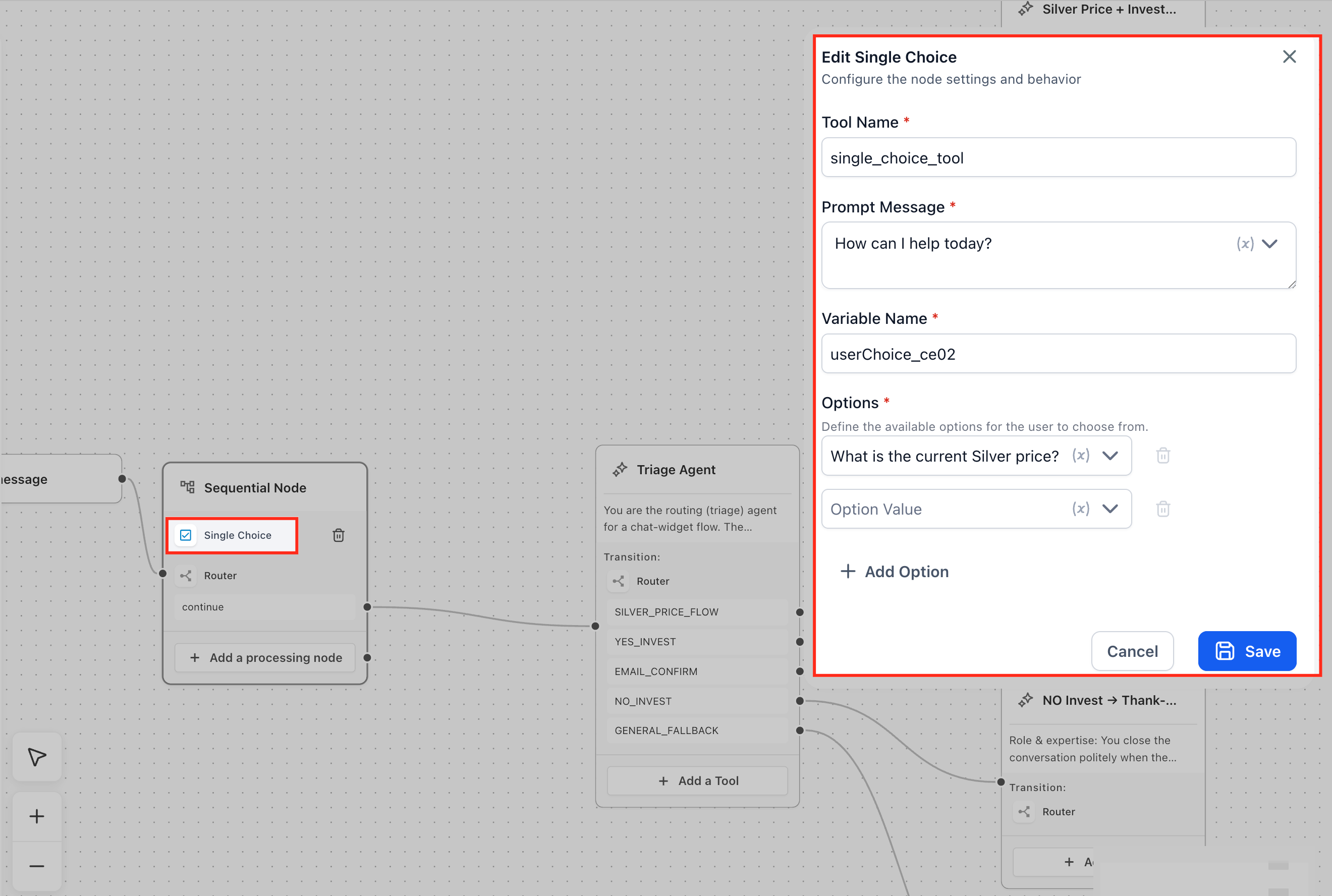
Step 3: Configure Each Step
Set prompts, validation rules, and behavior for each processing node.
Step 4: Arrange Step Order
Ensure steps are in the correct sequence, as execution depends on order.
Step 5: Use Variables Between Steps
When a user provides input in one step, that information doesn’t just disappear it is stored as a runtime variable. This variable can then be used in later steps to personalize messages, pass data to APIs, or perform actions.
Step 1 captures data → Step 2 uses that data
How It Works
Every processing node automatically creates a variable based on its output. This includes outputs from steps such as API Calls, which can be reused in later steps.
For example:
- Email step → stores user email
- Phone step → stores phone number
- Text input → stores user response
These values become available in the variable picker ({}) and can be inserted into future steps.
How to Use It (Step-by-Step)
Add a processing node that captures input (e.g., Email or Text Input)
Save the node a runtime variable is automatically created
In the next step, click inside a field (prompt, API body, etc.)
Click the {} icon to open the variable picker
Select the variable from the previous step
Example
Step 1 (Email Input):
User enters: rahul@email.com
Step 2 (Text Message):
Prompt:
“Thanks! We’ll contact you at {{email}} shortly.”
Step 6: Add Actions or API Calls
After collecting or generating data in earlier steps, you often need to do something with that data. Actions and API Calls allow the Sequential Node to perform operations such as saving information, sending data to another system, or triggering processes.
Earlier steps collect data → This step uses that data to perform an action
How It Works
Actions perform predefined operations within the platform (e.g., updating records, triggering workflows)
API Calls send data to external systems and optionally receive a response
Both types of steps can use runtime variables from previous steps, making them dynamic and context-aware.
Using API Call Outputs in Later Steps
When you add an API Call step, its response is automatically stored as a runtime variable. This allows you to reuse the returned data in later steps within the sequence.
To use this data, insert the variable using the {} variable picker in fields such as prompt messages, API request body, or actions. This enables you to pass API response data dynamically through the flow.
Note: API Call steps in a Sequential Node execute directly without any AI interpretation. The response is returned as-is and must be explicitly used in later steps.
How to Add an Action or API Call
Click “Add a processing node”
Select either:
Actions (for internal operations)
API Call (for external integrations)
Configure the required fields:
For Actions → choose the operation to perform
For API Calls → enter endpoint, headers, and request body
Use the {} variable picker to insert data from previous steps
Save the node
Example
Step 1: Capture Email
User enters: rahul@email.com
Step 2: API Call
Endpoint: send data to CRM
Request body includes email variable
Result:
The system sends Rahul’s email to the external CRM automatically.
Where This Is Used
Saving user details to CRM
Sending data to external platforms
Triggering workflows or automations
Updating records based on user input
Step 7: Connect to the Next Node
Link the Sequential Node to the next step in the flow.
Frequently Asked Questions
Q: When should I use Sequential Node instead of AI Agent Node?
Use Sequential Node when you need a structured, predictable flow. Use AI Agent Node when the interaction requires dynamic decision-making or conversation.
Q: Why does my API call not “think” or adapt like an AI response?
API calls in Sequential Nodes are executed directly without any interpretation they simply send a request and return a response. If you need reasoning or contextual processing, that logic must be handled by an AI Agent Node instead.
Q: What happens if I don’t use variables in my steps?
If variables are not used, the flow becomes static, meaning it will produce the same output every time. Variables are what make the sequence dynamic by allowing user input and step outputs to influence later actions.
Q: Can I rearrange steps after adding them?
Sequential Nodes are designed to run in order, and rearranging steps may not always be supported or straightforward. It’s best to plan your sequence in advance and add steps in the correct order to avoid rework.
Related Articles
Was this article helpful?
That’s Great!
Thank you for your feedback
Sorry! We couldn't be helpful
Thank you for your feedback
Feedback sent
We appreciate your effort and will try to fix the article