Agent Studio Triggers power real-time, event‑driven automation for your HighLevel AI agents. When someone submits a form, gets tagged, or sends a chat, HighLevel records the event and starts your agent in the background, keeping pages and APIs fast while your agent responds instantly. The architecture is built for high volume and safe testing, so you can roll out triggers gradually without disrupting live traffic.
This guide explains what triggers are, why they matter, and how to configure them quickly with best‑practice tips.
TABLE OF CONTENTS
- What is Agent Studio Triggers?
- Key Benefits of Agent Studio Triggers
- How to Set Up Agent Studio Triggers
- Trigger Types
- Frequently Asked Questions
- Related Articles
What is Agent Studio Triggers?
Agent Studio Triggers are event listeners attached to an agent’s Start node that automatically launch the agent when a supported platform event occurs. By reacting to real user actions like submitting a form or sending a chat, agents can engage contacts immediately without external API calls or manual steps.
Agent Studio Triggers provide three entry events today: Form submitted, Lead tag (added or removed), and Chat message. When one of these events fires, the agent starts from its Start trigger and continues through your designed flow.
Key Benefits of Agent Studio Triggers
Understanding the specific advantages helps you decide where triggers fit into your automation strategy and how to replace manual or time‑delayed processes.
- Real‑time engagement: Respond to leads the moment they act—submit a form, message your business, or get tagged.
- Hands‑free scalability: Remove polling scripts and custom webhooks; configure an in‑product trigger and publish.
- Consistent entry point: Standardize how agents start so testing and troubleshooting are easier.
- Non‑breaking adoption: Triggers are optional and additive; existing API‑based agents continue to work.
- Foundation for growth: Event‑driven design sets the stage for additional event types over time.
How to Set Up Agent Studio Triggers
Follow these steps to create a reliable, testable, and production‑ready trigger configuration from start to finish.
Prerequisites & Access:

Confirm access and environment so your trigger setup goes smoothly and matches your deployment process.

Access AI Agents → Agent Studio inside the correct sub‑account/location.

See How to Use the AI Agent Studio in HighLevel for canvas navigation, testing, and publish lifecycle.
Open Agent Studio
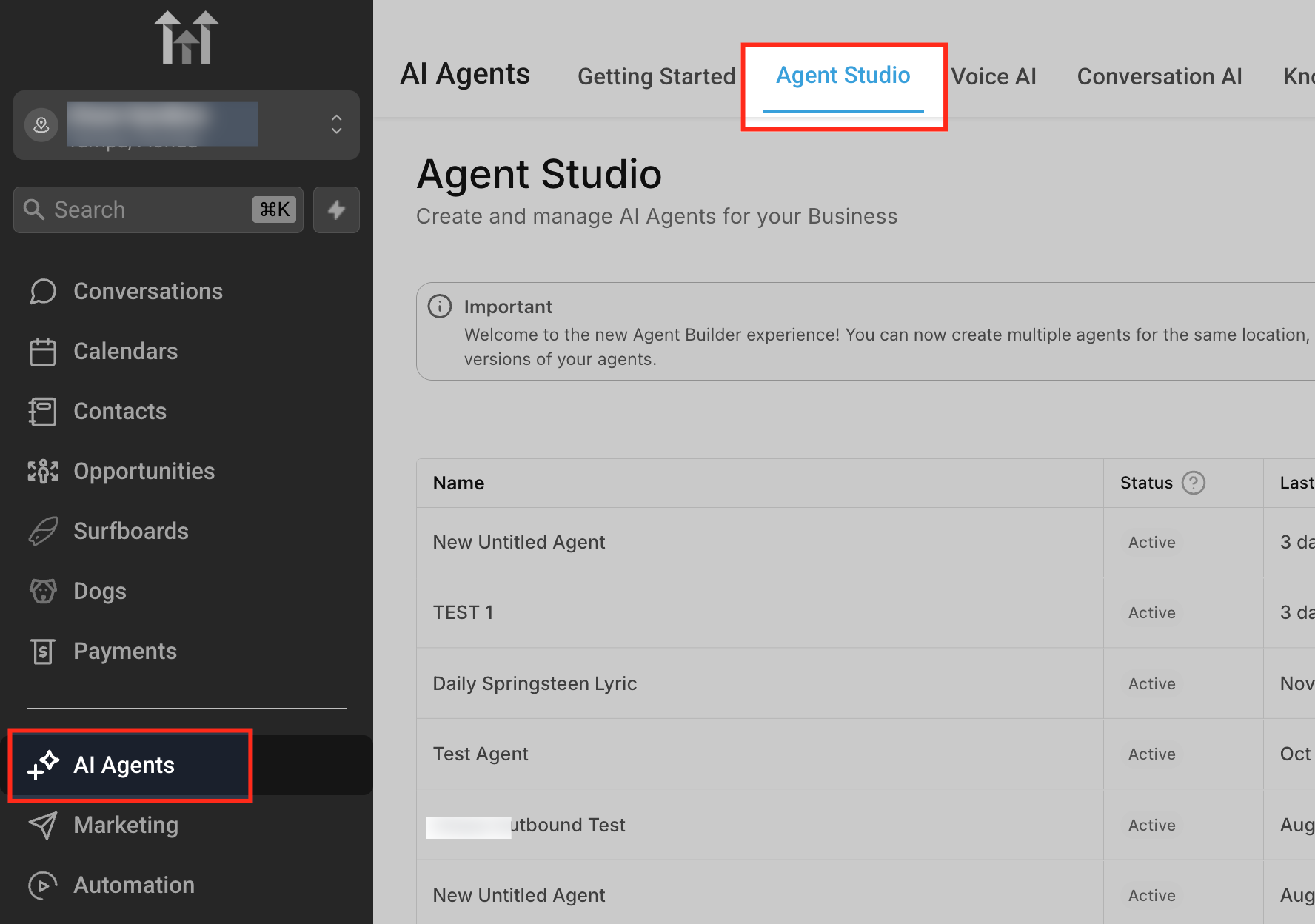
From the left sidebar, click AI Agents, then select the Agent Studio tab at the top. This opens the workspace where you create and manage AI agents for the current location.
Create or Open
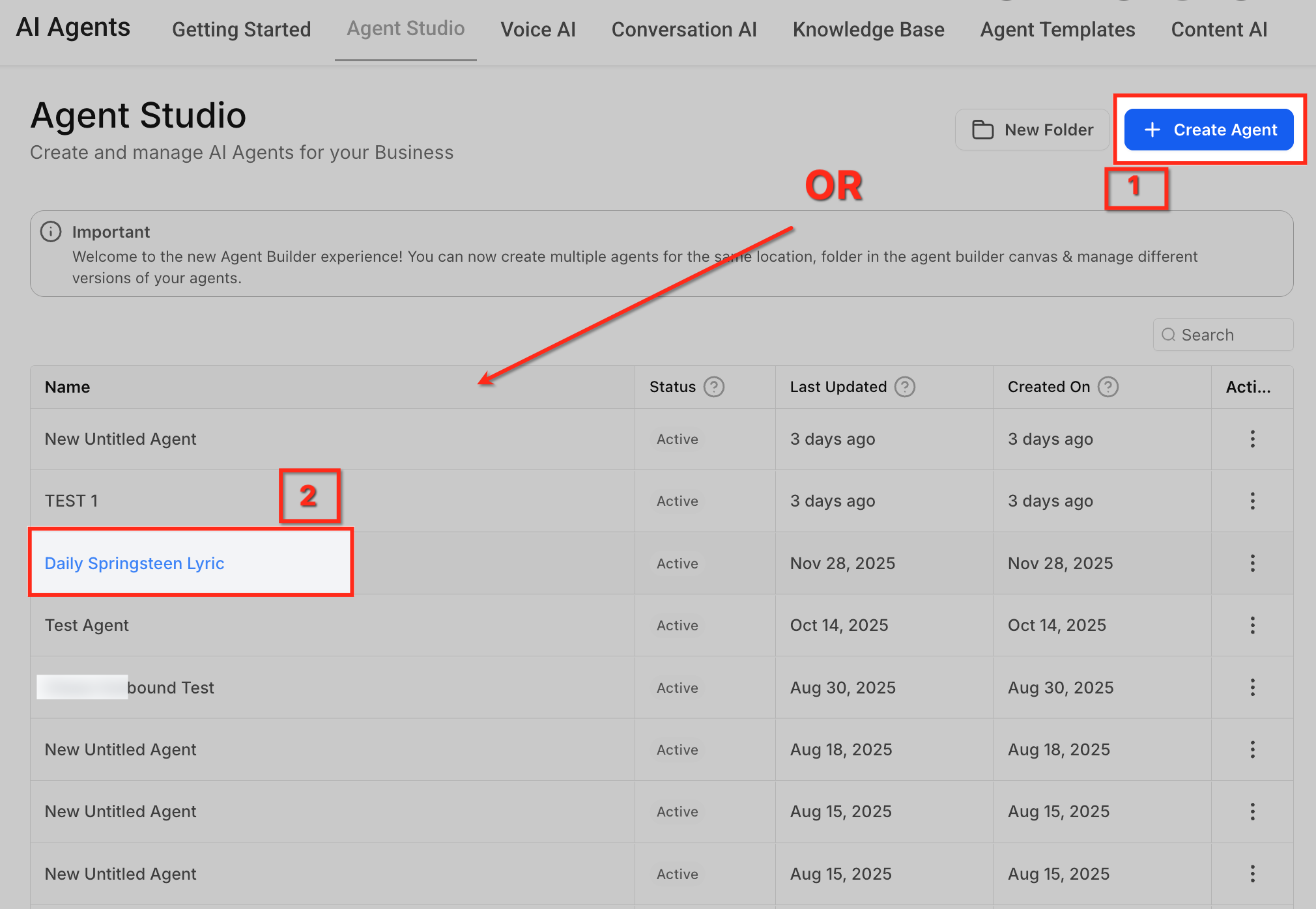
Click Create Agent to build a new agent, or select an existing agent name to edit it. The list shows Status, Last Updated, and Created On so you can choose the right agent quickly.
Open Canvas
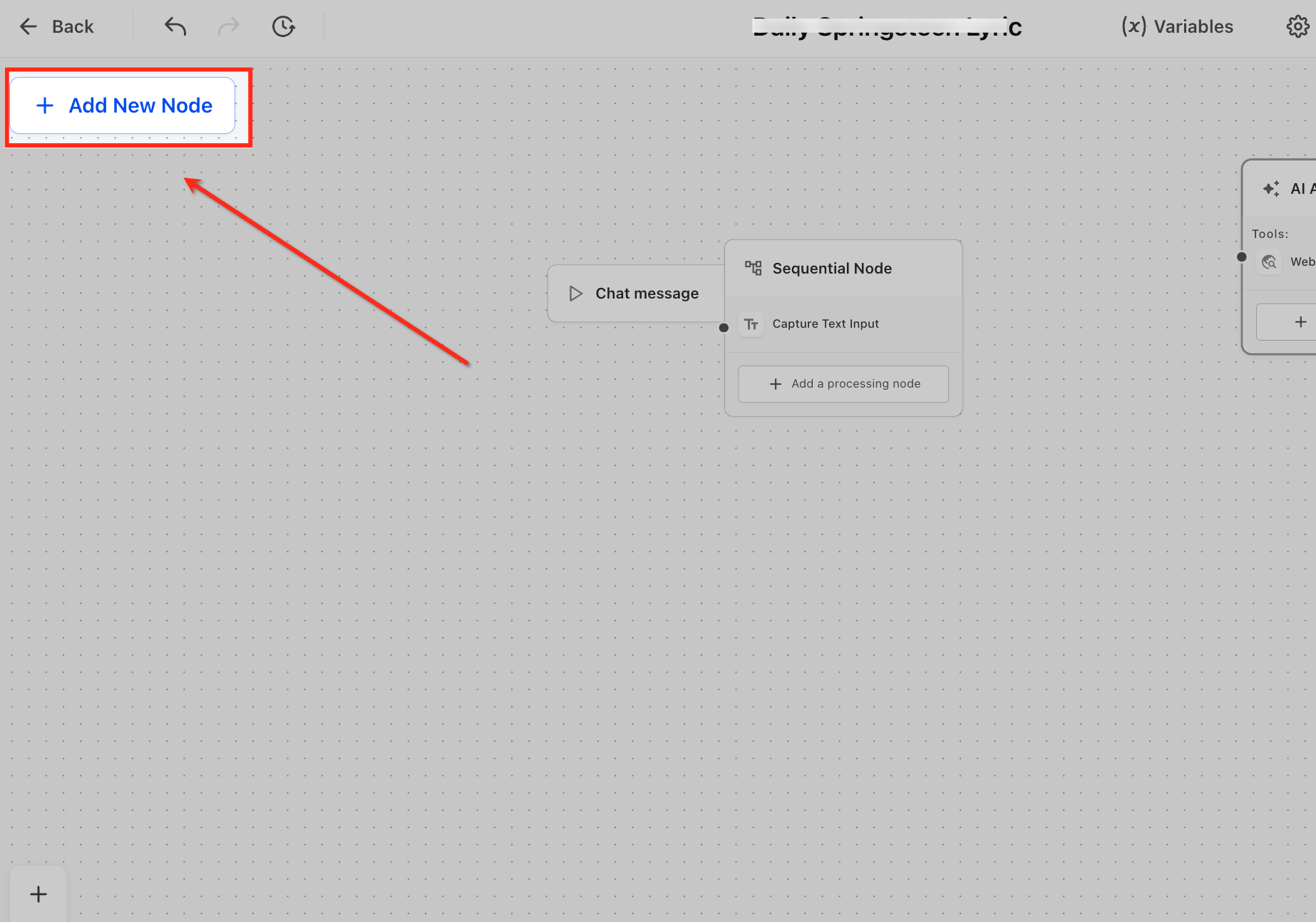
Inside the agent, you’ll see the builder canvas with nodes and a plus control. Use Add New Node to begin building or locate the starting area of your existing flow.
Add Start Trigger
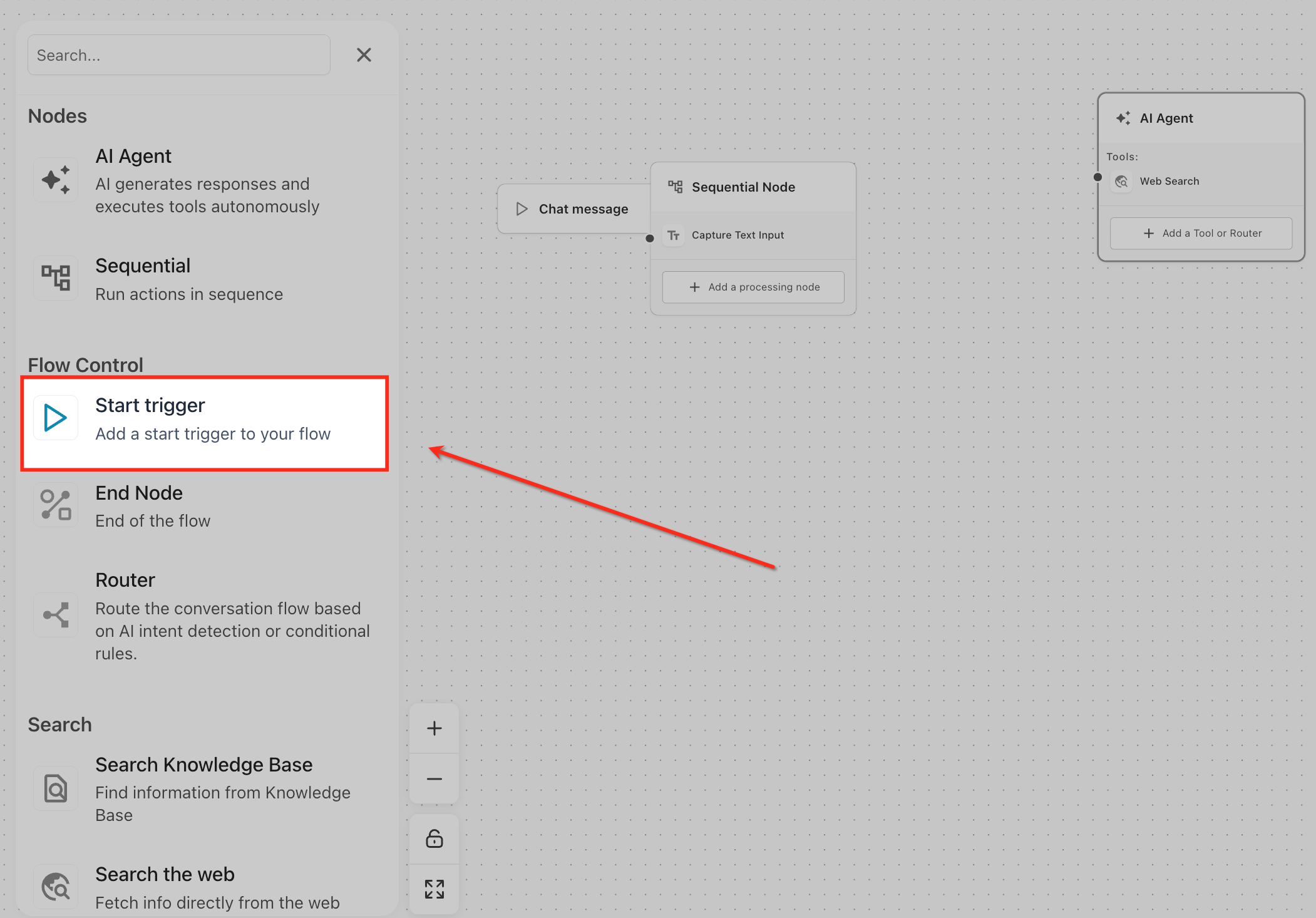
From the node picker, choose Start trigger under Flow Control. This places a trigger tile that listens for events to start your agent.
Trigger Types
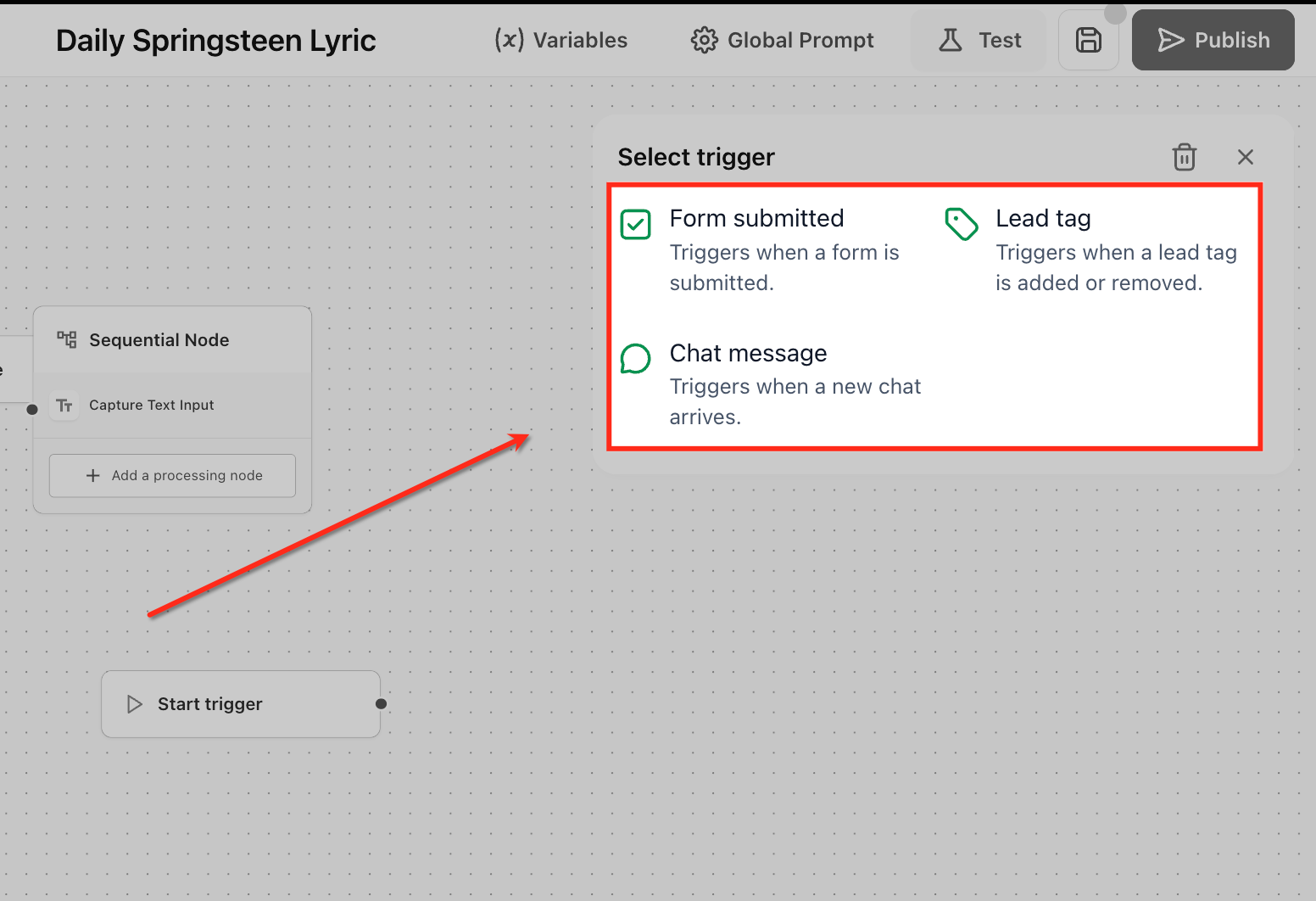
In the Select trigger panel, pick Form submitted, Lead tag, or Chat message to define what starts the agent. Your choice determines which configuration options appear next.
Form Submitted Trigger
Use this when you want an agent to engage immediately after a contact completes a HighLevel‑tracked form, ideal for instant nurture, qualification, or routing. It:
- Starts the agent when any selected form is submitted.
- Exposes submitted form fields as variables your agent can reference in later steps.
Lead Tag Trigger (Added / Removed)
Fire targeted automations when a tag is applied to or removed from a contact. Common uses include VIP onboarding, re‑engagement, or churn‑prevention.
- Starts the agent when a selected tag is added or removed from a contact.
- Provides the contact context (including existing tags and custom fields) to your flow.
Chat Message Trigger
Start your agent the instant a new inbound message arrives through supported chat widgets/providers, this trigger is ideal for instant replies, smart routing, or FAQ deflection.
- Requires no additional configuration, add the trigger and publish.
- Provides message text, sender details, and conversation context for your flow logic.
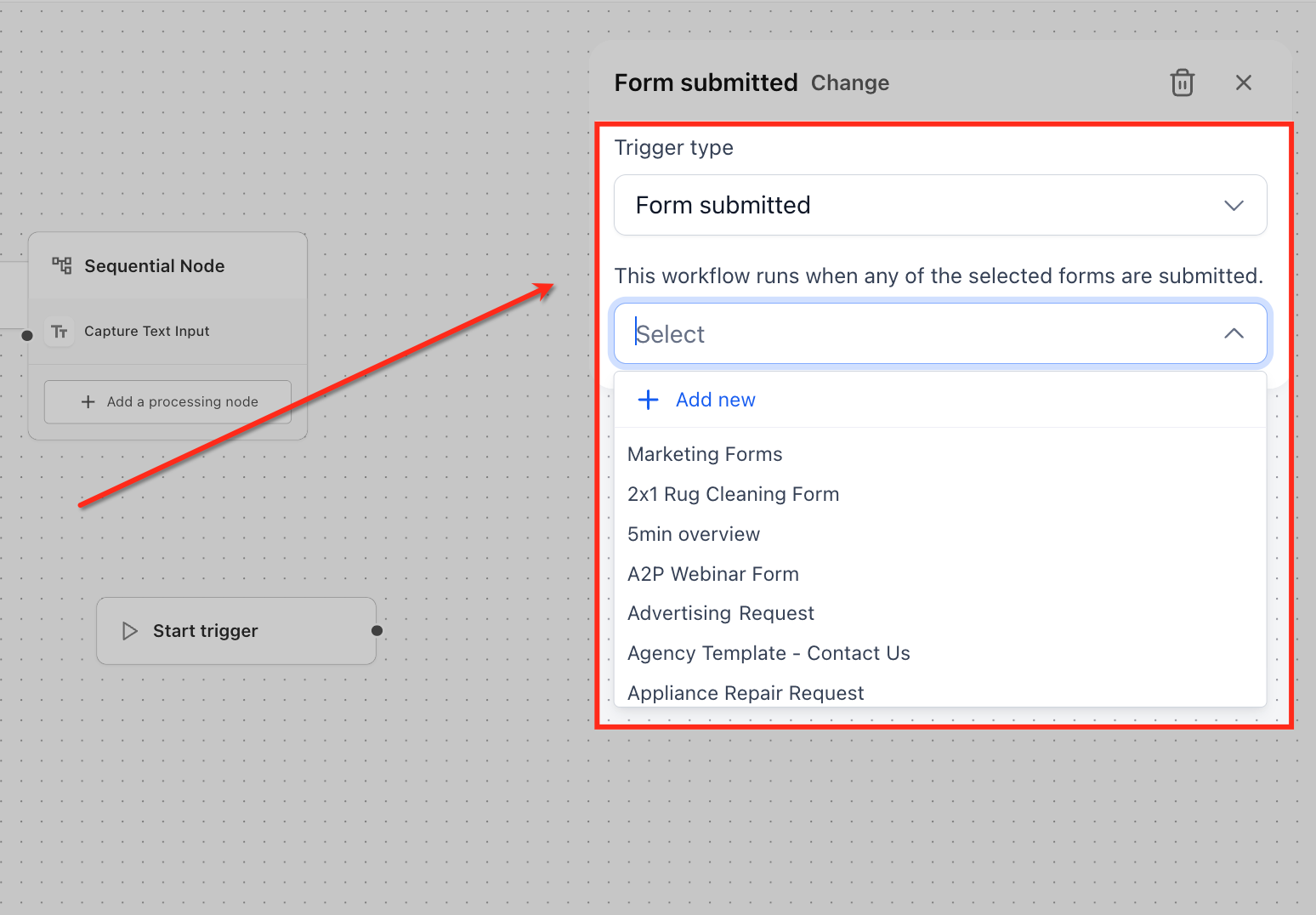
Select Forms
For Form submitted trigger, use the dropdown to choose one or more forms, or click Add new if the form isn’t created yet. The agent will start whenever any selected form is submitted.
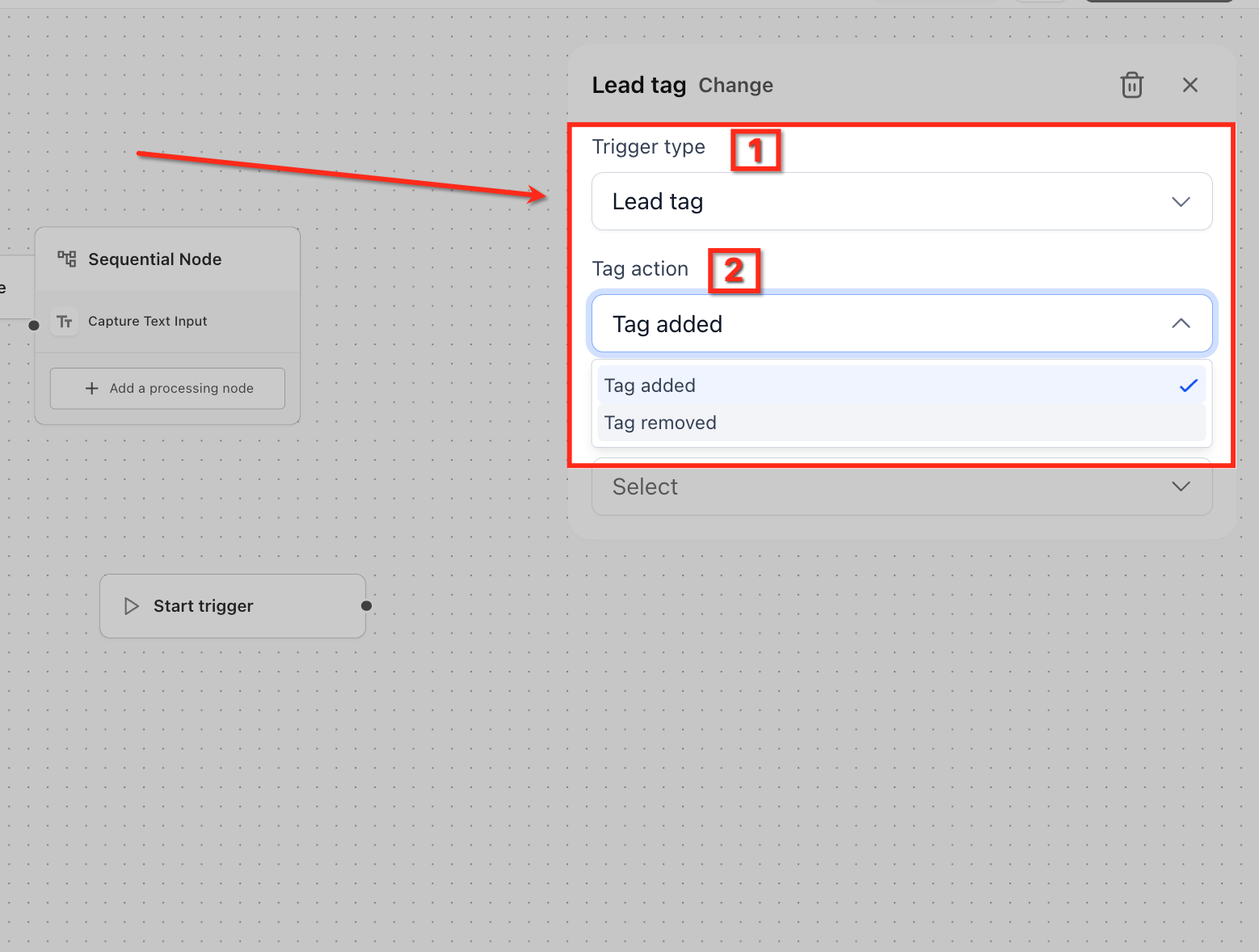
Choose Tag Action
For Lead tag, set Tag action to Tag added or Tag removed. This decides whether the agent starts when a tag is applied to a contact or when it’s removed.
Pick Lead Tag
Select the specific tag from the list, or create one with Add new. The agent listens only for changes to the tags you select here.
When bulk‑adding tags for testing, consider using a small test segment first to avoid triggering many agent runs at once.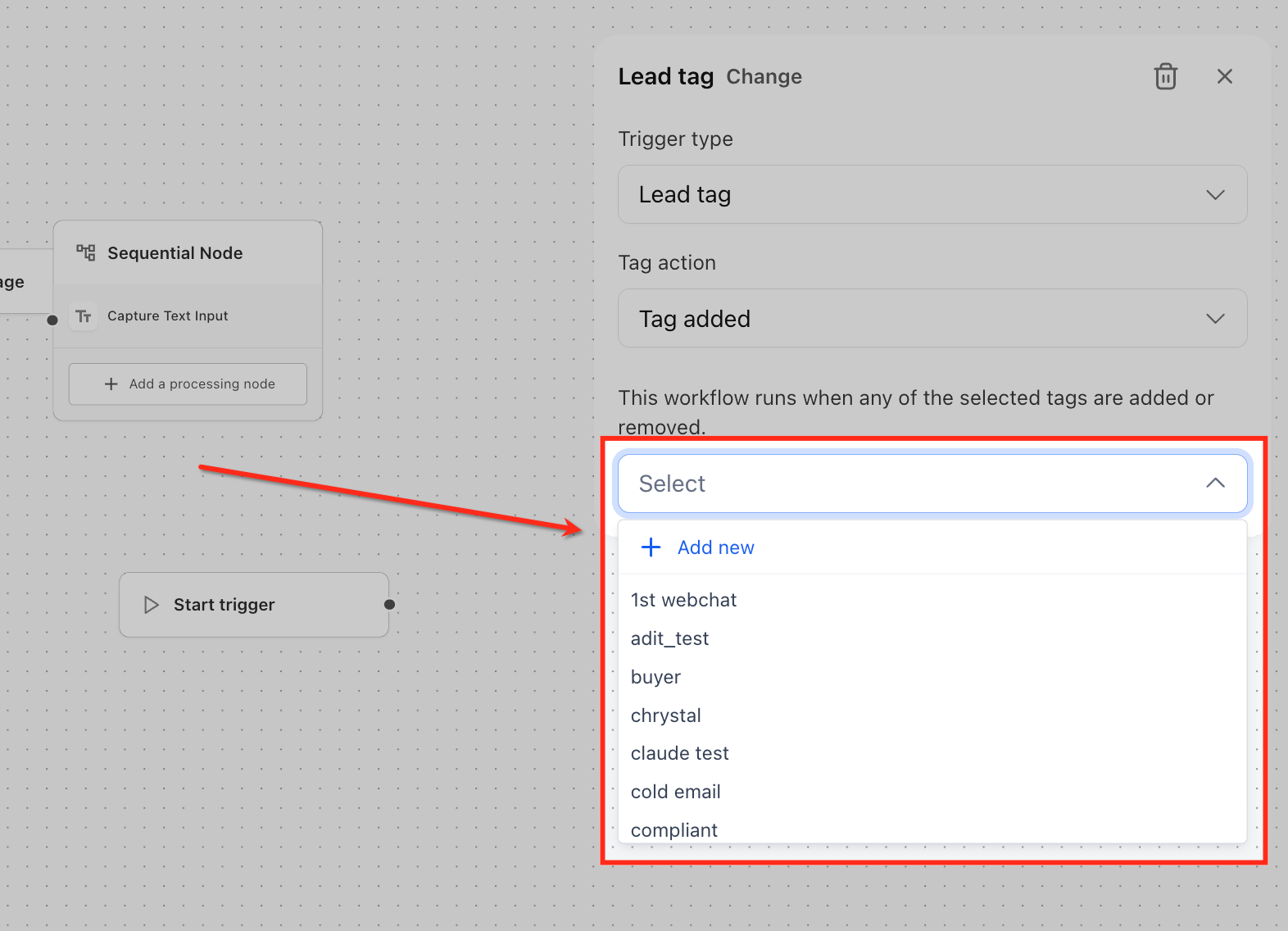
Enable Chat Trigger
For Chat message, no additional configuration is required. The agent will start automatically whenever a new inbound message arrives through connected chat channels.
If you route conversations from Ask AI to an agent, the chat can initiate the agent via Chat message. See Ask AI + Agent Studio Integration for mapping details.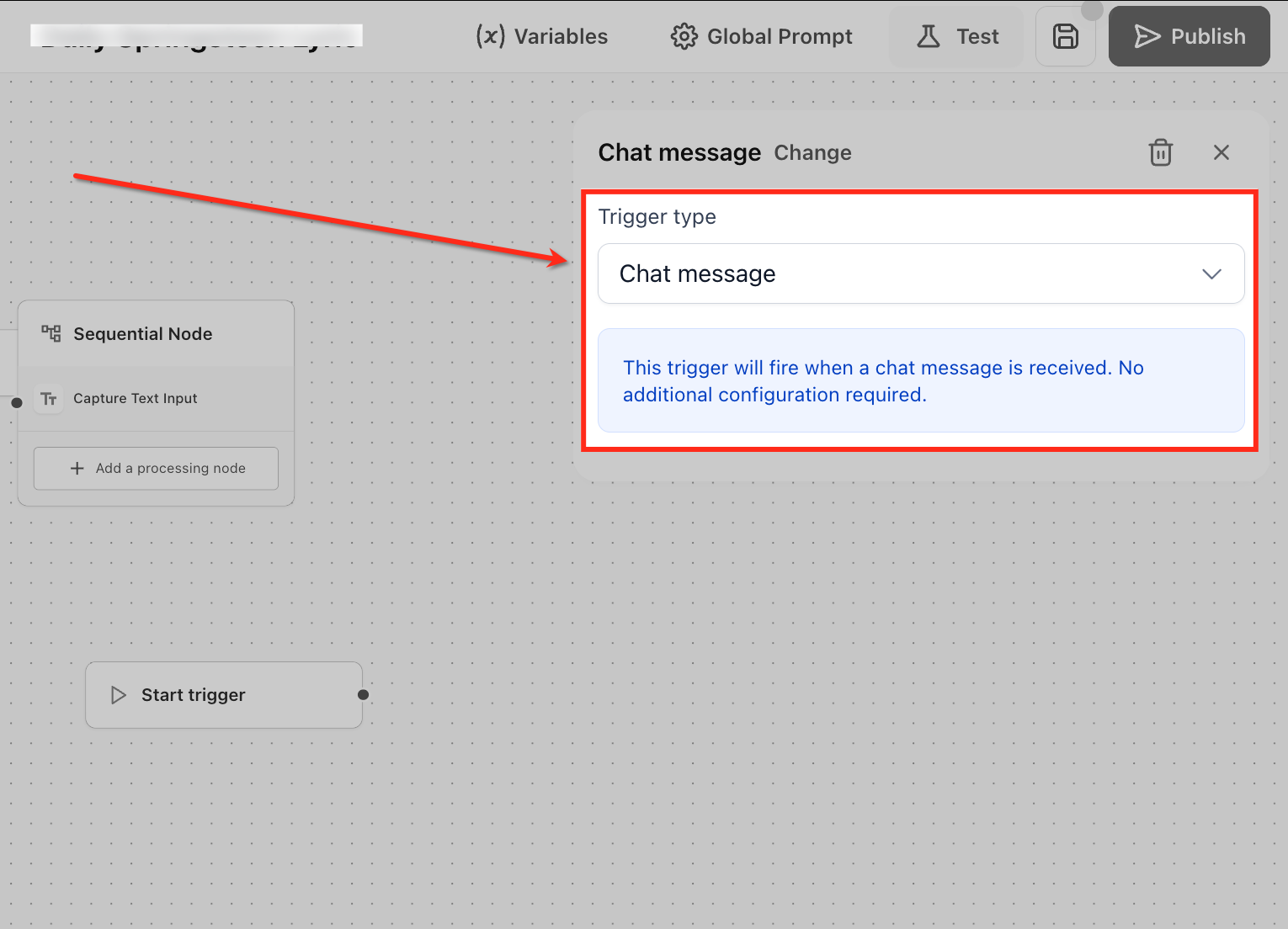
Validate & Go Live
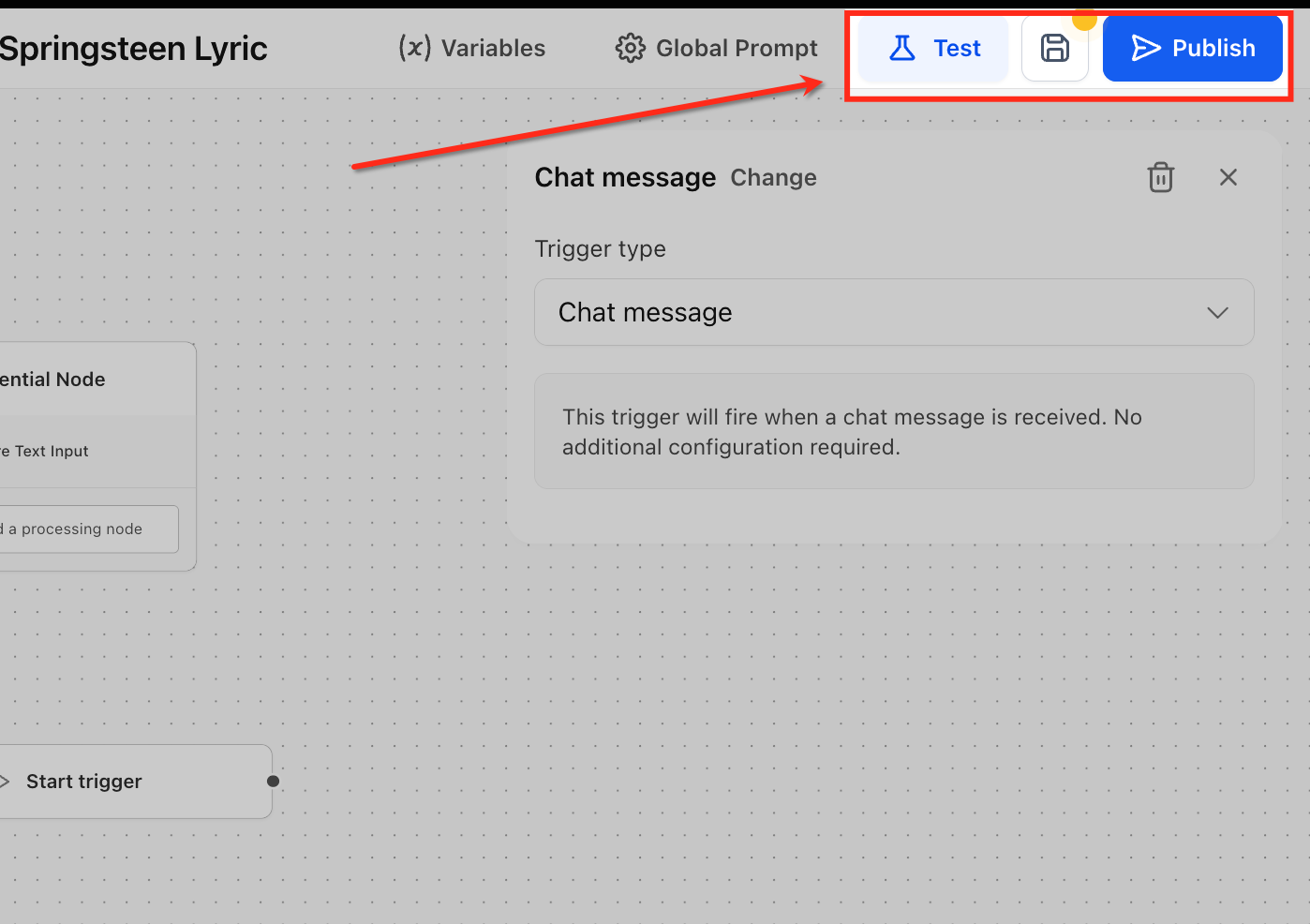
- Test: Run a safe simulation of the selected trigger to see exactly which variables and payload the agent receives, no live contacts are affected. Use this to iterate quickly on prompts/nodes and verify the flow before publishing.
- Save: Store your current changes as a Staging version so you don’t lose work and can return later; nothing goes live yet. Saving is ideal after each configuration step (e.g., choosing forms or tags) to keep a clean working version.
- Publish: Push the current agent and its Start trigger live for this sub-account so real events immediately start the agent. Publish after successful Tests, ensuring the Start trigger is connected to the first node; if the agent is mapped to other features (e.g., Ask AI), it typically must be in Production to be selectable.
Frequently Asked Questions
Q: Do triggers change how my existing API‑invoked agents run?
No. Triggers are additive. Your existing API flows continue to work; triggers only run for agents where you’ve added a Start trigger.
Q: Where do I turn triggers on?
Inside each agent’s canvas in AI Agents → Agent Studio. Add a Start trigger, configure it, Test, then Publish.
Q: Can I test before going live?
Yes. Use the canvas Test option to simulate the event and validate variables and responses before publishing.
Q: Which chat sources are supported?
Triggers work with HighLevel’s existing chat widgets/providers connected to your sub‑account. No extra configuration is required to start.
Q: What data is available to my agent when a trigger fires?
Form submissions include mapped form fields; Lead tag events include contact context; Chat message events include message text and conversation metadata.
Q: What if I don’t see my form or tag in the dropdown?
Confirm you’re in the correct sub‑account/location and that the asset exists there. Refresh the builder after creating new forms/tags.
Related Articles
- How to Use the AI Agent Studio in HighLevel (link)
- Ask AI + Agent Studio Integration (link)
- Intent Based Routing in Agent Studio (AI Router Node) (link)
Was this article helpful?
That’s Great!
Thank you for your feedback
Sorry! We couldn't be helpful
Thank you for your feedback
Feedback sent
We appreciate your effort and will try to fix the article