Web Call lets you test Voice AI Agents in HighLevel directly from your browser without buying, assigning, or provisioning a phone number. Use Web Call to validate prompts, conversation flow, supported actions, and agent responses earlier in the setup process. This helps teams test and refine Voice AI behavior before moving to real phone-number-based calling.
TABLE OF CONTENTS
- What is a Web Call?
- Key Benefits of a Web Call
- Web Call vs. Phone Call Testing
- Permissions & Browser Requirements
- How does a Web Call Work
- Supported Features and Current Limitations
- How To Set Up a Web Call
- Reviewing Web Call Test Results
- Frequently Asked Questions
- Related Articles
What is a Web Call?
Web Call is a browser-based testing option for Voice AI Agents in HighLevel. It allows users to speak with a Voice AI Agent through their computer microphone and browser audio instead of placing a traditional phone call.
Web Call is designed for testing and validation. It helps users review how the agent responds, follows prompts, handles supported actions, and manages conversation flow before connecting the agent to live customer calls.
Key Benefits of a Web Call
Web Call makes it easier to test Voice AI Agents before purchasing phone numbers or validating live telephony behavior. This helps teams move faster during setup while keeping early testing separate from production calling.
No phone number required: Start testing your Voice AI agent without purchasing or assigning a phone number first.
Faster validation: Launch a trial call immediately in the browser so you can review how the agent responds in real conversations.
Supports most testing scenarios: Web Call supports agent testing for prompts, call flow, and actions, with the exception of call transfer.
Useful during setup: Web Call is especially helpful while creating a new Voice AI agent because it lets you test before finalizing phone-based calling.
Instant feedback: After a test, you can review logs, transcripts, and recordings to improve the agent experience.
Web Call vs. Phone Call Testing
Web Call and Phone Call testing serve different purposes. Choosing the right testing method helps you validate the correct part of the Voice AI experience before using the agent with live callers.
Web Call is best for:
- Testing from the browser without a phone number.
- Reviewing prompt behavior and conversation flow.
- Checking greetings, responses, and supported configured actions.
- Running early tests before phone setup is complete.
- Iterating on agent prompts before live telephony validation.
Phone Call is best for:
- Testing real phone-number-based behavior.
- Validating assigned phone numbers.
- Confirming inbound routing.
- Testing production-like call handling.
- Reviewing transfer paths and real telephony behavior.
Web Call does not fully replace phone-based testing. Before using a Voice AI Agent with live callers, test the agent using the phone number setup that customers will use.
Permissions & Browser Requirements
Web Call depends on user access, browser audio, and microphone permissions. Confirming these requirements before testing helps prevent connection issues, missing audio, or failed browser calls.
To use Web Call:
- The user must have access to the Voice AI Agent testing area.
- The Voice AI Agent must already exist in HighLevel.
- The browser must allow microphone access.
- Device-level microphone permissions may need to be enabled.
- A working microphone is required.
- Another application using the microphone may interfere with Web Call.
- A supported modern browser should be used for the best experience.
If microphone permission is blocked, Web Call may not start or the agent may not detect audio from the user.
How does a Web Call Work
Understanding how Web Call behaves during testing helps you interpret results more accurately. This includes how HighLevel identifies the caller, what features are supported, and where your test activity appears after the call ends.
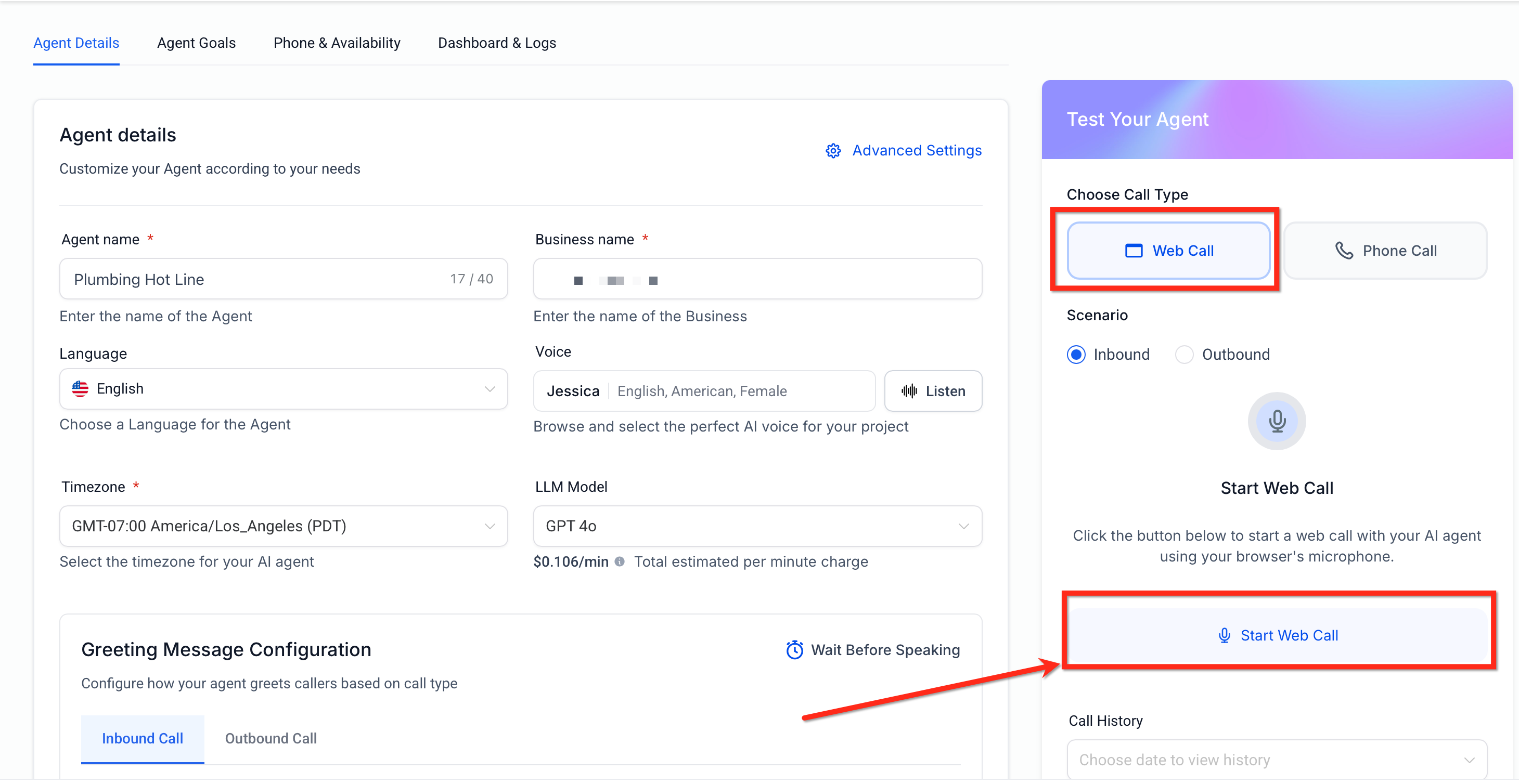
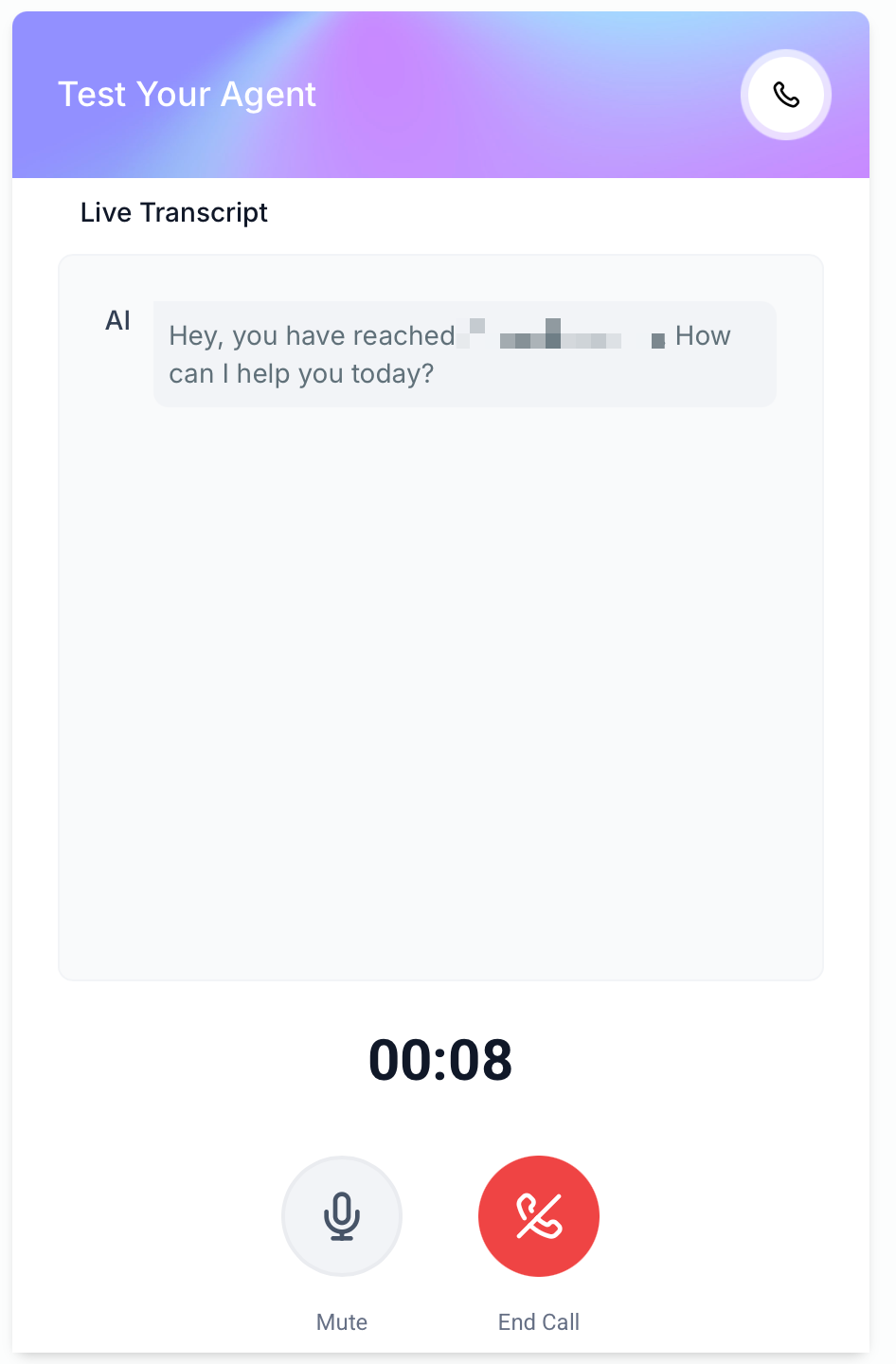
Web Call runs directly in your browser as a test method for a Voice AI agent.
The logged-in user’s contact is automatically used as the caller contact during the trial.
Most agent actions can be tested using Web Call.
Call transfer is not supported during a Web Call trial.
Test calls can be reviewed later in Voice AI logs, including transcripts and recordings.
Test calls do not count toward dashboard analytics or performance metrics.
Supported Features and Current Limitations
Knowing what Web Call can and cannot do helps you choose the right testing method. Browser-based testing is excellent for fast iteration, but some telephony-specific behavior still requires a phone-based test.
Supported During Web Call
Web Call is intended to mirror the Voice AI testing experience as closely as possible so you can validate prompts, responses, and general call handling without extra setup.
Prompt testing
Conversational flow testing
Action testing for supported agent behaviors
Quick iteration during creation and optimization
Transcript review and log visibility after the test ends
Not Supported During Web Call
Some functionality depends on telephony behavior that is not available in the browser-based trial experience. This is why Web Call is a fast testing option, while Phone Call remains useful for complete phone-path validation.
Call transfer is not supported in Web Call trials.
How To Set Up a Web Call
Proper setup ensures your browser-based test reflects your agent’s latest prompts and configuration. Before starting the trial, make sure your Voice AI agent has been created and your browser can access your microphone.
1. Go to AI Employee > Voice AI in HighLevel.
2. Open the Voice AI agent you want to test.
3. Locate the testing area for the agent. HighLevel supports both Phone Call and Web Call testing methods.
4. Select Web Call. Unlike Phone Call testing, Web Call does not require you to enter a phone number.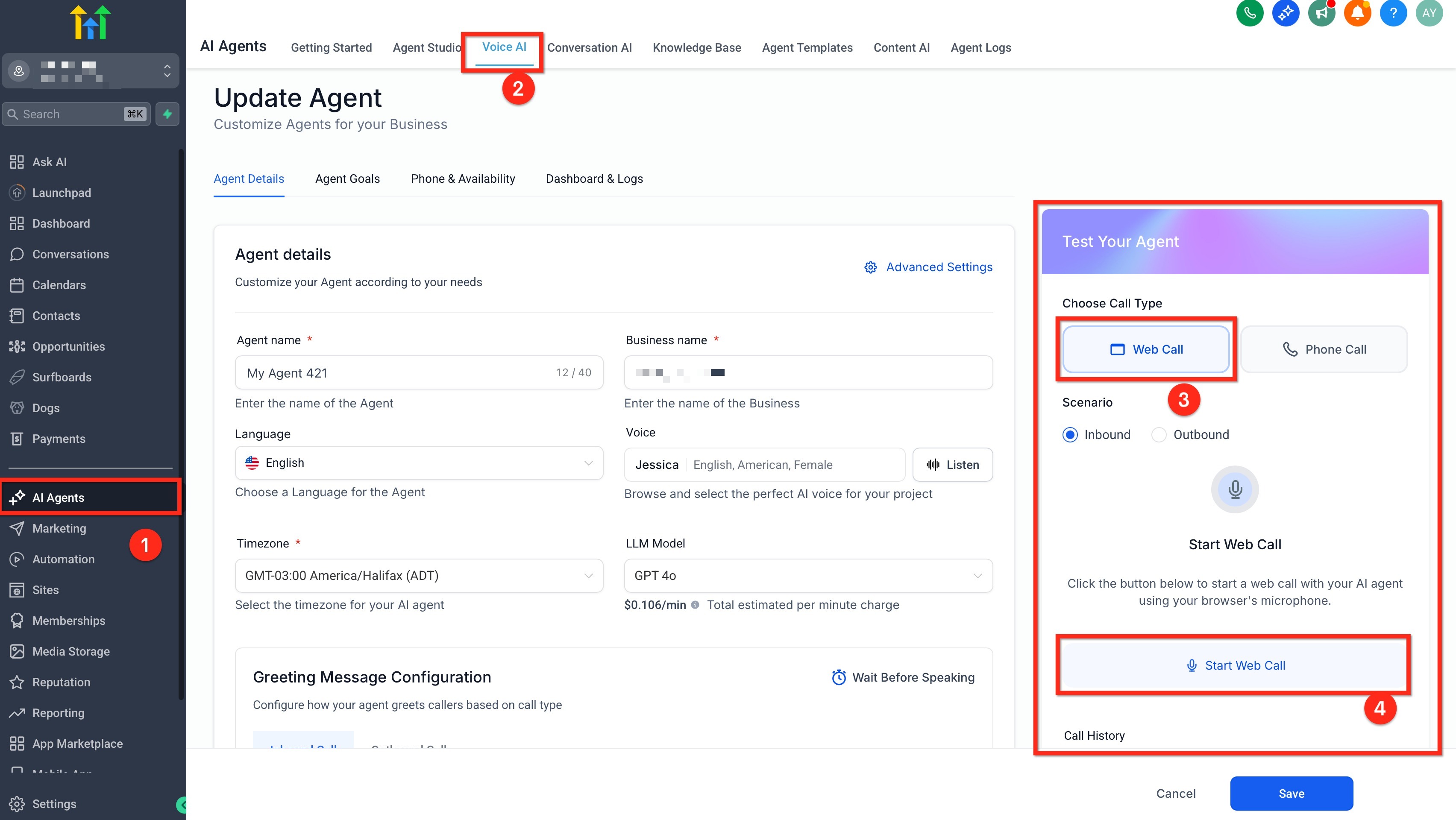
5. Allow microphone access in your browser when prompted.
6. Start speaking with your Voice AI agent and test the prompts, responses, and actions you want to validate.
7. Review the test results in your Voice AI logs after the call to analyze the transcript and recording.
Reviewing Web Call Test Results
Testing is most useful when you can quickly learn from the outcome and improve your agent. HighLevel keeps test-call details visible in the Voice AI dashboard logs so you can review conversations without affecting your production analytics.
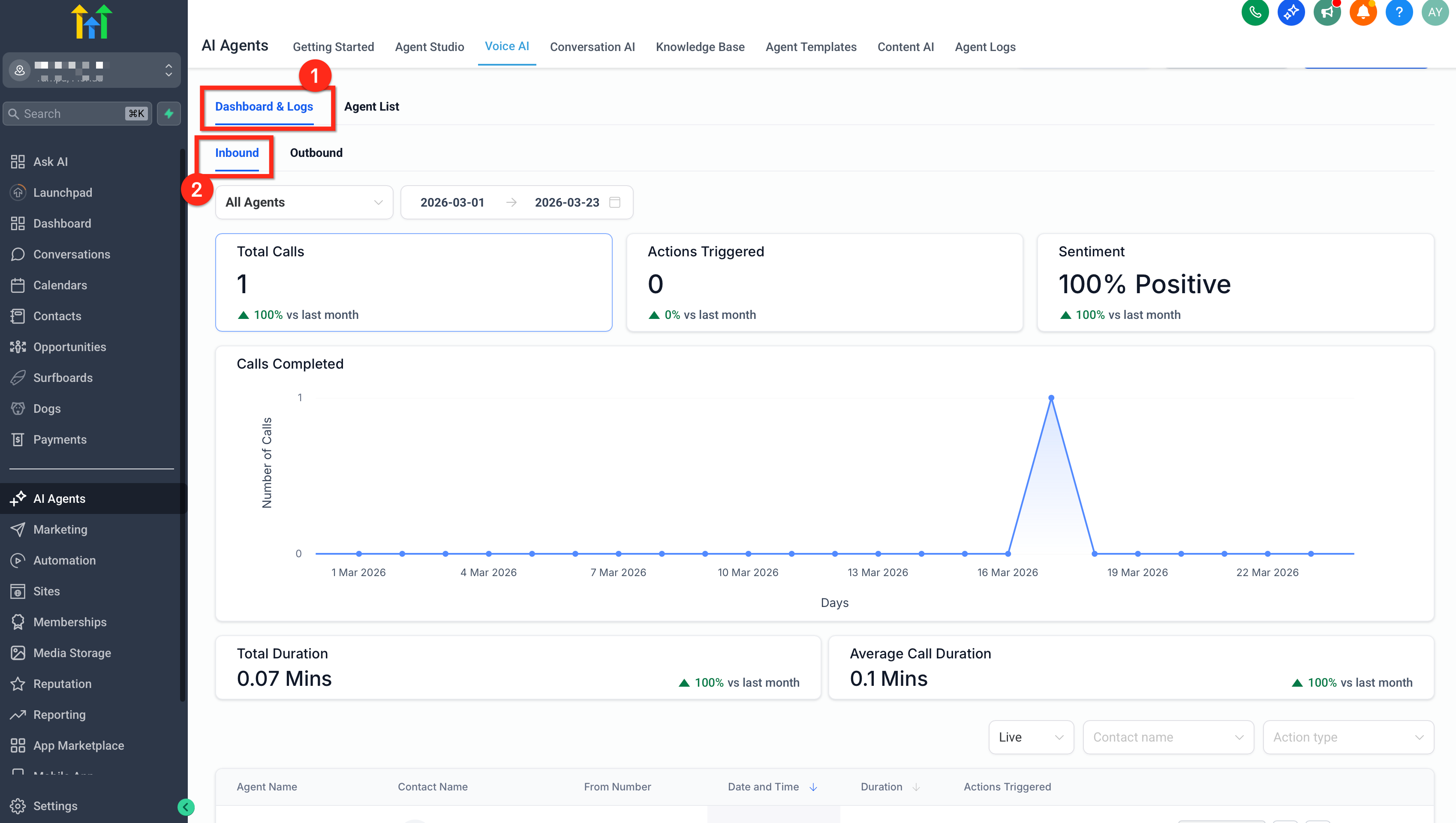
Go to Voice AI > Dashboard Logs to review test-call activity.
Use the Call Type filter to isolate Test Calls if needed.
Open the log entry to review the recording and transcript.
Test calls are visible in logs but excluded from dashboard analytics and performance reporting.
Frequently Asked Questions
Q: Do I need to buy a phone number to use Web Call?
No. Web Call allows you to test a Voice AI Agent from your browser without buying, assigning, or provisioning a phone number.
Q: Can I use Web Call for live customer calls?
No. Web Call is intended for testing from inside HighLevel. Use phone-number-based setup for live customer calls.
Q: Does Web Call test real phone routing?
No. Web Call does not validate real phone-number routing, assigned number behavior, or full production telephony paths.
Q: Can Web Call test call transfers?
Web Call is not intended to validate full call transfer behavior during trials. Use Phone Call testing to validate transfer paths and real telephony behavior.
Q: Will Web Call tests appear in logs?
Yes, Web Call tests may appear in Voice AI logs with available details such as transcripts, recordings, and call behavior.
Q: Do Web Call tests affect dashboard analytics?
No. Web Call test calls do not count toward dashboard analytics or live performance metrics.
Q: Which contact is used during a Web Call test?
Web Call may use the logged-in user’s contact as the caller contact. Because of this, context may differ from a real external caller.
Q: Why is my microphone not working?
The browser or device may be blocking microphone access, the wrong microphone may be selected, or another app may be using the microphone.
Q: Should I still test with a phone number before going live?
Yes. Web Call is helpful for early testing, but phone-number-based testing is recommended before sending live customer calls to a Voice AI Agent.
Q: Can I use Web Call before my agent is fully configured?
You can use Web Call during setup, but the test will only reflect the agent’s current prompt, greeting, goals, tools, and saved configuration.
Related Articles
Was this article helpful?
That’s Great!
Thank you for your feedback
Sorry! We couldn't be helpful
Thank you for your feedback
Feedback sent
We appreciate your effort and will try to fix the article