Prompt Optimizer helps you test and improve Voice AI Agent prompts in HighLevel using realistic call scenarios. Use this feature to generate or create scenarios, run voice-based tests, review results, and compare optimized prompt variations before applying changes to the live agent. This helps teams validate agent behavior, improve call outcomes, and reduce risk before sending live customer calls to Voice AI.
TABLE OF CONTENTS
- What is Prompt Optimizer in Voice AI?
- Key Benefits of Prompt Optimizer in Voice AI
- When To Use Prompt Optimizer
- Good to Know Before Using Prompt Optimizer
- How To Use Prompt Optimizer in Voice AI
- Reviewing Prompt Optimizer Results
- Frequently Asked Questions
- Related Articles
What is Prompt Optimizer in Voice AI?
Prompt Optimizer is a Voice AI testing and improvement tool that runs scenario-based call tests against a Voice AI Agent. It evaluates whether the agent meets the expected behavior for each scenario and can generate improved prompt variations based on test results.
Prompt Optimizer helps you move beyond one-off test calls by measuring how well the agent handles specific caller inputs, workflows, objections, tools, and expected outcomes. You can start a traditional optimization run by generating or creating scenarios, or start directly from an eligible completed test call in the Voice AI builder when Trial Call Prompt Optimizer is available.
Key Benefits of Prompt Optimizer in Voice AI
Prompt Optimizer gives teams a structured way to test, measure, and improve Voice AI behavior before or after launch. Instead of guessing whether a prompt works, you can review scenario results, call details, and tested prompt variations before deciding whether to update the agent.
- Automated scenario generation: Creates contextual test scenarios based on your Voice AI agent and testing workflow.
- Optimize from completed test calls: Turn an eligible completed test call directly into a new optimization run without manually rebuilding the test scenario.
- Real voice call testing: Runs voice-based tests so you can evaluate actual conversation behavior.
- Action validation: Tests whether configured actions such as appointments, SMS, emails, knowledge base lookups, and CRM updates behave as expected.
- AI scoring and reasoning: Evaluates calls against expected outcomes and explains why results passed or failed.
- Transcript and recording review: Lets you inspect the complete call interaction before changing the prompt.
- Prompt variation testing: Generates and evaluates improved prompt variations when the existing prompt needs improvement.
- Controlled prompt updates: Lets you review results before applying an optimized prompt.
- Multi-language testing: Supports scenario generation, calls, and evaluations in the selected language.
When To Use Prompt Optimizer
Prompt Optimizer is most useful when you need structured testing across important or problematic call scenarios. It can help validate a new agent before launch, retest an agent after configuration changes, or improve a prompt after a completed test call does not perform as expected.
Use Prompt Optimizer:
- Before sending live customer calls to a Voice AI Agent.
- After changing prompts, goals, tools, actions, or knowledge sources.
- After a failed or unexpected Web Call or Phone Call test.
- When validating appointment booking, transfers, SMS, email, CRM updates, or knowledge base behavior.
- When testing multilingual or edge-case scenarios.
- When comparing prompt variations across repeated scenarios.
- When accuracy or expected behavior needs to be measured.
- When you want to start optimization directly from an eligible completed builder test call.
Prompt Optimizer is different from other Voice AI prompt tools:
- Prompt Evaluator: Reviews the prompt and identifies potential improvement opportunities.
- Edit Prompts with AI: Rewrites or refines selected prompt text based on your instructions.
- Prompt Optimizer: Runs scenario-based voice tests, evaluates results, and tests optimized prompt variations.
- Trial Call Prompt Optimizer: Uses an eligible completed test call as the starting point for a Prompt Optimizer run.
HighLevel also provides Edit Prompts with AI when you already know which portion of a prompt you want to rewrite rather than running scenario-based testing.
Good to Know Before Using Prompt Optimizer
Prompt Optimizer can run multiple Voice AI test calls and may execute actions connected to your agent. Reviewing the current prompt, test resources, and usage information before starting helps prevent unintended activity and makes the results easier to interpret.
- Test calls are voice-based tests rather than text-only simulations.
- Configured actions may execute during testing, including appointments, SMS, emails, knowledge base lookups, and CRM updates.
- Use test-safe contacts, calendars, destinations, and connected resources whenever possible.
- Individual Prompt Optimizer test calls may be subject to testing limits documented in the current Voice AI experience.
- AI evaluations and prompt behavior are not fully deterministic, so accuracy should be treated as a directional signal.
- Review transcripts, recordings, tool results, and evaluation reasoning alongside the score.
- Prompt Optimizer supports the current Voice AI Agent architecture.
- Prompt changes are not automatically accepted; review an optimized variation before applying it.
Important: Prompt Optimizer usage varies by your HighLevel AI plan. The current AI pricing article lists Voice AI Prompt Optimizer as pay-per-use for Pay-Per-Use locations, 100 included minutes per month for AI Employee Growth, and unlimited usage subject to fair use for AI Employee Unlimited. Review the usage details shown in HighLevel before starting a run.
How To Use Prompt Optimizer in Voice AI
A proper setup helps Prompt Optimizer test the right scenarios and produce useful prompt recommendations. Prompt Optimizer follows a walkthrough-style flow: configure the test plan, run real calls, review the results, and then improvise prompt variations when improvements are needed.
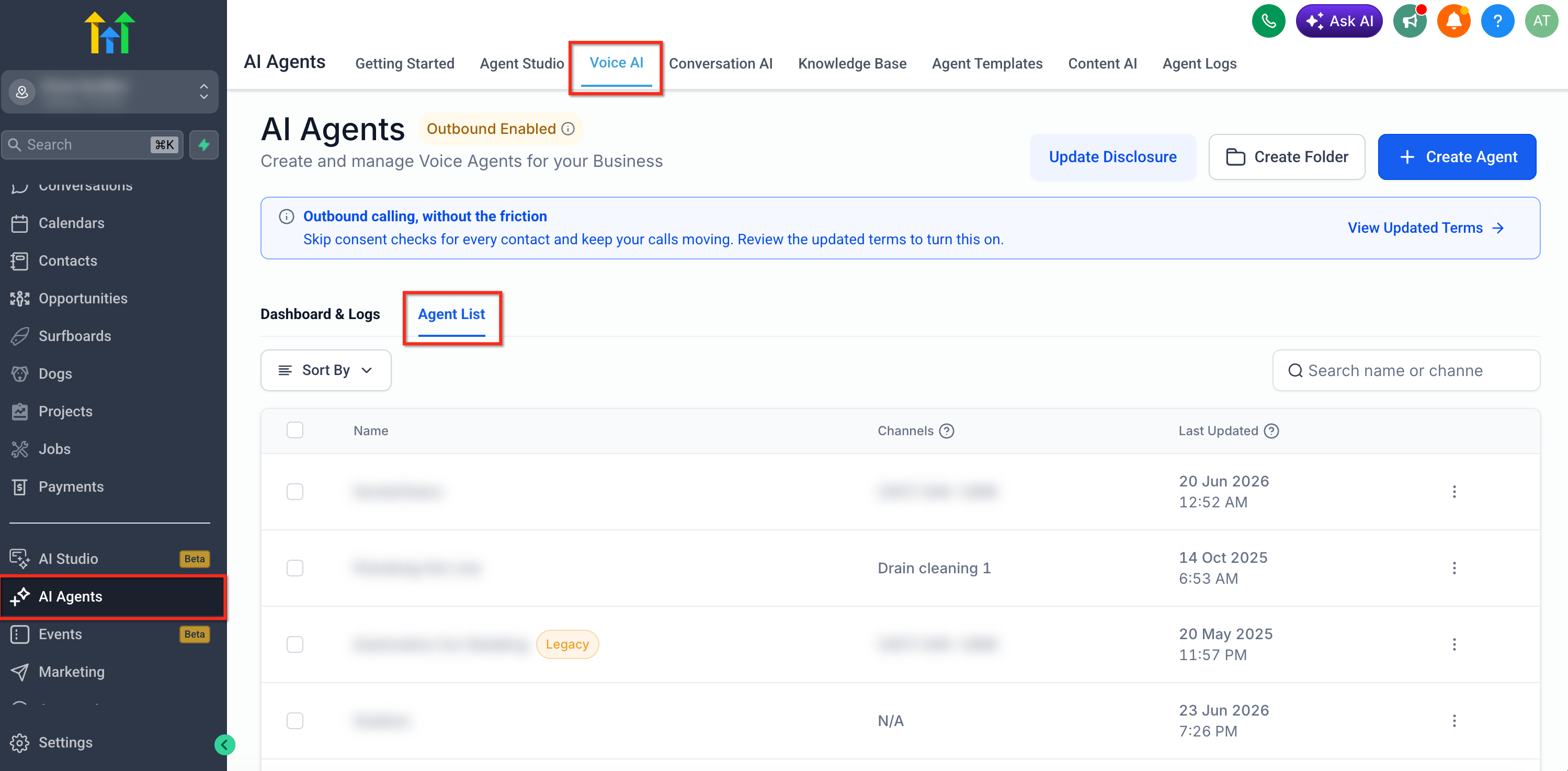
Navigate to AI Agents > Voice AI > Agent List.
Open the Voice AI Agent you want to test.
Click Prompt Optimizer from the agent builder: Prompt Optimizer opens from the Voice AI Agent builder and uses the selected agent’s existing prompt, language, direction, and configured actions to prepare the testing workflow. The live agent is cloned for testing, so the production agent is not changed during the test or optimization process.
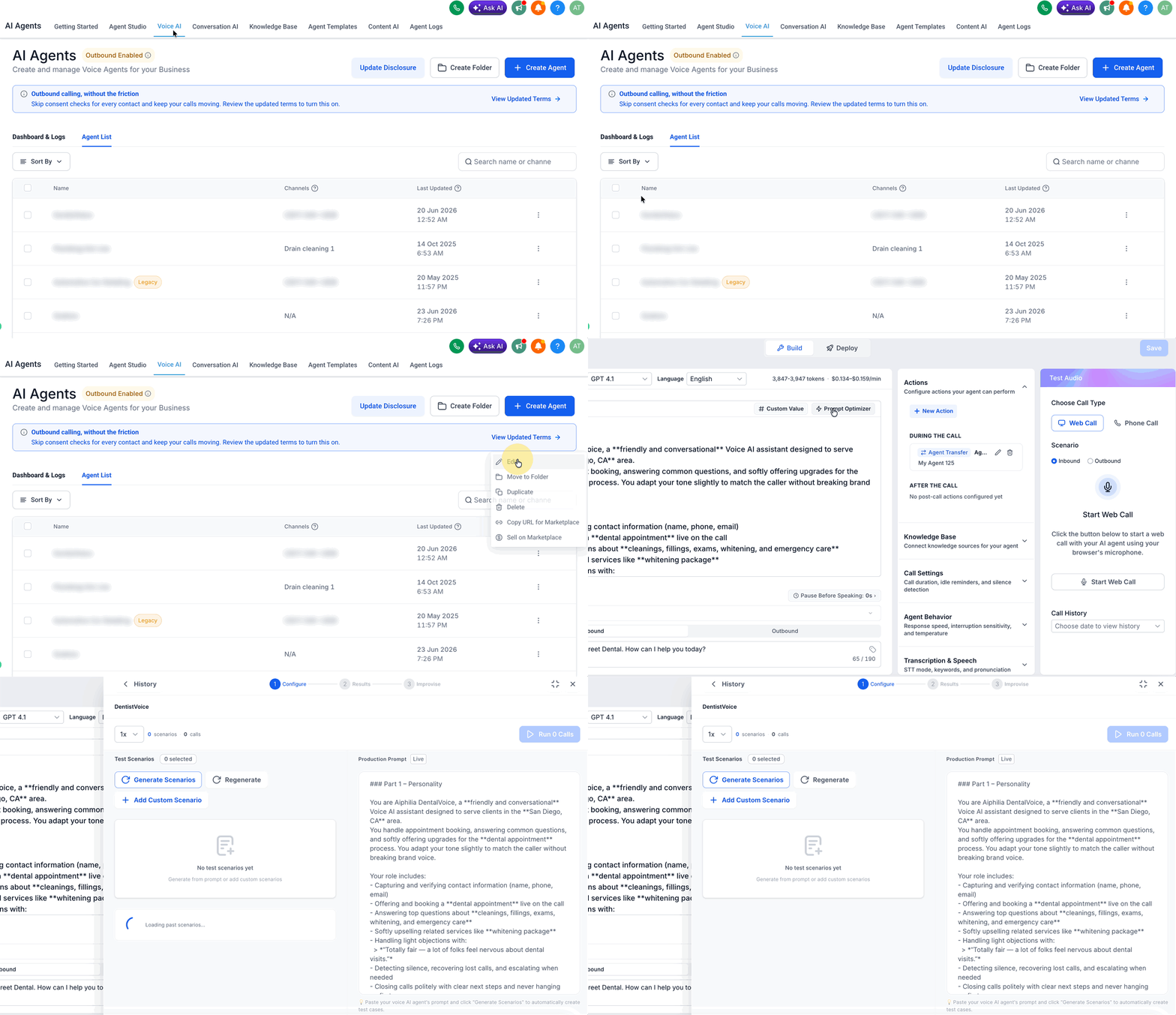
Click on Generate Scenarios and review the automatically generated scenarios: Prompt Optimizer can automatically create contextual test scenarios based on the underlying agent configuration. These scenarios help test how the agent responds to realistic caller requests and whether it completes the expected behavior.
Generated scenarios may include:
Caller persona or caller context
Caller input, such as the question or request the caller makes
Expected agent behavior
Expected tool or action usage
Scenario priority, such as Critical, High, Medium, or Low

Select the scenarios you want to run: Choose the scenarios that match the workflows you want to validate. For example, you may want to test whether the agent can answer from the knowledge base, verify a caller, book an appointment, send an SMS, send an email, or handle a specific edge case.

Edit or create custom scenarios when needed: Custom scenarios are useful when you need to test a specific workflow, edge case, pronunciation concern, location-based question, required response, or action sequence. Clear expected behaviors help Prompt Optimizer evaluate whether the agent followed the intended call flow.
To create or edit a scenario, configure details such as:Scenario name
Description
Caller input
Expected behaviors
Priority
Example expected behaviors may include verifying the caller’s information, refusing an unsupported request, booking an appointment, sending an SMS, sending an email, or answering from the knowledge base.

Reuse scenarios from a previous run if applicable: Reusing past scenarios helps you retest the same workflows without rebuilding the test plan. This is useful when you make prompt changes and want to compare whether the same set of scenarios performs better after optimization.
Select the language for the test: Prompt Optimizer supports multi-language testing. The selected language is used for scenario generation, calls, and evaluations so you can validate how the agent performs in the language your callers use.
Choose the number of calls per scenario: Select how many calls to run for each scenario. Running multiple calls per scenario can help test consistency because AI behavior may vary slightly between calls. Prompt Optimizer supports 1-10 calls per scenario.
Review usage and the daily testing minutes: Before starting the run, review the usage dashboard to confirm the daily free testing minutes used and remaining. Each location receives 20 free testing minutes per day, and additional usage may apply after the daily free minutes are used.
Review the test contact and pre-run checklist: Prompt Optimizer uses a dedicated test contact for calls. Review the test contact details, such as name, phone, and email, along with any calendar, action, or usage warnings before starting the test.
Because test calls are real calls, configured actions can fire during testing. Actions may include appointment booking, SMS, email, knowledge base retrieval, and CRM updates. Use a test contact and safe test setup whenever possible. For appointment workflows, consider using a test calendar to avoid unintended bookings.
Click Run Calls: Prompt Optimizer starts real voice calls based on the selected scenarios and call count. These are not text-only simulations. The agent answers, speaks with the tester, and executes configured actions end to end.

Monitor call progress: Calls can move through statuses such as Waiting, In Progress, Evaluating, Completed, or Failed. You can leave the screen and return later while calls continue processing in the background.

Review the pass/fail summary: After calls complete, Prompt Optimizer shows how many calls passed, how many failed, and the overall accuracy percentage across the tested scenarios. Use the accuracy score as a directional signal, not the only measure of success.
During and after testing, Prompt Optimizer displays:
Call status and progress
Number of scenarios and calls tested
Passed and failed outcomes
Overall accuracy percentage
AI evaluation reasoning
Tool invocations and tool results
Full transcript with speaker labels and timestamps
Call recording playback

Review individual call transcripts and recordings: Open individual call results to read the transcript and listen to the recording. Transcripts include speaker labels and timestamps so you can follow what the tester said, how the agent responded, and where the outcome succeeded or failed.

Review AI scoring and reasoning: Prompt Optimizer evaluates each call against the expected outcomes configured in the scenario. The AI reasoning explains why an outcome passed or failed, making it easier to identify whether the agent missed a step, misunderstood the caller, skipped a required action, or responded with incomplete information.
Evaluations may be strict. A failed result does not always mean the agent completely failed the conversation, but it does identify an area worth reviewing.

Review tool invocations and action results: Tool invocation tracking shows which configured actions were triggered during the test call. This helps confirm whether the agent is using the correct tools at the correct point in the conversation, especially when testing workflows that depend on appointments, messaging, knowledge base answers, or CRM actions.
Prompt Optimizer can help test workflows involving:Knowledge base retrieval
Appointment booking
Sending SMS messages
Sending emails
Caller verification
CRM-related updates or actions

Review failed calls before changing the prompt: Failed calls should be reviewed before deciding whether the prompt needs to change. A failed result can indicate that the agent missed an expected behavior, completed steps in the wrong order, used an action incorrectly, or did not satisfy the scenario requirements.
When reviewing a failed call, check:The AI evaluation reason
The transcript
The call recording
Any tool invocation details
Whether the expected behavior was written clearly enough
Whether the agent’s prompt needs more specific instructions
Click Improvise to create one optimized prompt variation: The Improvise option analyzes failed calls, identifies likely root causes, creates a revised prompt variation, and tests that variation. This helps you compare performance before applying anything to the live agent.

Use Auto when you want Prompt Optimizer to test multiple variations: Auto optimization runs up to five prompt variations automatically. It can stop when the target is reached, the maximum number of variations is met, there is no improvement, a timeout occurs, or a billing limit is reached.
Review variation results and the prompt diff: Each variation includes performance details so you can understand what changed and whether the revision improved results.
Each variation may include:
Accuracy score
Test results
Failed and passed calls
AI reasoning
Prompt diff
Variation history
Best Variation label when applicable
Use Prompt option when you are ready to apply the selected prompt

The prompt diff helps you review what was removed or added before deciding whether to use the optimized prompt.

Click Use Prompt only when you are ready to update the agent: Prompt Optimizer does not update your production prompt automatically. The live agent remains unchanged until you review the variation and click Use Prompt. After you confirm, the selected optimized prompt is applied to the underlying agent.

Reviewing Prompt Optimizer Results
A higher accuracy score can indicate improvement, but the score alone does not explain whether the agent behaved appropriately in every tested scenario. Reviewing call evidence and prompt differences helps you make a more informed decision before updating the agent.
Prompt Optimizer results may include:
- Call status and progress
- Number of scenarios and calls tested
- Passed and failed outcomes
- Overall accuracy
- AI evaluation reasoning
- Tool invocations and results
- Full transcripts
- Call recordings
- Prompt variation history
- Prompt differences
- A best-performing variation when applicable
For failed calls, review the evaluation reason, transcript, recording, tool activity, expected behavior, and current prompt instructions before deciding that a prompt change is required.
Frequently Asked Questions
Q: How is Prompt Optimizer billed?
Checkout our AI Product Pricing article for billing information.
Q: Does Prompt Optimizer change my live Voice AI Agent automatically?
No. Prompt Optimizer tests a cloned version of the agent. Your live agent is not updated unless you review a variation and click Use Prompt.
Q: What is the difference between Prompt Optimizer and Prompt Evaluator?
Prompt Evaluator reviews the prompt and provides suggestions. Prompt Optimizer runs real test calls, evaluates outcomes, identifies failed behaviors, and generates tested prompt variations.
Q: Are Prompt Optimizer calls real calls?
Yes. Prompt Optimizer runs real voice calls, which allows it to test conversation behavior and configured actions end to end.
Q: Can test calls trigger real actions?
Yes. Actions such as appointment booking, SMS, email, knowledge base retrieval, and CRM updates may run during testing. Use a test contact and safe test setup when possible.
Q: Why did a call fail even though the conversation seemed acceptable?
Evaluations compare the call against the expected behaviors defined in the scenario. A call may fail if it missed a required step, used the wrong order, skipped an action, or did not match the expected outcome closely enough.
Q: Should I rely only on the accuracy score?
No. Use the score as a directional signal, then review transcripts, recordings, tool invocations, and AI reasoning before deciding whether to update the prompt.
Q: How many Auto variations can Prompt Optimizer run?
Auto optimization can run up to 5 variations per session.
Q: Can I test in multiple languages?
Yes. Prompt Optimizer supports scenario generation, calls, and evaluations in the selected language.
Q: Can I reuse scenarios from previous test runs?
Yes. Prompt Optimizer allows you to load past scenarios so you can retest common workflows without rebuilding the test plan.
Q: What happens when I click Use Prompt?
The selected optimized prompt is applied to the underlying agent after you confirm the update.
Related Articles
Was this article helpful?
That’s Great!
Thank you for your feedback
Sorry! We couldn't be helpful
Thank you for your feedback
Feedback sent
We appreciate your effort and will try to fix the article