The Click Performance report in HighLevel helps you understand how recipients interact with links in your email campaigns. By tracking total clicks, unique clicks, and individual link performance, you can identify which calls to action (CTAs) generate the most engagement. These insights help you improve email content, optimize link placement, and make data-driven decisions about future campaigns.
TABLE OF CONTENTS
- What is Click Performance in Email Statistics?
- Key Benefits of Click Performance
- Understanding Click Performance Metrics
- Click Tracking Requirements and Limitations
- How to Set Up Click Performance Tracking
- How to Access Click Performance Data
- Frequently Asked Questions
- Related Articles
What is Click Performance in Email Statistics?
Click Performance is a reporting feature within HighLevel Email Statistics that provides detailed information about how recipients interact with links in a sent email campaign. Instead of relying only on open rates or general engagement statistics, you can review which links were clicked, how often they were clicked, and how many unique recipients interacted with them.
The Click Performance report tracks link activity for individual campaigns where click tracking was enabled before sending. This allows you to evaluate the effectiveness of buttons, linked images, text links, and other supported URLs.
Important: Click Performance data is available for sent campaigns with click tracking enabled. Draft and scheduled emails do not display click engagement statistics before delivery.Key Benefits of Click Performance
Understanding which links attract engagement helps you create more effective email campaigns. Click Performance provides link-level insights that can guide improvements to your messaging, email design, and calls to action.
Identify High-Performing Links: Discover which links receive the most clicks and understand what content attracts recipient interest.
Measure Recipient Engagement: Compare total clicks with unique clicks to distinguish repeated interactions from the number of recipients who engaged.
Evaluate Call-to-Action Effectiveness: Identify which buttons, text links, or linked images encourage recipients to take action.
Optimize Email Content and Layout: Use link engagement patterns to improve CTA placement, messaging, and email design.
Compare Campaign Performance: Review click activity across individual campaigns to identify approaches that generate stronger engagement.
Make Data-Driven Marketing Decisions: Use recorded interactions to refine your email marketing strategy instead of relying only on opens or assumptions about audience interest.
Understanding Click Performance Metrics
Click Performance includes several metrics that help distinguish overall link activity from recipient-level engagement. Understanding these measurements is important because repeated clicks and unique recipient interactions represent different aspects of campaign performance.
Total Clicks
Total Clicks represents the total number of recorded clicks across tracked links in your email campaign. Multiple clicks from the same recipient are included in this measurement.
Example: If a recipient clicks the same link three times, those interactions contribute three clicks to the Total Clicks metric.
Total Clicks helps you understand the overall volume of link interactions generated by your campaign.
Total Unique Clicks
Total Unique Clicks represents the number of individual recipients who clicked at least one tracked link in the email campaign. Each recipient is counted once in the campaign-level metric, regardless of how many times they clicked.
Example: If one recipient clicks a button five times and another recipient clicks it twice, the campaign records seven total clicks but two unique clicking recipients. This metric is useful for evaluating how many different people engaged with your email.
Unique Engagements
Unique Engagements represents recipients who interacted with at least one tracked link in your email campaign. This metric provides a recipient-focused view of engagement rather than measuring every repeated interaction.
Clicks per Unique Open
Clicks per Unique Open is a percentage that helps you understand click engagement relative to recipients who opened the email. This metric provides additional context when assessing whether your email content and calls to action encouraged recipients to interact after opening.
A higher percentage generally indicates stronger recorded click engagement relative to unique opens.
Important: Clicks per Unique Open should be interpreted alongside total clicks, unique clicks, and unique opens. Recorded email opens are tracking signals and may not represent every actual email view.
Links in This Email
The Links in This Email table provides a detailed breakdown of tracked URLs within your campaign. It helps you identify which specific links attract recipient attention.
| Metric | Description |
|---|---|
| URL | The destination address associated with the tracked link. |
| Source | The email element containing the link, such as text, a button, or an image. |
| Total Clicks | The total number of recorded clicks for that link, including repeat clicks. |
| Total Unique Clicks | The number of distinct recipients who clicked that specific link. |
Example: If your email contains a "Book Now" button and a "Learn More" text link, you can compare their Total Clicks and Total Unique Clicks to determine which element attracted more engagement.
Tip: Compare both total and unique clicks before deciding which link performs best. A link receiving repeated clicks from a small number of recipients may show high total activity without reaching a large portion of your audience.
When to Use Click Performance Reports
Click Performance reports are especially useful when you need to evaluate specific actions recipients take within an email. Reviewing this data helps connect email engagement with your campaign objectives and identify opportunities for improvement.
Common use cases include:
Evaluating Promotional Campaigns: Review how frequently recipients click buttons such as "Shop Now," "Claim Offer," or "View Deal."
Improving Appointment Campaigns: Measure engagement with links directing recipients to booking pages.
Testing CTA Placement: Compare clicks on links placed near the beginning, middle, or end of an email.
Understanding Content Preferences: Identify which product pages, resources, or informational links attract the most interest.
Optimizing Email Design: Compare engagement with text links, linked images, and buttons.
Analyzing Campaign Results: Review tracked click activity across separate campaigns to identify successful messaging and content approaches.
Tip: A click represents an interaction with a tracked link, not necessarily a completed conversion. For purchase or revenue outcomes, use the appropriate conversion and attribution reports.
Click Tracking Requirements and Limitations
Click Performance depends on the tracking configuration used when an email campaign is sent. Understanding these requirements helps prevent missing data and makes it easier to interpret the results accurately.
Enable Click Tracking Before Sending
The Track Clicks setting must be enabled before the campaign is sent. If click tracking is disabled when the email is sent, the campaign will not collect the Click Performance data described in this article. Turning on tracking for future sends does not retroactively capture clicks from previously sent emails.
Use Supported Link Formats
HighLevel's click-tracking documentation identifies supported web links and several types of links that are not tracked through this feature.
For reliable click tracking:
Use complete destination URLs beginning with
https://orhttp://.Confirm that URLs do not contain syntax errors or incorrect destinations.
Do not expect
mailto:email links or internal anchor links to be tracked as ordinary web links.Be aware that system-generated links, such as unsubscribe links, are excluded from the documented tracking behavior.
The click-tracking guide also documents special handling for test emails, trigger links, and certain links containing custom values. For detailed restrictions and examples, refer to Guide to click tracking in email campaigns.
How to Set Up Click Performance Tracking
Properly configuring click tracking before sending an email ensures HighLevel can record supported link interactions. After enabling tracking, you can send the campaign and review its Click Performance report as recipients engage with your links.
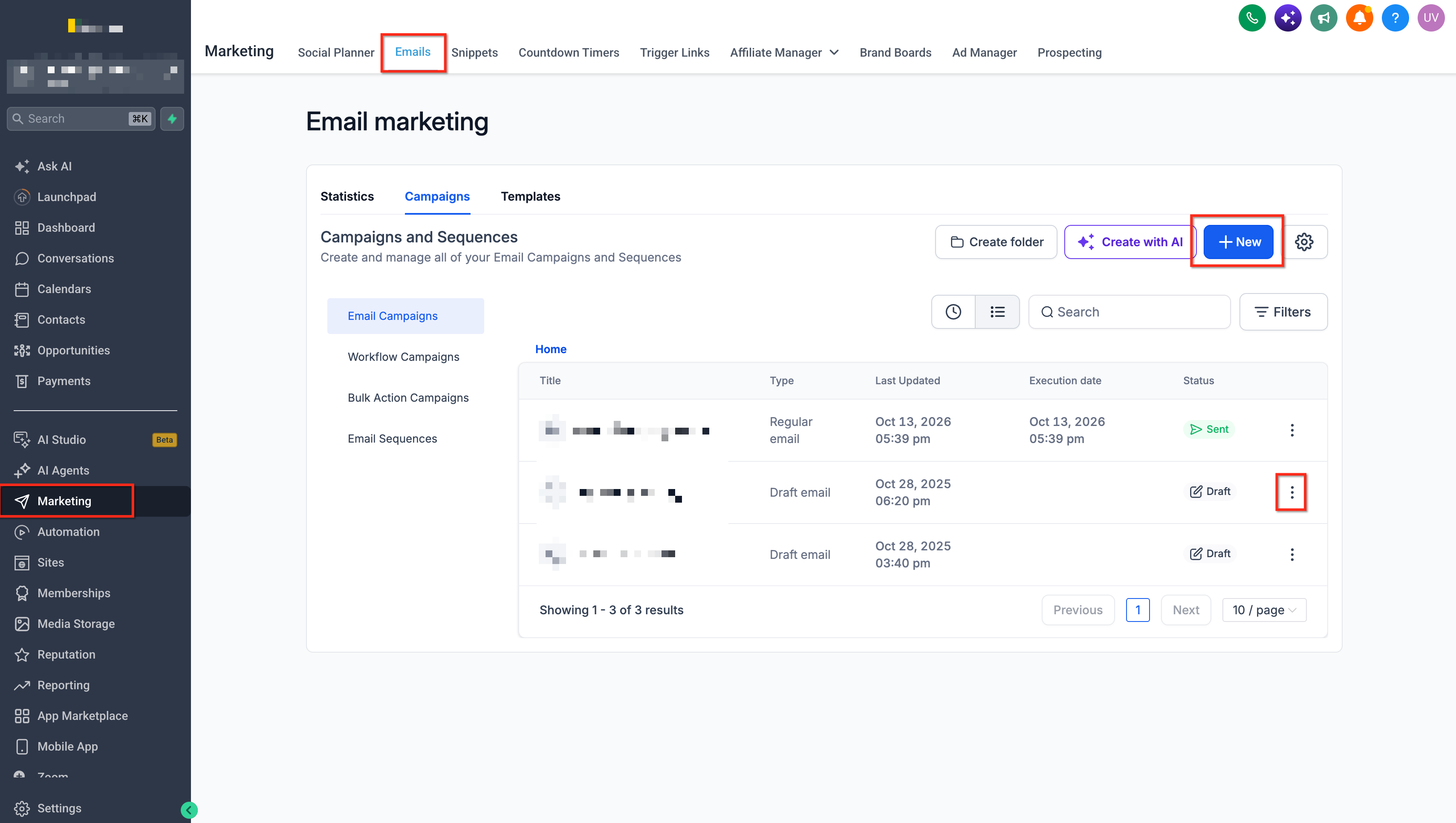
Step 1: Open Your Email Campaign
Log in to your HighLevel sub-account.
Navigate to Marketing → Emails → Campaigns.
Select an existing draft campaign or create a new email campaign.
Prepare your email content and add the links you want recipients to interact with.
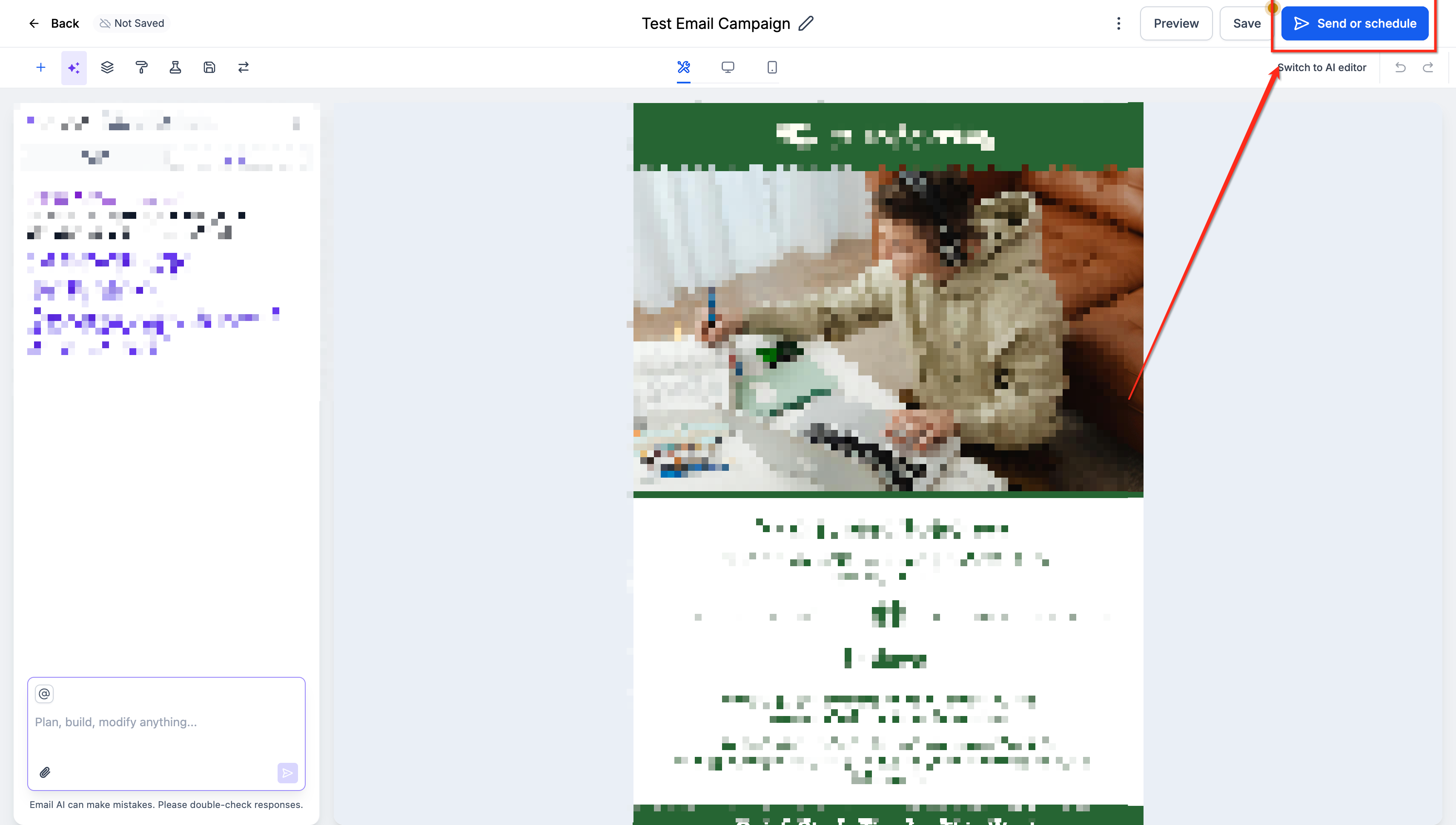
Step 2: Enable Track Clicks
Continue to the Send and Schedule page.
Scroll down to Additional Settings.
Locate the Track Clicks toggle.
Turn Track Clicks ON.
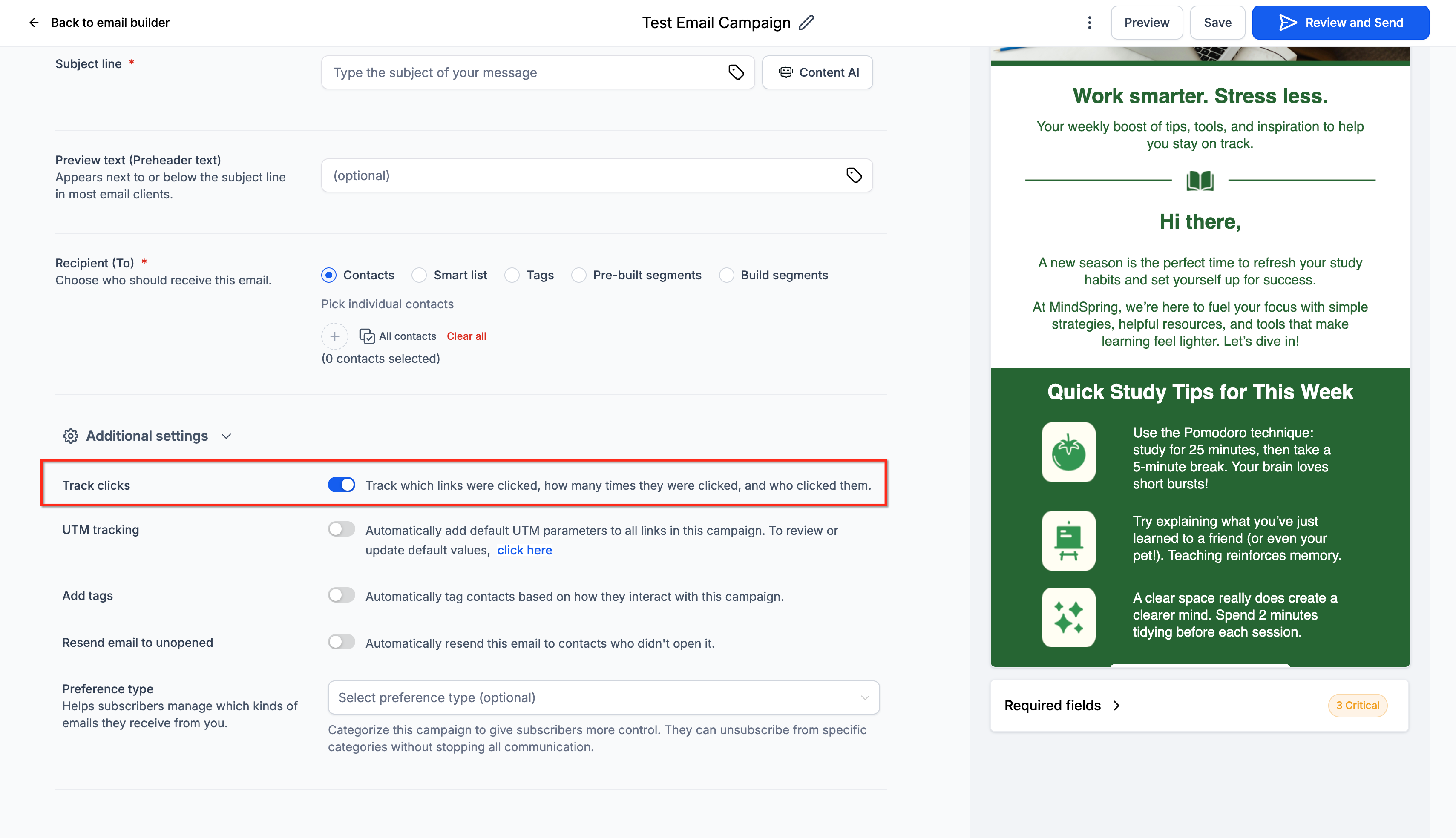
When enabled, HighLevel can record supported link interactions for the campaign.
Important: Always enable Track Clicks before sending or scheduling your campaign. Click Performance information cannot be recovered retroactively if tracking was disabled when the campaign was sent.
Step 3: Configure Optional UTM Tracking
UTM tracking can help identify traffic sources and campaign information in supported external analytics tools.
Under the available campaign settings, locate UTM Tracking.
Enable it if you want supported links tagged with campaign information.
Review the configuration before sending.
UTM tracking is optional and does not replace the Track Clicks setting required for the Click Performance report.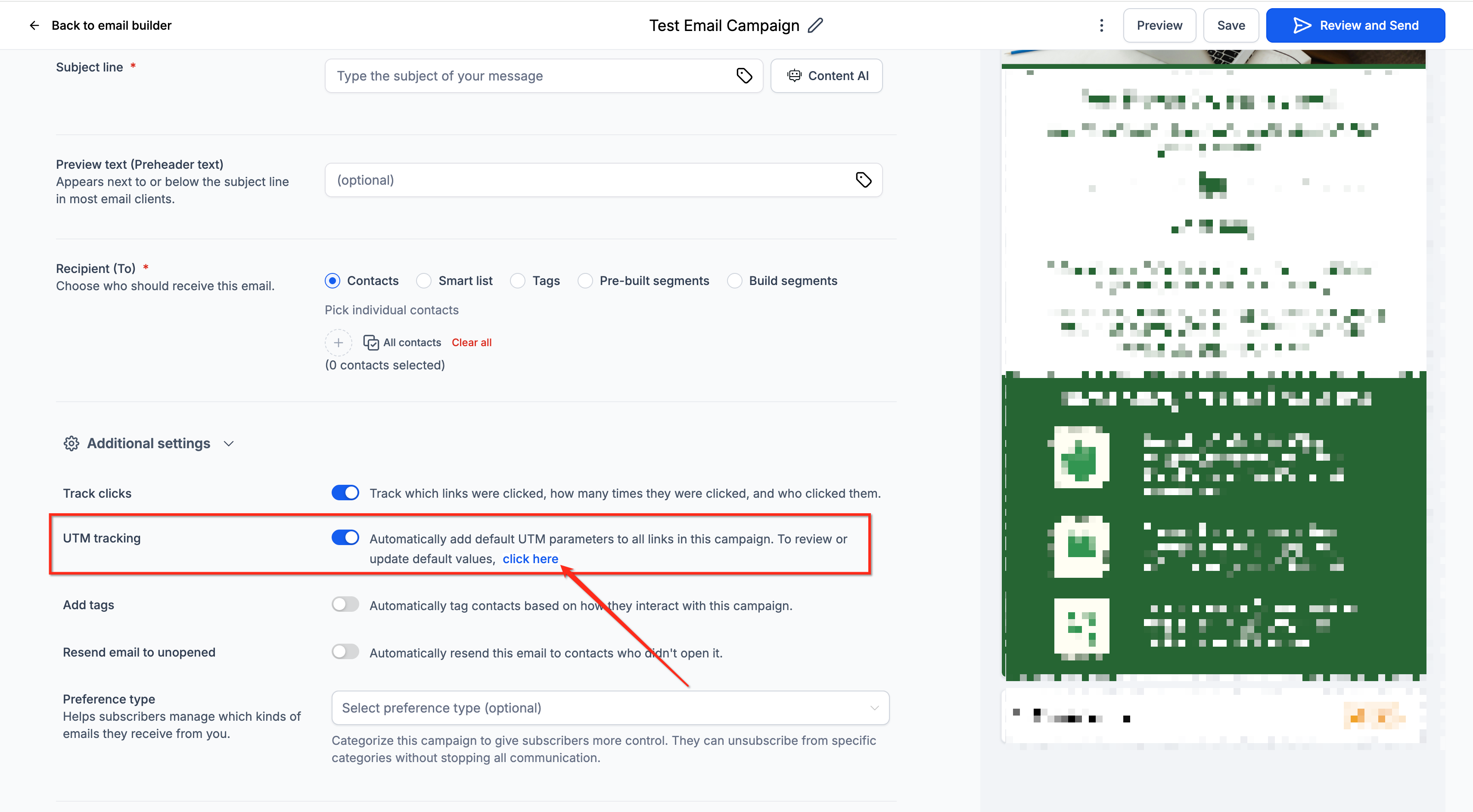
Step 4: Send or Schedule Your Campaign
Review your email content, links, recipients, and campaign settings.
Confirm that Track Clicks is enabled.
Send your campaign immediately or schedule it for a later time.
Once the campaign is sent and recipients begin clicking supported links, HighLevel can record those interactions for reporting.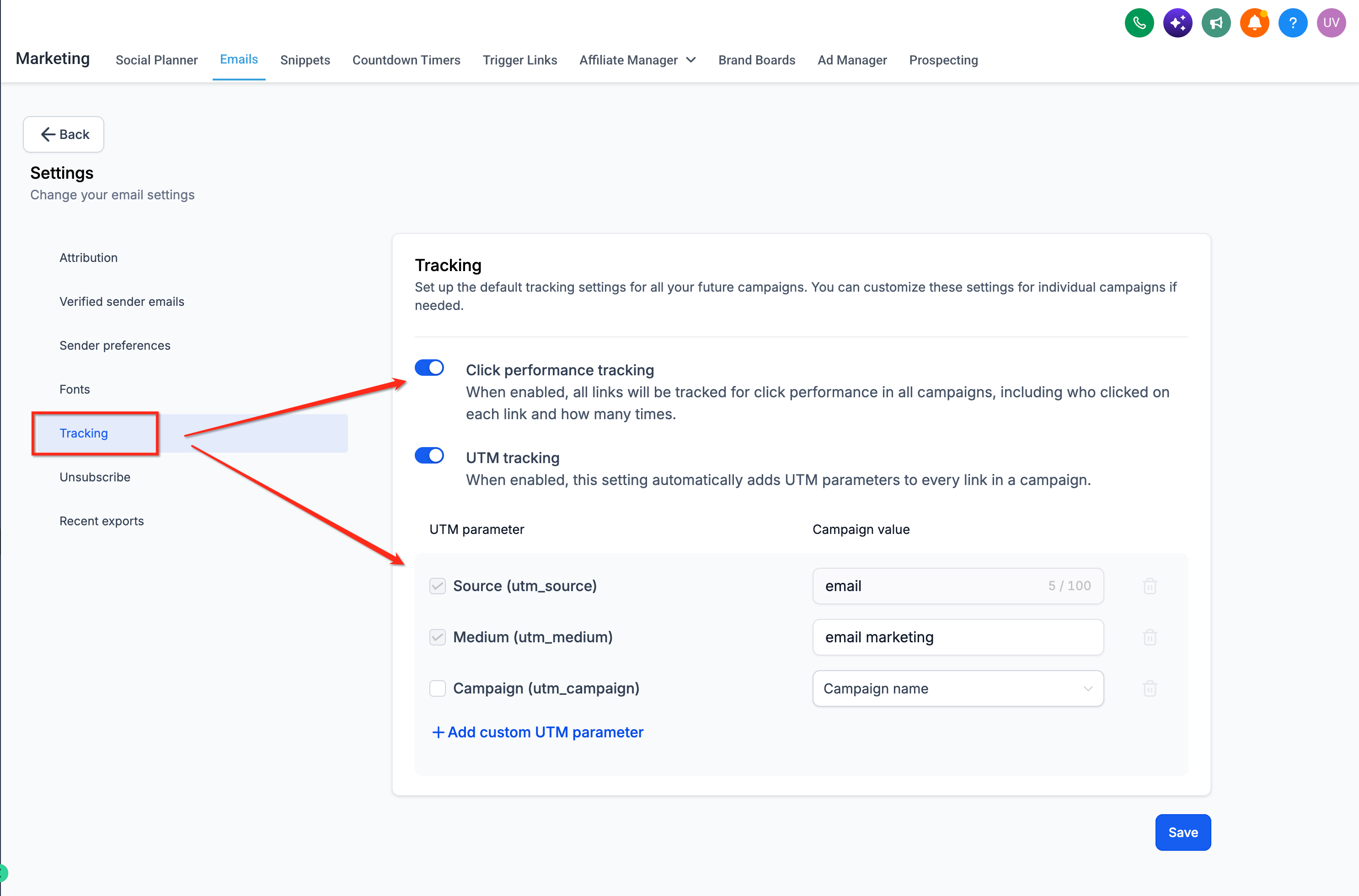
How to Access Click Performance Data
After sending a tracked email campaign, you can access its Click Performance report from the campaign's individual statistics page. This allows you to investigate link engagement for a specific send without confusing it with aggregated statistics from multiple campaigns.
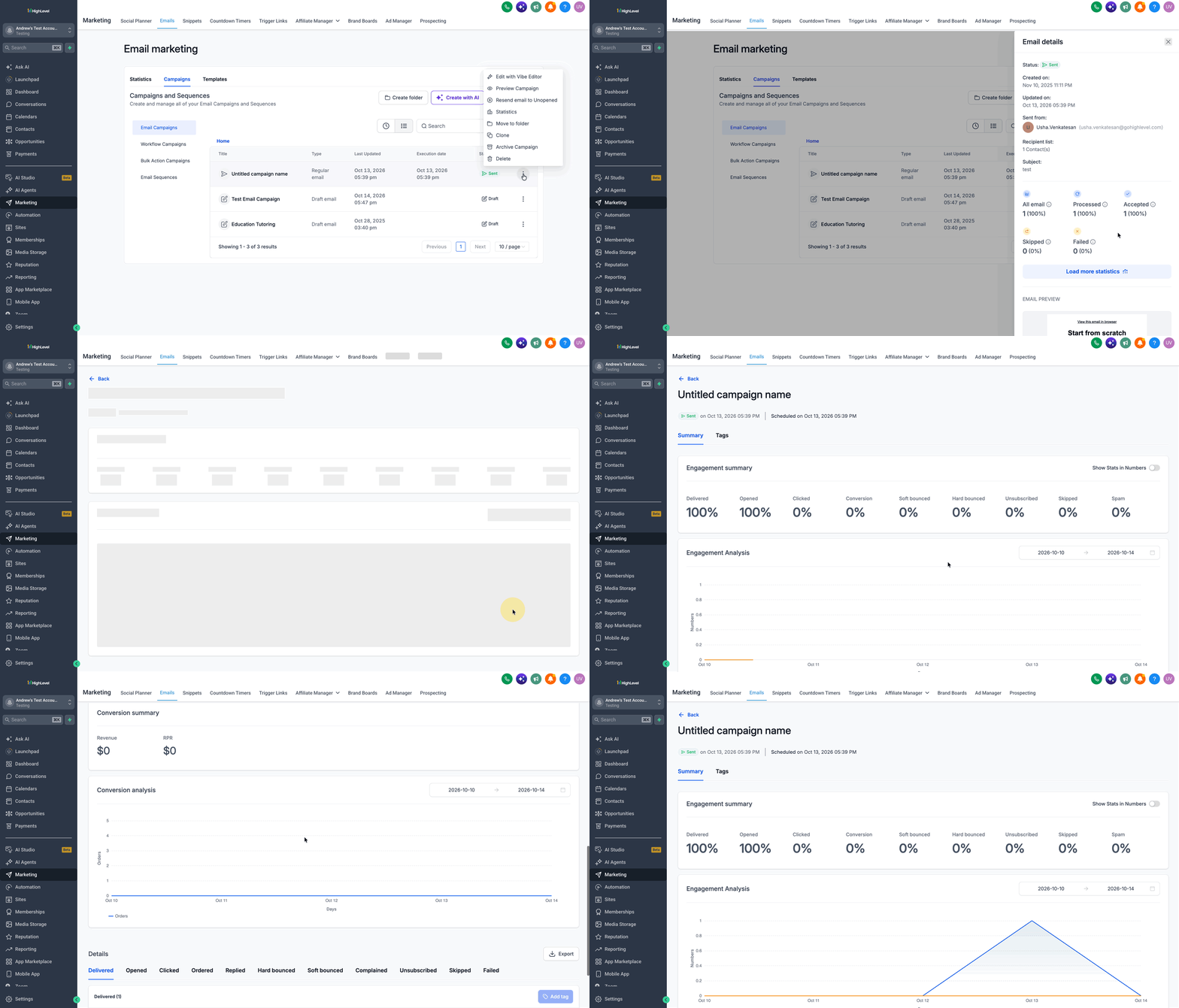
In your HighLevel sub-account, go to Marketing → Emails.
Select the Campaigns tab.
Locate the sent campaign you want to analyze.
Click the three-dot menu (⋮) next to the campaign.
Select Statistics.
Wait for the campaign statistics side panel to open.
In the statistics side panel, locate Load More Statistics.
Click Load More Statistics to open the expanded campaign reporting page.
On the expanded statistics page, select the Click Performance tab.
Review the summary metrics, including Total Clicks, Total Unique Clicks, Unique Engagements, and Clicks per Unique Open.
Scroll to Links in This Email to review performance for individual URLs.
Frequently Asked Questions
Q: Why does my campaign show email opens but no clicks?
A: Recipients may have opened the email without interacting with any tracked links. If you expect click activity, verify that Track Clicks was enabled before sending and that the links use supported formats.
Q: Are clicks on email addresses or unsubscribe links included?
A: HighLevel's click-tracking guide excludes mailto: links and certain system-generated links, including unsubscribe links, from this tracking behavior. Use supported web URLs when evaluating Click Performance.
Q: Can I use Click Performance to measure purchases or completed bookings?
A: Click Performance records supported link interactions. It does not independently confirm that a recipient completed a purchase, booked an appointment, or performed another action after clicking. Use appropriate conversion or appointment reporting to evaluate those outcomes.
Q: Why do my link-level unique click totals differ from the campaign-level unique click count?
A: An individual recipient can click more than one URL. Each link may count that recipient in its own unique-click total, while the overall campaign-level Total Unique Clicks counts that recipient once. Adding the unique counts for individual links may therefore produce a higher value than the campaign total.
Q: Can I review Click Performance data for a test email?
A: HighLevel's click-tracking guide states that test emails are not covered by this tracking functionality. To validate click reporting, use an actual campaign sent to selected test contacts with tracking enabled.
Q: Are email workflow clicks the same as Click Performance campaign statistics?
A: Not necessarily. HighLevel provides click-related reporting for supported workflow email actions, but this does not mean those emails use the identical Click Performance tab available for individual marketing campaigns. Consult the relevant workflow reporting documentation for the applicable view.
Related Articles
Was this article helpful?
That’s Great!
Thank you for your feedback
Sorry! We couldn't be helpful
Thank you for your feedback
Feedback sent
We appreciate your effort and will try to fix the article