Discover the enhanced Local SEO Audit feature that now offers interactive heatmaps with flexible keyword inputs, adjustable radius, grid configurations, and detailed competitor insights. This powerful update empowers users with a refined local search visibility overview, helping deliver sharper, and more actionable reports.
TABLE OF CONTENTS
- What is Interactive Heatmap, Customization & Competitors?
- Key Benefits of Interactive Heatmap, Customization & Competitors
- Custom Keyword Heatmaps
- Adjustable Coverage Radius
- Flexible Grid Sizes
- Keyword Ranking Score
- Pin-Level Competitor Insights
- How To Use Interactive Heatmap, Customization & Competitors
- For Agency Accounts
- For Sub-Accounts
- Frequently Asked Questions
- Related Articles
What is Interactive Heatmap, Customization & Competitors?
This feature transforms local SEO analysis by allowing you to tailor heatmaps for different services and geographic areas. By incorporating custom keywords, adjustable radii, varied grid sizes, a dedicated keyword ranking score, and detailed pin-level competitor insights, it provides a comprehensive and interactive view of your local search landscape.
Note: This feature requires Premium Prospecting subscription for both Agencies & Locations.
Key Benefits of Interactive Heatmap, Customization & Competitors
- Custom Keyword Targeting: Tailor analyses with keywords specific to different service offerings.
- Flexible Heatmap Setup: Adjust coverage radii and grid sizes for both quick scans and in-depth reviews.
- Performance Benchmarking: Use a dedicated keyword ranking score to quickly measure visibility.
- Competitor Insights: Access detailed data with clickable Google Business Profile links.
- Focused Reporting: Share only the most relevant heatmaps to keep reports clear and client-friendly.
Custom Keyword Heatmaps
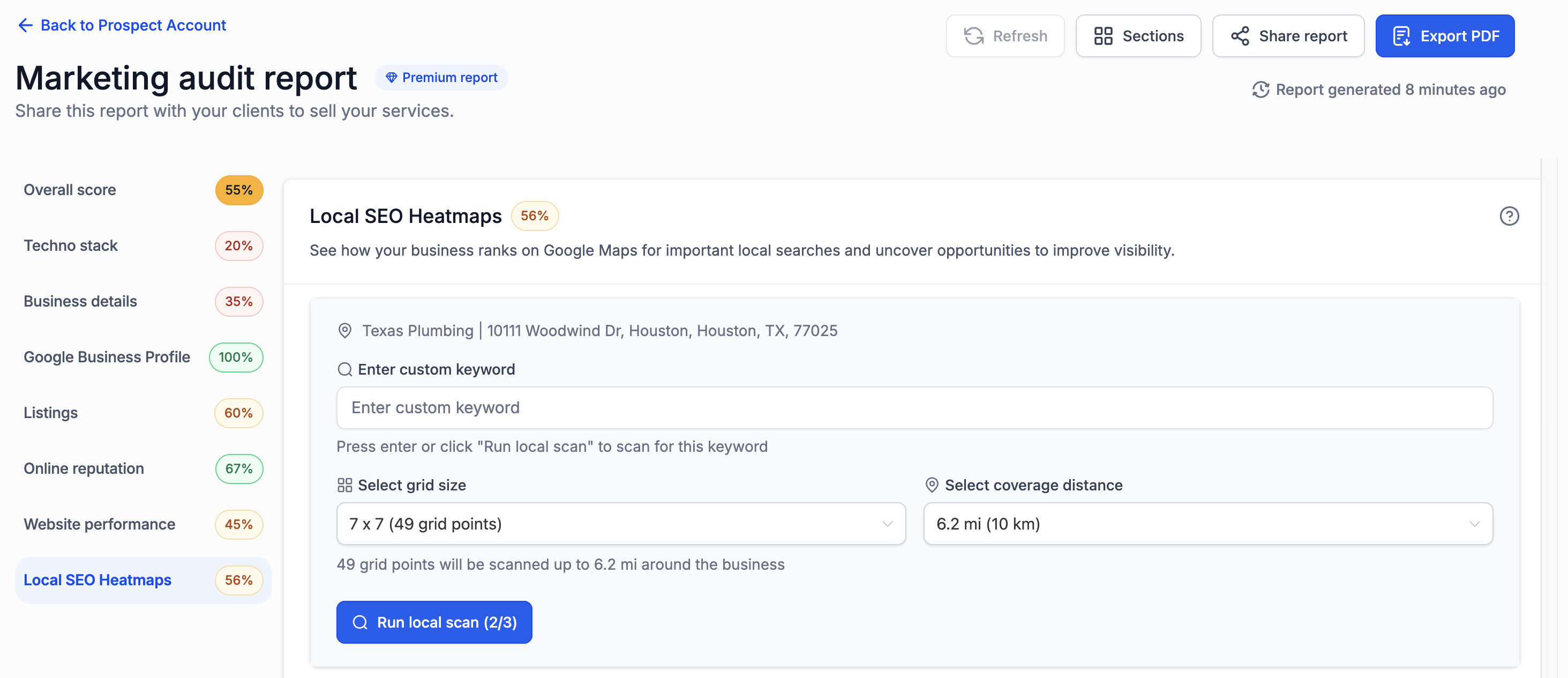
Custom Keyword Heatmaps let you analyze local search visibility across the services that matter most to a business.
Add keywords that represent different services or search terms.
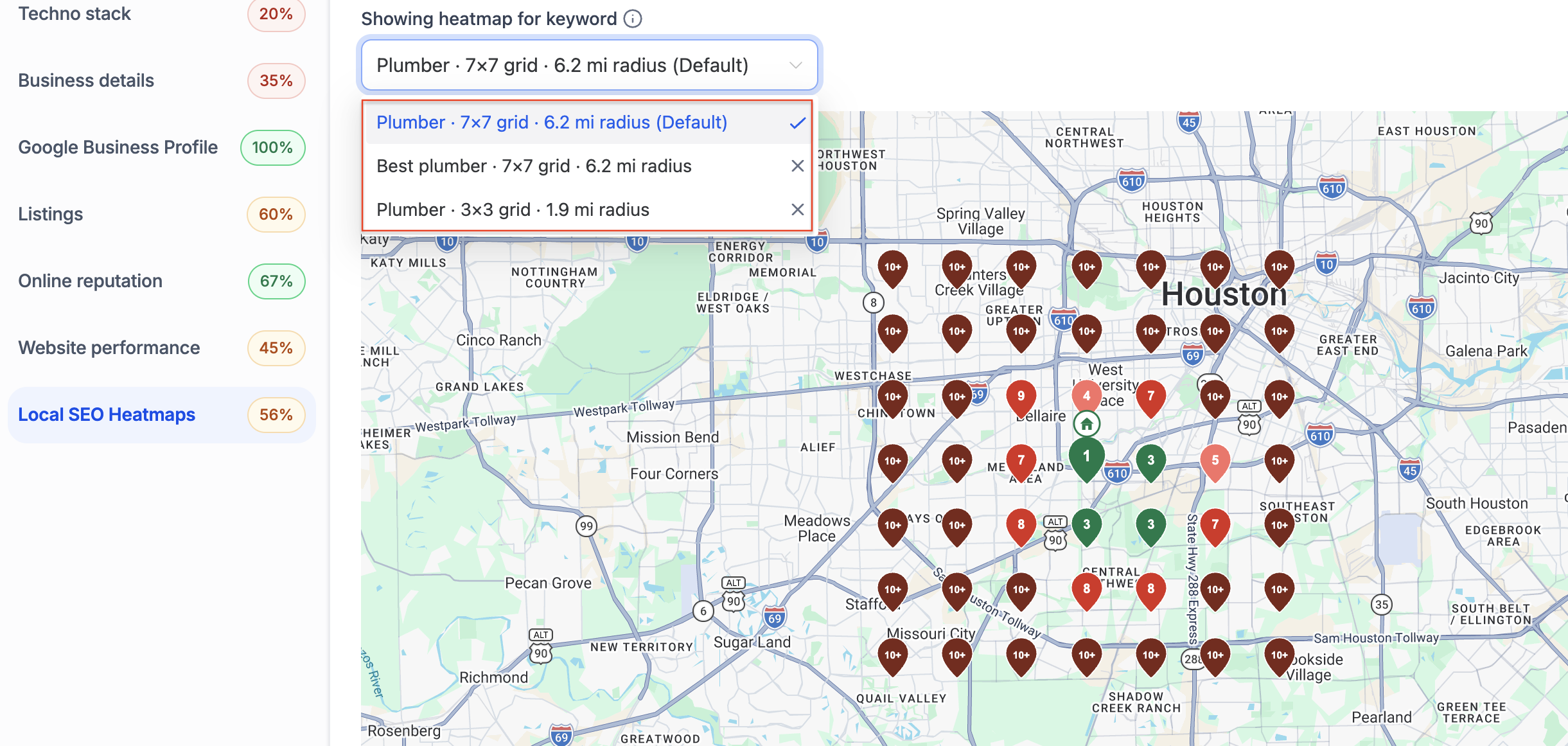
Create up to three Local SEO heatmaps for the same business.
Configure the keyword, grid size, and search radius separately for each heatmap.
Remove the automatically selected keyword when you want to focus the analysis on other keywords.
When you share a Marketing Audit Report on the web, prospects can switch between the heatmaps you created to compare local visibility across different keywords.
Adjustable Coverage Radius
Adjustable Coverage Radius lets you fine-tune the area that the heatmap represents, ensuring it aligns perfectly with a business’s true service footprint.
- Choose a coverage radius between 0.5 and 30 miles (1–50 km).
- Easily modify the radius to suit varying service territories and local market dynamics.
Flexible Grid Sizes
Flexible Grid Sizes provide you with options to adjust the depth and granularity of your analysis. Depending on your needs, you can opt for a quick overview or a more detailed investigation.
- Available grid options include 3×3 for rapid assessments, 5×5 for balanced insights, and 7×7 for deep-dive analysis.
- Select a grid size that best suits the specific area and competitive environment you are evaluating.
Keyword Ranking Score
The Keyword Ranking Score card summarizes the average search ranking across all heatmap pins, allowing you to gauge overall keyword performance at a glance.
- Automatically calculates and displays the average rank for the chosen keyword.
- Eliminates the need for manual scanning, saving valuable time.
Pin-Level Competitor Insights
Pin-Level Competitor Insights deepen your local analysis by showing the prospect's exact rank at individual locations alongside a list of the top 10 competitors, each with clickable GBP links.
- View the precise rank of the prospect at any pin location.
- Access an expanded list of up to 10 competitors instead of the previous limit of three.
- Click on competitor links to quickly review their Google Business Profiles.
Default Heatmap Configuration
Set your preferred grid size and search radius as defaults for Local SEO heatmaps. HighLevel uses these settings when creating future reports, helping you keep audit coverage consistent and reduce repetitive configuration.
You can still configure the keyword, grid size, and search radius for individual heatmaps based on the business or service you are analyzing.
How To Use Interactive Heatmap, Customization & Competitors
For Agency Accounts
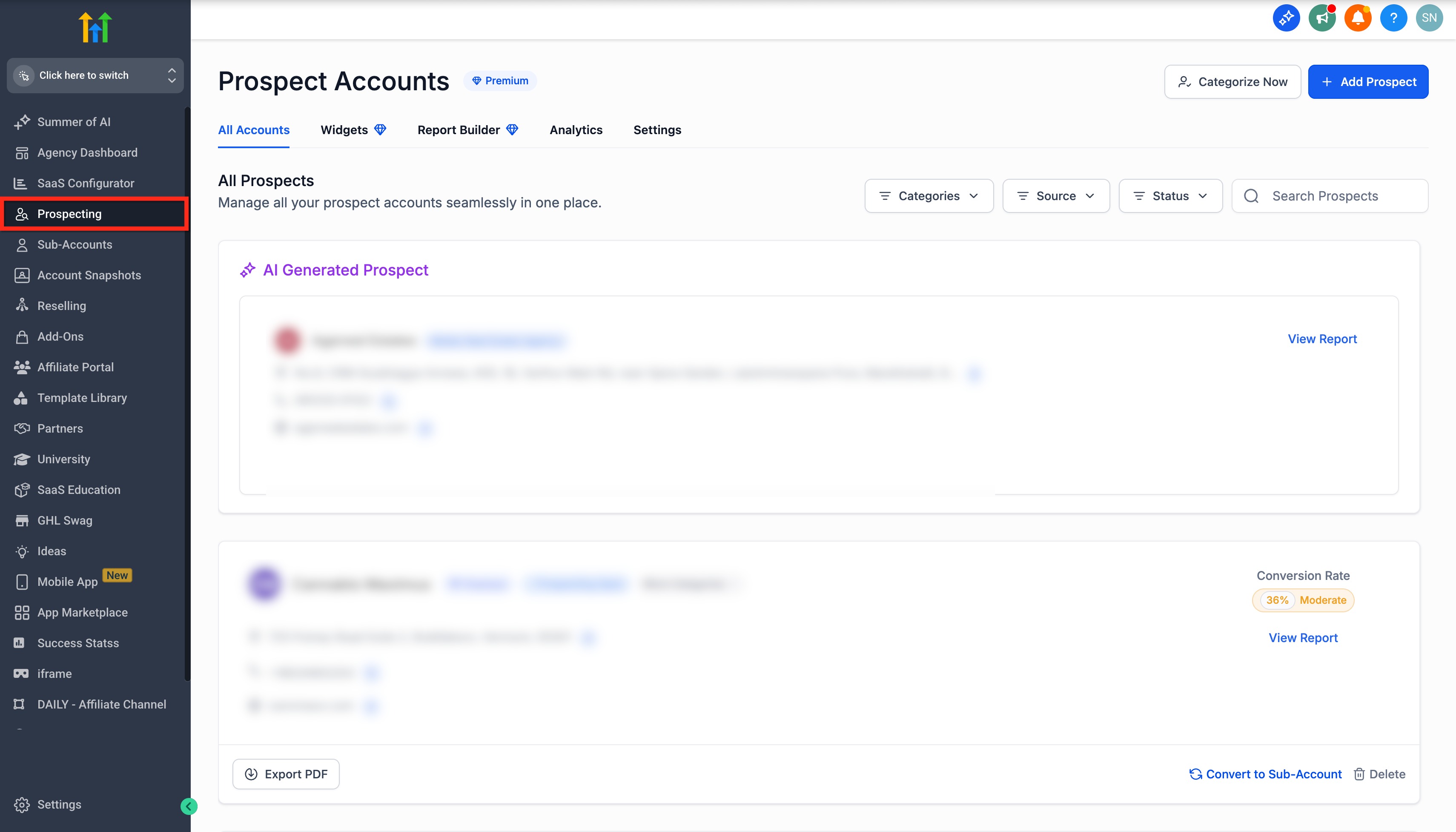
Step 1: Open Prospecting Tool
- Sign in to your Agency account.
- From the left-hand menu, click on the Prospecting tab.
Step 2: Open a Prospect Report
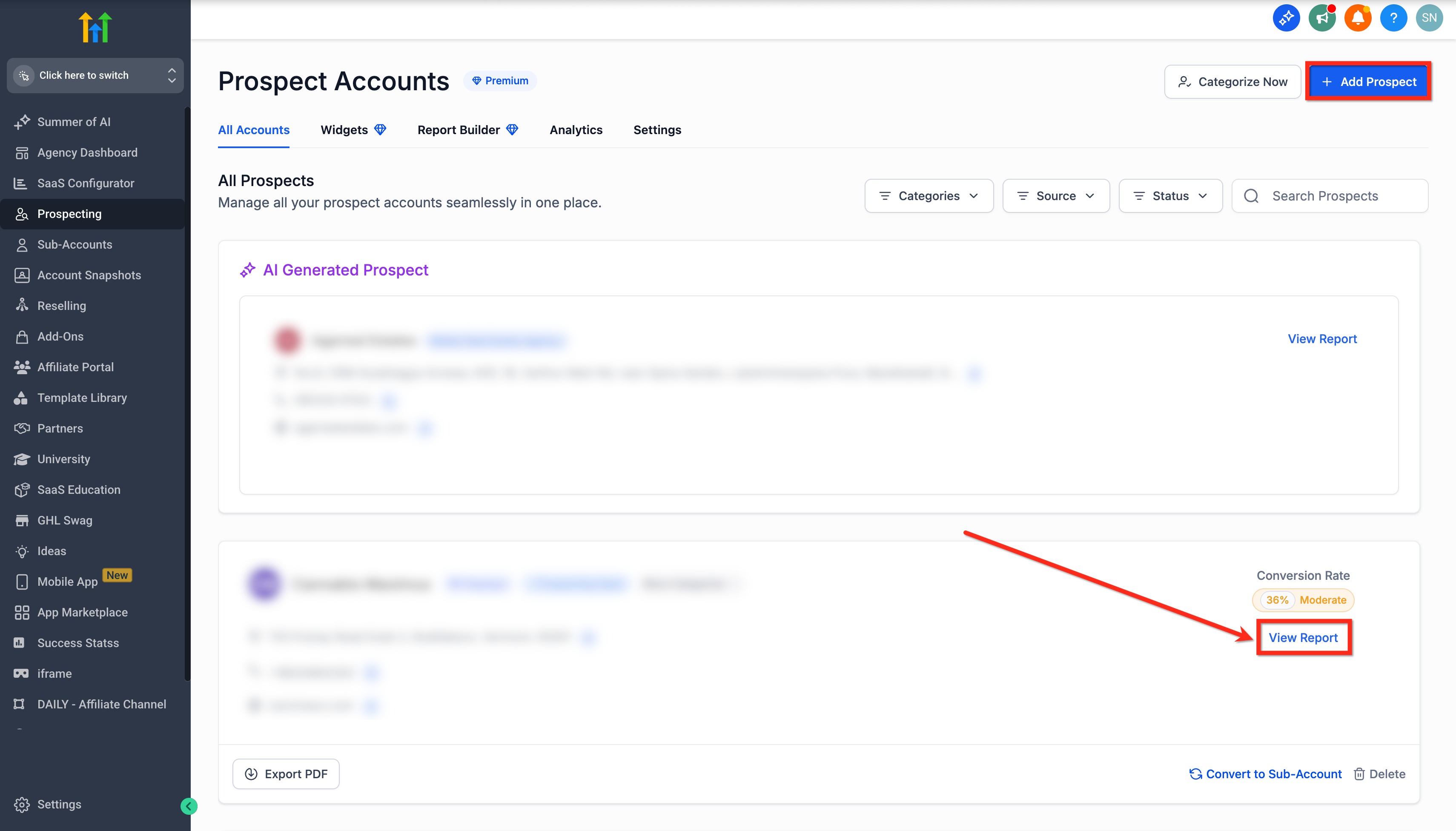
- Click Add Prospect to create a new one or select an existing prospect.
- Click the View Report button.
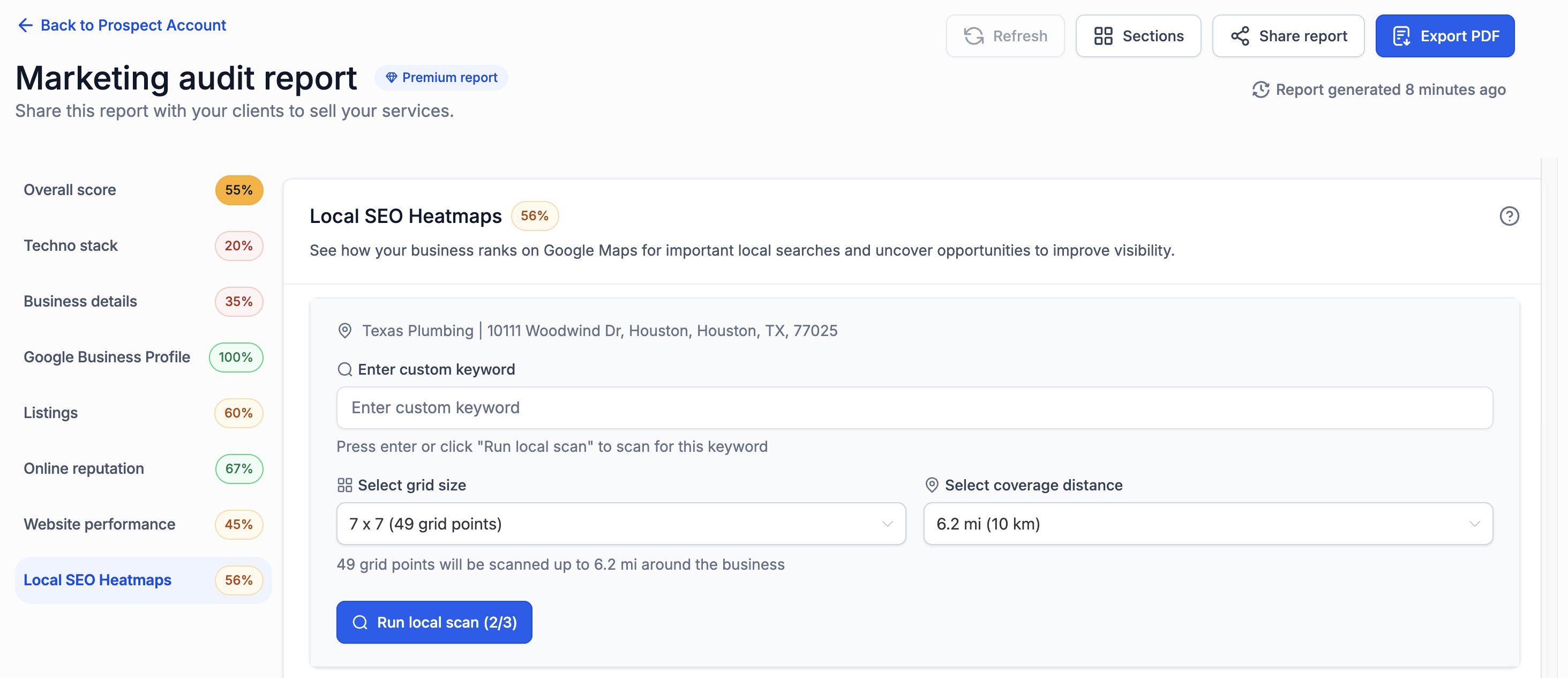
Step 3: Add Custom Keyword
- When the report loads, click on the SEO Analysis tab in the left sidebar. You can also remove the automatically selected keyword when it is not relevant to the business. This lets you focus the Local SEO analysis on the keywords and services you want to evaluate.

- Click the + button next to the default keyword (auto‑fetched from GBP).
- Type your custom keyword (e.g., gym near me) and press Enter to add it.

Step 4: Configure Heatmap Parameters
- Select grid size based on how dense you want your sampling points:
- 3×3 (9 points)
- 5×5 (25 points)
- 7×7 (49 points)
- Set coverage distance (radius from center to outermost marker): 1 km → 50 km
. - Click on the Run Local Search button.
Note: You can create up to three Local SEO heatmaps for the same business. Each heatmap can use its own keyword, grid size, and search radius.
Step 5: Explore Results and Competitors
- Scroll to see the Heatmap displaying the keyword performance.
- Each Pin on the map represents a local search result from a different nearby location.
- The Center Pin reflects the immediatearea of the business.

- Click the double‑arrow icon to view the Keyword Ranking Score card - summarizes average rank across all pins for a keyword.

- Under each pin, you’ll now see 10 competitors.
- Click any business name to open its Google Business Profile.

Step 6: Control what Appears in Reports
- If you’ve generated multiple heatmaps (e.g., default + custom keyword), choose which heatmap to show in the reports.
- Only the selected heatmap is included in the Share Report link and Export PDF.
- When you share a Marketing Audit Report on the web, the prospect can switch between the different Local SEO heatmaps you created.
Each heatmap can represent a different keyword, grid size, and search radius. This makes it easier to compare local visibility across multiple services within the same shared report.
For Sub-Accounts
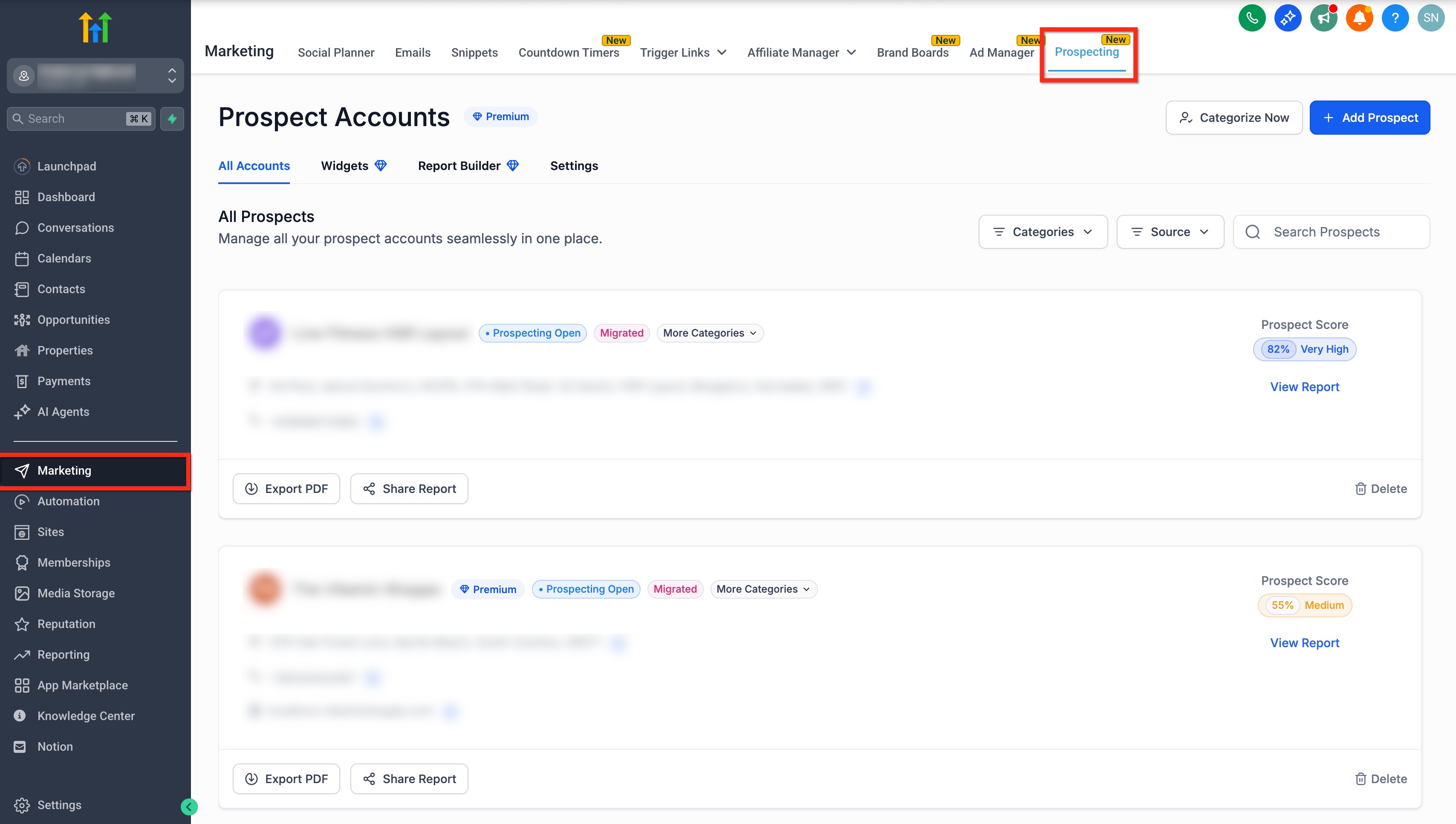
Step 1: Navigate to Prospecting
- Login to your sub-Account.
- Click on Marketing in the left-hand menu.
- Then select the Prospecting tab in the top menu. (If you can't see Prospecting Tab, make sure it's enable for your sub account: Here's complete guide how to enable it on your sub account)
Step 2: Open a Prospect Report
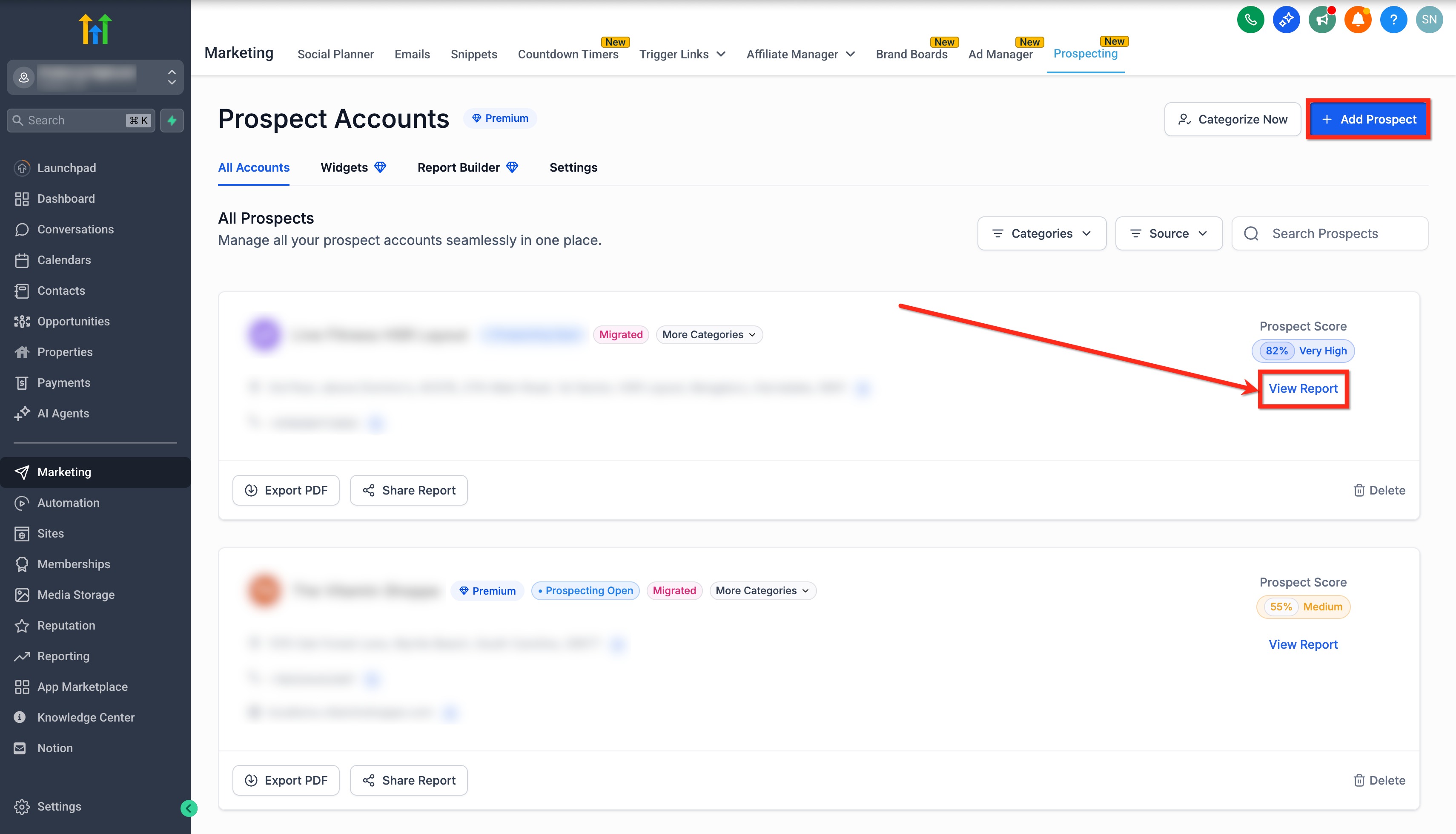
- Click Add Prospect to create a new one or select an existing prospect.
- Click the View Report button.
Step 3: Add Custom Keyword
- When the report loads, click on the SEO Analysis tab in the left sidebar.
You can also remove the automatically selected keyword when it is not relevant to the business. This lets you focus the Local SEO analysis on the keywords and services you want to evaluate
- Click the + button next to the default keyword (auto‑fetched from GBP).
- Type your custom keyword (e.g., plumber near me) and press Enter to add it.

Step 4: Configure Heatmap Parameters
- Select grid size based on how dense you want your sampling points:
- 3×3 (9 points)
- 5×5 (25 points)
- 7×7 (49 points)
- Set coverage distance (radius from center to outermost marker): 1 km → 50 km
. - Click on the Run Local Search button.
Note: You can create up to three Local SEO heatmaps for the same business. Each heatmap can use its own keyword, grid size, and search radius.

Step 5: Explore Results and Competitors
- Scroll to see the Heatmap displaying the keyword performance.
- Each Pin on the map represents a local search result from a different nearby location.
- The Center Pin reflects the immediate area of the business.

- Click the double‑arrow icon to view the Keyword Ranking Score card - summarizes average rank across all pins for a keyword.

- Under each pin, you’ll now see 10 competitors.
- Click any business name to open its Google Business Profile.

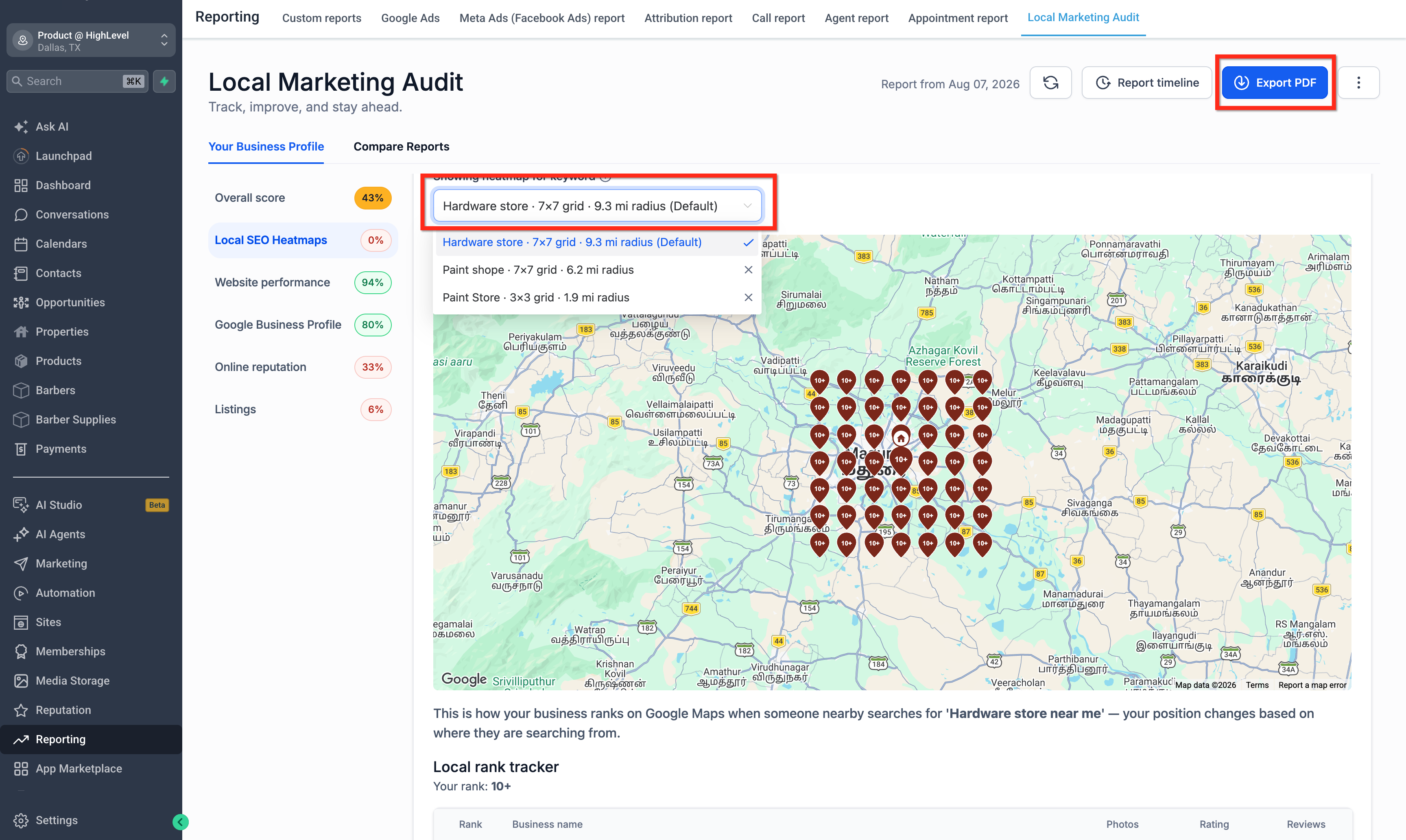
Step 6: Share Multiple Heatmaps in Web Reports
- When you share a Marketing Audit Report on the web, the recipient can switch between the different Local SEO heatmaps you created. Each heatmap can use a different keyword, grid size, and search radius.
- The Selected heatmaps are included in the Share Report link and ExportPDF.
Frequently Asked Questions
Q: Can I run multiple heatmaps with different keywords simultaneously?
Yes, you can generate multiple heatmaps with unique keyword, radius, and grid configurations side by side.
Q: What grid size options are available for the heatmap?
You can choose between 3×3, 5×5, or 7×7 grid sizes, depending on how detailed you want your analysis to be.
Q: How do I adjust the coverage radius for a heatmap?
The coverage radius can be set anywhere between 0.5 and 30 miles (1–50 km) to match the actual service area of the business.
Q: Where is the Keyword Ranking Score displayed?
The Keyword Ranking Score card appears as part of the heatmap interface, summarizing the average rank across all grid pins.
Q: How do I decide which heatmaps to include in a prospect report?
When sharing your report via Web URL or PDF, you can manually select the heatmaps that best highlight the prospect’s service areas and competitive standing.
Q: Can prospects view multiple heatmaps in a shared report?
Yes. When you share a Marketing Audit Report on the web, prospects can switch between the different Local SEO heatmaps you created. This lets them compare local visibility across different keywords and services.
Related Articles
Was this article helpful?
That’s Great!
Thank you for your feedback
Sorry! We couldn't be helpful
Thank you for your feedback
Feedback sent
We appreciate your effort and will try to fix the article