1. Introduction
The Asana integration enables seamless automation between your workflows and Asana’s powerful project management platform. Whether you’re creating tasks, managing projects, or syncing updates between systems, this integration helps eliminate manual work and keep teams aligned.
Why It Matters
With this integration, agencies, marketers, and operations teams can:
Automatically create and update Asana tasks and projects from workflows
Trigger workflows when new tasks, comments, or attachments are added in Asana
Keep projects, teams, and clients in sync across platforms
2. Triggers and Actions
Triggers (Asana → Workflows)
These are Asana events that can initiate workflows :
| Trigger Name | Description |
|---|---|
| Task Created (Instant) | Fires instantly when a new task is created in Asana |
| Task Updated (Instant) | Fires instantly when a task is updated |
| Project Created (Instant) | Fires when a new project is created |
| Comment on Task (Instant) | Fires when a comment is added to a task |
| New User | Triggers when a new user is added to your Asana workspace |
| Tag Added to Task (Instant) (Coming soon) | Fires instantly when a tag is added to a task |
| Task Moved to Section (Instant) | Fires when a task is moved between sections |
| New Attachment Added to Task (Instant) | Triggers when a new attachment is added |
| New Subtask (Coming soon) | Fires when a new subtask is created in Asana |
Actions (Workflows → Asana)
These are actions workflows can perform in Asana through workflows:
| Action Name | Description |
|---|---|
| Create Task | Creates a new task in Asana |
| Update Task | Updates details of an existing Asana task |
| Find Task by ID | Searches for a task using its Asana Task ID |
| Find Task | Searches for a task using its task name |
| Create Section | Adds a new section to an Asana project |
| Find Comment from Task | Retrieves comments associated with a task |
| Add Task to Section | Moves an existing task into a specific section |
| Find All Tasks from Project | Fetches all tasks from a given project |
| Find Task in Project | Searches for a specific task within a project |
| Create Comment/Story | Adds a comment or story to a task |
| Create Subtask | Creates a subtask under an existing task |
| Create Project | Creates a new project in Asana |
3. Getting Started with Asana
Search in Workflows
In the workflow builder, search for Asana triggers or actions (e.g., “Create Task,” “Task Created”).
Connect Your Account
If your Asana account is already connected, configuration options will appear automatically.
If not, click Connect Now and sign in using your Asana credentials or OAuth.
Alternative Method
Go to Settings → Integrations
Find Asana and authorize your workspace.
Once connected, you can create, update, or find Asana tasks and projects directly from workflows.
4. How Asana Triggers Work
Asana triggers are instant, powered by webhooks.
Whenever an event (like a new task or project update) occurs in Asana, it immediately notifies workflows to trigger your workflow — there’s no delay or polling interval.
Setup Steps:
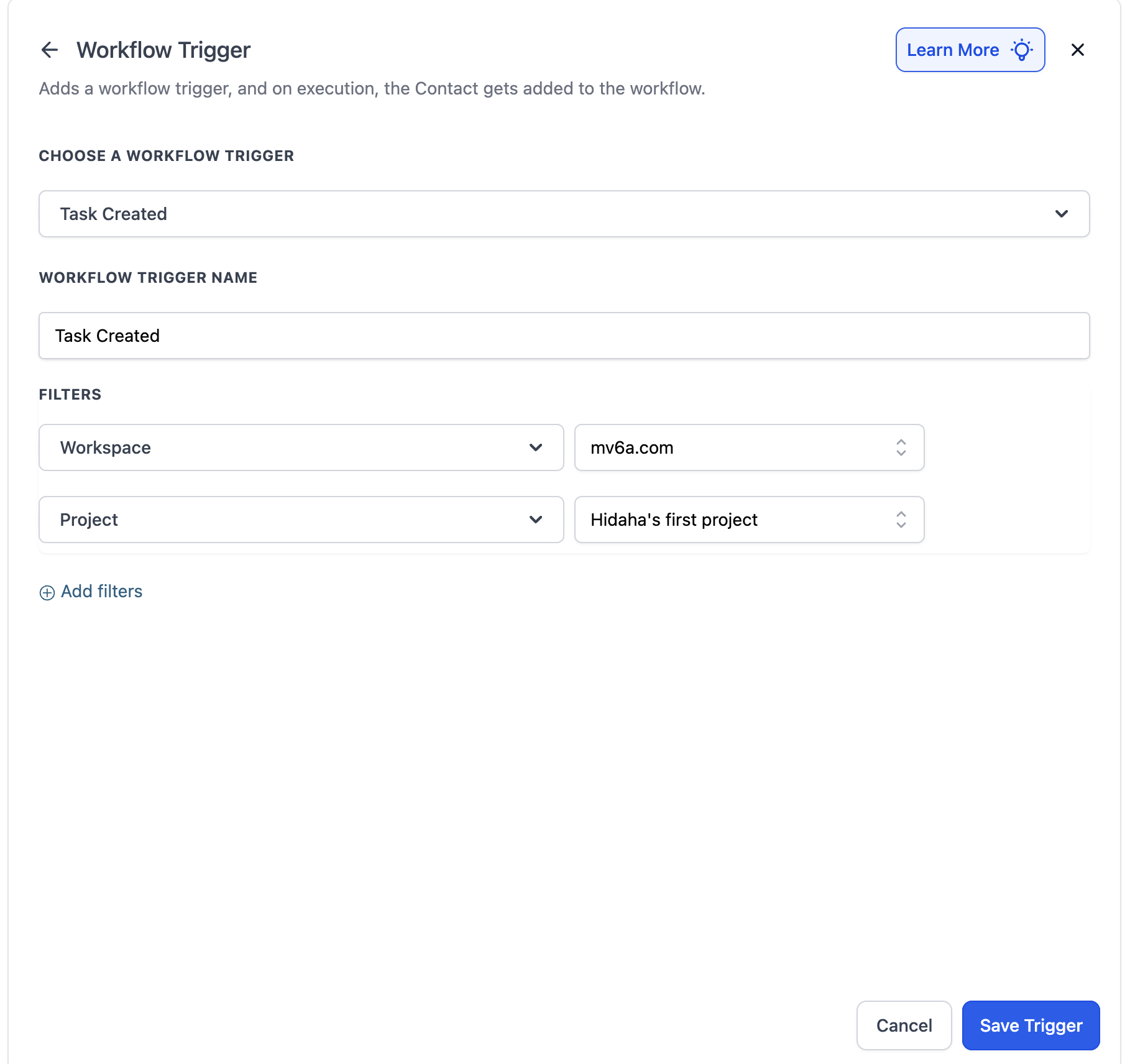
Choose a trigger (e.g., “Task Created” or “Task Updated”).
Name your trigger and click Test Trigger to fetch sample task data.
Use dynamic fields (like task name, assignee, or due date) in your next workflow actions.
Recommendation:
When using the Task Updated trigger, we suggest adding the Fields Changed filter. Asana may generate multiple update events for a single task because changing one field can cause additional cascading updates. Applying this filter ensures your automation only runs when the specific fields you care about have changed, preventing unnecessary trigger executions.
5. Common Use Cases
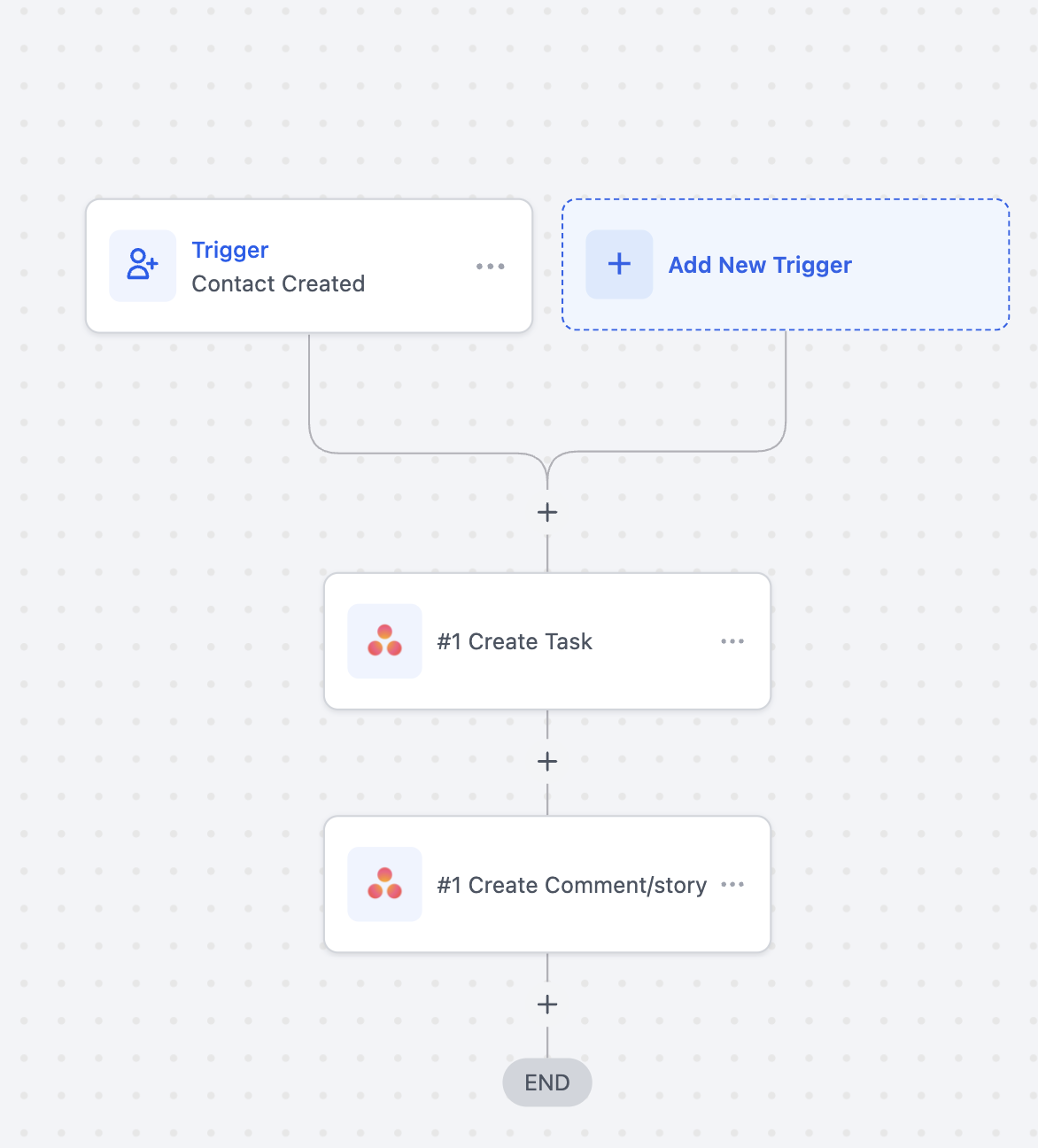
Use Case 1: Automate Task Management
Goal: Automatically create or update tasks in Asana when new leads are generated.
Workflow Setup:
Trigger: Contact Created
Actions:
Create Task (Asana) → Title: “New Lead: {{contact.name}}”
Assign to: Sales Team
Create Comment: “Follow up with {{contact.name}} at {{contact.email}}”
Example:
When a new lead fills out a form, a new Asana task is created for the sales team to follow up automatically.
Use Case 2: Sync Projects Across Tools
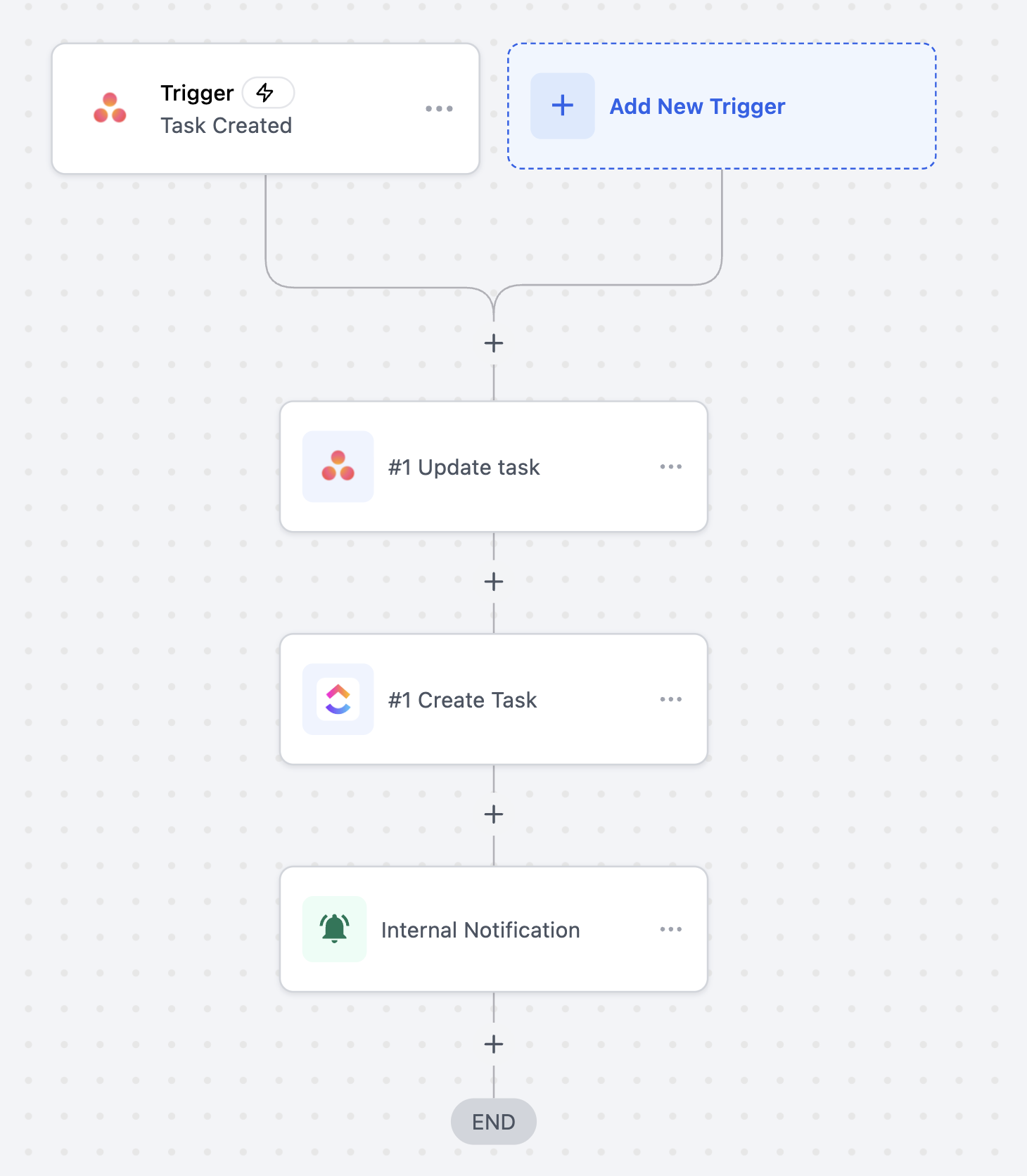
Goal: Keep your Asana projects aligned with other platforms (like ClickUp or Airtable).
Workflow Setup:
Trigger: Project Created (Asana)
Actions:
Create Project (ClickUp) or Update Record (Airtable)
Send Internal Notification to project managers
Example:
When a new project is created in Asana, a corresponding record or project is automatically created in your other tools — ensuring consistency across systems.
Use Case 3: Notify Teams on Task Updates
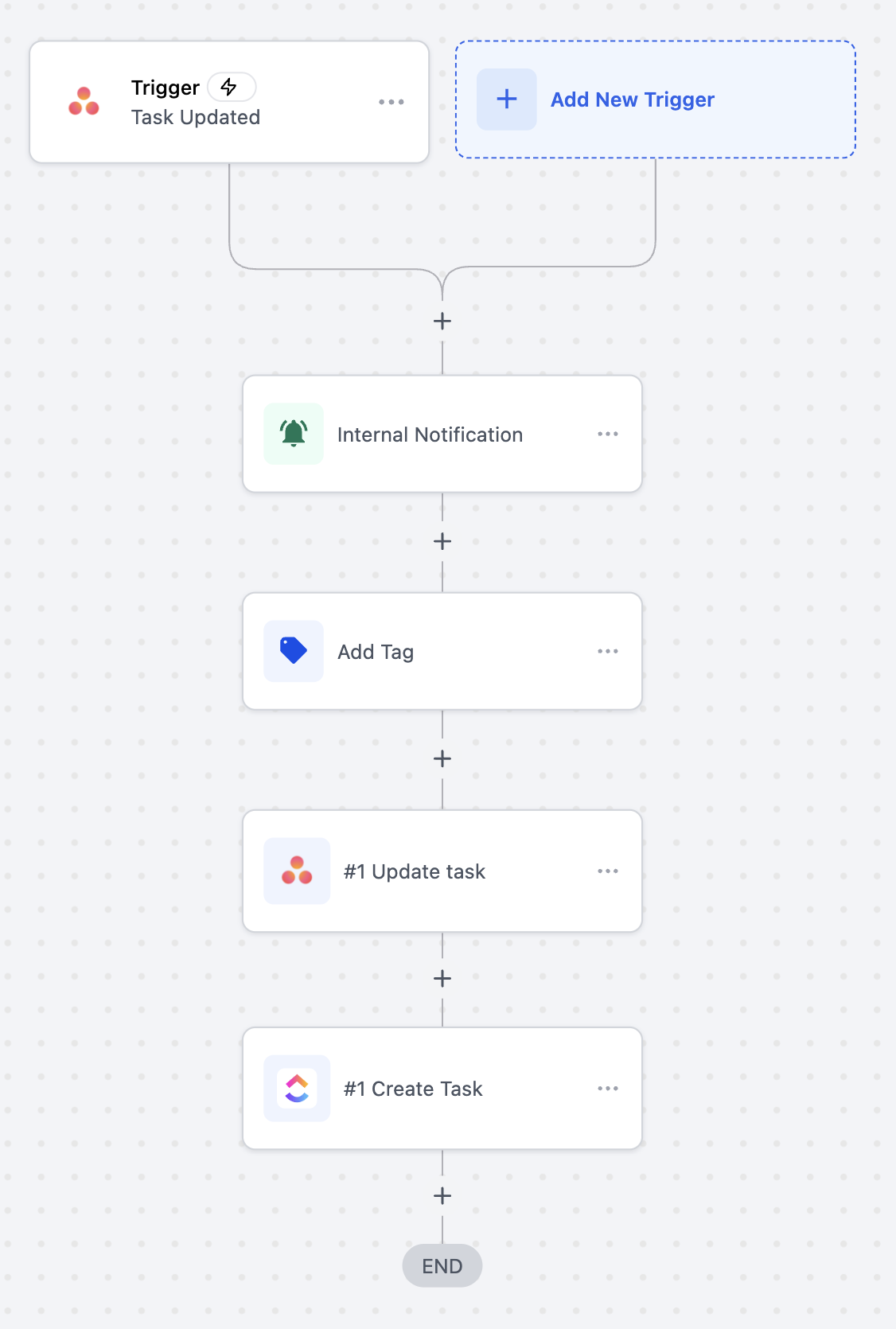
Goal: Keep internal teams informed when key task events occur in Asana.
Workflow Setup:
Trigger: Task Updated (Asana)
Actions:
Send Internal Notification → Slack or Email
Update contact tag
Update Task Status in another tool like clickup
Example:
If a design task status is updated to “Ready for Review,” workflows sends a Email notification to the reviewer and updates the tag for the contact and other porject management tools accordingly.
6. Frequently Asked Questions
Q: Are these Asana triggers instant or delayed?
A: All Asana triggers are instant via webhooks — no polling required.
Q: Can I sync data both ways between Asana and Workflows?
A: Currently, the integration supports one-way sync (triggered by Asana or executed by HighLevel).
Q: Do I need a paid Asana plan?
A: The integration works with both free and paid Asana plans. However, advanced features (e.g., multiple projects, guest access) may require a paid plan.
Q: Are Asana actions and triggers billed?
A: Yes, these are premium actions and triggers, billed at the standard automation rates for your plan.
Q: Can I add subtasks or comments automatically?
A: Yes, you can use Create Subtask and Create Comment/Story actions within workflows.
Was this article helpful?
That’s Great!
Thank you for your feedback
Sorry! We couldn't be helpful
Thank you for your feedback
Feedback sent
We appreciate your effort and will try to fix the article