Connect Basecamp to HighLevel to automate project setup, tasks, and team communication in real time. This guide mirrors the Typeform article’s structure and covers instant Basecamp → HighLevel triggers, all available Basecamp actions you can run from a workflow, and step‑by‑step setup. You’ll also find mapping tips, billing notes, and related resources so your team can launch confidently.
TABLE OF CONTENTS
- What is the Basecamp Integration in Workflows?
- Key Benefits of the Basecamp Integration
- Triggers & Actions
- How To Set Up the Basecamp Integration
- Build your first flow
- Use Cases
- Frequently Asked Questions
- Related Articles
What is the Basecamp Integration in Workflows?
HighLevel’s native Basecamp integration lets you react to Basecamp activity instantly and perform Basecamp tasks directly from a workflow. Use Basecamp triggers (like New To‑do or New Message Posted) to enroll records the moment activity happens, and add Basecamp actions (like Create Project, Create/Update To‑do, Create Message, Create Document) to streamline onboarding, task tracking, and client delivery.
Key Benefits of the Basecamp Integration
Faster handoffs: Automatically create projects, to‑do lists, and tasks when deals move to delivery.
Instant triggers: Webhook‑based triggers fire immediately—no polling delays.
Fewer duplicates: “Find” actions (Project/List/To‑do/Person/Document) let you search first, then create only when needed.
Flexible plans: Works with Basecamp’s free and paid plans (feature availability depends on your Basecamp plan).
Predictable costs: Basecamp triggers/actions are premium and billed per execution under Workflow Pro tiers; agencies can optionally rebill.
Triggers & Actions
Triggers (Basecamp → HighLevel)
These events enroll records into a workflow the moment they occur in Basecamp.
| Trigger | Fires when |
|---|---|
| New To‑do | A new to‑do is created in Basecamp. |
| New Comment Added | A comment is added to a to‑do or message. |
| New Document | A new document is created. |
| New Activity | New activity occurs in a Basecamp project (project‑level event). |
| New Message Posted | A new message is posted in a project. |
| New To‑do List | A new to‑do list is created. |
Actions (HighLevel → Basecamp)
Run these steps in workflows to create, update, or look up items inside Basecamp.
| Action | Purpose / Example uses |
|---|---|
| Create Project | Create a new project (blank or from a template, where supported). |
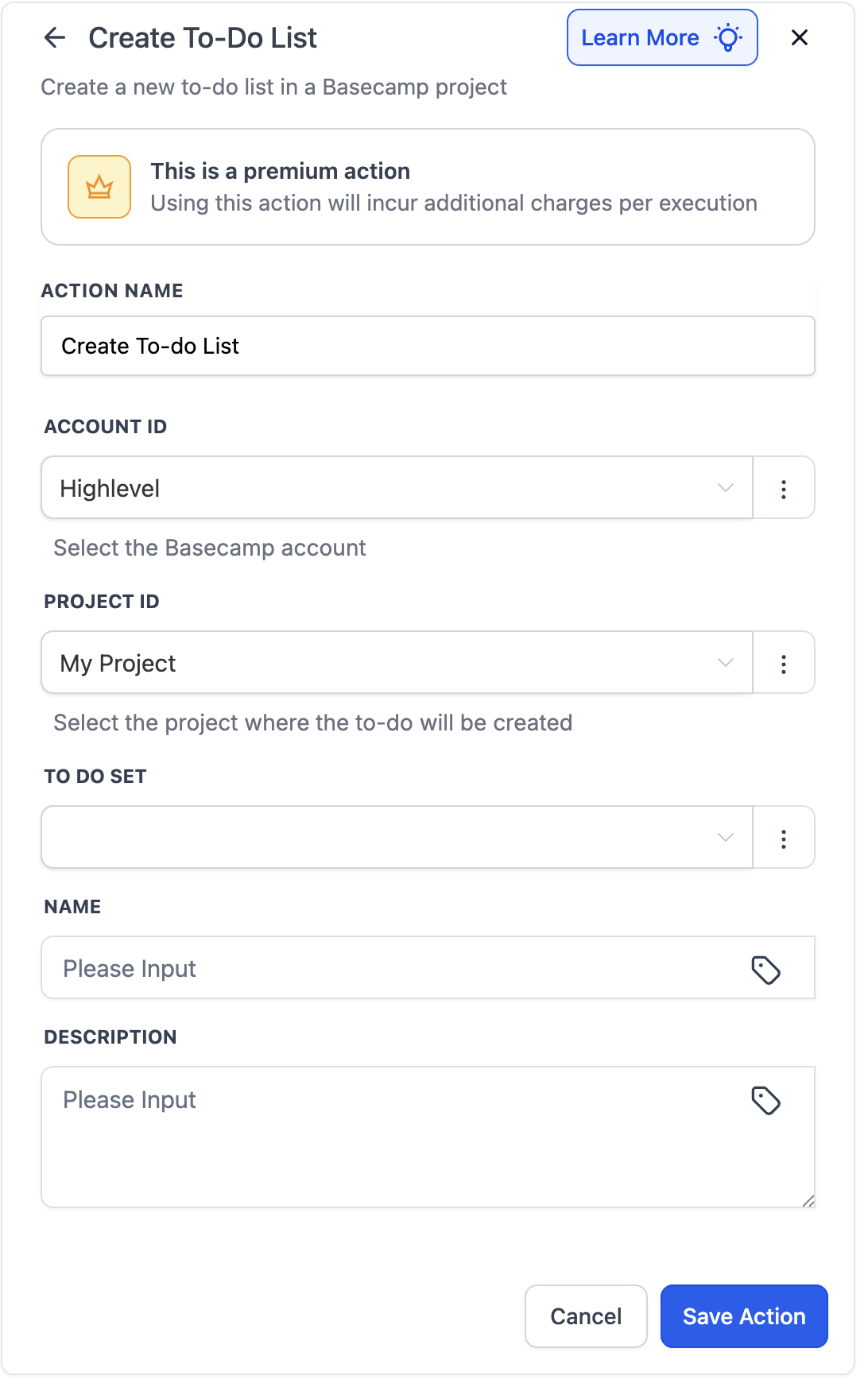
| Create To‑do List | Create a list inside a specific project. |
| Create To‑do | Add a task to a selected to‑do list (title, due date, assignee, etc.). |
| Update To‑do | Modify an existing task’s fields (title, due date, assignee, status). |
| Create Message | Post to a project’s message board. |
| Create Campfire Message | Send a chat message to a project's Campfire room. |
| Create Document | Create a text note or file entry in a project. |
| Add Person to Project | Add a team member or client to a project. |
| Find Project | Locate an existing project to reference later steps and prevent duplicates. |
| Find To‑do List | Locate an existing to‑do list for downstream mapping. |
| Find To‑do | Locate a to‑do by name/ID so you can update it reliably. |
| Find Document | Locate an existing document to link/update. |
| Find Person | Locate a Basecamp user/client to add/assign. |
How To Set Up the Basecamp Integration
Connect Basecamp (two paths)
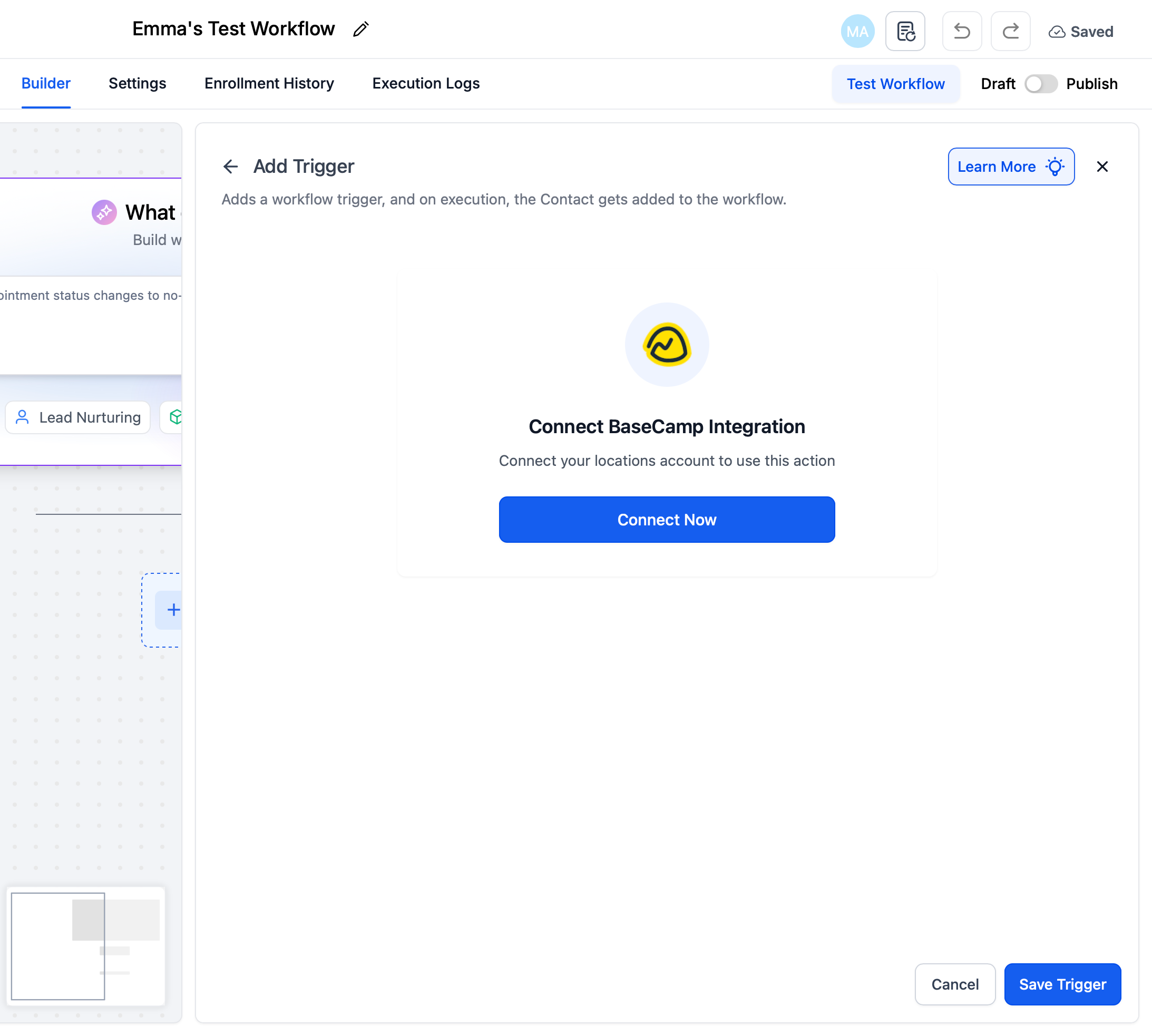
From a Trigger/Action step
In Workflows → open or create a workflow.
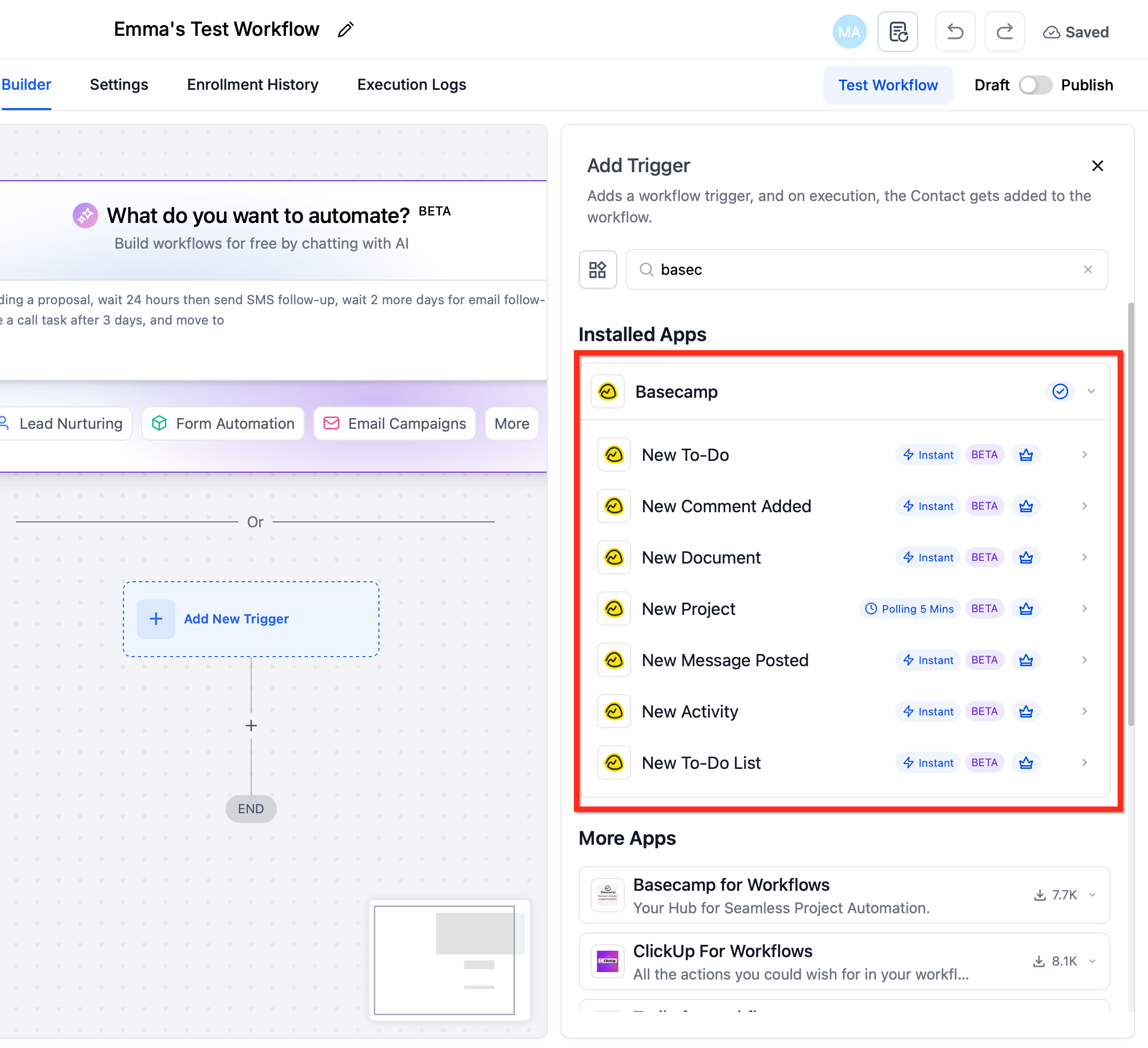
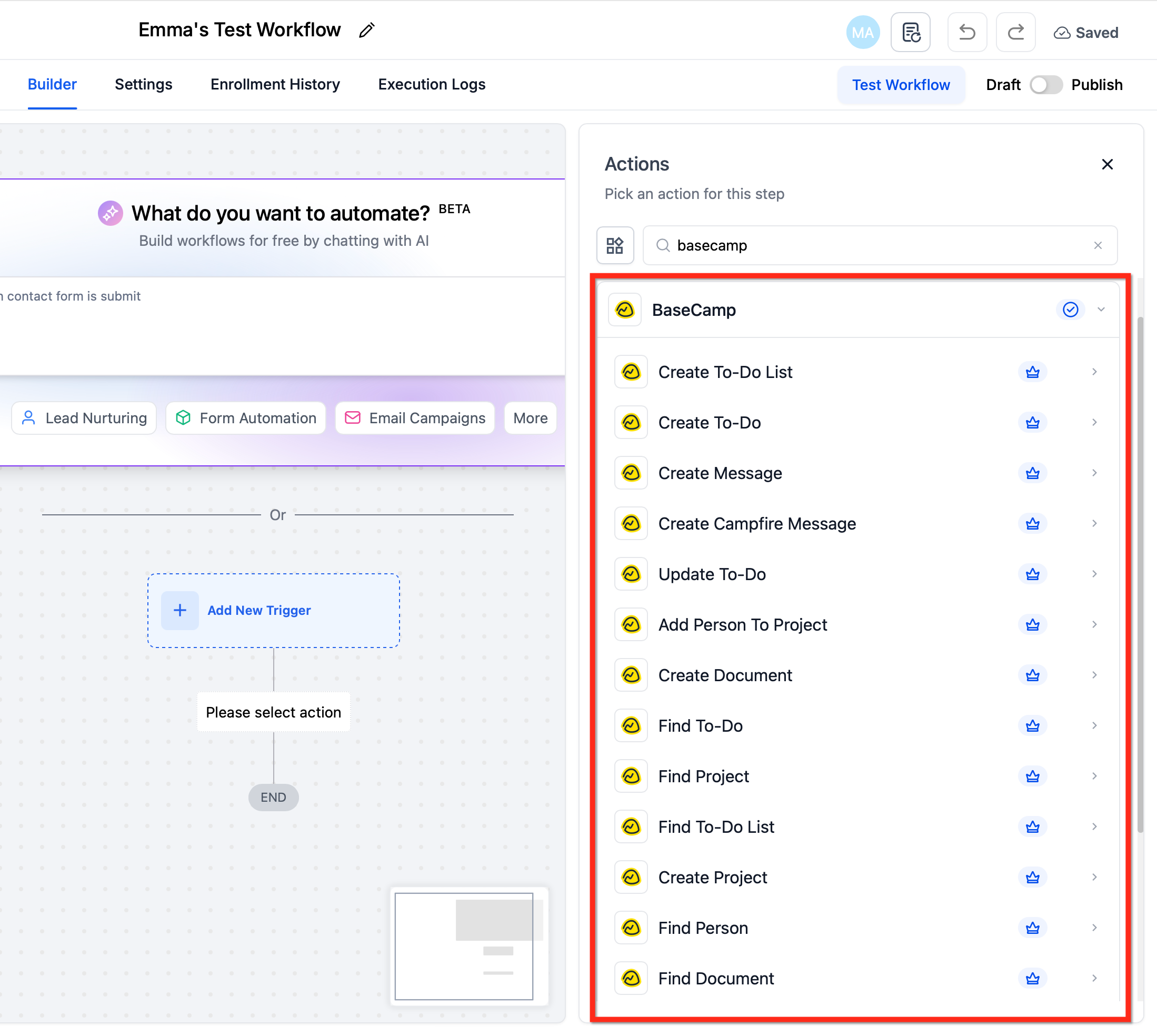
Click + Add Trigger (or + Add Action) and search Basecamp.
Choose a Basecamp trigger or action, then click Connect Now.
Sign in to Basecamp and authorize HighLevel.
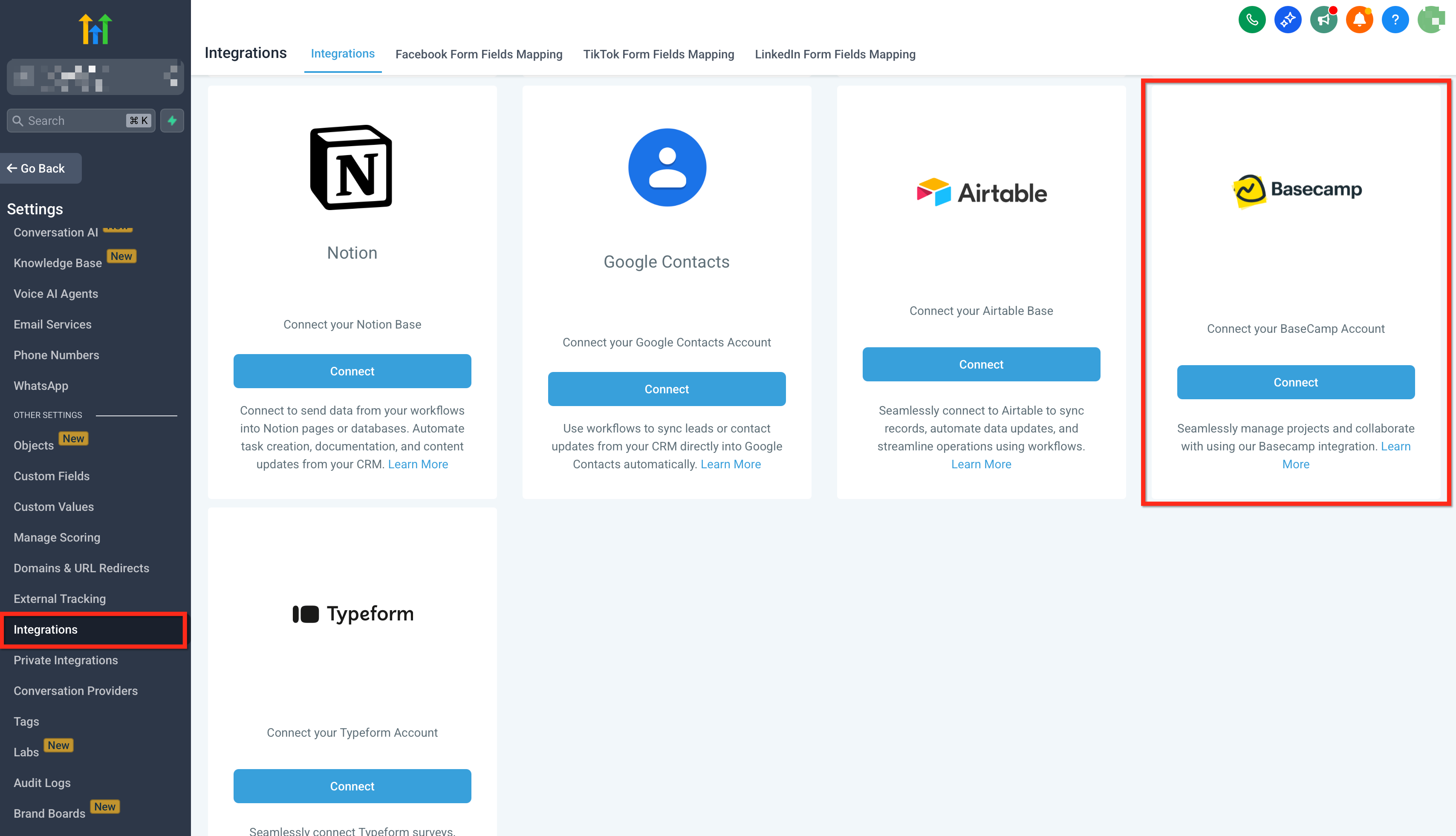
From Settings → Integrations
Go to Settings → Integrations, locate Basecamp, and complete the OAuth connection.
Note: Connections are per sub‑account (location). Install/bulk install does not auto‑connect every location—authorize in each sub‑account that needs Basecamp.
Build your first flow
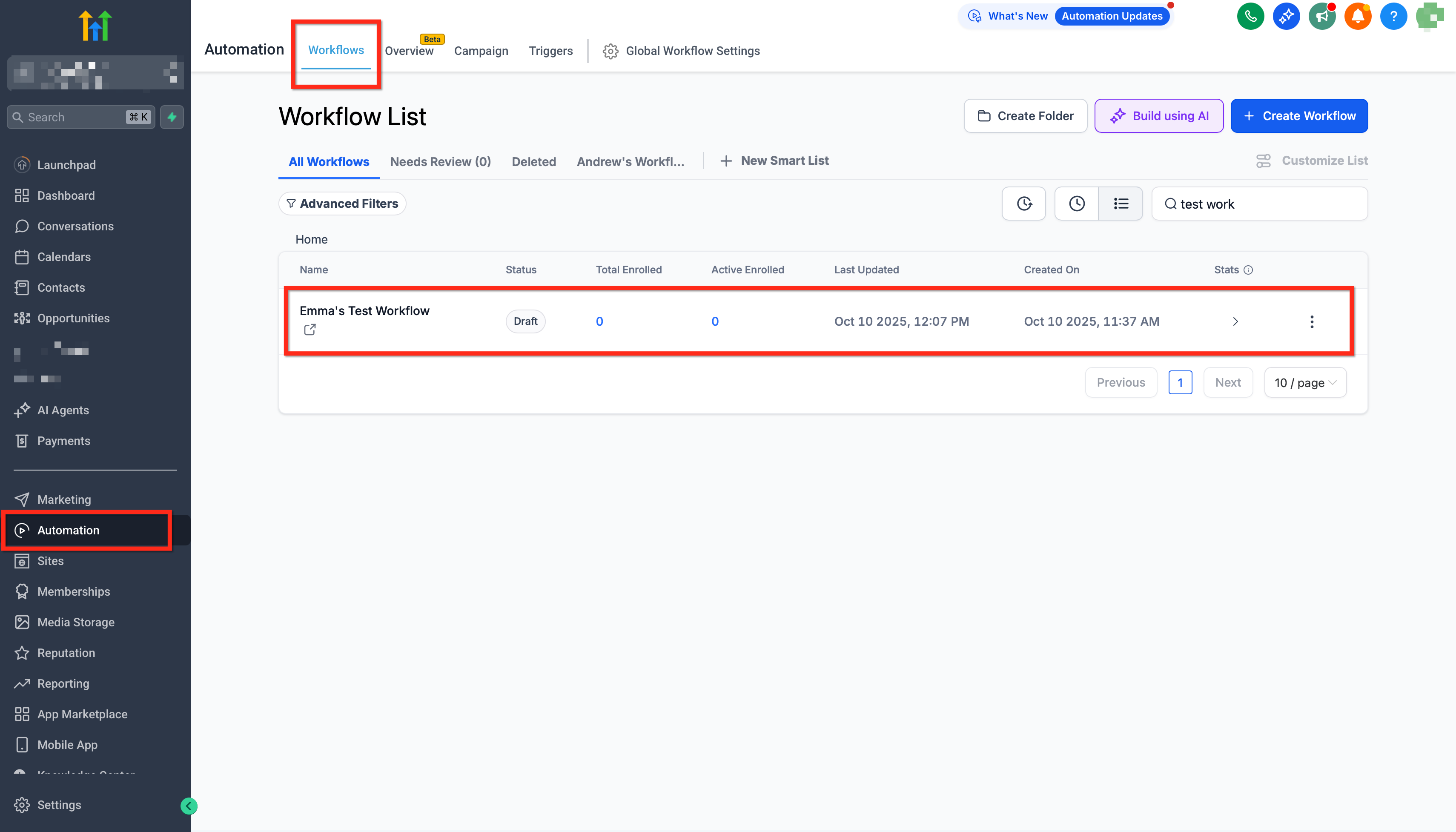
From the desired sub‑account, go to Automations → Workflows and click Create Workflow (or open an existing one).
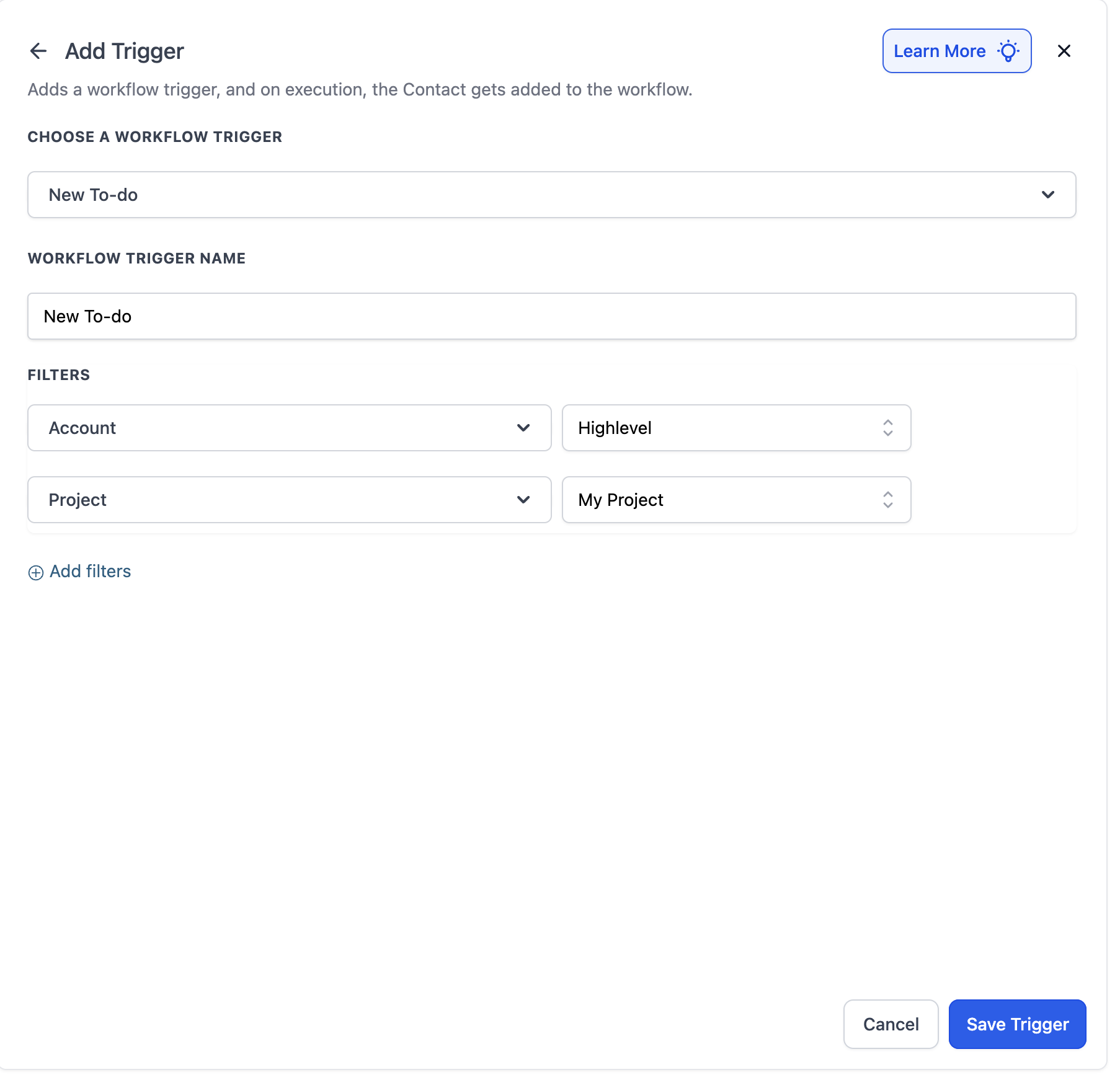
Add a Basecamp Trigger (e.g., New To‑do) and select the target project or scope (as required).
Add Basecamp Actions (e.g., Find Project → If Not Found → Create Project, then Create To‑do List → Create To‑do).
Add internal follow‑ups (e.g., Notify User, Send Email, Update Opportunity).
Publish and perform a one‑time event (e.g., create a to‑do in Basecamp) to verify entries appear in Execution Logs.
Use Cases
Use Case 1: Create To‑do + Project Document from a HighLevel Form
Goal: Turn a submitted intake form into actionable Basecamp work and documentation.
Workflow Setup:
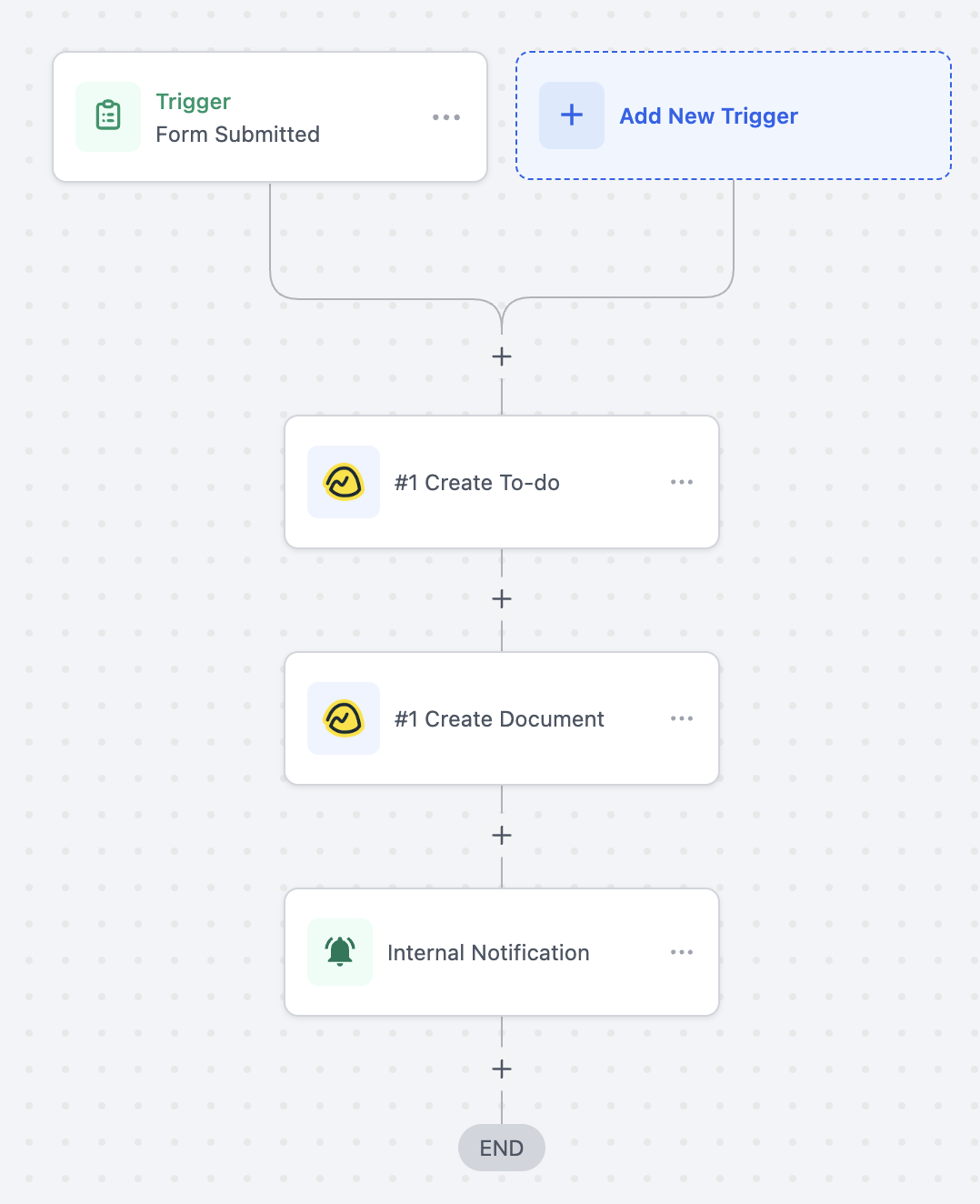
Trigger: Form Submitted
- Filter: Form Name = “Project Intake Form”
Actions: Create To‑do (Basecamp), Create Document (Basecamp), Notify User
Example: A client submits the “Project Intake” form. A task appears in Basecamp (“Create workspace for Client X”), a document is created with the form answers, and your team is notified to kick off.
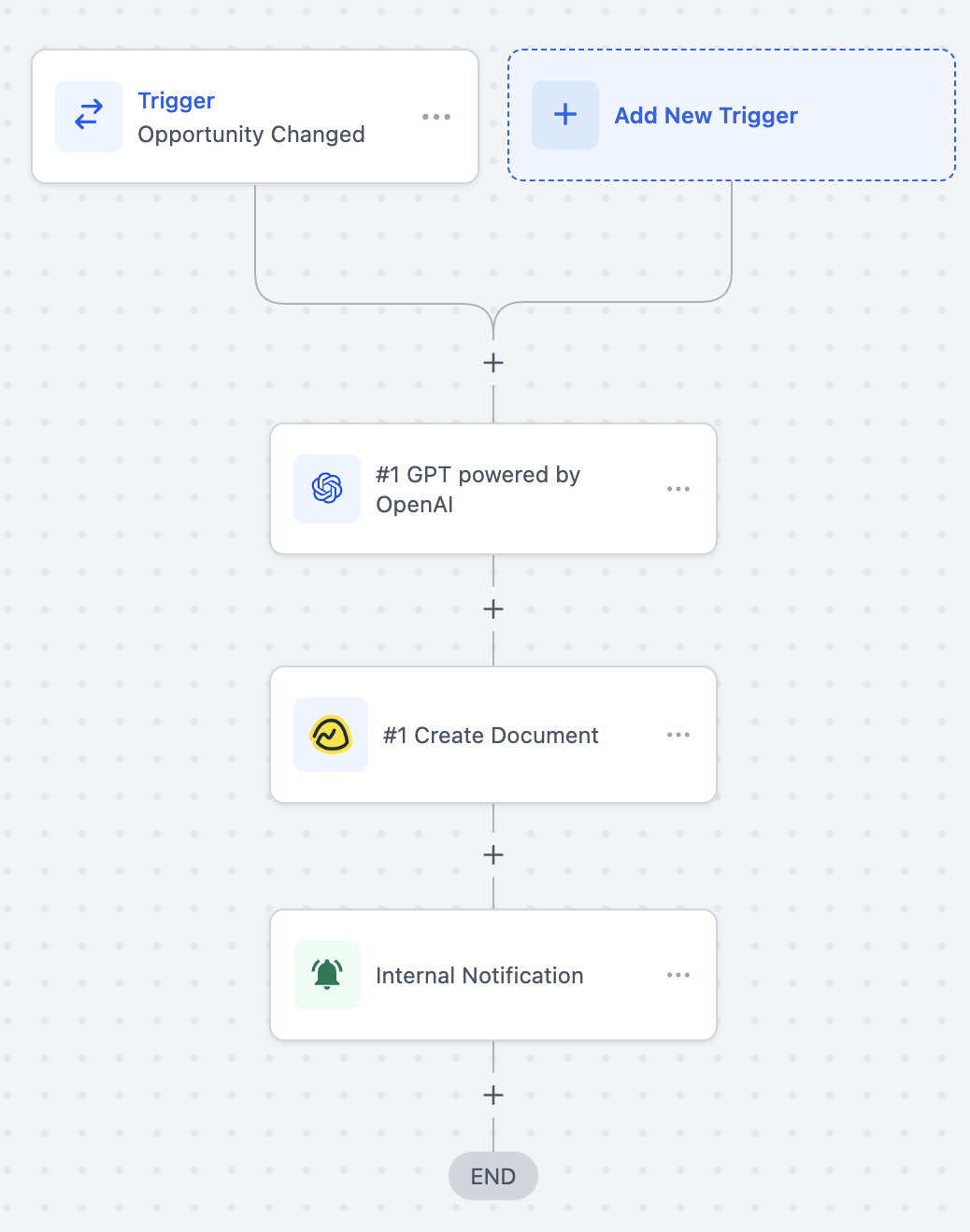
Use Case 2: AI Kickoff Brief on “Closed Won”
Goal: Generate a project summary via AI, store it in Basecamp, and alert the team.
Workflow Setup:
Trigger: Opportunity Stage Changed (Stage = Closed Won)
- Filter: Opportunity Stage = “Closed Won”
Actions: GPT (OpenAI) → Create Document (Basecamp) → Notify User
Example: When the deal closes, AI drafts a kickoff brief using opportunity details. The brief is saved as a Basecamp document and the onboarding team is notified.
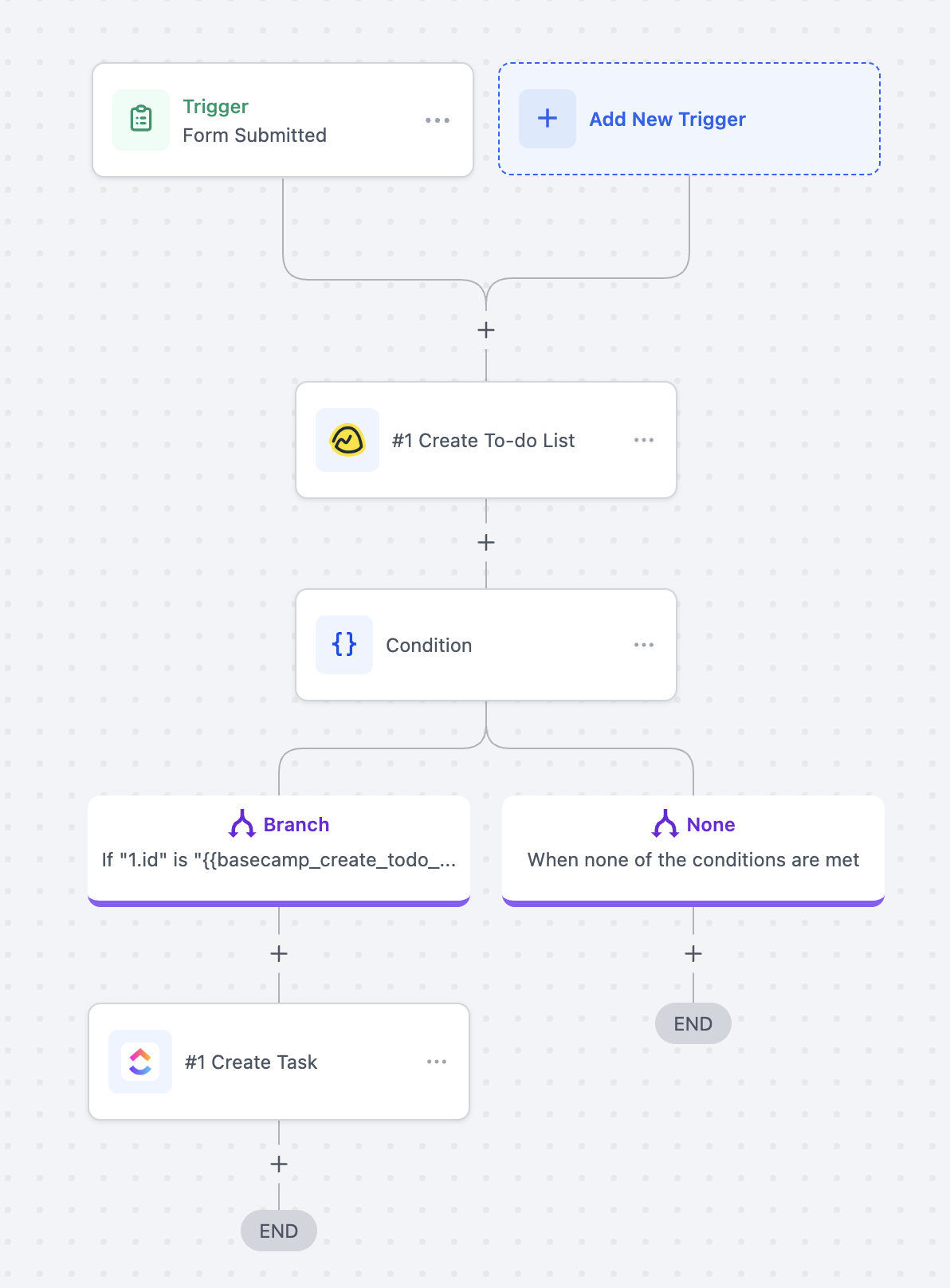
Use Case 3: Create To‑do List + Task from a HighLevel Form
Goal: Stand up a fresh list with a first task whenever a request form is submitted.
Workflow Setup:
Trigger: Form Submitted
- Filter: None
Actions: Create To‑do List (Basecamp) → Condition → Create To‑do (Basecamp)
Example: On submission, a new list “Website Redesign – Client ABC” is created. If successful, a task “Assign designer & schedule kickoff” is added so work can begin immediately.
Frequently Asked Questions
Q: Do I need a paid Basecamp plan?
The integration works with Basecamp’s free and paid plans. Advanced Basecamp features still follow your Basecamp subscription limits.
Q: Can I sync data both ways between Basecamp and HighLevel?
The integration currently supports one-way sync. You can trigger workflows when events happen in Basecamp or perform actions in Basecamp from HighLevel. For full bi-directional syncing, use middleware platforms like Make or Zapier.
Q: Are the Basecamp steps premium‑billed in HighLevel?
Yes. Basecamp triggers and actions are premium and billed per execution at your account’s standard rate. Agencies can optionally rebill sub‑accounts.
Q: Can I create a project from a template?
Yes. Create Project supports creating from a template when available in your Basecamp account.
Q: Where do I troubleshoot failures?
Open Execution Logs to review the specific step error (e.g., invalid ID, missing permission). If authorization expired, reconnect Basecamp under Settings → Integrations and re‑run a test.
Q: Can I connect multiple Basecamp accounts?
Yes. Authenticate the appropriate Basecamp account per sub‑account and select the desired connection in each action/trigger step. Changing the selected account may reload or reset account-dependent fields.
Related Articles
Was this article helpful?
That’s Great!
Thank you for your feedback
Sorry! We couldn't be helpful
Thank you for your feedback
Feedback sent
We appreciate your effort and will try to fix the article