Coupon Codes allow you to offer discounts on calendar bookings made via the booking widget. Customers can enter a valid coupon at checkout to receive a discount, which is then tracked inside the Payments Tab of the Appointment Modal.
TABLE OF CONTENTS
- Overview of Using Coupon Codes in Calendars
- Key Benefits of Using Coupon Codes in Calendars
- Supported Calendars & Limitations
- How to Use Coupon Codes in Calendars
- Frequently Asked Questions
- Related Articles
Overview of Using Coupon Codes in Calendars
Coupon Codes in Calendars let customers enter a discount code during booking on the booking widget. When a valid code is applied, the widget recalculates the price in real time and the appointment record shows an itemized Discount (Coupon) line in the Payments Tab. You control coupon rules with controls including percentage or fixed amount, validity windows, usage limits, and eligibility by product or calendar.
Key Benefits of Using Coupon Codes in Calendars
Coupons help you smoothly and easily run targeted promotions:
Higher Conversion: Timely discounts reduce checkout friction and cart abandonment.
Flexible promotions: Use percentage-based or fixed-amount discounts for seasonal or limited campaigns.
Control & Targeting: Limit redemptions per contact or overall ensuring a coupon is not over-used
Better Customer Experience: Customers can apply/remove a code directly in the booking widget with immediate price updates.
Supported Calendars & Limitations
Coupon codes are fully supported across all calendars for both the Neo and Classic booking widgets, as well as for Services (v2).
Coupon codes are not supported with the older Service Menu (v1). We strongly recommend moving to Services (v2) for a more modern booking flow, ongoing support, and access to features such as coupon codes.
Coupon codes are only available through the booking widget and cannot be applied to appointments created manually via the in-app modal. Support for this functionality is planned for a future release.
How to Use Coupon Codes in Calendars
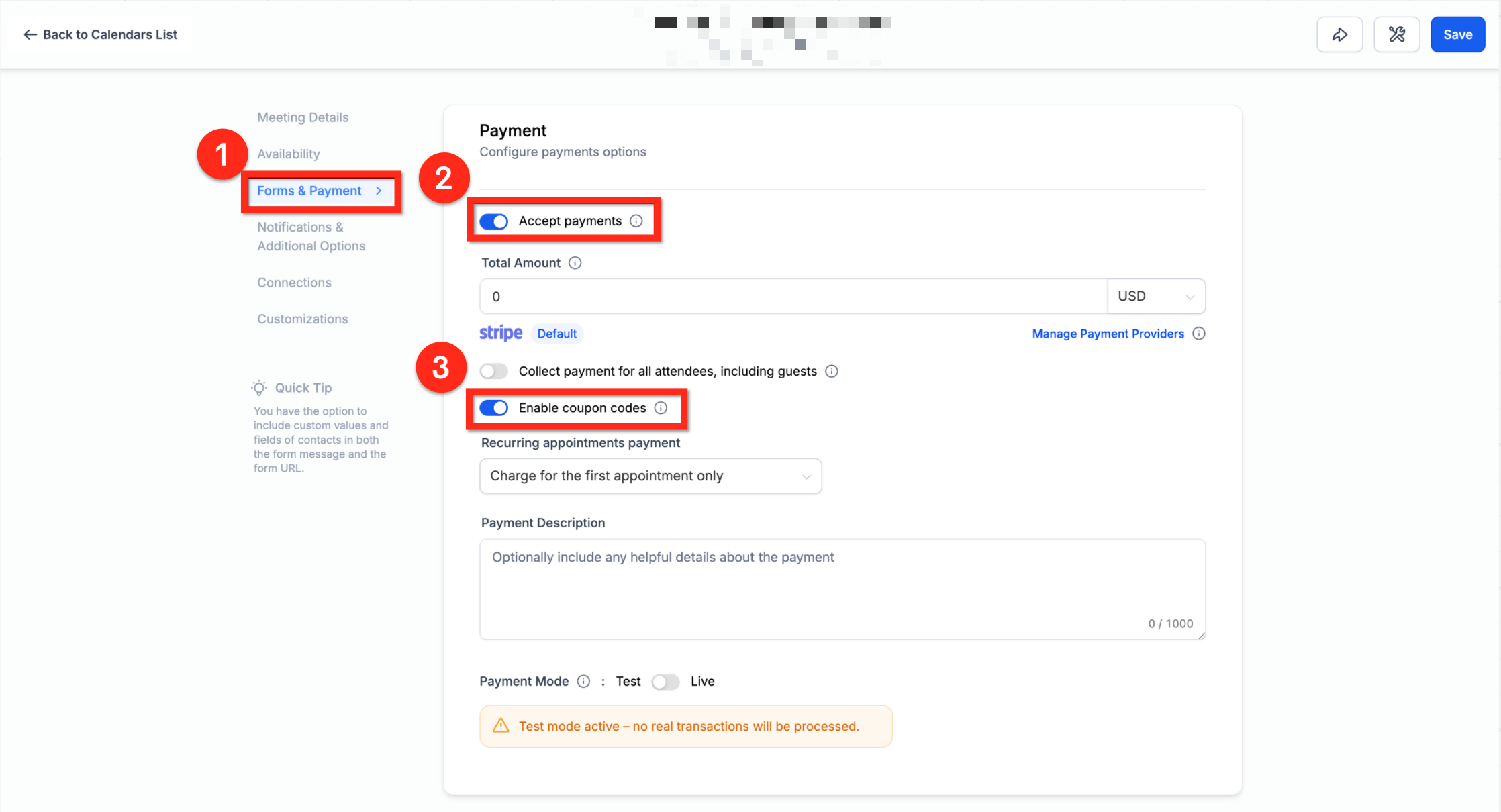
Step 1: Enable 'Accept Payments' and 'Coupon Codes' in Calendar
Before creating coupons, make sure payments are enabled on your calendar.
Go to Calendar Settings > Forms & Payments.
Enable Accept Payments.
Once enabled, a Product is automatically created in your Products Tab with a Calendar tag (this product cannot be deleted).
Scroll further down and enable Enable Coupon Code option.
This will add a coupon input field to your booking widget.
Note: You must enable coupons individually for each calendar where you want them active.Note for Services: Coupon code visibility for Services is managed globally. Go to Calendars > Services > Global Settings > Payment Settings and configure Coupon Codes. When coupon codes are disabled, the coupon code field is hidden from the Services booking page.
Step 2: Create a Coupon
Navigate to Payments Module > Coupons and click New Coupon.
You’ll see the following options:
Coupon Code: Enter a custom code (e.g.,
10OFF) or click Generate to auto-create one.Coupon Type: Choose between:
Percentage Coupon (e.g., 10% off).
Fixed Amount Coupon (e.g., $50 off).
Discount Offered: Enter the percentage or fixed discount value.
Start & End Date/Time: Define the coupon validity window.
Limit Redemptions: (Optional) Restrict how many times the coupon can be used overall.
Limit to Products/Offers: Select specific calendars or products where the coupon will apply.
Limit to One Use Per Customer: Prevents multiple uses by the same customer.
Once saved, the coupon is ready to share with your customers.
For more information on creating coupons, see: How to Create Coupons for Products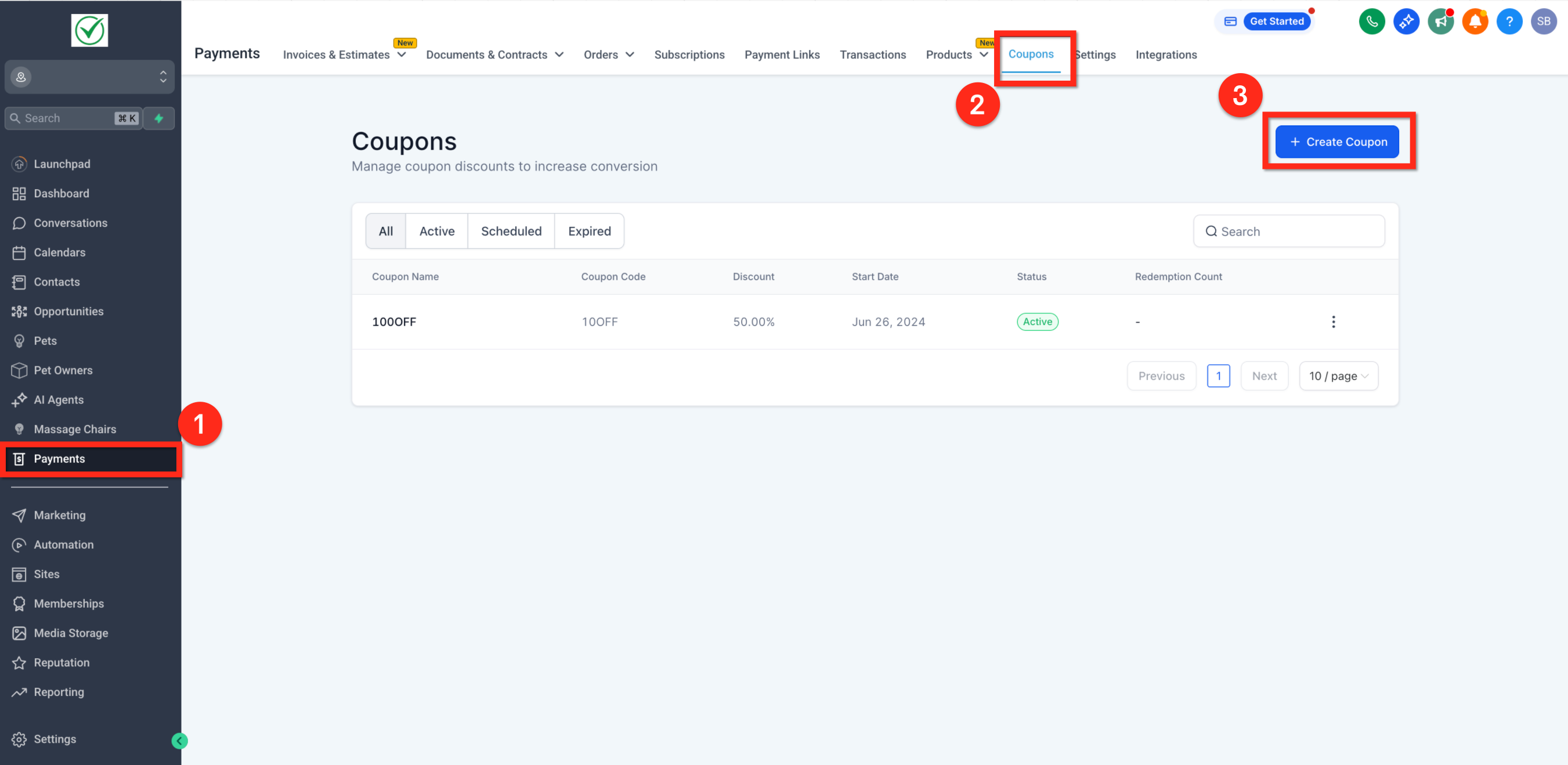
Step 3: Customer Experience
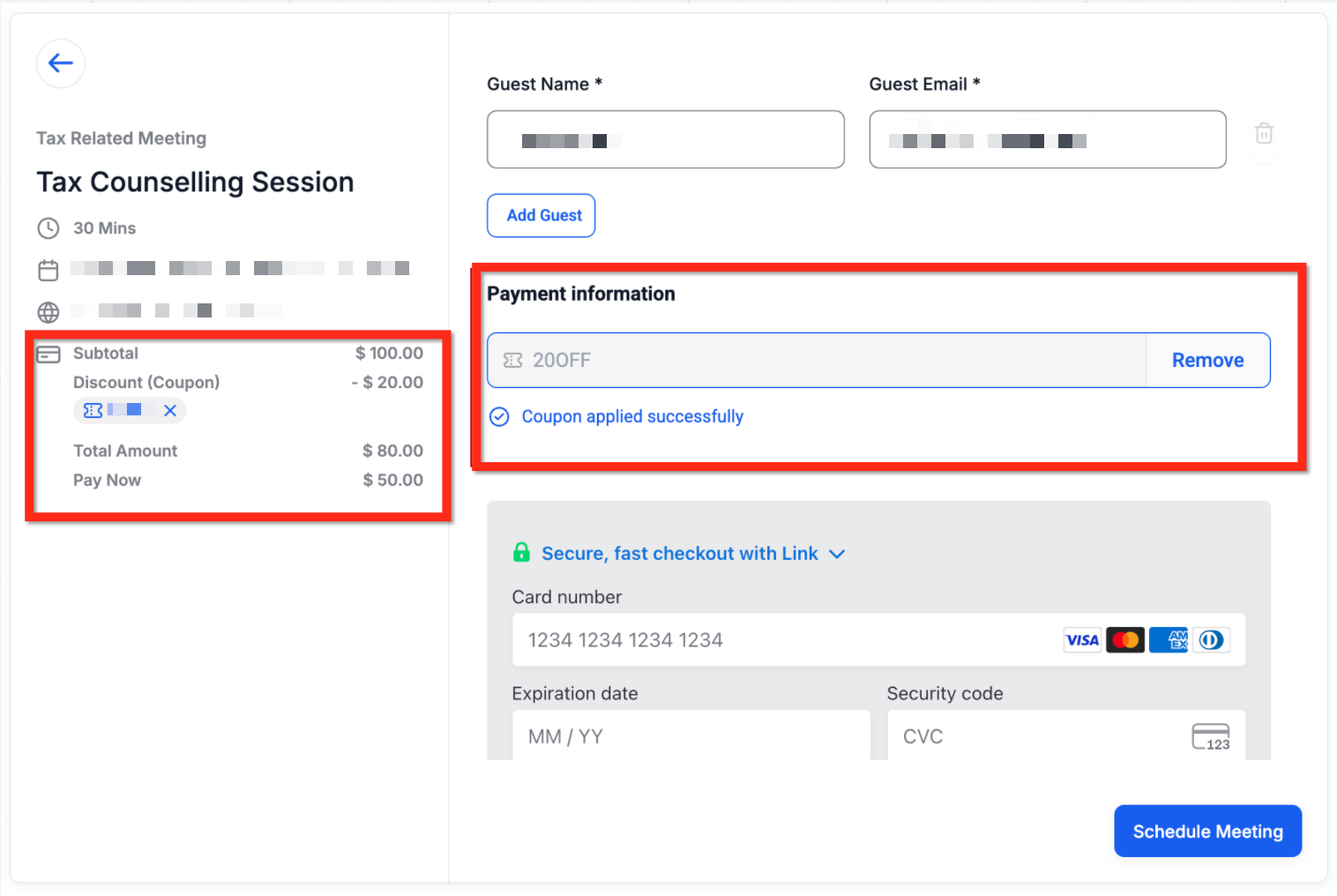
When booking via the calendar widget, customers will see a Coupon Code input box.
If the code is valid:
The discount is applied instantly.
The adjusted total shows before checkout.
If invalid:
An error message appears.
- If the coupon leaves an amount greater than $0, the customer provides payment details and pays the discounted amount.
- If the coupon reduces the final amount to $0, the booking continues without collecting card details or processing a payment.
Step 4: Tracking Coupon Usage
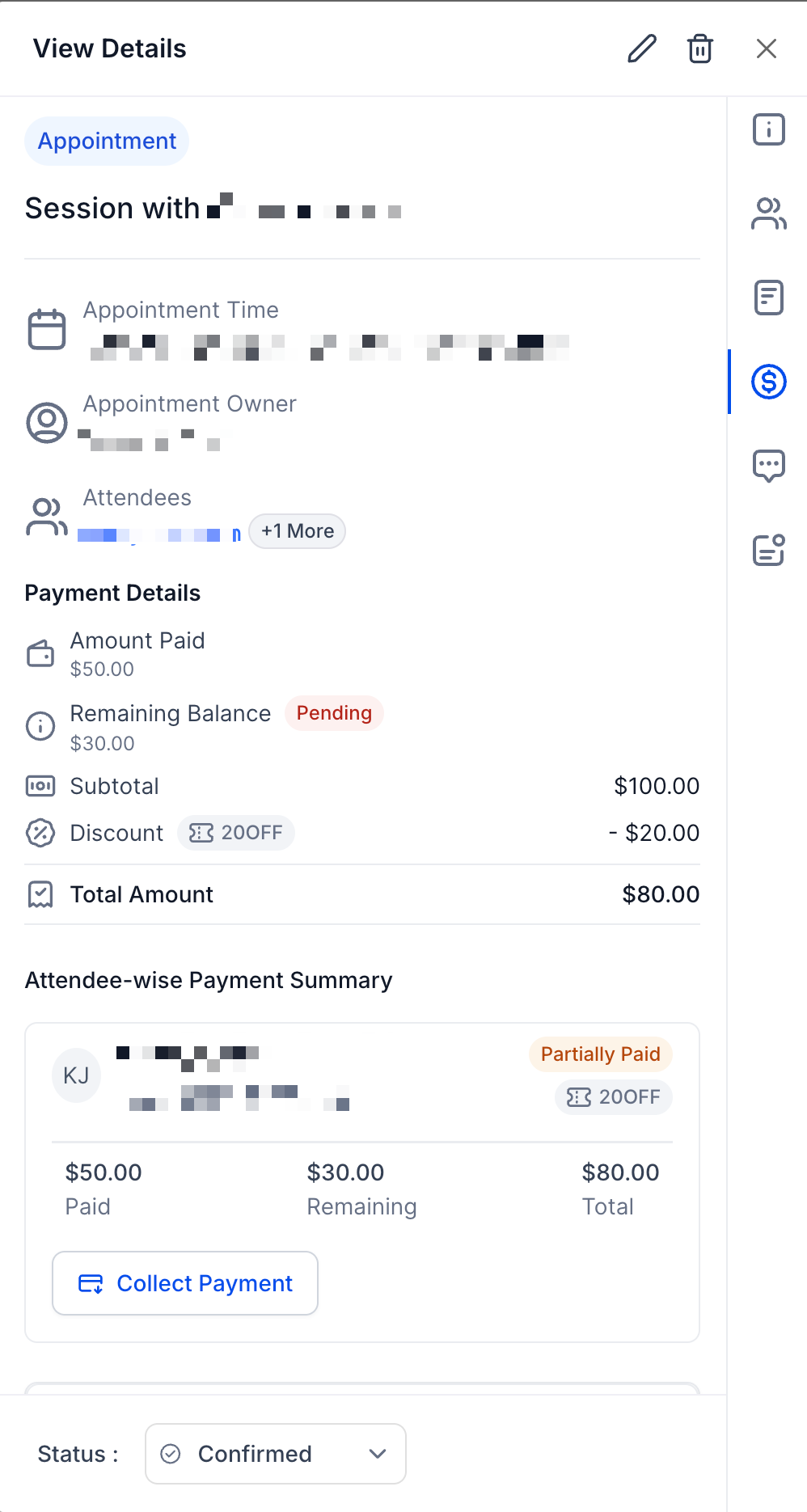
All coupon and payment details are visible in the Payments Tab of the Appointment Modal:
Coupon applied.
Discount amount.
Adjusted total.
Attendee-level breakdown of payments.
Important Update: Order Creation & $0 Transactions
Following the release on 22nd December 2025, there have been changes to how orders, invoices, and transactions behave when coupon codes and calendar payments are involved. This section clarifies the new behavior and addresses common questions around $0 transactions and missing invoices.
1. Change in Invoice Creation Behavior
Earlier, when a booking involved partial payments, a partially paid invoice was created automatically.
Post this release, an invoice will no longer be created in such cases. Instead, an order is created.
Payments (if required) can still be collected against the order
This change helps standardize order-based payment tracking across the platform
2. $0 Calendar Booking Payment Behavior
When Charge upfront is enabled, payment collection is based on the final amount due after any coupon or discount is applied.
If the final amount is greater than $0, the customer is asked to provide payment details and the final amount is charged.
If the configured booking amount is $0, the customer is not asked to provide card details and no payment is processed.
If a coupon reduces the final amount to $0, the customer is not asked to provide card details and no payment is processed.
If a coupon reduces the price but leaves an amount greater than $0, the customer is asked to provide payment details and the remaining discounted amount is charged.
This ensures that customers making a free booking do not need to enter unnecessary payment details or go through a $0 payment transaction.
Note: If you want to save a customer's card details without charging them during booking, use Collect Card on File instead of configuring a $0 upfront payment.
3. When an Order Is Created
An order will always be created if your calendar has payments enabled
If no payment is enabled on the calendar, no order will be created
This behavior applies even when:
No immediate payment is collected at the time of booking
4. Impact on Existing Workflows (Invoice Triggers)
If you have workflows configured using the “Invoice Created” trigger, you’ll need to update them.
Action required: Replace Invoice Created triggers with Order Created triggers to ensure workflows continue to run as expected
Frequently Asked Questions
Q: How do I see the discount after booking?
Open the appointment and check the Payments tab. You’ll see Discount (Coupon), Amount Paid, and Remaining Balance totals.
Q: Can I edit or disable a coupon after it goes live?
Yes. Open the coupon in Payments > Coupons to update limits/dates or disable it. Changes affect future bookings.
Q: How can I test a coupon without charging a real card?
Set the calendar’s Payment Mode to Test, complete a test booking using your gateway’s test credentials (e.g., Stripe test cards), then switch back to Live when you’re done.
Q: Can customers stack more than one coupon on a single booking?
No. Only one active code per checkout is supported. Customers can remove a code and apply a different one before paying.
Q: Are coupon codes case-sensitive?
Codes are not case-sensitive. For example; if a coupon code is 'SUMMER25' and a customer enters in 'Summer25', the coupon will apply.
Related Articles
- Payments Tab in Calendars
- Create Coupons in Payments
- Collecting Payments in Calendars
- Recurring Appointments
- Add Guests Features in Calendar Bookings
- Workflow Trigger - Coupon Redemption Limit Reached
- Workflow Trigger - Coupon Code Expired
- Workflow Trigger - Coupon Code Redeemed
- Workflow Trigger - Coupon Code Applied
Was this article helpful?
That’s Great!
Thank you for your feedback
Sorry! We couldn't be helpful
Thank you for your feedback
Feedback sent
We appreciate your effort and will try to fix the article