TABLE OF CONTENTS
Overview
We have introduced a new action under the Appointments category called Create Appointment Note. This action allows you to add notes to an appointment through a workflow.
Inputs
appointmentId (string) – Required when using inbound webhook trigger.
body (string, max length: 5000 characters) – The content of the appointment note.
How It Works
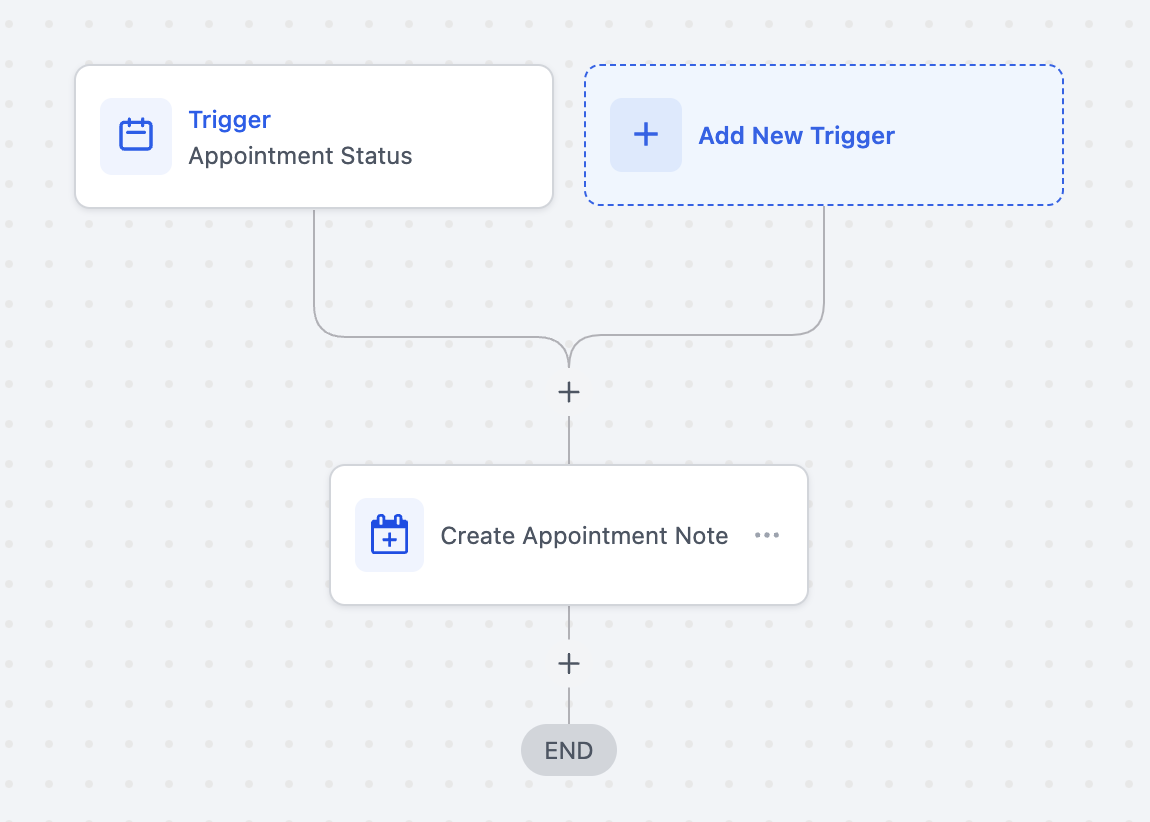
If you are using any appointment-based trigger (e.g., Appointment Status, Customer Booked Appointment), the appointment ID is not required. The note will be added to the appointment enrolled in the workflow.
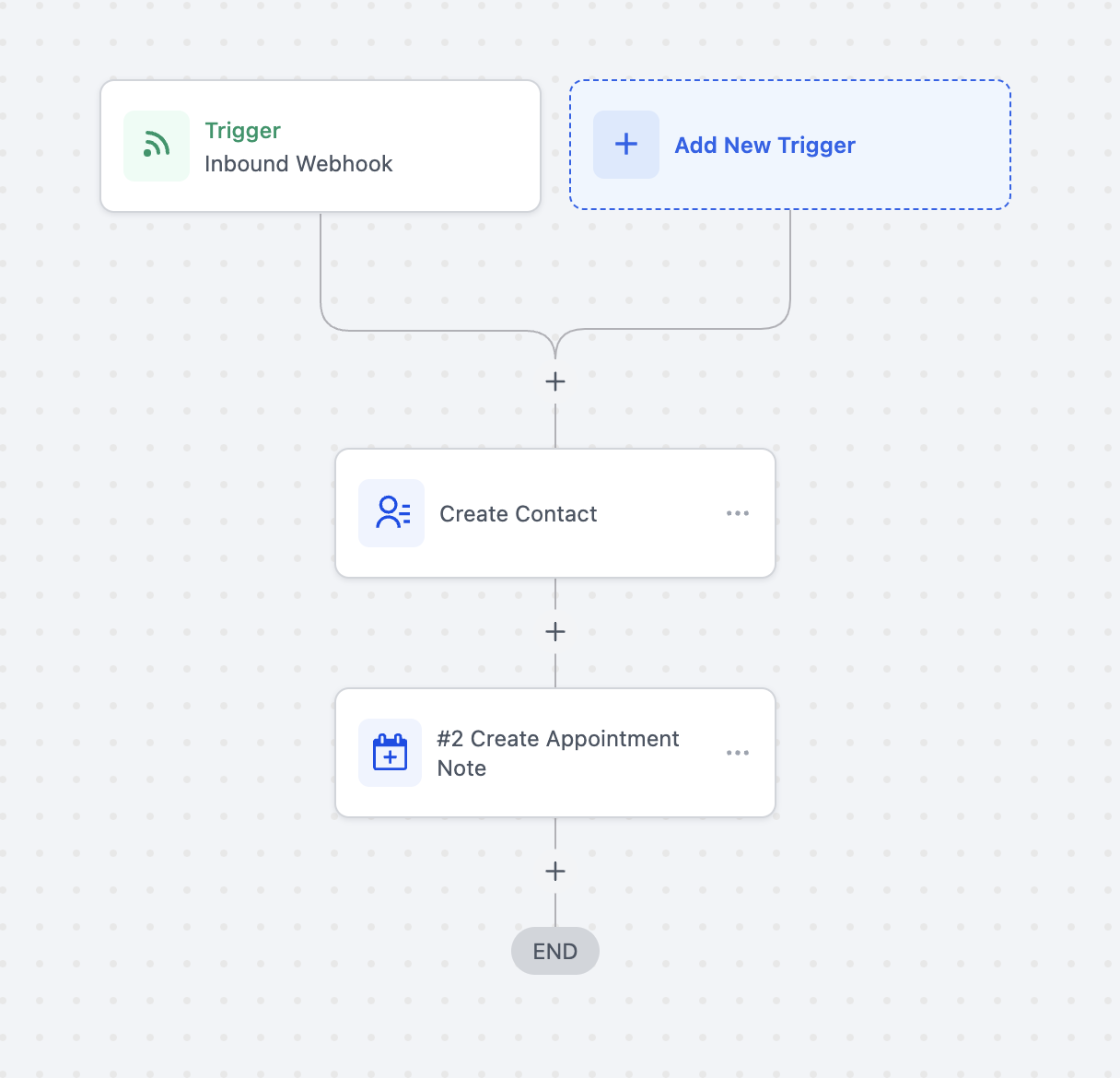
If you are using an Inbound Webhook trigger, you must pass the appointment ID to ensure the note is added to the correct appointment.
How to Set Up
Action Name: Create Appointment Note
Steps to Use This Action
Navigate to:
Automations > Create New Workflow > Start From ScratchAdd a Trigger:
Choose a trigger such as Inbound Webhook, Appointment Status, or Customer Booked Appointment.
Add an Action:
Select Add Action > Create Appointment Note.
Enter an action name.
Configuring Inputs
If using an Inbound Webhook trigger:
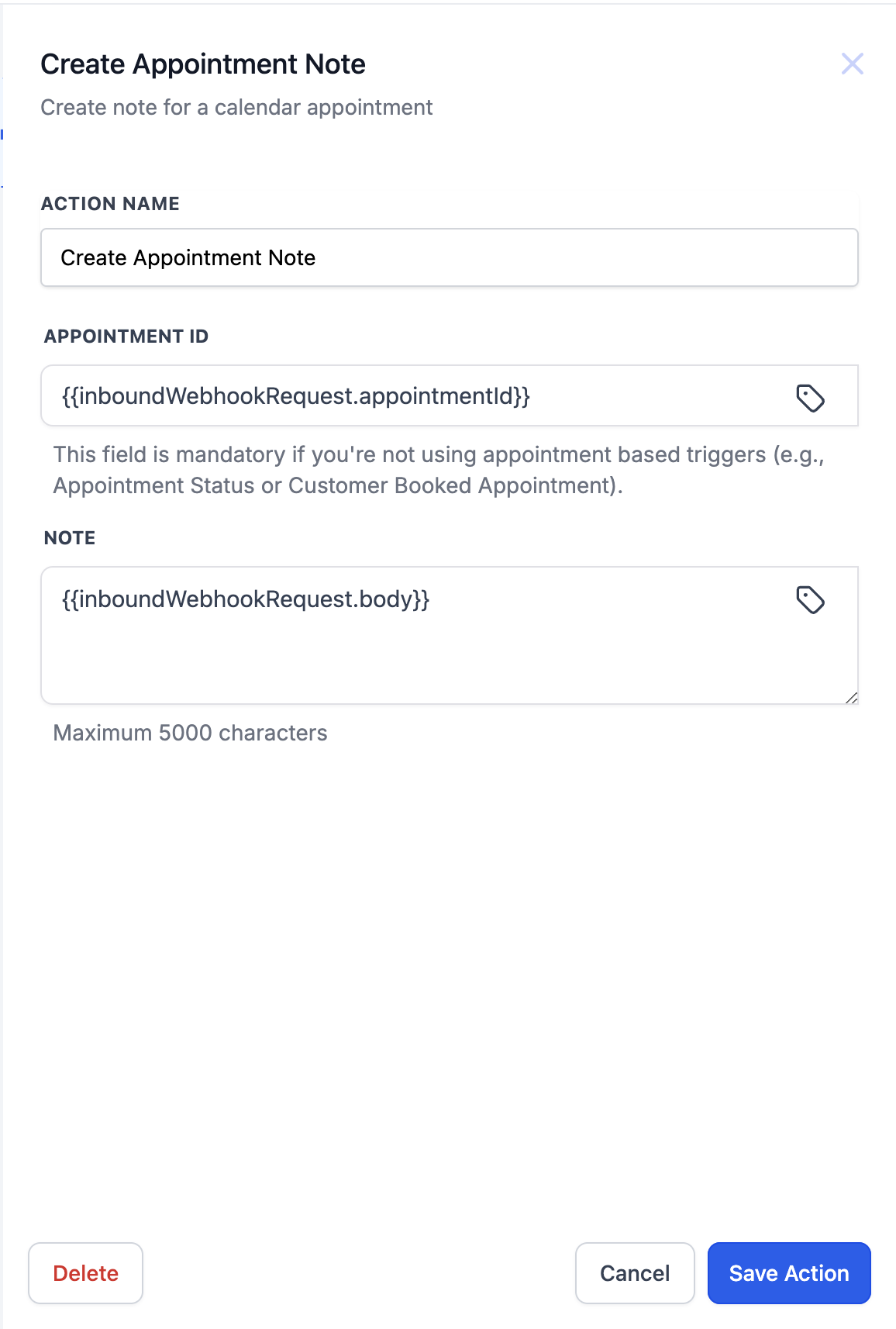
Appointment ID: Add the appointment ID using this custom value:
{{inboundWebhookRequest.appointmentId}}Note Body: Use the following custom value to add the note content:
{{inboundWebhookRequest.body}}
If using an Appointment-based trigger (Appointment Status or Customer Booked Appointment):
Appointment ID is not required.
Note Body: You can manually enter a custom note of your choice.
Important Considerations
If using Inbound Webhooks, ensure that the webhook payload includes both appointmentId and body for seamless functionality.
The body field has a maximum limit of 5000 characters.
This feature allows businesses to efficiently log appointment-related notes directly through workflow automation, reducing manual effort and improving organization.
Note visibility across records
Appointment notes created through this workflow action are internal appointment notes. They appear on the associated Contact, Opportunity, and Conversation records, so teams can review the same context across modules. If the note is edited or deleted later, the change is reflected everywhere the same appointment note appears.
For complete details about note visibility, filtering, and sync behavior, see How to Create & Manage Appointment Notes & Sync them Across Records.
Was this article helpful?
That’s Great!
Thank you for your feedback
Sorry! We couldn't be helpful
Thank you for your feedback
Feedback sent
We appreciate your effort and will try to fix the article