Layout margins and text spacing controls help you fine-tune spacing in HighLevel’s Email Builder. Section margins control vertical space outside a section, while Typography Settings control spacing above and below supported text styles. These controls give you more flexibility when adjusting email layouts. This guide explains how to configure both settings in the current Email Builder.
TABLE OF CONTENTS
- What are Layout Margins and Text Spacing Controls?
- Key Benefits of Layout Margins and Text Spacing
- How To Adjust Layout Margins
- How To Adjust Text Spacing
- Margin vs. Padding vs. Spacer
- Frequently Asked Questions
What are Layout Margins and Text Spacing Controls?
Layout margins and text spacing are separate controls for managing space within an email design.
Margin controls the vertical space outside a supported section. In the current section editor, you can adjust the Top and Bottom Margin values in pixels.
Typography Settings control the space above and below supported paragraph and heading styles. Each supported text style can be enabled individually and configured with separate Top Spacing and Bottom Spacing values.
Key Benefits of Layout Margins and Text Spacing
These controls let you adjust spacing without relying on one method for every layout requirement.
- Section-Level Spacing: Adjust Top and Bottom Margin values for supported email sections.
- Text Style Spacing: Configure spacing above and below Paragraph and Heading styles.
- Flexible Input Options: Adjust section Margin with a slider, direct pixel entry, or available presets.
- Consistent Typography Controls: Apply repeatable pixel values to supported text styles.
- Multiple Spacing Methods: Use Margin, Padding, or Spacer based on the layout you need.
How To Adjust Layout Margins
Layout margins control the vertical space outside a selected email section.
- From the HighLevel Sub-Account, go to Marketing.
- Select Emails.
- Open Campaigns or Templates.
- Create a new email or open an existing email.
- Open the email in the Design Editor.
- Select the section whose spacing you want to adjust.
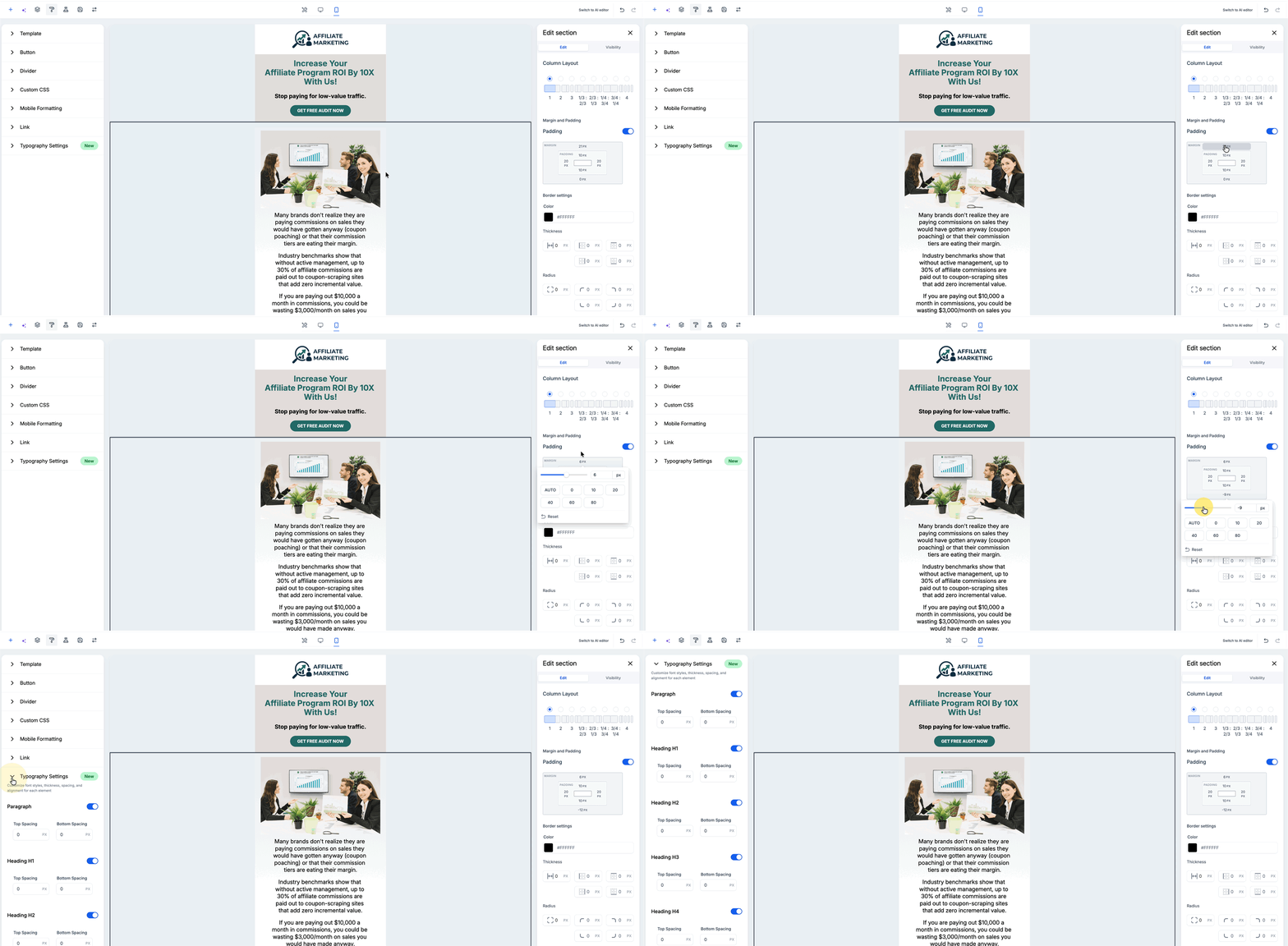
- In the Edit section panel, locate Margin and Padding.
- Select the Top or Bottom Margin value in the box model.
- Adjust the Margin using the slider, enter a value directly in PX, or select an available preset.
- Use Reset if you want to restore the Margin value.
- Review the updated spacing directly in the Email Builder.
Available Margin presets shown in the current editor include:
- AUTO
- 0
- 10
- 20
- 40
- 60
- 80
How To Adjust Text Spacing
Typography Settings let you control the space above and below supported paragraph and heading styles.
- Open the email in the Design Editor.
- Open the builder’s styling controls.
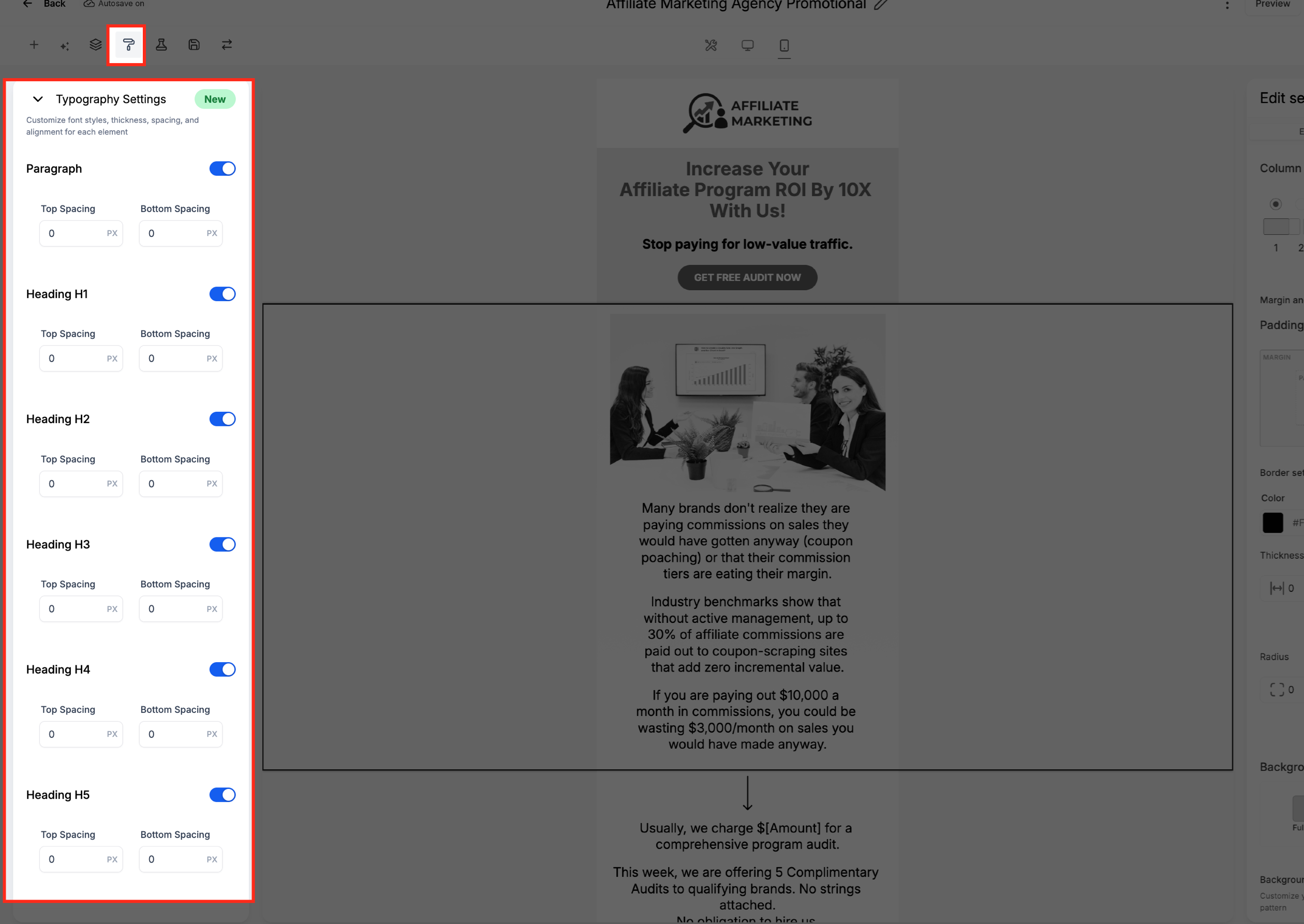
- Expand Typography Settings.
- Enable the text style you want to configure.
- Enter a value in Top Spacing to control the space above the selected text style.
- Enter a value in Bottom Spacing to control the space below the selected text style.
- Review the change directly in the Email Builder.
The current Typography Settings panel includes:
- Paragraph
- Heading H1
- Heading H2
- Heading H3
- Heading H4
- Heading H5
Each supported style includes:
- an enable or disable toggle
- Top Spacing
- Bottom Spacing
- numeric values in PX
Margin vs. Padding vs. Spacer
Margin, Padding, and Spacer can all create separation in an email layout, but they affect the design differently.
| Control | Use |
|---|---|
| Margin | Adds vertical space outside a supported section. |
| Padding | Adds space inside a supported element or section. |
| Spacer | Inserts a separate spacing element into the email layout. |
In the current section editor, the Margin and Padding area displays Margin around the outside of the box model and Padding inside it.
Use the control that matches the type of spacing you want to change.
Frequently Asked Questions
Q: Where do I find Margin controls in the Email Builder?
Select a section, then open the Edit section panel and locate Margin and Padding.
Q: Which Margin values can I adjust?
The current section editor provides Top and Bottom Margin values.
Q: What unit does Margin use?
Margin values use pixels, shown as PX in the editor.
Q: How can I change a Margin value?
Select the Top or Bottom Margin value, then use the slider, enter a pixel value directly, or choose an available preset.
Q: Which text styles support Top and Bottom Spacing?
The current Typography Settings panel supports Paragraph and Heading H1 through H5.
Q: What unit does text spacing use?
Top Spacing and Bottom Spacing use PX.
Q: Can I still use Padding or a Spacer element?
Yes. Padding and Spacer remain available for different spacing needs within the Email Builder.
Q: Can I review these settings in mobile view?
Yes. The Margin and Typography controls remain accessible while reviewing the mobile layout.
Related Articles
Was this article helpful?
That’s Great!
Thank you for your feedback
Sorry! We couldn't be helpful
Thank you for your feedback
Feedback sent
We appreciate your effort and will try to fix the article