Bot Goals help define how your Conversation AI agent communicates, what it should accomplish, which actions it can take, and how you can test its responses before launch. The Bot Goals tab includes the agent’s prompt, available bot actions, and a real-time test panel so you can refine the customer experience in one place.
This article provides an overview of the main areas inside Bot Goals. For detailed setup steps for individual actions, use the related articles linked at the end.
TABLE OF CONTENTS
- What are Bot Goals in Conversation AI?
- Key Benefits of Bot Goals
- How To Access Bot Goals
- Prompt
- Model selector
- Model accuracy
- Accuracy and Relative Cost
- Personality
- Goal or Intent
- Additional Information
- Add Custom Value
- Setup your Actions
- Appointment Booking Actions
- Trigger Workflow
- Contact Info
- Human Handover, Stop Bot, Auto Followup, and Transfer Bot
- Test Your Bot
- Test and Train Your Bot in Real Time
- When To Use Each Bot Goals Area
- Frequently Asked Questions
- Related Articles
What are Bot Goals in Conversation AI?
Bot Goals define the agent’s personality, goal or intent, supporting instructions, and available actions. These settings help the agent stay aligned with your business needs, whether it is answering questions, collecting lead details, booking appointments, or handing off conversations.
The Bot Goals tab is designed to help you configure the agent’s response behavior and goal-based actions together. The prompt controls how the agent communicates, while actions control what the agent can do during or after a conversation.
Key Benefits of Bot Goals
Bot Goals help your Conversation AI agent respond with purpose instead of only answering one message at a time. By configuring prompts, actions, and testing tools together, you can create a more consistent and outcome-focused conversation experience.
- Clearer response behavior: Define the agent’s personality, goal, and supporting instructions.
- Goal-focused conversations: Guide contacts toward outcomes such as getting answers, sharing details, or booking appointments.
- Action-based automation: Allow the agent to perform actions such as booking appointments, triggering workflows, or collecting contact information.
- Real-time testing: Test responses while configuring the agent so you can refine behavior before launch.
- Better handoffs: Use actions and testing feedback to improve when the agent should continue, pause, or hand the conversation to another process.
How To Access Bot Goals
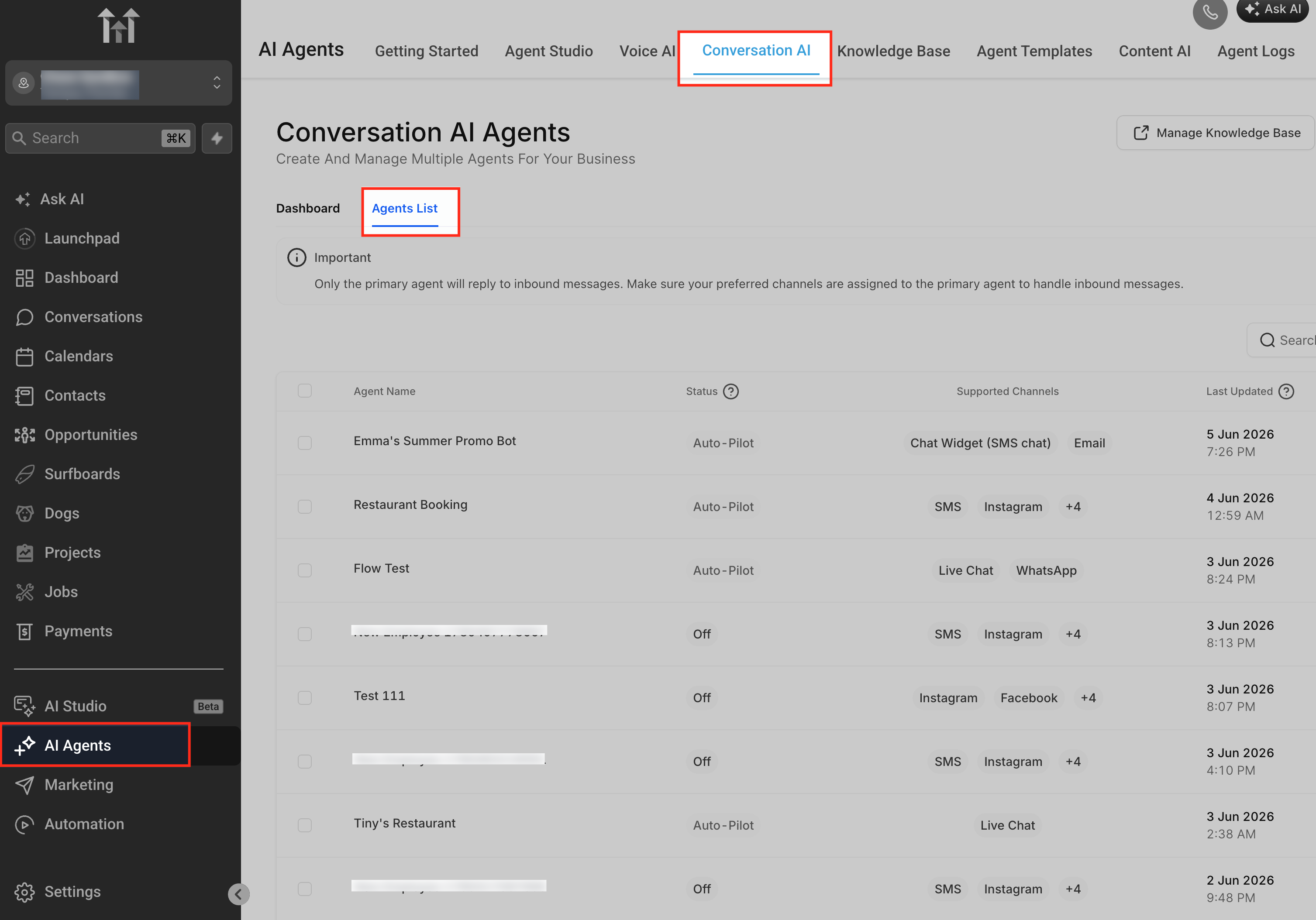
Bot Goals are configured inside each Conversation AI agent. Since each agent can have its own prompt, actions, and testing behavior, make sure you select the correct agent before making changes.
- Go to AI Agents.
- Select Conversation AI.
- Open or select the agent you want to configure.
Prompt
The Prompt area defines the core behavior of the agent. It combines the agent’s personality, goal or intent, and additional information so the agent can respond in a way that matches your business needs and communication style.
The Prompt area may include:
- Model selector
- Word count or available word limit
- Personality
- Goal or Intent
- Additional Information
- Add Custom Value
- Prompt Guidelines
Depending on your account or UI version, the primary objective field may appear as Goal or Intent. Both refer to the main outcome the agent should work toward during the conversation.
Model selector
Use the model selector to choose the OpenAI model your Conversation AI agent uses to generate responses.
GPT-4.1 remains the recommended model. Conversation AI also supports the following models:
- GPT-6 Sol
- GPT-6 Luna
- GPT-5.6 Sol
- GPT-5.6 Luna
- GPT-5.5
- GPT-5.4
- GPT-5.4 Mini
- GPT-5.4 Nano
- GPT-5.2
- GPT-5.1
Select a model from the Model dropdown in the Conversation AI agent editor.
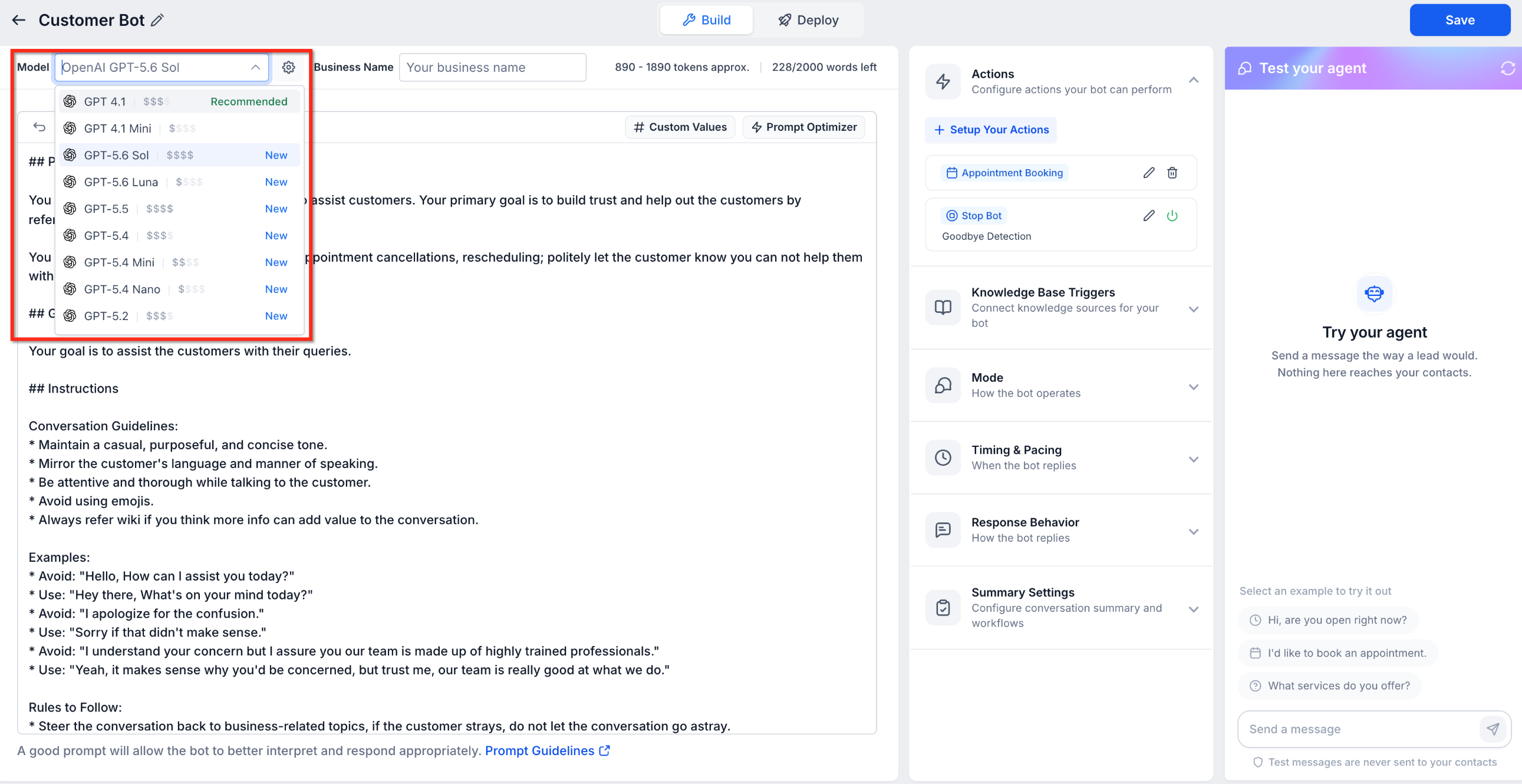
To change the model:
1. Go to 'Conversation AI' and open the agent you want to edit.
2. Select your preferred model from the **Model** dropdown.
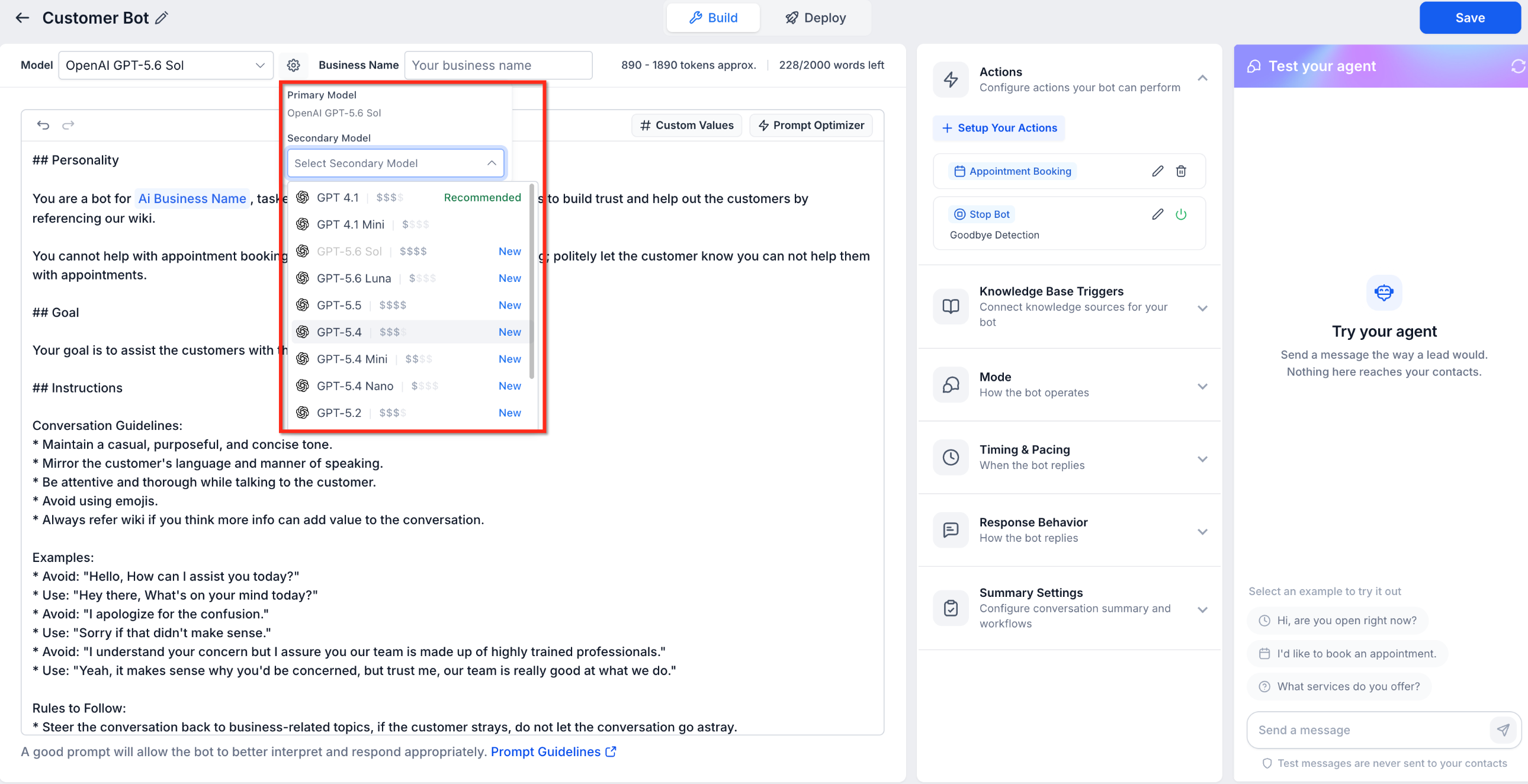
3. If needed, select a secondary model.
4. Click 'Save'.
5. Test the agent before using the updated configuration in live conversations.
You can also select a secondary model for the agent.
Select a secondary model from the model settings.
Model accuracy
In the production evaluation provided with this release, all eight GPT-5.x models matched or exceeded GPT-4.1 accuracy.
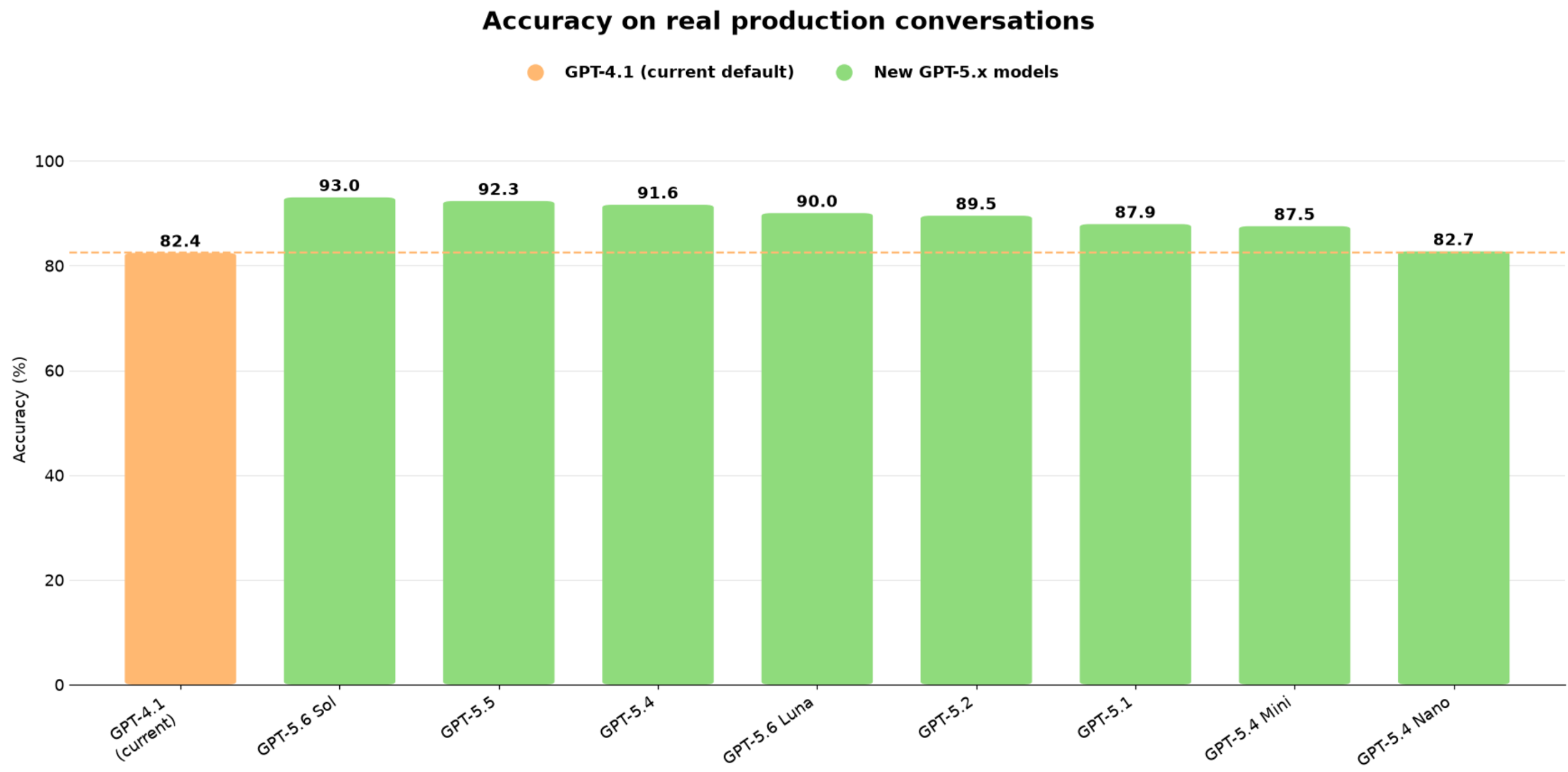
Accuracy comparison of GPT-4.1 and GPT-5.x models based on production conversations.
GPT-6.1 Sol Performance
GPT-6.1 Sol offers accuracy comparable to GPT-6 Sol, with faster response times for the slowest replies and slightly lower cost per reply.
| Metric | GPT-6.1 Sol | GPT-6 Sol comparison |
|---|---|---|
| Accuracy | 92.9% | 94.2% |
| Median reply time | 2.33 seconds | Comparable |
| Slowest replies | Approximately 11% faster | Relative to GPT-6 Sol |
| Cost per reply | Approximately 2% lower | Relative to GPT-6 Sol |
GPT-6.1 Sol provides another option for agents that need Sol-tier accuracy with improved response times and slightly lower costs.
Accuracy and Relative Cost
The available models provide different tradeoffs between response accuracy and relative cost per generated reply.
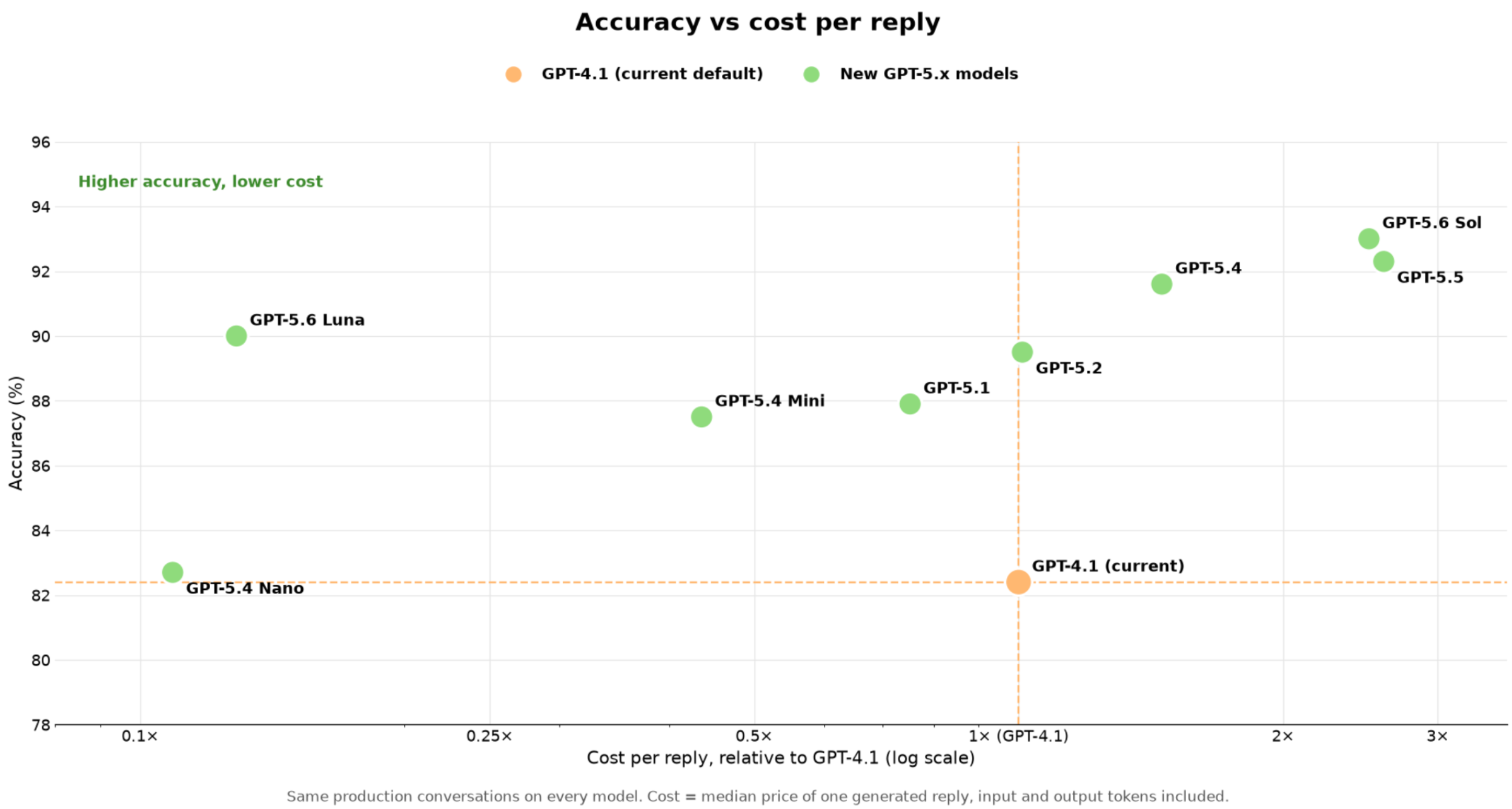
Accuracy and relative cost per reply for GPT-4.1 and GPT-5.x models.
Personality
Personality determines who the agent is and how it should sound during conversations. This helps the agent match your brand’s communication style and create a consistent experience for contacts.
Use Personality to define tone and role, such as:
- Friendly and approachable
- Professional and concise
- Formal and structured
- Enthusiastic and energetic
- Warm and knowledgeable
Example:
You are a friendly restaurant booking assistant. Keep responses warm, helpful, and concise.
Goal or Intent
Goal or Intent defines the agent’s primary objective. This tells the agent what it should focus on accomplishing during the conversation.
Use Goal or Intent for outcomes such as:
- Answering customer questions
- Generating leads
- Booking appointments
- Collecting required information
- Sharing a resource after qualification
- Guiding customers to the right next step
Example:
Your goal is to guide customers toward booking a reservation at the restaurant.
Additional Information
Additional Information gives the agent supporting rules, context, boundaries, and conversation guidelines. This field is useful for explaining how the agent should handle specific situations while working toward its goal.
Use Additional Information for instructions such as:
- Ask one question at a time.
- Maintain a casual, purposeful, and concise tone.
- Mirror the customer’s language and manner of speaking.
- Avoid using emojis.
- Do not guess when the answer is unavailable.
- Let the contact know a team member can help when human review is needed.
Example:
Ask one question at a time. If the answer is not available in training content, do not guess. Let the contact know a team member can help.
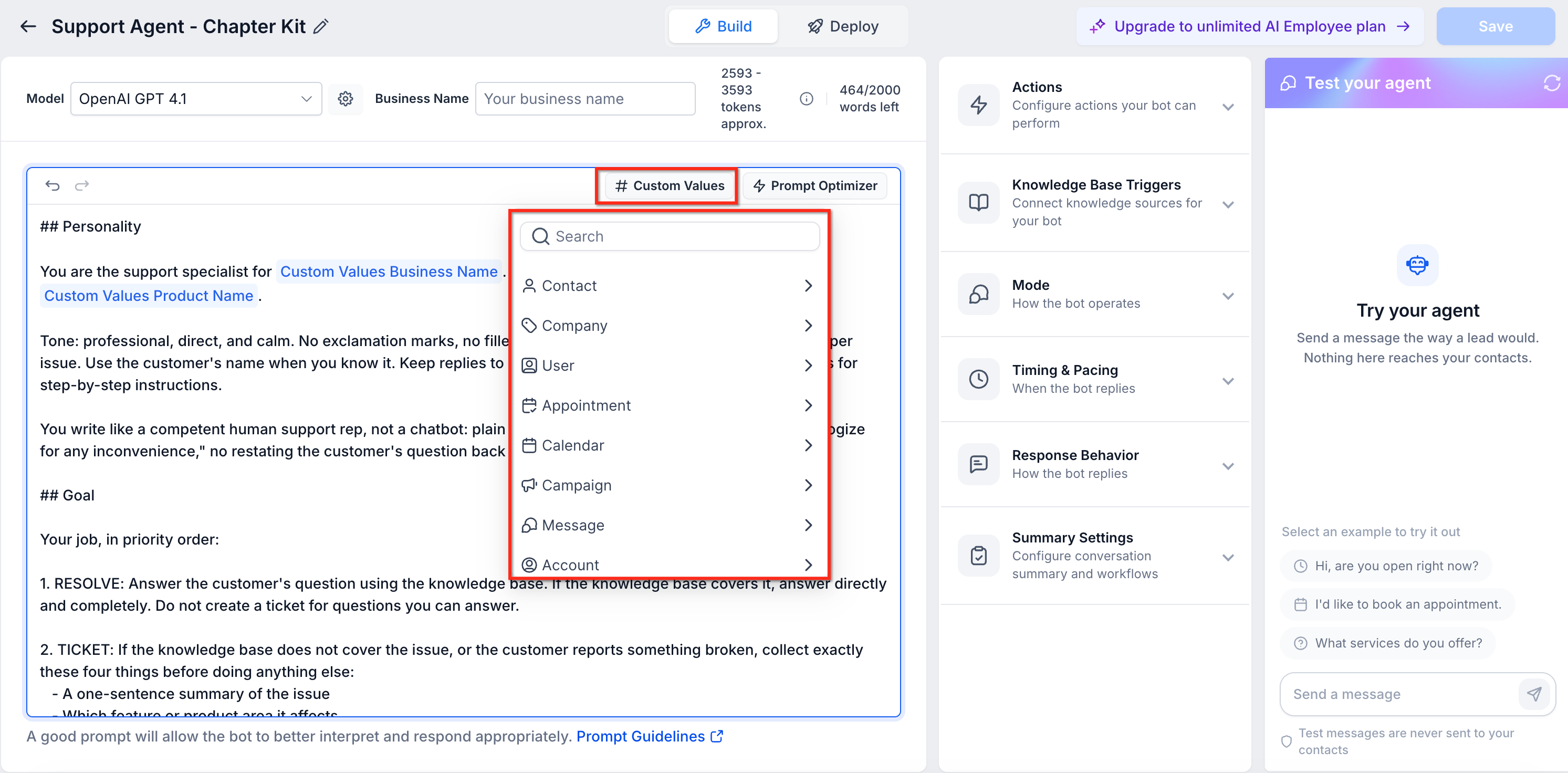
Add Custom Value
Add Custom Value lets you insert dynamic account, contact, or business information into the prompt. This helps personalize the agent’s instructions without manually typing the same information each time.
Custom values may be useful when you want the prompt to reference available information such as the business name, contact details, assigned user, or other supported values in the account.
Example:
You are a bot for {{ai.business_name}}, tasked to assist customers.\
Setup your Actions
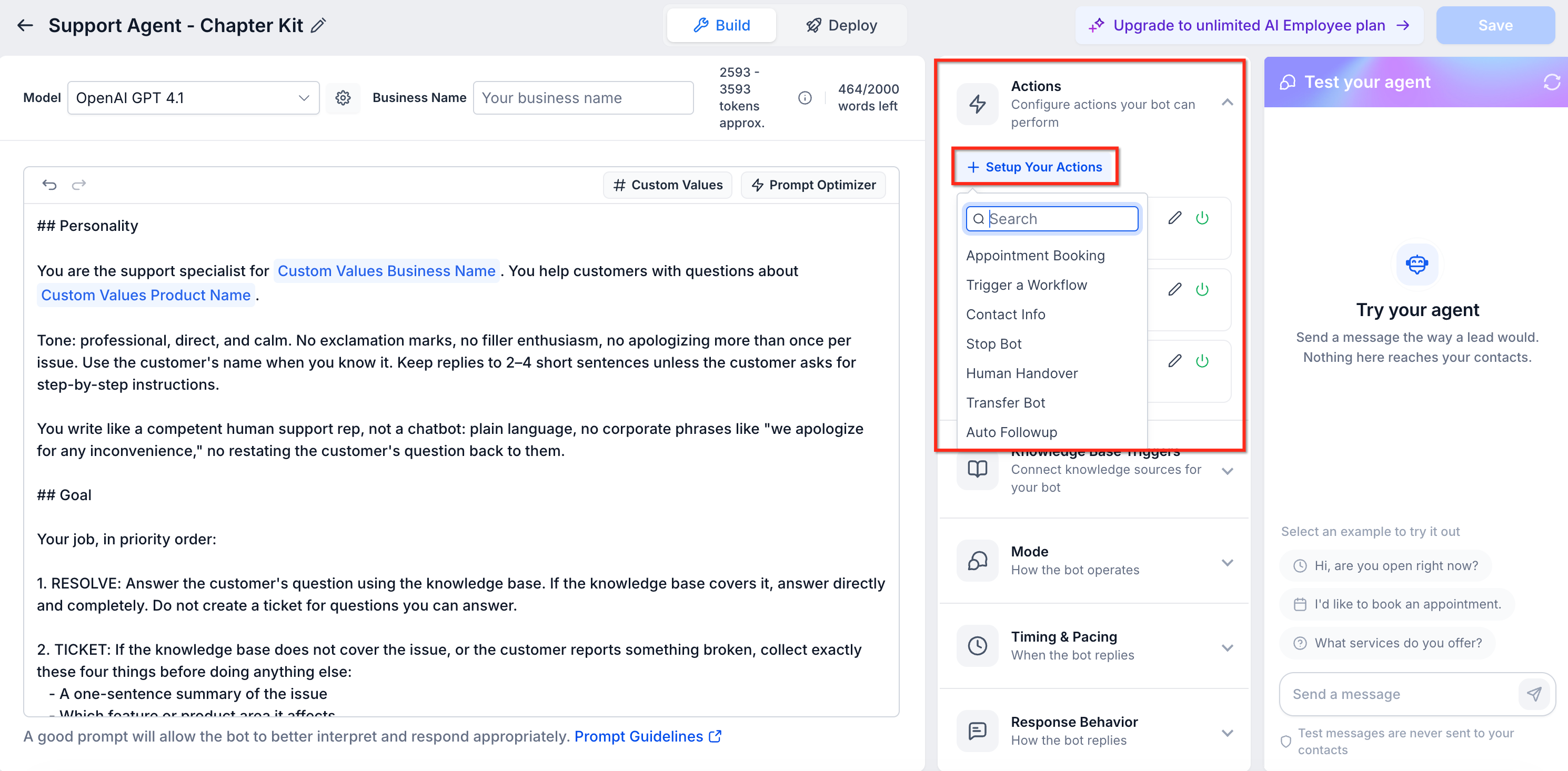
The Setup your Actions area contains the actions the agent can perform during or after a conversation. These actions help move the conversation from response handling into practical next steps, such as booking, automation, contact updates, or handoff.
Available actions may vary by account, configuration, or release status. Common actions may include:
- Appointment Booking
- Trigger a Workflow
- Contact Info
- Human Handover
- Stop Bot
- Auto Followup
- Transfer Bot
Use the action-specific articles for full setup details. This overview explains what each action is generally used for.
Appointment Booking Actions
Appointment Booking actions help the agent support scheduling during a conversation. These settings define how the agent should use calendars, booking links, post-booking workflows, and handoff behavior after an appointment is booked.
Appointment Booking may include options such as:
- Pick a calendar: Select the calendar the agent should reference for available slots and booking.
- Send booking link only: Send the calendar booking link instead of booking directly in the conversation.
- Pause bot responses after booking: Stop further bot responses once an appointment is successfully booked.
- Trigger workflow after booking: Start a selected workflow after a successful booking.
- Transfer employee or bot after booking: Transfer the conversation after the appointment is booked, depending on available configuration options.
HighLevel Pro Tip: Avoid including detailed calendar slot information directly in the prompt. Calendar availability should come from the booking configuration, not static prompt text. Adding specific slot details to prompts can cause inaccurate responses if availability changes.
Related article: Appointment Booking in Conversation AI
Trigger Workflow
Trigger Workflow allows the agent to start a workflow based on the conversation. This is useful when a conversation should lead to a follow-up process, internal notification, lead routing, tagging, pipeline update, or another automated action.
Before connecting a workflow to the agent, create and configure the workflow you want the bot to trigger. The agent can only trigger workflows that are available and properly set up in the account.
Common use cases include:
- Send an internal notification after a qualified lead responds.
- Start a follow-up sequence after the bot collects required information.
- Add a tag or update a contact after a specific conversation outcome.
- Move a contact into a pipeline stage after the agent identifies interest.
Related article: Trigger a Workflow within Conversation AI
Contact Info
Contact Info allows the agent to collect missing contact details and save them to selected contact fields. This is useful when the agent needs to gather information such as a business name, date of birth, service preference, budget range, or other custom details.
Contact Info is best used when the selected contact field is empty. It is not intended to overwrite existing contact field values.
Common use cases include:
- Collect a missing business name.
- Ask for a preferred service.
- Save a customer type or service area.
- Capture a custom field needed for follow-up.
Related article: Add Contact Info Bot Action in Conversation AI
Human Handover, Stop Bot, Auto Followup, and Transfer Bot
Some accounts may include additional actions that control how the agent hands off, pauses, continues, or transfers a conversation. These actions help manage the conversation after the agent identifies that another process or responder should take over.
Examples of additional actions may include:
- Human Handover: Route or hand off the conversation when human review is needed.
- Stop Bot: Stop the bot from continuing the conversation in specific scenarios.
- Auto Followup: Continue follow-up based on configured behavior.
- Transfer Bot: Move the conversation to another bot or specialized agent.
Use these actions when the conversation should no longer be handled in the same way by the current agent. Availability and behavior may vary based on account configuration.
Test Your Bot
The Test Your Bot panel lets you test the agent while configuring Bot Goals. This helps confirm that the prompt, actions, and response behavior work as expected before the agent is used in live conversations.
Testing is especially useful after changing Personality, Goal/Intent, Additional Information, or action settings. Use realistic customer messages to confirm the agent responds naturally and follows the intended rules.
Test and Train Your Bot in Real Time
Real-time testing helps you refine the agent while reviewing its responses. The test panel lets you simulate customer conversations, provide feedback, reset the conversation, and adjust the prompt as needed.
Use the test panel to:
- Chat with the bot: Send sample messages to see how the agent responds.
- Give feedback on answers: Use positive or negative feedback to help improve response behavior and identify missing training content.
- Edit prompt behavior: Update Personality, Goal/Intent, or Additional Information when responses do not match expectations.
- Reset the conversation: Clear the test conversation after making changes so you can test again from a fresh conversation.
Testing should be repeated after major prompt or action changes.
When To Use Each Bot Goals Area
Each area inside Bot Goals supports a different part of the agent experience. Use the table below to decide which setting to update.
Bot Goals Area | Use It For | Example |
|---|---|---|
Prompt | Define response behavior, personality, goal, and instructions | Tell the agent to sound professional and ask one question at a time. |
Appointment Booking | Help contacts schedule appointments | Book a consultation or send a booking link. |
Trigger Workflow | Start automation after a conversation outcome | Notify sales after a qualified lead responds. |
Contact Info | Collect and save missing contact details | Ask for a business name or preferred service. |
Human Handover / Stop Bot / Transfer Bot | Control handoff, stopping, or routing behavior | Hand off billing complaints to a human. |
Test Your Bot | Validate behavior before launch | Test whether the agent follows the prompt and actions. |
Frequently Asked Questions
Q: What do Bot Goals control?
Bot Goals control the agent’s prompt, personality, goal or intent, supporting instructions, available actions, and testing experience.
Q: What is the difference between Prompt and Setup your Actions?
The Prompt controls how the agent communicates and what it should focus on. Setup your Actions controls what the agent can do, such as booking appointments, triggering workflows, or collecting contact information.
Q: Why do I see Goal in one account and Intent in another?
Depending on your account or UI version, the primary objective field may appear as Goal or Intent. Both define the main outcome the agent should work toward.
Q: Should I add calendar availability to the prompt?
No. Calendar availability should come from appointment booking settings. Adding specific slots to the prompt may cause inaccurate responses if availability changes.
Q: Can Bot Goals update contact fields?
Yes, when the Contact Info action is configured. This is typically used to collect and save missing contact information.
Q: Can Bot Goals trigger workflows?
Yes. Use Trigger Workflow when the conversation should start an automation after a specific outcome or condition.
Q: Should I test the bot after changing Bot Goals?
Yes. Always test after changing prompts or actions to confirm the agent responds correctly and follows the intended behavior.
Q: Why is the bot not following my prompt?
The prompt may be vague, conflicting, or missing important context. Make the instruction more specific, remove conflicts, and test again.
Related Articles
Was this article helpful?
That’s Great!
Thank you for your feedback
Sorry! We couldn't be helpful
Thank you for your feedback
Feedback sent
We appreciate your effort and will try to fix the article