Ask AI can build a Conversation AI bot that reflects how your business communicates across calls, emails, SMS, social messages, and Live Chat. After creating the bot, Ask AI automatically selects the correct deployment method based on whether Conversations AI Channel Management is enabled for the sub-account. This creates an on-brand bot and places it on eligible channels without requiring users to configure every assignment manually.
TABLE OF CONTENTS
- What is Ask AI Conversation AI Bot Creation?
- Key Benefits of Ask AI Conversation AI Bot Creation
- How Ask AI Builds the Bot’s Voice
- Bot Voice Compared With Bot Training
- Before You Begin
- How To Set Up an Ask AI Conversation AI Bot
What is Ask AI Conversation AI Bot Creation?
Ask AI Conversation AI bot creation is a guided workflow that turns a natural-language request into a configured Conversation AI bot. Ask AI reviews available conversation history to understand how the business communicates, then uses those patterns to shape the bot’s tone, style, and questions.
Ask AI can review communication across multiple sources, including:
- Voice call transcripts
- Full email threads
- SMS conversations
- Social conversations
- Live Chat conversations
Using multiple conversation sources helps the new bot communicate more consistently across the channels where customers interact with the business. After creating the bot, Ask AI deploys it according to the sub-account’s Conversations AI Channel Management configuration.
Key Benefits of Ask AI Conversation AI Bot Creation
Ask AI reduces the work required to create an effective bot by combining conversation analysis, bot configuration, and deployment in one workflow. The resulting bot starts with communication patterns grounded in how the business already speaks with leads and customers.
- More Consistent Brand Communication: The bot’s tone and style are based on real conversations across available communication sources.
- Broader Conversation Analysis: Ask AI can learn from calls and email threads in addition to SMS, social messages, and Live Chat.
- Faster Bot Creation: A natural-language request can initiate the bot-building process without requiring every setting to be entered manually.
- Automatic Deployment: Ask AI detects whether Channel Management is enabled and uses the correct deployment method.
- Protection for Existing Bot Assignments: When Channel Management is enabled, the new bot does not take over paths already handled by another bot.
- Clear Deployment Results: The completion message identifies where the bot was deployed and explains why any selected channels were skipped.
- Less Post Creation Cleanup: The bot is created and assigned through one guided request, reducing manual configuration after setup.
How Ask AI Builds the Bot’s Voice
A bot’s voice affects how naturally and consistently it communicates with leads and customers. Ask AI studies available historical conversations to identify patterns in the business’s wording, tone, style, and common questions.
Ask AI may use conversation history from:
- Voice call transcripts
- Email conversations and complete threads
- SMS messages
- Social messaging channels
- Live Chat conversations
This broader analysis helps the bot reflect how the business communicates in different situations instead of relying only on text chats or SMS messages.
For example, conversation history may help Ask AI identify whether the business commonly uses:
- A friendly or professional tone
- Brief or detailed replies
- Specific greetings or closing language
- Consultative questions
- Qualification questions
- Appointment-focused language
- Formal or conversational phrasing
The generated voice should be reviewed after creation to confirm that it matches the business’s current communication standards. Conversation AI prompts and instructions can be adjusted to refine tone, behavior, question style, and response expectations.
Important: A bot’s voice is different from its factual knowledge. Conversation history helps Ask AI shape how the bot communicates, while Bot Training and connected Knowledge Bases help the bot answer business-specific questions accurately.Bot Voice Compared With Bot Training
Communication style and factual knowledge serve different purposes. Understanding this distinction helps users review the correct settings after Ask AI creates the bot.
- Bot voice controls how the bot communicates, including its tone, wording, personality, and question style.
- Bot Training supplies information the bot can use to answer customer questions, such as services, pricing, policies, and instructions.
- Bot Goals define what the bot should accomplish, such as collecting contact information, booking appointments, or triggering workflows.
Conversation AI Bot Training can use sources such as website content and Custom Bot Responses to improve answer accuracy. Bot Goals can define the agent’s personality, intent, supporting instructions, and available actions.
Before You Begin
Successful bot creation depends on having useful conversation history, connected communication channels, and access to the required HighLevel features. Reviewing the sub-account first helps Ask AI build and deploy the bot with fewer skipped assignments.
Before starting:
- Confirm that you have access to Ask AI.
- Confirm that you can create and manage Conversation AI bots.
- Review the sub-account’s existing conversation history.
- Confirm that voice call transcripts are available if calls should influence the bot’s voice.
- Confirm that the required phone numbers, pages, accounts, or Live Chats are connected.
- Review existing bot assignments.
- Check whether Conversations AI Channel Management is enabled.
- Decide which channels the new bot should use.
- Prepare a clear description of the bot’s purpose.
- Plan to review and test the generated bot after creation.
Ask AI is a built-in HighLevel workspace that can answer questions, create content, generate assets, and complete supported actions without requiring users to leave the platform.
How To Set Up an Ask AI Conversation AI Bot
A clear request and a complete post-creation review help ensure the bot is configured for the correct business purpose and deployed to the intended channels. Testing is especially important before allowing the bot to manage live customer conversations.
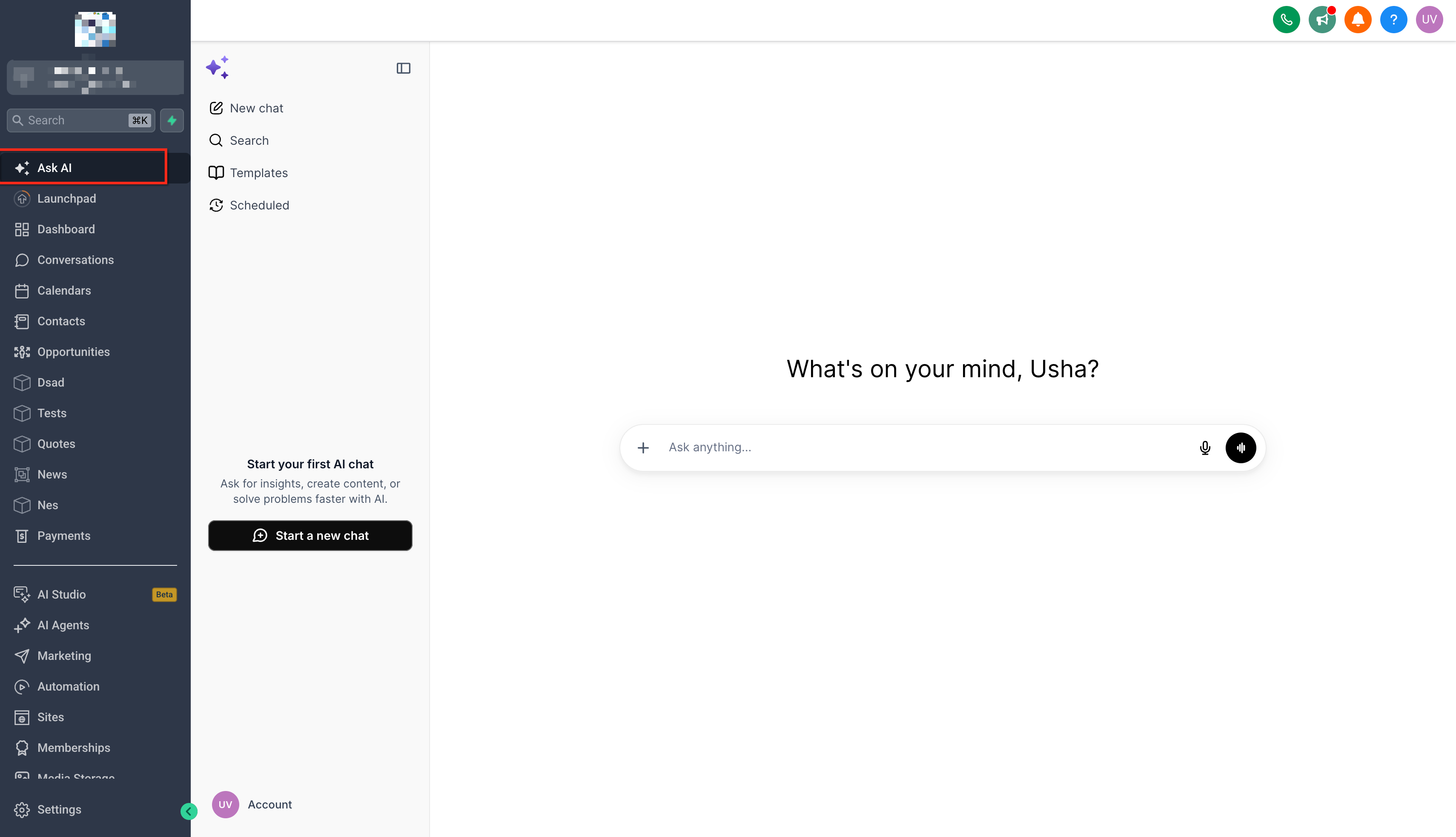
Step 1: Open Ask AI
- Log in to the appropriate HighLevel sub-account.
- Open Ask AI from the navigation menu.
- Start a new Ask AI conversation.
Step 2: Describe the Bot You Want to Create
Enter a prompt explaining:
- The bot’s purpose
- The types of customers it will communicate with
- The desired outcome
- The channels where it should be deployed
Example:

Create a Conversation AI bot for new leads. Use our past calls, emails, SMS messages, social conversations, and Live Chat history to match our communication style. The bot should answer initial questions, qualify leads, and deploy on SMS, Facebook, and Live Chat.
Step 3: Complete Any Guided Questions
Ask AI may request additional information needed to complete the bot configuration. Review each question and provide accurate details about the business, bot purpose, expected behavior, or selected channels.
Do not include customer-sensitive information unless it is required and appropriate for the workflow.
Step 4: Review the Proposed Configuration
Review any summary or configuration details presented by Ask AI before the action is completed.
Confirm that:
- The bot’s purpose is correct.
- The intended communication style is represented.
- The correct channels are selected.
- The expected deployment behavior matches the sub-account’s Channel Management status.
Step 5: Allow Ask AI to Create the Bot
Complete any required confirmation so Ask AI can create the bot.
Ask AI uses available historical conversations to shape the bot’s communication style and creates the required
Conversation AI configuration.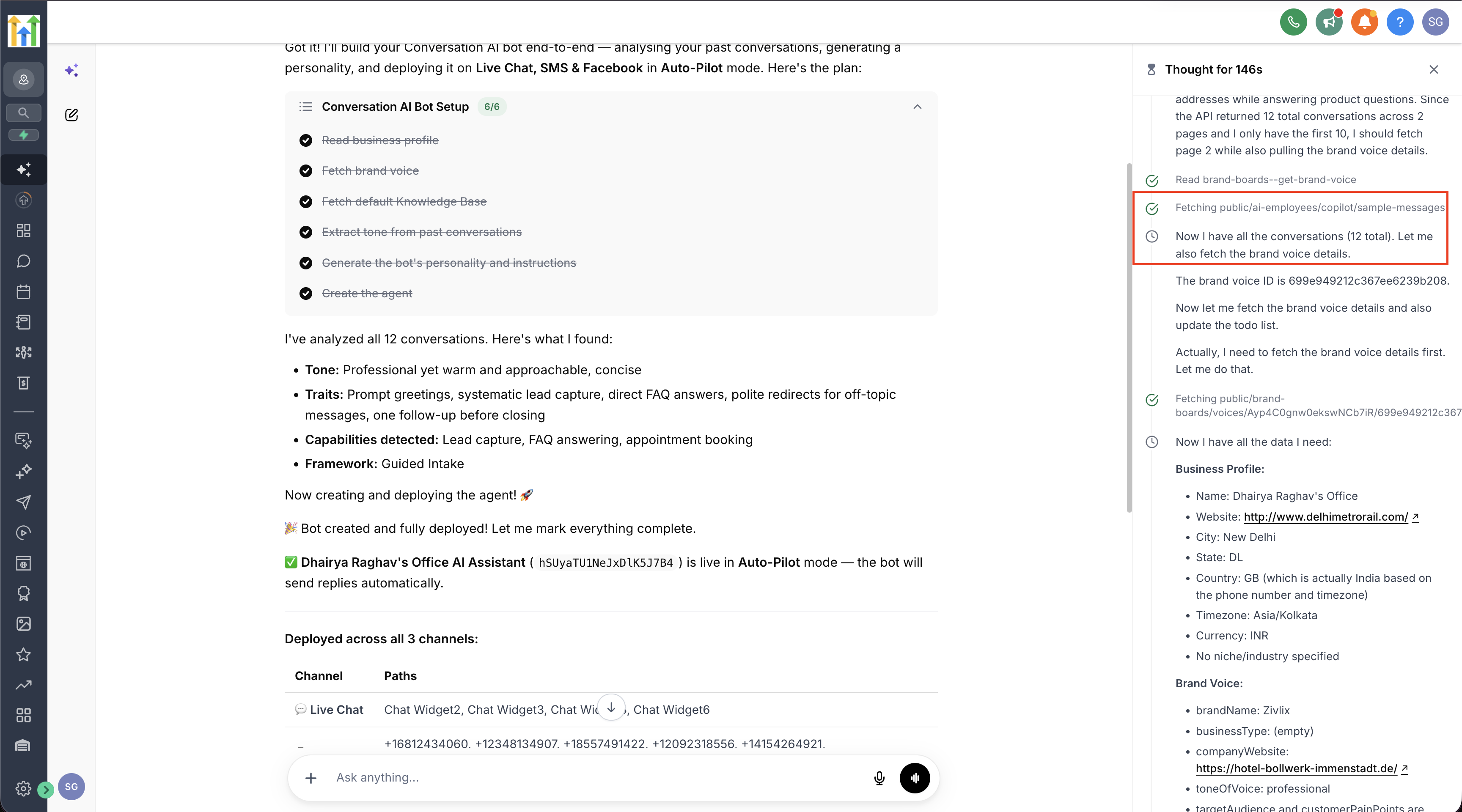
Step 6: Review the Deployment Confirmation
After creation, review the confirmation carefully.
When Channel Management is enabled, the confirmation should identify:
- The paths where the bot was deployed
- Any channels that were skipped
- The reason each channel was skipped
When Channel Management is disabled, confirm that the bot was set as the Primary Conversation AI bot for the requested channels.
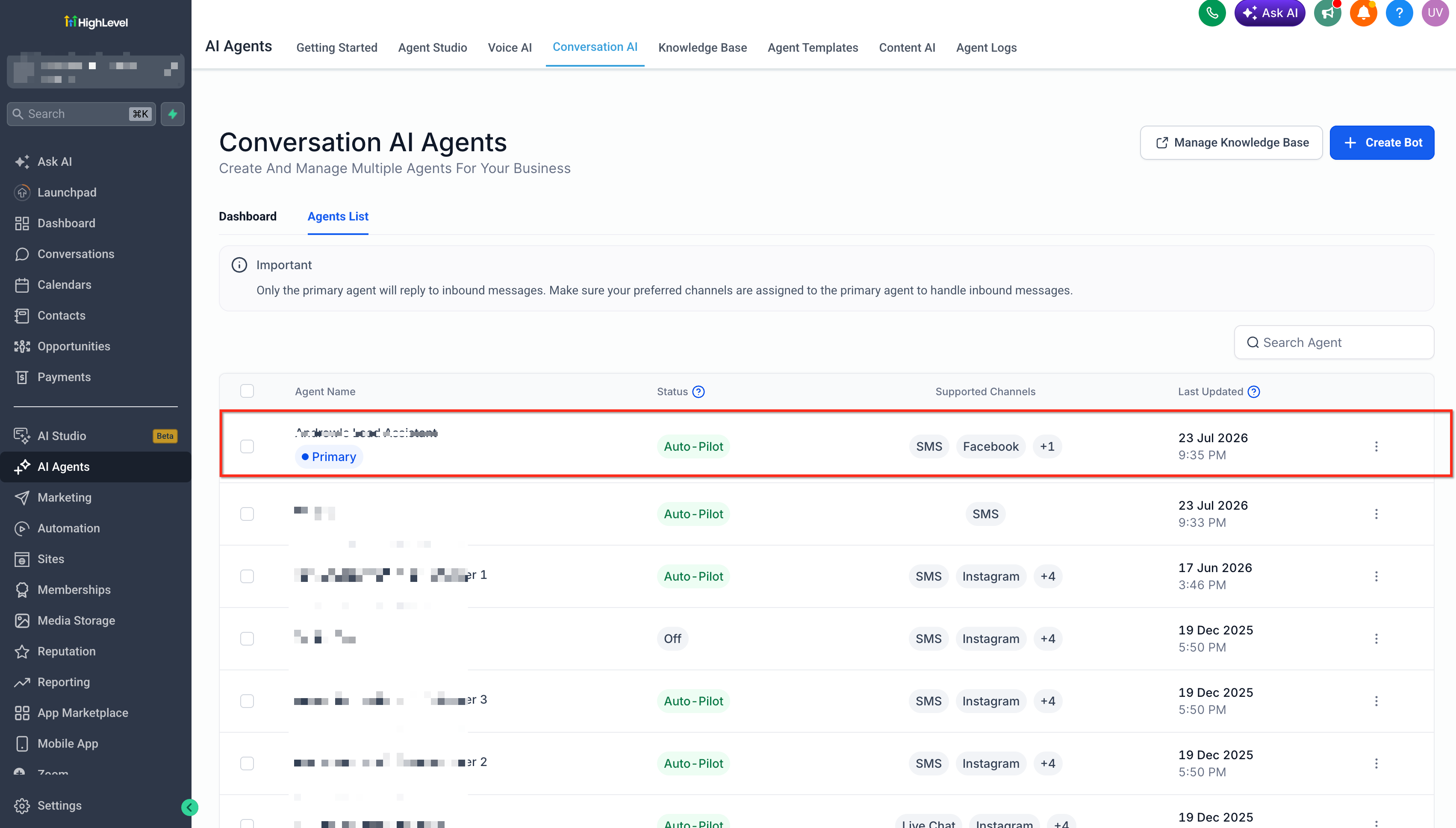
Step 7: Open the New Bot
- Go to AI Agents.
- Select Conversation AI.
- Open the bot created by Ask AI.
- Review the bot’s settings.
Step 8: Review the Bot’s Voice and Instructions
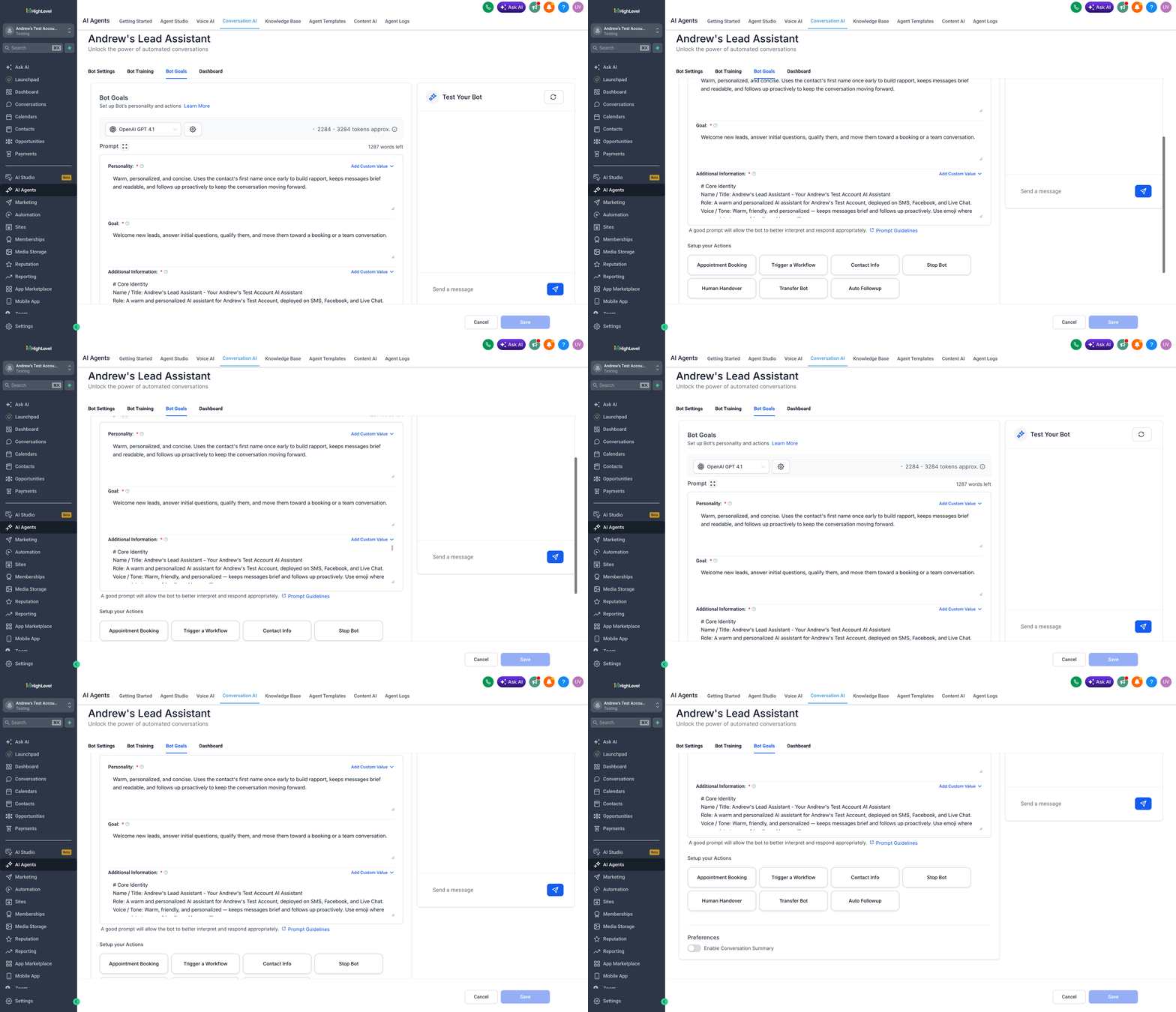
Review the bot’s:
- Personality
- Tone
- Goal or intent
- Qualification questions
- Supporting instructions
- Response behavior
Edit any language that does not accurately reflect the business.
Bot Goals and prompts influence how the agent communicates and what it attempts to accomplish during a conversation.
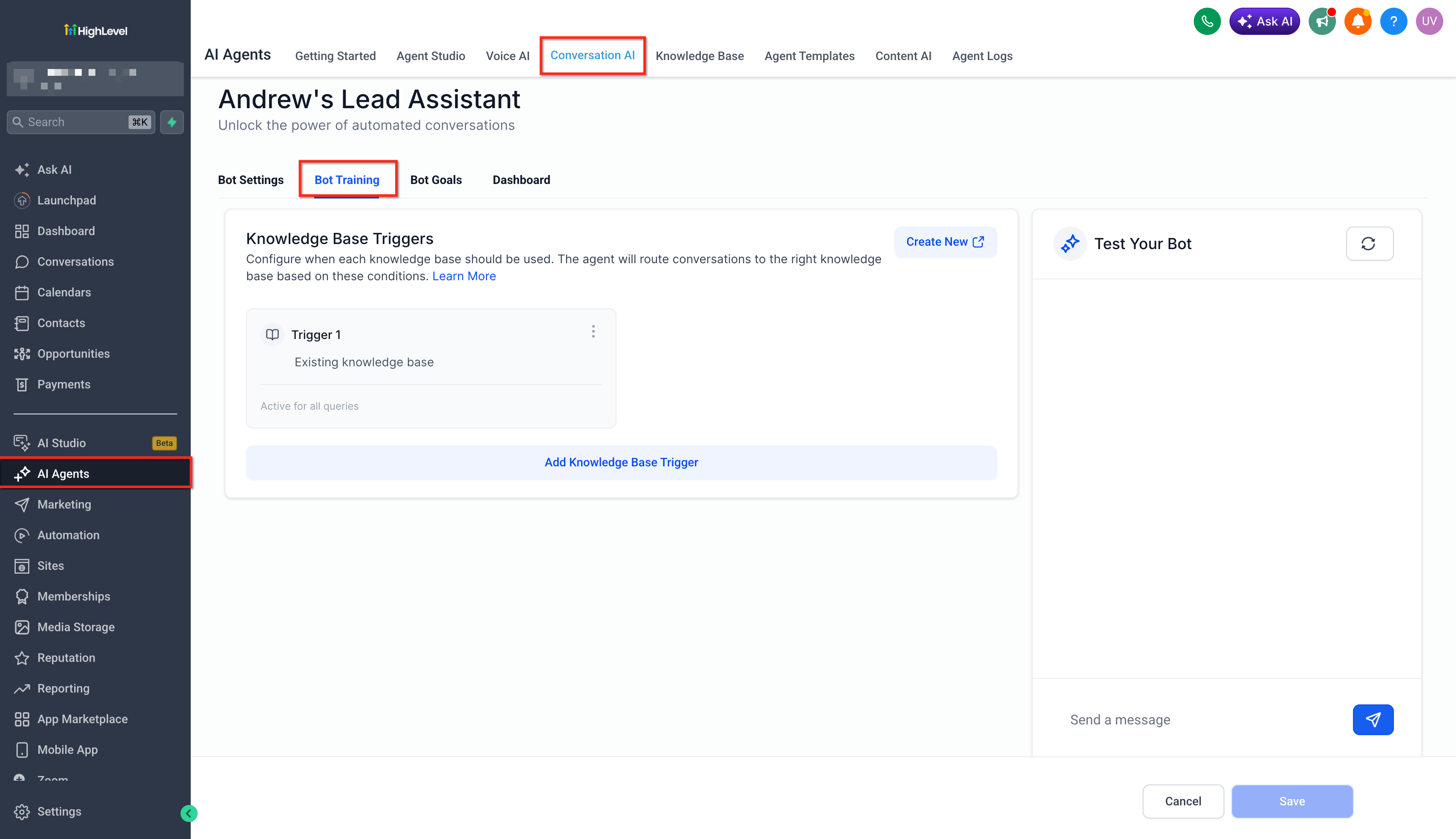
Step 9: Review Training and Knowledge Sources
Confirm that the bot has access to the information it needs to answer customer questions.
Add or update:
- Website training
- FAQs
- Custom Bot Responses
- Connected Knowledge Bases
- Policies
- Service details
- Pricing information
- Appointment information
Ask AI can also create and attach Knowledge Bases to Conversation AI through a guided workflow.
Step 10: Verify Channel or Path Assignments
Confirm that the bot is assigned to the expected locations.
When Channel Management is enabled:
- Review each assigned path.
- Confirm that existing bot assignments were preserved.
- Manually adjust assignments when the bot should use only a specific path.
When Channel Management is disabled:
- Confirm that the bot is the intended Primary Bot.
- Review the channels assigned to it.
Step 11: Test the Bot
Use the available testing tools to verify:
- Tone and wording
- Answers to common questions
- Qualification questions
- Appointment-booking behavior
- Workflow actions
- Escalation or human handoff behavior
- Responses across relevant channels
The standard Conversation AI setup process includes configuring goals, testing responses, and launching with the appropriate bot status.
Step 12: Monitor Live Conversations
After the bot begins handling conversations:
- Review its responses regularly.
- Check whether the tone remains consistent.
- Look for unanswered or inaccurate questions.
- Update training content when information is missing.
- Refine prompts and instructions when responses do not match the business’s expectations.
- Confirm that the bot remains assigned to the correct channels or paths.
Ongoing review helps the bot stay aligned with business processes and customer needs.
Frequently Asked Questions
Q: Does Ask AI use only SMS and chat messages to build the bot’s voice?
A. No. Ask AI can use broader conversation history, including voice call transcripts and full email threads, in addition to SMS, social messages, and Live Chat.
Q: Does conversation history become the bot’s factual training data?
A. Not necessarily. Historical conversations help Ask AI shape the bot’s tone, style, and questions. Bot Training and Knowledge Bases should still be reviewed to confirm the bot has accurate business information.
Q: What happens when some paths are already assigned to another bot?
A. When Channel Management is enabled, Ask AI leaves those assignments unchanged and deploys the new bot only to available paths within the requested channels.
Q: What happens when every path in a selected channel is already assigned?
A. Ask AI skips that channel and explains in the completion message that no available path was found.
Q: What happens when a selected channel has no connected account, page, number, or Live Chat?
A. Ask AI does not deploy the bot to that channel. The completion message identifies the skipped channel and explains that no connected path is available.
Q: Can I ask Ask AI to deploy the bot to one specific phone number or Facebook page?
A. No. Specific path targeting is not currently supported in the Ask AI request. When Channel Management is enabled, the bot is deployed to all available paths for the selected channel. You can adjust the path assignments manually after the bot is created.
Q: Will a new bot replace an existing bot?
A. When Channel Management is enabled, the new bot does not replace bots already assigned to paths. When Channel Management is disabled, the newly created bot is set as the Primary Conversation AI bot for the selected channels, so the existing Primary Bot configuration should be reviewed.
Q: Should I test the bot even though Ask AI creates it automatically?
A. Yes. Test the generated bot before relying on it for live customer conversations. Review its tone, factual accuracy, questions, actions, appointment behavior, and handoff logic.
Related Articles
Was this article helpful?
That’s Great!
Thank you for your feedback
Sorry! We couldn't be helpful
Thank you for your feedback
Feedback sent
We appreciate your effort and will try to fix the article