TABLE OF CONTENTS
- Overview
- Prerequisites
- How to Connect Microsoft Teams
- How to Add Microsoft Teams Links to Your Calendar
- Important Notes
- Limitations with Microsoft Teams Integration
- FAQs
Overview
By connecting your Microsoft Teams account, you can automatically generate dynamic meeting links, reducing manual steps. If you select Microsoft Teams as your meeting location in any calendar, a unique Teams link will automatically be generated for each new booking and sent along with the calendar invite.
Prerequisites
You need access to the Microsoft Teams account you want to connect.
How to Connect Microsoft Teams
There are two ways to connect your Microsoft Teams account:
- From the "My Profile" menu under the Settings tab.
- From the "Calendars" menu under the Settings tab.
Steps to connect Microsoft Teams from the "My Profile" menu
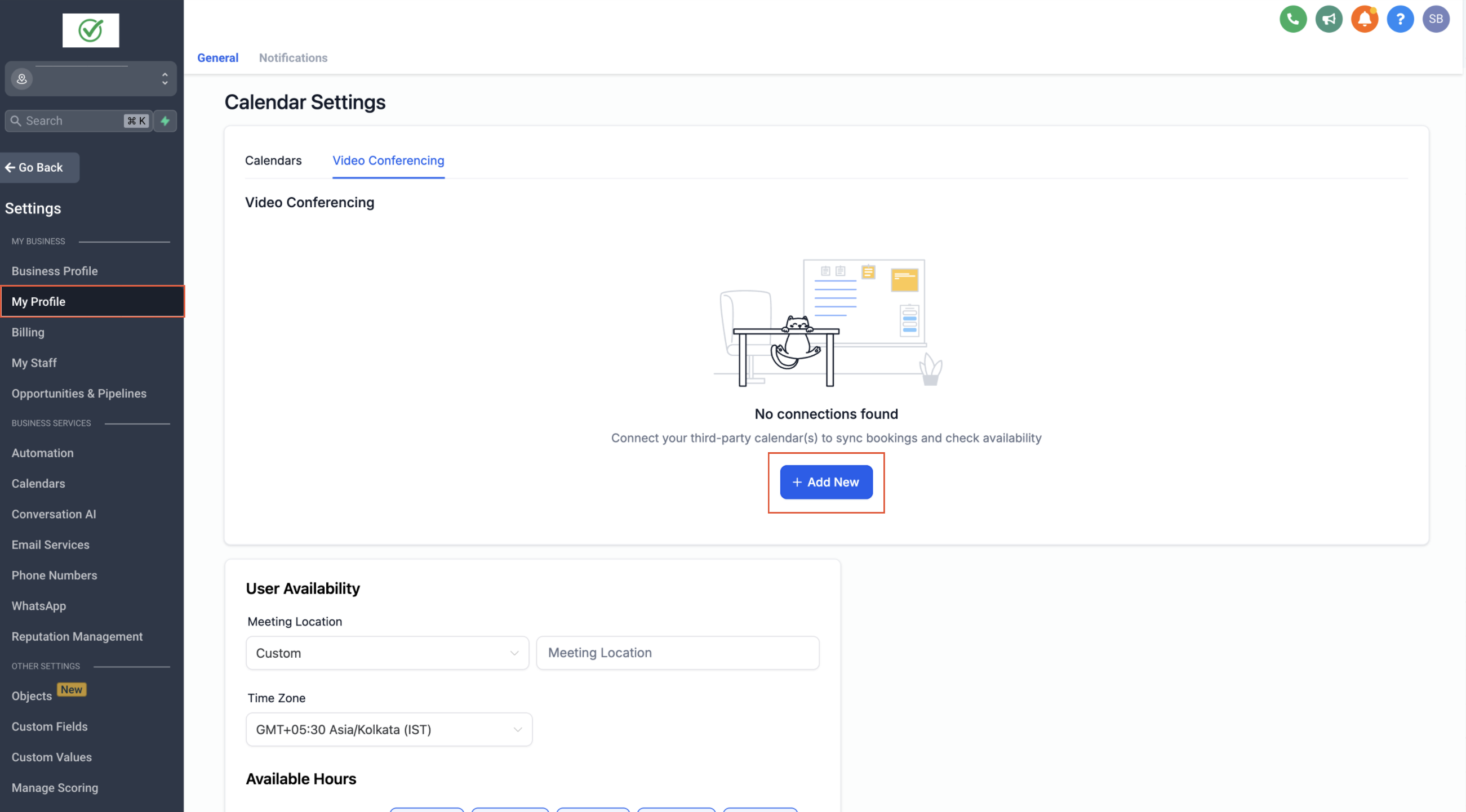
1. Navigate to Settings > My Profile.
2. Under Video Conferencing connections, click Add New.
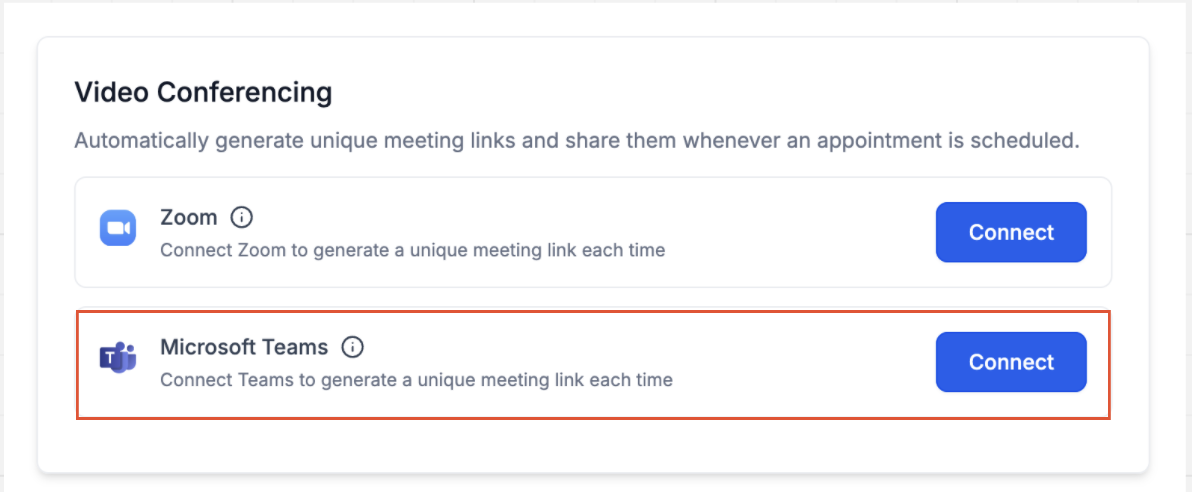
3. Select Microsoft Teams and click Connect.
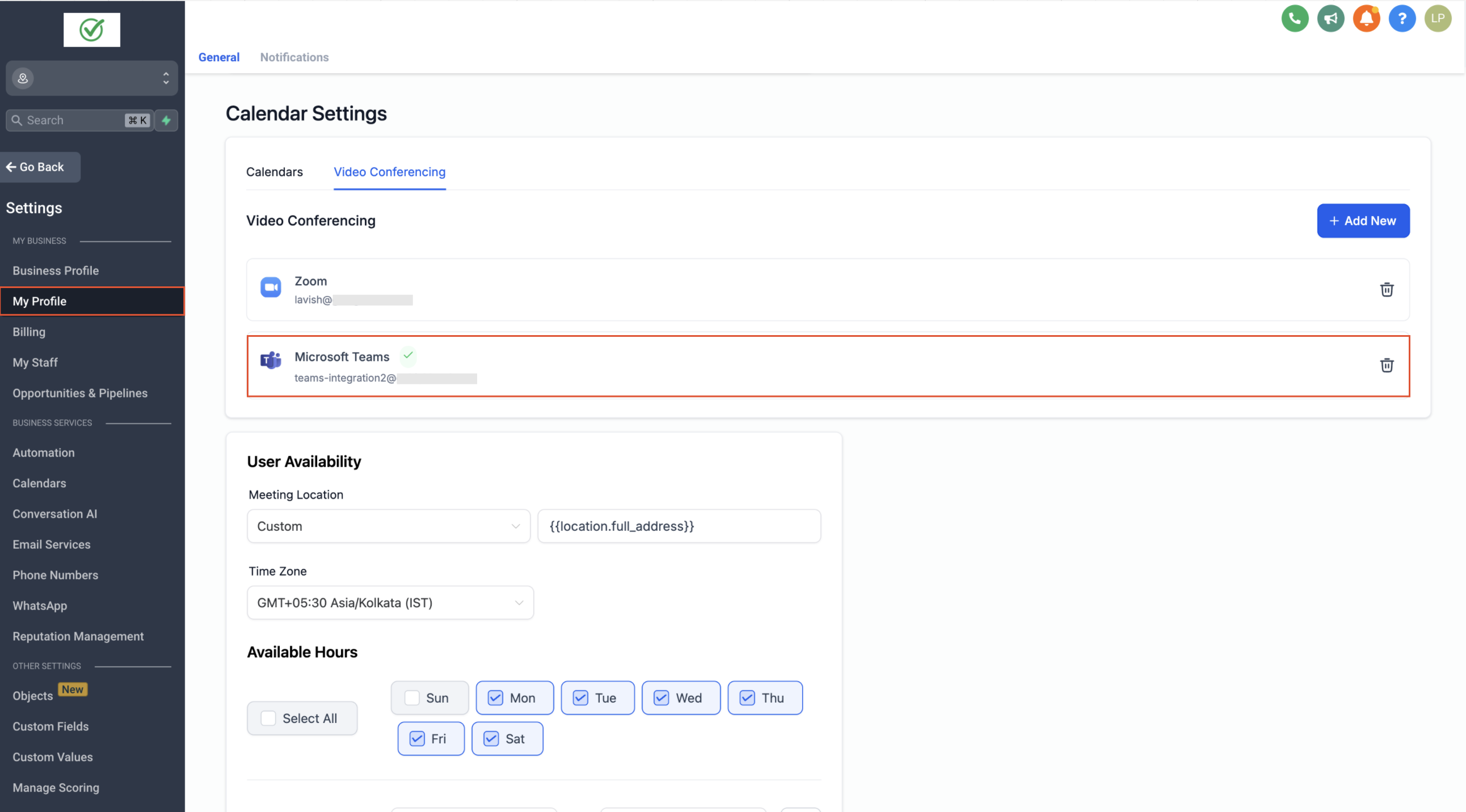
4. Sign in with your Microsoft Teams credentials.
5. Your Microsoft Teams account is now successfully connected.
Steps to connect Microsoft Teams from the "Calendars" menu
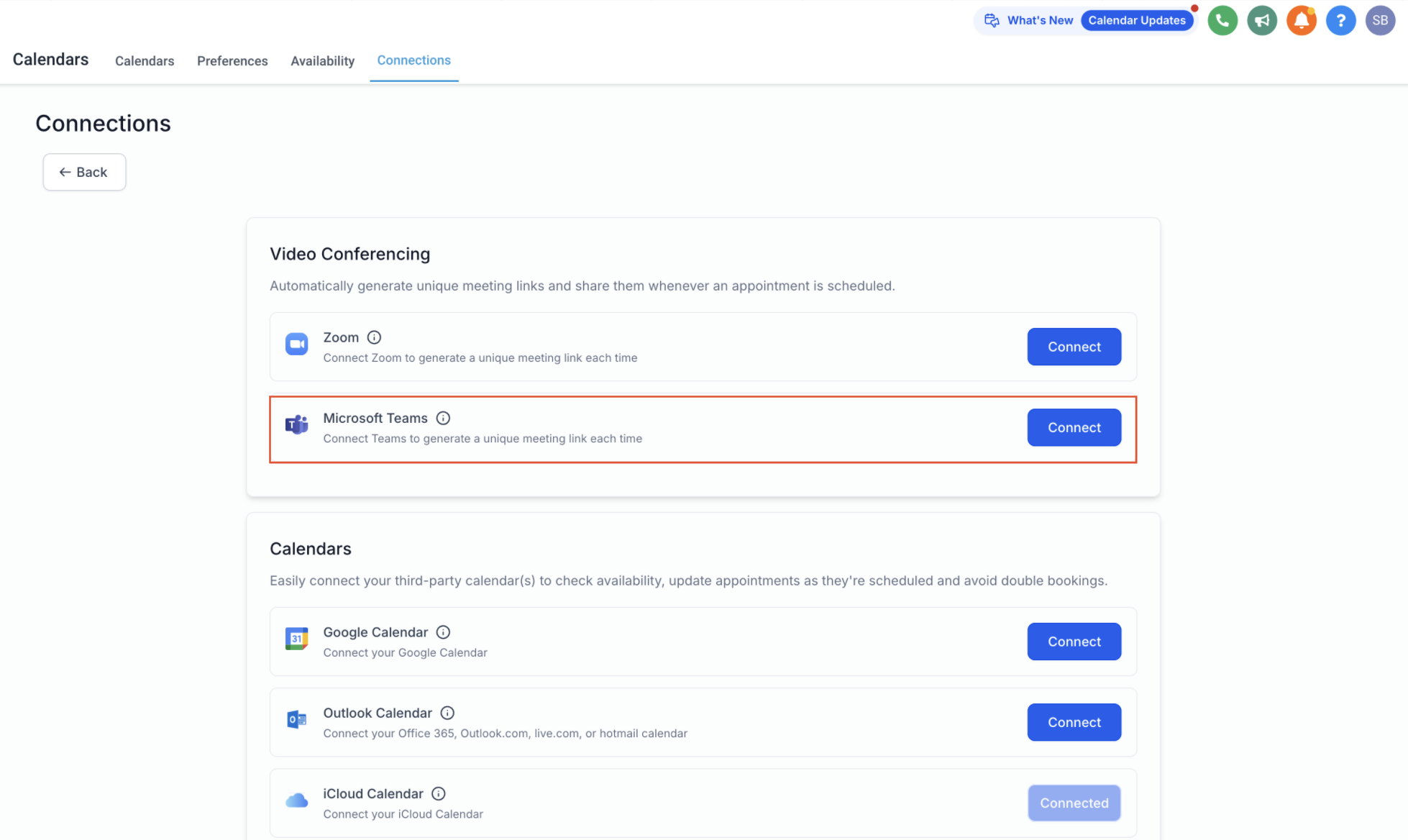
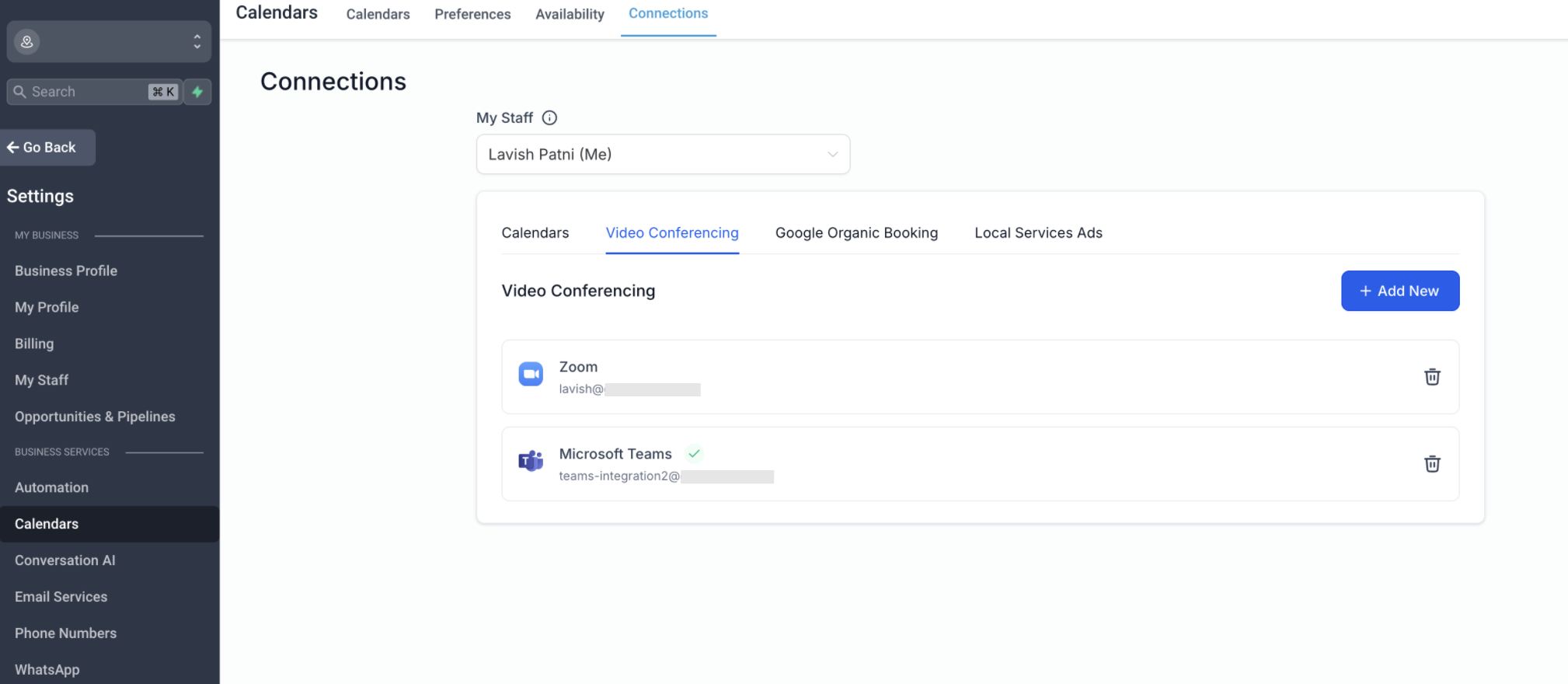
1. Go to Calendars > Calendar Settings > Connections.
2. Locate the Video Conferencing tab.
3. Click on Add New and then click Connect next to Microsoft Teams.
4. Sign in with your Microsoft Teams credentials.
5. Your Microsoft Teams account is now successfully connected.
How to Add Microsoft Teams Links to Your Calendar
After connecting your Teams account, you can add dynamic Teams links to your calendar. Here's how:
- Ensure your Microsoft Teams integration is successfully set up.
- Navigate to your Calendar Settings and edit the calendar you want to modify.
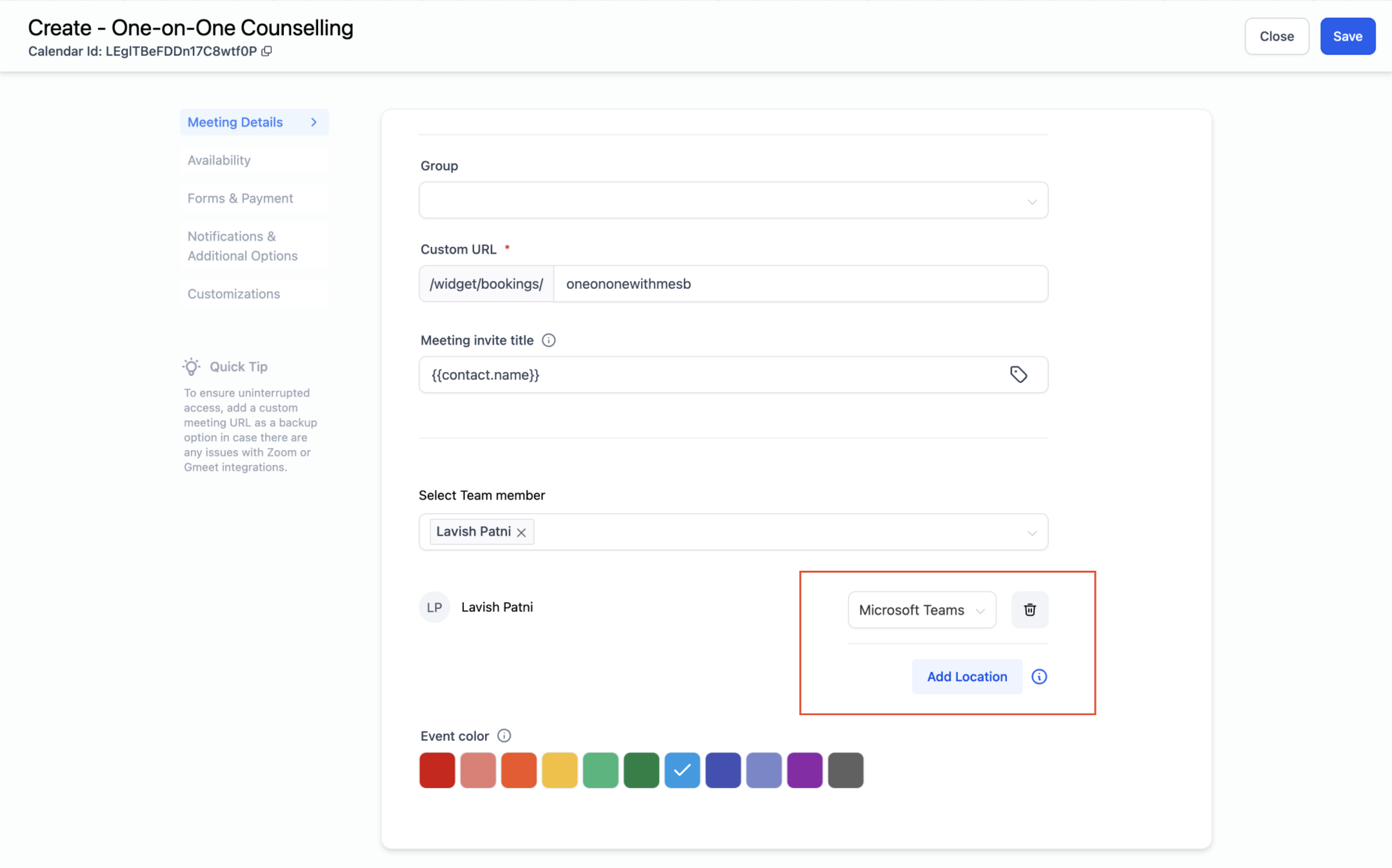
- Go to the Meeting Details tab and scroll to the Team Members section.
- Choose the team member, ensure they have successfully integrated Microsoft Teams, then select Microsoft Teams as the meeting location and click Save.
Important Notes
Connecting an Outlook calendar does not automatically link Microsoft Teams. To connect Teams, navigate to Calendar Connections > Video Conferencing and connect it separately.
- To view appointments on your Outlook calendar, ensure that your desired Outlook calendar is both connected and selected as the linked calendar. You can do this under Calendar Connections > Calendars.
Limitations with Microsoft Teams Integration
- Only Microsoft Teams accounts for Work and School (Organisation and Education) are eligible for integration.
- Each user can connect one Microsoft Teams account per location.
Use one Microsoft Teams account across locations & users
You can connect the same Microsoft Teams account in multiple locations and use it across multiple users.
Same account across locations: You can connect the same Microsoft Teams account in multiple locations.
Same account across users: Multiple users can connect and use the same Microsoft Teams account.
Limit: A user can connect one Microsoft Teams account per location.
Dynamic links requirement
Dynamic Teams links are created only when the connected Microsoft Teams account is selected as the meeting location in the calendar.
Connect path
Calendars → Settings → Connections → Video Conferencing → Add New → Microsoft Teams
Remove or switch the connected Teams account
You can remove or switch the connected Teams account from:
Connections → Video Conferencing
Go to Calendars → Settings → Connections → Video Conferencing.
Remove the existing Microsoft Teams connection or connect a different Teams account.
Confirm the meeting location setting on any calendars that should generate dynamic Teams links.
If Microsoft Teams is disconnected and later reconnected, HighLevel automatically generates Teams links for upcoming appointments that were created while the integration was disconnected and were missing a meeting link.
FAQs
Q: Which Calendars Support Dynamic Microsoft Teams Links?
A: Personal Booking, Round Robin, Collective Calendars, and Service Calendars support Microsoft Teams integration and automatically generate new Teams links for each appointment booked. This feature is coming soon for Class Booking Calendars.
Q: How Can I Use Microsoft Teams with Event Calendars?
A: You can use Microsoft Teams with Event Calendars by manually generating a Teams meeting link and adding it to the calendar settings.
Steps:
- Generate a meeting link in Microsoft Teams.
- In the calendar settings, select Custom as the meeting location.
- Paste the generated Teams link.
Note: This will add a static link, meaning the same link will be used for all future bookings.
Q: Can I connect the same MS Teams account across different locations / users?
A: Yes, the same Microsoft Teams integration can be used across multiple subaccounts, and for different users.
Q: Do supported calendar types still auto-generate Teams links when I use a shared Teams account?
A: Yes. Personal Booking, Round Robin, Collective Calendars, and Service Calendars auto-generate Teams links as long as Microsoft Teams is selected as the meeting location and the Teams account is connected in Video Conferencing.
Was this article helpful?
That’s Great!
Thank you for your feedback
Sorry! We couldn't be helpful
Thank you for your feedback
Feedback sent
We appreciate your effort and will try to fix the article