TABLE OF CONTENTS
Overview
Use Google Sheets with HighLevel Workflows to start an automation when a spreadsheet or worksheet is created, a row is added, or an existing row is updated. You can also send workflow data to a Google Sheet using an action. This article explains the four Google Sheets triggers and retains the Create Spreadsheet Row action setup below.
Triggers and actions serve different purposes: a trigger starts a workflow from an event in Google Sheets; an action performs a task in Google Sheets after a workflow starts.
Available Google Sheets Triggers
All four triggers are currently labeled Beta and Polling 5 Mins in the workflow builder. They check for new events every five minutes, so an event can take up to five minutes to appear.
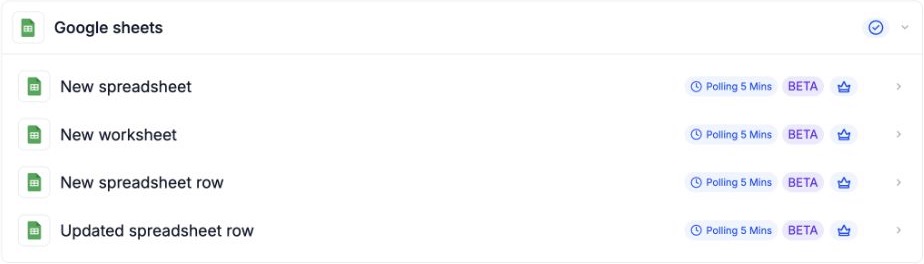
All four Google Sheets triggers in the workflow builder.
| Trigger | When it runs | What to select |
|---|---|---|
| New spreadsheet | A new Google Sheets spreadsheet is created in the selected Drive. | Google account and Drive |
| New spreadsheet row | A new row is added after the last row of the selected sheet/tab. | Google account, Drive, Spreadsheet, and Sheet (Tab) |
| Updated spreadsheet row | A cell in an existing row is modified. Newly added rows are excluded. | Google account, Drive, Spreadsheet, and Sheet (Tab) |
| New worksheet | A new worksheet/tab is added to the selected spreadsheet. | Google account, Drive, and Spreadsheet |
Before You Begin
- Use a connected Google account that has access to the Drive and spreadsheet you want to monitor.
- For New Spreadsheet Row and Updated Spreadsheet Row, have the spreadsheet and sheet/tab ready. For New Worksheet, have the parent spreadsheet ready.
- The setup panel marks Google Sheets as Premium. Review your account's premium workflow usage and billing settings before enabling the workflow.
In Automation > Workflows, open a workflow and select Add Trigger. Search for the trigger name or locate the Google sheets category. Select a trigger and choose the Google account under Choose an Account. You can edit Workflow Trigger Name to make its purpose clear.
Under Filters, use Add filters to expose the next selection when needed. Select the Drive first; spreadsheet options load after a Drive is selected. Select the Spreadsheet before choosing its sheet/tab.
Trigger: New Spreadsheet
Starts a workflow when a new Google Sheets spreadsheet is created in the selected Drive. A spreadsheet is the entire Google Sheets file.
- Select New spreadsheet in the trigger picker.
- Choose the connected Google account and give the trigger a descriptive name.
- Under Filters, add/select Drive, then choose the Drive to watch, such as My Drive.
- Map a sample record and test the trigger using the steps below.
- Select Save trigger, save the workflow, and publish it when the complete automation is ready.
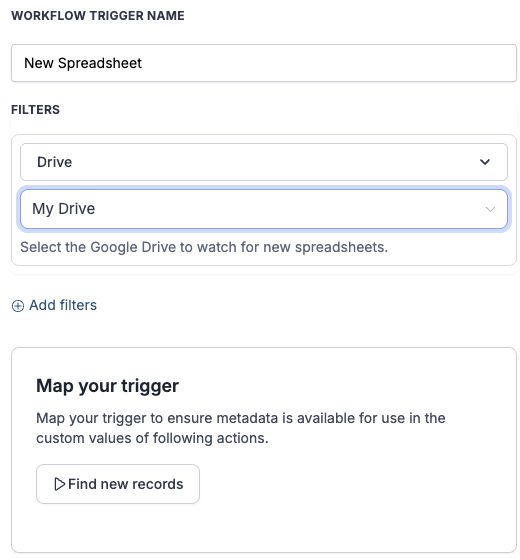
New Spreadsheet: select the Drive to watch.
Example: start an internal reporting workflow whenever a new spreadsheet is created in the reporting team's selected Drive.
Trigger: New Spreadsheet Row
Starts a workflow when a row is appended after the last row of the selected sheet/tab. Use this when a spreadsheet is the source of new records for your automation.
- Select New spreadsheet row and choose the connected Google account.
- Add/select Drive and choose the Drive containing your spreadsheet.
- Add/select Spreadsheet and choose the file to monitor.
- Add/select Sheet (Tab) and choose the tab to monitor.
- Map a sample record, save the trigger, and test with a new row appended at the bottom of that tab.
- Save the workflow and publish it when ready.
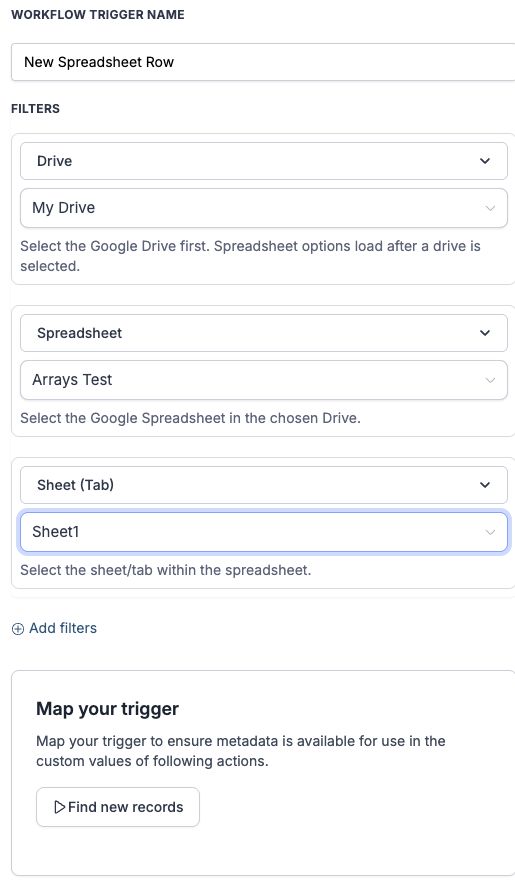
New Spreadsheet Row: select the Drive, Spreadsheet, and Sheet (Tab).
Important: rows are tracked by position. Inserting rows in the middle of the sheet can cause rows at the end to trigger again. Deleting rows can cause the next new rows to be skipped, one for each deleted row. Append new records at the bottom and avoid inserting or deleting rows while relying on this trigger.
Example: a team appends a new inquiry to the bottom of a lead intake tab. The trigger starts the workflow, and mapped row data can be used in following actions.
Trigger: Updated Spreadsheet Row
Starts a workflow when a cell in an existing spreadsheet row is modified. It does not fire for newly added rows. Use New spreadsheet row when you want to start a workflow from a newly appended record.
- Select Updated spreadsheet row from the Google sheets trigger category.
- Choose your connected Google account. If a connection is required, select Connect your account and complete the connection before configuring filters.
- Select the Drive containing the spreadsheet, then select the Spreadsheet and Sheet (Tab) to monitor. Use Add filters to expose the next selection when needed.
- Use Find new records to select a mapping reference for data you want to use in later actions.
- Save the trigger and workflow. In Test > Test using events, turn on Listen for events, then edit a cell in an existing row of the selected tab. Allow up to five minutes for the event to appear.
- Review the recorded event and workflow actions. Publish the workflow when it is ready.
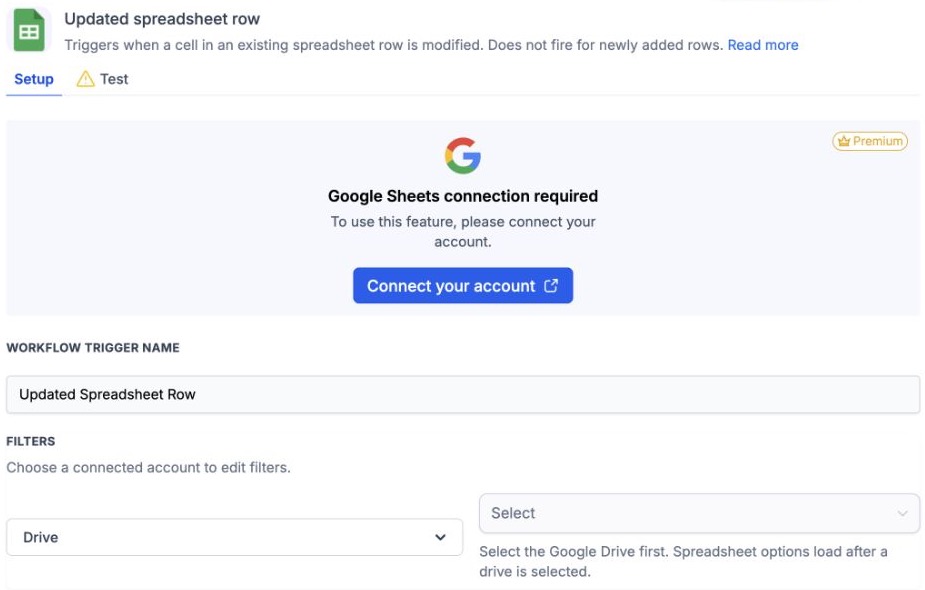
Updated Spreadsheet Row: connect Google Sheets before configuring the source filters. Newly added rows are excluded.
Example: a team changes the status or project details in an existing row. The trigger starts a workflow that uses the updated record in its following actions.
Trigger: New Worksheet
Starts a workflow when a new worksheet/tab is added to the selected spreadsheet. A worksheet is an individual tab inside a Google Sheets file.
- Select New worksheet and choose the connected Google account.
- Add/select Drive and choose the Drive containing the parent spreadsheet.
- Add/select Spreadsheet and choose the file to watch for new tabs.
- Map a sample record, save the trigger, and test by adding a new worksheet/tab to that spreadsheet.
- Save the workflow and publish it when ready.
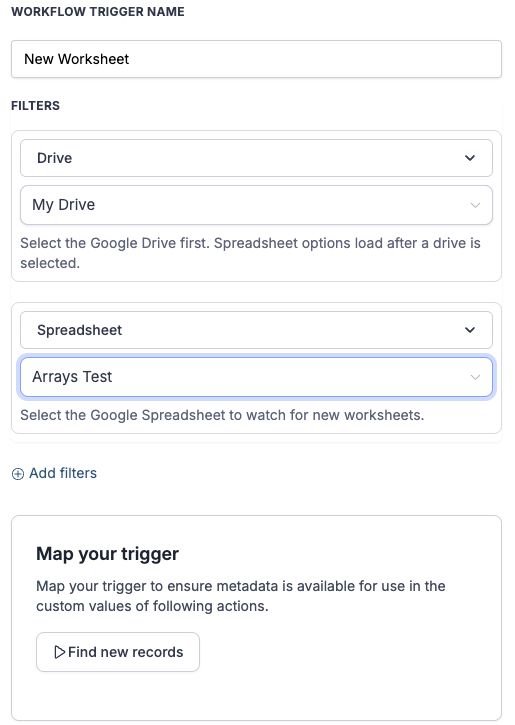
New Worksheet: select the parent spreadsheet to watch for new tabs.
Example: begin a monthly reporting process when a team adds a new month tab to its reporting spreadsheet.
Map and Test Your Trigger
Make trigger data available to later actions
- Complete the account and filter selections in Setup.
- Under Map your trigger, select Find new records.
- When records are returned, select a record as the mapping reference and review its payload. Use a representative record for the information your workflow needs.
- Use the mapped trigger data from the custom value picker in following actions. The available values depend on the selected trigger and returned record.
Test with a real Google Sheets event
- Save the trigger and workflow. Opening the Test tab may save the trigger to the canvas; save the workflow as well if prompted.
- Open the trigger's Test tab and select Test using events.
- Turn on Listen for events. The builder records matching events for 15 minutes.
- Create the matching event in Google Sheets: create a spreadsheet in the selected Drive, append a row to the selected tab, edit a cell in an existing row for Updated Spreadsheet Row, or add a tab to the selected spreadsheet.
- Allow up to five minutes for the event to appear, then select the recorded event to test the trigger.
- Review the test result and the workflow's Execution logs. Check the configured actions before running a complete workflow test.
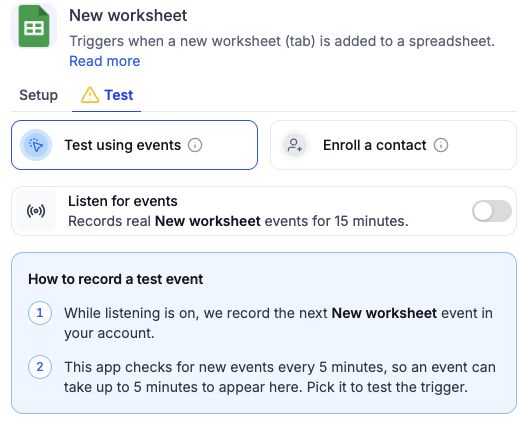
Test using events: listen for a matching event and allow up to five minutes.
Frequently Asked Questions and Troubleshooting
Why does the trigger not run immediately?
These are polling triggers. Google Sheets is checked every five minutes, and an event can take up to five minutes to appear in the test listener.
Why does Updated Spreadsheet Row not fire when I add a new row?
Updated Spreadsheet Row monitors changes to cells in existing rows and excludes newly added rows. Select New Spreadsheet Row to start a workflow when a new row is appended. When testing an update, edit a cell in an existing row in the exact tab selected in the trigger.
What is the difference between New Spreadsheet and New Worksheet?
New Spreadsheet watches for a new file in the selected Drive. New Worksheet watches for a new tab within one selected file. Choose New Spreadsheet Row for new rows appended to a specific tab, or Updated Spreadsheet Row for changes to cells in existing rows.
Why is my spreadsheet or tab missing?
Check that the selected Google account has access to it. Select the correct Drive first, then the Spreadsheet, then Sheet (Tab) if applicable. Use the dropdown's refresh control if the file or tab was recently created.
Why are rows duplicated or skipped?
The New Spreadsheet Row trigger uses row positions. Inserting rows mid-sheet can retrigger rows at the end; deleting rows can skip subsequent new rows. Keep the monitored tab stable and append new records at the bottom.
Why can I not use trigger data in a later action?
Return to Setup, complete the filters, and use Find new records to select a mapping reference. Review that record's payload, then check the custom value picker in the following action.
Why is no test event appearing?
Confirm that listening is on, create the matching event in the exact Drive, spreadsheet, or tab selected in Setup, and allow a polling cycle. If the 15-minute listening window has ended, turn listening on again and create another matching event.
Google Sheets Action: Create Spreadsheet Row
What the Action Does
The Create Spreadsheet Row action is used to add a new row of data into a specified Google Sheets spreadsheet. This action can automatically log information such as ticket details, user information, or any other relevant data that needs to be recorded.
Action Details

Create Spreadsheet Row action settings.
| Field | Description | Mandatory |
|---|---|---|
| Action Name | The name of the action, identifying what it will do. For this action, it's set to "Create Spreadsheet Row". | Yes |
| Action | Defines the specific operation to be performed on Google Sheets. Options include creating a row, updating a cell, etc. For this action, it's "Create Spreadsheet Row". | Yes |
| Choose an Account | The Google account linked to your HighLevel platform that has access to the desired Google Sheet. | Yes |
| Drive | Specifies the Google Drive where the spreadsheet is located. Typically set to "My Drive" for personal documents. | Yes |
| Spreadsheet | Select the specific Google Sheets document where the data will be sent. This field lists all accessible spreadsheets in the chosen account. | Yes |
| Worksheet | The specific worksheet within the selected spreadsheet where the new row will be added. Worksheets are individual tabs within a Google Sheets document. | Yes |
| Refresh Headers | A button that updates the available columns based on the current headers in the selected worksheet. This ensures data is mapped correctly to the columns. | No |
| Starting Column | Specifies the starting column for where the data will be inserted. Maps data to the correct column based on the Google Sheet's headers. | Yes |
| Ending Column | Specifies the ending column for where the data will be inserted. Allows you to define a range of columns to populate with data. | Yes |
| Dynamic Fields | These fields appear based on the columns in your spreadsheet. Each column is represented here, and you can specify what data should be inserted into each one. Example fields include Ticket ID (A) and Subject (B). | Yes |
How to Configure the Action
- Add the Action to Workflow: Drag and drop the Google Sheets action into your desired workflow.
- Select Action Type: Choose "Create Spreadsheet Row" from the Action dropdown.
- Choose Google Account: Select the linked Google account that has access to your Google Sheets.
- Select Drive: Typically, select "My Drive" unless you are using a shared drive.
- Select Spreadsheet and Worksheet: Choose the specific Google Sheets document and the corresponding worksheet tab where you want to add the data.
- Map Data Fields: Use the Starting Column and Ending Column to define the range. Map the workflow data to the corresponding columns in the Google Sheet by entering values or using custom values.
- Refresh Headers: Click this if you’ve made recent changes to the Google Sheet’s headers to ensure the data aligns correctly.
Action Example
When a new support ticket is created, use Google Sheets – Create Spreadsheet Row to record its details in the sheet.
| Setting | Example value |
|---|---|
| Drive | My Drive |
| Spreadsheet | Support_Analysis_2023 |
| Worksheet | September |
| Column range | Ticket ID (A) through Subject (B) |
| Ticket ID | Insert the ticket ID using custom values. |
| Subject | Insert the ticket subject using custom values. |
By integrating the Google Sheets action within workflows, you can automate data entry tasks, ensuring critical information is logged accurately and consistently, reducing manual errors and saving time.
Was this article helpful?
That’s Great!
Thank you for your feedback
Sorry! We couldn't be helpful
Thank you for your feedback
Feedback sent
We appreciate your effort and will try to fix the article