This guide explains the core Media Storage workflows in HighLevel, including how to access, upload, organize, search, preview, manage, and recover media files.
TABLE OF CONTENTS
- Access Media Storage
- How to Upload Files in Media Storage
- Organize and Find Media
- Preview and Insert Media
- Manage Files and Folders
- Trash and File Recovery
- Frequently Asked Questions
Access Media Storage
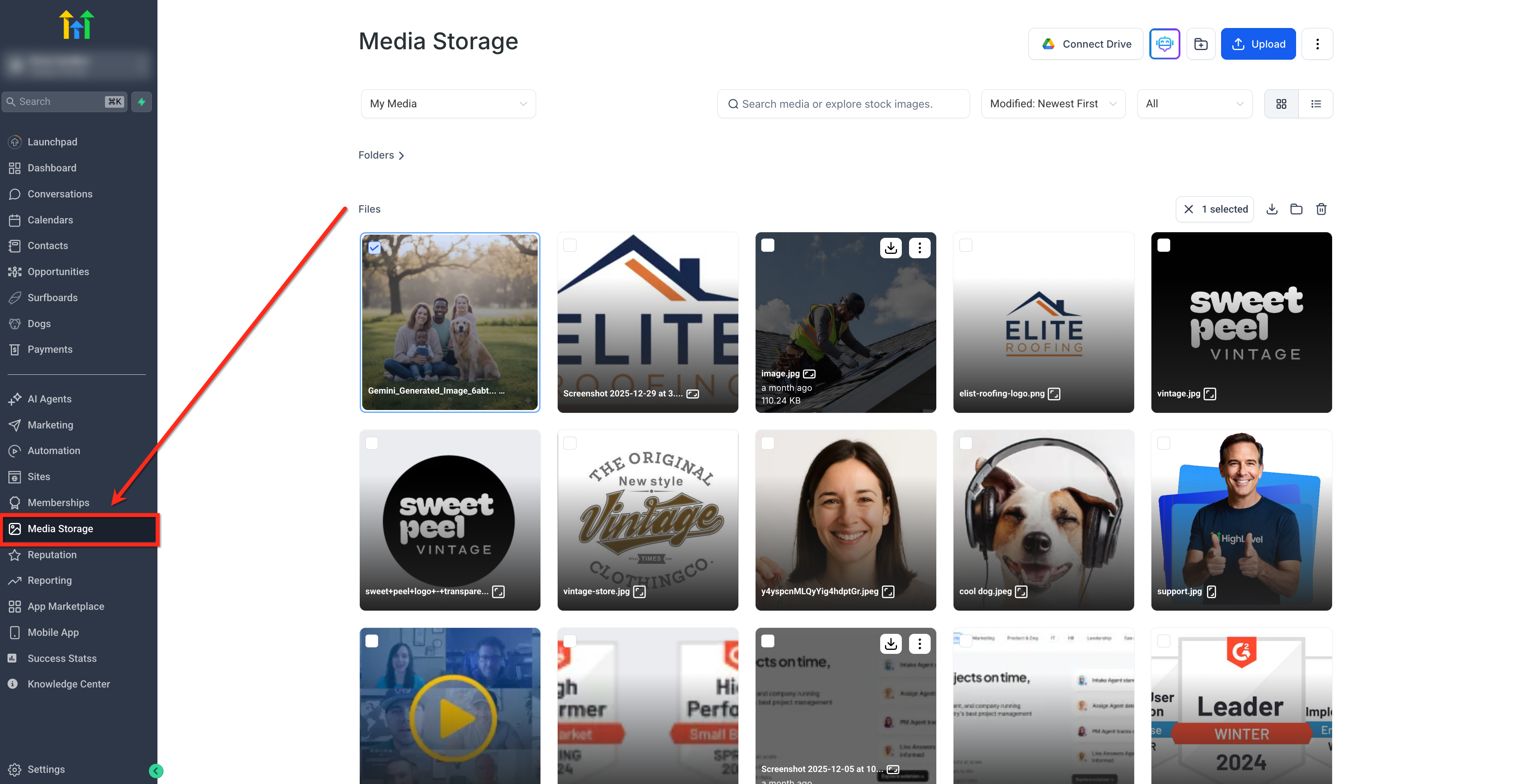
To access Media Storage, go to the left sidebar of your dashboard and click Media Storage.
How to Upload Files in Media Storage
Upload Individual Files
Drag files from your computer directly into the Media Storage interface to upload them.
For supported file types, upload limits, browser compatibility, and advanced Media Storage behavior, see Media Storage File Types, Limits & Advanced Features.
Track Upload Progress
When you upload files to Media Storage, the upload panel shows progress in real time. The header shows the number of items uploading, the transferred size, and the overall upload percentage.
Each file shows its upload percentage and transferred size compared with its total file size. The upload panel shows whether each file is uploading, completed, failed, or cancelled.
Cancel Uploads
To cancel one file while it is uploading, hover over the file and click the X. Only the selected file is cancelled, and the remaining files continue uploading. Individual upload cancellations do not require confirmation.
If you close the upload panel while files are still uploading, a confirmation appears. Select Continue Uploading to return to the upload panel, or select Cancel Uploads to stop all active uploads.
Upload a Folder
You can upload an entire folder to Media Storage while keeping its folder structure.
During the upload, progress appears in a folder-based view so you can track nested folders and files. A toast notification also shows how many items were skipped.
Folder uploads support up to 3 levels of nested folders and up to 1,000 files per upload.
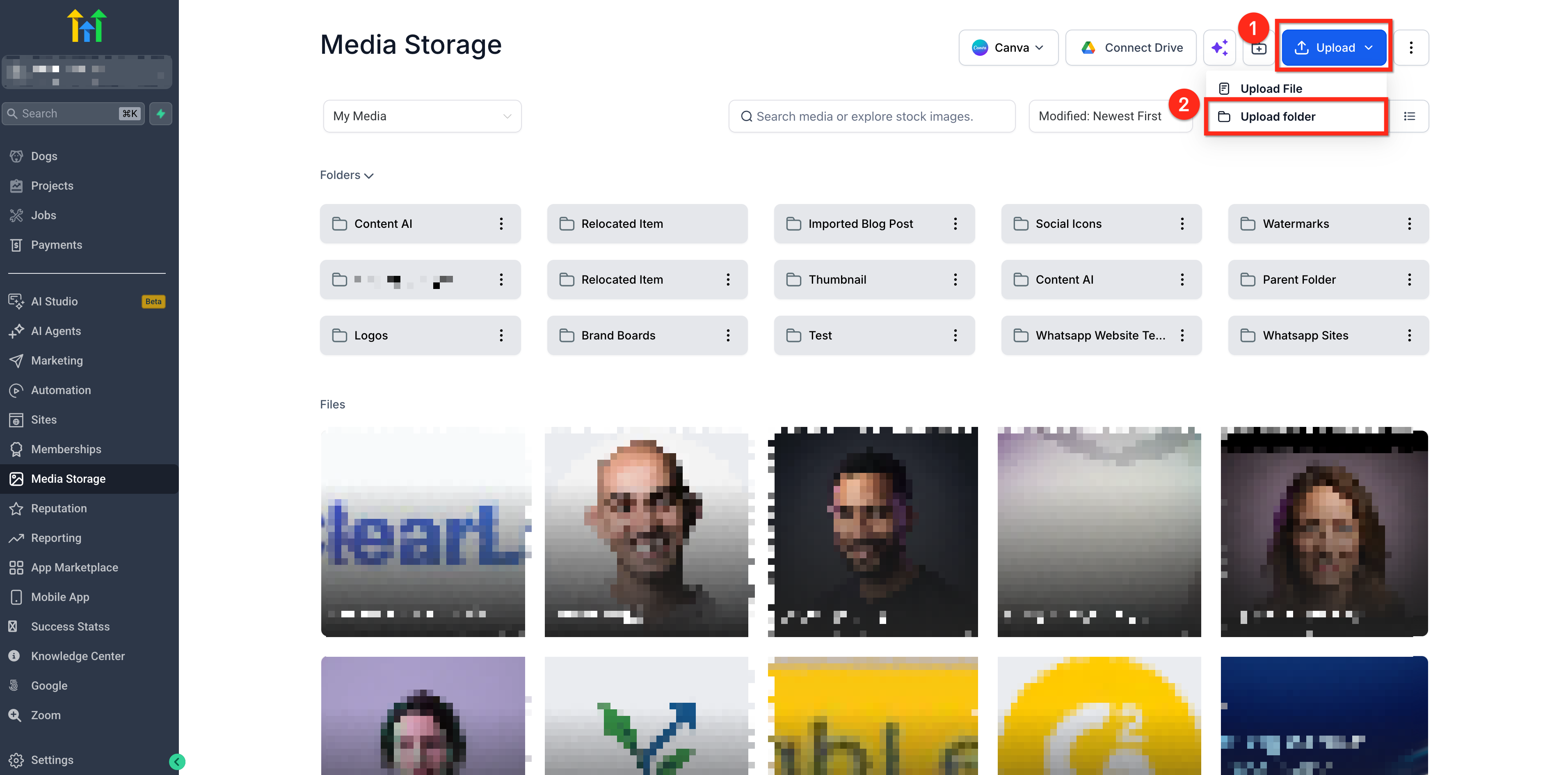
To upload a folder:
- Click Upload.
- Select Upload Folder.
Upload a File from a URL
You can import images, videos, audio files, and documents into Media Storage using a direct file URL.
To import a file from a URL:
Click Upload.
Select Upload URL.
Paste a direct link to an image, video, audio, or document file, such as
.jpg,.mp4,.mp3, or.pdf.Wait for Media Storage to fetch the file. A green checkmark in the URL field confirms that the file was fetched successfully.
Preview the file when a preview is available.
Confirm the copyright checkbox.
Click Import.
Direct file URLs continue to work for individual images, videos, audio files, and documents. The same Upload URL option now also accepts regular webpage URLs and displays a selectable grid of importable media files. For instructions on importing multiple files from a webpage, see Import Multiple Files from a Webpage below.
Direct video file links remain supported. However, YouTube, Vimeo, Loom, and Google Drive page URLs are not supported for webpage imports.
Supported audio formats include:
MP3
WAV
M4A
AAC
OGG
FLAC
Supported document formats include:
PDF
DOC
DOCX
XLS
XLSX
PPT
PPTX
TXT
CSV
Supported files can display an inline preview before import when an in-browser renderer is available. For example, you can play supported audio or browse PDF pages before importing.
PPT, PPTX, and legacy DOC files can still import successfully but may display a Preview not available card because they do not have an in-browser renderer.
If the source website blocks in-browser preview, Media Storage may display the preview-unavailable state while still allowing the import to succeed. The file is retrieved server-side during import.
After the file is imported, Media Storage stores it in the library like any other upload and provides a new live URL for the uploaded file.

Import Multiple Files from a Webpage
Media Storage allows you to import multiple supported images, videos, audio files, and PDFs directly from a webpage without downloading each file individually. Simply enter a webpage URL, review the detected files, and select the ones you want to import. This makes it easier to collect media from blog posts, landing pages, and media galleries in a single workflow.
How to Import Multiple Files from a Webpage
From the Sub-Account view, click Media Storage in the left sidebar.
Click Upload in the upper-right corner.
Select Upload URL from the dropdown menu.
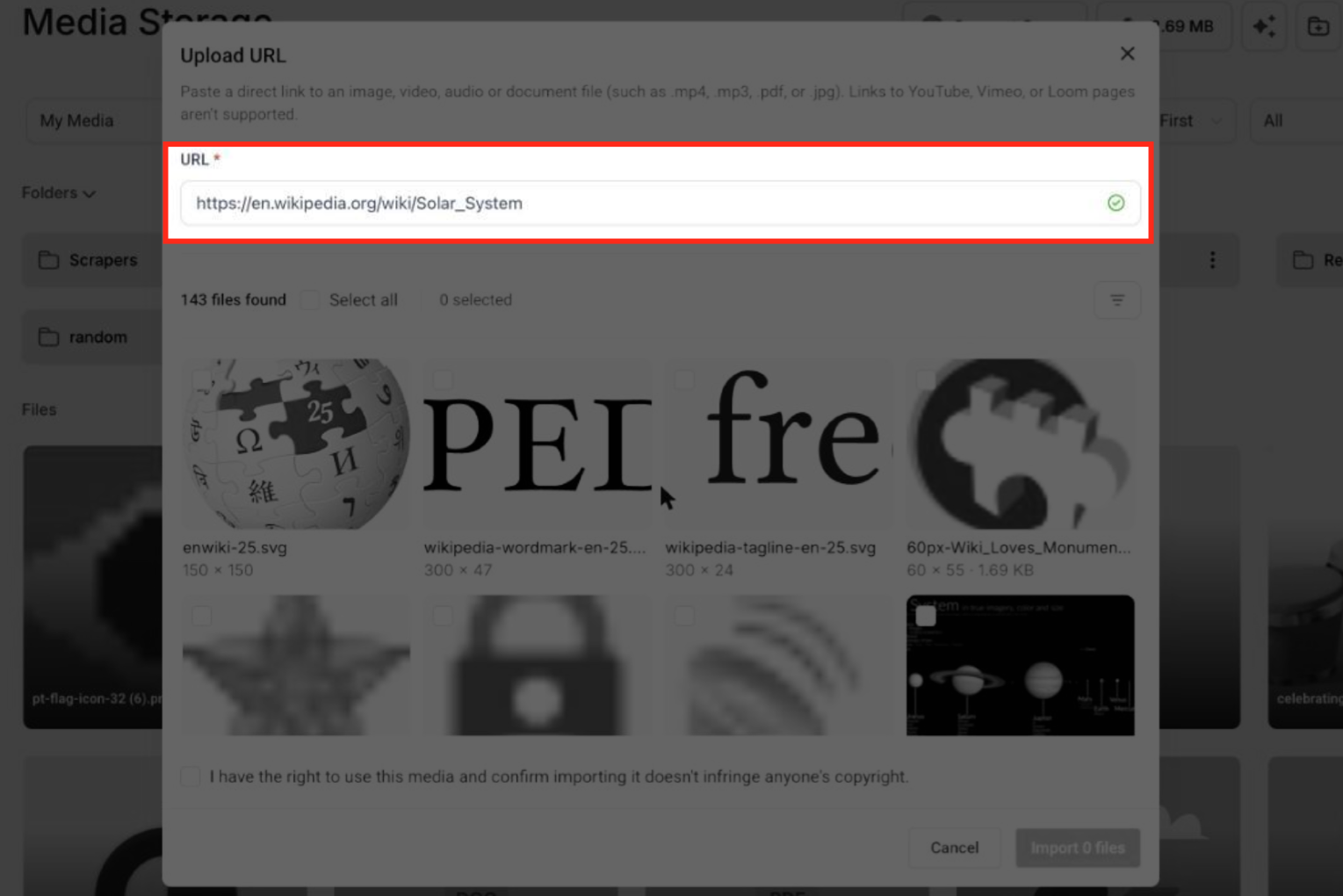
Paste the webpage address into the URL field.
Wait for Media Storage to scan the webpage. A green checkmark confirms a successful scan. The detected files appear in a selectable grid with media thumbnails.
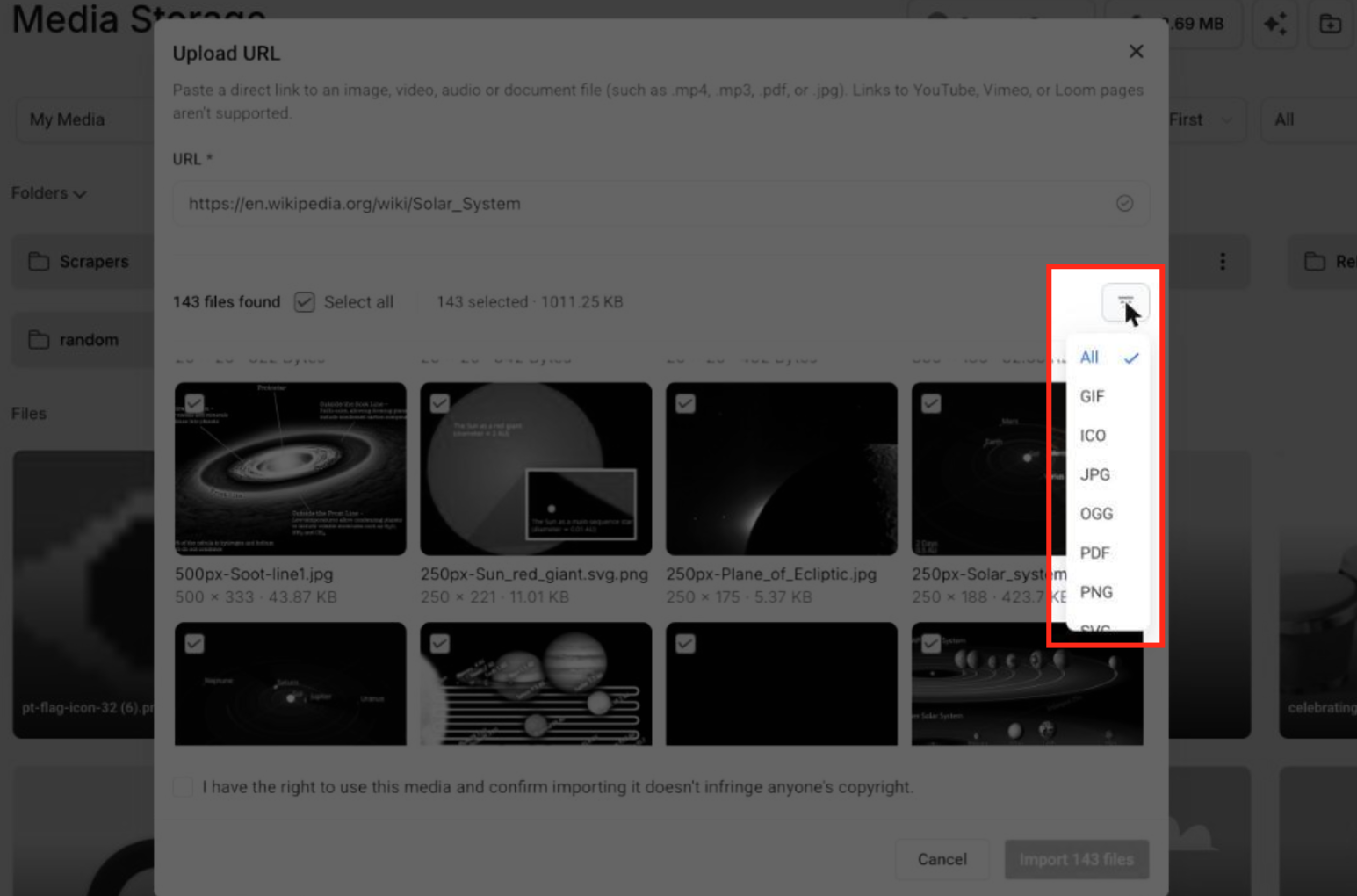
To narrow the results, click the file-type filter icon in the upper-right corner of the results grid. Choose an available file format, such as GIF, JPG, PDF, or PNG, to filter the detected files.
Review the files before importing. Supported videos play inline, audio files play when clicked, and PDFs display their first page in the scan results grid.
Select the files you want to import using their individual checkboxes. Alternatively, click Select all to make a bulk selection. The selection counter displays the number of selected files.
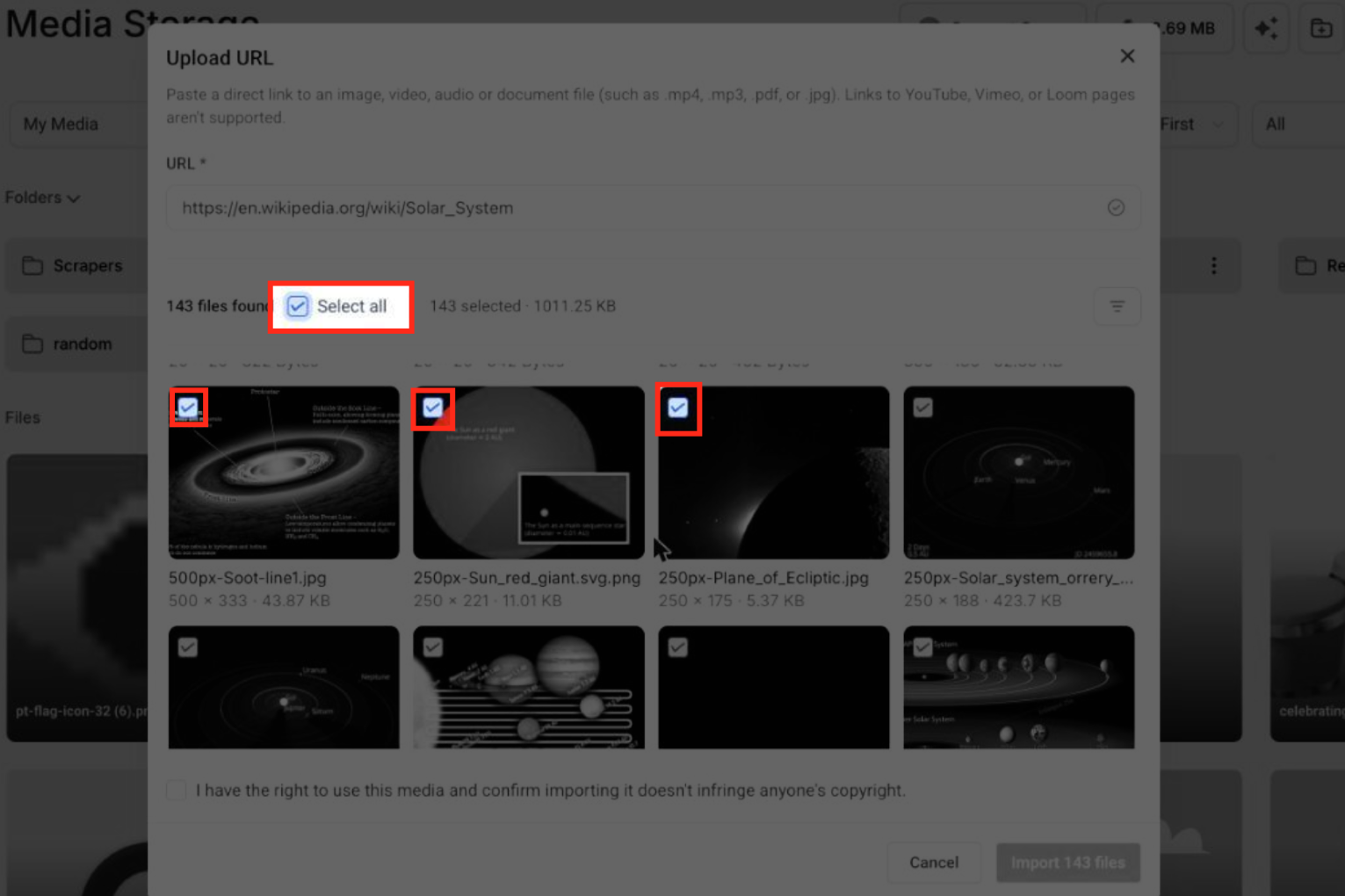
Select the copyright confirmation checkbox to confirm that you have the right to use the selected media and that importing it does not infringe anyone's copyright.
Click Import N files, where N represents the number of selected files. Media Storage imports the selected files into your library together.
Important Information About Webpage Imports
Maximum scan limit: Media Storage detects up to 1,000 files per webpage scan. If a webpage contains more than 1,000 importable files, the results are truncated at that limit.
Progressive loading: For webpages containing many files, the results grid loads progressively as you scroll.
Unsupported URLs: YouTube, Vimeo, Loom, and Google Drive page links are not supported because they are hosted player or file-service pages rather than supported direct media sources.
Protected websites: Some websites with aggressive bot protection may prevent Media Storage from scanning the page. A blocked-source message appears when scanning is unsuccessful for this reason.
Direct file imports: Upload URL continues to support direct links to images, videos, audio files, and documents. The webpage import feature does not change the existing direct-file upload process.
Permissions: The existing Upload-from-URL permission also governs webpage imports. No additional permission is required.
Organize and Find Media
Search Media Storage
Use the Media Storage search bar to find files and folders across your media library. Search also recognizes tags assigned to files, helping you locate assets even when their filenames are difficult to remember.
Search Files by Tag
Tags help you find media files using meaningful labels instead of relying on filenames. You can search for files by campaign, client, product, or theme, even when filenames are automatically generated.
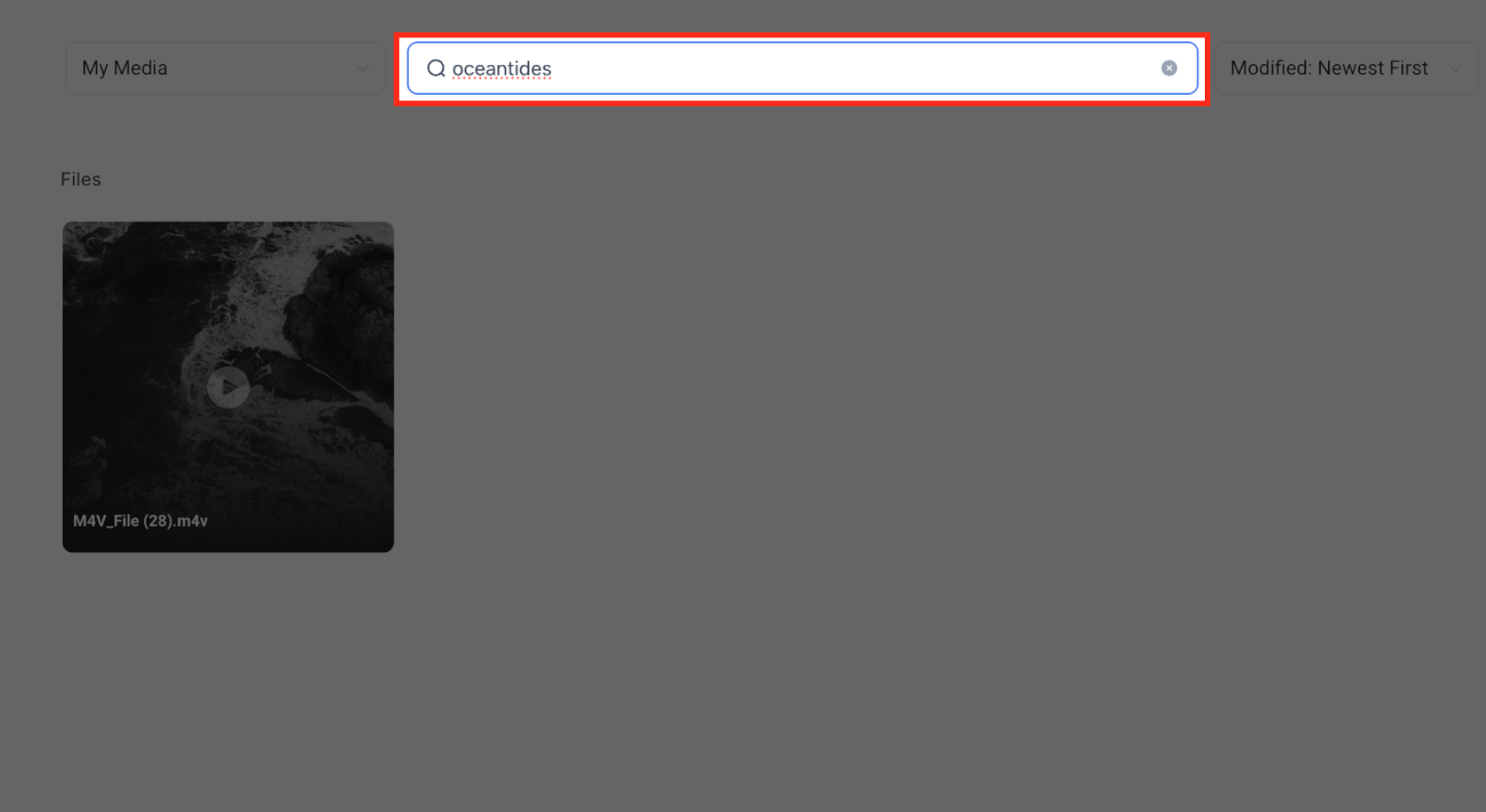
To find a file using its tag:
From the Sub-Account View, click Media Storage in the left-hand navigation menu.
Click the Media Storage search bar.
Type the tag you want to find.
Review the search results to find files associated with that tag.
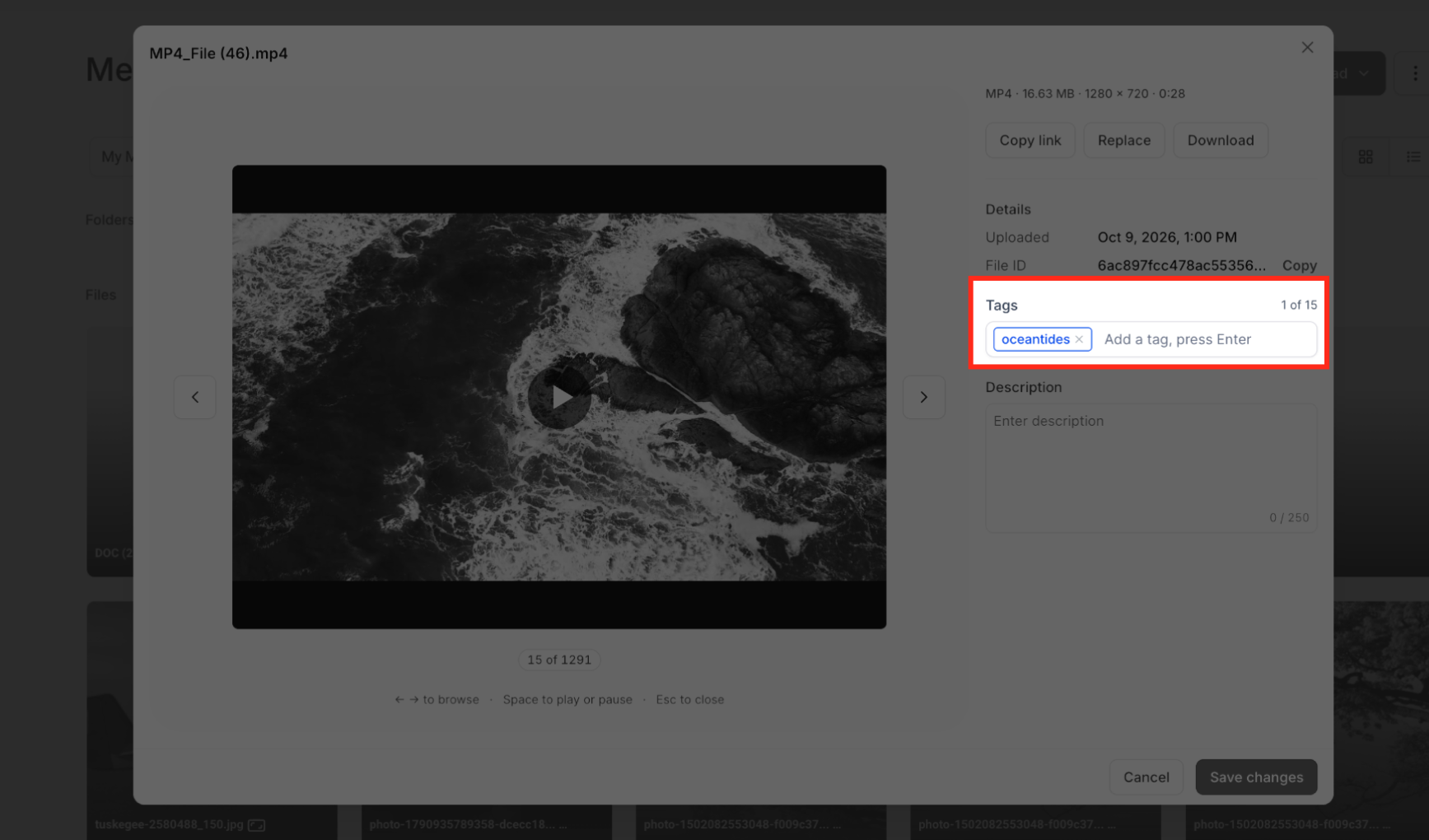
When you remove a tag from a file and save the changes, that file no longer appears in search results for the removed tag.
Find a File's Location
Hover over a file in the search results to view its folder path. The folder path shows where the file is stored in Media Storage.
Open the Containing Folder
To go directly to a file's location:
- Find the file using the Media Storage search bar.
- Click the three-dot menu for the file.
- Select Open containing folder.
Media Storage opens the folder containing the file and clears the search field.
Sort Media
Sort your media using the following options:
- Sort by Name: A to Z or Z to A
- Sort by Size: Smallest First or Largest First
- Sort by Modified Date: Newest First or Oldest First
Grid and List View
Toggle between Grid View and List View based on how you want to browse your files.
- Orientation Badge in Grid View: Images display a badge showing Landscape, Portrait, or Square.
- Pixel Dimensions in List View: Width × Height values appear next to image names so you can review image dimensions before using a file.
Note: Older uploaded images may not immediately display dimensions due to background processing delays.Preview and Insert Media
When Media Storage is used within supported HighLevel products, such as the website or funnel builder, you can preview and insert files without leaving your workflow.
Open a File Preview
Open the three-dot menu for a file and select Preview to review the file before using it.
Navigate Between Files
Use the arrow buttons in Preview, or press the left and right arrow keys on your keyboard, to move between images and videos without closing each file.
In the file details view, use the ← and → arrows on screen or on your keyboard to move between files. A counter shows your current position. Press Esc to close the view, or Space to play or pause a video.
View Details
The View File Details feature lets users preview images and videos, access file information such as type, size, dimensions, duration, upload date, and File ID, and identify files without downloading them. Users can open the details view from the file’s three-dot menu, zoom into images, play videos, and copy the File ID.
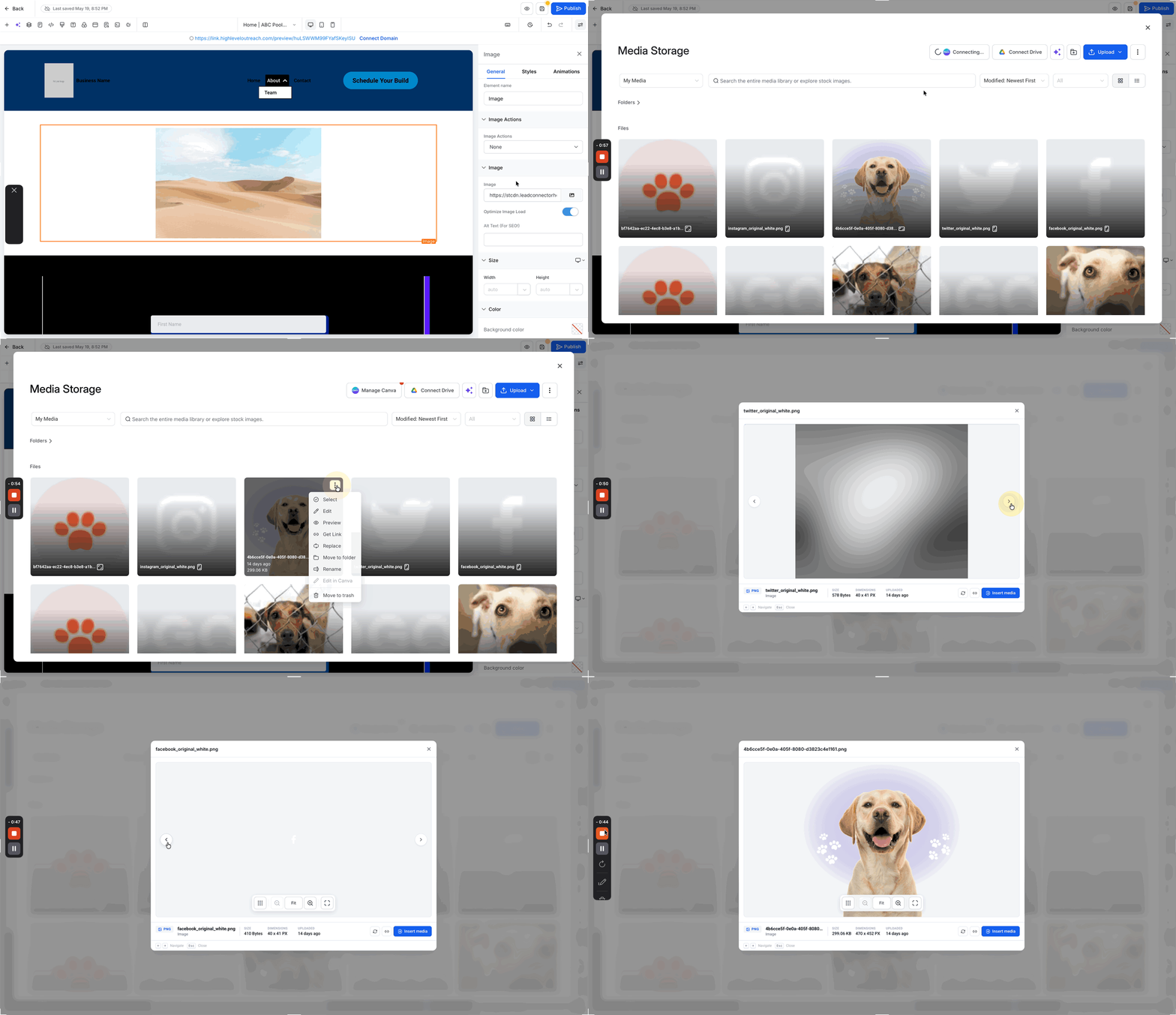
Interactive Image Preview Controls
When you preview an image in Media Storage, you can inspect image details without downloading the file or leaving Media Storage.
- Zoom an image: Zoom from 100% to 400% using the toolbar, mouse wheel or trackpad, pinch gestures, or keyboard controls. Zoom follows your cursor so you can focus on a specific part of the image.
- Pan while zoomed: Click and drag the image to inspect different areas while zoomed. The image remains within the Preview area.
- View an image in fullscreen: Expand the image to fullscreen for a larger view. While fullscreen is active, press
Escto exit fullscreen and return to Preview. - Move the control bar: Drag the floating control bar to reposition it. You can also use the arrow keys to move it.
- Start each Preview with a clean state: Zoom level, pan position, control-bar placement, and fullscreen state reset when you switch files or close Preview.
These interactive controls apply to image previews. Other file types continue to use their existing Preview behavior.
Image Preview supports keyboard navigation and screen readers and respects the user's Reduce Motion preference.

Insert Media
- Use the Insert Media button to select and insert a single file.
- Insert files directly from the Preview screen.
Edit Text Files in Preview
You can edit supported text files directly from Media Storage without downloading and re-uploading the file.
Supported editable file types include:
- `.txt`
- `.css`
- `.json`
- `.sql`
- `.rtf`
To edit a supported text file:
1. Open the file in Preview.
2. Click Edit in the Preview toolbar.
3. Make your changes.
4. Click Save.
The Save button remains disabled until you make a change.
Saving updates the existing file instead of creating a new copy. The file keeps the same name and public URL, so existing links to the file continue to use the same URL.
If you close Preview, navigate away, or cancel while you have unsaved changes, Media Storage asks you to confirm before discarding them.
Unsupported file types do not display the Edit button.
Note: If an edited file is larger than 5 MB, you can still save it, but the file will no longer be available for Preview after saving. Media Storage displays a warning before you save.
Manage Files and Folders
Quick Actions
Access file options using the right-click menu or hover-over quick action buttons.
Available actions include:
- Rename
- Delete
- Move to Folder
- Preview
- Insert
Collapse or Expand the Folders Section
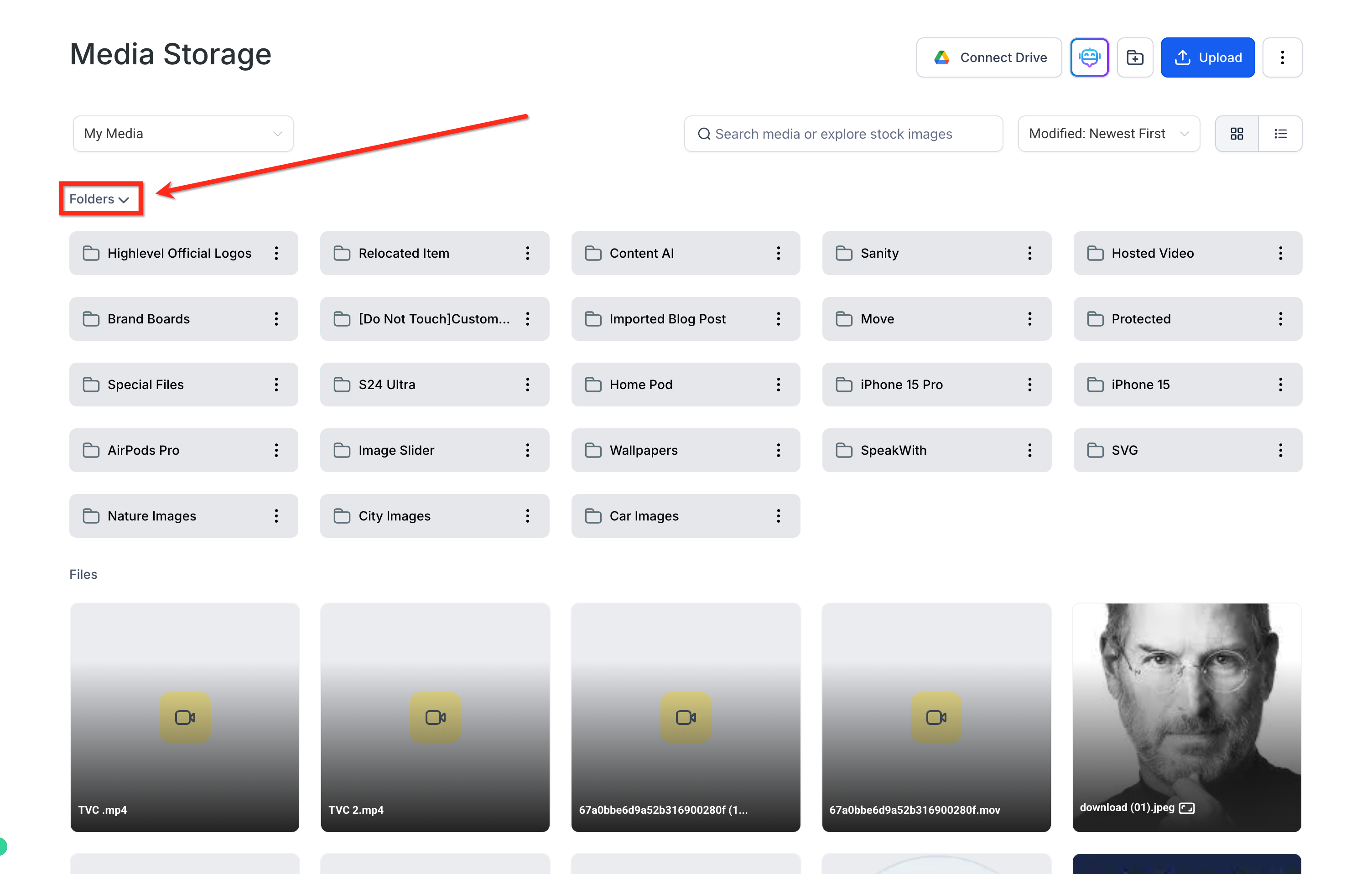
If you have a large folder structure, collapse the Folders section to reduce clutter and focus on your files.
Click the arrow next to Folders to collapse the folder list. Click it again to expand the list.
Move Entire Folders
You can move entire folders with their contents, including nested files and subfolders.
To move a folder:
- Click the three-dot (⋮) menu next to the folder and select Move to Folder.
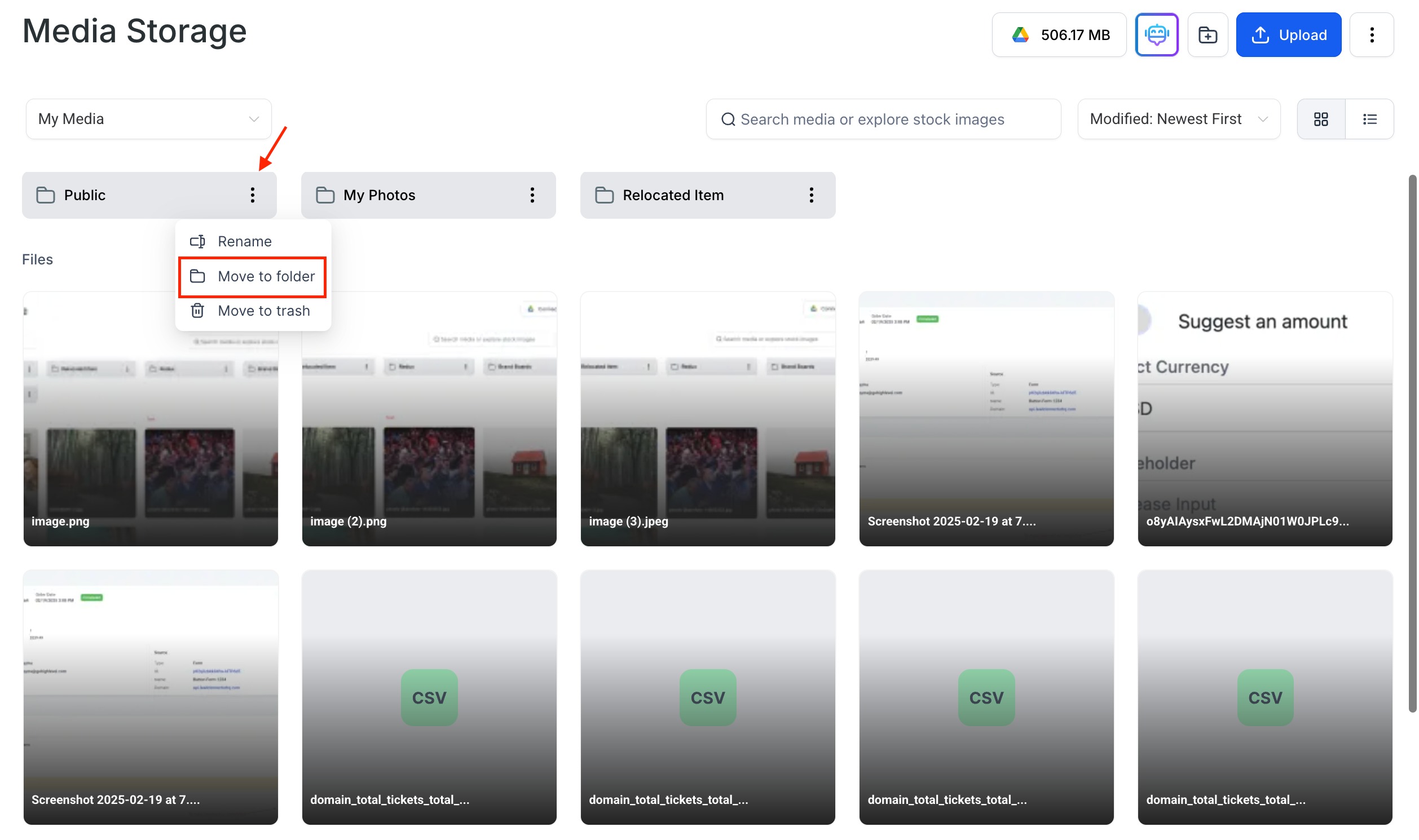
- Choose an existing folder or create a new one.
- Confirm the move.
Note: Moving a folder keeps its nested subfolders intact.Download a Folder as a ZIP
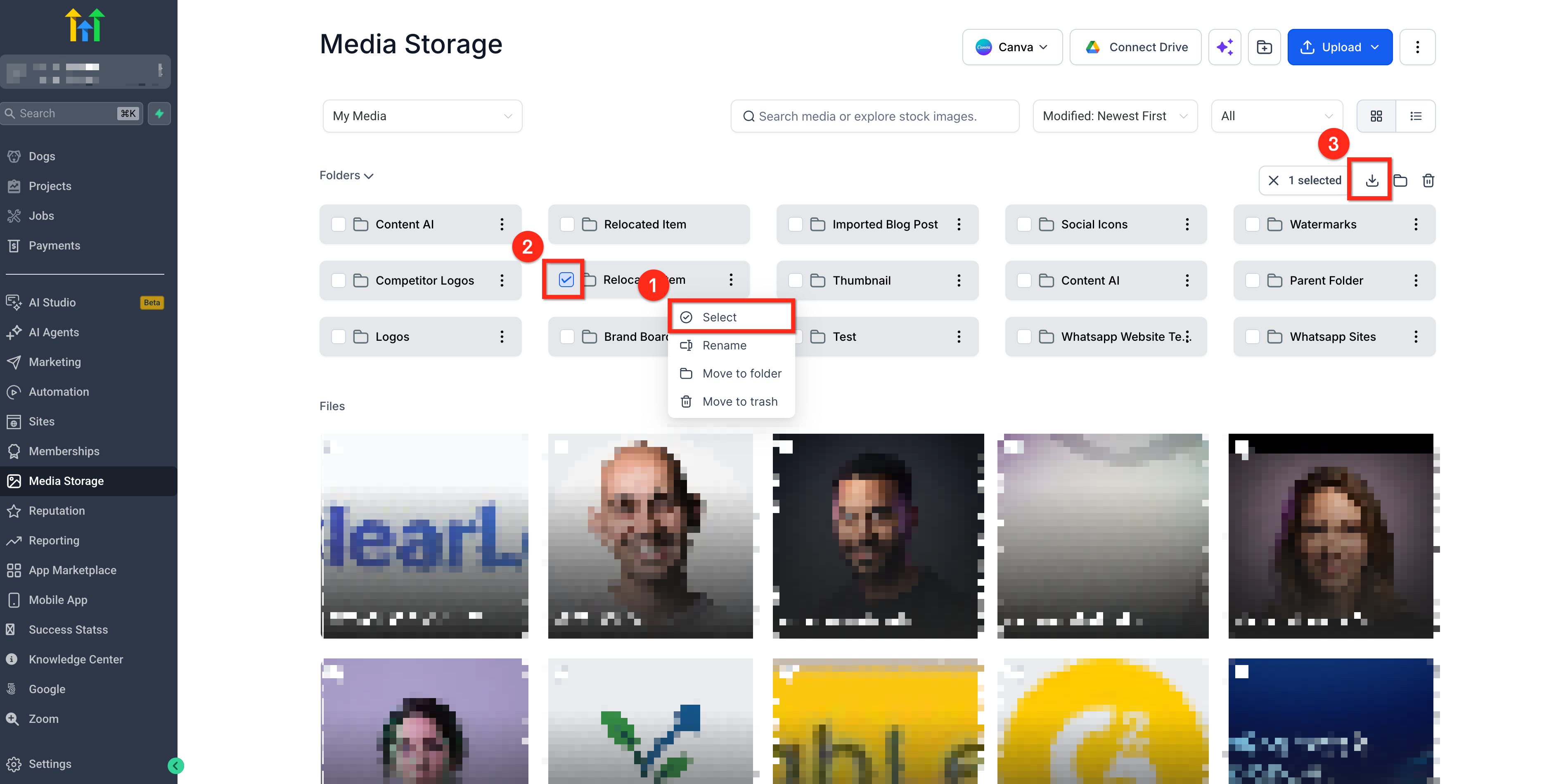
You can download an entire folder as a single ZIP file. Folder downloads preserve the original folder structure, including nested subfolders.
Folder downloads require sufficient local disk space in the browser environment.
To download a folder:
- Click the three-dot icon next to the folder and click Select.
- Ensure the folder is selected and select any additional folders you want to download.
- Click Download to save the selection as a ZIP file.
Trash and File Recovery
Deleted media files move to Trash, where they remain for 30 days before permanent removal.
- Click the three-dot menu at the top right and select Trash.
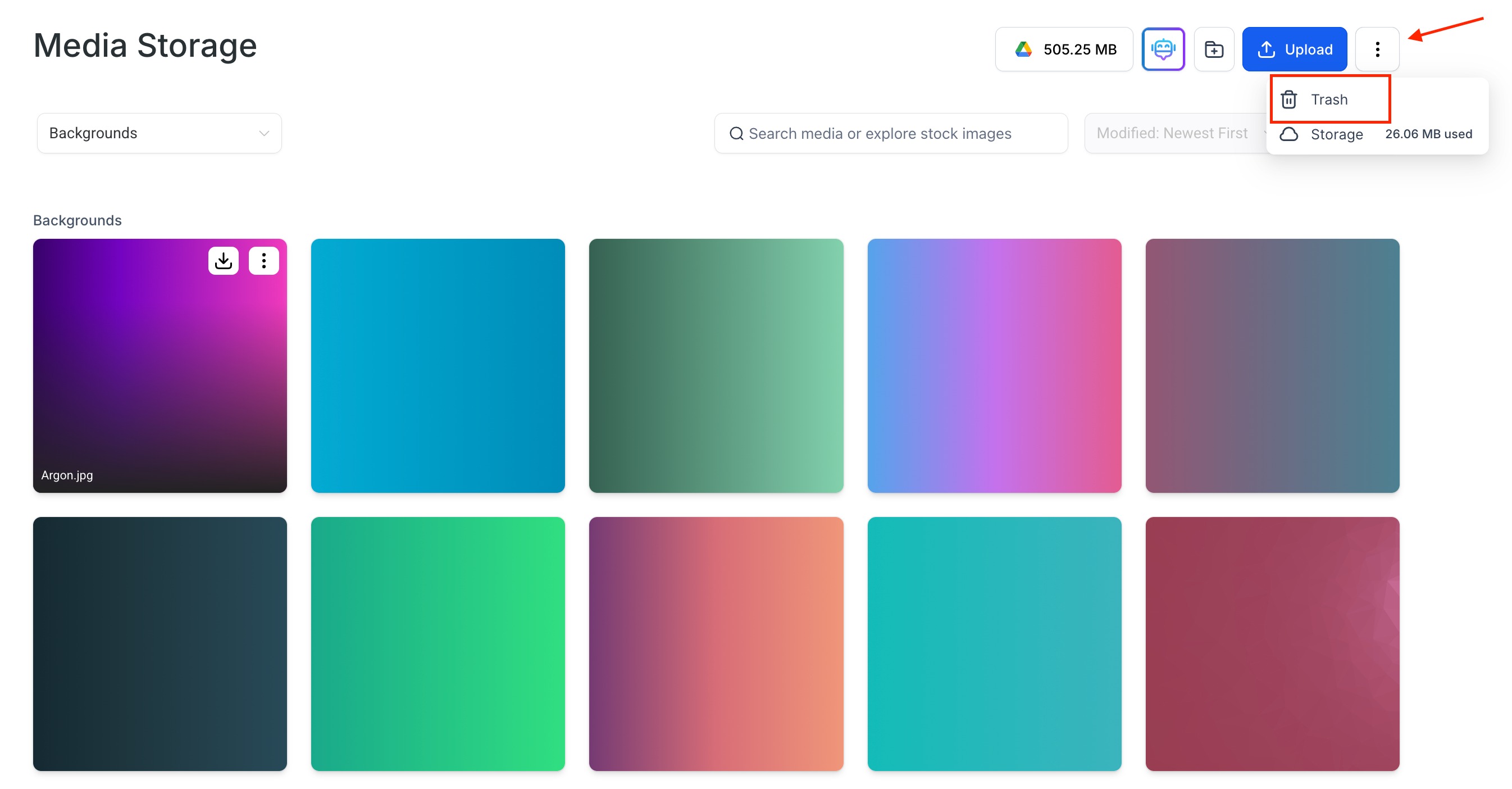
- Choose a file to Restore or Delete Permanently.
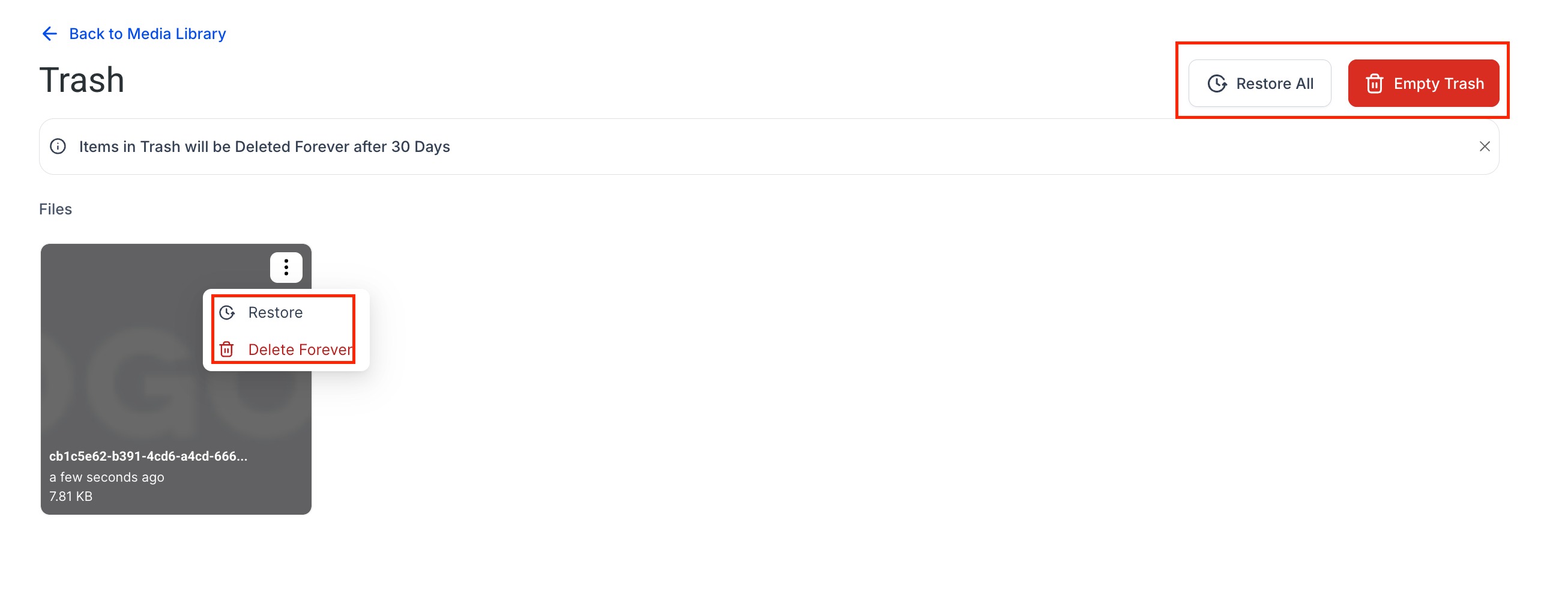
Important: Files are non-recoverable after 30 days.

Trash access is location-wide. Any user logged into the same location can view and restore items in Trash, regardless of who moved them there.
Frequently Asked Questions
Q: Can I use both Grid View and List View?
Yes. Grid View displays image orientation badges, while List View displays image pixel dimensions.
Q: What sorting options are available?
You can sort by name, size, and modified date using ascending or descending order.
Q: What happens to deleted files?
Deleted files move to Trash for 30 days. Users in the same location can view and restore trashed items or permanently delete them. After 30 days, files are removed and cannot be recovered.
Was this article helpful?
That’s Great!
Thank you for your feedback
Sorry! We couldn't be helpful
Thank you for your feedback
Feedback sent
We appreciate your effort and will try to fix the article