Adding video and audio to course lessons is faster when you can reuse media you’ve already uploaded. With Import from Media Storage, course creators can pull existing audio and video files directly into lessons—without re-uploading or managing duplicates. This article shows how to use the import from media storage feature in HighLevel Courses.
TABLE OF CONTENTS
- What is Import from Media Storage Feature in Courses?
- Key Benefits of Import from Media Storage Feature in Courses
- How To Import Media from Media Storage into a Course Lesson
- Frequently Asked Questions
- Related Articles
What is Import from Media Storage Feature in Courses?
Import from Media Storage lets you attach existing audio or video files stored in HighLevel Media Storage to a course lesson. Instead of uploading the same file again, you select it from Media Storage and import it into the lesson.
This approach keeps your content library organized and reduces repetitive work—especially when you reuse the same video or audio across multiple lessons or courses.
Key Benefits of Import from Media Storage Feature in Courses
No duplicate uploads: Import existing audio/video instead of uploading the same file multiple times.
Faster course building: Add lesson media in a few clicks using content already in Media Storage.
Centralized content management: Keep course media organized in Media Storage for easier reuse.
Cleaner workflows: Reduce duplicate file versions and simplify media updates across courses.
How To Import Media from Media Storage into a Course Lesson
Importing media directly from Media Storage helps you build lessons faster while keeping your media library centralized and reusable.
Go to Memberships > Courses > Products.
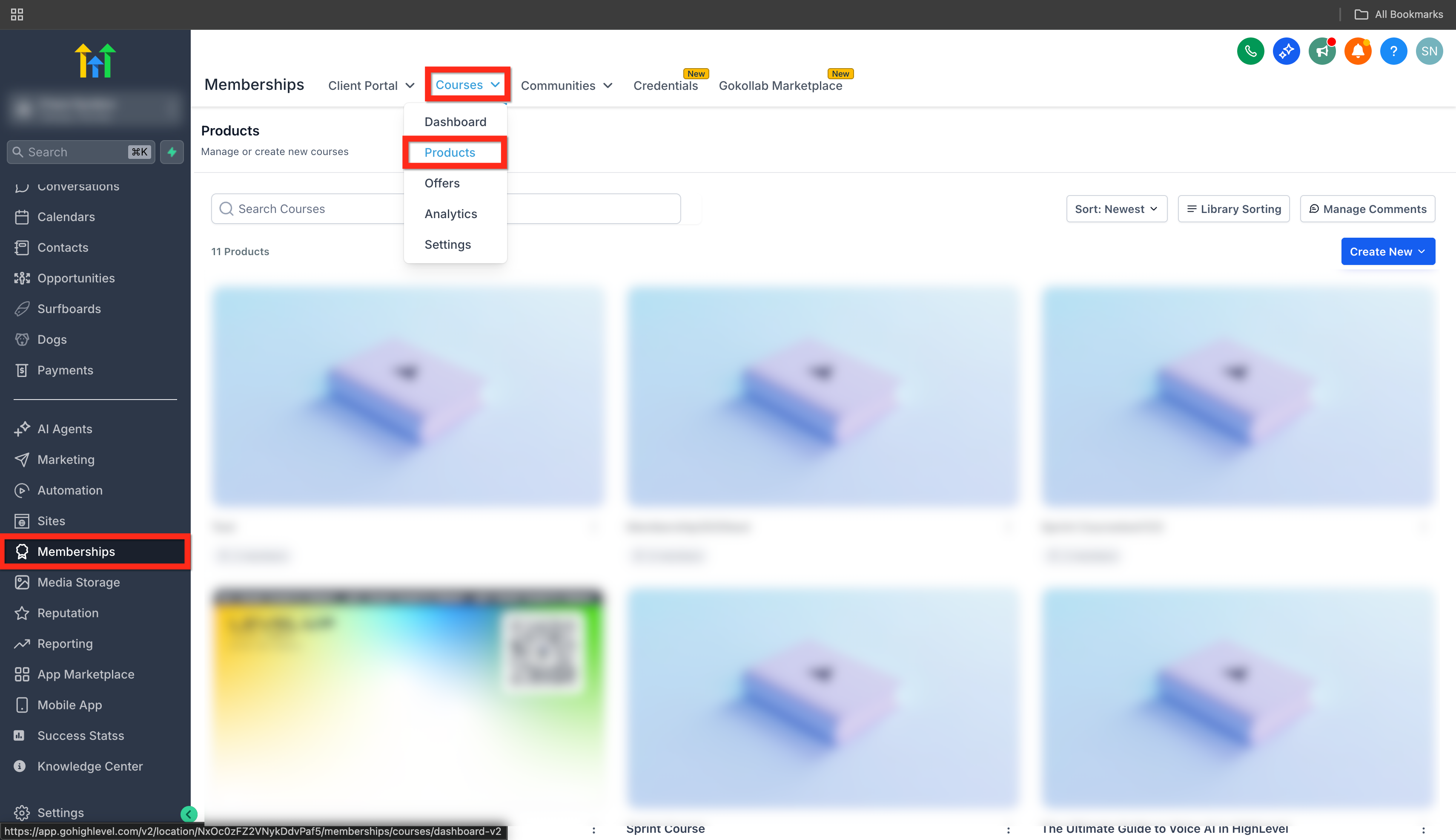
Open the course you want to edit by clicking on it.
Navigate to the lesson you want to update.
Click to create a new lesson or edit an existing lesson.

Click on the Import from Media Storage button.
Click on the Click to select from media storage button to browse your Media Storage library and select the audio/video file you want to use.

Select the audio/video file and click Insert Media.

Frequently Asked Questions
Q: Are images supported?
No, you can only import audio/video.
Q: Does importing from Media Storage upload a new copy of the file?
No. Importing uses the existing audio/video stored in Media Storage so you don’t have to re-upload.
Q: I don’t see “Import via Media Library” in my lesson. What should I check?
Confirm you’re in the lesson editor (create/edit) and verify your user role includes access to Medias and Memberships/Courses.
Q: Can I reuse the same video in multiple lessons or courses?
Yes. Importing is designed for reuse. Select the same Media Storage file in as many lessons as needed.
Q: Will learners see the imported media if the lesson isn’t published?
Learners only see published content. Save stores your changes; publishing makes them available based on your course visibility settings.
Related Articles
Was this article helpful?
That’s Great!
Thank you for your feedback
Sorry! We couldn't be helpful
Thank you for your feedback
Feedback sent
We appreciate your effort and will try to fix the article