More Tutorials From the Community
With this new functionality, users can now preview exactly how custom fields will appear for their respective clients before sending out any emails.This feature simplifies the testing process and eliminates the need to create fake test cases, allowing for a more efficient and cost-effective approach to email campaign management.
Steps to preview the custom field:
Previewing custom fields ensures merge fields (for example, {{first_name}}) resolve correctly before you send. Verifying these values prevents broken personalization, reduces rework, and improves deliverability outcomes.
Open the email in Email Builder.
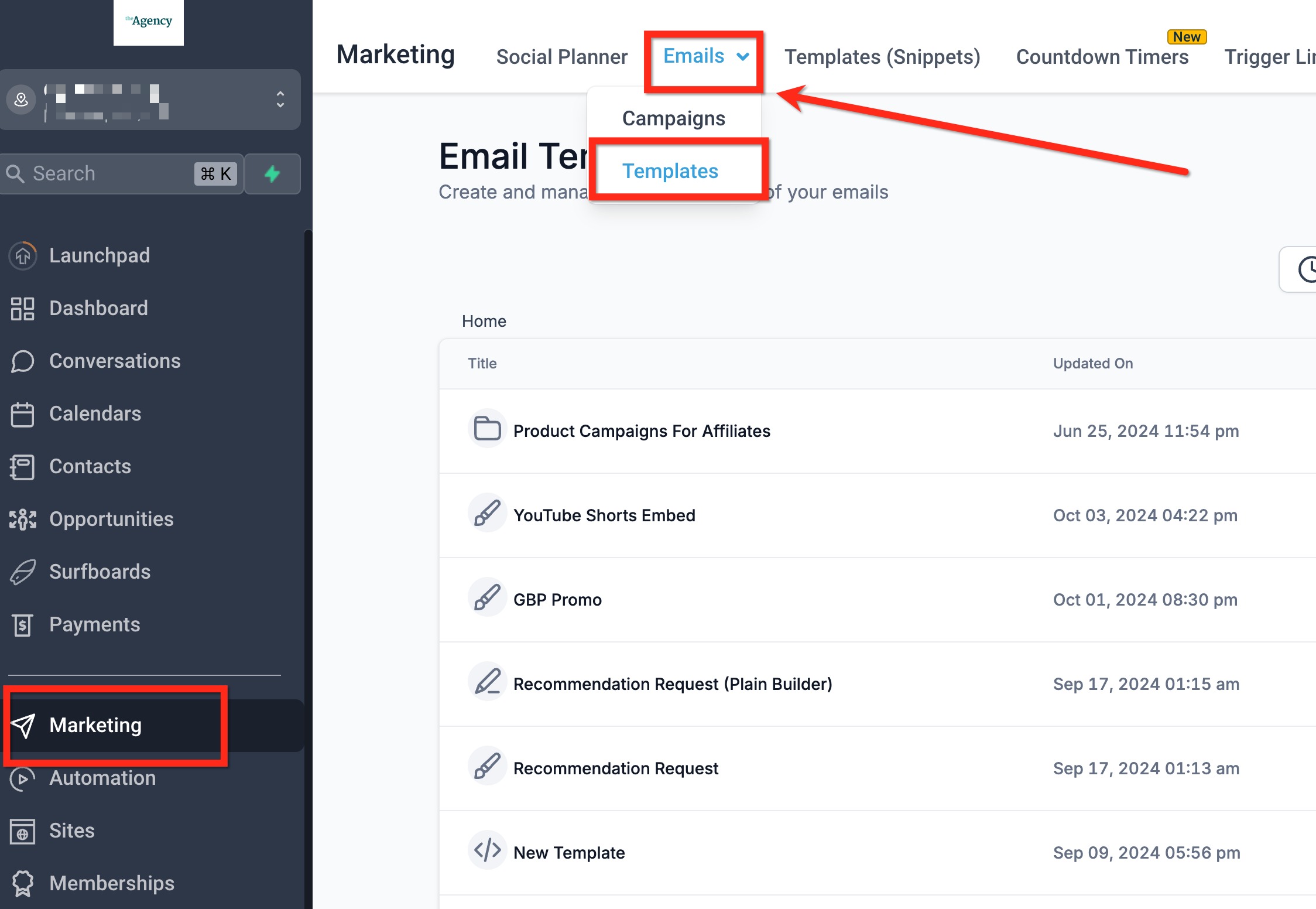
Locate the top menu bar in the editor.
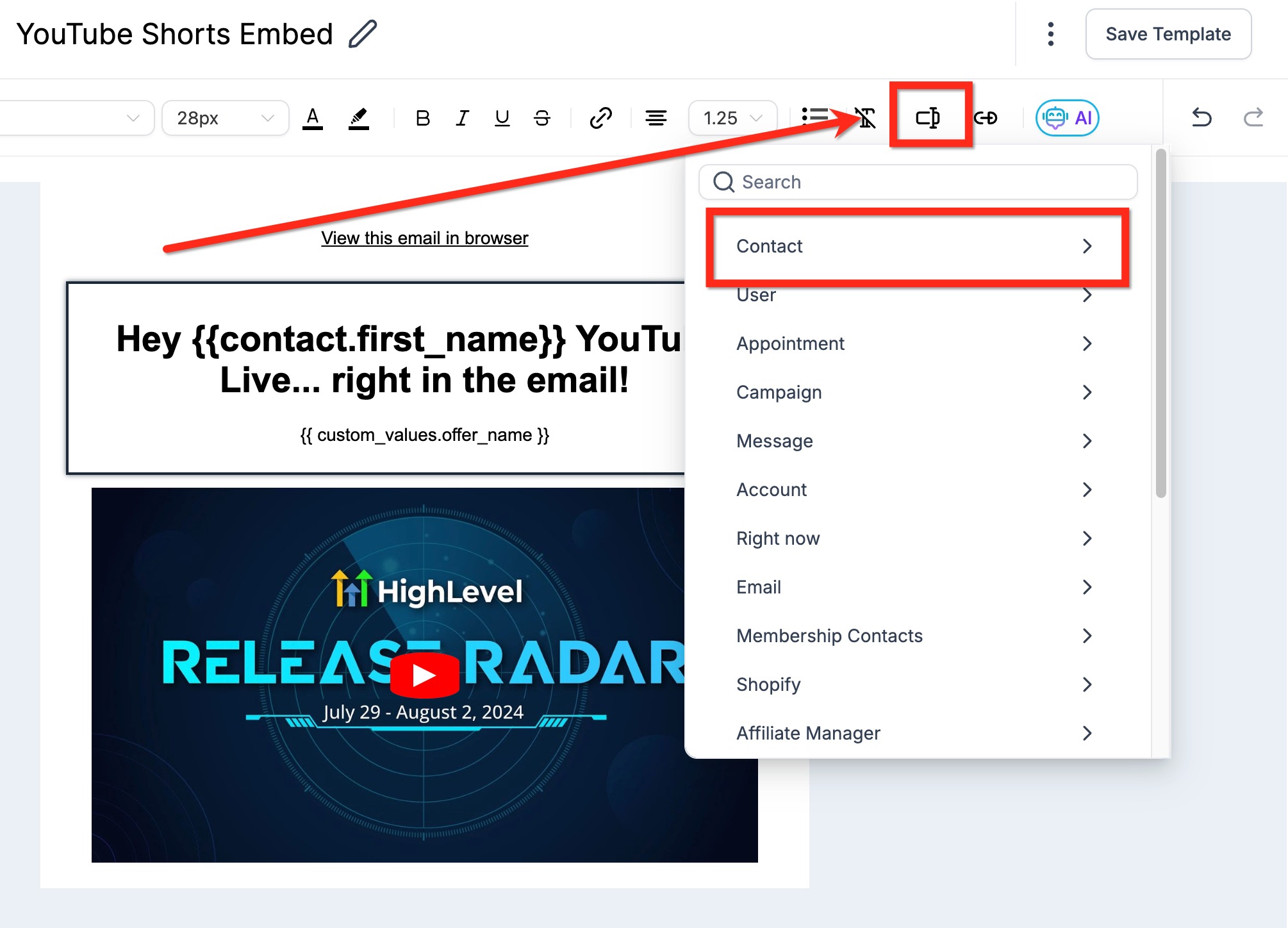
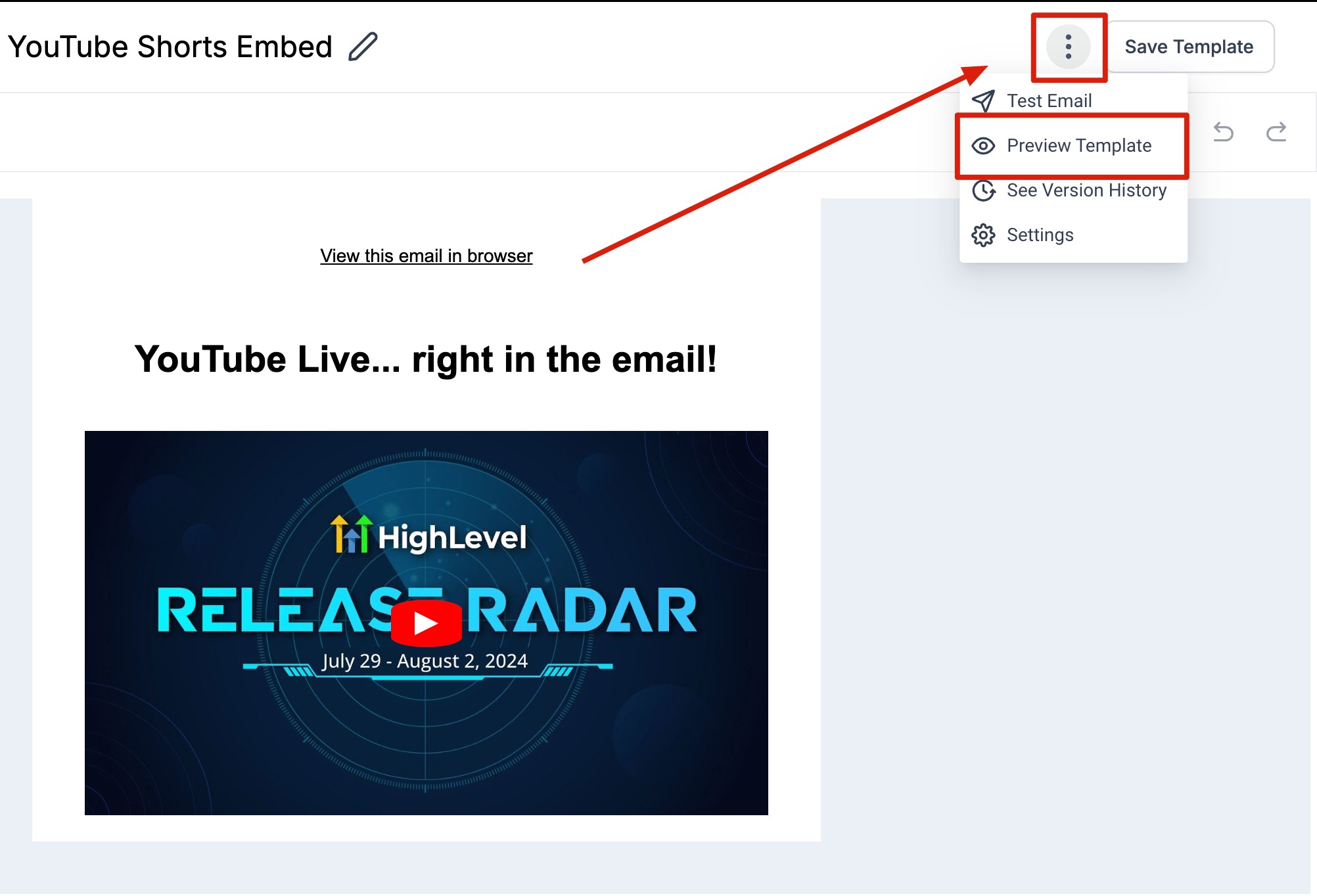
Click Preview (positioned next to Save) to open the preview instantly.
Review your custom fields and confirm they display the expected values.
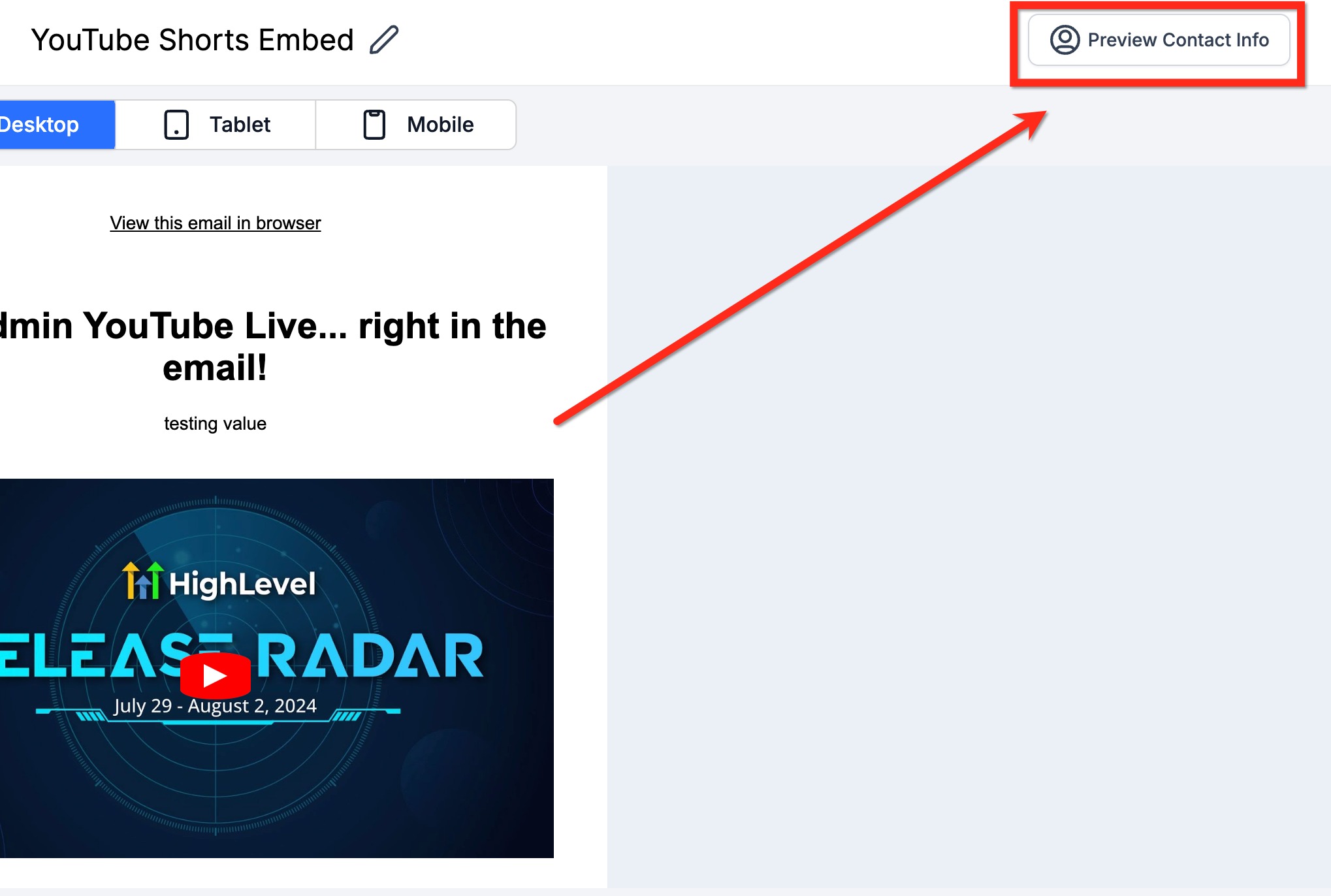
Address merge fields render fully in Preview. If your email uses a full address, test with `{{contact.full_address}}` to confirm Preview matches the contact record.If something looks wrong, close Preview, adjust your content or test data, then click Preview again.
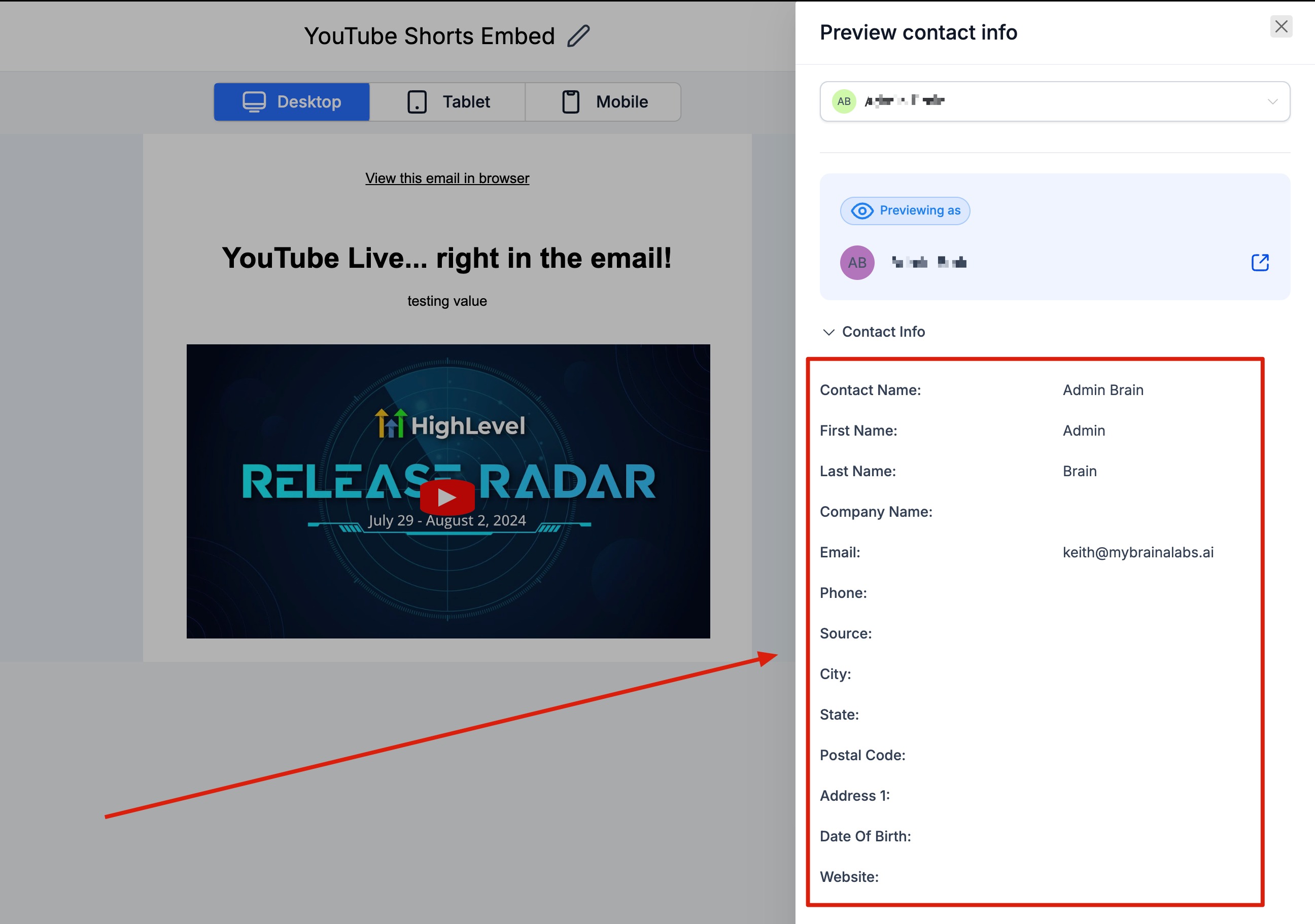
Continue editing, or proceed to send or schedule when satisfied.
Tip: Preview is now available on the top menu bar for one-click access. You no longer need to use the three-dots (kebab) menu.
Was this article helpful?
That’s Great!
Thank you for your feedback
Sorry! We couldn't be helpful
Thank you for your feedback
Feedback sent
We appreciate your effort and will try to fix the article