Web URLs and Links allow you to train Conversation AI by adding website pages to a HighLevel Knowledge Base. HighLevel crawls the selected URLs and uses the page content as source material so the bot can answer customer questions with more accurate, relevant information.
TABLE OF CONTENTS
- What is Web URLs and Links?
- Key Benefits of Web URLs and Links
- URL Crawling Modes
- Exact URL
- All URLs in this Domain
- All URLs with this Path
- New Pages and Existing Pages
- Best Practices for Training URLs
- How To Setup Web URLs and Links
- URL Training Statuses
- Frequently Asked Question
- Related Articles
What is Web URLs and Links?
Use Web URLs and Links when your website already contains helpful information such as service details, pricing pages, FAQs, policies, blogs, or support documentation. Instead of manually copying content into the Knowledge Base, you can crawl one page, a group of pages, or an entire domain and choose which URLs should be used for training.
HighLevel supports multiple URL crawling modes, including Exact URL, All URLs in this Domain, and All URLs with this Path. You can train up to 4,000 web URLs in a single Knowledge Base.Key Benefits of Web URLs and Links
Training Conversation AI with website URLs helps your bot use existing web content as a reliable source for customer conversations. Choosing the right URLs improves response quality, reduces manual setup, and keeps the Knowledge Base aligned with the information customers already see online.
- Faster Bot Training: Add website content directly to the Knowledge Base without manually recreating every answer.
- More Accurate Answers: Train the bot on approved website pages so responses are based on relevant business information.
- Flexible Crawling Options: Choose one exact page, an entire domain, or pages that share a specific URL path.
- Better Content Control: Review crawled URLs before training so only useful pages are added.
- Simplified Link Management: Refresh or delete trained URLs from the Uploaded Links Table when website content changes.
URL Crawling Modes
Crawling modes control how broadly HighLevel searches for website pages before adding them to the Knowledge Base. Selecting the right mode helps prevent irrelevant content from being trained and gives you more control over what Conversation AI can reference.
Exact URL
Exact URL is best when you only want to train the bot on one specific webpage. This is the recommended option for precise training because HighLevel crawls only the URL you enter.
Use Exact URL for pages such as:
- A pricing page
- A frequently asked questions page
- A service page
- A refund or cancellation policy page
- A single landing page
Example:
If you enter https://example.com/services, only that exact page is crawled and trained.
All URLs in this Domain
All URLs in this Domain is best when most pages on a website are relevant to the bot’s training. HighLevel crawls the domain and returns available URLs so you can choose which pages should be trained.
Use this option when:
- The full website contains useful business information
- You want to review multiple website pages before training
- The website has several service, product, or support pages that should be included
After HighLevel fetches the URLs, review the list carefully before selecting pages and clicking Train Bot. Training unrelated pages can reduce response quality.
All URLs with this Path
All URLs with this Path is best when only one section of a website should be crawled. HighLevel looks for pages that include the path in the URL, then allows you to select which matching pages should be trained.
Use this option when useful content is grouped under a shared path, such as:
- /services
- /blog
- /help
- /support
- /locations
Example:

If you enter https://example.com/services, HighLevel can return pages under that path, such as:

https://example.com/services/seo
https://example.com/services/web-design
https://example.com/services/consulting
This helps you avoid crawling unrelated website areas while still collecting multiple pages from the same content category.
New Pages and Existing Pages
Fetched URL results are grouped to help you understand which pages are new to the Knowledge Base and which pages have already been trained. Reviewing both groups before training helps prevent confusion and keeps URL training organized.
- New Pages: URLs found during the crawl that are not currently part of the Knowledge Base. Selecting these pages adds them to the Uploaded Links Table after training is complete.
- Existing Pages: URLs already included in the Knowledge Base and visible in the Uploaded Links Table. Selecting existing pages refreshes their trained content.
Use New Pages when adding fresh content. Use Existing Pages when you want HighLevel to retrain pages that were already added but may have changed since the last refresh.
Best Practices for Training URLs
Clean, relevant training data helps Conversation AI provide better answers. Before adding URLs, review your website content and choose pages that directly support the questions your customers are likely to ask.
Recommended best practices:
- Train pages that contain accurate, current, and customer-facing information.
- Avoid unrelated pages unless the bot needs that information.
- Avoid duplicate or low-value pages when possible.
- Review crawled URLs before selecting Train Bot.
- Use Exact URL for precise training.
- Use Path crawling when only one website section is relevant.
- Refresh or delete trained links when website content becomes outdated.
- Wait for all selected URLs to finish training before testing or using the bot.
How To Setup Web URLs and Links
Proper setup ensures Conversation AI is trained on the right website content and avoids unnecessary or outdated pages. Follow these steps to crawl URLs, choose relevant pages, and add them to the Knowledge Base.
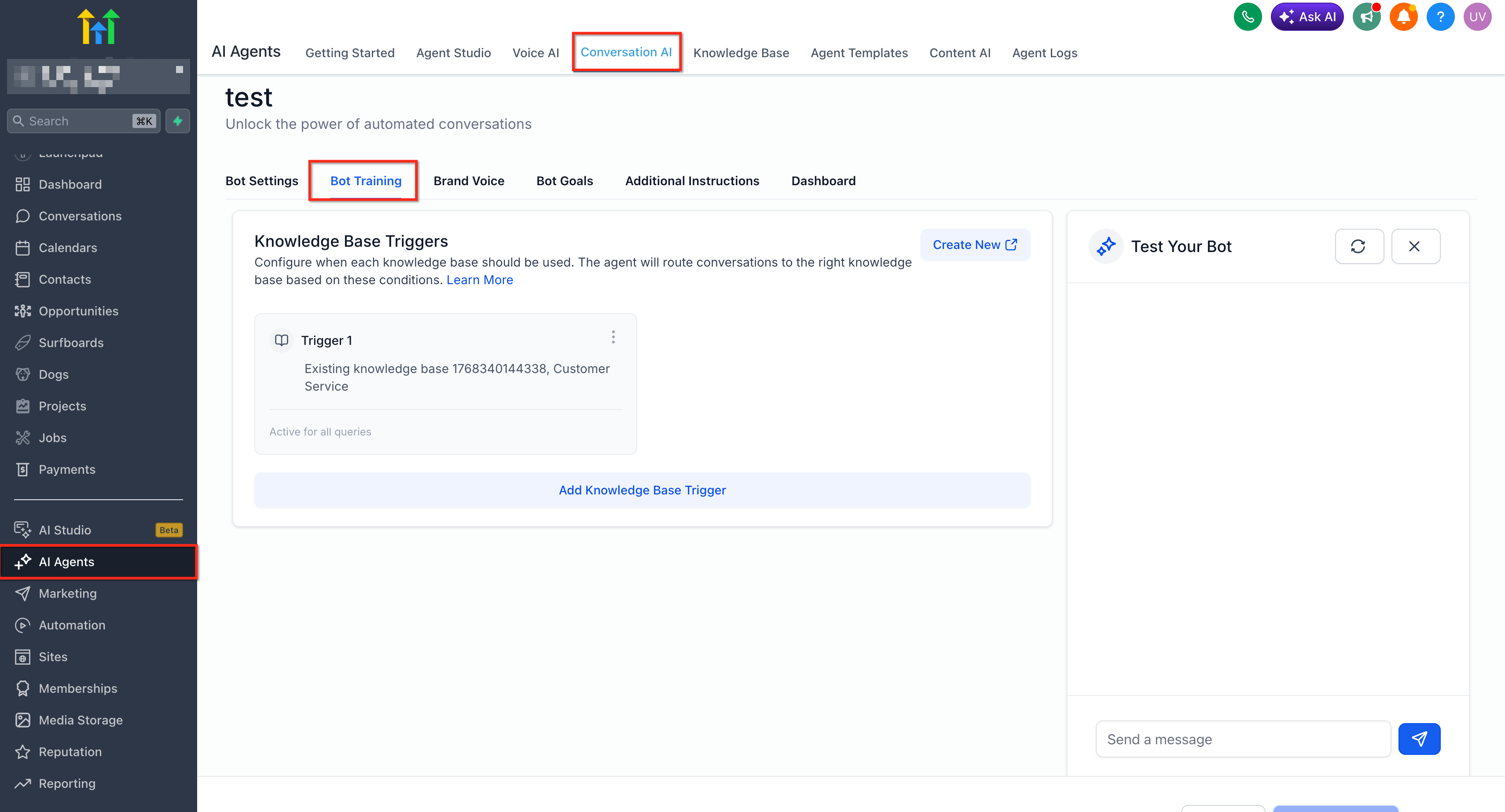
- Go to Bot Training.
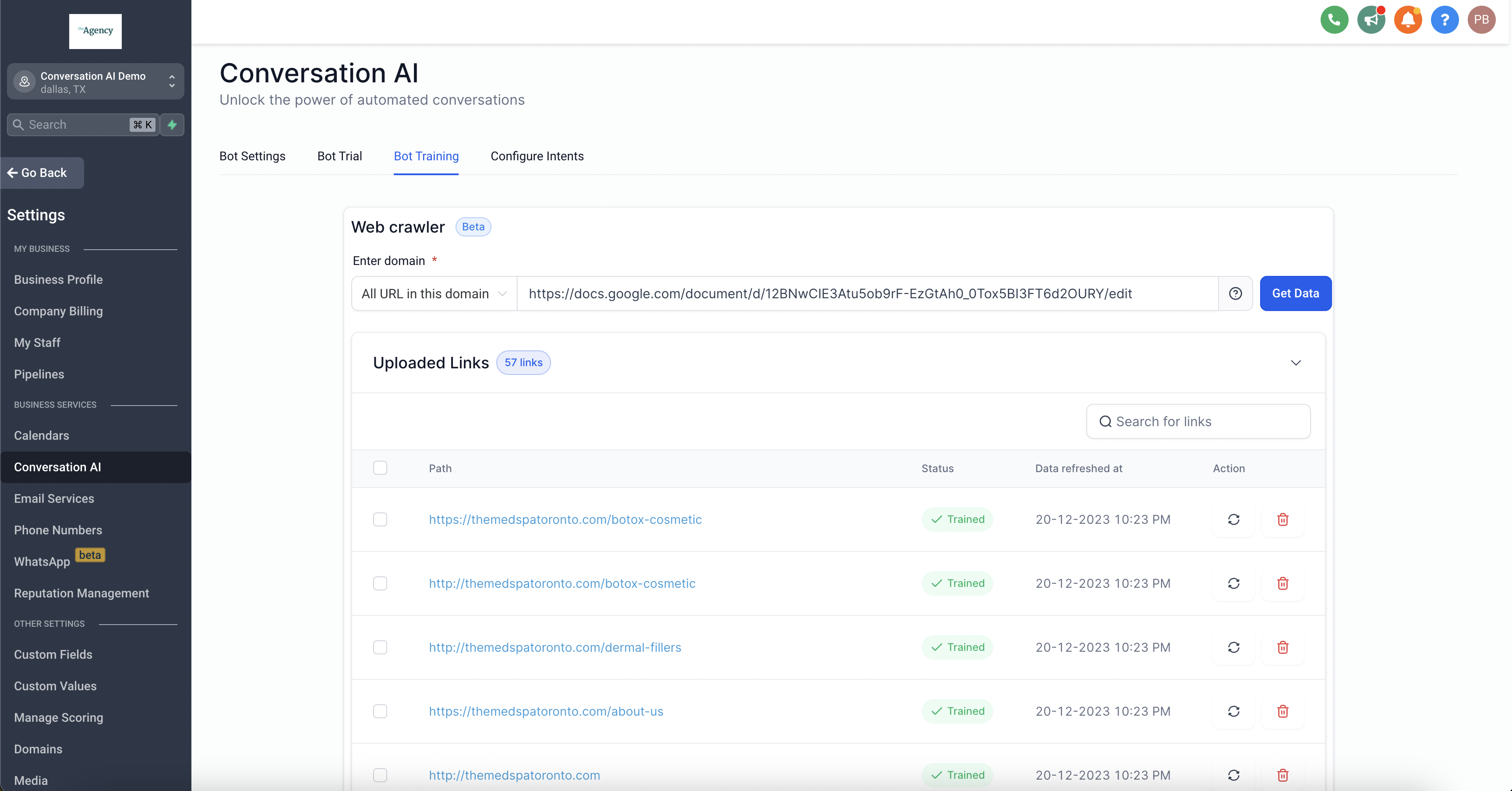
- Enter the full URL, including
https://. - Choose one of the available crawling modes:
- Exact URL
- All URLs in this Domain
- All URLs with this Path
- Exact URL
- Click Get Data.
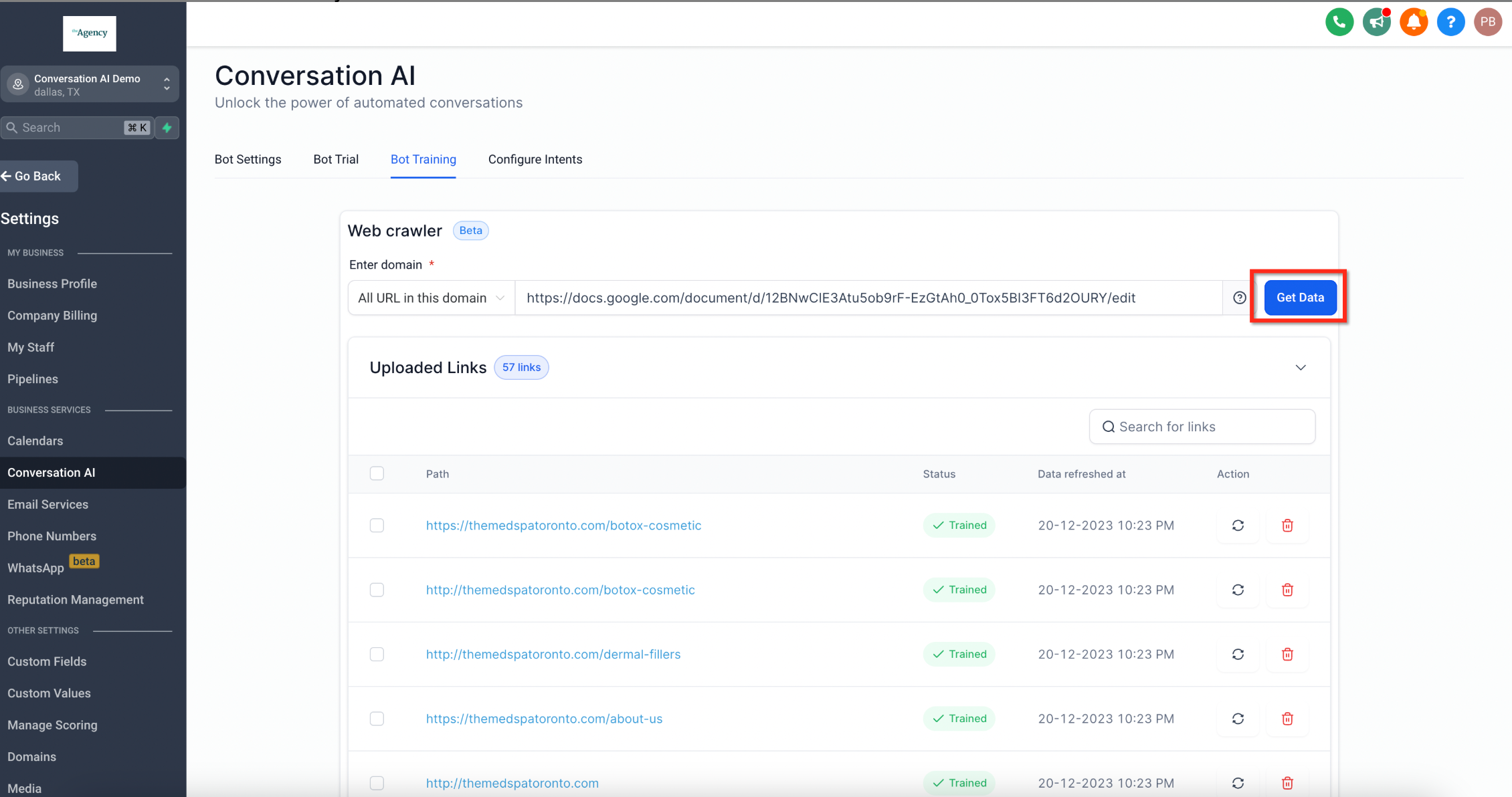
- Wait for HighLevel to fetch and crawl the available URLs.
- Review the fetched URLs.
- Select the URLs that should be used for training.
- Click Train Bot.
- Wait for the selected URLs to appear in the Uploaded Links Table.
- Confirm that each URL has completed training before using or testing the bot.
URL Training Statuses
Training statuses help you understand whether a URL is still processing, successfully trained, or needs attention.
Review statuses before testing the bot so you know the Knowledge Base is ready to use.
- Getting Data: HighLevel is processing or refreshing the URL.
- Trained: The URL was successfully trained and added to the Knowledge Base.
- Failed: HighLevel could not train the URL. Try refreshing the URL or deleting it if it is no longer needed.
If a URL fails, check whether the page is accessible, relevant, and formatted in a way that can be crawled. Then refresh the link or retry the training process.
Frequently Asked Questions
Q: Should I train my entire website?
A: Only train your entire domain if most pages are useful for customer conversations. For better accuracy, select the most relevant pages and avoid unrelated or outdated content.
Q: What is the difference between Exact URL, Domain, and Path crawling?
A: Exact URL trains one specific page. Domain crawling finds pages across the full website domain. Path crawling finds pages that share a specific URL path, such as /services or /help.
Q: Can I refresh a trained URL after my website changes?
A: Yes. Use the refresh action in the Uploaded Links Table to retrain the URL with the latest page content.
Q: Can I delete a trained URL?
A: Yes. Deleting a URL removes that page’s trained content from the Knowledge Base.
Q: Why do I see Existing Pages after fetching URLs?
A: Existing Pages are URLs already included in the Knowledge Base. Selecting them refreshes their trained content instead of adding them as new pages.
Q: What should I do if a URL fails to train?
A: Check whether the page is accessible and still needed. Then try refreshing it. If the URL is not useful or cannot be processed, delete it from the Uploaded Links Table.
Q: How many web URLs can I train in one Knowledge Base?
A: You can train up to 4,000 web URLs in a single Knowledge Base.
Q: Can I use Web URLs and Links with other Knowledge Base sources?
A: Yes. Web URLs are one type of Knowledge Base source. HighLevel also supports other source types for Conversation AI Knowledge Bases.
Related Articles
Was this article helpful?
That’s Great!
Thank you for your feedback
Sorry! We couldn't be helpful
Thank you for your feedback
Feedback sent
We appreciate your effort and will try to fix the article