TABLE OF CONTENTS
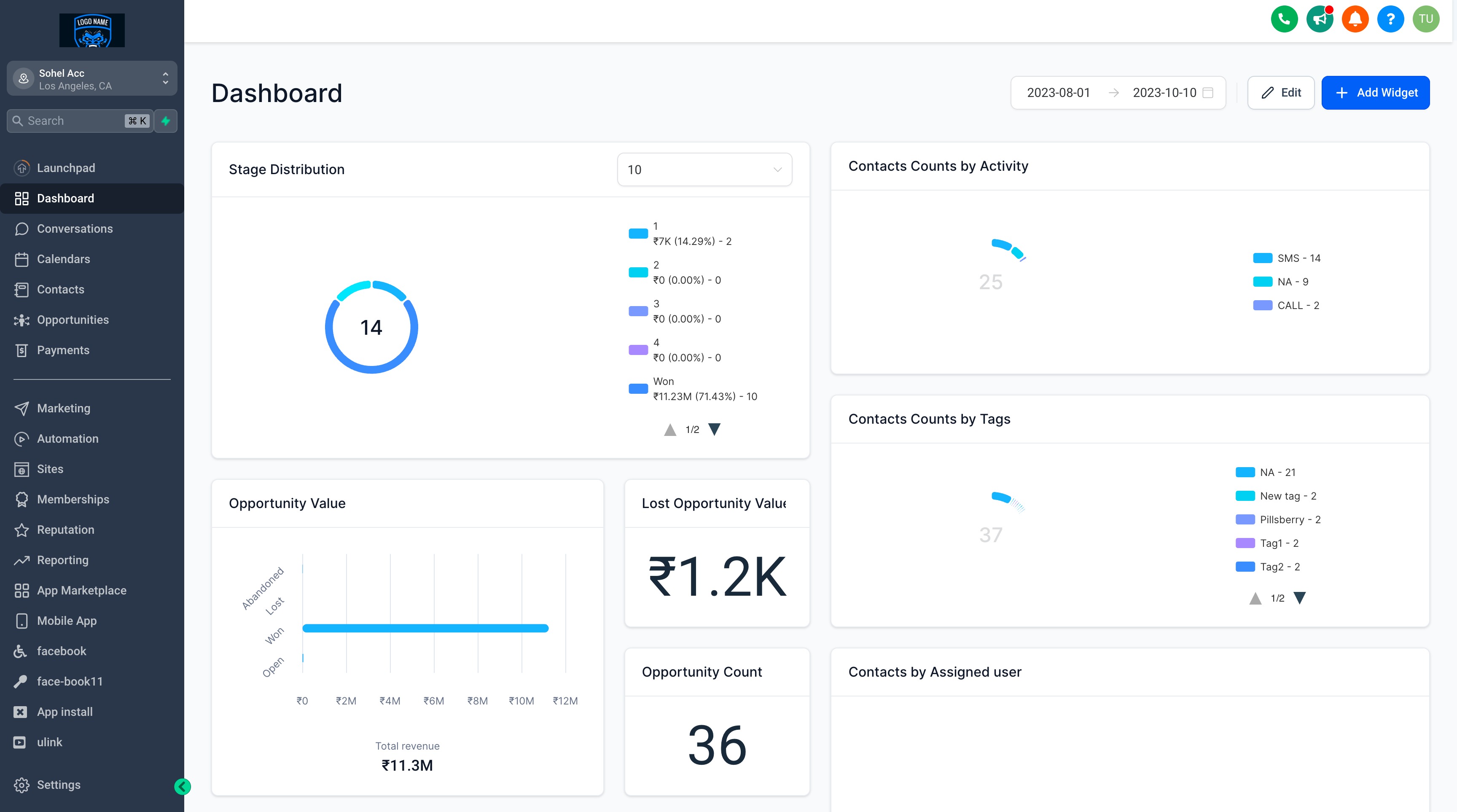
What are Dashboard Widgets
Whether you prefer using predefined chart types or designing custom widgets tailored to your needs, dashboard widgets offer unmatched flexibility. The intuitive edit mode allows you to easily manage and customize your dashboard, ensuring it aligns perfectly with your workflow. These features empower you to create dynamic dashboards that streamline data analysis and drive smarter decision-making.
To make finding the right widget even more convenient, widget categories have been introduced. These categories organize predefined widgets into specific groups, helping you quickly discover the tools you need. With this structured approach, you can save time and instantly unlock valuable insights from your data.
Widget Categories:
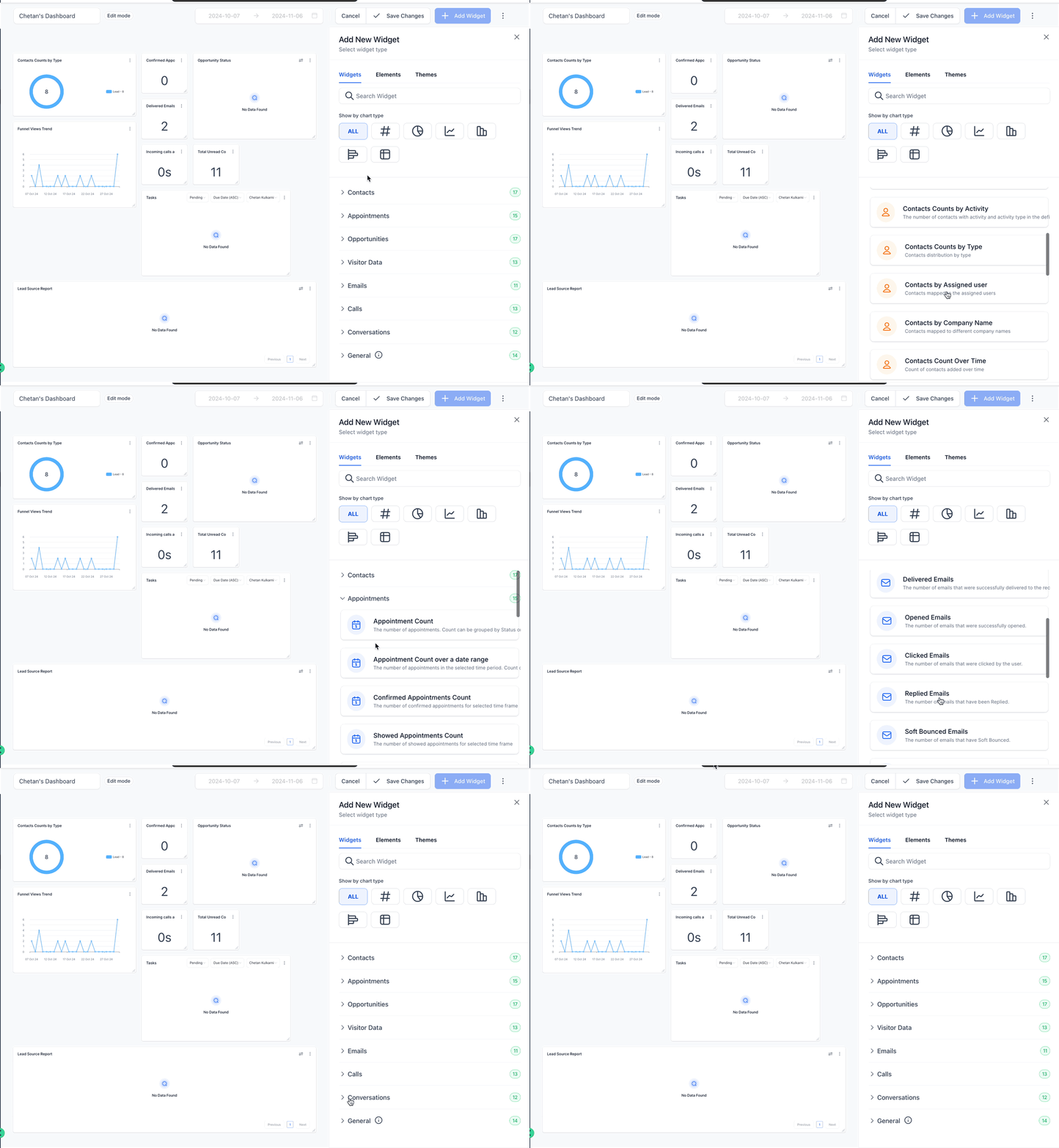
SL. No. | Widget Category | Description |
|---|---|---|
| 1 | Contacts | Helps manage and analyze new leads efficiently. |
| 2 | Appointments | Assists in tracking and optimizing meetings with your team and customers. |
| 3 | Opportunity | Provides insights into deal status and monetary value. |
| 4 | Visitor Data | Gives an overview of funnel visitor activity and related information. |
| 5 | Emails | Lets users view email campaign activity. |
| 6 | Calls | Provides detailed insights into call activity. |
| 7 | Conversations | Helps track conversation data. |
8 | General | Offers predefined data and performance reports for various platforms. |
Pipeline-specific filtering for opportunity widgets
The following General widgets include a Pipeline dropdown inside the widget. Use it to view metrics for a single pipeline instead of aggregated results across all pipelines:
- Opportunity Status
- Opportunity Value
- Conversion Rate
- Lead Source Report
- Sales Efficiency
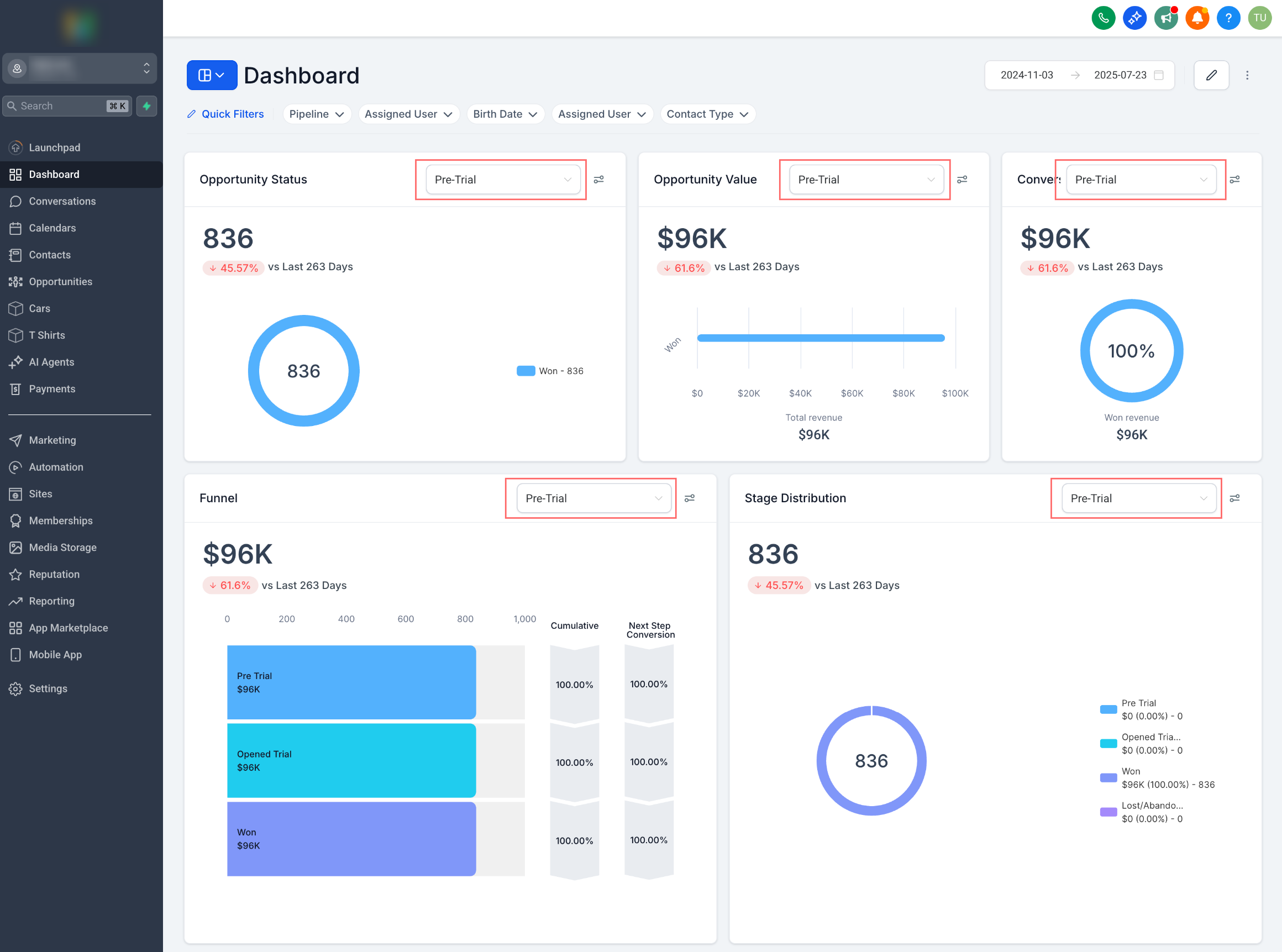
Chart Types Supported:
- Numeric/Count - A number chart, also known as a counting chart, is a list of numbers arranged in a particular order.
- Donut Charts - The numeric value shown inside the donut chart changes as per the metric selected (example - avg. or max)
- Line charts - Show information as a series of points connected by lines, and are useful for tracking changes over time.
- Bar charts - Use the length of bars to compare numerical values.
- Horizontal Bar charts - A Horizontal Bar Chart uses rectangular bars to present data. They are used for displaying comparisons between categories of data.
- Tables - Provide organized information and precise details.
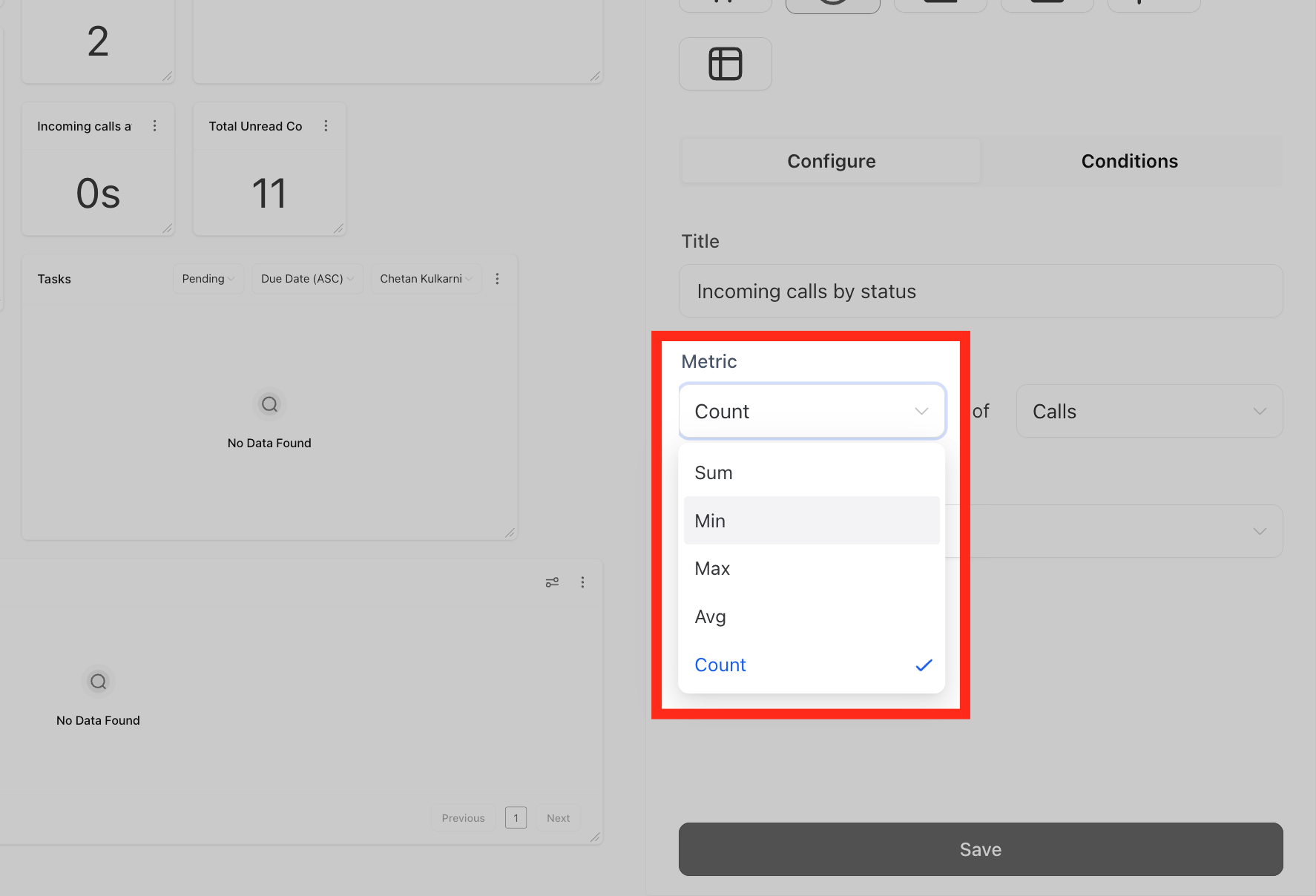
- Sum
- Min
- Max
- Avg
- Count
Using Elements in your Widgets
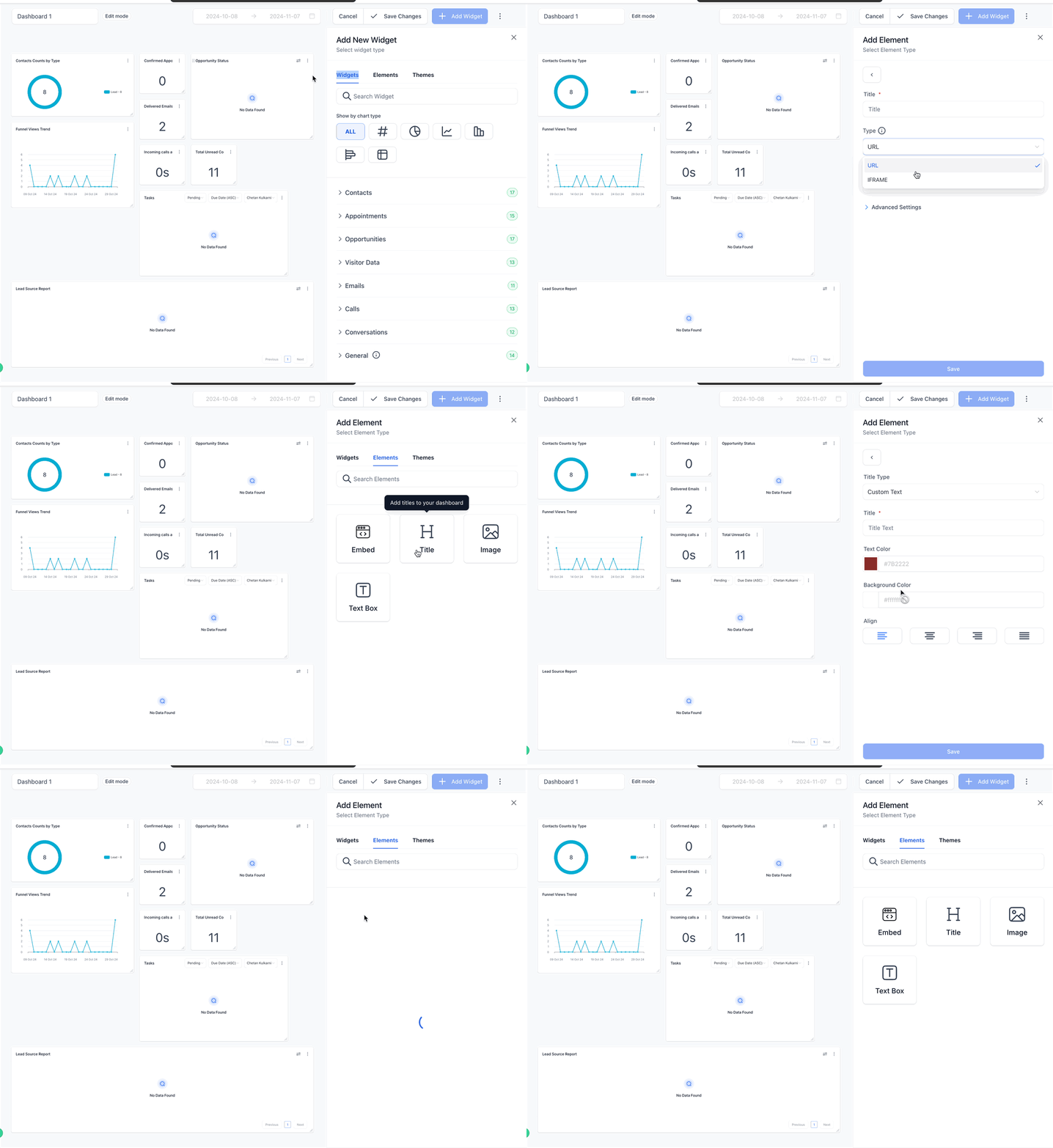
Elements give you the flexibility to customize your dashboard widgets. You can Add titles or headings to your dashboard to organize sections and group widgets by theme. Use textboxes for key information or task reminders to improve team communication. You can also Embed images like logos, charts, or infographics to enhance visual appeal and provide context.
Using Different Themes for your Dashboard Widgets
Themes give you the ability to customize the appearance of your entire dashboard or individual widgets. you can select from a variety of predefined themes or craft your own custom theme with specific colors.

Use Cases for Different Widgets
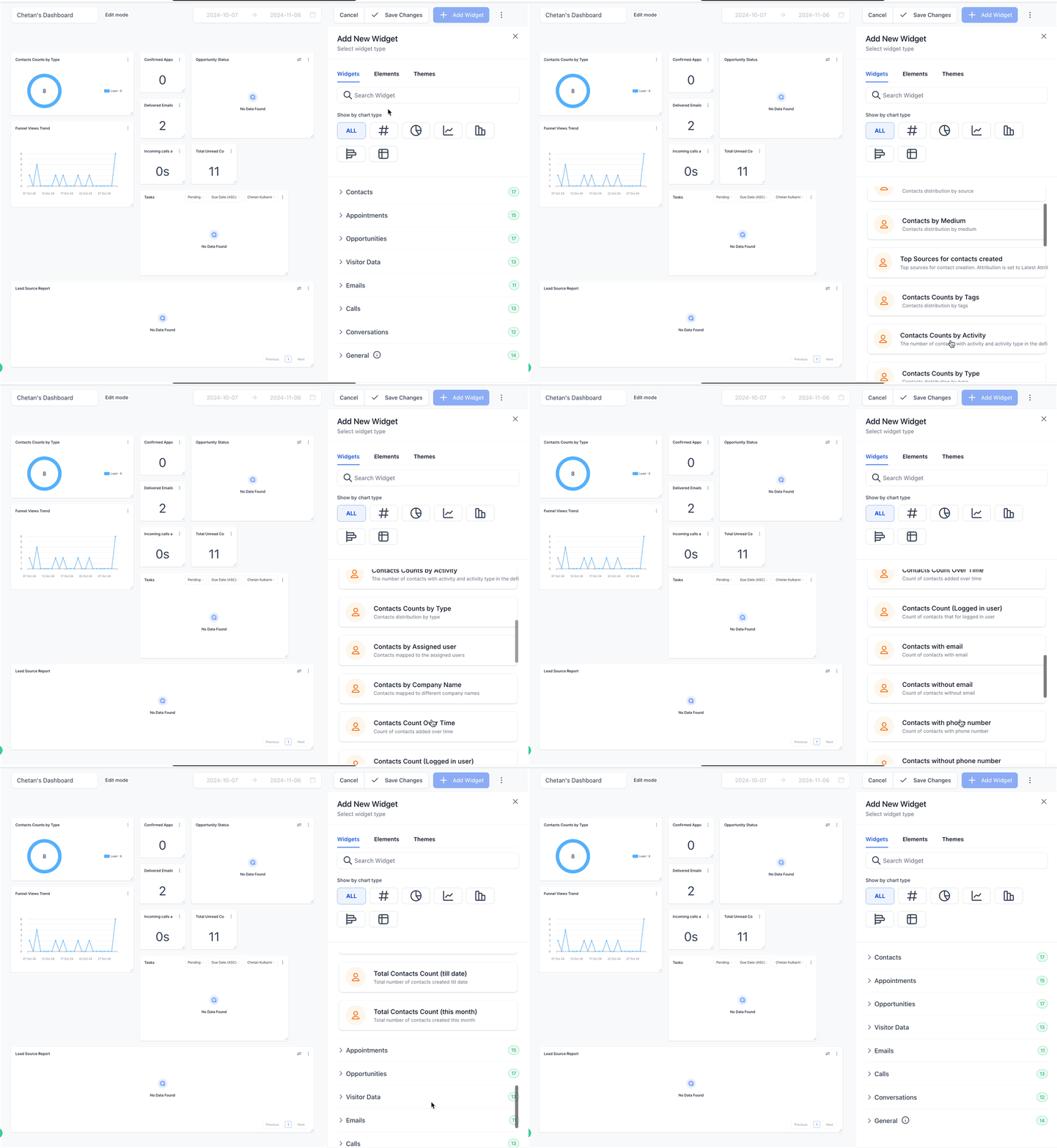
Contact Widgets:
| SL. No. | Widget | Description |
|---|---|---|
| 1 | Contact Count | Quick overview of the total number of contacts for the team. |
| 2 | Contact Count (Logged in user) | Shows contacts assigned to the logged-in user. |
| 3 | Contacts by Tags | Shows how contacts are distributed by tags. |
| 4 | Contacts by Activity | Monitors contacts with specific activities over a defined time period. |
| 5 | Contacts by Type | Visualizes contact distribution by type. |
| 6 | Contacts by Assigned User | Shows how contacts are mapped to team members. |
| 7 | Contacts by Company Name | Shows distribution of contacts by company name. |
| 8 | Contacts with Email | Tracks count of contacts with email addresses. |
| 9 | Contacts without Emails | Tracks count of contacts without email addresses. |
| 10 | Contacts with Phone Numbers | Tracks count of contacts with phone numbers. |
| 11 | Contacts without Phone Numbers | Tracks count of contacts without phone numbers. |
| 12 | Total Contacts Count (Till Date) | Snapshot of total contacts created till date. |
| 13 | Total Contacts Count (This Month) | Tracks total contacts created this month. |
| 14 | Contacts Count (Logged in User) | Counts contacts associated with the logged-in user. |
Appointment Widgets:

| SL. No. | Widget | Description |
|---|---|---|
| 1 | Appointment Count | Tracks total appointments, grouped by status or assignee. |
| 2 | Appointment Count over a Date Range | Monitors appointments in a selected time period. |
| 3 | Appointment Counts by Status | Shows appointment distribution by status. |
| 4 | Booked Appointments | Number of booked appointments in a selected date range. |
| 5 | Confirmed Appointments | Number of confirmed appointments in a selected time frame. |
| 6 | Showed Appointments | Number of appointments where customers showed up. |
| 7 | No Show Appointments | Number of appointments marked as no-show. |
| 8 | Cancelled Appointments | Tracks cancelled and invalid appointments. |
| 9 | No Show Rate Over Time | Shows no-show trends over time. |
| 10 | Upcoming Appointments (Week) | Total scheduled appointments for the week ahead. |
| 11 | Upcoming Appointment (Logged in User) | Upcoming appointments for the logged-in user. |
| 12 | Past Month Created Appointments | Total appointments created in the past month. |
| 13 | Past Month Created Appointments (Logged in User) | Past-month appointments created by the logged-in user. |
| 14 | Upcoming Appointments (Logged in User) | Upcoming appointments tailored to the logged-in user. |
| 15 | Upcoming Appointments for Next Week | Total appointments for the next week, including confirmed and unconfirmed bookings. |
| 16 | Past Month Created Appointments | Review of past month activity by count of appointments created. |
| 17 | Past Month Created Appointments (Logged in User) | Logged-in user’s appointments created in the past month. |
These widgets help you stay organized and make data-driven decisions about your appointments.
Opportunity Widgets:

| SL. No. | Widget | Description |
|---|---|---|
| 1 | Opened Opportunities | Number of currently open opportunities. |
| 2 | Won Opportunities | Opportunities successfully closed as deals. |
| 3 | Lost Opportunities | Opportunities that did not convert into deals. |
| 4 | Abandoned Opportunities | Opportunities left without action. |
| 5 | Opportunity Count | Total opportunities overview. |
| 6 | Opportunity Counts Over Time | Shows opportunity distribution over time. |
| 7 | Opportunity Revenue Over Time | Tracks revenue generated by opportunities over time. |
| 8 | Opportunity Counts by Status | Categorizes opportunities by status. |
| 9 | Opened Opportunity Value | Monetary value of opportunities in progress. |
| 10 | Lost Opportunity Value | Value of lost opportunities. |
| 11 | Abandoned Opportunity Value | Value of abandoned opportunities. |
| 12 | Won Opportunity Value | Value of converted opportunities. |
| 13 | Total Opportunity Value | Cumulative value of all opportunities. |
| 14 | Lost Opportunities By Reason | Split of lost opportunities by reason. |
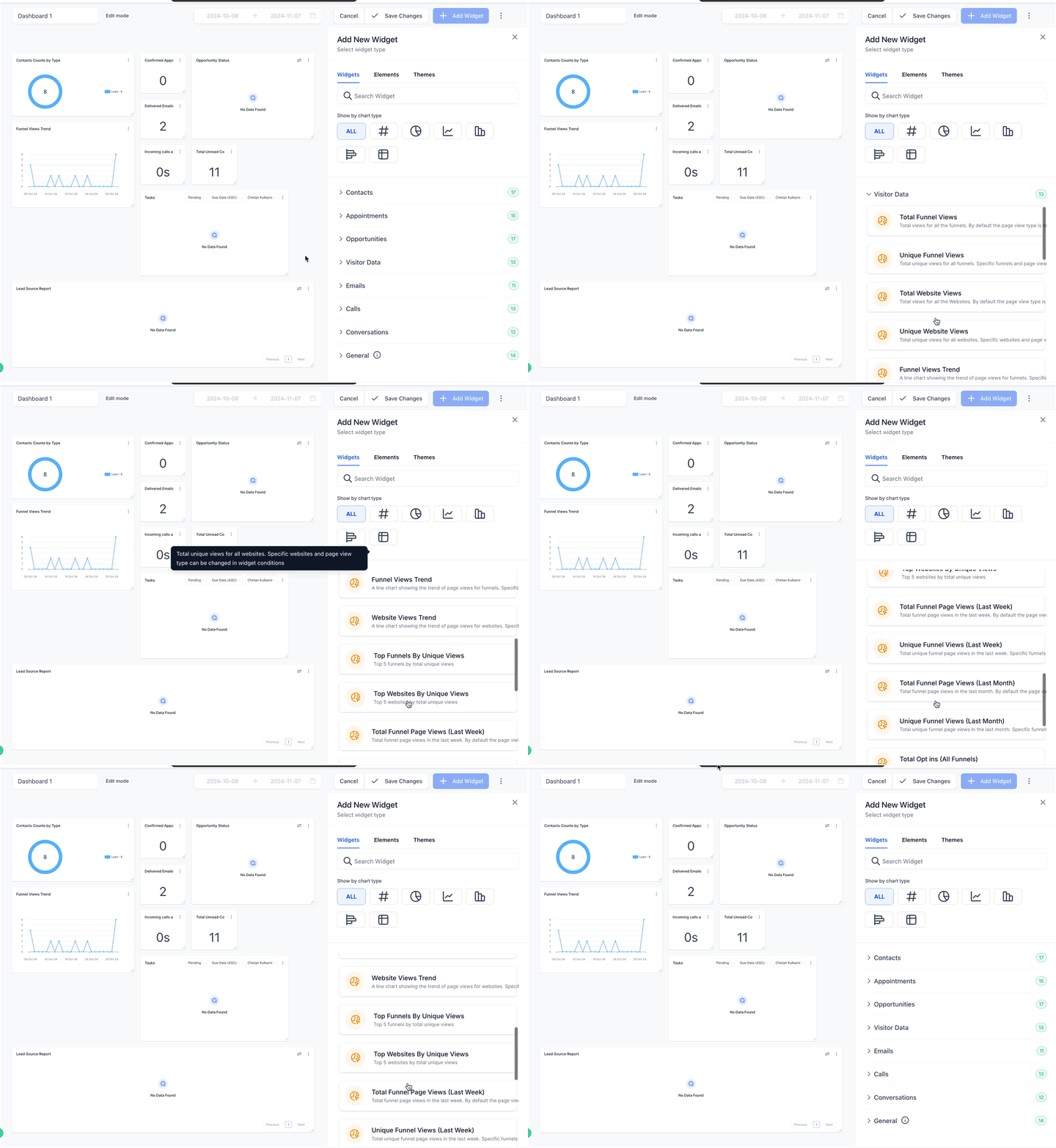
Visitor Data Widgets(Websites/Funnels):
| SL. No. | Widget | Description |
|---|---|---|
| 1 | Total Funnel Views | Tracks all funnel views; customizable by funnel and page type. |
| 2 | Unique Funnel Views | Counts unique funnel visitors. |
| 3 | Total Website Views | Tracks total views for all websites. |
| 4 | Unique Website Views | Shows unique website visitors. |
| 5 | Funnel Views Trend | Line chart for funnel views over time. |
| 6 | Website Views Trend | Line chart for website views over time. |
| 7 | Top Funnels by Unique Views | Top 5 funnels by unique views. |
| 8 | Top Websites by Unique Views | Top 5 websites by unique visitors. |
| 9 | Total Funnel Page Views (Last Week) | Funnel views from the last week. |
| 10 | Unique Funnel Views (Last Week) | Unique funnel visitors from the last week. |
| 11 | Total Funnel Page Views (Last Month) | Funnel views from the last month. |
| 12 | Unique Funnel Views (Last Month) | Unique funnel visitors from the last month. |
| 13 | Total Opt-ins (All Funnels) | Total opt-ins across all funnels. |
Email Widgets:

| SL. No. | Widget | Description |
|---|---|---|
| 1 | Accepted Emails | Number of emails successfully accepted. |
| 2 | Delivered Emails | Number of emails delivered to recipients. |
| 3 | Opened Emails | Number of emails opened by recipients. |
| 4 | Clicked Emails | Number of emails where links were clicked. |
| 5 | Replied Emails | Number of emails that received replies. |
| 6 | Soft Bounced Emails | Number of emails with soft bounces. |
| 7 | Hard Bounced Emails | Number of emails with hard bounces. |
| 8 | Failed Emails | Number of failed email deliveries. |
| 9 | Unsubscribed Emails | Number of recipients who unsubscribed. |
| 10 | Unsubscribed Emails Daily | Daily count of unsubscribed emails. |
| 11 | Emails By Domain | Emails grouped by recipient domain. |
Interpreting Email Widget Table Fields

If you use a table chart for Email Widgets, the Source Action Name column helps you trace email activity back to its origin.

For workflow-associated emails, Source Action Name displays the workflow step name, making it easier to connect email records to workflow execution.
Call Widgets:

| SL. No. | Widget | Description |
|---|---|---|
| 1 | Incoming Calls by Status | Grouped count of incoming calls by status. |
| 2 | Outgoing Calls by Status | Grouped count of outgoing calls by status. |
| 3 | Incoming Calls Total Call Duration | Total duration of all incoming calls. |
| 4 | Outgoing Calls Total Call Duration | Total duration of all outgoing calls. |
| 5 | Incoming Calls Avg. Call Duration | Average duration of incoming calls. |
| 6 | Outgoing Calls Avg. Call Duration | Average duration of outgoing calls. |
| 7 | Total Calls Placed by Call Attendee | Total outgoing calls grouped by the user who made the call. |
| 8 | Incoming Calls Avg. Call Duration by Call Attendee | Average incoming call duration by attending user. |
| 9 | Outgoing Calls Avg. Call Duration by Call Attendee | Average outgoing call duration by calling user. |
| 10 | First Time Call by Status | Count of first-time incoming calls, grouped by status. |
| 11 | First Time Call Avg Duration | Average duration of first-time incoming calls. |
| 12 | First Time Call Avg Duration by Call Attendee | Average duration of first-time incoming calls by attending user. |
| 13 | First Time Call Total Duration | Total duration of first-time incoming calls. |
Note: The term 'Call attendee' refers to the team member who participated in the call, either by making or receiving the call from the customer.
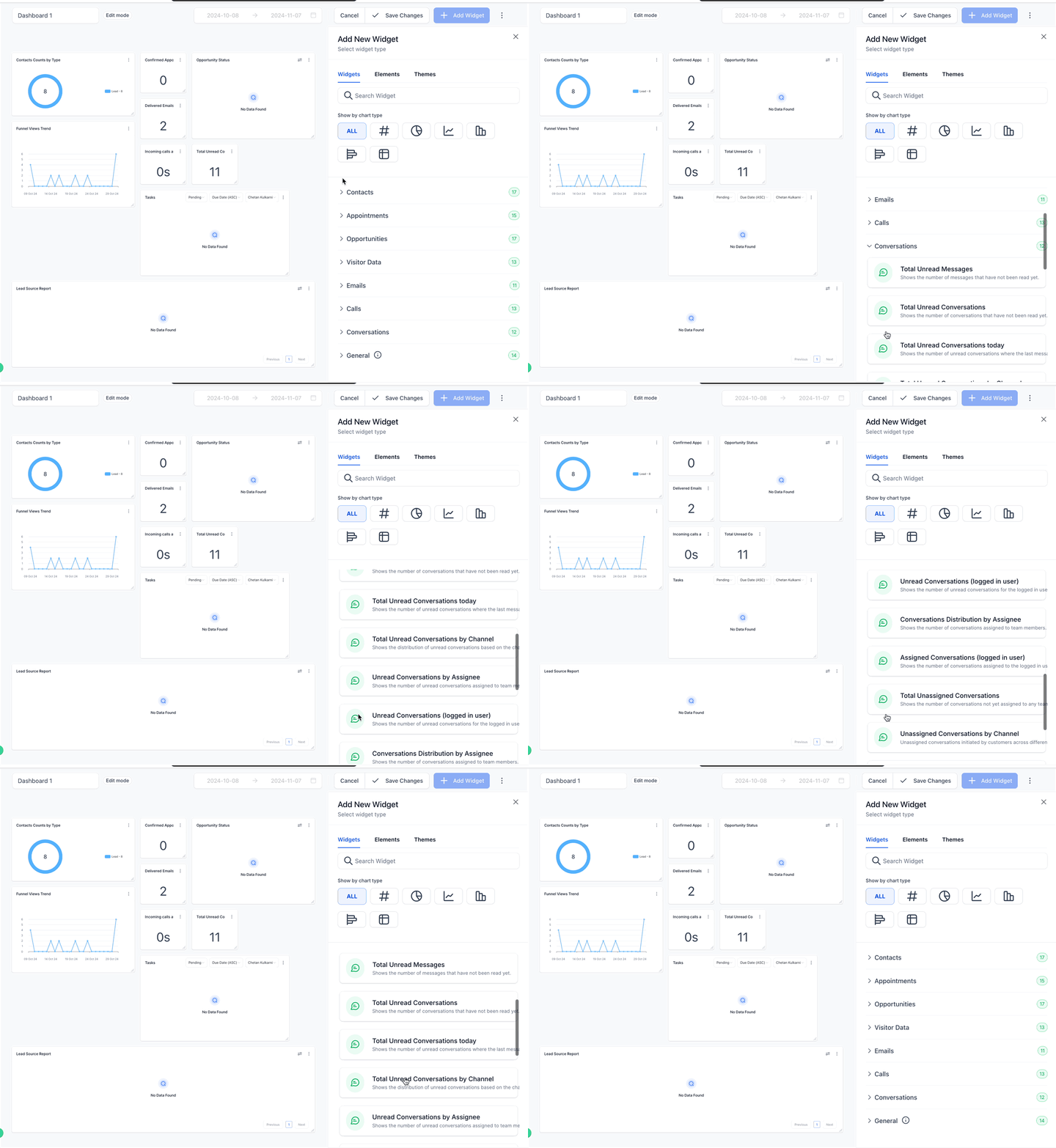
Conversation Widgets:
| SL. No. | Widget | Description |
|---|---|---|
| 1 | Total Unread Conversations | Number of unread conversations. |
| 2 | Total Unread Conversations today | Unread conversations where the last message was received today. |
| 3 | Total Unread Conversations by Channel | Distribution of unread conversations by the customer’s last-message channel. |
| 4 | Unread Conversations by Assignee | Number of unread conversations assigned to team members. |
| 5 | Unread Conversations (logged in user) | Number of unread conversations for the logged-in user. |
| 6 | Conversations Distribution by Assignee | Number of conversations assigned to team members. |
| 7 | Assigned Conversations (logged in user) | Number of conversations assigned to the logged-in user. |
| 8 | Total Unassigned Conversations | Number of conversations not assigned to any team member. |
| 9 | Unassigned Conversations by Channel | Unassigned conversations initiated across different channels. |
| 10 | New Conversations started (This Week) | Number of conversations started this week. |
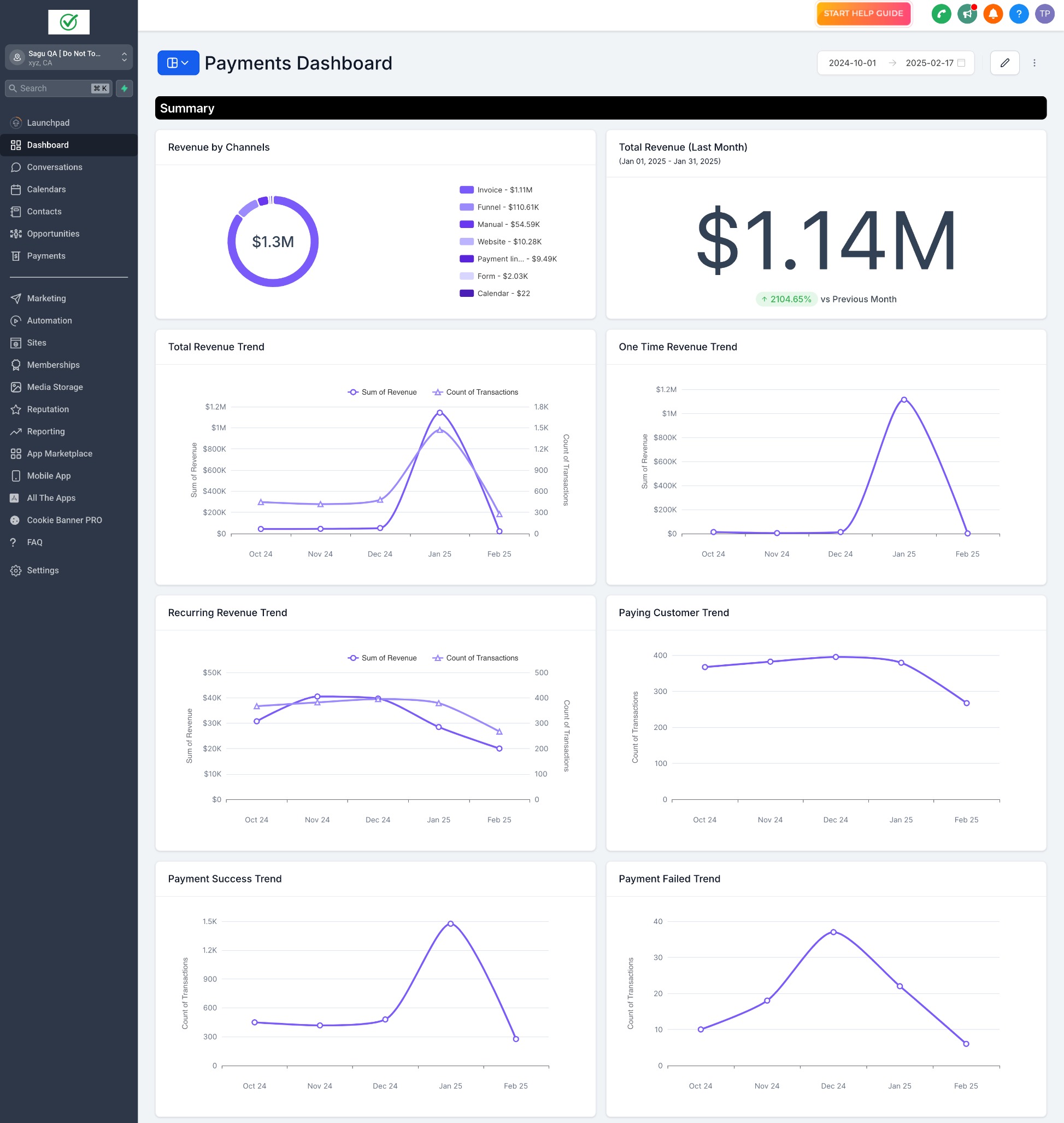
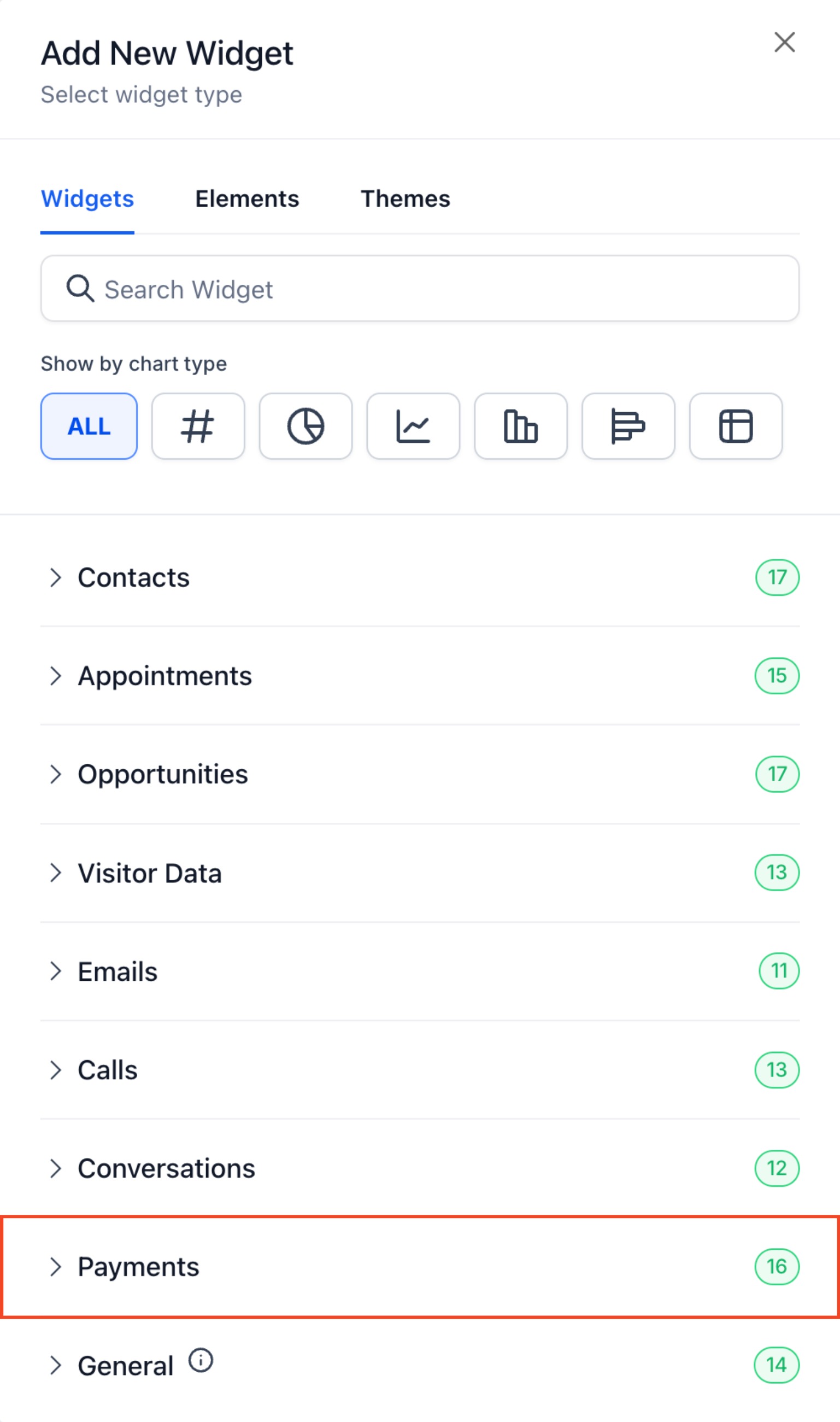
Payments Widgets:
Revenue & Trends
- Total Revenue (Last Month) – Total revenue generated in the last month
- Total Revenue Trend – Monthly total revenue trend
- One-Time Revenue Trend – Monthly trend for one-time payments
- Recurring Revenue Trend – Monthly trend for recurring payments
Customer & Payment Performance
- Paying Customer Trend – Monthly trend of paying customers
- Payment Success Trend – Monthly trend of successful payments
- Payment Failed Trend – Monthly trend of failed payments
Revenue Breakdown
- Revenue by Channels – Revenue breakdown by different payment channels
- Subscription Creation Trend – Monthly trend of new subscriptions
- Subscription Cancellation Trend – Monthly trend of canceled subscriptions
Discounts & Invoices
- Coupon Redemption Trend – Monthly trend of coupon redemptions
- Coupon Redemption Amount Trend – Monthly trend of discount amounts applied
- Invoice Sent Trend – Monthly trend of invoices sent
- Invoice Paid Trend – Monthly trend of invoices paid
Refund Insights
- Refund Trend – Monthly trend of refunds issued
- Refund Amount Trend – Monthly trend of total refund amounts

| SL. No. | Widget | Description |
|---|---|---|
| 1 | Total Revenue (Last Month) | Total revenue generated in the last month. |
| 2 | Total Revenue Trend | Monthly total revenue trend. |
| 3 | One-Time Revenue Trend | Monthly trend for one-time payments. |
| 4 | Recurring Revenue Trend | Monthly trend for recurring payments. |
| 5 | Paying Customer Trend | Monthly trend of paying customers. |
| 6 | Payment Success Trend | Monthly trend of successful payments. |
| 7 | Payment Failed Trend | Monthly trend of failed payments. |
| 8 | Revenue by Channels | Revenue breakdown by payment channel. |
| 9 | Subscription Creation Trend | Monthly trend of new subscriptions. |
| 10 | Subscription Cancellation Trend | Monthly trend of canceled subscriptions. |
| 11 | Coupon Redemption Trend | Monthly trend of coupon redemptions. |
| 12 | Coupon Redemption Amount Trend | Monthly trend of discount amounts applied. |
| 13 | Invoice Sent Trend | Monthly trend of invoices sent. |
| 14 | Invoice Paid Trend | Monthly trend of invoices paid. |
| 15 | Refund Trend | Monthly trend of refunds issued. |
| 16 | Refund Amount Trend | Monthly trend of total refund amounts. |
General Widgets:

| SL. No. | Widget | Description |
|---|---|---|
| 1 | Opportunity Status | Visualize opportunity status. |
| 2 | Opportunity Value | Understand total opportunity value by status. |
| 3 | Conversion Rate | Track conversion rate and revenue from won opportunities. |
| 4 | Funnel | Detailed view of sales funnel and conversion rates by stage. |
| 5 | Stages Distribution | Understand how opportunities are distributed among stages. |
| 6 | Tasks | Monitor tasks added and the team member assigned. |
| 7 | Manual Actions | Track manual actions such as SMS and phone calls in campaigns. |
| 8 | Lead Source Report | Overview of total leads by source. |
| 9 | Google Analytics Count | Track total views in Google Analytics. |
| 10 | Google Analytics Chart | View total views and interactions on the website. |
| 11 | Google Business Profile | Monitor Google Business Profile metrics. |
| 12 | Facebook Ads Report | Track clicks, spend, CTR, and CPC for Facebook ads. |
| 13 | Google Ads Report | Track clicks, spend, CTR, and CPC for Google ads. |
| 14 | Sales Efficiency | Sales efficiency report for opportunities. |
Note:
Wondering which plan unlocks the customizable Dashboard?
It's currently available exclusively for the $297 plan and beyond.
Was this article helpful?
That’s Great!
Thank you for your feedback
Sorry! We couldn't be helpful
Thank you for your feedback
Feedback sent
We appreciate your effort and will try to fix the article