Track every SMS your team sends and receives — without leaving HighLevel. SMS Widgets bring dedicated messaging analytics directly into your Sub-Account Dashboard and Custom Reports, giving agencies and their clients a clear picture of SMS volume, delivery health, source activity, and team performance.
TABLE OF CONTENTS
- What Are SMS Widgets?
- Key Benefits of SMS Widgets
- Prerequisites & Access
- Available SMS Widgets
- Widgets in Dashboard, Custom Report, Custom Metrics
- How to Add SMS Widgets
- Configuring SMS Widgets
- Using SMS in Custom Metrics
- Frequently Asked Questions
- Related Articles
What Are SMS Widgets?
SMS Widgets are pre-built visual reporting blocks that surface SMS messaging data directly inside any HighLevel Sub-Account Dashboard or Custom Report. They work exactly like Email Widgets — no manual exports, no filtering through Conversations — just clean, real-time SMS analytics wherever you need them.
With five dedicated widgets covering delivery status, inbound volume, source type, sender performance, and time-based trends, you can build an SMS health view for clients in minutes and share it on a schedule.
Key Benefits of SMS Widgets
- Monitor delivery health — See exactly how many messages were Sent, Delivered, Failed, Pending, Undelivered, Clicked, or Read without digging through Conversations manually
- Track SMS volume over time — SMS volume over time shows day/week/month breakdowns so you can monitor usage trends and plan capacity confidently
- See where messages originate — Filter by Source (Workflow, Campaign, Bulk action, Other) to understand what is driving SMS usage
- Hold teams accountable — SMS by sender shows outbound volume per team member, giving managers visibility into individual activity and workload
- Close the loop on inbound — Incoming SMS count tracks replies and inbound messages so you can measure two-way conversation engagement
- Precise control with AND/OR conditions — Stack multiple filters across Status, Direction, Source, Sent by, and Workflow to segment exactly the data you need

Prerequisites & Access
- Dashboards & Reports access: verify the user has permission to view or edit dashboards and to create or schedule Custom Reports
- No additional integration or connection is required — SMS data is already available inside HighLevel
Available SMS Widgets
Five SMS widgets are available, each configurable with chart type, conditions, and themes.
| Widget | What Data It Shows |
|---|---|
| SMS by status | Distribution of outbound SMS by delivery status — Sent, Delivered, Failed, Pending, Undelivered, Clicked, Read. Use this to monitor messaging health and identify delivery issues early |
| Incoming SMS count | Count of inbound SMS messages received. Filter by Direction (Inbound/Outbound) and date range to track reply volume and two-way conversation trends |
| SMS by source type | Outbound SMS broken down by the source that triggered the send — Workflow, Campaign, Bulk action, or Other. Understand what is driving your SMS volume. |
| SMS by sender | Outbound SMS volume grouped by the team member (Sent by) who sent the message. Track individual activity and workload across your team |
| SMS volume over time | Trend of total SMS sent over time — view by day, week, or month. Ideal for tracking usage trends, capacity planning, and client reporting |

Widgets in Dashboard, Custom Report, Custom Metrics
In all 3 environments use the five SMS widgets. Choose based on how you need to view, and compute and share data.
- Dashboard — Best for always-on monitoring. Widgets live on a Sub-Account dashboard and update automatically. Build an SMS health section alongside your Email and Calls widgets for a full messaging overview
- Custom Reports — Best for scheduled client delivery. Add SMS widgets to a report layout and schedule automatic email delivery on a daily, weekly, or monthly cadence
- Custom Metric - Build a custom metric to build your own KPI not just SMS metric, also combine with other modules as well
How to Add SMS Widgets
1) Add SMS Widgets to a Dashboard
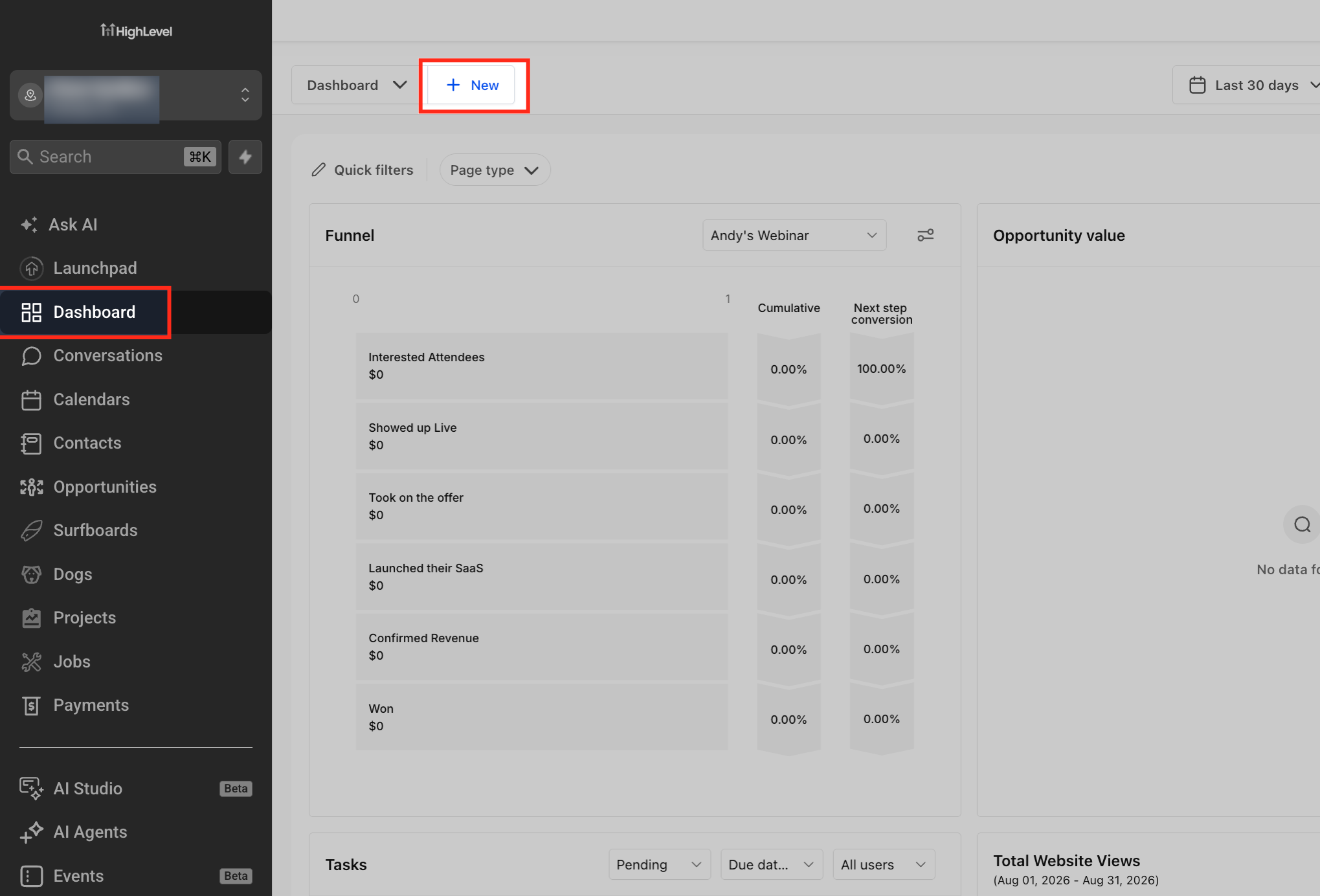
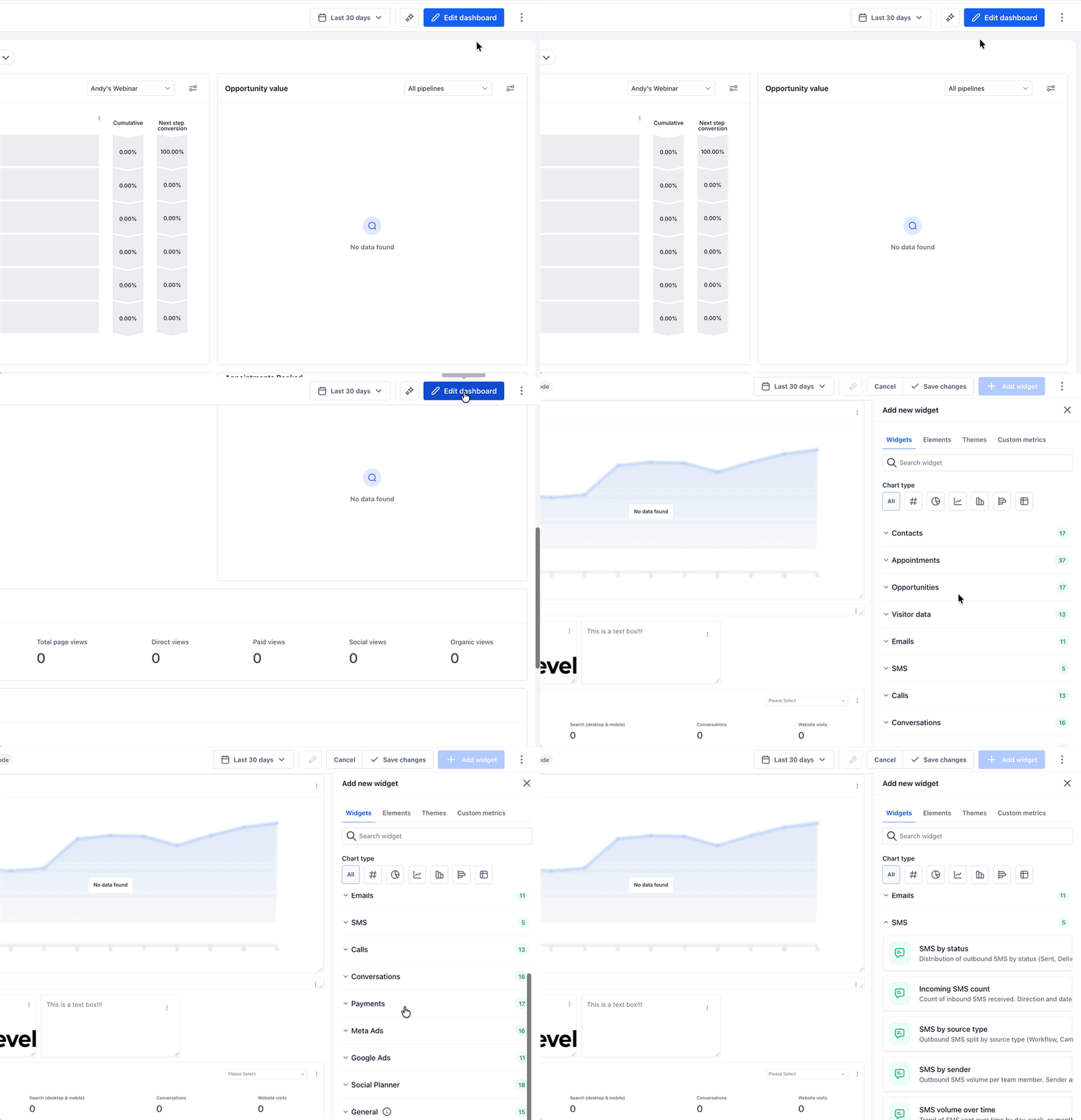
1. In your Sub-Account, navigate to Dashboards and open the dashboard you want to edit (or create a new one)
2. Click Edit Dashboard in the top right corner
3. Click + Add Widget — the widget panel opens on the right side
4. Scroll down to the SMS section (below Emails) — all 5 SMS widgets are listed here
5. Click on the widget you want to add — it is placed on your dashboard canvas
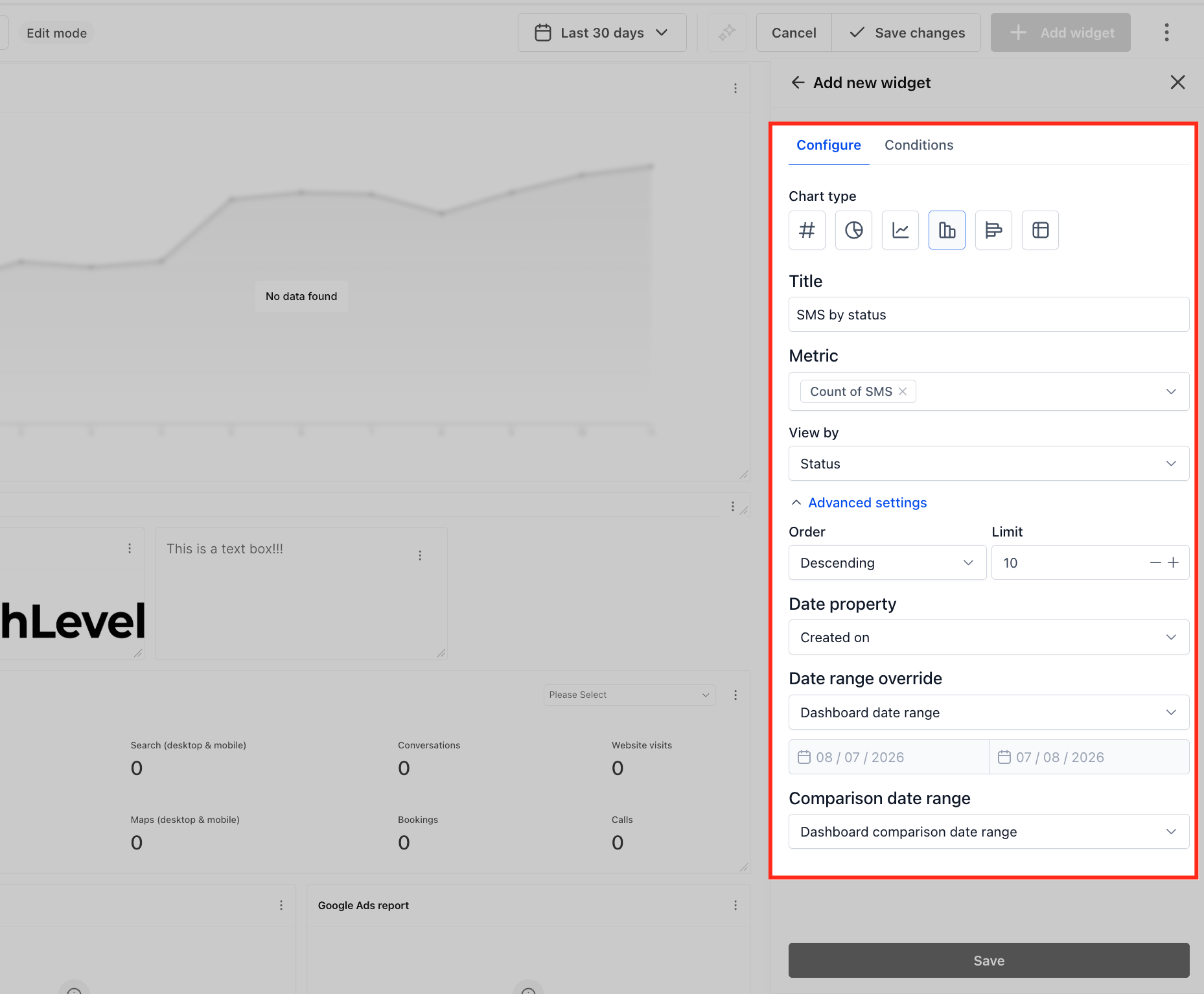
6. Configure the widget using the Configure, Conditions, and Themes tabs (see below)
7. Click Save Changes to publish the widget to your dashboard
> Tip: Add SMS volume over time and SMS by status side by side for a quick SMS health view at the top of your dashboard.

2) Add SMS Widgets to a Custom Report
1. In your Sub-Account, go to Reporting → Custom Reports and open an existing report or click New Report
2. Choose to start from a blank canvas, use a template, or import an existing dashboard layout
3. Click Add Widget / Element in the top left of the report builder
4. Scroll to the SMS section and drag the widgets you want into your report layout
5. Configure each widget using the Configure, Conditions, and Themes tabs
6. Click Save
7. Click Send or Schedule to set up automatic email delivery of the report
Configuring SMS Widgets
Each SMS widget has three configuration tabs in the Edit Widget panel.
Configure Tab
The Configure tab controls how the widget looks and what data dimension it groups by.
- Metric - Count of SMS
- Group - Controls how widget data is broken down visually. Options: Status, Direction, Source, Sent by — and conditionally: Workflow, Campaign, Bulk action (see note below)
⚠️ How to unlock Workflow, Campaign, and Bulk action in Group:
Workflow, Campaign, and Bulk action appear greyed out in the Group dropdown by default. To activate them:
1. Go to the Conditions tab first
2. Add a Source filter and set its value (e.g. Source = Workflow)
3. Make sure all condition branches use the same Source value
4. Return to the Configure tab — the matching Group option is now active
This allows you to break down widget data by the specific workflow, campaign, or bulk action that triggered each SMS. For example: set Source = Workflow in Conditions, then Group by Workflow in Configure to see SMS volume broken down per workflow.

Conditions Tab
Add filters to control exactly which SMS data the widget displays. Conditions support AND / OR logic — stack multiple filters to narrow or expand your dataset.
? [SCREENSHOT: Conditions tab showing AND/OR logic with Source = Workflow AND Workflow = specific workflow OR Source = Campaign]
| Condition | Values | Notes |
|---|---|---|
| Status | Sent, Delivered, Failed, Pending, Undelivered, Clicked, Read | Filter outbound SMS by delivery outcome |
| Direction | Inbound, Outbound | Filter by message direction |
| Source | Workflow, Campaign, Bulk action, Other | Filter by what triggered the SMS send |
| Sent by | Logged in user, or any team member in the sub-account | Filter outbound SMS by the sender |
How AND/OR conditions work:
- Use + AND to narrow results — all conditions in a group must be true
- Use OR to add a separate condition group — either group can be true
- Example: Source = Workflow AND Workflow = "Lead Nurture" OR Source = Campaign — shows SMS from one specific workflow or from all campaigns

Themes Tab
Match widget colors to your dashboard or client brand. Select from available theme presets or customize colors.
? [SCREENSHOT: Themes tab with color options]
Using SMS in Custom Metrics
SMS is already available as a dimension in Custom Metrics. Use Count of SMS in the formula builder to create KPIs that combine SMS data with other metrics.
? [SCREENSHOT: Create Custom Metric screen with Count of SMS selected in formula builder and Configuration panel open showing Status and Direction filters]
How to use Count of SMS in a Custom Metric:
1. Go to Dashboards → Edit → Custom Metrics and click Create Custom Metric
2. In the Formula builder, select Count of SMS as your metric (supports up to 4 metrics combined with operators)
3. Click on Count of SMS in the formula to open the Configuration panel on the right
4. Under Filters, add conditions to refine which SMS are counted:
- Status — e.g. Status Is Delivered to count only delivered messages
- Direction — e.g. Direction Is Inbound to count only replies received
- Use + AND and OR to combine multiple filters
5. Name your metric, set Data Type, and click Create
Example KPIs you can build in custom metric:
- SMS Delivery Rate — Count of SMS (Status = Delivered) ÷ Count of SMS (Status = Sent) × 100
- Inbound SMS Volume — Count of SMS (Direction = Inbound)
- Campaign SMS Sent — Count of SMS (Source = Campaign)

Frequently Asked Questions
Q: Do SMS Widgets cover both outbound and inbound messages?
Yes. Incoming SMS count is specifically for inbound messages. SMS by status, SMS by source type, SMS by sender, and SMS volume over time cover outbound. Use the Direction condition to filter any widget to Inbound or Outbound.
Q: What are all the Status values available?
Sent, Delivered, Failed, Pending, Undelivered, Clicked, and Read.
Q: What are the Source options?
Workflow, Campaign, Bulk action, and Other.
Q: How does the Workflow condition work?
Select Source = Workflow first, then a second condition row appears where you can select a specific workflow from your sub-account.
Q: How do I group a widget by a specific Workflow or Campaign?
First go to the Conditions tab and set Source = Workflow (or Campaign) across all condition branches. Then return to the Configure tab — Workflow (or Campaign) will now be active in the Group dropdown. Select it to break down the widget data by that source type.
Q: Why is Workflow greyed out in the Group dropdown?
Workflow, Campaign, and Bulk action in the Group dropdown only activate when a matching Source filter is set in the Conditions tab. See the Configure Tab section above for the full steps.
Q: Why is my SMS widget showing no data?
Common causes: the selected date range has no SMS activity, filters are too narrow, or SMS has not been used in this sub-account. Try removing conditions or widening the date range.
Q: Can I combine SMS widgets with Email and Calls widgets on the same dashboard?
Yes. All messaging categories — SMS, Emails, and Calls — can be placed on the same dashboard for a unified communication health view.
Q: Can I schedule an SMS report for clients?
Yes. Add SMS widgets to a Custom Report and schedule automatic email delivery on a daily, weekly, or monthly cadence.
Q: Is SMS available in Custom Metrics?
Yes. Count of SMS is already available in the Custom Metrics formula builder. You can filter by Status, Direction, Source, and Sent by to build precise KPIs like delivery rate or inbound volume.
Q: How often do SMS widgets update?
Widgets update automatically. No manual refresh is needed.
Q: Which plans include SMS Widgets?
SMS Widgets are available on all plans that include Dashboards & Reporting.
Related Articles
- [Email Widgets](https://help.gohighlevel.com/support/solutions/articles/155000004328-email-widgets)
- [What Are Dashboard Widgets?](https://help.gohighlevel.com/support/solutions/articles/155000001212-what-are-dashboard-widgets-)
- [How To Create A Custom Dashboard](https://help.gohighlevel.com/support/solutions/articles/155000001531-how-to-create-a-custom-dashboard)
- [How to Create and Schedule Reports](https://help.gohighlevel.com/support/solutions/articles/155000001210)
- [Dashboards: Meta Ad Widgets and Insights](https://help.gohighlevel.com/support/solutions/articles/155000006608-dashboards-meta-ad-widgets-and-insights)
Was this article helpful?
That’s Great!
Thank you for your feedback
Sorry! We couldn't be helpful
Thank you for your feedback
Feedback sent
We appreciate your effort and will try to fix the article