Bulk Import Companies
This article covers HighLevel's bulk company import feature, which allows you to upload CSV files to create and update company records in your CRM.
You'll learn how to enable the feature through Labs, navigate the four-step import wizard, map fields accurately, handle duplicates, and track import progress with detailed statistics.
This feature is currently available through HighLevel Labs. You must enable "Company and Custom Object Import" in your subaccount Labs settings before you can access the bulk import functionality.
What is Bulk Import for Companies?
Bulk Import for Companies is a CSV-based import tool that allows you to create and update company records in your HighLevel CRM at scale. The feature uses a guided, four-step wizard that walks you through uploading your file, mapping fields, handling duplicates, and verifying data before the import begins.
The import process supports three modes: creating new companies, updating existing companies, or both creating and updating companies in a single operation. Duplicate detection is handled using the Company ID field, ensuring that existing records are updated correctly rather than duplicated.
After an import completes, HighLevel provides detailed statistics broken down by success, error, and warning counts, along with a downloadable report for auditing and troubleshooting.
Key Benefits
Bulk company import streamlines CRM data management and reduces the operational overhead of manual record creation. This feature is especially valuable for agencies migrating client data or SMBs consolidating company information from multiple sources.
Enabling Company and Custom Object Import
Before you can use bulk company import, you must enable the feature through HighLevel Labs. Labs features are experimental or early-access capabilities that require manual activation at the subaccount level.
Go to your Subaccount and select Labs from the settings menu.
Locate the Company and Custom Object Import toggle and turn it on.
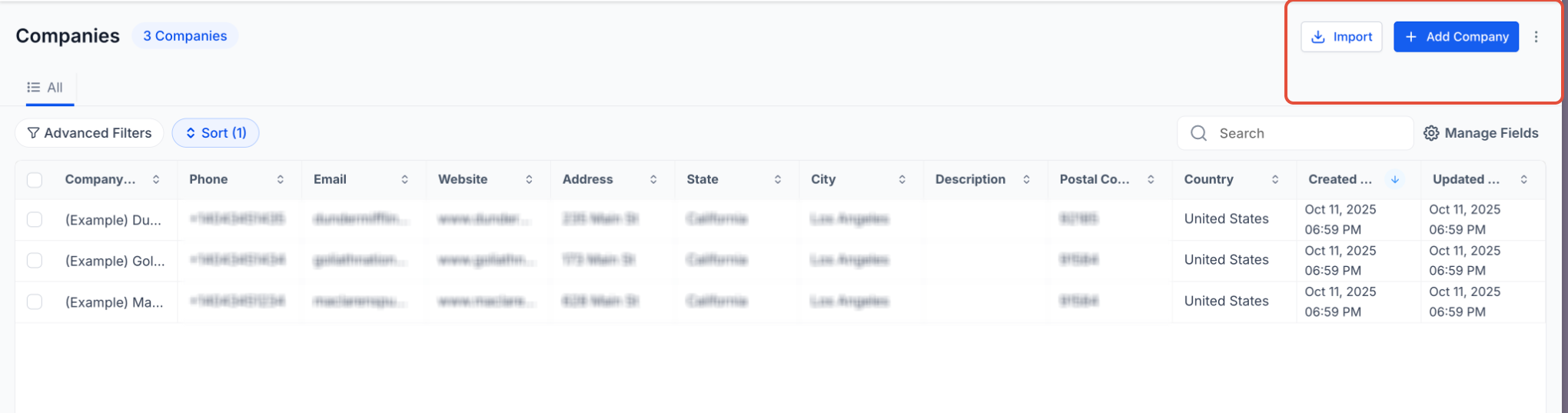
Navigate to the Companies section of your CRM and confirm that the Import button is visible.
How to Import Companies
Follow these steps to start a bulk import of company records. Make sure your CSV file is properly formatted and contains the data you want to import before beginning.
Navigate to Companies in your HighLevel CRM and click the Import button.
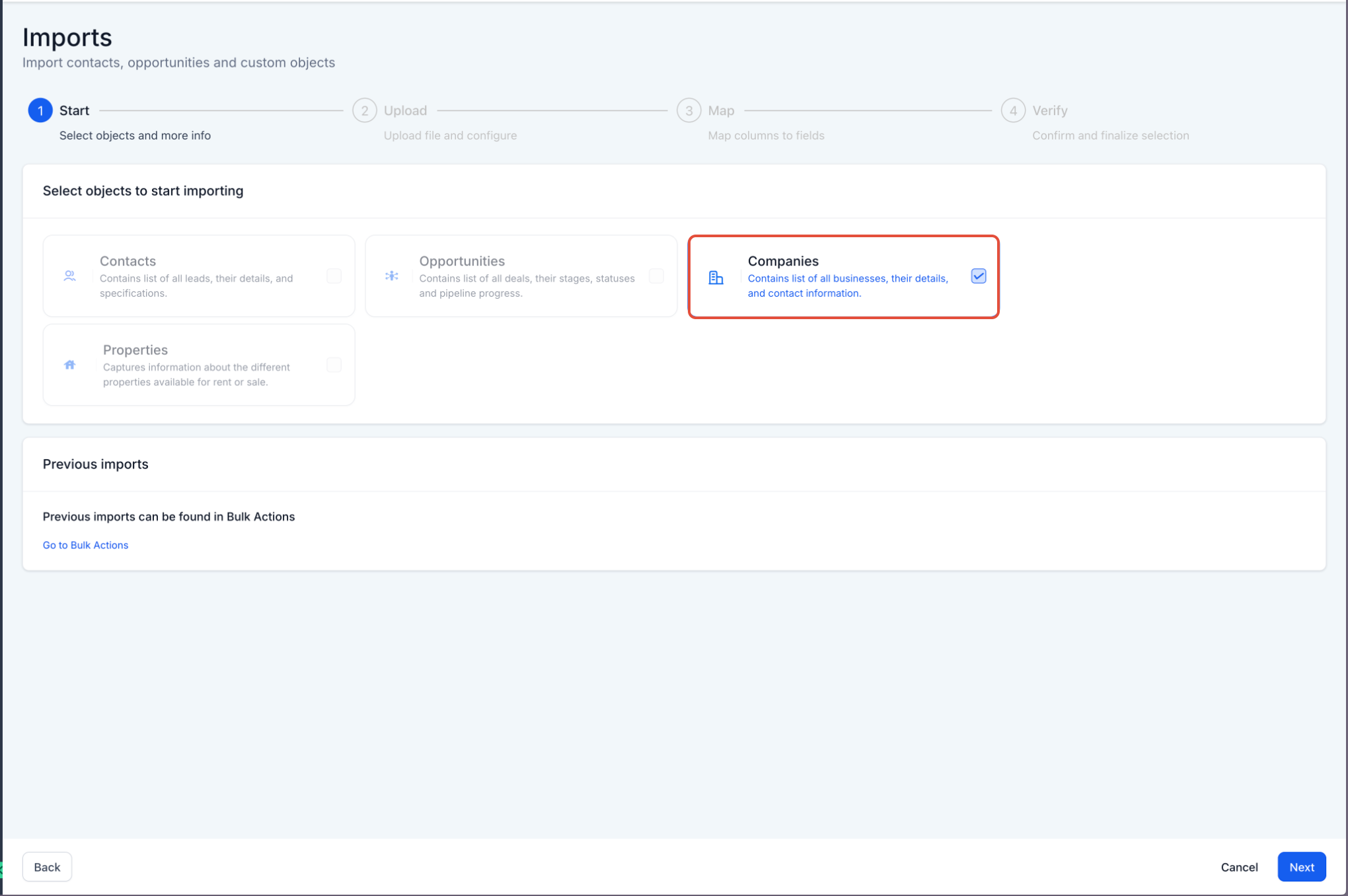
In the object selection screen, choose Companies from the available import types.
Click to upload your CSV file or drag and drop it into the upload area.
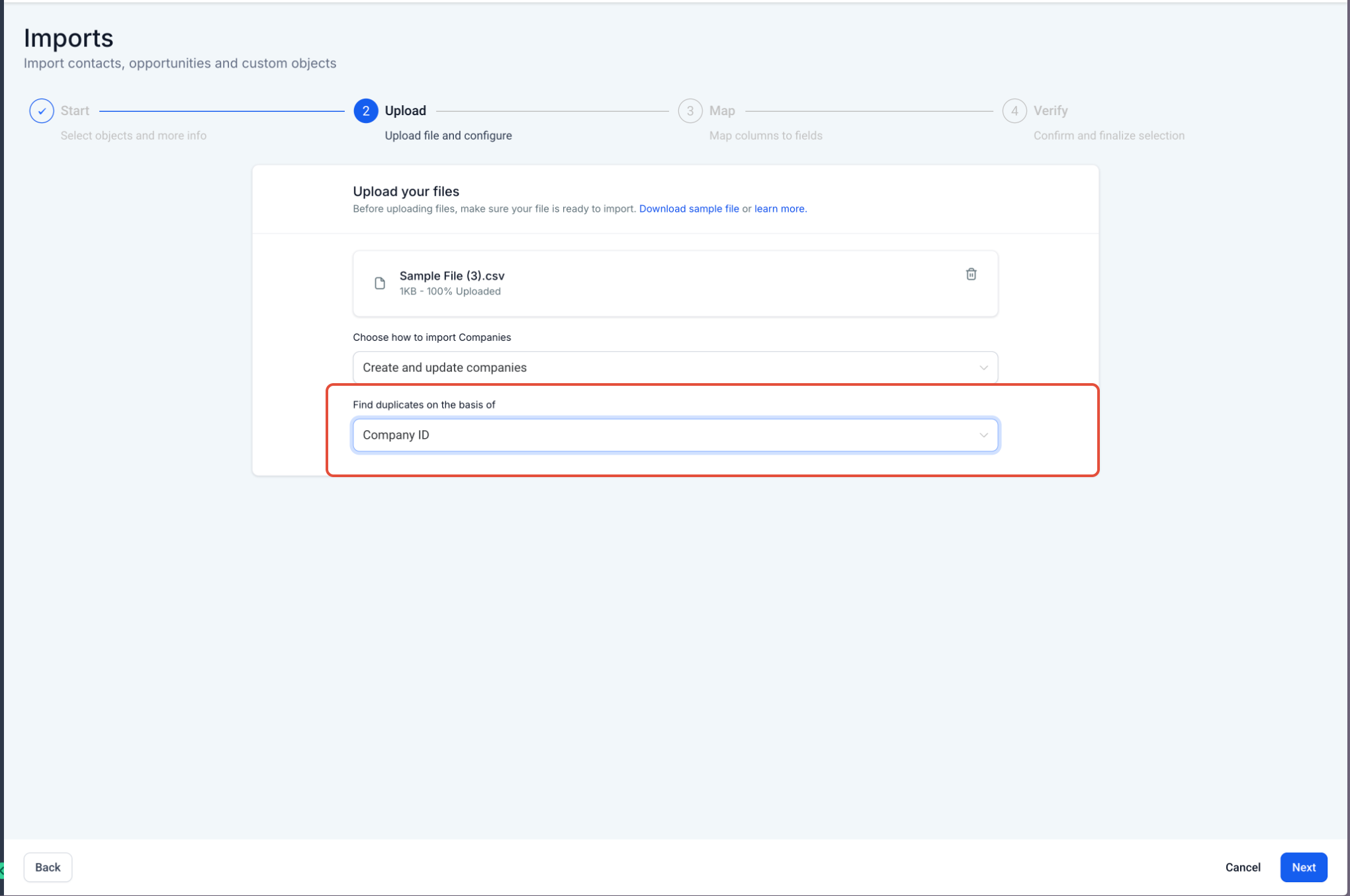
Select one of three options: Create companies, Update companies, or Create & update companies.
Select Company ID as the duplicate detection criteria. This ensures existing records are updated rather than duplicated.
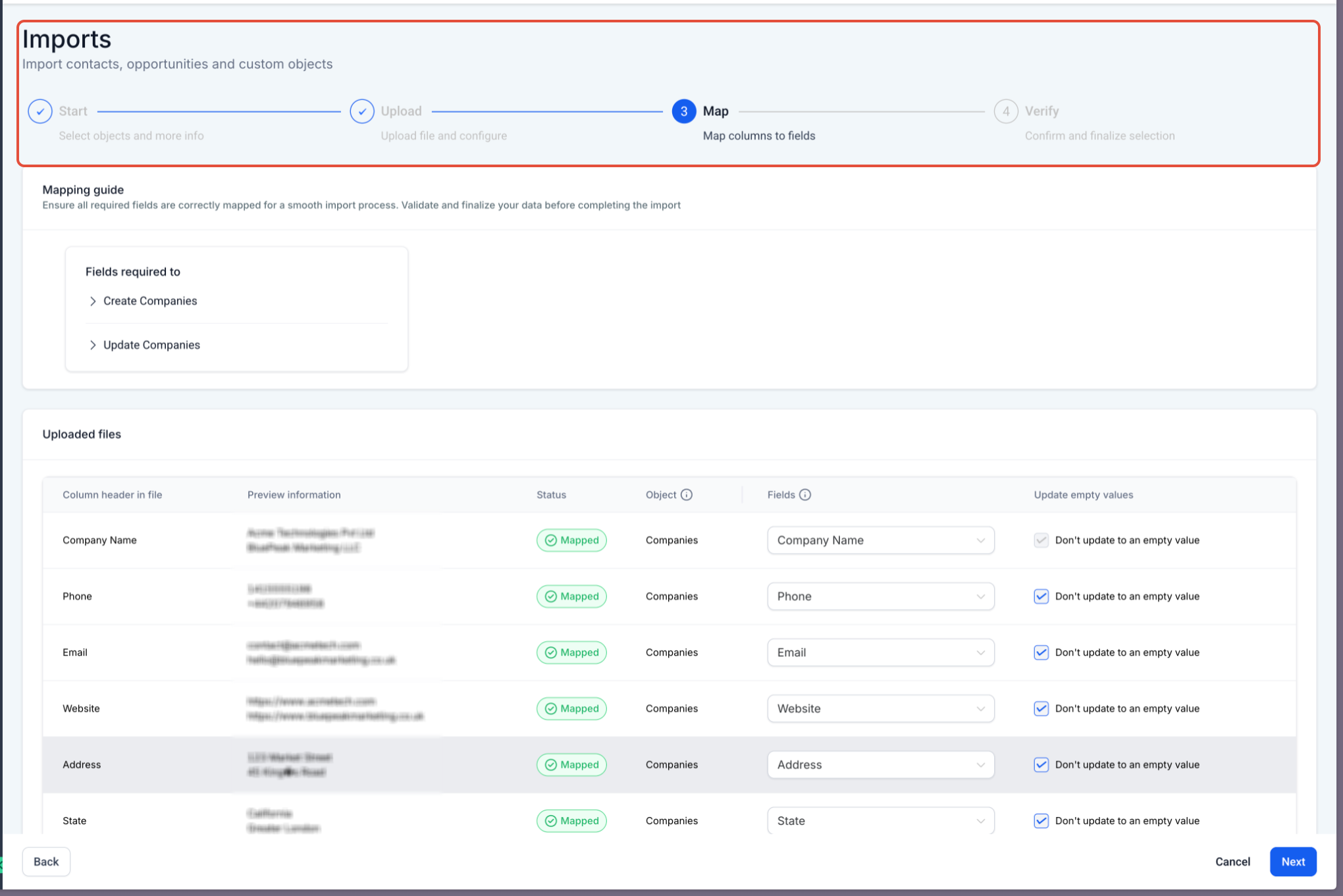
Match each column in your CSV to the corresponding company field in HighLevel. Preview data is shown to help confirm your mappings are correct.
Review the verification screen to confirm all settings and mappings are correct. If updating existing records, consider enabling Don't update to empty value to prevent overwriting existing data with blank fields.
Click Start Bulk Import to begin processing your file.
Understanding the Import Flow
The bulk company import process is divided into four distinct stages. Each stage validates and prepares your data before moving to the next step.
Select the object type (Companies) and choose your import behavior (create, update, or both).
Upload your CSV file and configure duplicate detection criteria (typically Company ID).
Match CSV columns to HighLevel company fields. Preview data is displayed to help confirm accurate mappings.
Review all settings, mappings, and import options before submitting. Enable field-level protection if you want to prevent empty values from overwriting existing data.
The wizard shows preview data during the mapping stage so you can confirm that each column contains the expected information before finalizing your import.
Tracking Import Progress
After starting a bulk import, HighLevel provides a dedicated tracking page where you can monitor the status of your import jobs and review detailed statistics.
Navigate to Bulk Actions – Companies to view all active and completed imports. Each import displays a progress indicator and, once complete, provides a breakdown of success, error, and warning counts.
Always download the import report after completion for auditing and troubleshooting. This report contains detailed error messages that can help you correct issues in your CSV before re-importing.
CSV Preparation Checklist
Properly formatting your CSV file before uploading will reduce errors and ensure a smooth import process. Follow these guidelines to prepare your data.
Enabling "Don't update to empty value" is recommended when updating existing records. Without this option, empty cells in your CSV will overwrite existing data in HighLevel, potentially causing data loss.
Frequently Asked Questions
Was this article helpful?
That’s Great!
Thank you for your feedback
Sorry! We couldn't be helpful
Thank you for your feedback
Feedback sent
We appreciate your effort and will try to fix the article