Send WhatsApp Messages from Voice AI Calls
Voice AI agents can now send approved WhatsApp templates to contacts during live calls, enabling you to deliver booking links, payment details, or business information exactly when needed in the conversation.
This article covers how to configure the Send WhatsApp Message action, set trigger conditions, and ensure compliant message delivery during Voice AI calls.
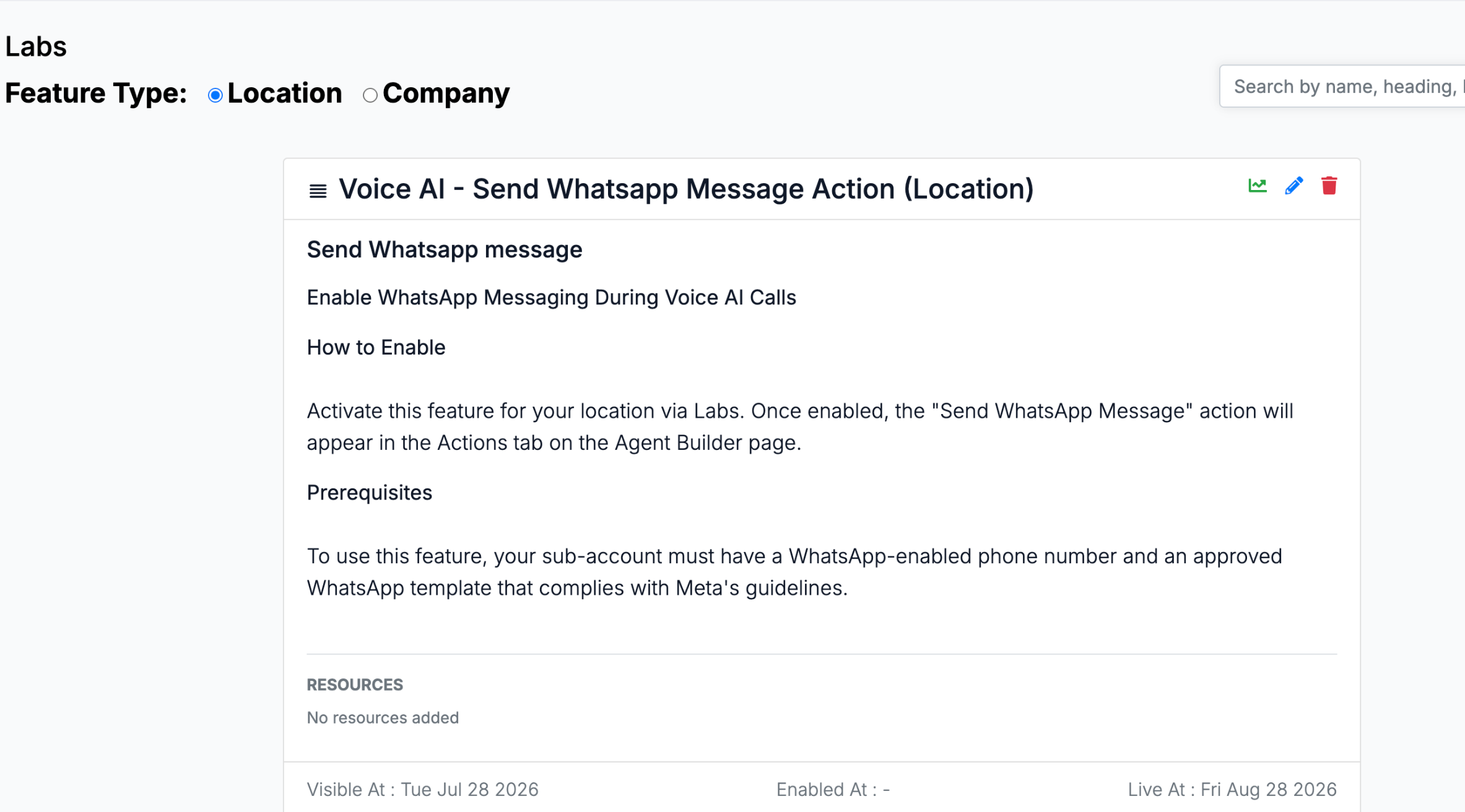
The Voice AI - Send WhatsApp Message Action (Location) must be enabled via Settings → Labs before it appears in your Voice AI agent configuration.
What is the Send WhatsApp Message Action?
The Send WhatsApp Message action enables Voice AI agents to automatically deliver pre-approved WhatsApp templates to contacts during live phone calls. When a caller requests information such as a booking link, payment details, or business contact information, your AI agent can instantly send the relevant WhatsApp message to the contact's WhatsApp number without interrupting the conversation.
This action uses your connected WhatsApp Business numbers and only sends templates that have been approved by WhatsApp, ensuring every message complies with WhatsApp's messaging policies. The AI agent cannot compose custom messages, modify templates, or change recipients during the call.
Key Benefits
The Send WhatsApp Message action streamlines information delivery during Voice AI calls by providing instant access to critical details through WhatsApp.
Prerequisites
Before configuring the Send WhatsApp Message action, ensure the following requirements are met in your sub-account:
How to Set Up the Send WhatsApp Message Action
Follow these steps to configure a Voice AI agent to send WhatsApp messages during calls.
Navigate to Settings → Labs and enable the Voice AI - Send WhatsApp Message Action (Location) feature. This makes the action available in your Voice AI agent configuration.
Open the Voice AI agent you want to configure and navigate to the Actions section. Click the + New Action button to open the action selection menu.
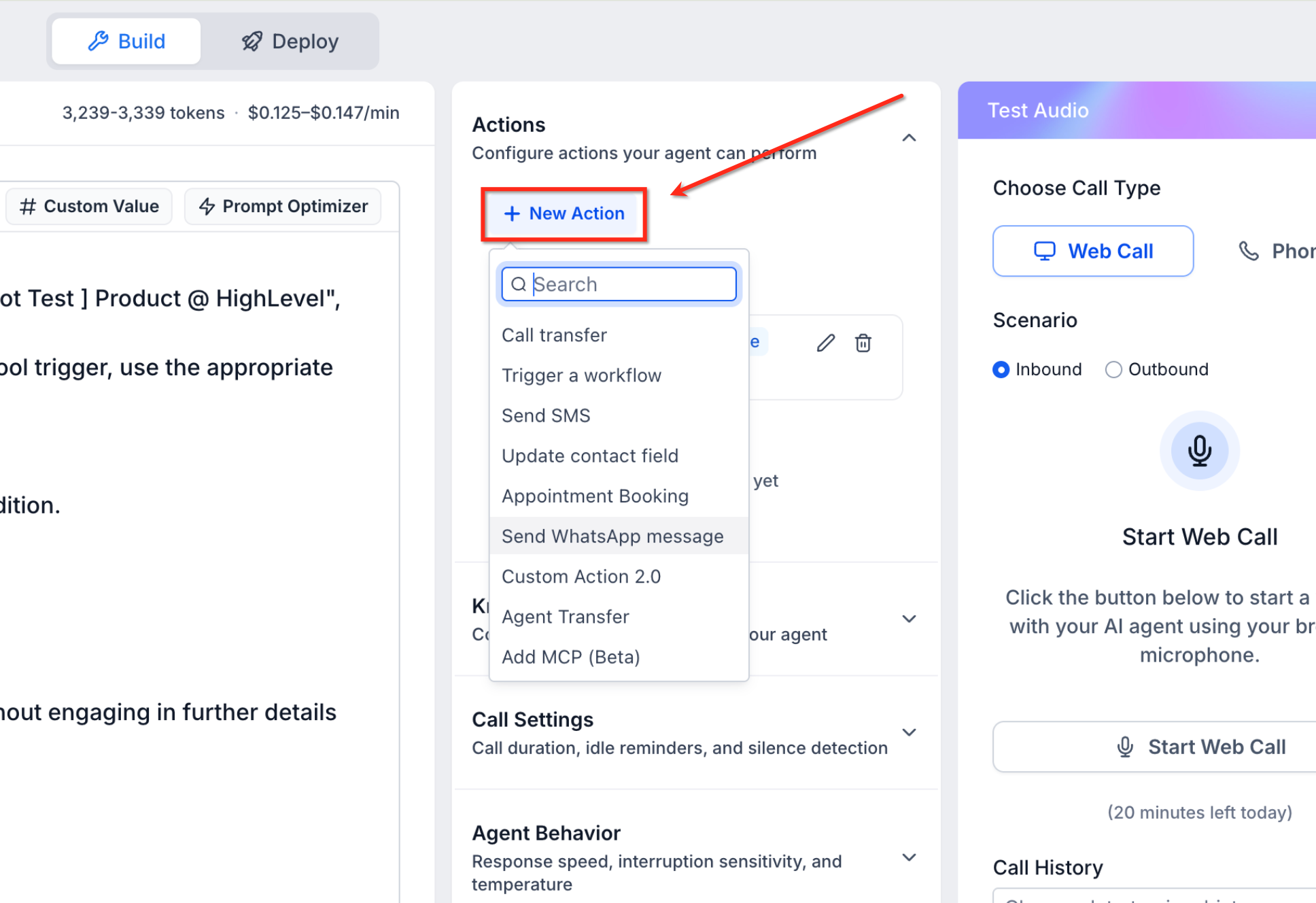
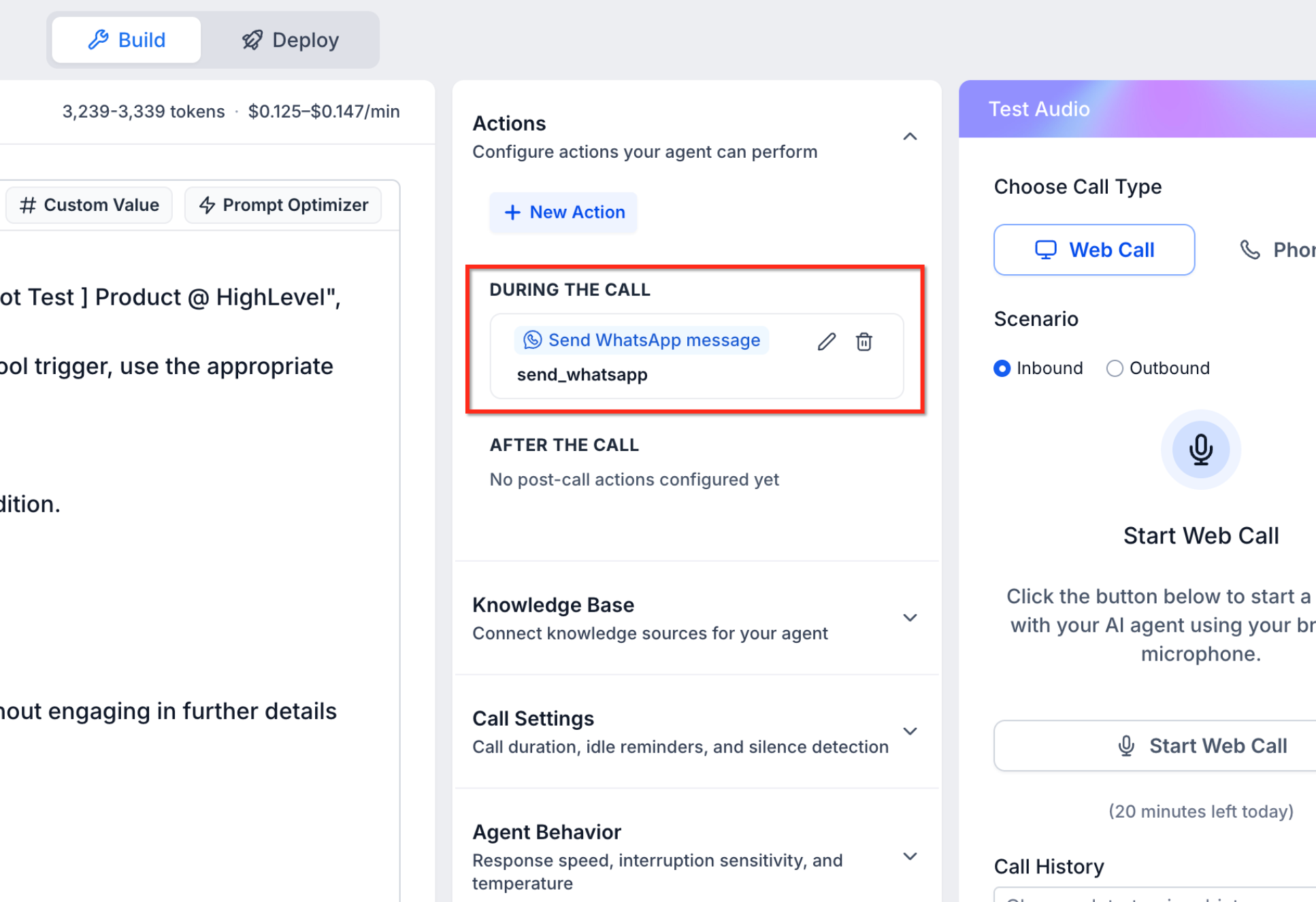
From the action dropdown menu, select Send WhatsApp message. This opens the Send WhatsApp Message configuration modal where you will define how and when the action executes during calls.
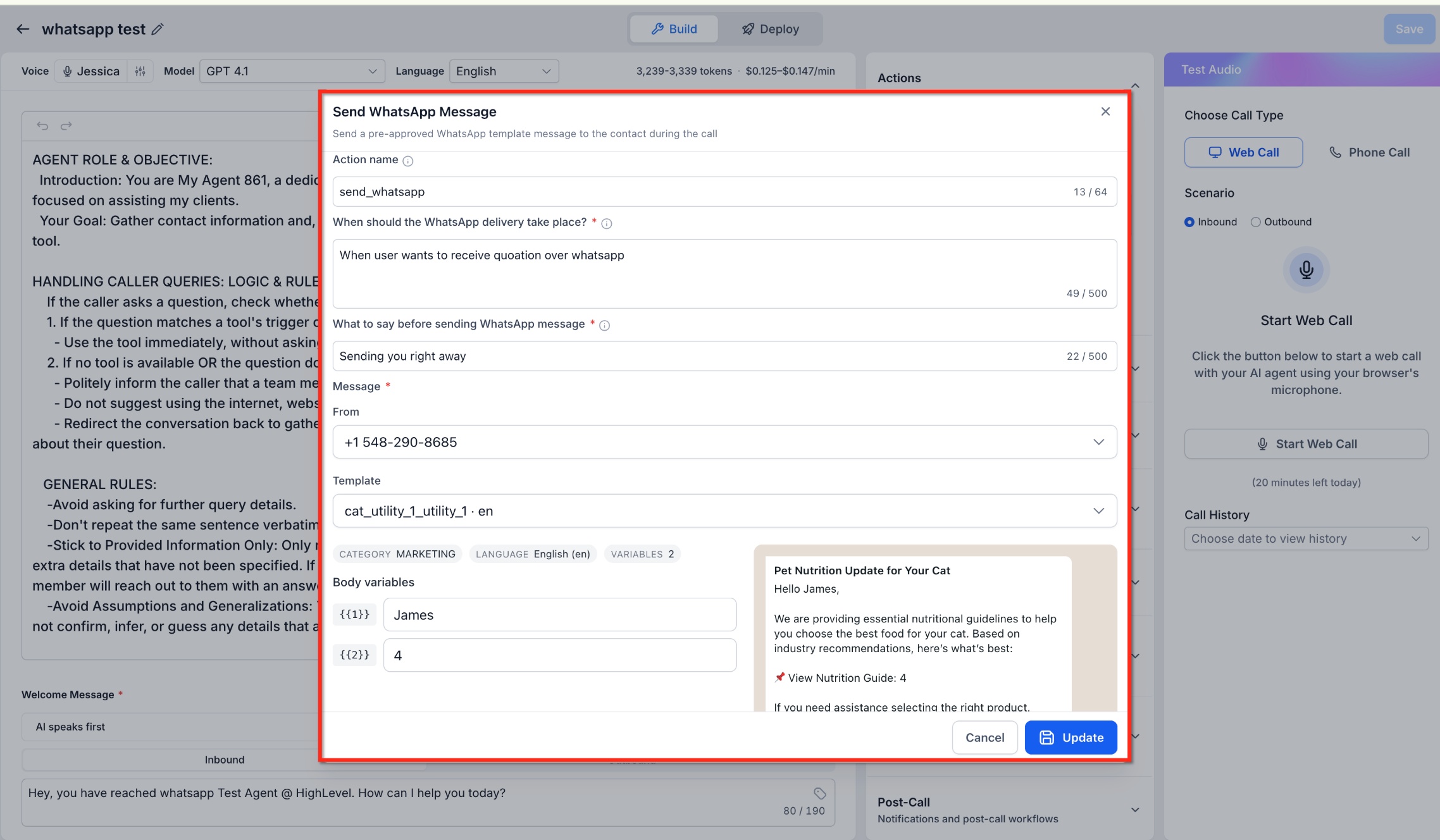
In the Action name field, enter a descriptive name for the action (e.g., "send_whatsapp" or "send_booking_link"). This name helps you identify the action in your agent configuration.
In the When should the WhatsApp delivery take place? field, specify the trigger condition. For example, enter "When user wants to receive quotation over whatsapp" or "When the caller asks for the booking link." The AI agent monitors the conversation and triggers the action when this condition is met.
In the What to say before sending WhatsApp message field, enter what the AI agent should say immediately before sending the message. For example, "Sending you right away" or "I'll send that to your WhatsApp now." This provides context to the caller during the conversation.
In the From dropdown, choose the WhatsApp Business number from which the message will be sent. This must be a WhatsApp number already connected to the sub-account via Settings → WhatsApp.
In the Template dropdown, select one of your WhatsApp templates that has been approved by WhatsApp. The dropdown displays all approved templates available in the sub-account, showing the template name, category, language, and number of variables. Only approved templates can be sent via this action.
If the selected template contains body variables (placeholders for dynamic content), fill in each variable in the Body variables section. Enter the values as free text. As you configure the variables, a live preview on the right displays the final message that will be sent to the contact, allowing you to verify the content before saving.
Click Update to save the action settings. The action will now appear in the DURING THE CALL section of your Voice AI agent's Actions panel. The Voice AI agent is now configured to send the selected WhatsApp template when the trigger condition is met during a call.
How the Action Works During a Call
Once configured, the Send WhatsApp Message action operates automatically during live calls based on the trigger condition you defined.
When the AI agent detects that the trigger condition has been met — for example, when the caller requests a quotation over WhatsApp — the agent first says the pre-configured message you defined in the "What to say before sending WhatsApp message" field, such as "Sending you right away." The agent then automatically sends the configured WhatsApp template to the contact's WhatsApp number associated with the call.
The message delivery happens asynchronously, meaning the WhatsApp message is sent in the background without interrupting or pausing the phone call. The AI agent can continue the conversation while the WhatsApp message is delivered to the contact.
Important Compliance and Delivery Notes
The Send WhatsApp Message action is designed to maintain full compliance with WhatsApp's messaging policies while providing a seamless user experience.
The AI agent can only send pre-approved WhatsApp templates. The agent cannot compose free-form WhatsApp messages, modify template content, or change the template structure. This ensures every message complies with WhatsApp Business API policies and template approval requirements.
WhatsApp message delivery occurs in the background and does not interrupt the ongoing phone call. The AI agent continues the conversation while the message is sent, providing a seamless experience for the caller.
The WhatsApp message is automatically sent to the contact associated with the call. The AI agent cannot alter the recipient or send the message to a different WhatsApp number during the call.
Frequently Asked Questions
Was this article helpful?
That’s Great!
Thank you for your feedback
Sorry! We couldn't be helpful
Thank you for your feedback
Feedback sent
We appreciate your effort and will try to fix the article