Funnels & Websites allows you to create, edit, and serve a custom llms.txt file for each connected domain. This file helps AI crawlers, LLMs, and search agents understand your site structure while passing automated "Agentic Browsing" audits.
TABLE OF CONTENTS
What is an llms.txt File?
An llms.txt file functions similarly to a robots.txt file, but it is specifically designed for AI agents and Large Language Models. Located at your site's root directory (https://<yourdomain.com>/llms.txt), it provides a Markdown-formatted summary of your website, primary pages, and key information to improve AI search visibility (AEO/GEO) and comply with Google PageSpeed Agentic Browsing checks.
Each domain connected to your account requires its own separate llms.txt file configuration. Once saved, the file is published instantly and served publicly at https://<yourdomain.com>/llms.txt. Content must be formatted in valid Markdown to be correctly parsed by AI crawlers.
How llms.txt Helps PageSpeed & AI Audits
AI-focused audits may check whether a website publishes an llms.txt file at the root of its domain. Adding the file allows supported audits to locate it and gives compatible AI agents a structured guide to the site’s content.
- Passes Lighthouse "Agentic Browsing" Audits: Google PageSpeed Insights (powered by Lighthouse) includes an Agentic Browsing audit category. Lighthouse specifically looks for the presence and valid Markdown formatting of llms.txt at your domain root (https://<domain>/llms.txt). Having this file allows your site to pass these automated checks.
- Reduces Crawling Overhead & Token Usage: Instead of forcing AI agents and LLMs to parse large, script-heavy HTML pages, llms.txt gives them a lightweight, plain-text site map. This saves computational resources, bandwidth, and processing context for AI engines.
- Improves AI Search Discoverability (AEO/GEO): It serves as a clean roadmap for language models like Claude, ChatGPT, and Gemini, directing AI agents straight to your core content so your brand can be accurately indexed and cited in AI search engines.
What a Good llms.txt File Looks Like
A useful llms.txt file should be written in markdown and quickly explain the site’s purpose and direct AI agents to a curated list of accurate, publicly accessible pages. Clear headings, descriptive links, and concise explanations make the file easier to understand.
It uses a single # heading for your site's name, a short blockquote summary, and ## subheadings to organize key page links with brief descriptions. You can also include an optional section flagged for lower-priority pages.
You can check live examples across the web on directory.llmstxt.cloud or inspect the official specification at llmstxt.org.
Use the following Markdown structure example as a starting point:
# Example Company

> Example Company helps small businesses manage appointments, customer communication, and online payments.

## Key Pages

- [Services](https://example.com/services): Overview of the company’s primary services.
- [Pricing](https://example.com/pricing): Available plans and pricing information.
- [Getting Started](https://example.com/getting-started): Instructions for new customers.
- [Contact](https://example.com/contact): Contact and support options.

## Resources

- [Help Center](https://example.com/help): Product documentation and troubleshooting resources.
- [Blog](https://example.com/blog): Educational articles and company updates.

## Optional

- [Company News](https://example.com/news): Announcements and company news.
How to Set Up llms.txt for Your Domain
Follow these steps to add or edit the llms.txt file for any domain connected to your funnels or websites:
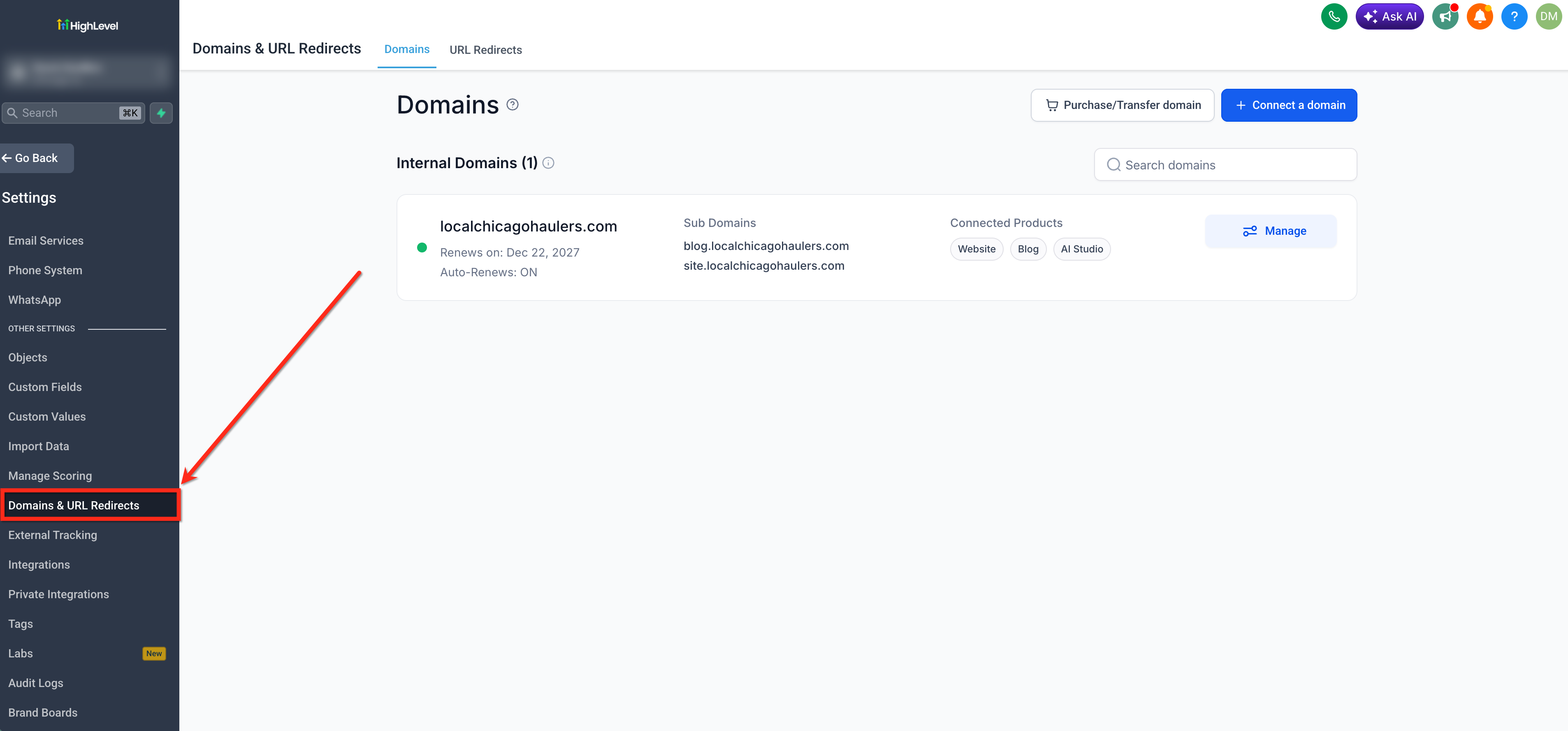
In your sub-account dashboard, go to Settings → Domains and URL Redirects.
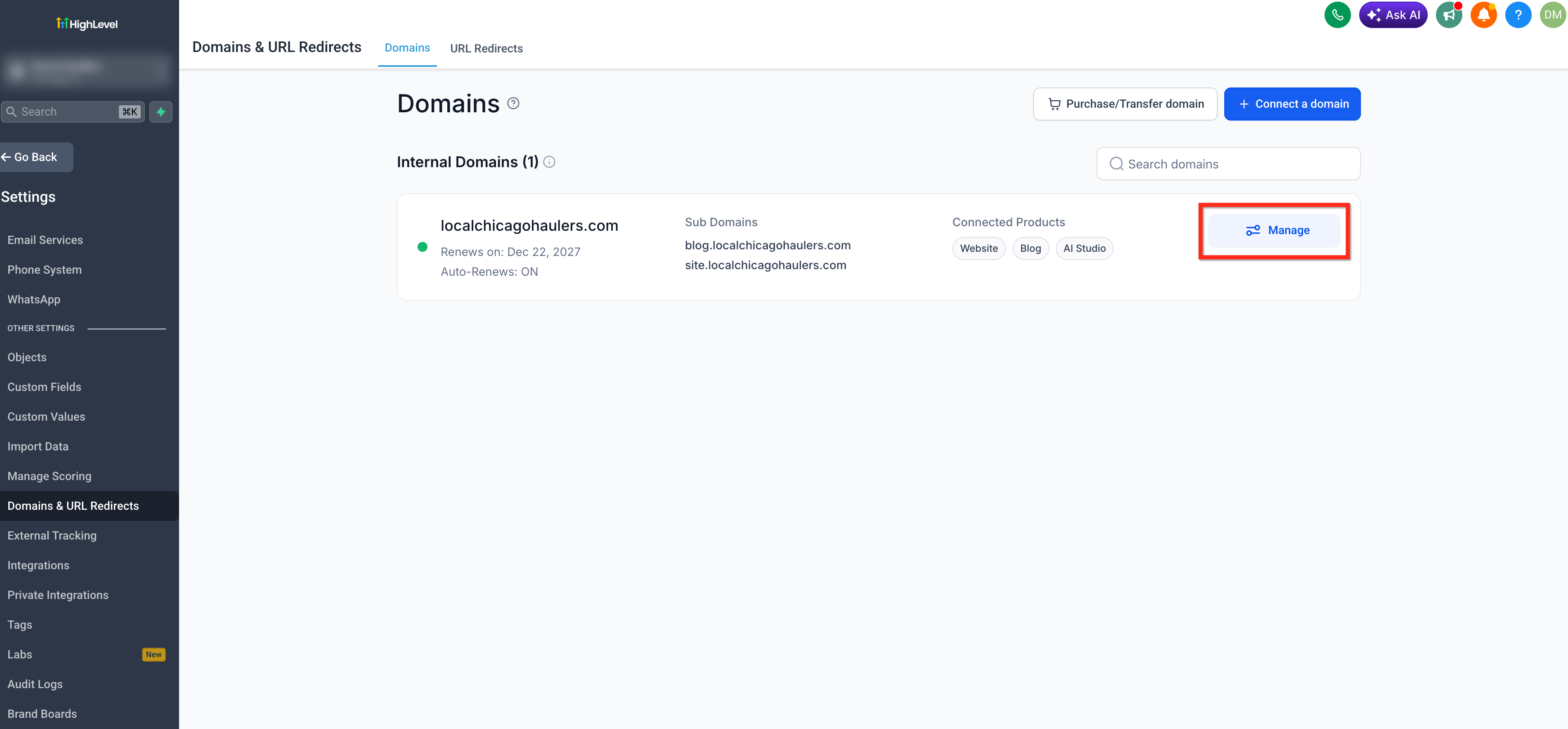
Locate the domain you wish to configure and click Manage.
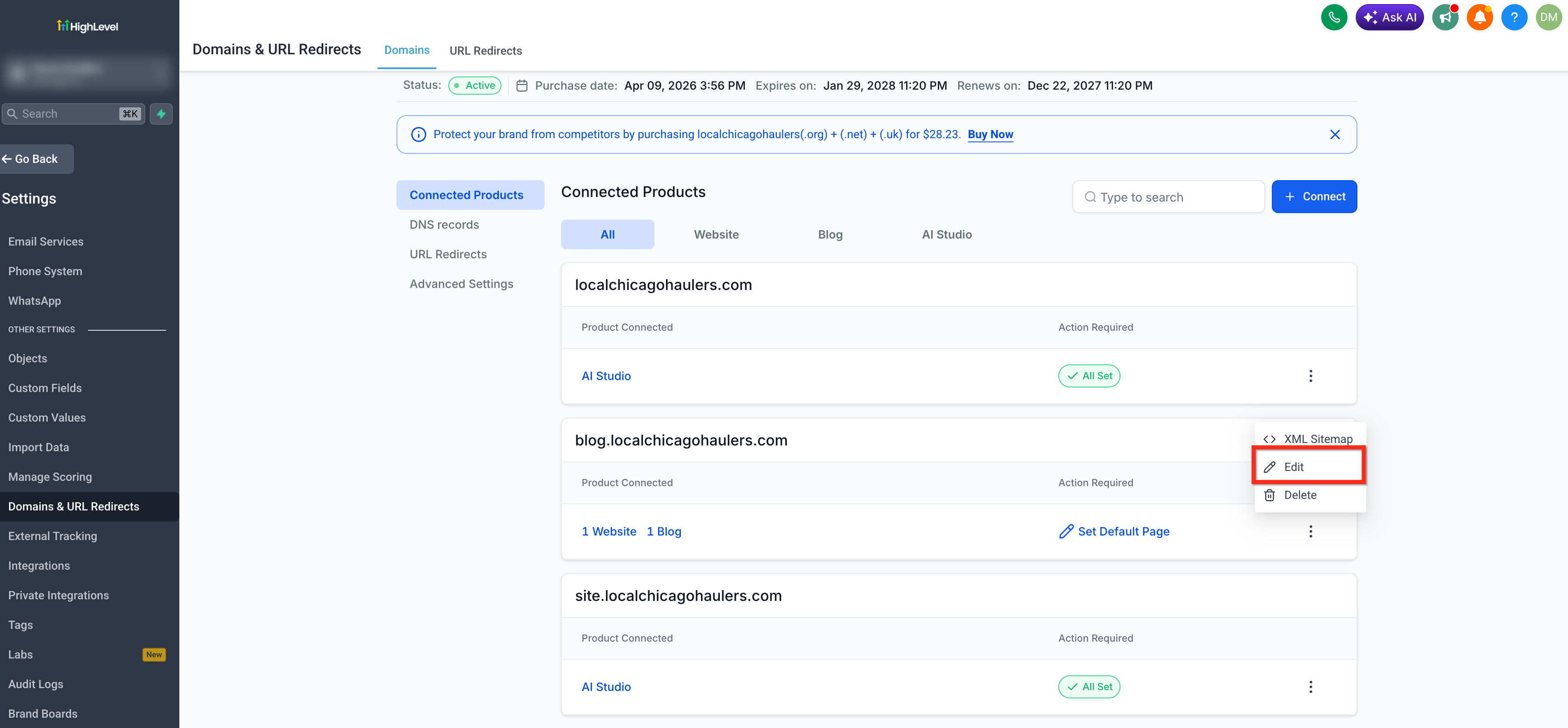
Select the 3 dots icon next to the desired Connected Product then click Edit.
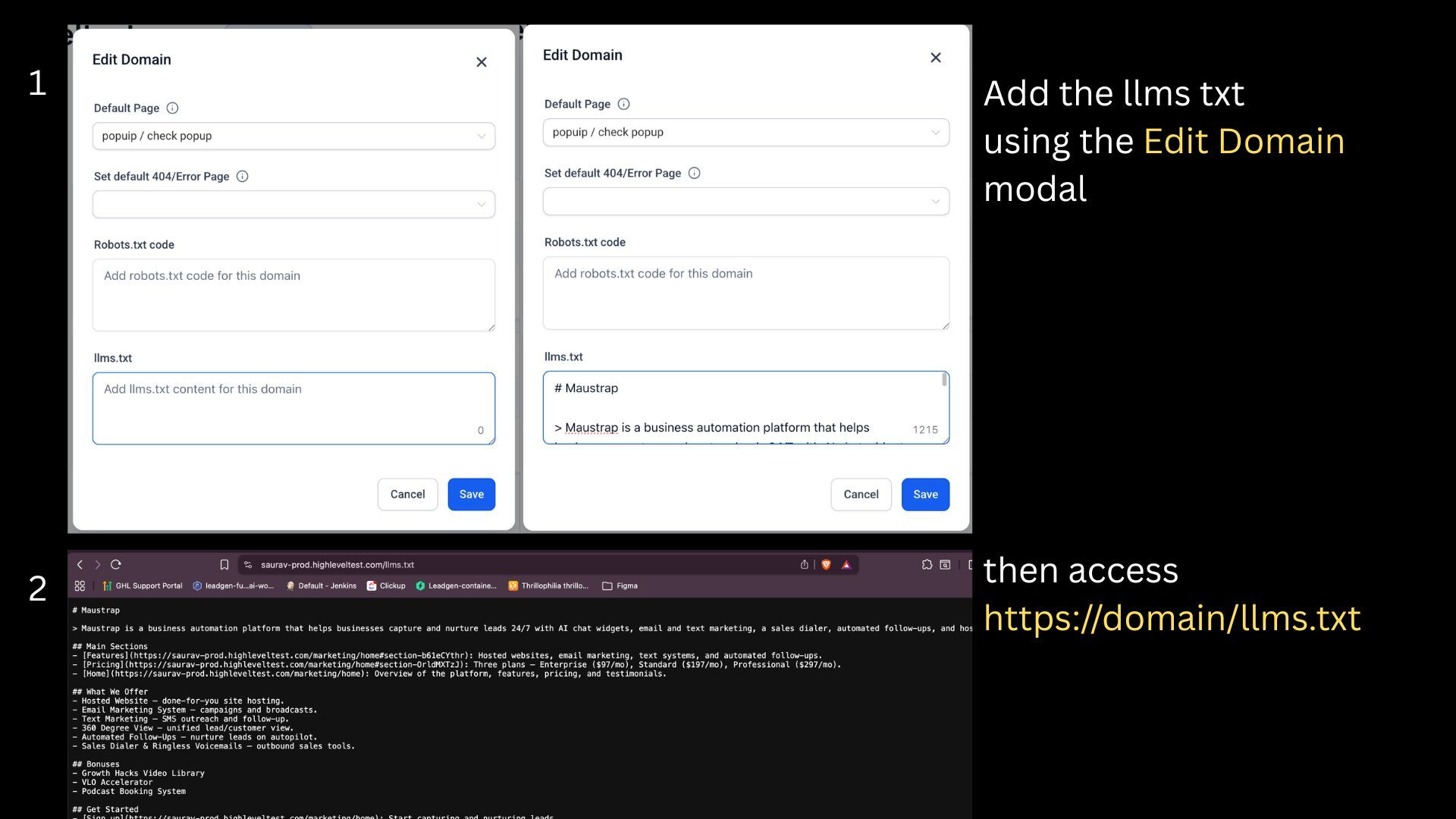
Scroll down to the llms.txt section in the settings panel. Enter or paste your formatted Markdown content into the text area.
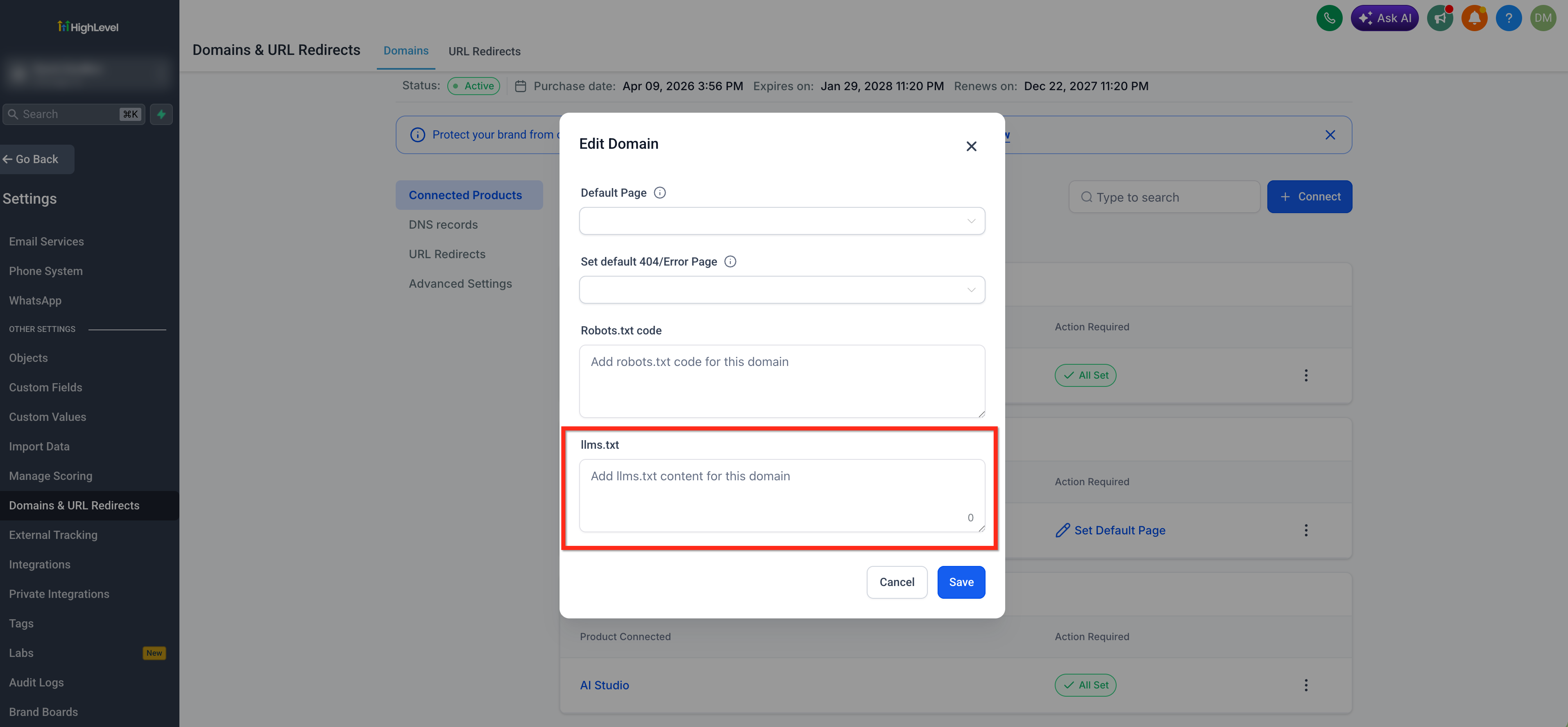
Click Save to publish your file instantly to
https://<yourdomain.com>/llms.txt.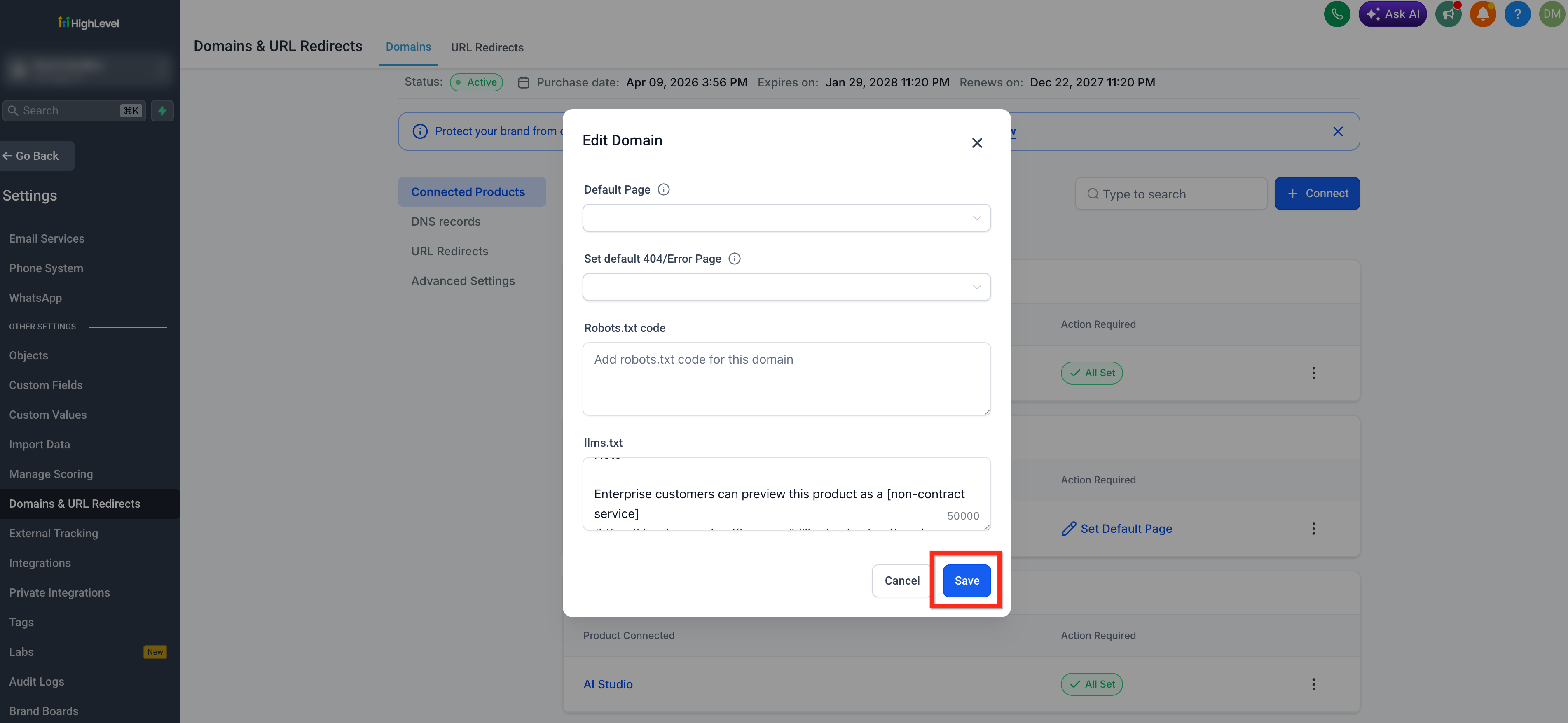
How to View your llms.txt
Opening the public file confirms that the content was saved for the correct domain and is available to supported crawlers and AI agents.
Enter the following URL in a browser: https://yourdomain.com/llms.txt
For a subdomain, use the complete subdomain: https://offers.yourdomain.com/llms.txt
Frequently Asked Questions
Q: Does AI Studio generate llms.txt files as well?
For AI Studio, you just need to prompt it and it will generate the llms.txt content for you.
Q: Does llms.txt replace my XML sitemap?
No. An XML sitemap helps search engines discover URLs, while llms.txt gives compatible AI systems a curated summary of the site and selected links. Both files can be used together.
Q: Does adding llms.txt guarantee that my site will appear in AI-generated results?
No. The file can help compatible AI systems understand the site, but each external platform controls its own crawling, indexing, citation, and ranking behavior.
Q: Does every domain need its own file?
Yes. Each connected domain or subdomain is configured separately.
Q: Are new website pages added automatically?
No. The file contains the Markdown entered in the domain settings. Review and update it when important pages or URLs change.
Q: How often should I update the file?
Review it whenever important content is published, removed, renamed, or moved to a new URL.
Related Articles
Was this article helpful?
That’s Great!
Thank you for your feedback
Sorry! We couldn't be helpful
Thank you for your feedback
Feedback sent
We appreciate your effort and will try to fix the article