Custom Contact Views in snapshots help agencies save time by copying tailored Contact Detail Page layouts from one sub-account to another. Instead of rebuilding the same contact views manually in each sub-account, admins can include selected custom views in an Account Snapshot and reuse them across multiple accounts. This is especially helpful for agencies that want consistent contact layouts for sales, support, onboarding, or client management workflows.
TABLE OF CONTENTS
- What are Custom Contact Views in Snapshots?
- Key Benefits of Custom Contact Views in Snapshots
- Snapshot Support for Contact Detail Views
- Cross Sub-Account Copying
- How To Set Up Custom Contact Views in Snapshots
- Best Practices for Reusing Custom Contact Views
- Frequently Asked Questions
- Related Articles
What are Custom Contact Views in Snapshots?
Custom Contact Views allow admins to personalize how contact information appears on the Contact Detail Page. Snapshot support makes those custom views reusable by allowing admins to include them in Account Snapshots and copy them into other sub-accounts.
With this update, custom contact views created in a source sub-account can be selected under Contact Detail Views while creating or updating a snapshot. Once included, those views can be pushed or loaded into other sub-accounts, helping teams maintain consistent contact layouts without repeating the same setup work.
Key Benefits of Custom Contact Views in Snapshots
Custom Contact Views in snapshots help agencies standardize contact management across multiple sub-accounts. Reusing proven layouts reduces repetitive setup work and helps teams access the contact details they need in a consistent format.
- Faster Setup: Copy custom contact views into other sub-accounts without recreating them manually.
- Consistent Layouts: Keep contact page layouts standardized across multiple client accounts or locations.
- Scalable Customization: Reuse the same contact views as your agency grows and manages more sub-accounts.
- Reduced Manual Work: Save admins time by eliminating repetitive configuration tasks.
- Improved Team Alignment: Help sales, support, and operations teams view contact data in a familiar layout across accounts.
Snapshot Support for Contact Detail Views
Contact Detail Views are now available as a selectable asset type when creating snapshots. This gives admins more control over which custom contact layouts are included and reused across sub-accounts.
When creating a snapshot, admins can select custom views under Contact Detail Views. These views are then added to the snapshot and can be copied into linked or destination sub-accounts.
Use this when you want to:
- Reuse a custom sales-focused contact layout across multiple sub-accounts.
- Standardize support or onboarding contact views for different teams.
- Copy agency-approved contact layouts into new or existing client accounts.
- Reduce setup time when launching new sub-accounts.
Cross Sub-Account Copying
Cross sub-account copying allows admins to transfer custom contact views from one sub-account to another using snapshots. This helps agencies maintain consistency without manually rebuilding each view.
To copy custom contact views across sub-accounts, create a snapshot from the sub-account that already contains the views you want to reuse. Then select the desired views under Contact Detail Views and apply or push the snapshot to the destination sub-account. This workflow is best for agencies managing multiple accounts that need the same contact page structure.
How To Set Up Custom Contact Views in Snapshots
Proper setup ensures the correct custom contact views are included in the snapshot and copied to the right sub-accounts. Before starting, confirm that the source sub-account already has the custom contact views you want to reuse.
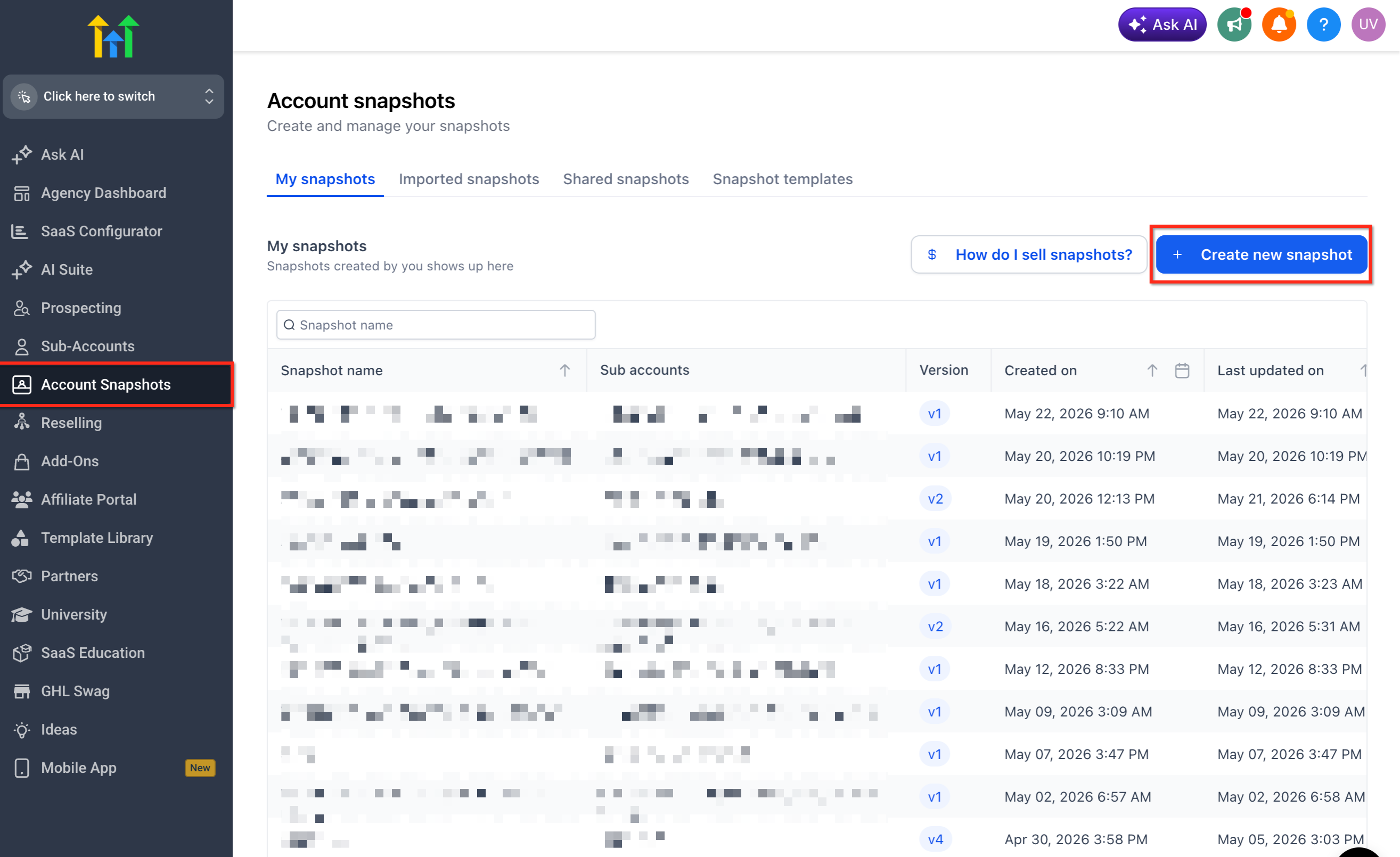
- Go to Agency View. Click Account Snapshots.
- Click Create New Snapshot.
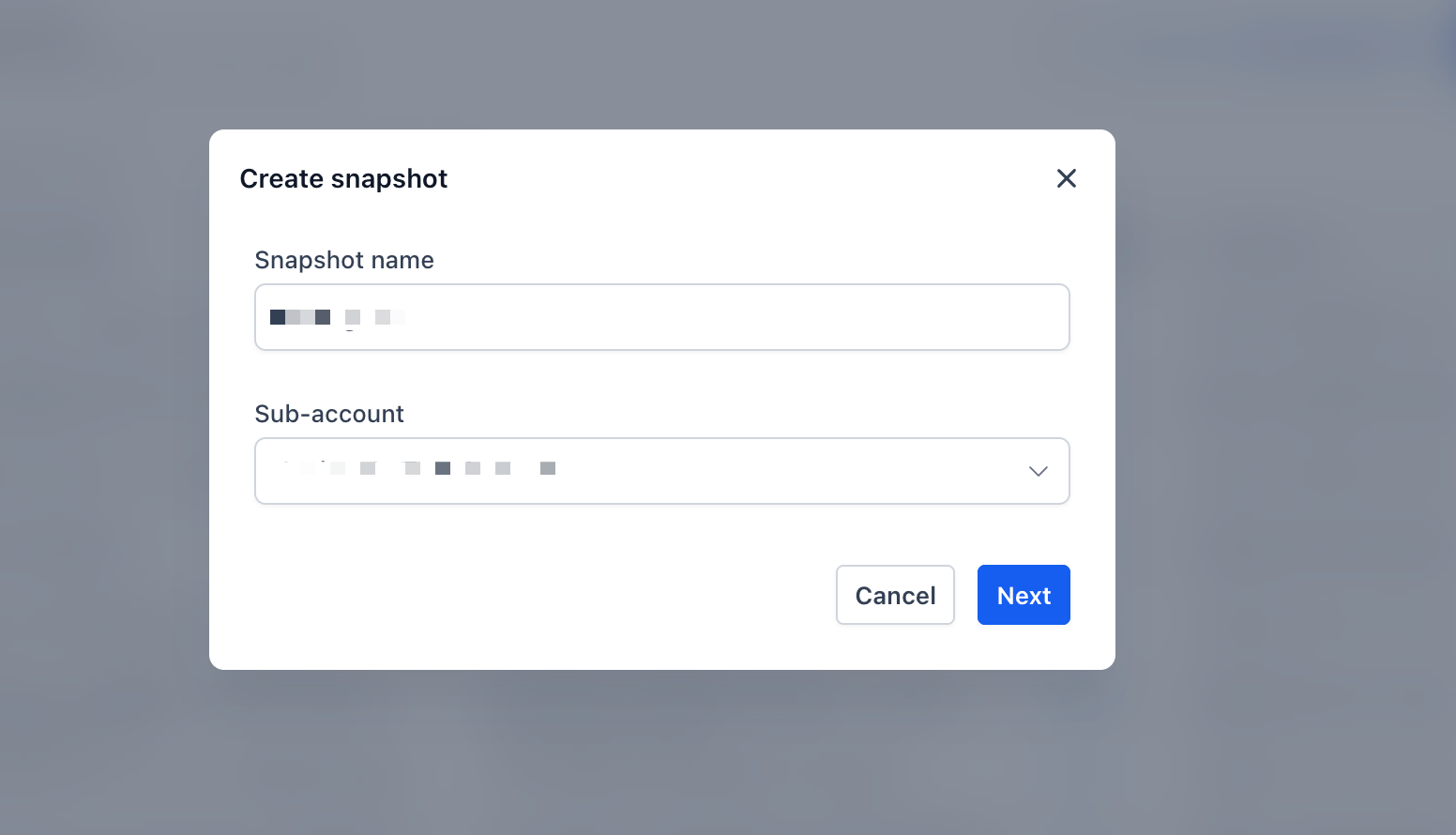
- Enter a snapshot name. Select the source sub-account that contains the custom contact views you want to copy.
- Locate Contact Detail Views in the asset selection list.
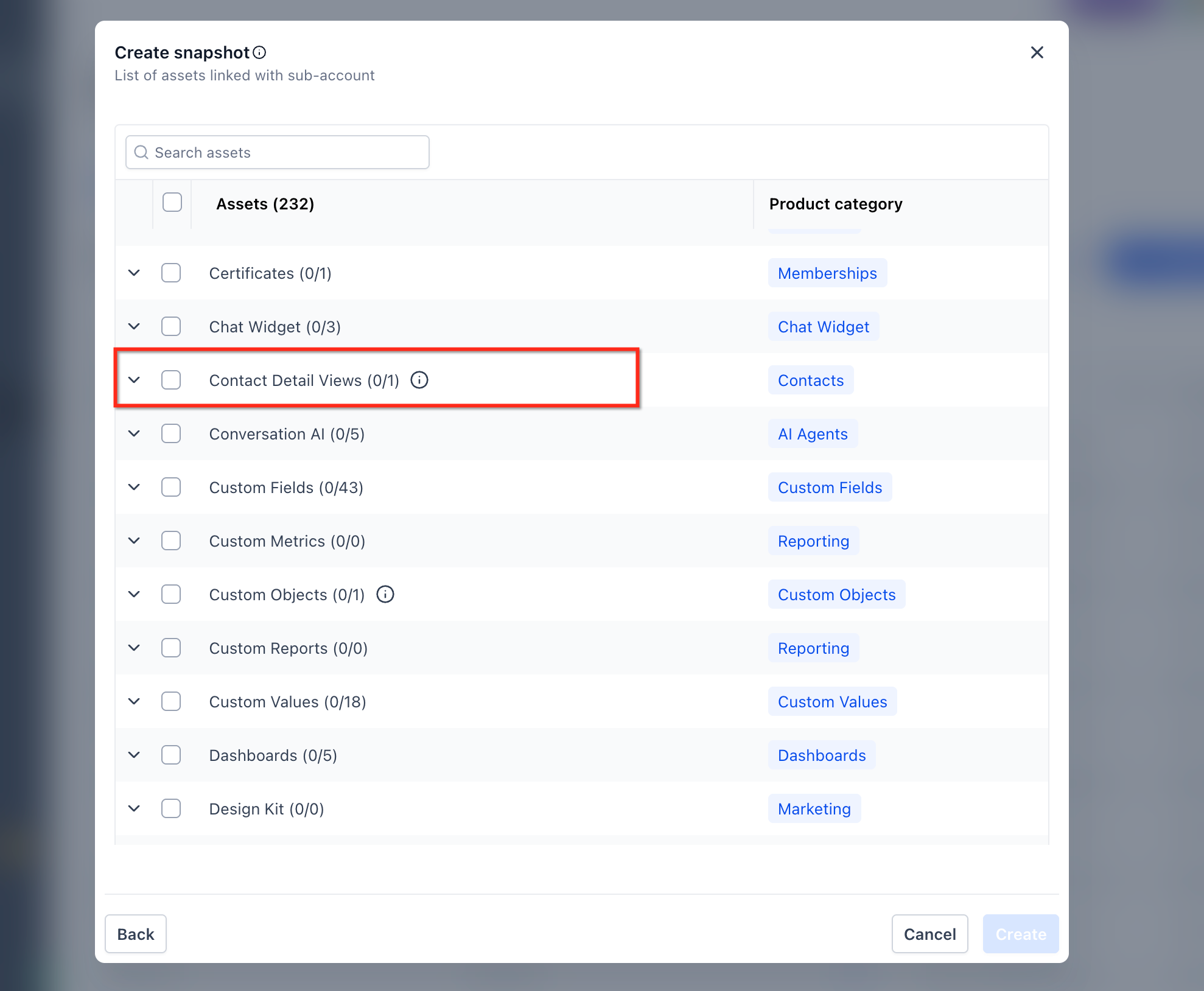
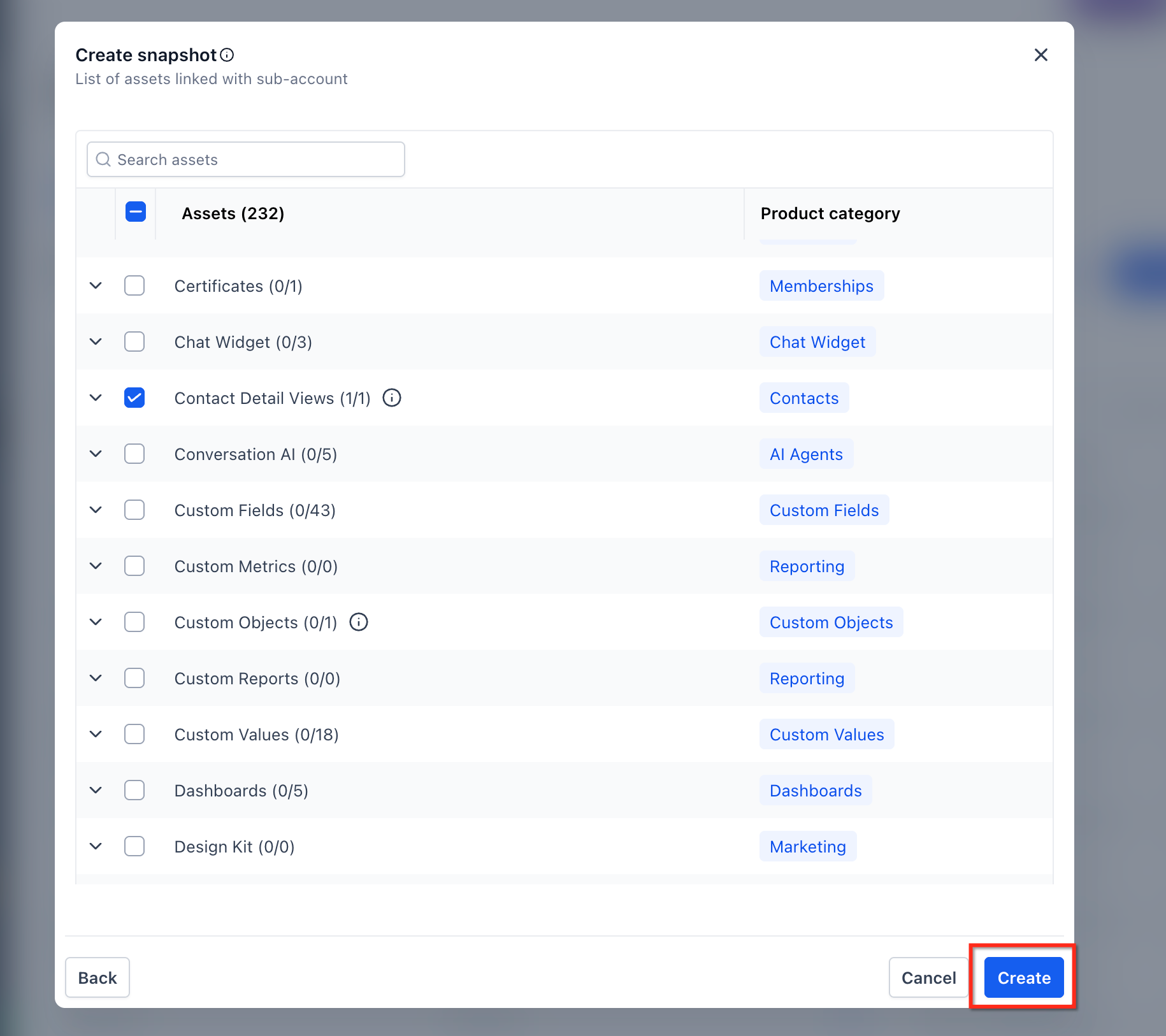
- Select the custom contact views you want to include in the snapshot.
- Click Create.
- Push the update to the linked sub-account or apply the snapshot to the destination sub-account.
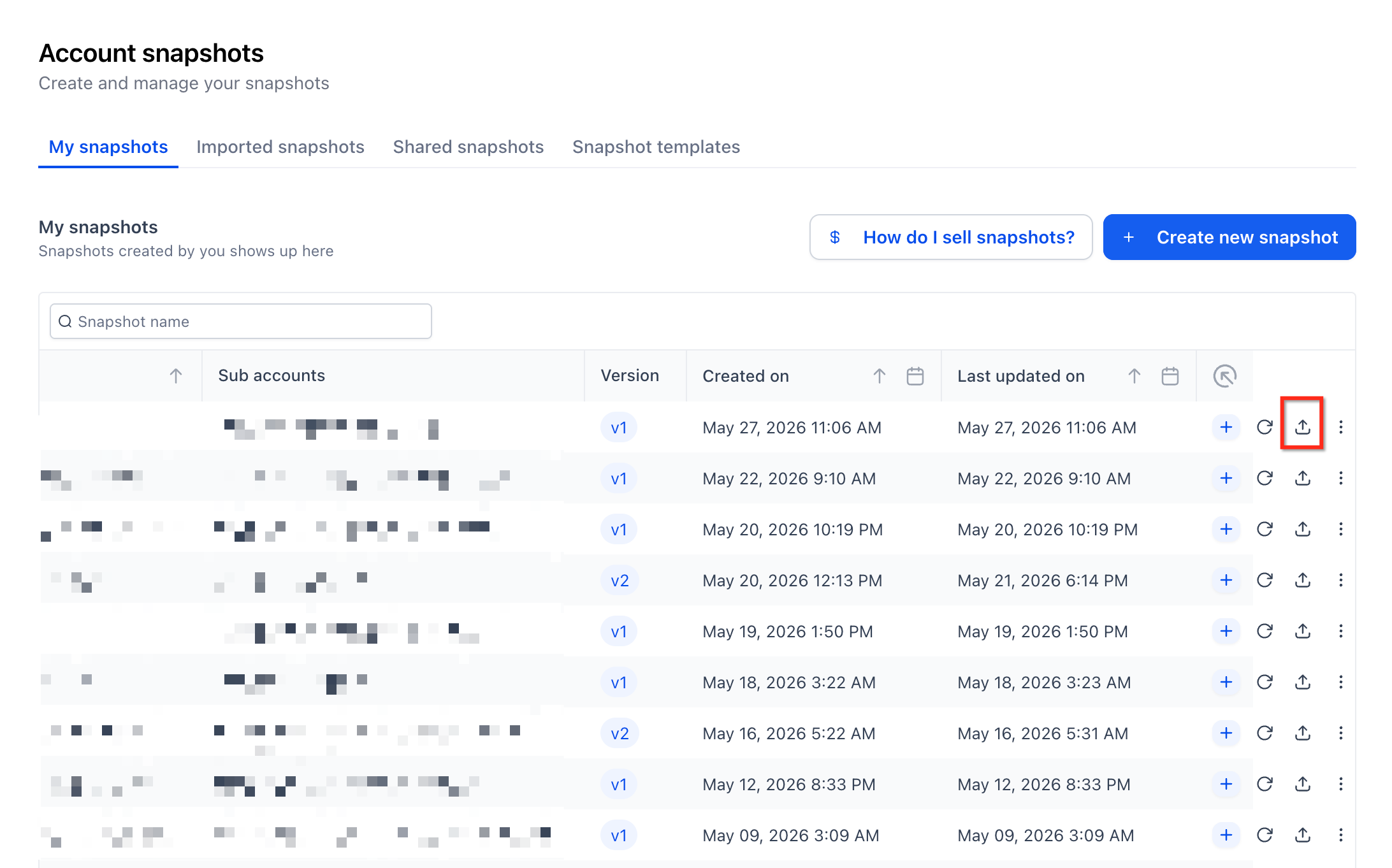
- Open the destination sub-account and confirm the custom views are available on the Contact Detail Page.
Best Practices for Reusing Custom Contact Views
A clear view strategy helps teams keep contact layouts organized and useful across accounts. Naming conventions, source account consistency, and review steps can prevent confusion when views are copied to multiple sub-accounts.
Use clear names for custom views, such as Sales View, Support View, or Client Onboarding View.

Build and test custom views in a source sub-account before adding them to a snapshot.

Select only the views that are needed in the destination sub-account.

Review destination sub-accounts after pushing the snapshot update.
Frequently Asked Questions
Q: Can I copy custom contact views from one sub-account to another?
A: Yes. Custom contact views can be included in snapshots and copied to other sub-accounts.
Q: Where do I select custom contact views while creating a snapshot?
A: Custom views appear under Contact Detail Views in the snapshot asset selection screen.
Q: Do I need to recreate the same contact view in every sub-account?
A: No. Once the view is included in a snapshot, it can be reused across other sub-accounts.
Q: Can I push custom contact views to linked sub-accounts?
A: Yes. After the custom views are included in the snapshot, the update can be pushed to linked sub-accounts.
Q: Can I add custom contact views to an existing snapshot?
A: Yes. Refresh or update the snapshot from the source sub-account, select the desired Contact Detail Views, and push the update.
Q: Will this help standardize contact layouts across multiple accounts?
A: Yes. This feature is designed to help agencies maintain consistent Contact Detail Page layouts across multiple sub-accounts.
Q: What should I check after pushing the snapshot update?
A: Open the destination sub-account and confirm that the copied custom contact views are available on the Contact Detail Page.
Related Articles
Was this article helpful?
That’s Great!
Thank you for your feedback
Sorry! We couldn't be helpful
Thank you for your feedback
Feedback sent
We appreciate your effort and will try to fix the article