The organized nested asset selector gives you a clearer way to review and select Snapshot assets in HighLevel. Instead of viewing assets in one flat list, folders and assets now appear in the same structure used in the source sub-account. This makes it easier to create, refresh, and load Snapshots while reducing the chance of missing related assets.
The updated selector applies to the Create Snapshot, Refresh Snapshot, and Load Snapshot workflows. HighLevel Snapshot documentation confirms that Snapshots help copy reusable account configurations between sub-accounts, create reusable Snapshot templates, refresh updated assets, and load selected assets into existing sub-accounts.
TABLE OF CONTENTS
- What is Organized Nested Asset Selection?
- Key Benefits of Organized Nested Asset Selection
- Where the Nested Asset Selector Appears
- How Folder Hierarchy Works
- Smart Folder Selection
- Using the Search Bar with Nested Assets
- Organized Asset Selection in Create Snapshot
- Organized Asset Selection in Refresh Snapshot
- Organized Asset Selection in Load Snapshot
- Linked Assets and Nested Folder Selection
- How To Setup Organized Nested Asset Selection
- Frequently Asked Questions
- Related Articles
What is Organized Nested Asset Selection?
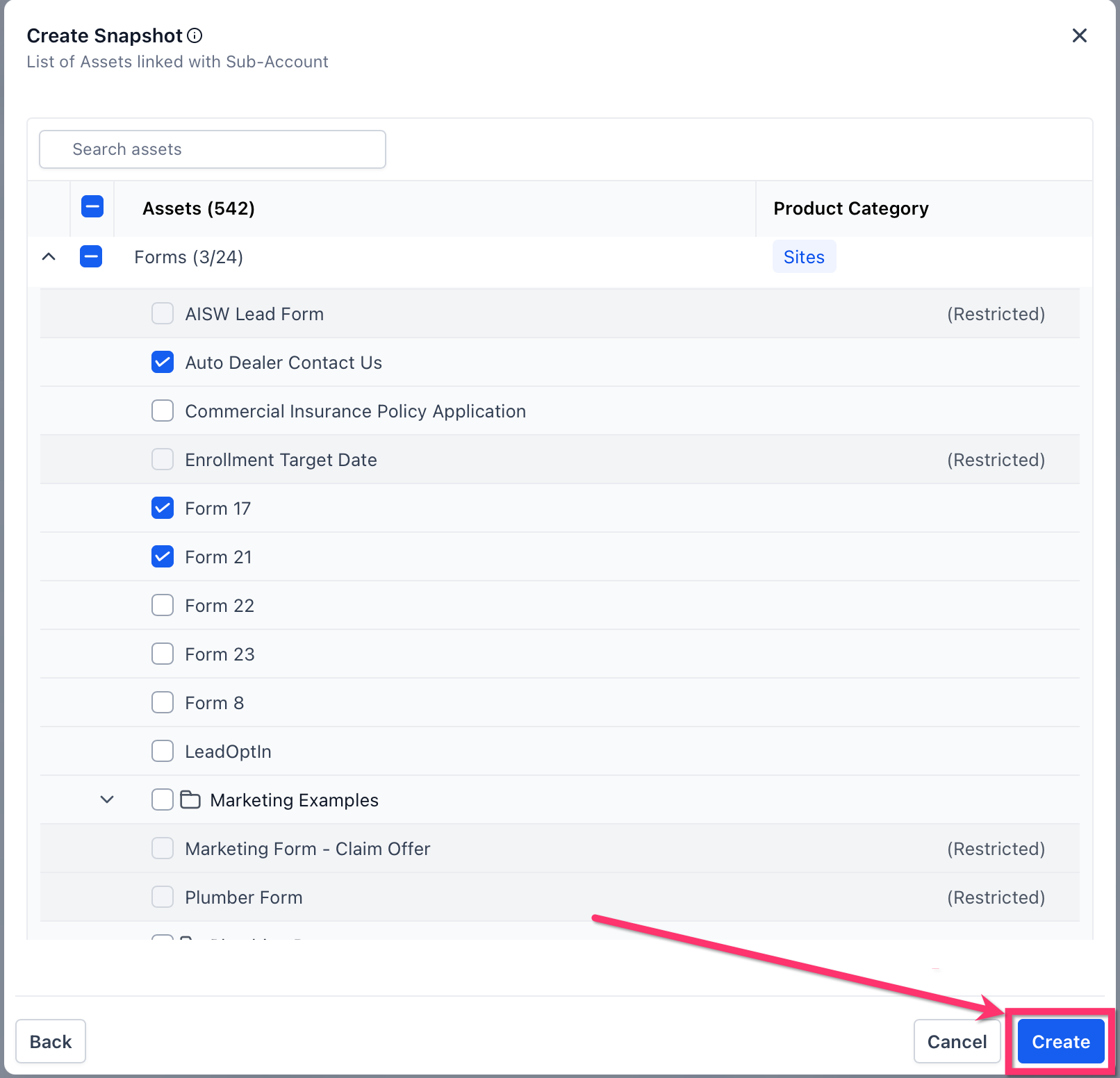
Organized Nested Asset Selection is the updated Snapshot asset selector that displays folders, sub-folders, and assets in an expandable hierarchy. This layout helps you understand where each asset belongs before including it in a Snapshot action. When folders are shown in their original structure, it becomes easier to keep related assets together and avoid selecting incomplete groups.
With this update, Snapshot assets are grouped under their parent folders instead of being scattered across a flat list. You can expand folders layer by layer, select an entire folder, or choose individual assets inside nested folders.
Key Benefits of Organized Nested Asset Selection
A folder-based selector gives you more control and visibility when working with Snapshot assets. This is especially helpful when managing large sub-accounts with many workflows, folders, templates, or other assets that need to stay grouped together.
Faster Selection: Select an entire folder and its contents instead of selecting each asset one by one.
Cleaner Asset Review: View assets in their parent folder structure so you can quickly understand how items are organized.
Higher Accuracy: Reduce the risk of missing important assets during Snapshot creation, refresh, or load.
Better Folder Visibility: Expand deeply nested folders to review assets layer by layer.
Improved Workflow Confidence: Keep related assets and sub-folders together when preparing Snapshot actions.
Less Manual Tracking: Avoid relying on external spreadsheets or notes to remember which assets belong to which folder.
Where the Nested Asset Selector Appears
The nested asset selector appears during the main Snapshot workflows where users choose which assets should be included or loaded. This gives you a consistent selection experience whether you are creating a new Snapshot, updating an existing Snapshot, or loading Snapshot assets into a sub-account.
The updated asset selector applies to:
Create Snapshot: Select assets from a source sub-account when building a new Snapshot.
Refresh Snapshot: Select assets to update an existing Snapshot with the latest source sub-account changes.
Load Snapshot: Select assets from a Snapshot before loading them into a target sub-account.
HighLevel’s Snapshot articles explain that creating a Snapshot allows reusable sub-account setups to be cloned, refreshing a Snapshot brings in the latest assets, and loading a Snapshot lets users select assets and resolve conflicts before applying them to an existing sub-account.
How Folder Hierarchy Works
Folder hierarchy keeps assets grouped under their original folders, making it easier to understand asset relationships before taking action. This is useful when folders contain multiple assets or when folders are nested several levels deep.
The nested layout supports:
Parent folders
Sub-folders
Multiple nested folder levels
Individual assets inside folders
Expand and collapse controls
Asset search
Product category labels where applicable
Selecting a parent folder selects the assets and sub-folders contained within it. Expanding a folder lets you review or select individual items without losing visibility into where those items belong.
Smart Folder Selection
Smart folder selection helps keep related assets together when you select assets for a Snapshot action. This reduces the chance of selecting a folder without also selecting the assets inside it.
When you select a folder:
Assets inside that folder are selected.
Sub-folders inside that folder are selected.
Assets inside nested sub-folders are included.
You can still expand the folder to review the selected contents.
When you only need specific assets, expand the folder and select the individual items you want to include.
Using the Search Bar with Nested Assets
Search helps you quickly locate assets or folders in large Snapshot lists. This is useful when a sub-account contains hundreds or thousands of assets and manually expanding each folder would take too much time.
Use the search bar at the top of the asset selector to find specific assets by name. After finding the asset, review its folder placement before selecting it. This helps confirm that you are choosing the correct asset from the correct folder path.
Organized Asset Selection in Create Snapshot
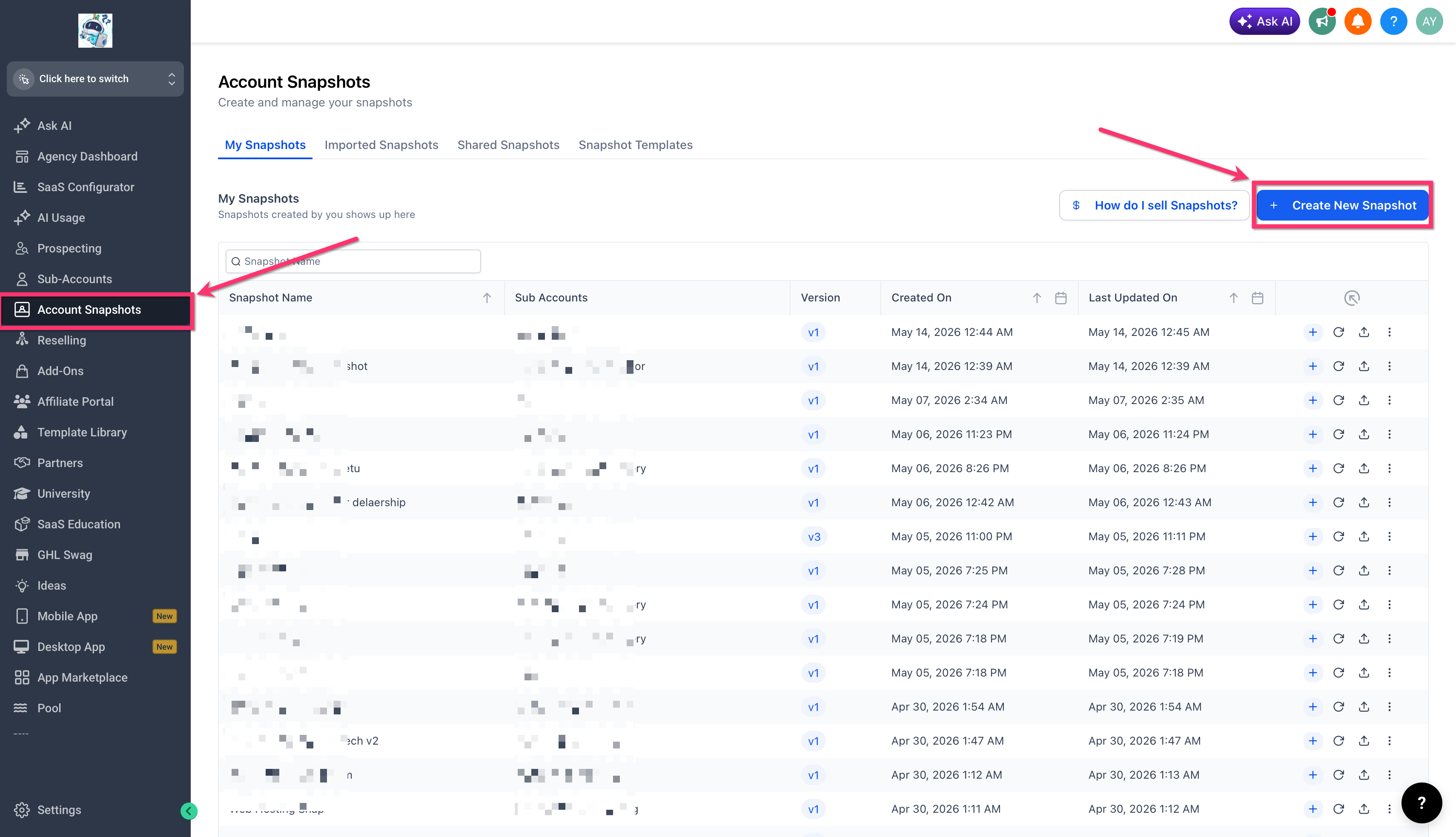
Creating a Snapshot starts with choosing which assets from the source sub-account should be included. The nested selector makes this easier by showing folders and assets in a structured format instead of a flat list.
To use nested asset selection while creating a Snapshot:
Go to the Snapshot creation flow in HighLevel.
Choose the source sub-account.
Open the asset selector.
Expand folders to review the assets inside.
Select a full folder to include the folder, sub-folders, and assets inside it.
Select individual assets if you only need specific items.
Continue creating the Snapshot.
Organized Asset Selection in Refresh Snapshot
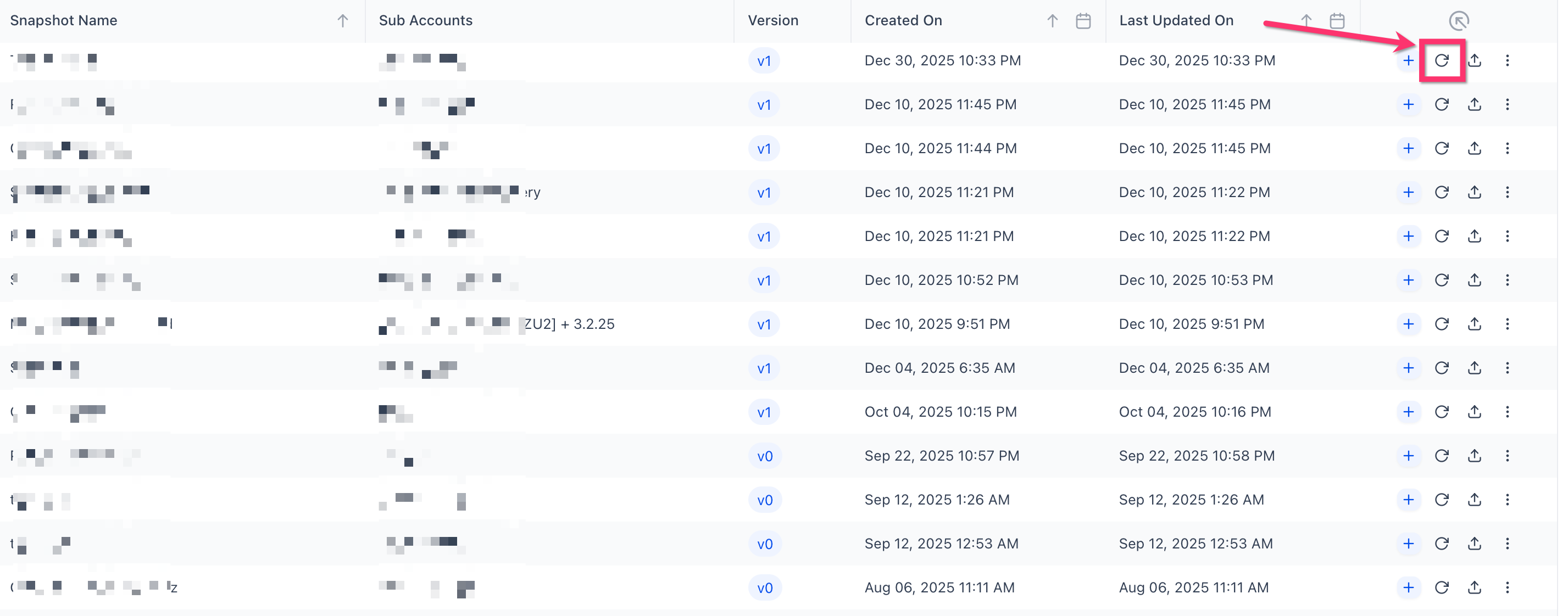
Refreshing a Snapshot updates it with changes from the source sub-account. The nested selector helps you choose updated assets more accurately by keeping related assets grouped under their folders.
To use nested asset selection while refreshing a Snapshot:
Go to the Snapshot refresh flow.
Open the asset selector for the Snapshot being refreshed.
Expand the relevant product category or folder.
Select the folder if all contained assets should be refreshed.
Select individual assets if only specific updates are needed.
Review selected assets before refreshing.
Click Refresh.
Organized Asset Selection in Load Snapshot
Loading a Snapshot lets you apply selected Snapshot assets to an existing sub-account. The nested selector helps you review folder structure before proceeding, which is especially useful before conflict checking.
To use nested asset selection while loading a Snapshot:
Open the Load Snapshot flow for the target sub-account.
Review the available Snapshot assets.
Expand folders to inspect nested assets.
Select the folder or individual assets you want to load.
Review any restricted or unavailable assets if they appear.
Proceed to conflict checking when applicable.
Continue with the Snapshot load process.
Note: Some assets may appear as restricted or unavailable depending on the Snapshot, account permissions, or asset behavior. Confirm restricted asset details before publishing a specific explanation.
Linked Assets and Nested Folder Selection
Nested folder selection improves how assets are visually grouped and selected, but it does not replace linked asset management. Linked assets are still important when assets depend on other assets to work properly.
Use nested folder selection to choose assets based on folder structure. Use linked asset management to review dependencies or related assets that may need to be included for the selected asset to function correctly. HighLevel’s Snapshot documentation includes dedicated guidance for managing linked assets and selective Snapshot creation.
How To Setup Organized Nested Asset Selection
Organized Nested Asset Selection is available directly inside supported Snapshot workflows. No additional setup is required. Accessing the asset selector from Create, Refresh, or Load Snapshot automatically displays the updated folder-based layout.
To use the updated selector:
Go to Agency View in HighLevel.
Open the relevant Snapshot workflow:
Create Snapshot
Refresh Snapshot
Load Snapshot
Open the asset selector.
Use the arrow beside a folder to expand it.
Review the assets and sub-folders inside.
Select a parent folder to include all contained assets.
Select individual assets when you only need specific items.
Continue with the Snapshot action.
Frequently Asked Questions
Q: Does selecting a folder select everything inside it?
A: Yes. Selecting a folder selects the assets and sub-folders contained within that folder.
Q: Can I still select individual assets?
A: Yes. Expand the folder and select only the specific assets you want to include.
Q: Does this update change how Snapshots work?
A: No. This update improves the asset selection interface. The Create, Refresh, and Load Snapshot workflows still follow their normal processes.
Q: Can I use the nested selector when refreshing a Snapshot?
A: Yes. The nested selector applies to Refresh Snapshot workflows.
Q: Can I use the nested selector when loading a Snapshot?
A: Yes. The nested selector applies to Load Snapshot workflows and helps you review selected assets before
continuing.
Q: What should I do if an asset appears restricted?
A: Review the asset and confirm whether it can be selected or loaded in the current workflow. Restricted asset behavior may depend on the asset type, account permissions, or Snapshot configuration.
Q: Does folder selection replace linked asset review?
A: No. Folder selection helps you select assets by structure, while linked asset review helps confirm related dependencies.
Q: Can deeply nested folders be expanded?
A: Yes. Multi-level folders can be expanded layer by layer so you can review assets inside each nested folder.
Related Articles
Was this article helpful?
That’s Great!
Thank you for your feedback
Sorry! We couldn't be helpful
Thank you for your feedback
Feedback sent
We appreciate your effort and will try to fix the article