WhatsApp Sender Number Selection
Use the WhatsApp sender number picker in CRM Conversations to choose the correct WhatsApp number before sending a message. This helps teams with multiple connected WhatsApp numbers keep conversations accurate, avoid sending from the wrong business identity, and follow WhatsApp messaging rules. The number picker is available in Conversations on web and mobile, while WhatsApp number setup is completed from the web app. CRM may also pre-select, lock, or guide the sender number when needed to preserve conversation context and compliance.
TABLE OF CONTENTS
What is WhatsApp Sender Number Selection?
WhatsApp sender number selection allows users to choose which connected WhatsApp number sends a message from Conversations. This is helpful when a location has multiple WhatsApp numbers for different teams, departments, brands, or business use cases. CRM helps reduce mistakes by selecting the appropriate From number when possible and applying WhatsApp messaging guardrails when required.
With this feature, users can manage WhatsApp conversations more confidently without switching tools or guessing which number should be used. When a contact has interacted with more than one WhatsApp number, CRM helps maintain the correct conversation context so replies are sent from the right business identity.
Key Benefits of WhatsApp Sender Number Selection
Choosing the correct WhatsApp sender number helps teams maintain clear, accurate, and compliant customer conversations. When multiple WhatsApp numbers are connected, this feature reduces confusion by making the sender number visible and easier to control from the conversation composer.
- Improved Accuracy: Send replies from the correct WhatsApp number tied to the customer's conversation.
- Better Customer Experience: Keep conversations consistent so contacts recognize the number messaging them.
- Reduced Team Confusion: Avoid accidental replies from the wrong department, brand, or location number.
- Compliance Support: Follow WhatsApp customer service window rules with automatic guidance for free-form messages and templates.
- Web and Mobile Flexibility: Select eligible sender numbers from Conversations on web and mobile.
- Future-Ready Messaging: Support clearer handling of WhatsApp templates and calling-related conversation events as WhatsApp features expand.
WhatsApp Sender Number Behavior in Conversations
CRM helps protect conversation accuracy by showing available WhatsApp sender numbers and applying smart behavior when a specific number should be used. This prevents users from accidentally changing the sender number in situations where doing so could break conversation context or require a different message type.
Depending on the conversation, CRM may:
- Pre-select the WhatsApp From number that matches the active conversation.
- Allow the user to choose from multiple eligible connected WhatsApp numbers.
- Lock the From number when the active WhatsApp conversation should continue from a specific number.
- Require an approved WhatsApp template when the selected number is outside the 24-hour customer service window.
This means users can choose the sender number when eligible, but CRM may limit or guide the selection when WhatsApp rules or conversation history require it.
WhatsApp Number Setup Requirements
The sender number picker only appears when WhatsApp numbers are already connected and available in the location. WhatsApp setup and configuration are managed from the web app, where users can add phone numbers, manage account status, and configure message templates from WhatsApp Settings.
For setup instructions, refer to How to Set Up WhatsApp for a Sub-Account and WhatsApp Settings (see Related Articles below).
24-Hour WhatsApp Customer Service Window
WhatsApp allows free-form replies during an open customer service window. This window is triggered when a customer messages the business and lasts 24 hours. If the window is closed, businesses generally need to use an approved WhatsApp template to send a message.
Sender number selection works with these messaging rules. If the selected WhatsApp number has an open customer service window with the contact, users may be able to send a regular reply. If the window is closed for that number, CRM may require the user to send an approved template instead.
This is especially important when switching between WhatsApp numbers. One number may have an active customer service window with the contact, while another number may not.
WhatsApp Templates and Sender Number Selection
WhatsApp templates are approved message formats used when starting or reopening conversations outside the 24-hour customer service window. CRM supports template previews, category and language information, and template handling in Conversations and other WhatsApp sending areas.
When a selected sender number requires a template, users should choose an approved template before sending. This helps keep outbound WhatsApp messages compliant and ensures the contact receives a valid message.
For more details, refer to WhatsApp: Send Message Templates (Snippets) (see Related Articles below).
How to Set Up WhatsApp Sender Number Selection
Proper setup ensures the correct WhatsApp numbers appear in Conversations and helps users avoid sending from the wrong number. Complete WhatsApp number configuration from the web app before expecting sender number options to appear in the web or mobile conversation composer.
1 | From the CRM app or web, navigate to Settings. Open WhatsApp. 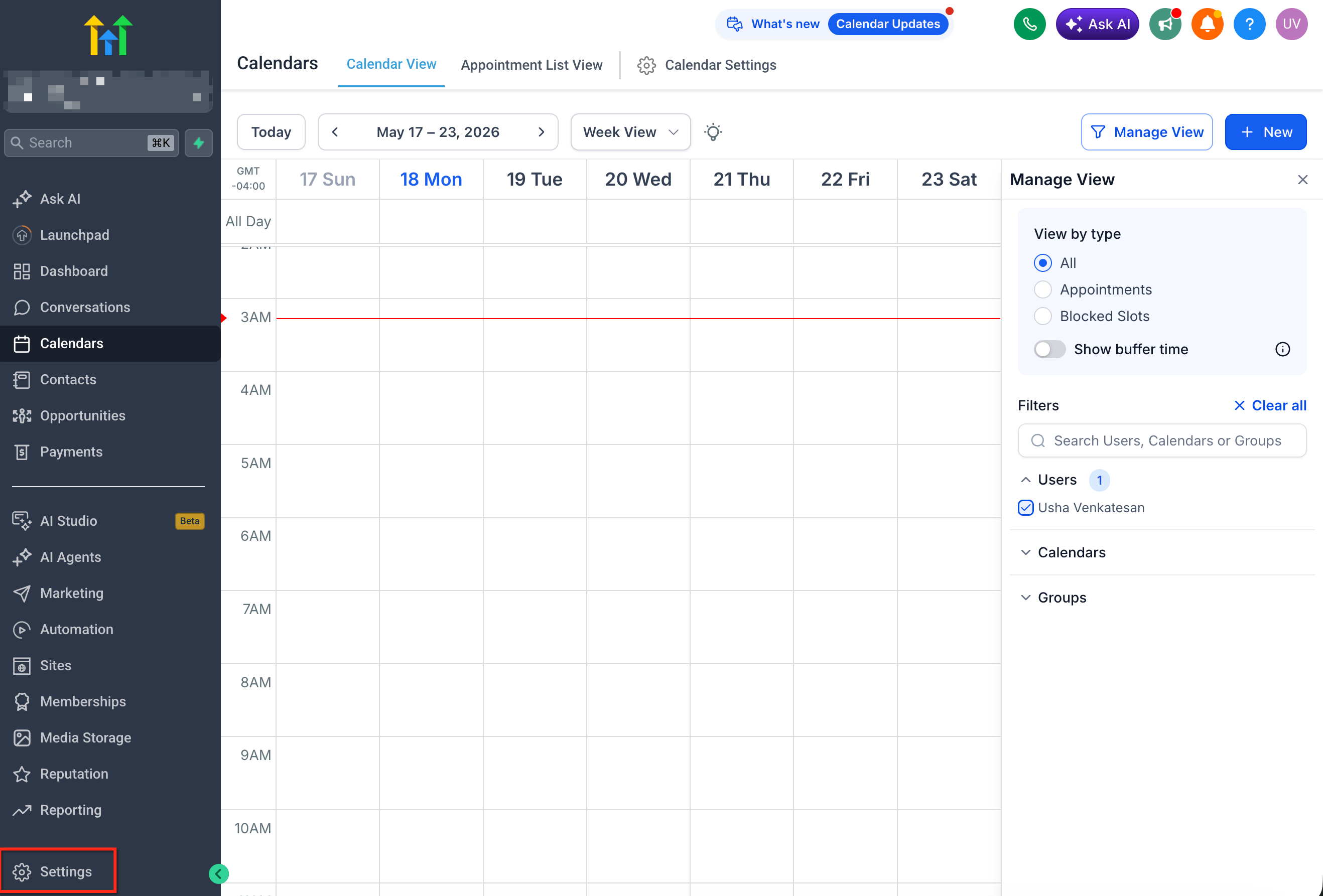 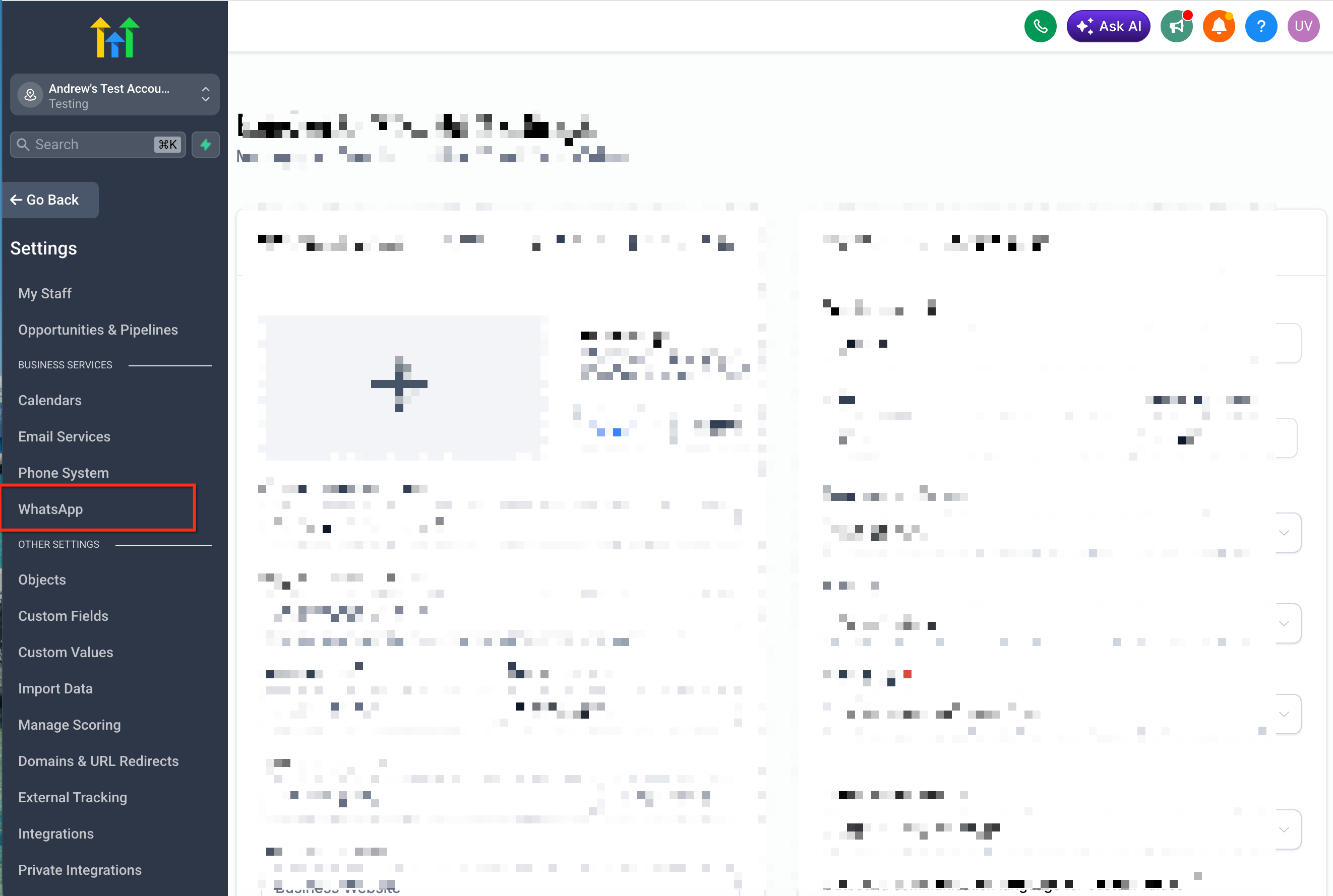 |
2 | Confirm that the WhatsApp account is connected and active. |
3 | Open the Numbers area to review connected WhatsApp numbers. |
4 | Add or configure any required WhatsApp numbers. |
5 | Confirm each number is connected and available. |
6 | Open Conversations. |
7 | Select a conversation with a WhatsApp contact. |
8 | Locate the WhatsApp sender number picker in the message composer. |
9 | Select the desired WhatsApp From number when available. 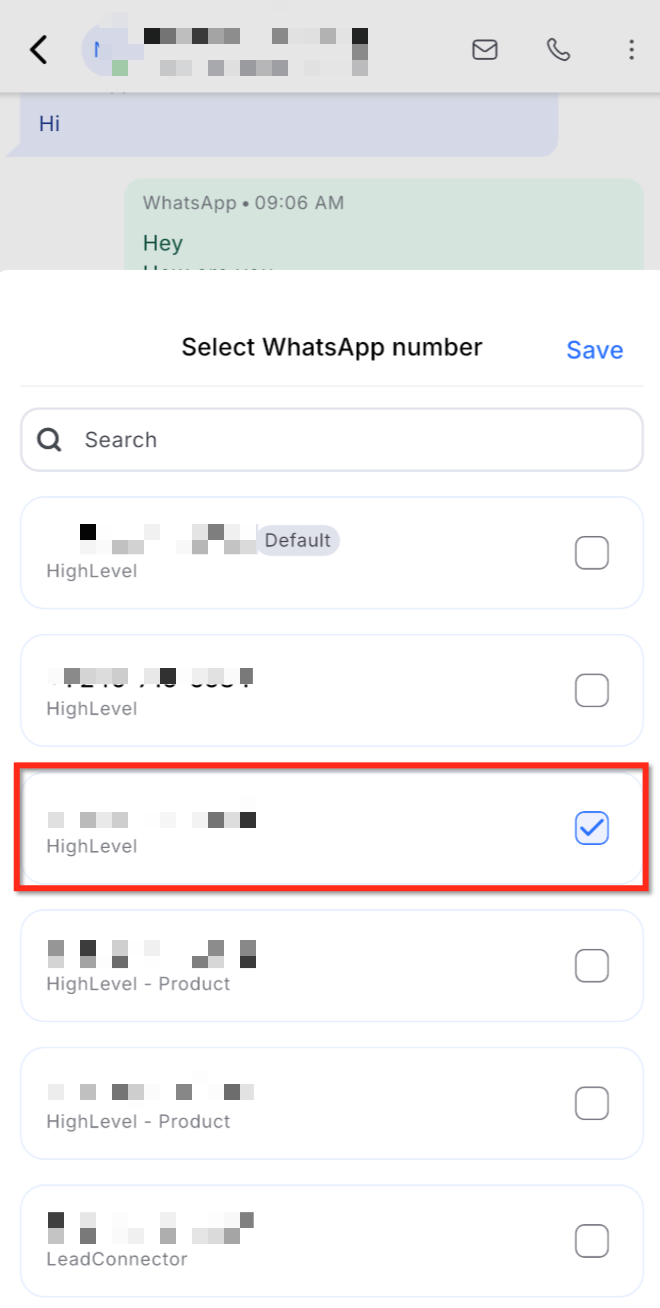 |
10 | Write the message or choose an approved template if required. |
11 | Send the message. |
Frequently Asked Questions
Q: Why do I not see the WhatsApp sender number picker?
The picker may not appear if only one WhatsApp number is connected, if no eligible WhatsApp number is available, or if the conversation is not a WhatsApp conversation. Confirm the number is connected in WhatsApp Settings.
Q: Can I choose any connected WhatsApp number for every message?
Not always. CRM may pre-select or lock a sender number when needed to maintain the active conversation context or follow WhatsApp messaging rules.
Q: Why is the WhatsApp From number already selected?
CRM may automatically select the number that best matches the active WhatsApp conversation. This helps prevent replies from being sent from the wrong business number.
Q: Why can't I change the sender number?
The sender number may be locked because the current conversation is tied to a specific WhatsApp number. This helps preserve conversation continuity and avoid customer confusion.
Q: Can I use the WhatsApp sender number picker on mobile?
Yes. The sender number picker is available in Conversations on mobile for eligible WhatsApp conversations. WhatsApp number setup, however, is available on web only.
Q: Does this affect WhatsApp messages sent from Workflows?
No. Manual sender number selection in Conversations is separate from Workflow WhatsApp actions. Workflow WhatsApp actions have their own From number selection settings.
Q: What happens if a contact has more than one phone number?
CRM may maintain separate WhatsApp conversation states based on the contact's phone numbers and the WhatsApp numbers used. This helps keep each conversation aligned with the correct sender and recipient combination.
Q: Do templates need to be approved before I can use them?
Yes. WhatsApp templates must be approved and available before they can be used for template-based outbound messages.
Related Articles
Select WhatsApp To and From Numbers in Conversations
WhatsApp Settings
WhatsApp: Customer Service Window Check
WhatsApp: Send Message Templates (Snippets)
How to Set Up WhatsApp for a Sub-Account
WhatsApp – Workflow Integration
Was this article helpful?
That’s Great!
Thank you for your feedback
Sorry! We couldn't be helpful
Thank you for your feedback
Feedback sent
We appreciate your effort and will try to fix the article