Custom Metrics now supports metric-level filtering, Meta Ads, and Google Analytics as data sources. This article covers what's new, how to use these capabilities, and example metrics you can start building today.
TABLE OF CONTENTS
- What's New
- How to Add Filters to a Metric
- Step 1: Open the Custom Metric Builder
- Step 2: Build Your Formula
- Step 3: Click a Metric Token to Open Filters
- Step 4: Set Your Filter Conditions
- Step 5: Save the Metric
- How to Use Meta Ads Metrics
- How to Use Google Analytics Metrics
- Example Metrics You Can Now Build
- Frequently Asked Questions
What's New
This update adds three new capabilities to Custom Metrics:
Metric-level Filtering — Add filters directly to each metric token in your formula. Filter contacts by tag, opportunities by pipeline or owner, calls by agent, and more. Each metric in your formula can have its own independent filter with multiple AND conditions.
Meta Ads as a Data Source — Use Meta Ads metrics such as Sum of Spend, Impressions, CTR, CPC, CPM, Conversions, and Reach directly in your custom metric formulas alongside your CRM data.
Google Analytics as a Data Source — Pull Google Analytics metrics into your formulas to build cross-channel KPIs like Cost per Opportunity natively inside HighLevel.
Full-page Builder — Custom Metrics now open in a full-page editor (instead of a modal), giving you more space to configure your formula and metric-level filters.
How to Add Filters to a Metric
Step 1: Open the Custom Metric Builder
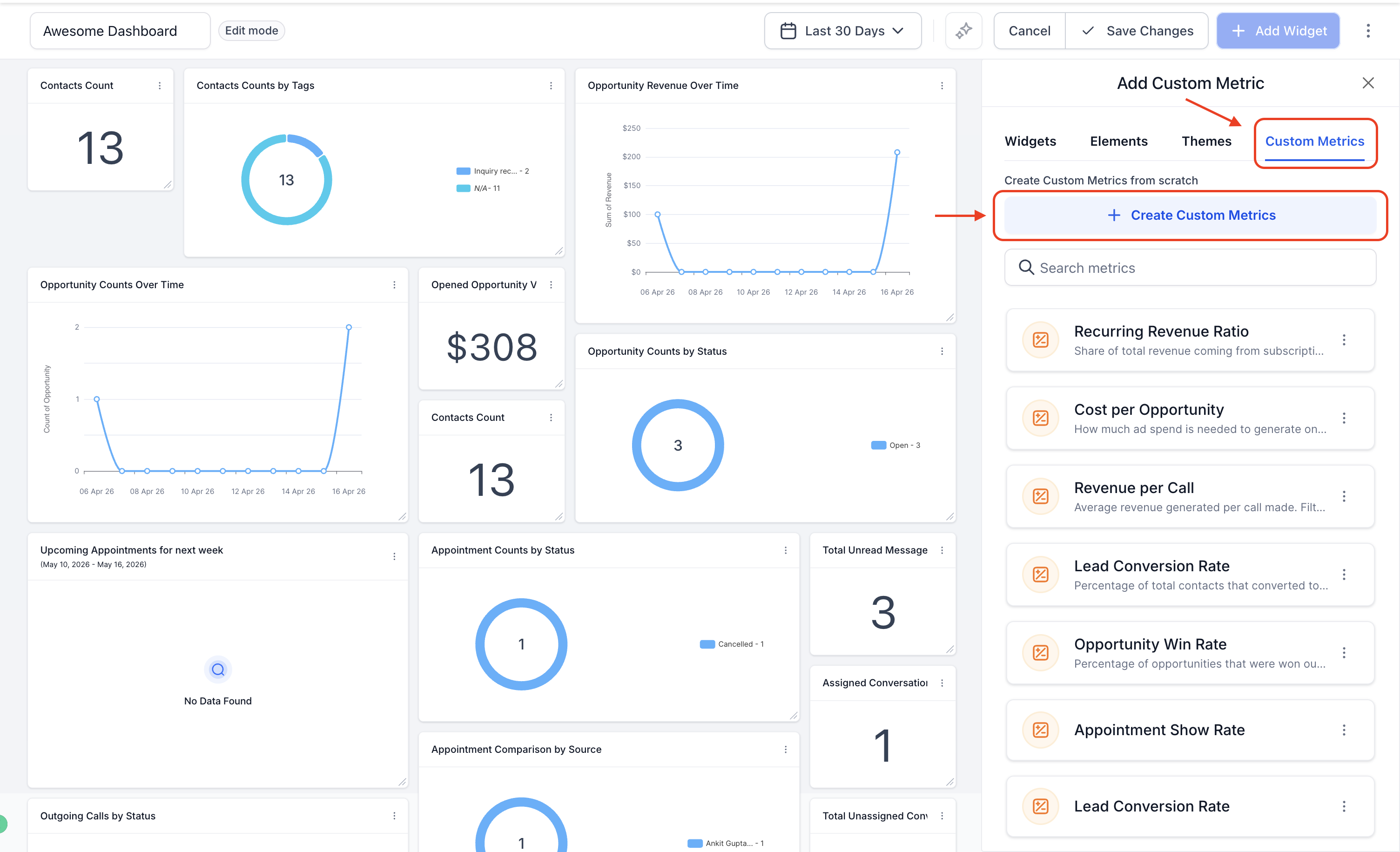
Navigate to your Dashboard, enter Edit Mode, click Add Widget, and open an existing custom metric or create a new one.
Step 2: Build Your Formula
In the formula builder, add your metric tokens as usual.
Pro tip: Click on any metric token to add filters and customize how that specific metric's data is calculated.
Step 3: Click a Metric Token to Open Filters
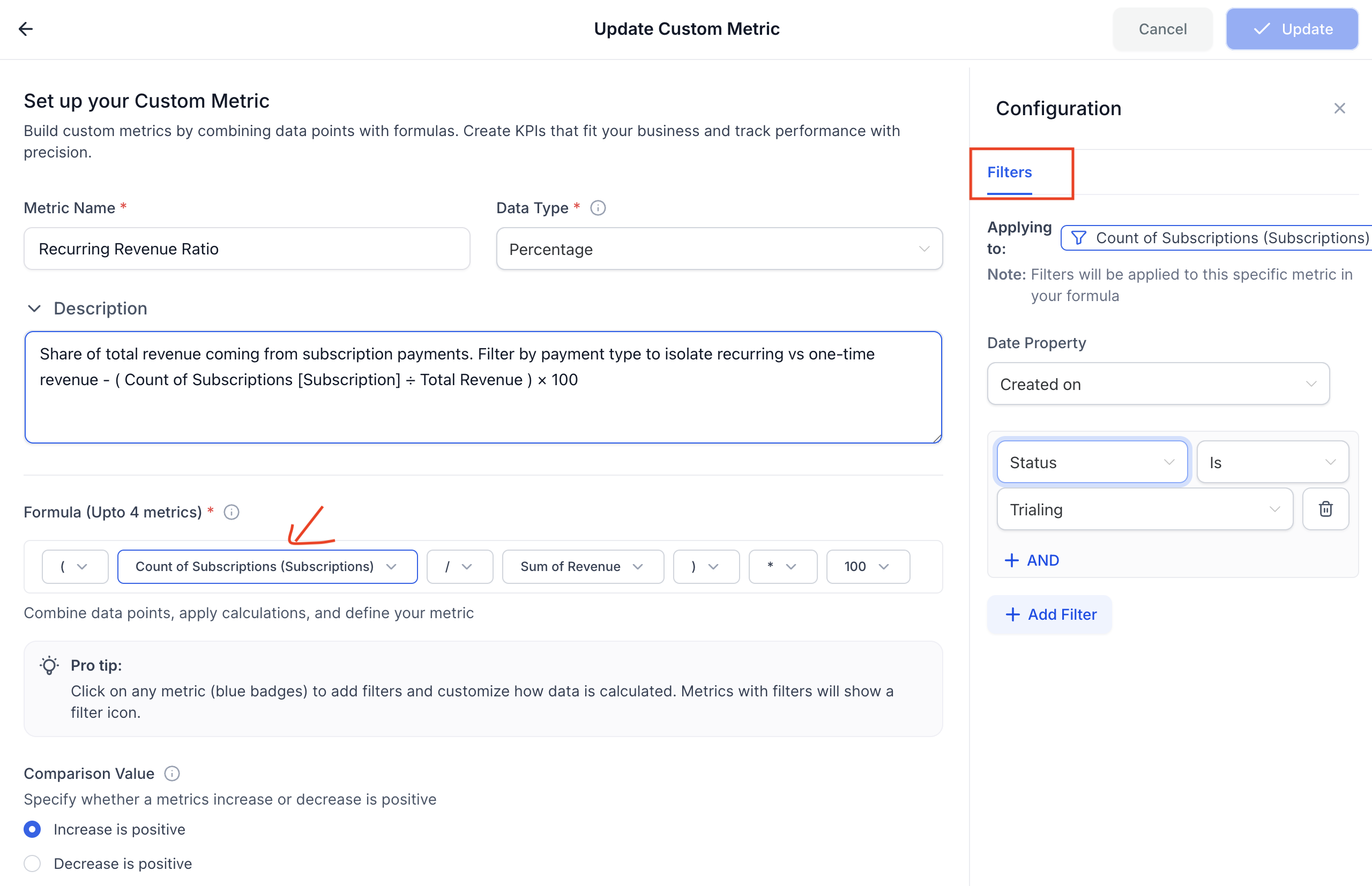
Click on a metric token in your formula. A Configuration panel will open on the right side of the screen showing a Filters tab.
Step 4: Set Your Filter Conditions
In the Configuration panel:
- The Applying to field confirms which metric you are filtering.
- Set the Date Property — choose the date field the metric should be calculated on (e.g., Created On).
- Under the filter row, select your filter attribute (e.g., Tag, Pipeline, Owner, Source) from the first dropdown.
- Select the operator (e.g., Is one of, Is not).
- Select or enter the filter value.
- Click + AND to add additional conditions to the same metric.
- Click + Add Filter to add another filter row.
Step 5: Save the Metric
Once your filters are set, click Update at the top right. Metric tokens with active filters will show a filter icon on the badge for easy visibility.
How to Use Meta Ads Metrics
Step 1: Open the Formula Builder
In the Custom Metric builder, click inside the formula field to open the metric picker.
Step 2: Select Meta Ads
From the metric categories list, select Meta Ads. This expands the list of available Meta Ads metrics:
- Sum of Spend
- Sum of Ad Clicks
- Sum of Impressions
- Sum of Conversions
- Sum of Reach
- Sum of Website Purchases
- Average / Min / Max Cost Per Click (CPC)
- Average / Min / Max Cost Per Conversion
- Average / Min / Max Cost Per Milles (CPM)
- Average / Min / Max Click-Through Rate (CTR)
Step 3: Build Your Formula
Select the Meta Ads metric you need and combine it with other metrics using operators.
Example: Sum of Spend (Meta) / Sum of Conversions → Tracks Cost per Conversion from your Meta campaigns directly on the dashboard.
How to Use Google Analytics Metrics
Step 1: Open the Formula Builder
In the Custom Metric builder, click inside the formula field to open the metric picker.
Step 2: Select Google Analytics
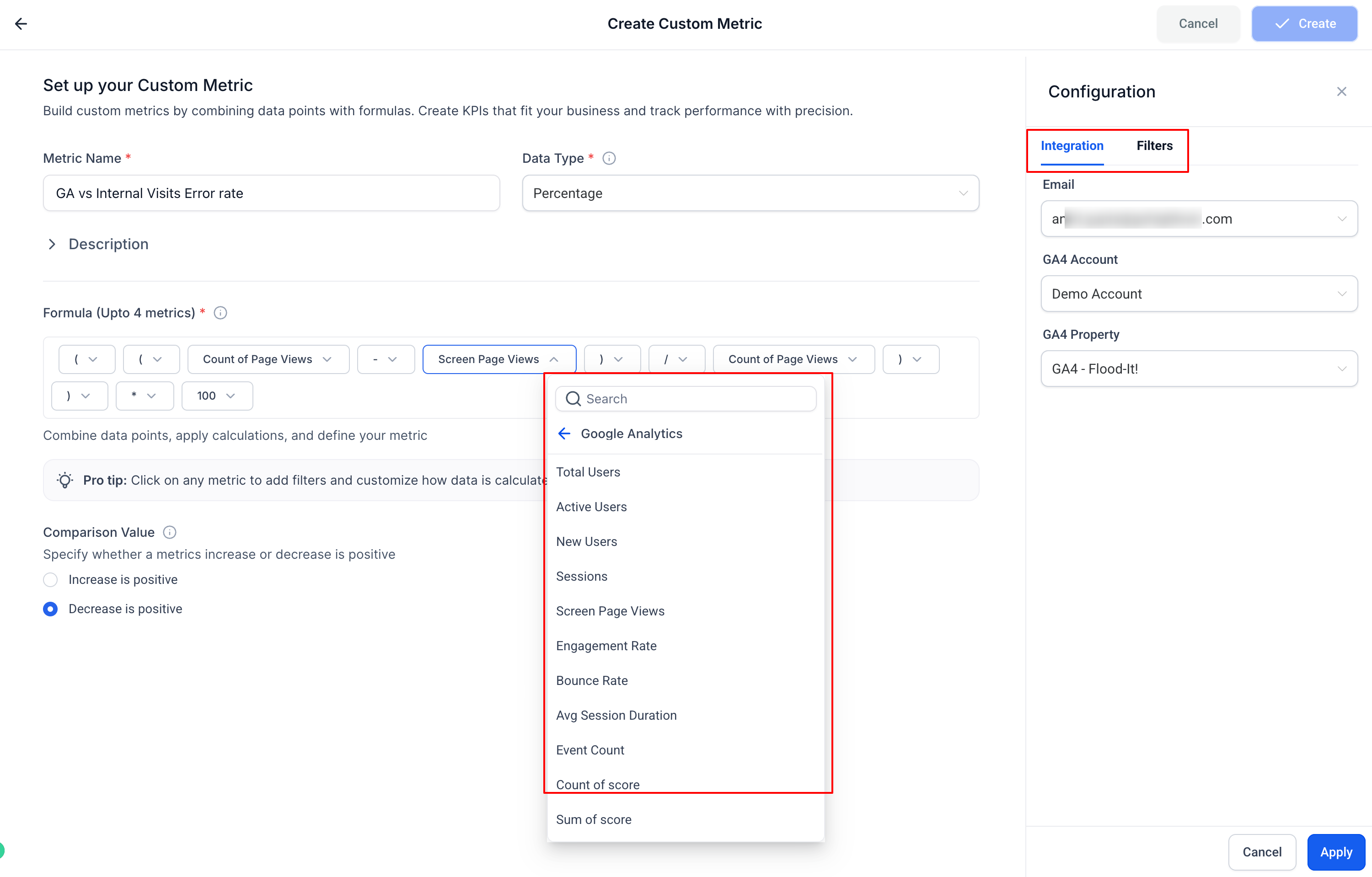
From the metric categories list, select Google Analytics. This expands the list of available GA metrics.
Step 3: Build Your Formula
Select the GA metric you need and combine it with your CRM metrics.
Example: Sum of Spend (GA) / Count of Opportunities → Tracks Cost per Opportunity by combining ad spend data with your pipeline directly on the dashboard.
Note: Ensure your Google Analytics account is connected under Settings → Integrations before GA metrics appear in the picker.
Example Metrics You Can Now Build
| Metric Name | Formula | Filter |
|---|---|---|
| Opportunity Win Rate | Count of Opportunity [Won] / Count of Opportunity [Total] × 100 | Filter by Pipeline or Owner |
| Customer Ratio | Count of Contacts [Tag = Customer] / Count of Contacts × 100 | Tag = Customer |
| Lead Conversion by Source | Count of Opportunity [Won] / Count of Contacts × 100 | Contact Source = Facebook / Google |
| Cost per Opportunity | Sum of Spend (GA) / Count of Opportunity | — |
| Cost per Conversion | Sum of Spend (Meta) / Sum of Conversions | — |
| Revenue per Call | Total Revenue / Count of Calls | Filter by Call Made By |
Frequently Asked Questions
Q: Can I add filters to each metric independently in the same formula?
Yes. Each metric token in your formula has its own independent filter. Clicking a token opens its filter configuration without affecting other metrics in the formula.
Q: How many filter conditions can I add to a single metric?
You can add multiple conditions using AND logic within a single metric's filter. Each condition is a separate attribute-operator-value row.
Q: Do Meta Ads and Google Analytics metrics respect the dashboard date range?
Yes. Like all metrics in the formula builder, Meta Ads and Google Analytics metrics are calculated based on the date range set on the dashboard or report.
Q: Does filtering affect the entire formula or just the specific metric?
Filters apply only to the specific metric token they are configured on. Other metric tokens in the same formula are unaffected.
Q: What if my Google Analytics or Meta Ads data is not appearing in the picker?
Ensure the relevant integration is connected in your sub-account under Settings → Integrations. Google Analytics and Meta Ads must be connected for their metrics to be available in the custom metric builder.
Q: Can I use filtered custom metrics in Snapshots?
Yes. Custom metrics including their filter configurations can be pushed to other sub-accounts via Snapshots. The filters will remain intact as long as the destination account has the same data sources and field values available.
Related Articles
Was this article helpful?
That’s Great!
Thank you for your feedback
Sorry! We couldn't be helpful
Thank you for your feedback
Feedback sent
We appreciate your effort and will try to fix the article