Custom Module Links in HighLevel’s Whitelabel Customizer now offer advanced control over who can see specific navigation links and where they appear. By combining role-based visibility with account targeting, admins can create a cleaner, more relevant user experience while protecting sensitive resources.
TABLE OF CONTENTS
- What is Custom Module Links with Role & Account-Based Visibility?
- Key Benefits of Custom Module Links with Role & Account-Based Visibility
- Role-Based Visibility
- Account (Location) Targeting
- Unified Custom Module Configuration
- How To Setup Custom Module Links with Role & Account-Based Visibility
- Frequently Asked Questions
- Related Articles
What is Custom Module Links with Role & Account-Based Visibility?
Custom Module Links allow you to add external or internal links directly into your app’s navigation menu. With the introduction of role-based and account-based visibility, these links are no longer static—they can now be tailored to specific users and locations for a more controlled and personalized experience.
This enhancement enables admins to define whether a link should be visible to all users or restricted to admins, as well as limit its appearance to selected accounts (locations). As a result, navigation becomes more intentional, secure, and aligned with operational needs.
Key Benefits of Custom Module Links with Role & Account-Based Visibility
Understanding how this feature improves usability and control can help you better structure your app navigation and user experience.
- Targeted Visibility: Display links only to specific users or roles, ensuring relevance and reducing clutter
- Improved Security: Restrict sensitive or internal links to Admin users only
- Account-Specific Customization: Tailor navigation experiences for different accounts or client locations
- Controlled Rollouts: Test new links with a limited group before releasing them broadly
- Centralized Configuration: Manage title, URL, icon, account selection, and visibility in one place
Role-Based Visibility
Role-based visibility determines which users can see a custom module link based on their assigned role. This ensures that only the appropriate users have access to certain navigation items, improving both usability and security.
- All Users: The link is visible to all users within the selected accounts
- Admin Only: The link is restricted to users with Admin-level access
Example Use Cases:
- Internal dashboards visible only to admins
- Training resources available to all team members
Account (Location) Targeting
Account targeting allows you to control where a custom module link appears by selecting specific accounts (locations). This ensures that only relevant users within those accounts see the link.
- Select one or multiple accounts where the link should appear
- Leave unselected accounts excluded from visibility
Example Use Cases:
- Client-specific resources for individual locations
- Region-based tools or integrations
Unified Custom Module Configuration
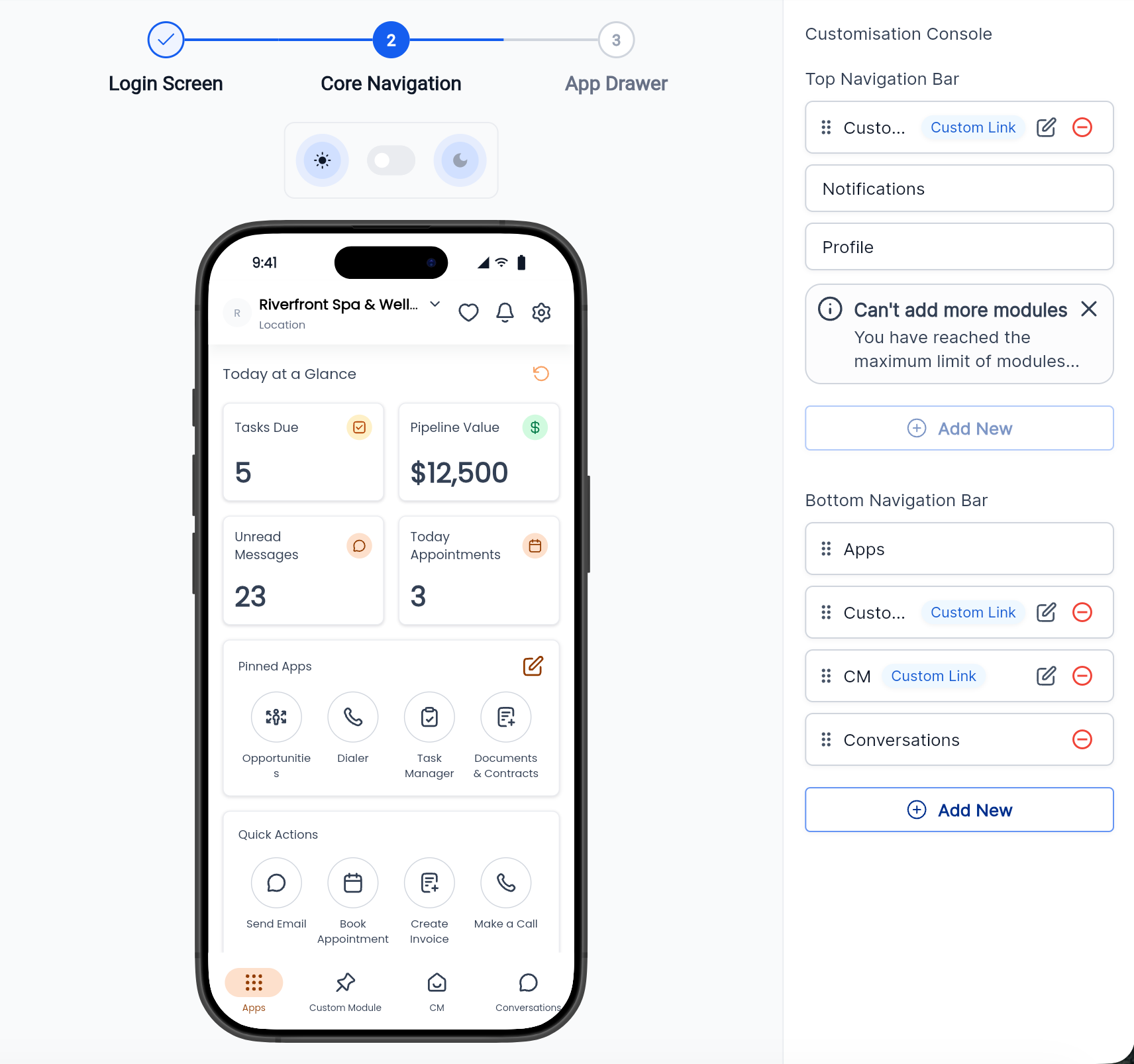
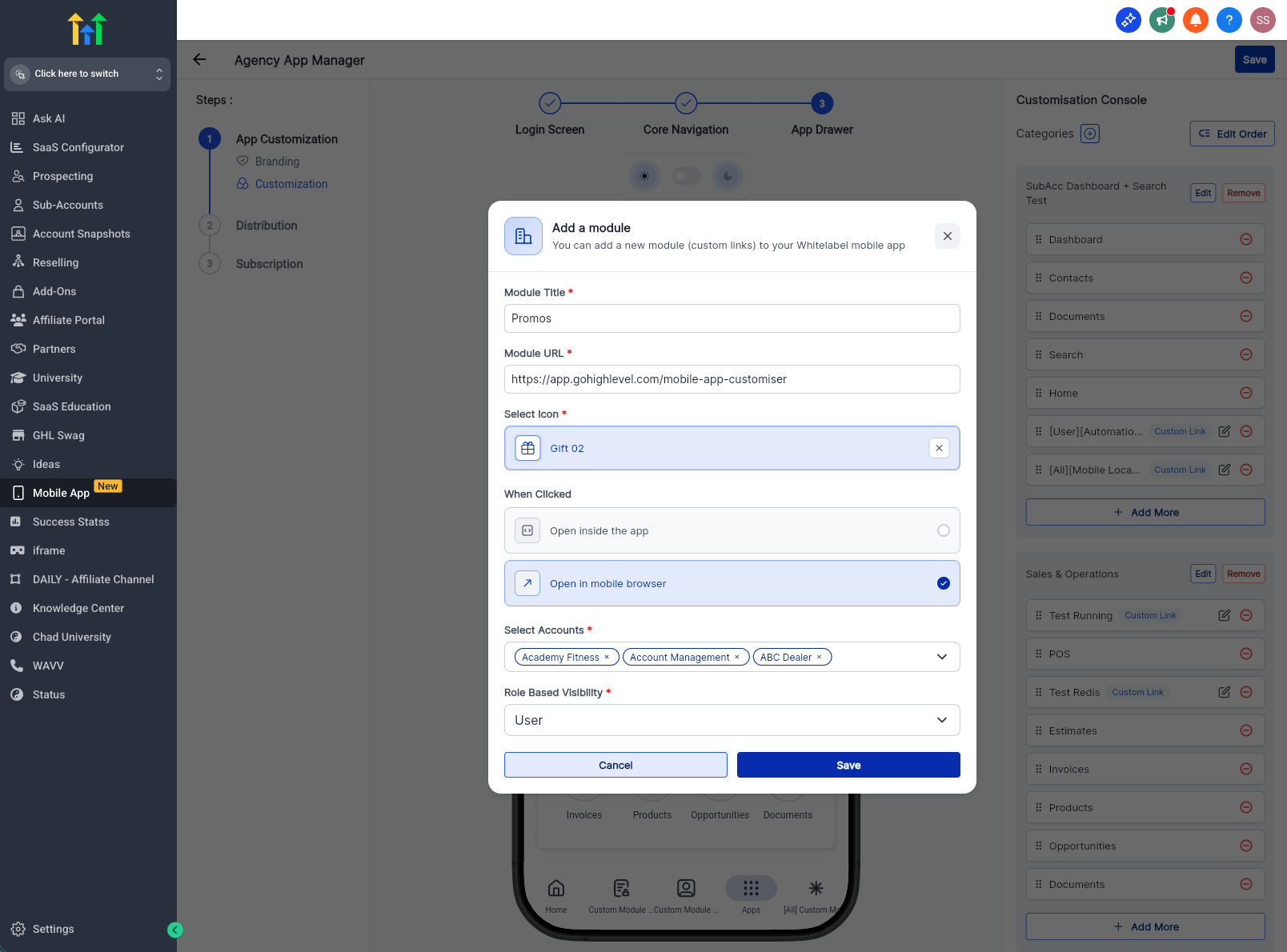
All settings for custom module links are now managed within a single Add/Edit Module popup. This unified interface simplifies the setup process and reduces the need for multiple configuration steps.
Within this popup, you can:
- Enter the Title of the link
- Add the URL destination
- Choose an Icon for visual identification
- Select Accounts (Locations)
- Define Role-Based Visibility
How To Setup Custom Module Links with Role & Account-Based Visibility
Proper setup ensures that your custom links appear only where intended and are accessible to the right users, helping maintain a clean and secure navigation experience.
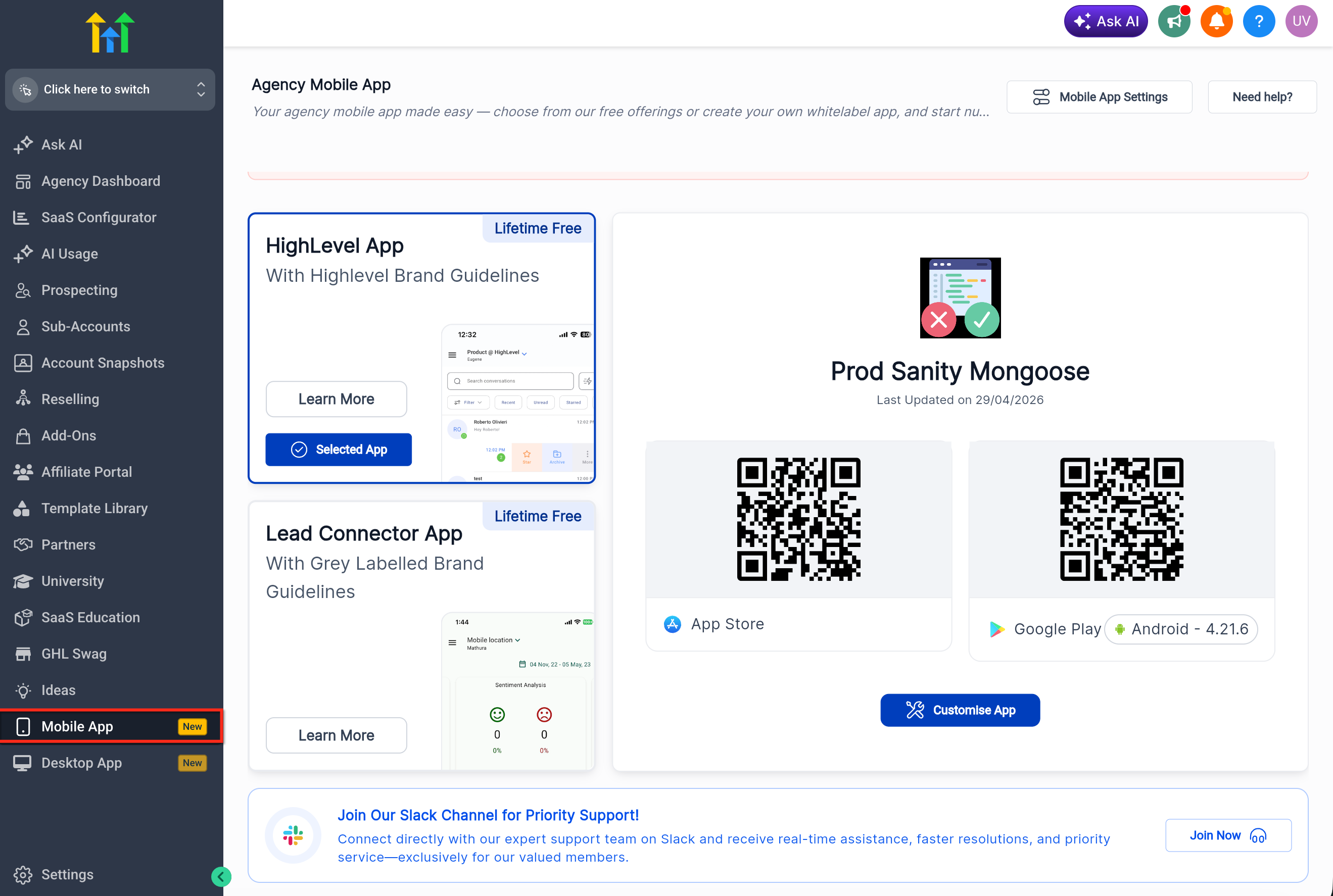
- Navigate to Mobile App in your agency left pane.
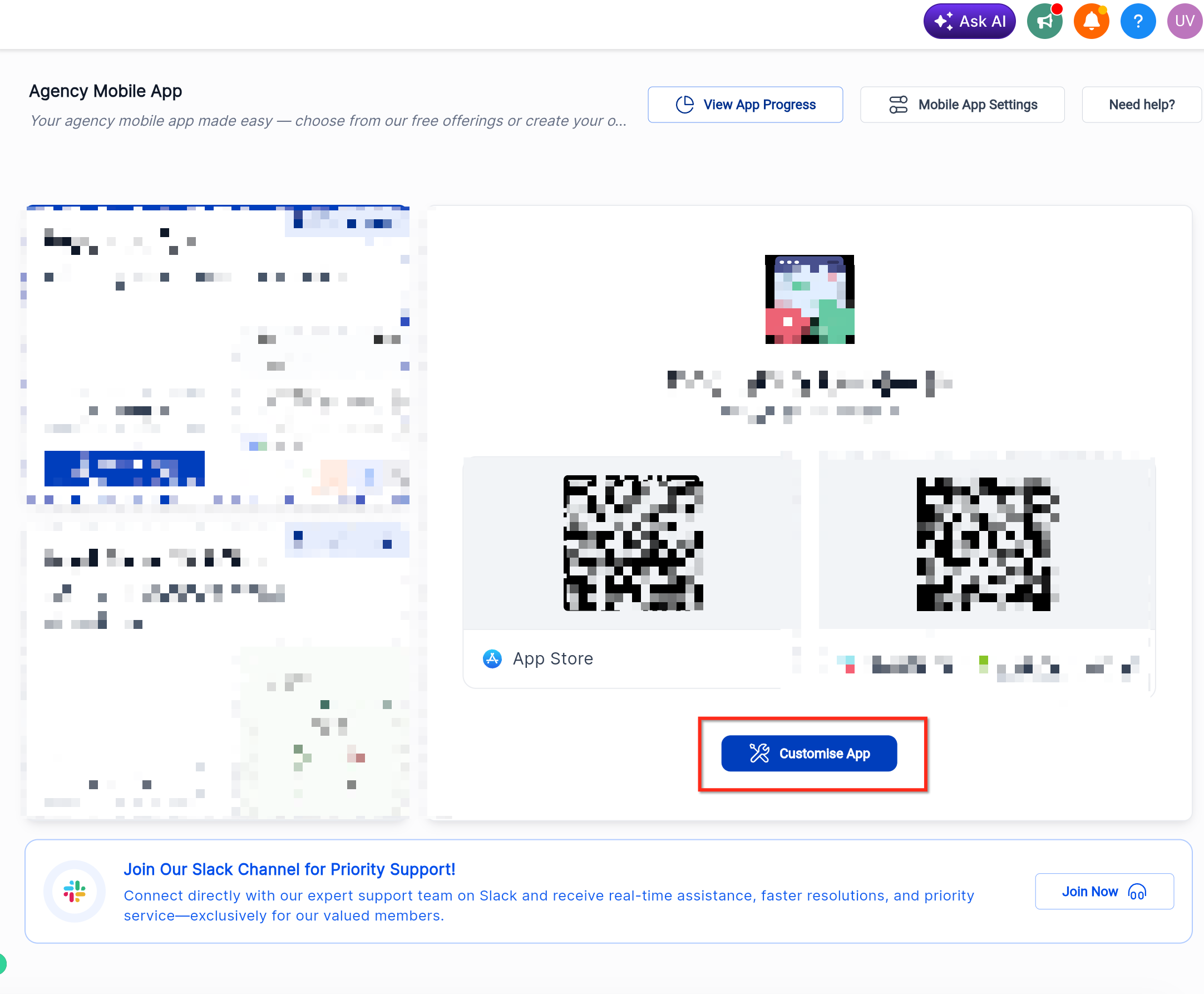
- Select Customize App to make the changes.
- Enter the Title, and URL
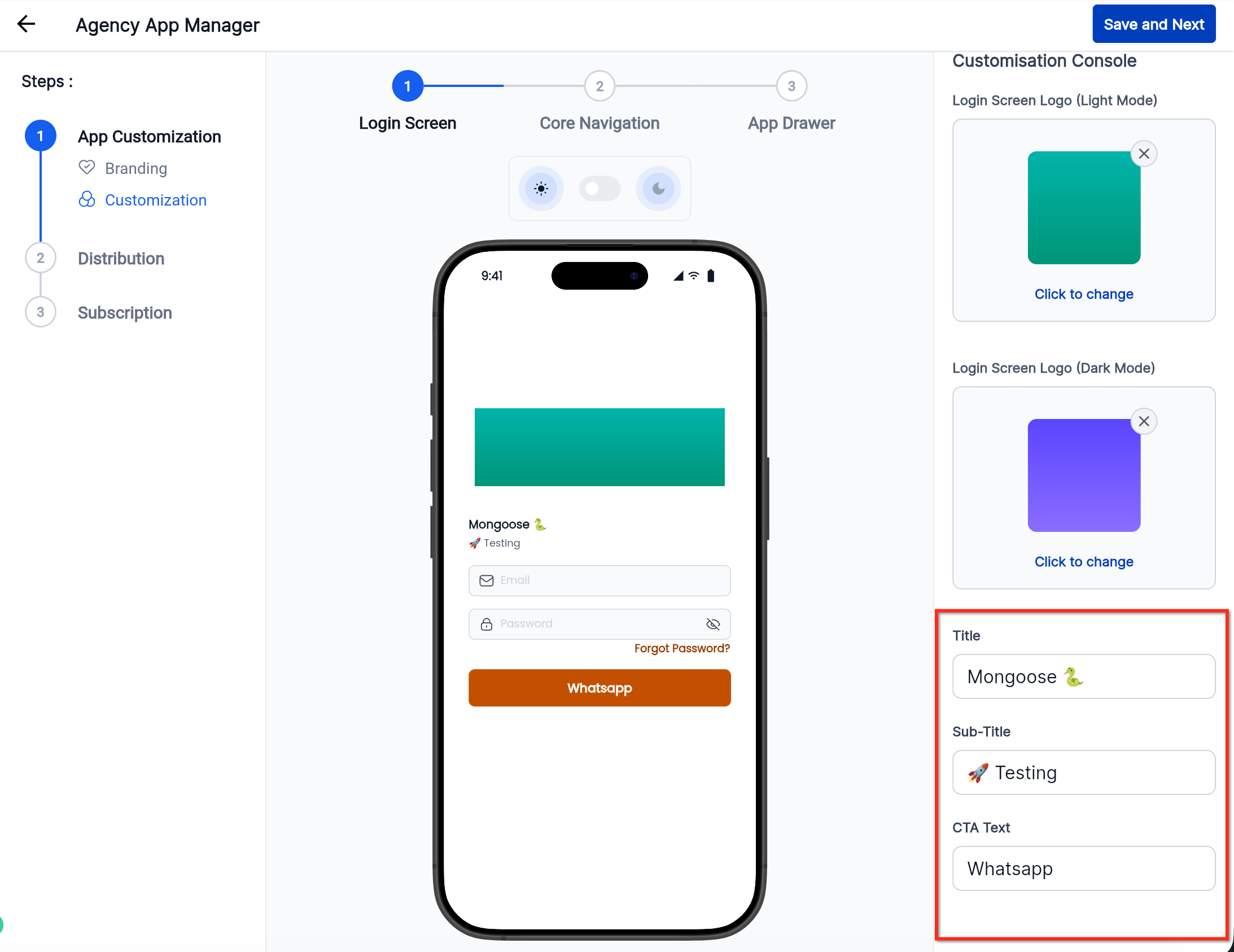
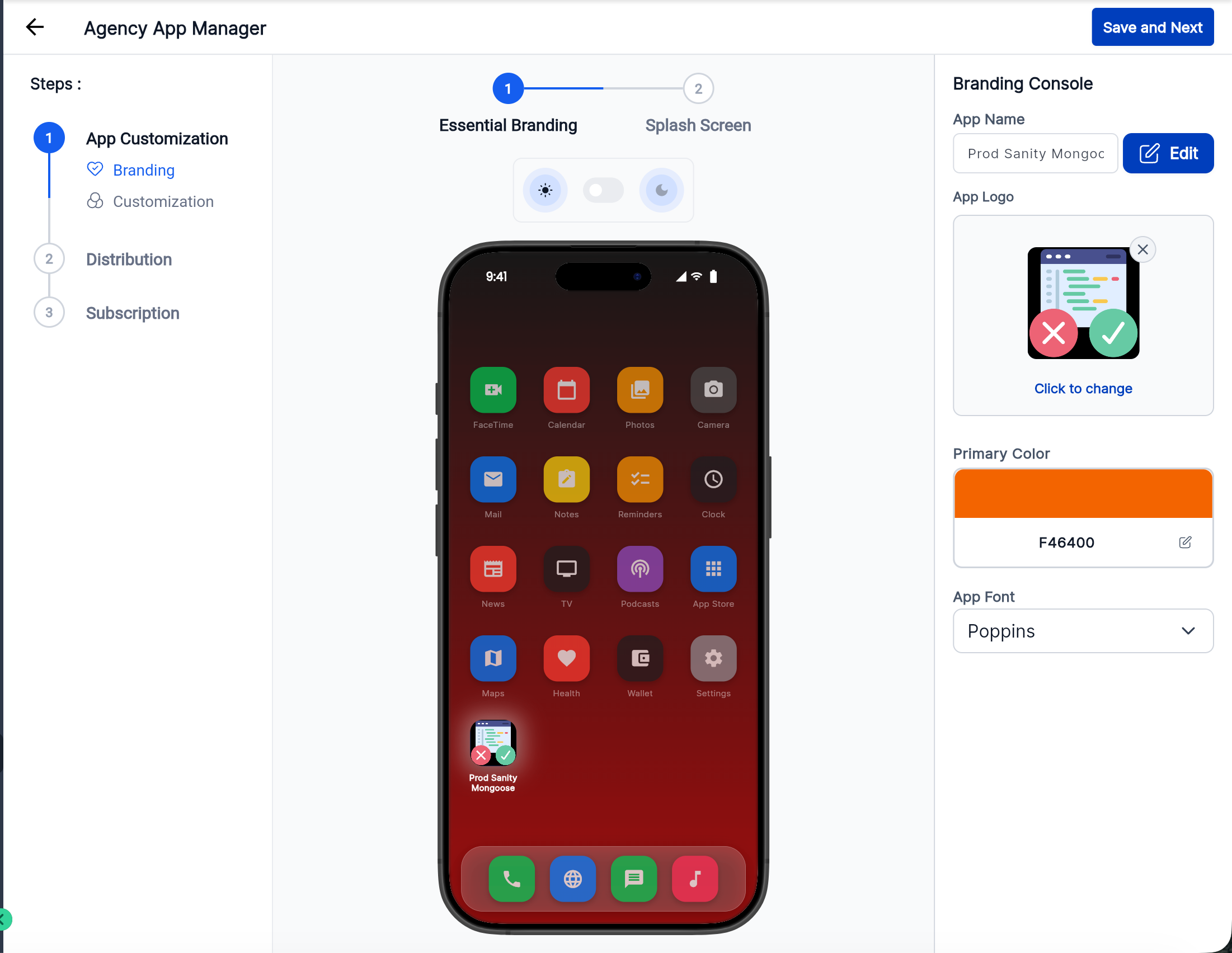
- Choose App Logo through Branding.
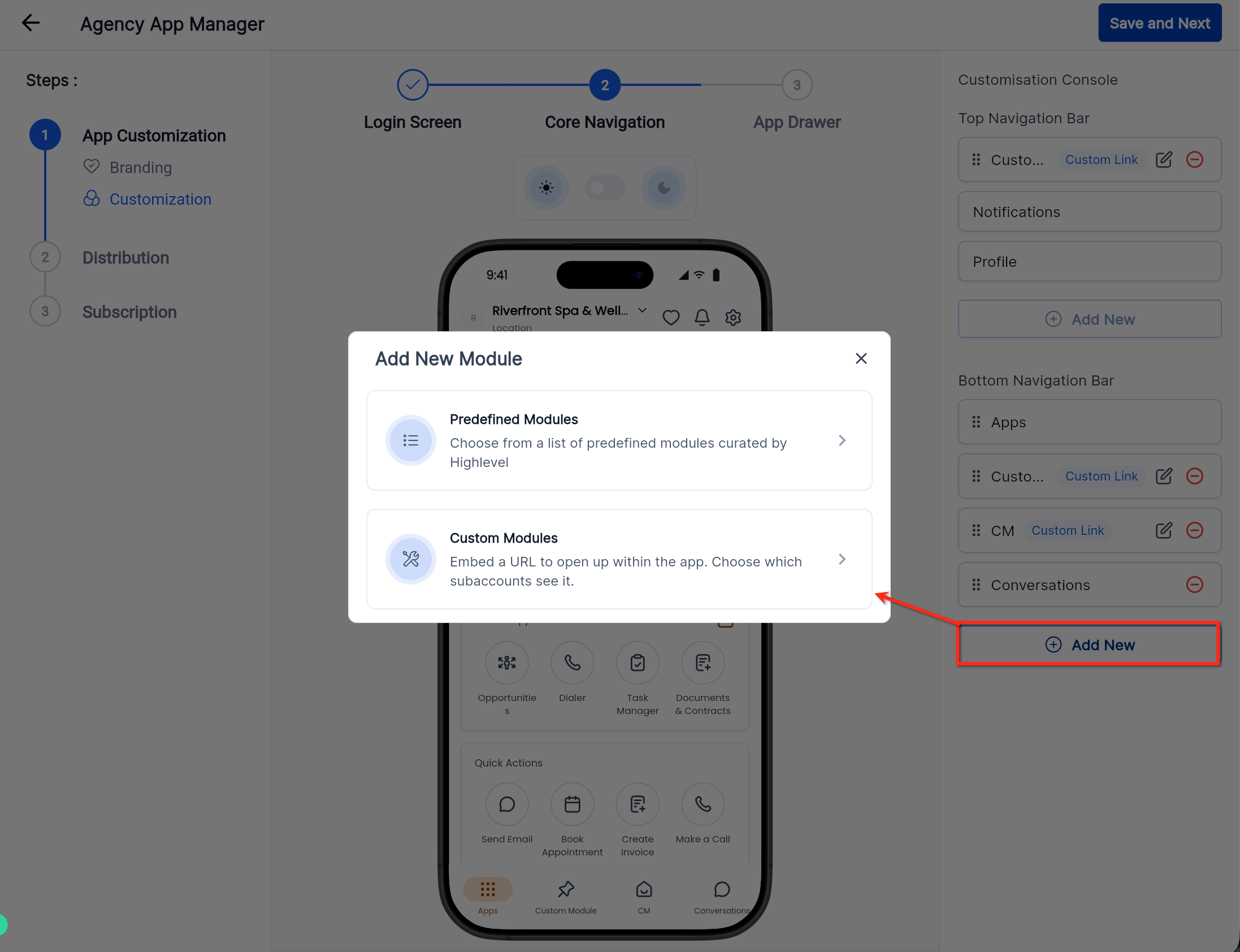
- Click "Add New" to create new modules.
- Click Save
Frequently Asked Questions
Q1: What happens if I don’t select any accounts?
If no accounts are selected, the link may not appear in any location. It’s recommended to explicitly choose the accounts where the link should be visible.
Q2: Can I assign visibility to roles other than Admin or All Users?
Currently, visibility is limited to All Users or Admin Only.
Q3: Can I edit visibility settings after creating a link?
Yes, you can update role visibility and account selection at any time by editing the custom module.
Q4: Will users be notified when new links are added?
No automatic notifications are sent. Users will see the link appear in their navigation based on the visibility settings.
Q5: Can I use this feature to hide links temporarily?
Yes, by adjusting account selection or role visibility, you can effectively control when and where links are visible.
Q6: Does this affect existing custom module links?
Existing links may need to be reviewed and updated to take advantage of the new visibility controls.
Related Articles
Was this article helpful?
That’s Great!
Thank you for your feedback
Sorry! We couldn't be helpful
Thank you for your feedback
Feedback sent
We appreciate your effort and will try to fix the article