The AI Agent Node is the intelligence layer inside Agent Studio flow-based agents. It helps an agent understand input, follow instructions, choose tools, capture information, and pass results to the next node. Use this guide to configure prompts, models, modes, tools, variables, and connections so your existing Agent Studio flows behave more reliably.
IMPORTANT NOTE: Agent Studio is used for maintaining existing flow-based agents. For new agent creation, follow the current recommended HighLevel experience available in your account.
TABLE OF CONTENTS
- What is AI Agent Node in Agent Studio
- Core Elements of the AI Agent Node
- Key Benefits of the AI Agent Node
- When To Use the AI Agent Node
- How to Configure the AI Agent Node
- Frequently Asked Questions
- Related Articles
What is AI Agent Node in Agent Studio
The AI Agent Node is a core Agent Studio component that defines how an AI agent thinks, responds, and takes action. It processes incoming input, understands intent, and determines the next best step, such as generating a response, using a tool, capturing information, or sending output to the next node.
The AI Agent Node runs when it receives input from a Start Trigger or another connected node. Unlike fixed logic, the AI Agent Node can adapt based on prompt instructions, available tools, user input, and context.
Instead of relying on fixed logic, the AI Agent Node allows the agent to operate dynamically, adapting its behavior based on context and instructions. This makes it especially useful in scenarios where inputs are unpredictable, conversations are required, and decisions depend on context.
At its core, the AI Agent Node is built on five elements. Understanding these elements is key to configuring the agent effectively.
Prompt
Model
Mode
Tools
Variables
These elements work together to shape how the agent behaves during execution.
Core Elements of the AI Agent Node
The AI Agent Node is built from several configuration elements that work together. A clear prompt, appropriate model, correct mode, relevant tools, well-defined variables, and clean node connections help the agent behave consistently.
Prompt
The prompt defines how the AI Agent Node behaves by specifying the agent’s role, tone, tasks, and when to use tools. The agent relies on these instructions to interpret input and make decisions during execution.
This ensures the agent responds consistently based on defined behavior. For example, a support agent prompt may instruct it to answer pricing queries and use the knowledge base when needed, allowing it to correctly handle a question like “What does your premium plan include?” by identifying it as a pricing query and responding appropriately.
A strong prompt should include:
- The agent’s role
- The goal of the node
- What the agent should and should not do
- Tone or style requirements
- When to use tools
- What information to capture
- What output should be passed forward
Example:
You are a support qualification assistant. Ask clarifying questions when needed, identify the customer’s issue type, capture the issue category as a runtime variable, and use the Knowledge Base tool when the customer asks product-related questions.
Model
The model determines how effectively the AI Agent Node understands input and generates responses. Higher-capability models like GPT-5 or GPT-4.1 provide stronger reasoning, while Mini and Nano models are faster and more lightweight, and GPT-4o offers lower latency.
This directly impacts how the agent interprets user intent and responds. For example, when a user says, “I’m exploring options for my business,” a stronger model can identify this as a potential lead, while a lightweight model may respond more generically.
Mode
Mode defines how the AI Agent Node operates whether it communicates with users or executes tasks silently. In Conversational Mode, the agent responds and handles interactions, while in Task Based Mode, it performs actions without generating user-facing responses.
This allows the agent to adapt its behavior based on the use case. For example, in Conversational Mode, the agent can answer pricing questions, whereas in Task Based Mode, it can extract user details like email and update the CRM without sending a response.
Tools
Tools extend the capabilities of the AI Agent Node by enabling it to perform actions beyond generating responses, such as retrieving information or directing flow. Based on the prompt and context, the agent evaluates when a tool is needed and selects the appropriate one.
Available tools include:
- Router
- Search Knowledge Base
- Search the Web
- MCP Server
- Actions
- API Call
- Text, Image, Video, and Audio Generation
This allows the agent to combine decision-making with execution in real time. For example, when a user asks, “Do you support international payments?”, the agent can use the Knowledge Base tool to retrieve accurate information before responding, or use the Router tool to direct the flow when user intent is unclear.
Variables
Variables enable the AI Agent Node to handle data by using existing inputs for context and extracting new information during execution. Input variables provide context to the agent, while runtime variables capture structured data during interactions.
This allows the agent to retain and pass meaningful information across the flow for further actions. For example, when a user says, “Hi, I’m Rahul. I need a demo,” the agent can capture details like Name = Rahul and Requirement = Demo, which can then be used for CRM updates or follow-ups.
Node Connections
The AI Agent Node executes when it receives input from a connected trigger or node, using its configured prompt, model, tools, and variables to process the data. It evaluates the context, determines the appropriate action or response, and then outputs the result to the next connected node in the flow.
Within the agent flow, this enables the node to drive outcomes by passing structured results forward for further actions. For example, after qualifying a lead, it can send captured details like name and requirement to a CRM node for follow-up.
Key Benefits of the AI Agent Node
The AI Agent Node helps make Agent Studio flows more flexible and context-aware. By combining prompts, tools, variables, and node connections, users can create agent behavior that adapts to different inputs instead of following only rigid paths.
- Handle dynamic conversations: Let the agent interpret user input and respond based on context.
- Use tools intelligently: Allow the node to select connected tools when the prompt and user input require them.
- Capture structured data: Extract runtime variables such as name, email, request type, or intent.
- Support flexible routing: Pass outputs to downstream nodes for follow-up actions or branching.
- Improve automation quality: Combine prompts, tools, variables, and connections to create more adaptive flows.
- Reduce manual logic: Let the AI Agent Node make context-aware decisions when fixed conditions are not enough.
When To Use the AI Agent Node
The AI Agent Node is best for situations where the agent must understand context, respond naturally, choose tools, or make decisions based on user input. It is especially useful when inputs are unpredictable or when the next step depends on intent.
Use the AI Agent Node for:
- Conversational responses
- Lead qualification
- Support triage
- Knowledge Base lookup
- Web search
- Data extraction
- CRM updates
- Tool selection
- Dynamic routing
- Context-aware decision-making
Use the AI Agent Node when decisions depend on context. Use a Sequential Node when the flow should run predefined steps in a fixed order.
How to Configure the AI Agent Node
A well-configured AI Agent Node is built on a clear prompt, the right model, an appropriate mode, minimal and relevant tools, and well-defined variables. When these elements are set correctly, the agent delivers accurate responses, executes tasks efficiently, and maintains clean, structured logic.
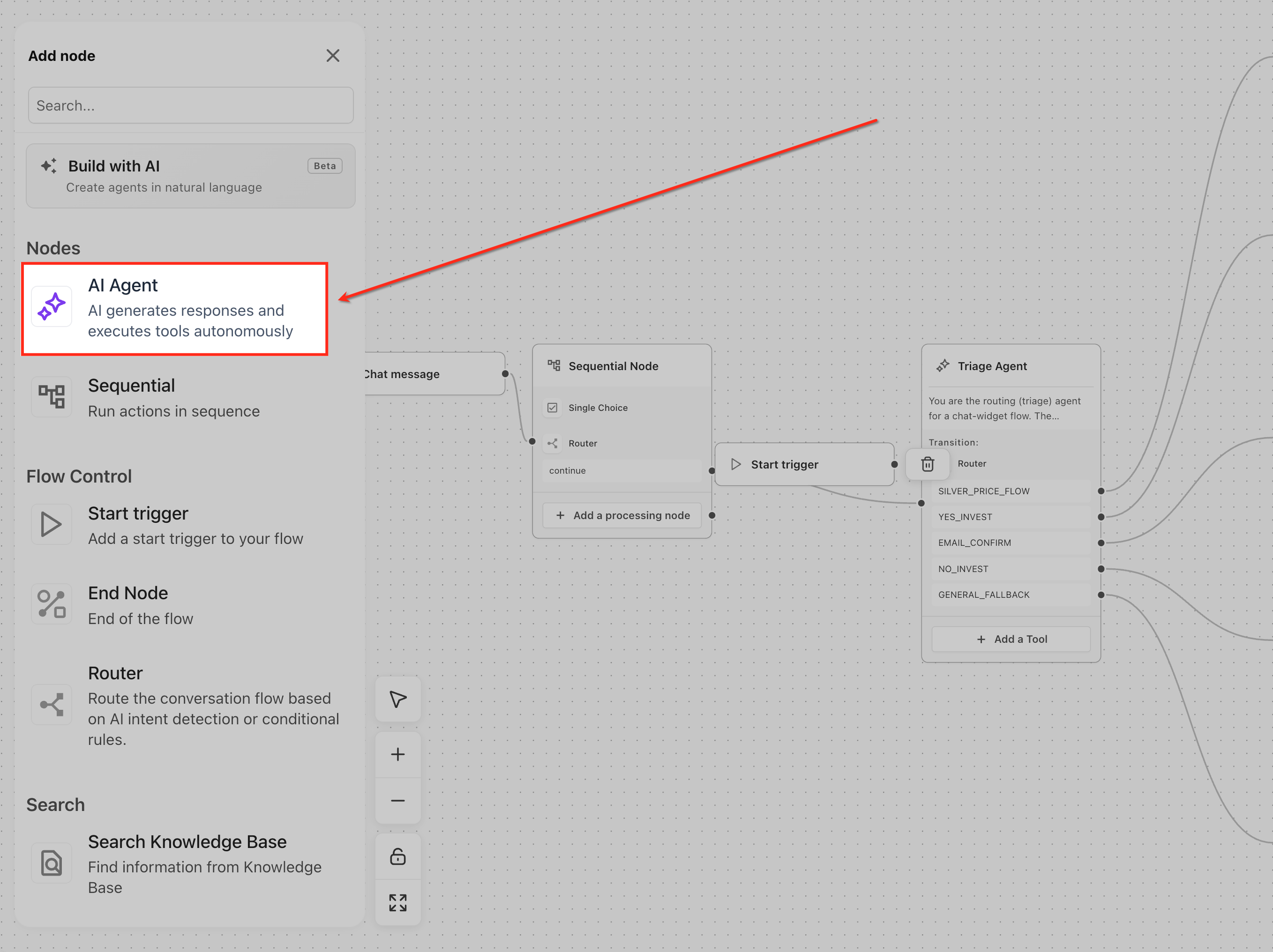
Step 1: Add the AI Agent Node
Open the Nodes panel in Agent Studio and add the AI Agent Node to your agent flow. Place it on the canvas and connect it to a Start Trigger or a previous node.
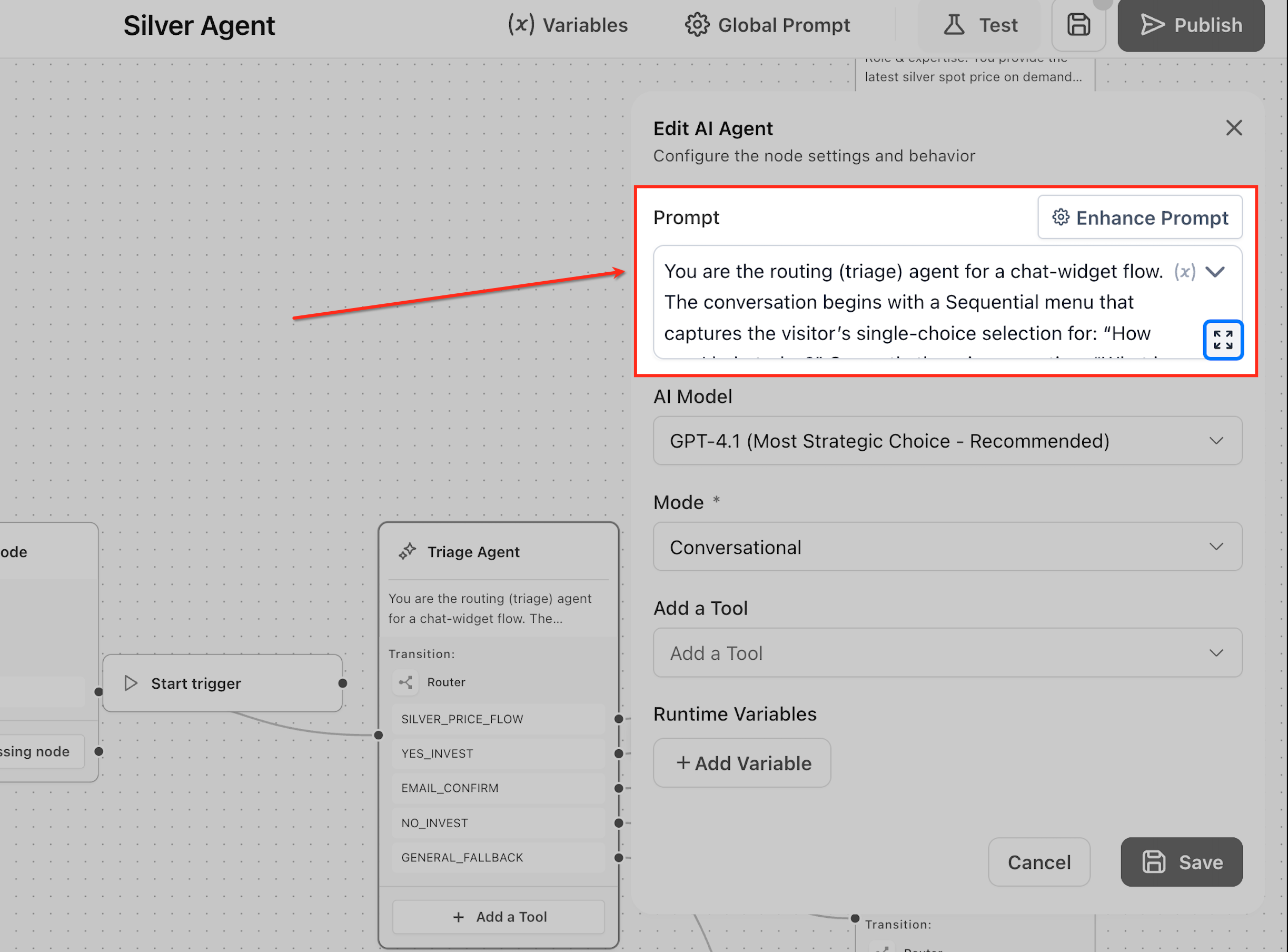
Step 2: Define the Prompt
In the configuration panel, enter a clear and structured prompt. Specify the agent’s role, responsibilities, tone, and when it should use tools. This defines how the agent will behave during execution.
Using Variables in the Prompt
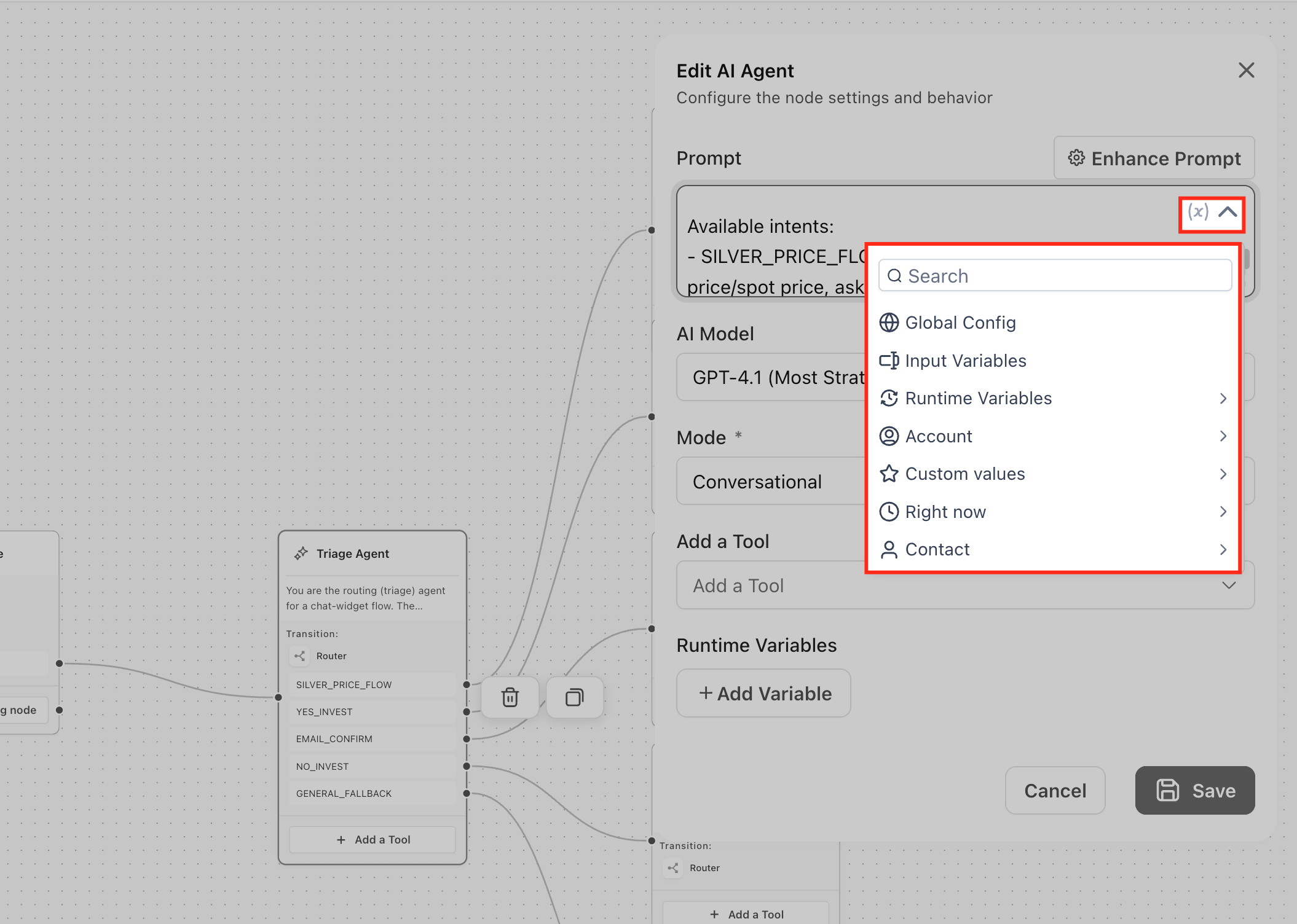
You can insert dynamic variables into your prompt using the {} icon in the prompt field. This allows the AI Agent to access real-time data and context while generating responses, making interactions more personalized and relevant. When a variable is added, the agent replaces it with actual data during execution. For example, using {{contact.name}} in a prompt like “Greet the user by name and help them with their request” enables the agent to respond with “Hi Rahul, how can I help you today?” if the contact name is Rahul.
Using variables effectively helps the agent personalize responses, use real-time data, maintain context across the agent flow, and improve accuracy. These variables are especially useful when working with user-specific data, time-based context, or information passed from other nodes. However, variables should be used thoughtfully adding only what is necessary ensures clarity in the prompt and more reliable outputs.
Available Variable Sources
- Global Config → Access system-level settings and configurations that apply across the agent. Useful for maintaining consistent behavior and shared values.
- Input Variables → Use data passed from previous nodes or triggers. Ideal for carrying context from earlier steps in the agent flow.
- Runtime Variables → Capture and use data extracted by the agent during execution. Helps store and reuse information gathered from user interactions.
- Account → Access business-level details such as company information. Useful for personalizing responses with brand or account-specific data.
- Custom Values → Define static values manually for repeated use. Helpful for setting fixed instructions or constants in prompts.
- Right Now → Insert real-time date and time information. Useful for time-sensitive responses or contextual messaging.
- Contact → Use contact-specific details like name, email, or phone number. Enables personalized and context-aware interactions with users.
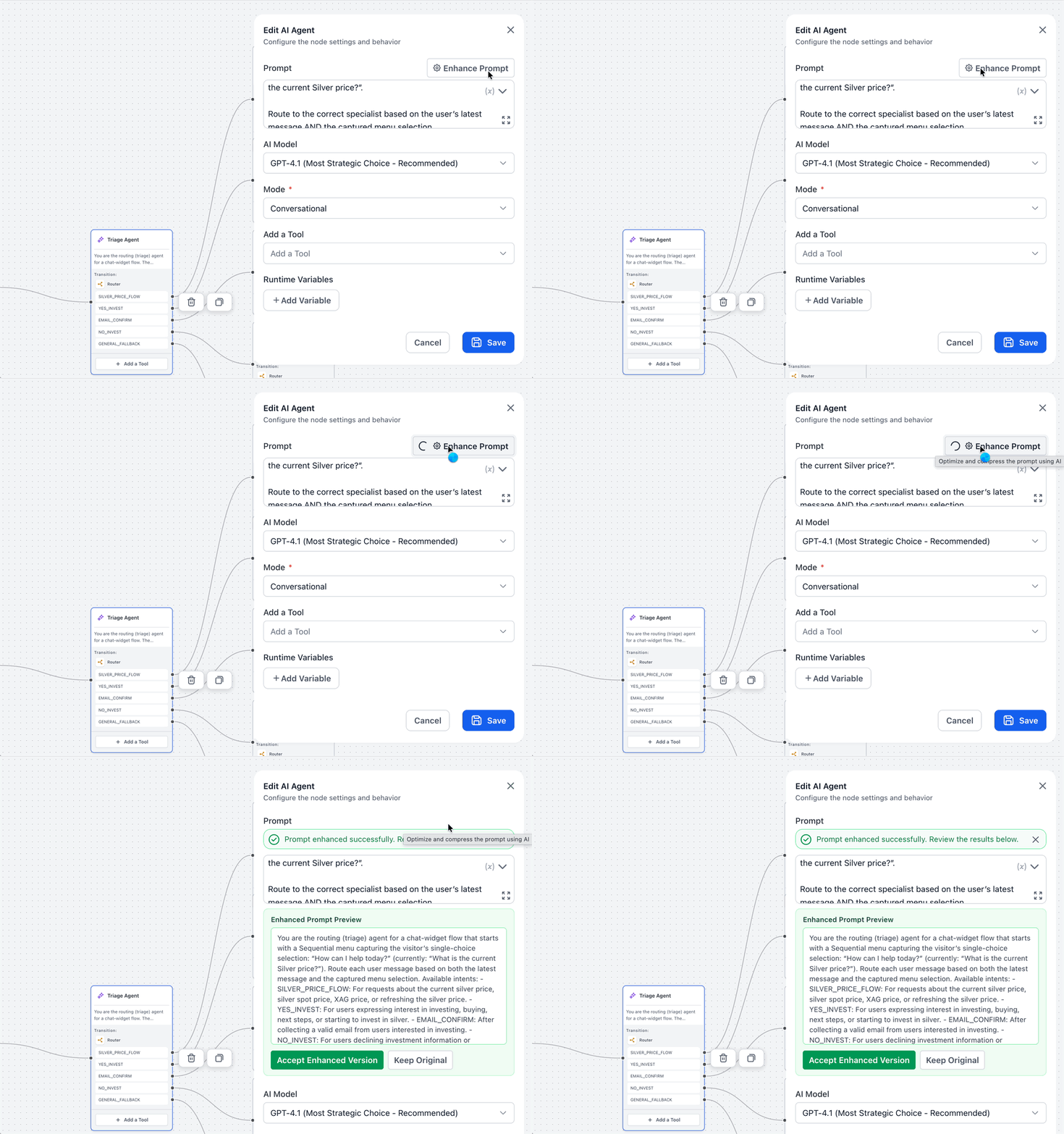
Prompt Enhancement
The Enhance Prompt option helps refine and improve your prompt by generating a clearer, more structured version to guide the AI Agent effectively. After enhancement, you can review the suggested prompt and choose to either accept it or reject it and keep your original prompt unchanged. This allows you to iterate on prompt quality while maintaining full control over the final instructions used by the agent.
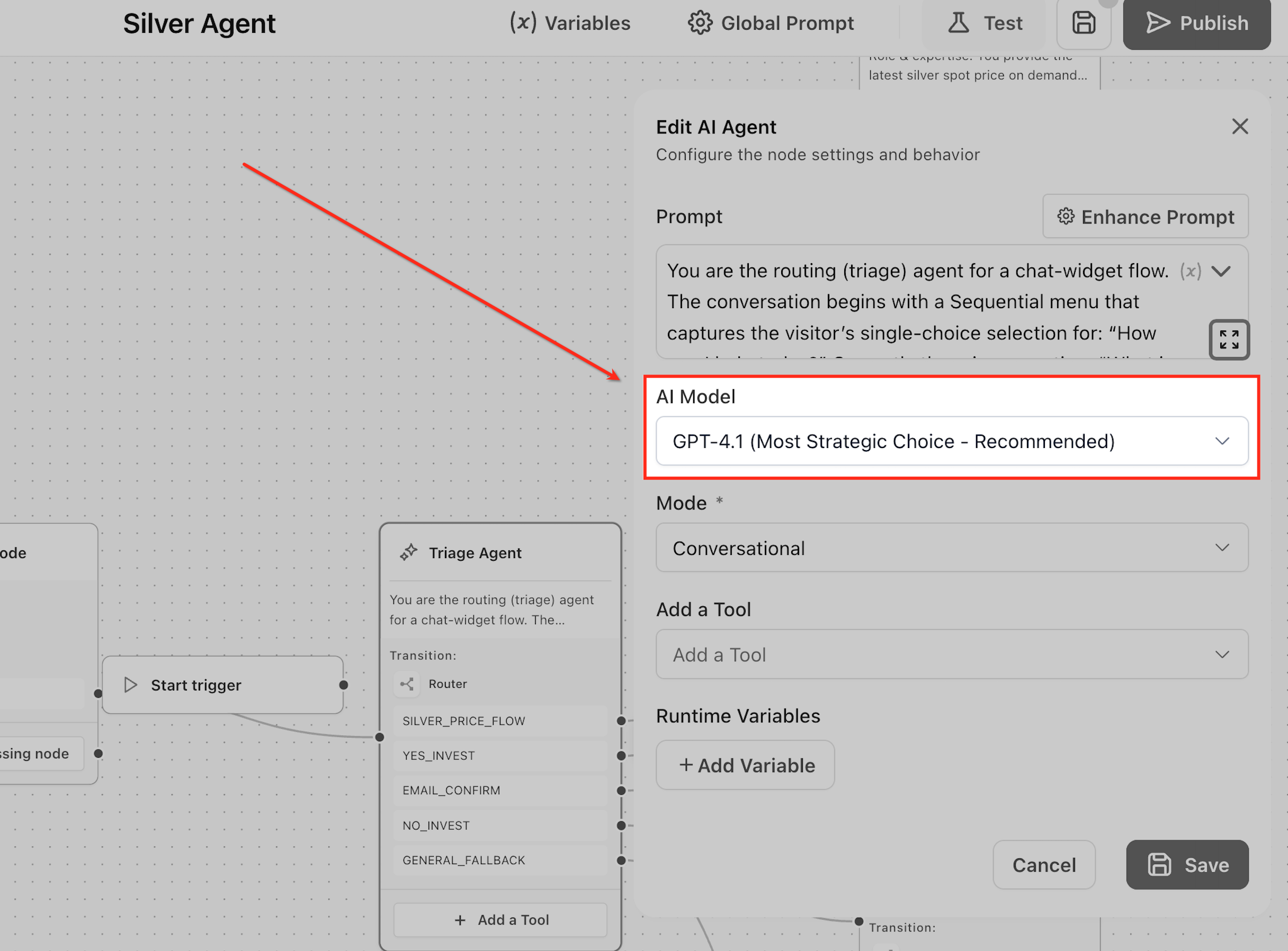
Step 3: Select the Model
Choose the model that will power the agent. Use higher-capability models for complex reasoning and lighter models for faster, simpler tasks.
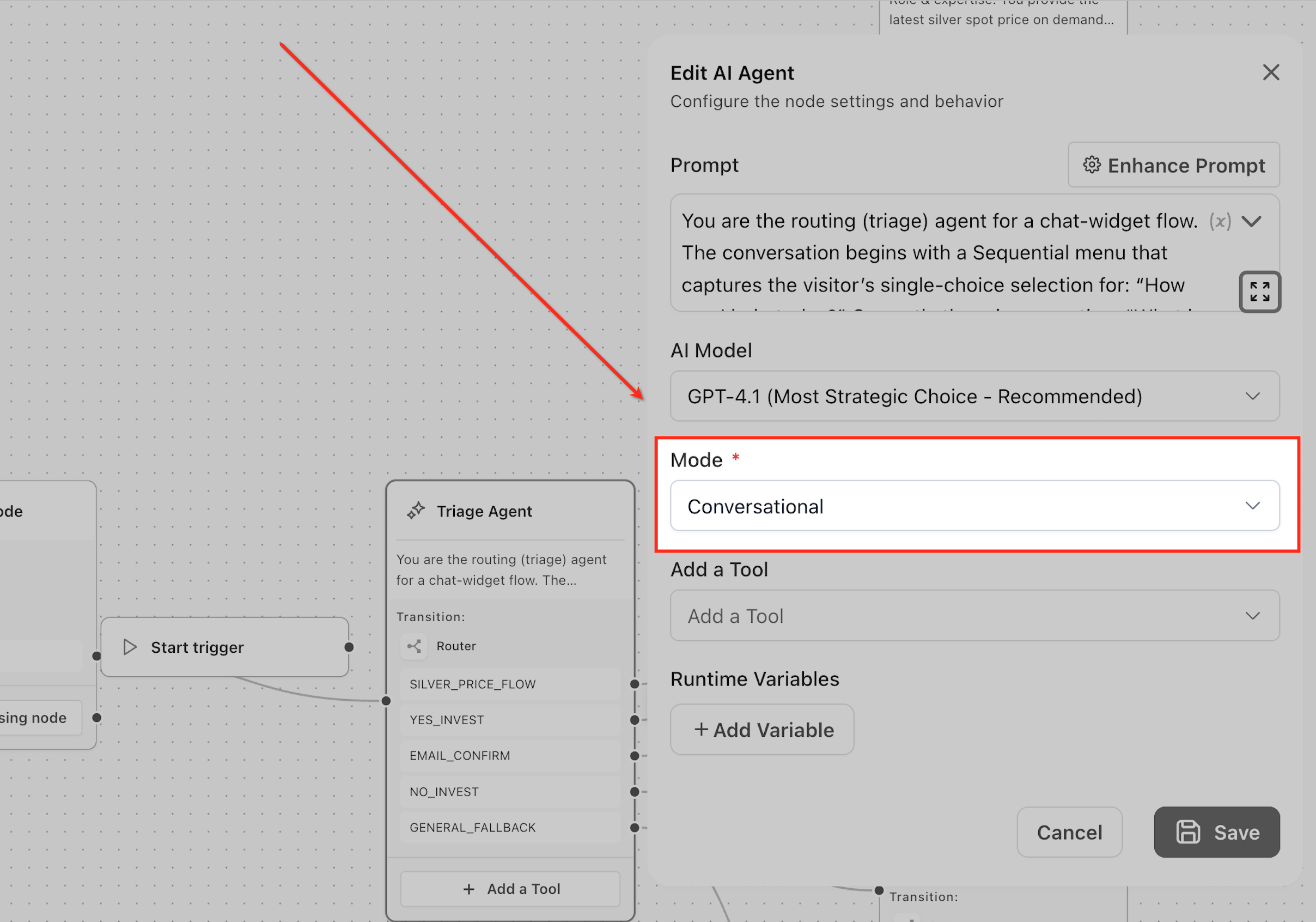
Step 4: Choose the Mode
Select how the agent should operate:
- Conversational Mode for user interactions
- Task Based Mode for silent execution
Choose based on whether the agent needs to respond to users or perform background actions.
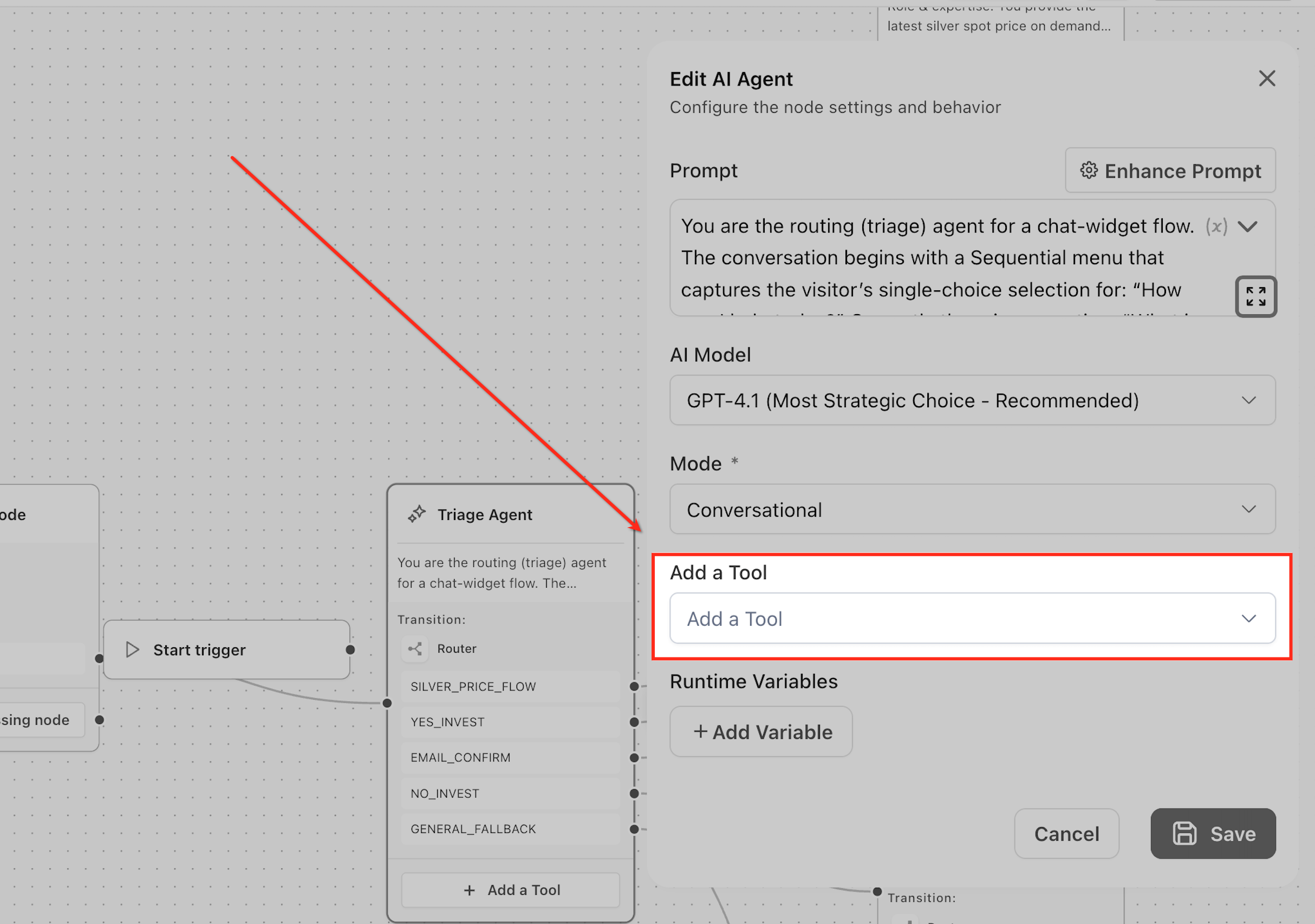
Step 5: Attach Tools
Add only the tools required for your use case, such as Knowledge Base, Router, or Web Search. These tools enable the agent to retrieve information or take actions when needed.
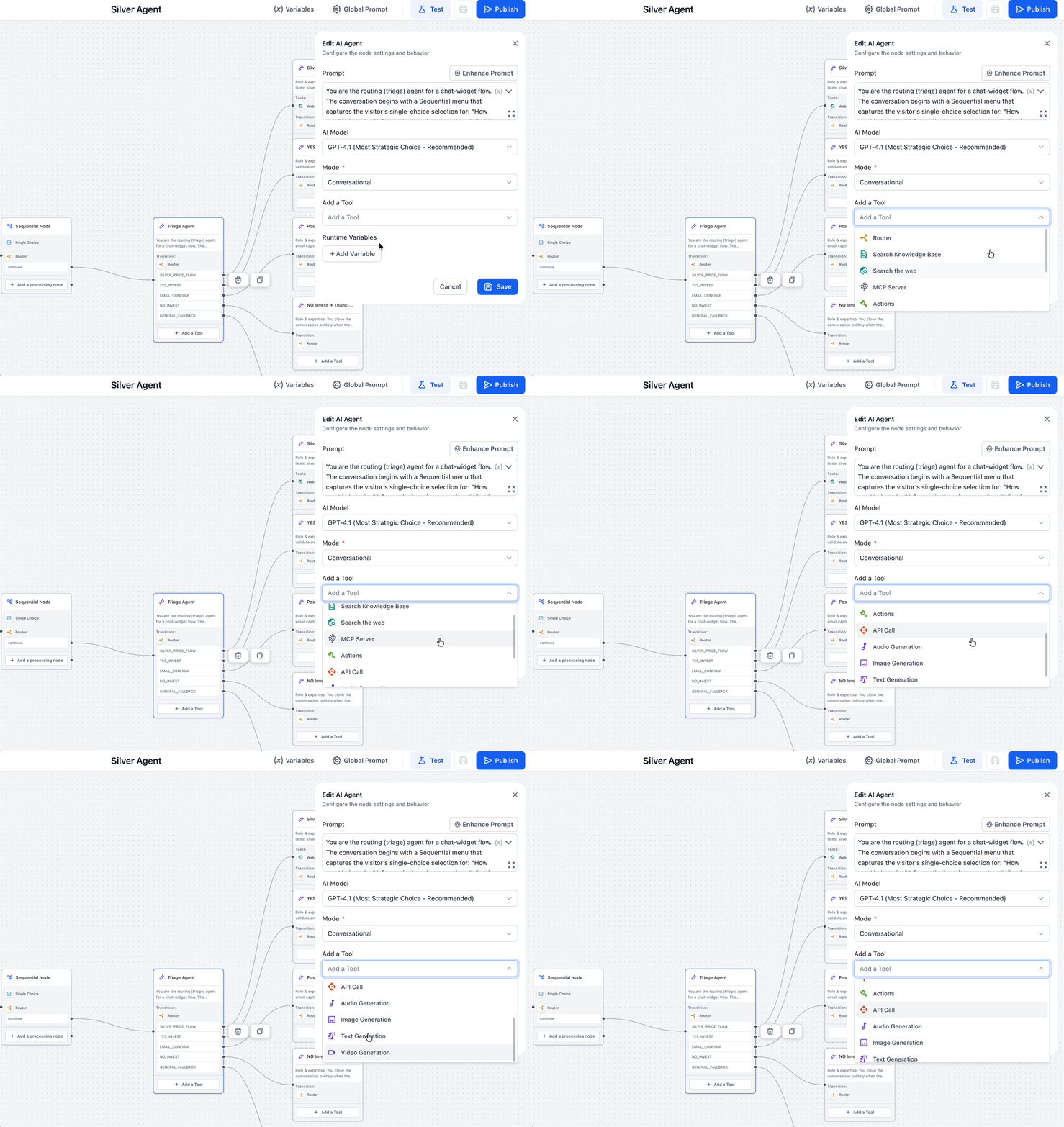
Understanding Different Tools
Each tool extends the capabilities of the AI Agent Node by enabling it to take specific actions based on context and user input. Understanding when and how to use these tools helps ensure the agent can make accurate decisions and perform meaningful tasks effectively.
- Router: The Router directs the agent flow by determining the appropriate path based on user intent or agent decisions. It is essential for handling multiple scenarios within a single agent by enabling branching logic. Use the Router when your agent needs to route users to different flows such as sales, support, or fallback paths.
- Search Knowledge Base: The Search Knowledge Base tool allows the agent to retrieve information from your configured knowledge base. It ensures responses are accurate, consistent, and based on predefined data rather than assumptions. Use this tool when your agent needs to answer FAQs, product details, pricing, or support queries.
- Search the Web: The Search the Web tool enables the agent to fetch real-time information from the internet. It is useful for handling queries that require up-to-date or external data beyond your internal knowledge base. Use this tool when the agent needs to answer general or dynamic questions such as market trends or current events.
- MCP Server: The MCP Server connects the agent to external systems or services using Model Context Protocol. It expands the agent’s capabilities by enabling integration with custom tools, APIs, or third-party platforms. Use this when your agent needs to interact with external systems such as databases or custom integrations.
- Actions: The Actions tool allows the agent to execute predefined operations within the system. It is important for converting decisions into real outcomes such as updating records or triggering processes. Use Actions when your agent needs to perform tasks like updating CRM data, sending notifications, or triggering workflows.
- API Cal: The API Call tool allows the AI Agent to send requests to external systems and retrieve responses. It enables real-time data exchange with third-party platforms or internal services.
Use this tool when your agent needs to interact with external applications such as CRMs, databases, or APIs. Configure the endpoint and use variables to pass dynamic data, which can then be used in further steps.
- Text Generation:The Text Generation tool enables the AI Agent to generate written content dynamically based on context. It can create responses, summaries, or structured outputs as part of the interaction.
Use this tool when you need the agent to generate custom content for users. Configure the prompt and use variables to personalize the output before passing it to the next step.
Image Generation: The Image Generation tool allows the AI Agent to create images based on a defined prompt. It generates visual content dynamically using AI models.
Use this tool when your agent needs to create images during interactions. Configure the prompt clearly and use variables to customize the generated output.
Video Generation: The Video Generation tool enables the AI Agent to generate videos based on a given prompt. It supports configurable settings such as resolution and aspect ratio.
Use this tool when your agent needs to create video content as part of its response. Configure the prompt and use variables if the output needs to be dynamic.
Audio Generation: The Audio Generation tool converts text into spoken audio using AI-based text-to-speech models. It allows the agent to produce voice outputs dynamically. Use this tool when your agent needs to provide audio responses. Configure the text and voice settings, and use variables to personalize the output.
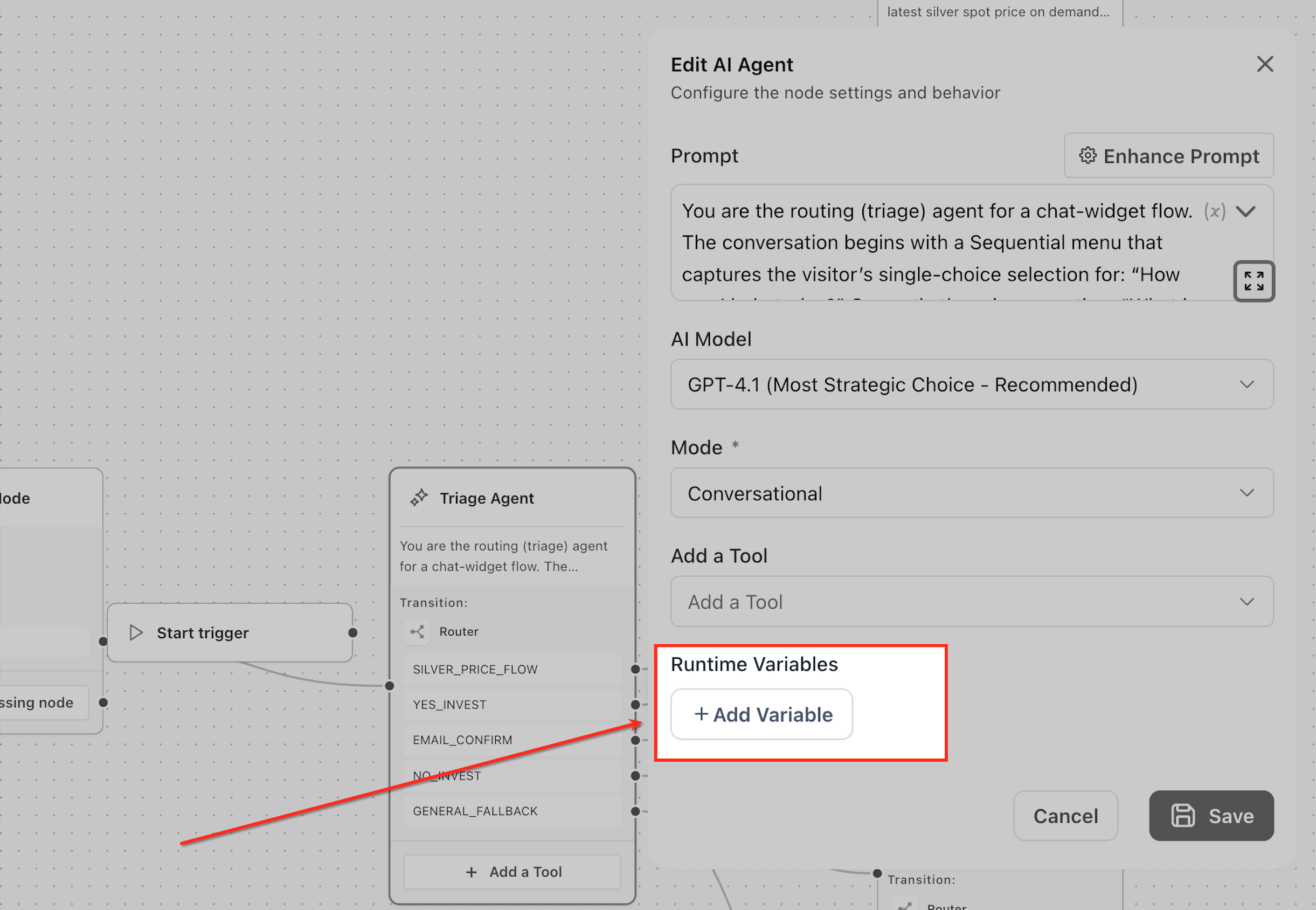
Step 6: Define Runtime Variables
Create runtime variables to capture important data during execution, such as user name, email, or requirements. This data can be used in later steps of the agent flow.
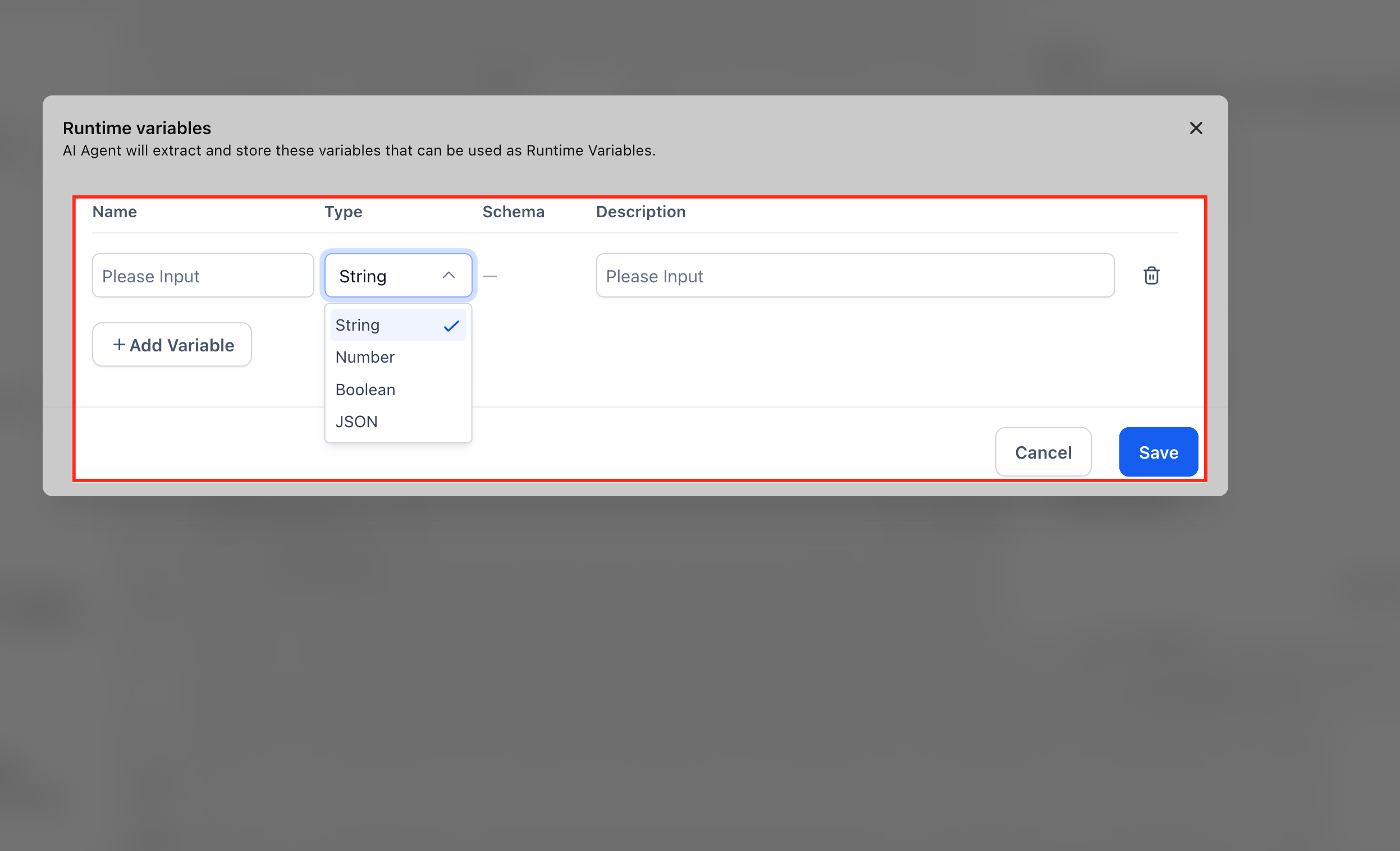
The AI Agent uses the Name and Description to understand what information to look for in the conversation and automatically extracts it during execution.
For each variable, you need to define:
Name → The identifier for the data you want to capture (e.g., user_name, email, requirement)
Type → The format of the data:
String → Text values (e.g., name, email, query)
Number → Numeric values (e.g., budget, quantity)
Boolean → True/false values (e.g., interested: yes/no)
JSON → Structured data (used for complex data capture)
Description → A clear instruction describing what the agent should extract
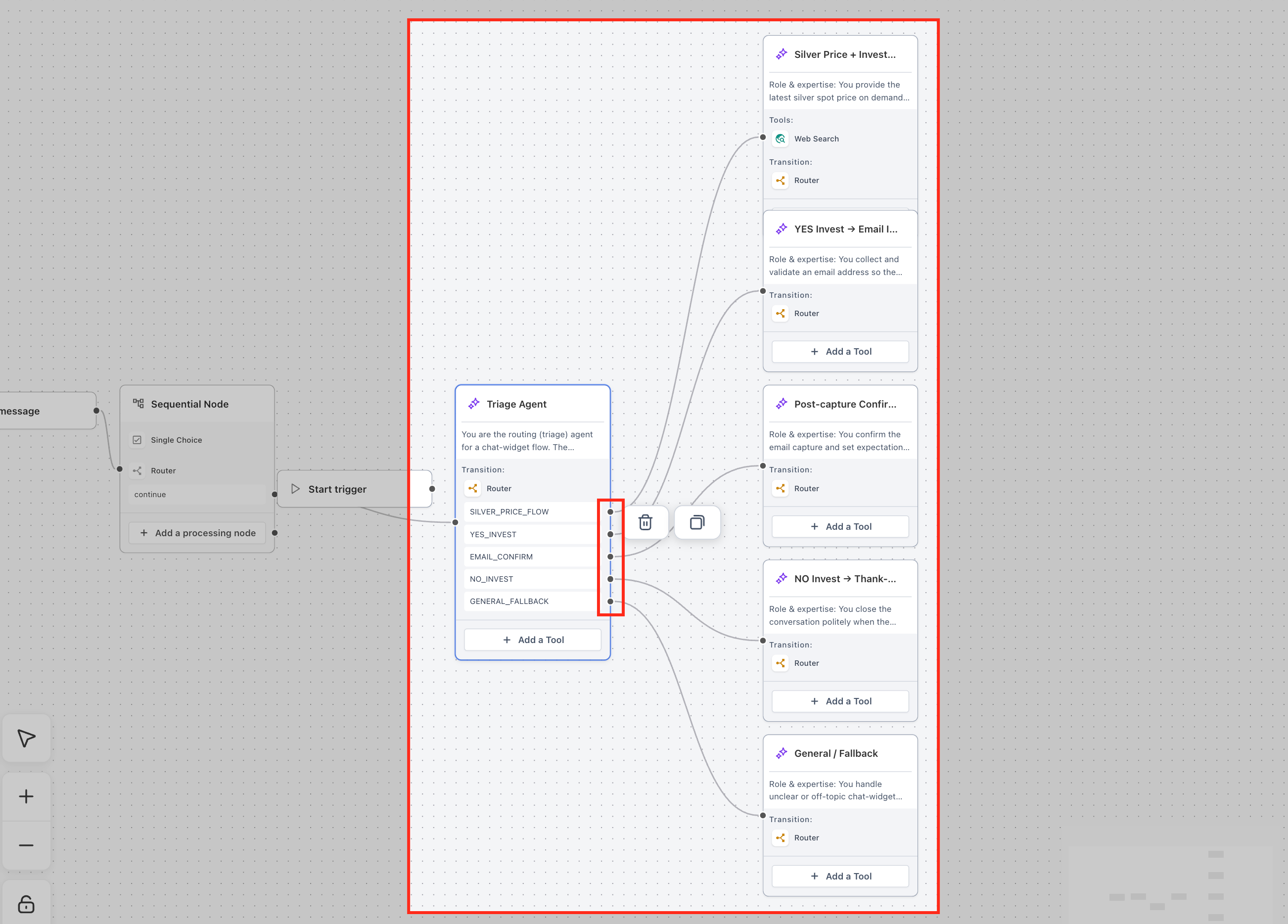
Step 7: Connect the Node in the Flow
Ensure the AI Agent Node is properly connected to the next step in your agent flow. This allows the output (response, action, or extracted data) to be passed forward for further processing.
Frequently Asked Questions
Q: What does the AI Agent Node do?
The AI Agent Node processes input, follows prompt instructions, uses connected tools when needed, captures information, and passes output to the next node in an Agent Studio flow.
Q: When should I use the AI Agent Node instead of a Sequential Node?
Use the AI Agent Node when the flow requires context-aware decisions, conversation, tool selection, or data extraction. Use a Sequential Node when actions should run in a fixed order.
Q: Should one AI Agent Node handle many tasks?
It is better to keep each AI Agent Node focused on one primary role. Too many unrelated tasks can make the node harder to control and test.
Q: What is the difference between Conversational Mode and Task-Based Mode?
Conversational Mode sends user-facing responses. Task-Based Mode performs background work or data extraction without sending a direct response to the user.
Q: How does the AI Agent Node decide which tool to use?
The node uses the prompt, connected tools, user input, and context to decide when a tool is needed. Clear prompt instructions improve tool selection.
Q: Can the AI Agent Node use a Knowledge Base?
Yes, when the Search Knowledge Base tool is connected and the prompt explains when the node should use it.
Q: Can the AI Agent Node call external systems?
Yes, when supported tools such as API Call or MCP Server are configured and connected.
Q: Can the AI Agent Node capture user information?
Yes. Runtime variables can capture structured information such as name, email, request type, intent, or other values during execution.
Q: Why is my runtime variable empty?
The user input may not contain the value, the variable description may be unclear, or the prompt may not instruct the agent to capture it. Update the prompt and variable description, then test again.
Q: Should I test after changing the AI Agent Node?
Yes. Test after changing prompts, models, modes, tools, variables, or connections to confirm the node behaves correctly.
Related Articles
Was this article helpful?
That’s Great!
Thank you for your feedback
Sorry! We couldn't be helpful
Thank you for your feedback
Feedback sent
We appreciate your effort and will try to fix the article