Kanban view in HighLevel Opportunities gives your team a visual way to manage deals across pipeline stages. It helps you quickly scan active opportunities, adjust how stages appear, and sort records based on the data that matters most. This view is especially helpful when you want a stage-based workflow that is easier to review than a traditional table. HighLevel also saves certain layout preferences to your browser so your workspace stays tailored to how you manage your pipeline.
TABLE OF CONTENTS
- What is Kanban View in Opportunities?
- Key Benefits of Kanban View in Opportunities
- Collapse or Expand Stages
- Resize Stage Columns
- Sort Opportunities
- Saved Layout Preferences
- Best Practices for Using Kanban View
- Related Articles
What is Kanban View in Opportunities?
Kanban view helps users work directly inside a stage-based pipeline while still benefiting from view controls such as collapsing stages, resizing columns, and sorting opportunities. It also supports a more visual workflow than List View, which is better suited for detailed row-and-column management.
Key Benefits of Kanban View in Opportunities
Kanban view helps teams stay visually organized while managing opportunities in a way that matches the natural flow of a pipeline. These benefits are especially useful for users who prefer working by stage instead of scanning a table.
- Visual Pipeline Management: View opportunities by stage so it is easier to understand deal progress at a glance.
- Cleaner Workspace: Collapse inactive stages and resize columns to reduce clutter and emphasize the parts of the pipeline that need attention.
- Faster Prioritization: Sort opportunities by default fields or supported custom fields so high-priority records are easier to review.
- Personalized Layout: Save your preferred column layout in your browser without changing the view for other users.
- Flexible Workflow: Switch between Kanban view and List View depending on whether you need a visual board or a more detailed tabular experience.
Collapse or Expand Stages
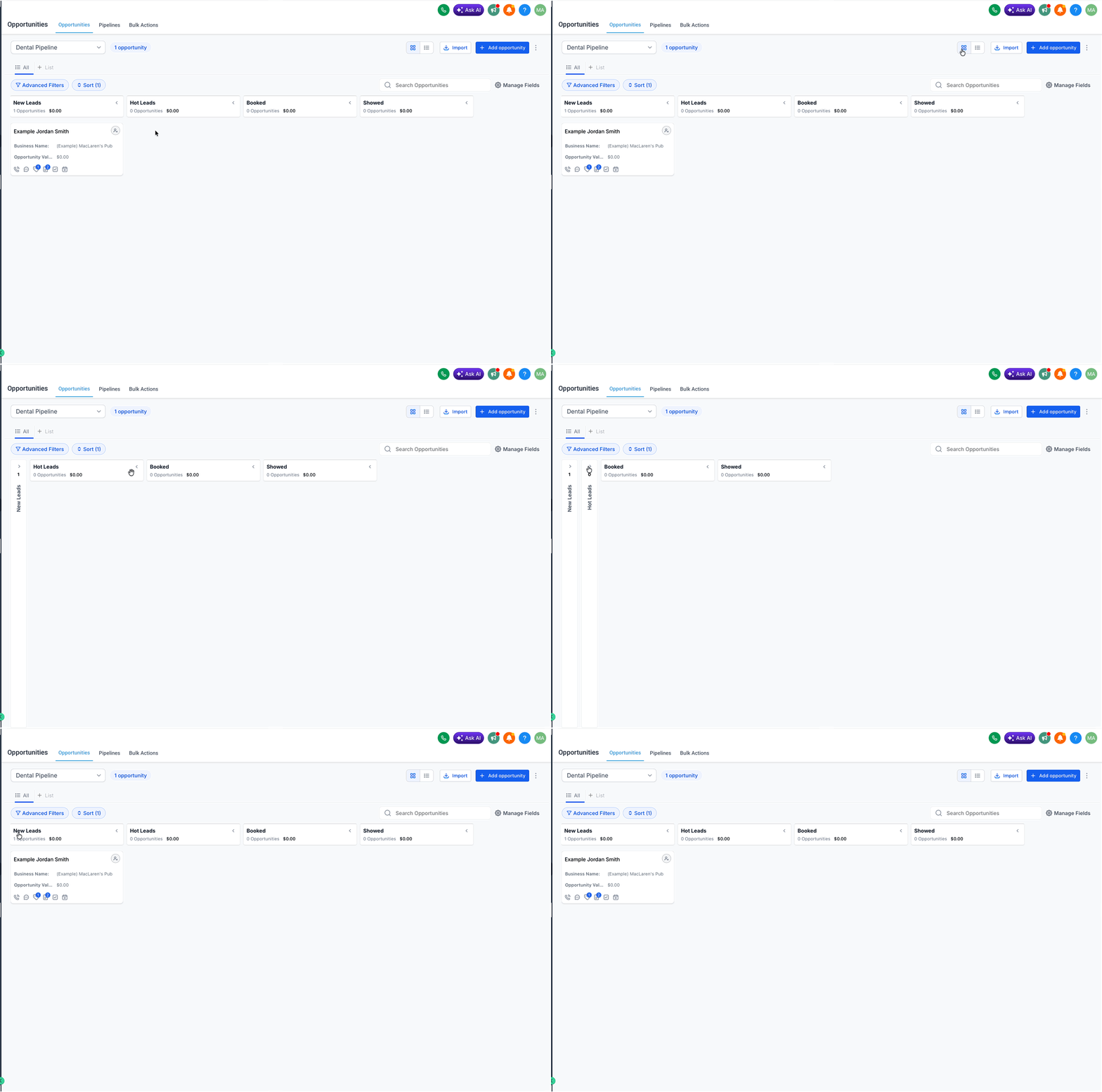
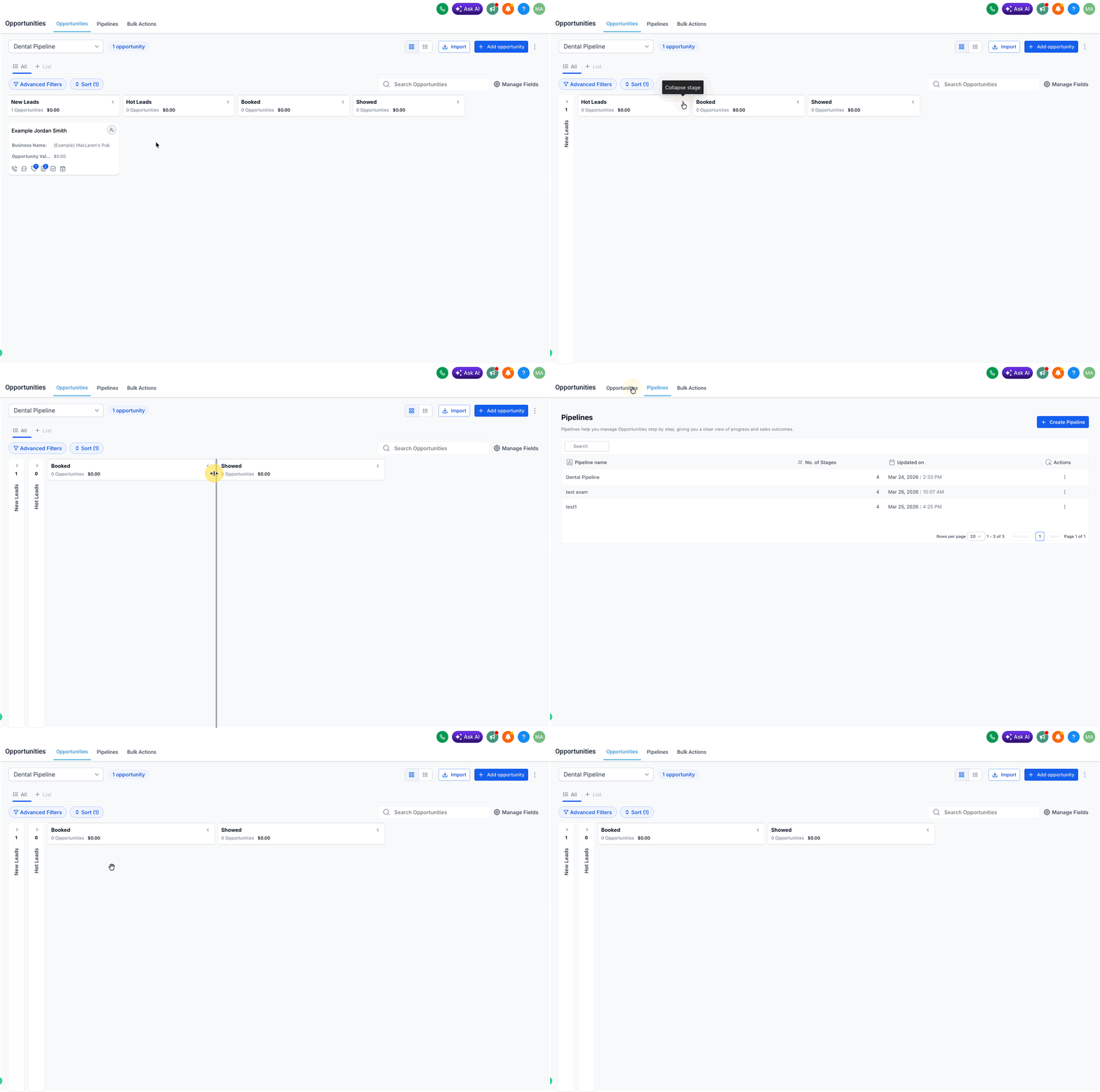
Collapsing and expanding stages makes large pipelines easier to manage by reducing visual noise. This is especially helpful when some stages are rarely used or when your team wants to focus only on active parts of the pipeline.
- Open Opportunities and make sure you are in Kanban view.
- Locate the stage column you want to adjust.
- Click the stage header control to collapse or expand that column.
Collapsed stages help keep the board tidy, while expanded stages make it easier to review a higher volume of opportunities in a specific part of the pipeline.
Resize Stage Columns
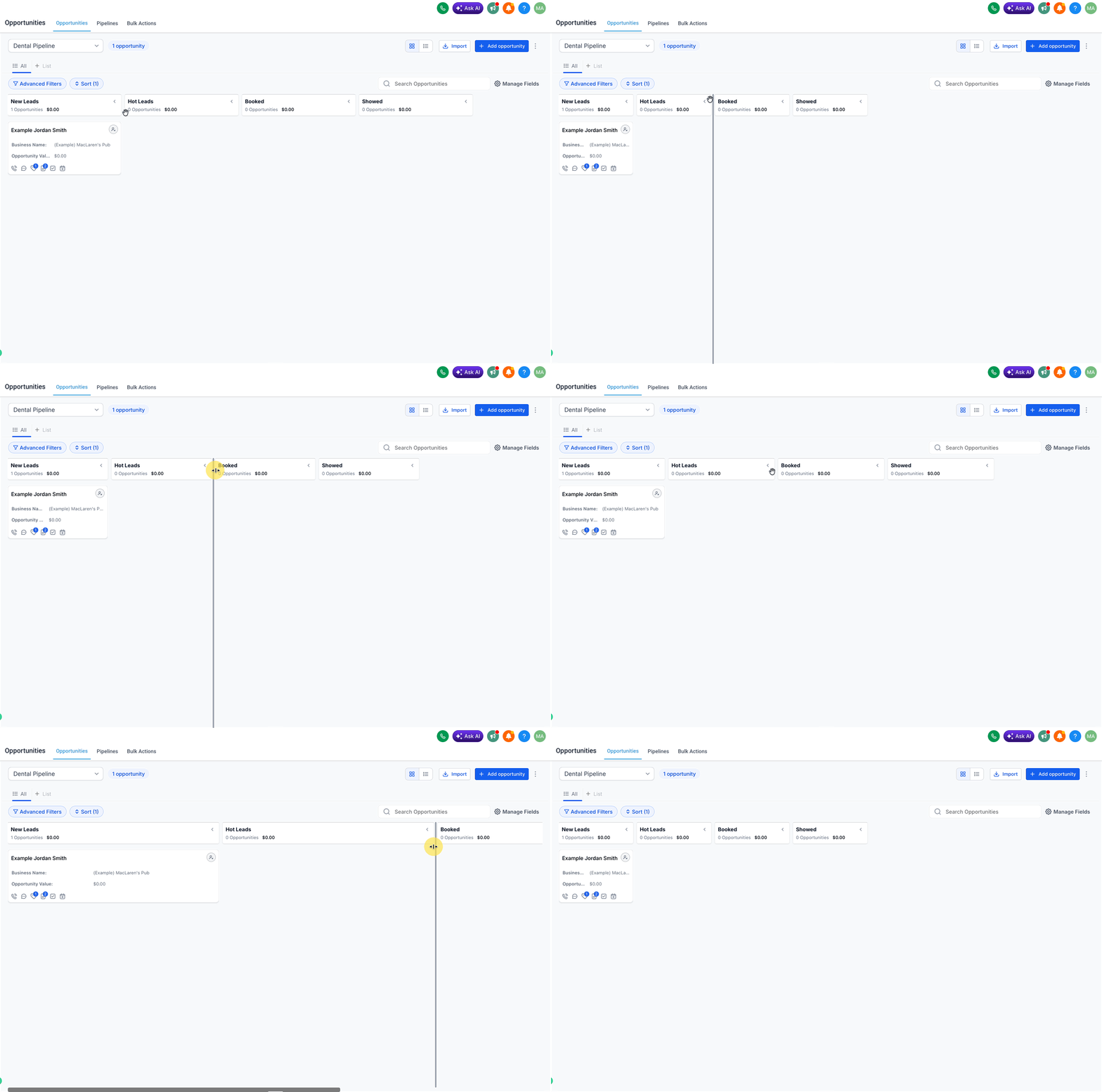
Resizing columns allows you to allocate more screen space to the stages that matter most. This can make heavily used stages easier to monitor and help your team review opportunity cards without opening each one individually.
- In Kanban view, hover over the edge of a stage column.
- Drag the divider left or right to resize the column.
- Repeat for any other stages you want to adjust.
- Double-click the column divider to reset the stage column to its default size.
Wider columns are useful for busy stages, while narrower columns help reduce clutter in stages that need less attention.
Sort Opportunities
Sorting gives users a faster way to prioritize opportunity cards based on timing, value, or business-specific data. This is especially helpful when teams need to focus on the newest, most urgent, or highest-value records first.
- In Opportunities, click Sort at the top of the page.
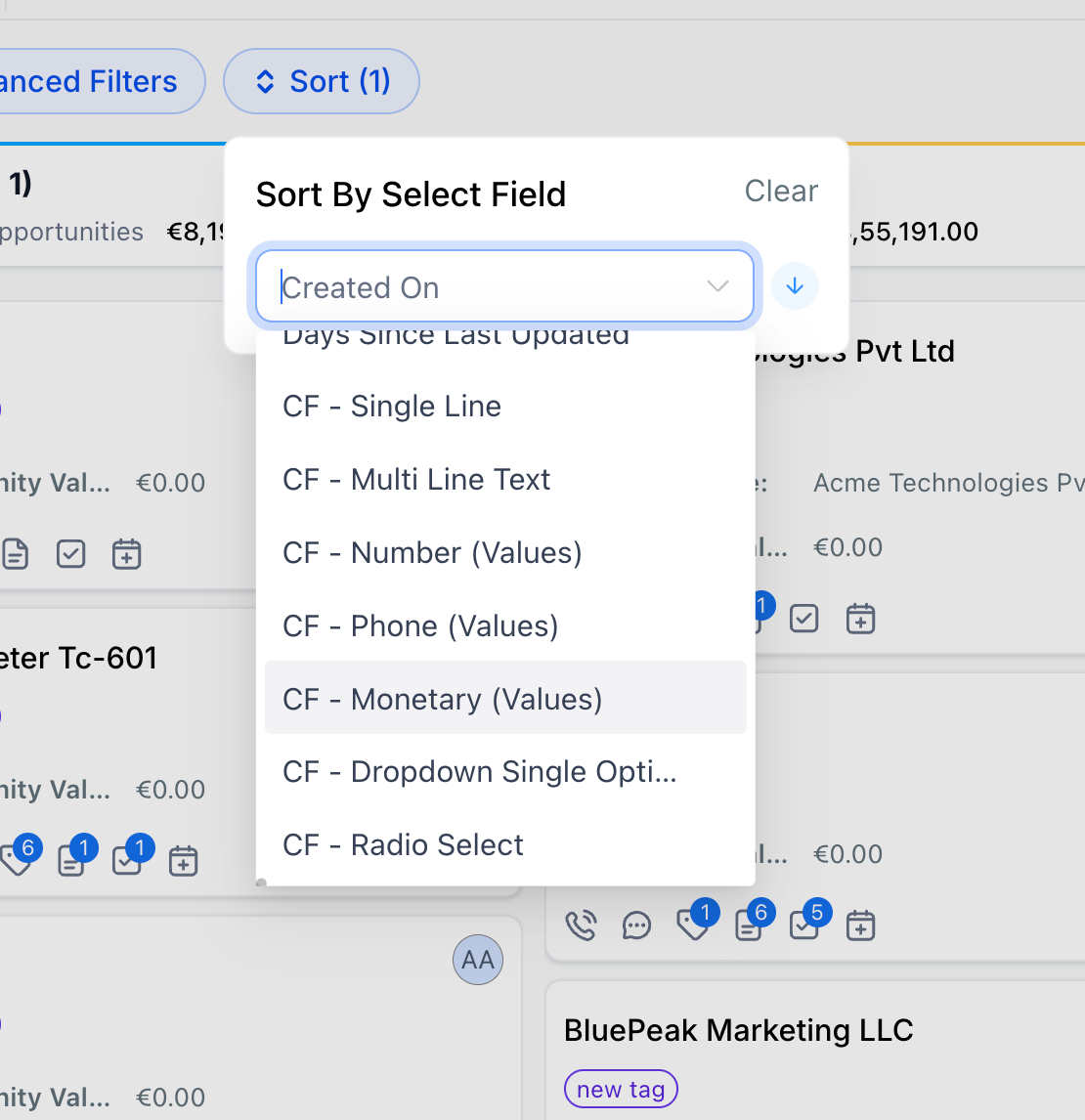
- Select the field you want to sort by. This includes default fields and supported custom fields.
- Choose Ascending or Descending order.
- Your opportunities will reorder automatically based on the selection.
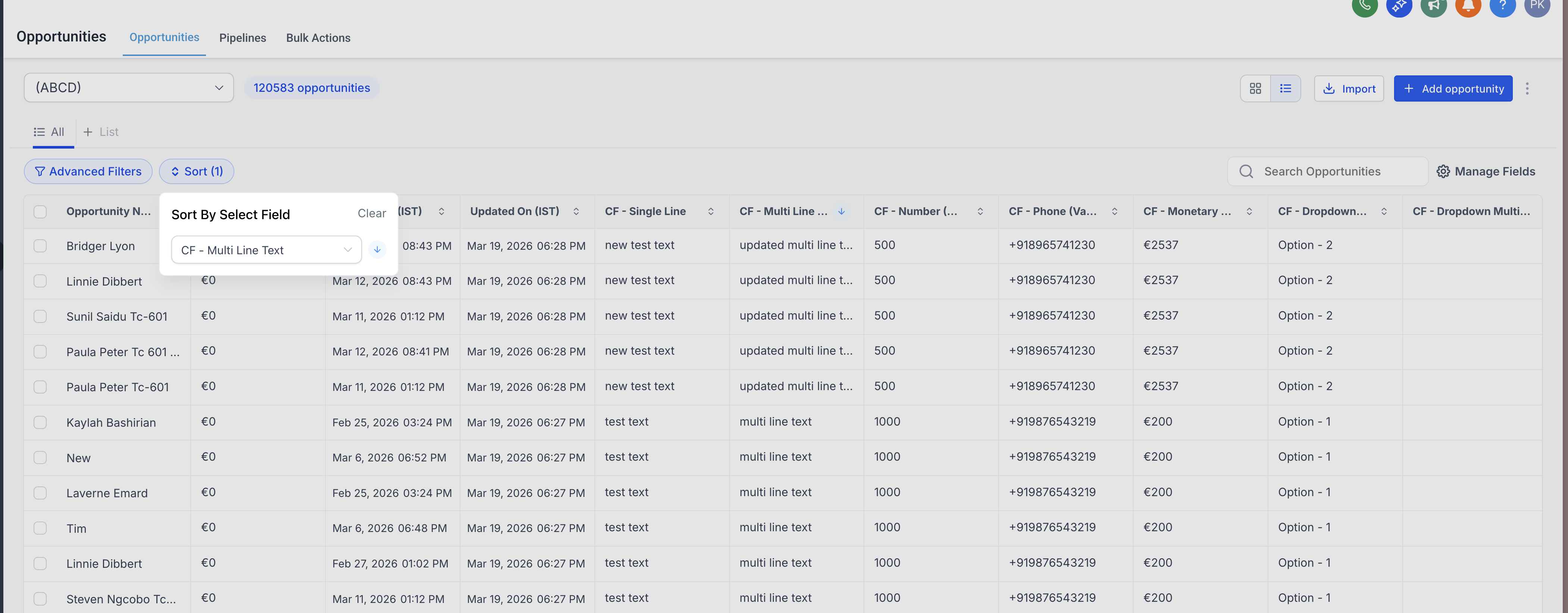
Supported sorting fields include:
- Default fields such as Created On and Last Updated
- Supported custom field types such as Single Line, Multi Line Text, Dropdown, Radio Select, Number, Monetary, Phone, and Date
Saved Layout Preferences
- Collapsed and expanded stages are saved automatically.
- Resized column widths are also saved automatically.
- These preferences are stored locally in your browser.
- Your changes apply only to your own view and do not affect other users.
Best Practices for Using Kanban View
A few simple workflow habits can make Kanban view much more effective for day-to-day pipeline management. These suggestions help users keep the board readable, actionable, and aligned with how they actually review deals.
- Collapse inactive or rarely used stages to reduce clutter.
- Expand and widen active stages so important opportunity cards are easier to scan.
- Use sorting to bring high-priority or recently updated opportunities to the top.
- Switch to List View when you need more detailed row-based review or column-style organization.
Related Articles
Was this article helpful?
That’s Great!
Thank you for your feedback
Sorry! We couldn't be helpful
Thank you for your feedback
Feedback sent
We appreciate your effort and will try to fix the article