Reassigning an affiliate’s linked CRM contact resolves duplicate-contact conflicts and ensures accurate attribution, commissions, and automation. Use this guide to identify when reassignment is the right fix, understand what changes after reassignment, and follow clear steps with screenshots.
TABLE OF CONTENTS
- What is Reassigning an Affiliate’s Linked CRM Contact?
- Key Benefits of Reassigning
- Prerequisites (Roles & Access)
- Data Impact: Reporting, Commissions, Automation, and Portal
- When to Merge vs Reassign vs Move Customers
- Edge Cases & Limitations
- Prevention Tips (Automations & Imports)
- How to Reassign Affiliates (Step-by-Step)
- Frequently Asked Questions
- Related Articles
What is Reassigning an Affiliate’s Linked CRM Contact?
Reassigning updates which CRM contact record an affiliate is linked to—typically used when multiple contacts exist for the same person (often with the same email). This corrects attribution and allows reporting and workflows to reference the correct profile without deleting data or merging contacts.
Key Benefits of Reassigning
Understanding the payoff helps teams choose the safest, fastest path to fix affiliate-contact conflicts. These benefits focus on data quality, accurate performance tracking, and minimal operational disruption.
- Data accuracy: Aligns the affiliate to the correct person’s CRM profile for consistent activity history and contact details.
- Attribution integrity: Helps ensure future lead attribution and tracking reference the right record.
- Workflow continuity: Prevents stalled or misrouted automations by pointing actions to the intended contact.
- Minimal disruption: Avoids unnecessary merges or customer moves when the only issue is the affiliate-to-contact link.
- Lower support load: Reduces manual corrections and conflicting records across reports.
Prerequisites (Roles & Access)
Confirm permissions before you start so you don’t run into access errors mid-process.
- You must have permissions to view and manage Affiliate Manager and Contacts in the target sub-account (Location).
- Ensure you’re operating in the correct Location if your agency manages multiple.
Data Impact: Reporting, Commissions, Automation, and Portal
Understanding what updates immediately versus what remains historical helps set expectations and prevents confusion after you click Confirm.
- Reporting & tracking: Future metrics reflect the updated linkage. Some historical visuals may not recalculate; confirm on a report-by-report basis.
- Commissions: New commissions follow the updated contact linkage. Previously calculated/paid commissions typically remain as-is.
- Automations/Workflows: Ongoing automations that reference the affiliate’s contact will continue against the newly linked profile.
- Affiliate Portal: The affiliate’s portal shows performance based on the current linkage going forward; historical views may vary by report/widget.
Tip: If you need to consolidate data across contacts, consider a contact merge (see comparison table below) before or after reassignment based on your goal.When to Merge vs Reassign vs Move Customers
Each action solves a different problem. Use this quick comparison to pick the safest, least disruptive path.
Action | Use When | What Changes | Reversibility | Where to Perform | Typical Goal |
|---|---|---|---|---|---|
Reassign affiliate’s linked CRM contact | The affiliate is linked to the wrong contact, often due to duplicates (same person). | Which contact the affiliate points to (future attribution, workflows). | Limited (must repeat reassignment to change again). | Affiliate Manager (affiliate profile). | Fix affiliate→contact link. |
Merge contacts | Two or more CRM contacts should be one single profile. | Consolidates profiles into one; field-level conflict resolution. | Not easily reversible. | Contacts (merge flow). | Create a single, clean record. |
Move customers under affiliates | A customer should belong to a different affiliate for a campaign/relationship reason. | Customer–affiliate assignment at the customer level. | Can be changed later. | Affiliate Manager (customer management). | Reassign customers, not the affiliate’s own contact. |
Contextual links (blue):
Edge Cases & Limitations
Account for known constraints so you can plan the safest remediation path.
- Duplicate emails: Reassignment is most straightforward when contacts share the same email.
- Different emails / phone-only duplicates: Consider a merge if these represent the same person and you need unified history.
- Recently merged contacts: Verify the final surviving record before reassignment to avoid linking an archived/merged profile.
- Bulk changes: Bulk reassignment isn’t supported; handle affiliates one by one.
- Rollback: There’s no “undo” button; you can re-run reassignment to point to a different contact if needed.
- Permissions: If you can’t see the reassignment option, confirm Location and role permissions.
Prevention Tips (Automations & Imports)
A few setup choices can drastically reduce future conflicts and cleanup work.
- Deduplication preferences: Tune Allow Duplicate Contacts to reduce avoidable duplicates.
- Workflow safeguards: When using Add To Affiliate Manager or related actions, ensure your trigger logic identifies the canonical contact (email normalization, exact-match rules).
- Imports (e.g., FirstPromoter): Resolve import conflicts thoughtfully (merge vs skip), then validate affiliate linkages and run reassignment if needed.
Helpful links:
How to Reassign Affiliates (Step-by-Step)
Follow these steps carefully to relink the affiliate to the correct CRM contact. Captions and alt text below the screenshots note what to look for in the UI.
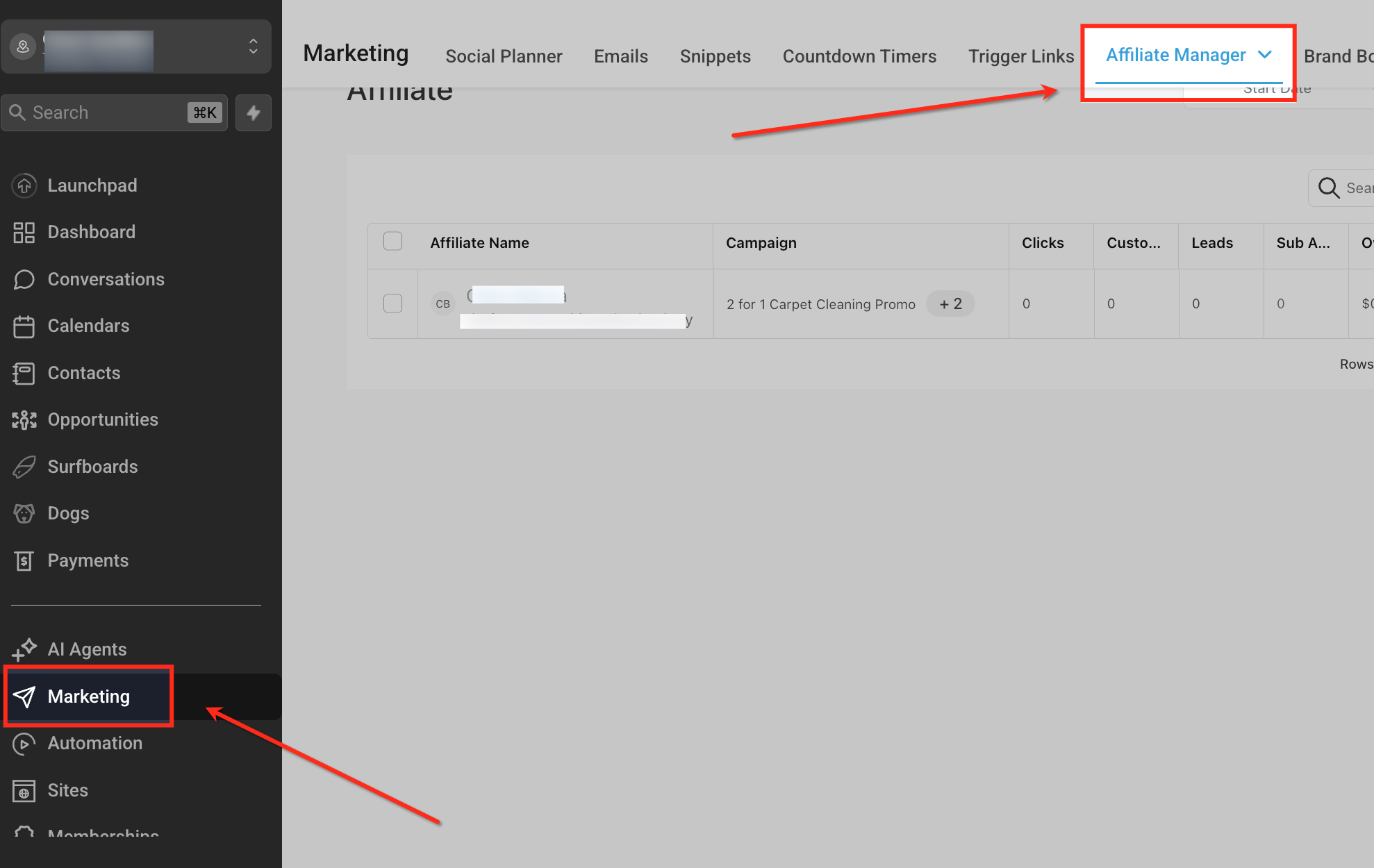
Open Affiliate Manager
From the correct Location, click Marketing in the left navigation and open Affiliate Manager from the top bar. This view lists affiliates and related campaign metrics so you can access reassignment controls.
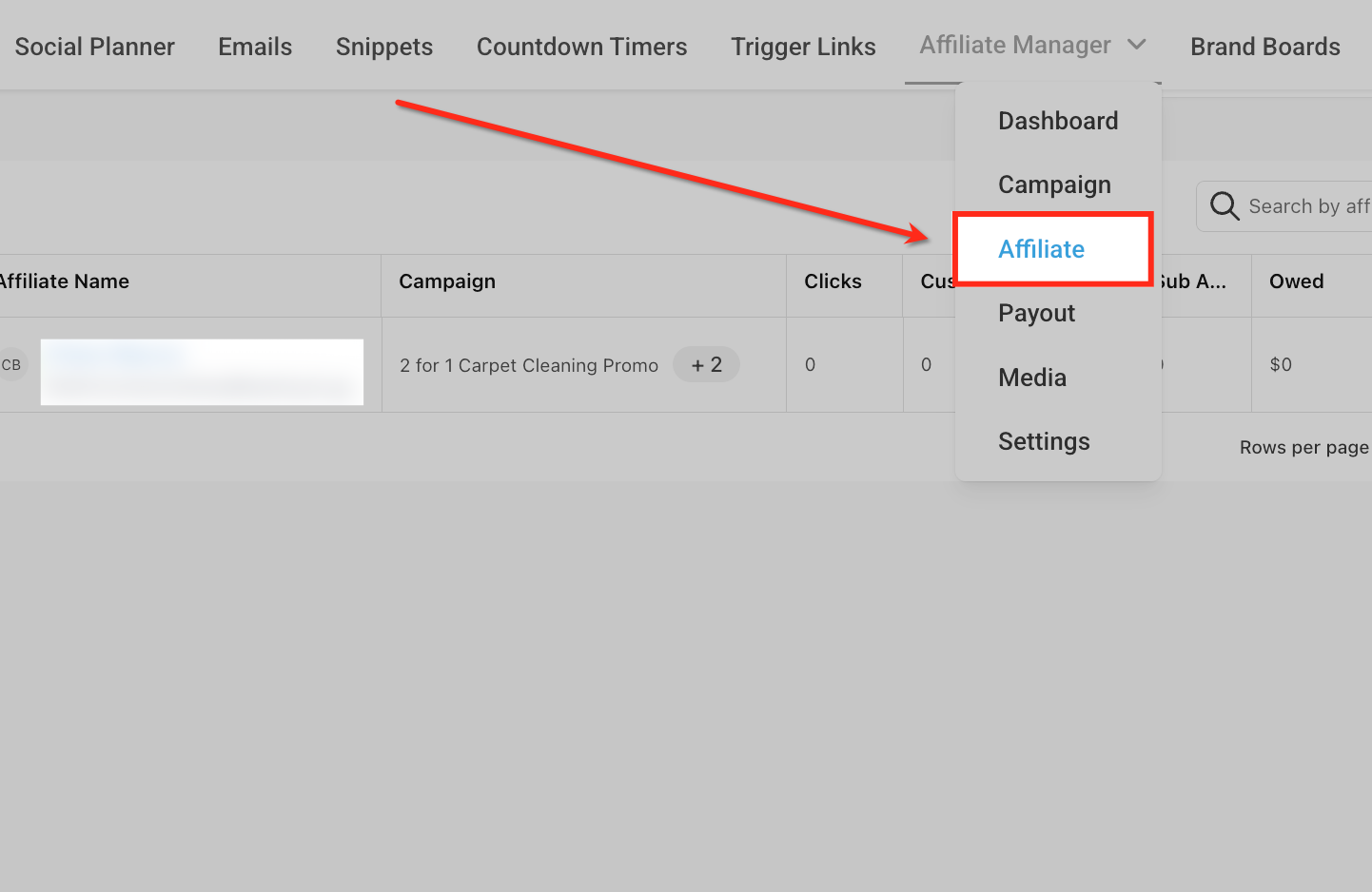
Select Affiliate Tab
Open the Affiliate Manager dropdown and choose Affiliate to view the affiliate list. This ensures you’re on the Affiliate list page where per-row actions (including reassignment) are available.
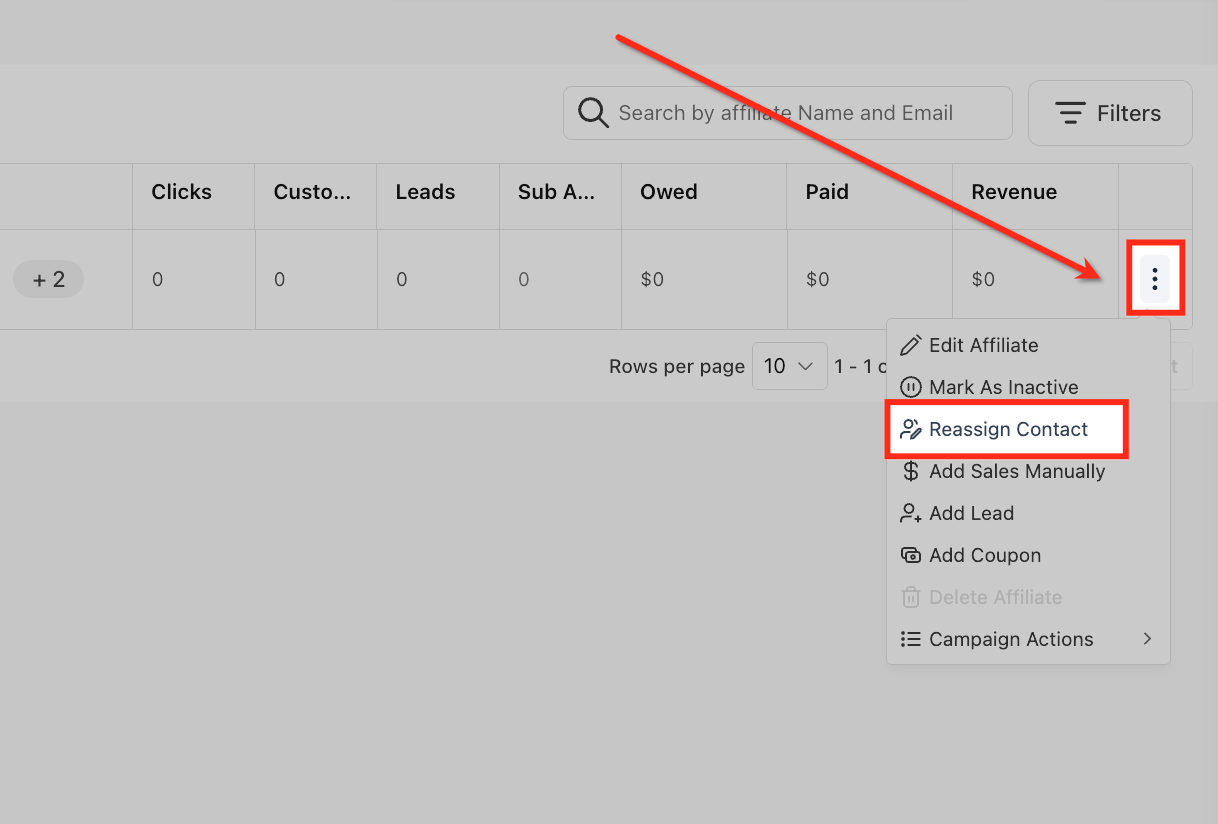
Open Row Actions
On the target affiliate’s row, click the three-dot menu and select Reassign Contact. This opens the reassignment modal so you can link the affiliate to a different CRM contact.
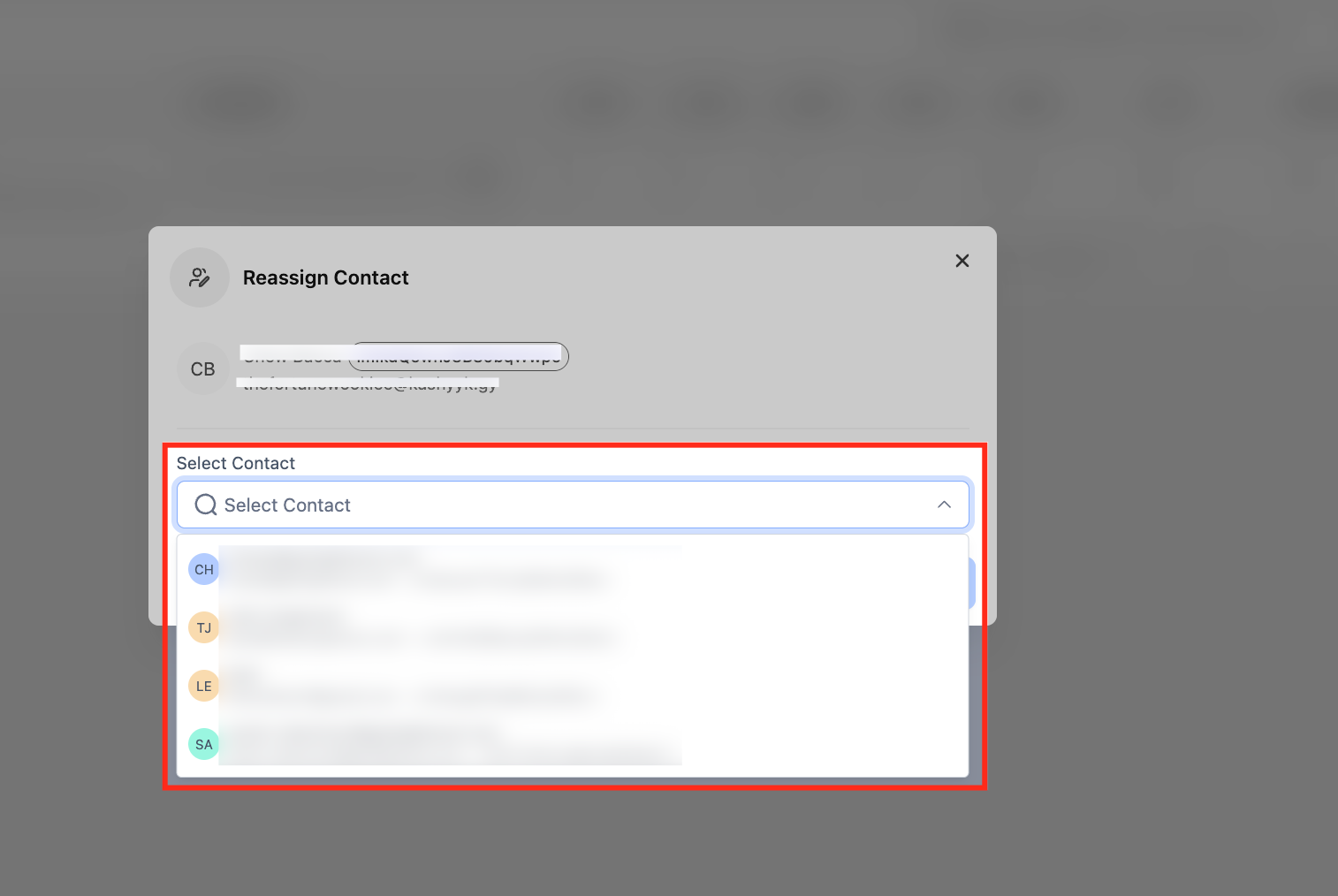
Find Correct Contact
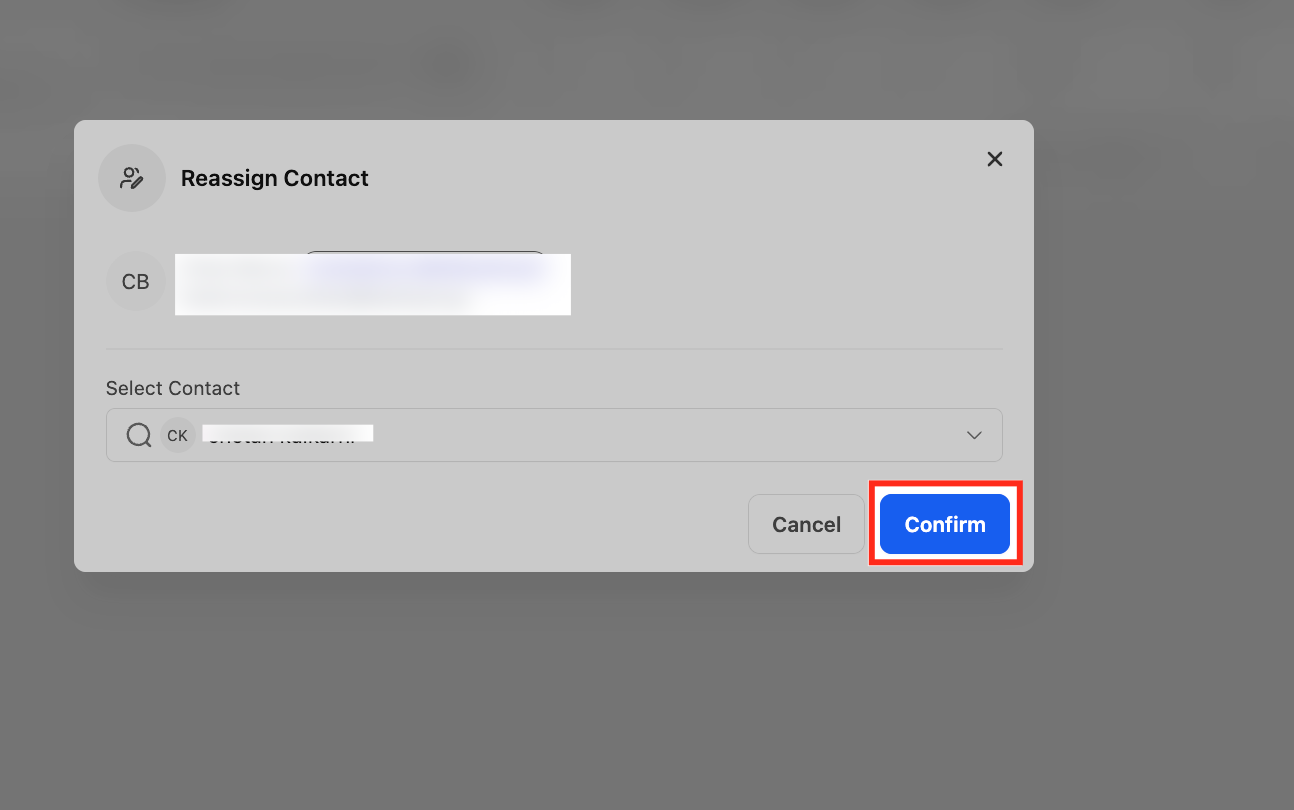
In the Reassign Contact modal, use Select Contact to search by name or email. Review the list of matching contacts and choose the CRM record that should be linked to this affiliate.
Confirm Reassignment
After selecting the correct contact, click Confirm to apply the change. Use Cancel if you selected the wrong record or need to review details before proceeding.
Frequently Asked Questions
Q: Does reassignment change historical commissions or only future ones?
New activity follows the updated linkage. Previously calculated/paid commissions typically remain unchanged.
Q: Can I reverse a reassignment?
There’s no single-click undo. You can open the same flow and reassign the affiliate to a different contact.
Q: What if the two contacts have different emails but are the same person?
Consider merging contacts to create a single source of truth, then ensure the affiliate points to that surviving record.
Q: Will workflows break after reassignment?
Workflows that reference the affiliate’s linked contact continue using the newly linked profile. Validate any workflows that cached a specific contact ID.
Q: Does the affiliate’s portal change after reassignment?
The portal reflects performance based on the current linkage going forward; historical displays may vary by widget/report.
Q: Is bulk reassignment available?
Not currently; perform reassignments one affiliate at a time.
Q: How do I prevent this in the future?
Tune Deduplication Preferences, add email/identity checks in workflows, and review conflicts during imports.
Related Articles
Was this article helpful?
That’s Great!
Thank you for your feedback
Sorry! We couldn't be helpful
Thank you for your feedback
Feedback sent
We appreciate your effort and will try to fix the article