Your domain has developed a poor reputation with email providers and security services, causing your emails to be blocked, deferred, or sent to spam folders. Domain reputation is like a credit score for your email sending — it's built over time based on your sending practices, recipient engagement, and complaint rates.
What's Happening?
Your domain has developed a poor reputation with email providers and security services, causing your emails to be blocked, deferred, or sent to spam folders. Domain reputation is like a credit score for your email sending — it's built over time based on your sending practices, recipient engagement, and complaint rates.
When your domain reputation is low, major email providers like Gmail, Outlook, and Yahoo will automatically reject or quarantine your messages to protect their users from potential spam or malicious content.
Quick Diagnosis: Identifying Reputation Issues
Look for these bounce messages that indicate domain reputation problems:
- "The sending domain has a very low reputation, causing Gmail to block the message as potentially suspicious or spam"
- "The sending domain has a poor reputation, causing Gmail to block or defer messages as potential spam"
- "The sending domain has a very low reputation, causing Gmail to block the message as suspicious or spam-like"
- "The sending domain has a poor reputation, causing the recipient's mail system to reject the message"
- "The sending domain is blacklisted by Spamhaus, causing email rejection"
- "The sending domain is listed on industry blocklists, causing emails to be rejected for potential spam or abuse"
- "The sending domain is blacklisted by reputation services like Spamhaus or Abusix"
Understanding Domain Reputation
- Domain Age: New domains (less than 3 months old) are viewed with suspicion by ISPs and need proper warming up.
- Authentication Status: Missing or misconfigured SPF, DKIM, and DMARC records severely damage reputation.
- Engagement Metrics: Low open rates, high bounce rates, and spam complaints directly impact your reputation score.
- Sending Patterns: Sudden volume spikes, irregular sending schedules, and poor list hygiene harm reputation.
- Content Quality: Spam-like content, misleading subject lines, and poor formatting trigger reputation penalties.
Think of domain reputation as a credit score that ranges from 0–100:
| Score Range | Reputation Level | Inbox Placement |
|---|---|---|
| 85–100 | Excellent | High inbox placement |
| 70–84 | Good | Mostly inbox, some promotions tab |
| 50–69 | Fair | Mixed inbox/spam placement |
| Below 50 | Poor | Mostly spam folder or blocked |
Step-by-Step Reputation Recovery
- Log into your account.
- Navigate to Settings → Email Services → Dedicated Domain and IP.
- Click Verify Domain for your domain.
- Verify all six records are properly configured.
- If any show as failed, follow the DNS setup instructions provided.
- Wait 2 minutes for DNS propagation.
Essential reputation checkers:
- Google Postmaster Tools — set up at postmaster.google.com
- Shows domain reputation, spam rate, and delivery errors for Gmail.
- Provides IP reputation and authentication data.
- Essential since Gmail represents 60%+ of most email lists.
- Sender Score— free reputation score (0–100)
- Visit senderscore.org.
- Enter your domain to get your reputation score.
- Scores below 70 indicate reputation issues.
Blacklist checker:
- MXToolbox Blacklist Check — comprehensive blacklist monitoring
- Go to Marketing → Email → Statistics.Review recent campaign performance:
- Delivery Rate: Should be >95% (if lower, reputation issues likely).
- Open Rate: Should be >20% (if lower, may indicate spam folder placement).
- Bounce Rate: Should be <2% (if higher, list quality issues).
- Unsubscribe Rate: Should be <2% (if higher, content/targeting issues).
- Key indicator: If delivery rates are dropping but bounce rates aren't increasing, emails are likely going to spam folders due to reputation issues.
- Go to Settings → Email Services → Bounce Classification.
- Look for patterns in bounce classification — reputation issues will show specific error messages.
Since direct reputation scores are harder to get, test actual inbox placement:
- Manual Seed Testing
- Create test accounts on Gmail, Outlook, Yahoo, and Apple Mail.
- Send test campaigns to these accounts.
- Check inbox vs. spam folder placement.
- Document placement rates across providers.
- Third-Party Testing Tools
- Mail-Tester.com — free spam score testing
- GlockApps — inbox placement testing
- EmailOnAcid — deliverability testing
- 250ok (now Validity) — professional deliverability monitoring
- Use the blacklist checkers mentioned above to identify any listings.
- For each blacklist where you're listed, visit their removal page.
- Submit delisting requests with:
- Your domain name
- Explanation of issue resolution
- Steps taken to prevent recurrence
- Monitor removal status daily (can take 24 hours to 7 days).
Remove problematic contacts:
- Go to Contacts.
- Create filters to identify and remove:
- Hard bounces — filter by Valid Email is Invalid
- Unengaged contacts— no opens/clicks in 90+ days
- Last Email Opened Date — more than 90 days ago
- Last Email Clicked Date — more than 90 days ago
- Role-based emails — info@, admin@, noreply@ addresses
- Suppress or delete these contacts from future campaigns.
- Focus on engaged, opted-in subscribers only.
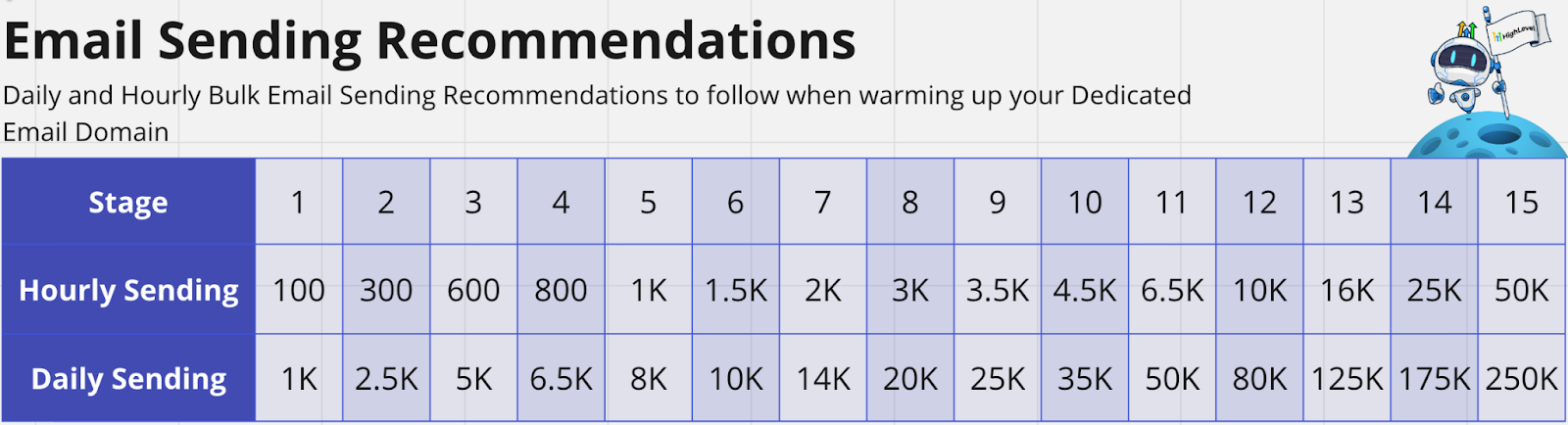
Start with minimal sending volumes:
- Control your sending volume.
- Follow a gradual increase schedule (shown below).
- Send to your most engaged subscribers first.
- Monitor external reputation tools and inbox placement daily.
- Only increase volume if engagement remains high (>20% open rate).
Review and improve recent campaigns:
- Go to Marketing → Email → Statistics.
- Identify campaigns with poor performance and improve:
- Remove spam trigger words ("Free," "Guaranteed," "Act Now," "Limited Time").
- Ensure clear sender identification.
- Include a physical address and easy unsubscribe.
- Use personalization and relevant content.
- Maintain a consistent sender name and "From" address.
- Include both HTML and plain text versions.
Alternative Reputation Monitoring Methods
Since direct reputation scores are limited, monitor these key indicators:
- Delivery Rate Trends: Consistent >95% indicates good reputation.
- Open Rate Stability: Sudden drops may indicate spam folder placement.
- Engagement Patterns: High engagement suggests good inbox placement.
- Bounce Message Analysis: Look for reputation-related error messages.
- Consistent open rates: Good sign of inbox placement.
- Click-through rates: High CTR indicates emails are being seen.
- Reply rates: Replies are strong positive signals.
- Forward rates: Forwards indicate high engagement.
- Check campaign performance.
- Review bounce classification for reputation indicators.
- Monitor Google Postmaster Tools spam rates.
- Run blacklist checks.
- Check Sender Score.
- Perform inbox placement tests.
- Analyze engagement trends.
- Verify authentication status.
- Clean email lists.
- Review overall performance trends.
- Update monitoring tools and processes.
Best Practices for Long-Term Reputation Health
- Use double opt-in for all new subscribers.
- Regular list cleaning — remove inactive subscribers monthly.
- Segment lists by engagement — send to engaged users more frequently.
- Never purchase email lists — only use organically grown lists.
- Implement re-engagement campaigns before removing inactive subscribers.
- Maintain a consistent sending schedule — avoid sudden volume spikes.
- Use clear, relevant subject lines — avoid misleading or clickbait subjects.
- Provide immediate value — make every email worth opening.
- Include clear sender identification — use recognizable "From" names.
- Keep authentication records updated — monitor SPF, DKIM, DMARC monthly.
- Use consistent "From" domains — don't switch domains frequently.
- Monitor for subdomain reputation bleed — bad subdomains can affect the main domain.
Recovery Timeline and Expectations
- Set up available monitoring tools (Sender Score).
- Remove from active blacklists.
- Fix authentication issues.
- Clean email lists aggressively.
- Reduce sending volume to minimum.
- Start inbox placement testing.
- Monitor available reputation tools daily.
- Perform weekly inbox placement tests.
- Gradual sending volume increase.
- Watch for delivery rate improvements (should reach >95%).
- Build positive engagement metrics.
- Achieve consistent high engagement rates.
- Maintain low complaint and bounce rates.
- Establish stable sending patterns.
- Full reputation recovery and inbox placement.
- Return to normal sending volumes.
Warning Signs to Monitor
- Delivery rates below 95% — indicates reputation issues
- Open rates dropping significantly — may indicate spam folder placement
- Increasing bounce rates — list quality deteriorating
- Rising unsubscribe rates — content or targeting issues
- Sender Score: Score dropping below 70
- Talos Intelligence: Status changing from "Good" to "Neutral" or "Poor"
- Blacklist Checkers: New blacklist appearances
- Google Postmaster: Spam rates increasing above 0.1%
- Inbox Placement Tests: Decreasing inbox placement rates
Still Having Issues?
If reputation problems persist after following these steps:
- Wait 30–90 days for reputation improvements to take full effect.
- Continue monitoring available tools — focus on performance metrics and inbox placement.
- Document all remediation efforts for potential ISP appeals.
- Consider using a subdomain for a fresh start while the main domain recovers.
- Contact support with specific bounce messages and remediation steps taken.
- Consult with an email deliverability expert for severe reputation damage: https://speakwith.us/karthik
With Google Postmaster Tools no longer showing direct reputation scores, you'll need to rely more heavily on performance metrics. Focus on consistent engagement metrics and delivery performance as your primary indicators of reputation health.
Domain reputation recovery takes 30–90 days of consistent good practices, but monitoring has become more challenging. The key is to use multiple data sources and focus on actual inbox placement rather than just reputation scores.
Frequently Asked Questions
Was this article helpful?
That’s Great!
Thank you for your feedback
Sorry! We couldn't be helpful
Thank you for your feedback
Feedback sent
We appreciate your effort and will try to fix the article