WhatsApp for Internal Notifications
Stay in the loop even when you step away from your inbox. CRM lets you receive internal notifications through WhatsApp, giving your team real-time updates in a channel they already check all day.
TABLE OF CONTENTS
| What is WhatsApp for Internal Notifications? |
| Key Benefits of WhatsApp Notifications |
| Supported Notification Categories |
| How to Set Up WhatsApp Notifications |
| Frequently Asked Questions |
| Related Articles |
What is WhatsApp for Internal Notifications?
WhatsApp for Internal Notifications adds WhatsApp as an optional delivery channel (alongside In-App, Email, and SMS) for user alerts generated by CRM. Each user can choose which events should trigger WhatsApp messages, allowing fast awareness without needing to stay logged in to the app.
WhatsApp notifications are for internal users (you and your team). They surface key updates and include context so you can jump back into CRM to take action.
Key Benefits of WhatsApp Notifications
- Faster Response Times: Real-time alerts reduce lag between an event and your follow-up.
- Better Accountability: Mentions, assignments, and reminders help owners act without missing updates.
- Flexible Channel Mix: Choose WhatsApp, In-App, Email, and/or SMS per event to fit each user's workflow.
- Broader Coverage: Receive important updates even when you're away from your inbox or desktop.
- Granular Control: Enable only the events you care about to avoid notification fatigue.
Supported Notification Categories
CRM sends WhatsApp alerts for the same event groups already found in Notification Preferences:
- Conversation: new messages, mentions, and assignments
- Tasks: new/updated tasks, reminders, daily summaries
- App & Integrations: reviews posted, purchases completed, calendar disconnects, etc.
Users can enable different channels (including WhatsApp) for each sub-category individually.
How to Set Up WhatsApp Notifications
Proper setup ensures the right people receive the right alerts at the right time. Follow these steps to easily configure WhatsApp notifications.
1 | Open Notification Settings
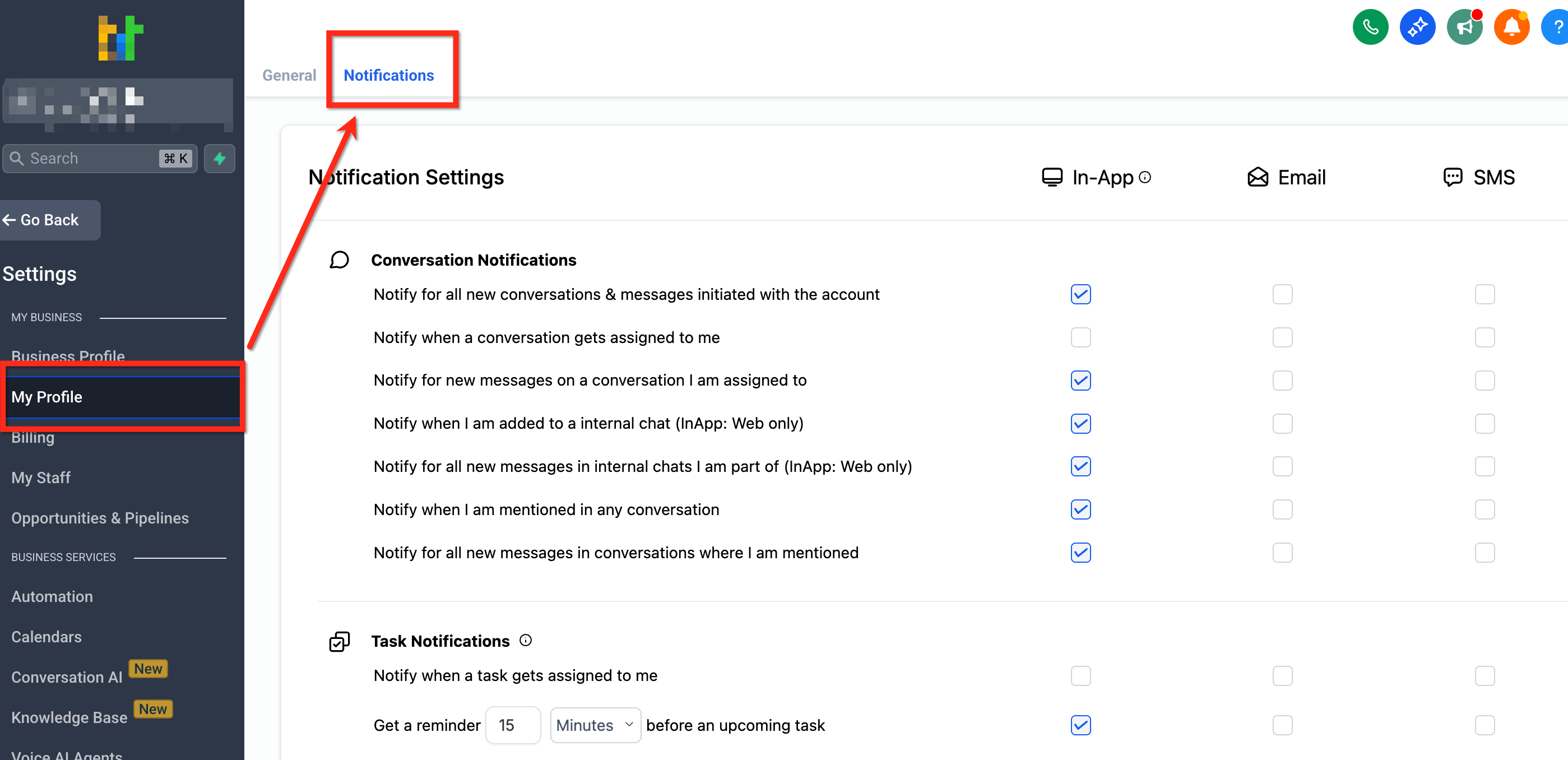 |
2 | Turn On the WhatsApp Channel
|
3 | Choose Your Events
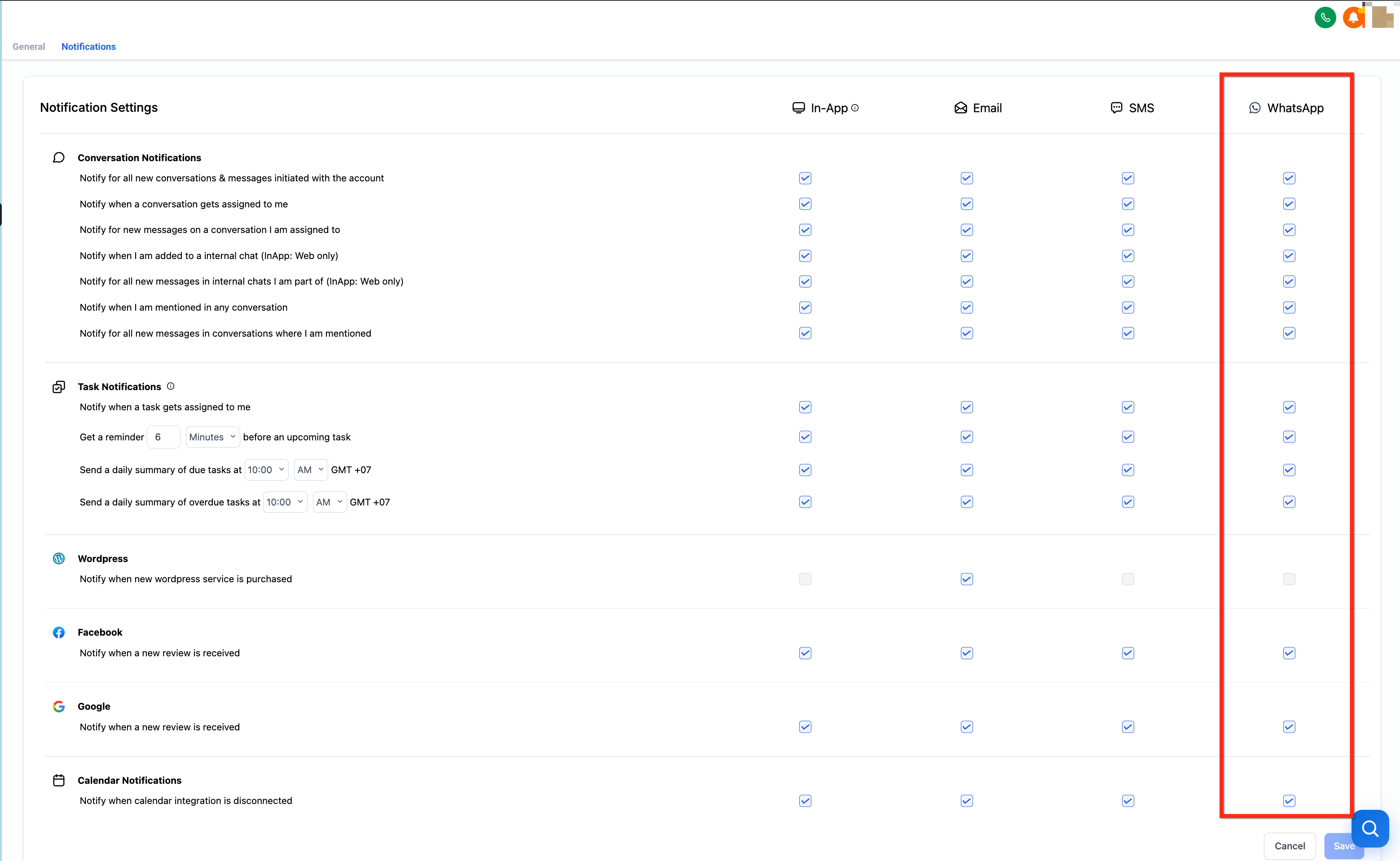 |
4 | Save Your Preferences
|
Frequently Asked Questions
Q: Can I reply to a WhatsApp notification to take action in CRM?
WhatsApp notifications are designed for awareness. Open CRM from the link or app to reply, assign, or complete the item.
Q: Will I get duplicate alerts if I enable multiple channels?
Yes. Each enabled channel will deliver its own alert. Choose the mix that best suits your role (for example, WhatsApp + In-App for critical events only).
Q: Do these messages go to my contacts or customers?
No, these are internal notifications for team members only.
Related Articles
Workflow Action - Internal Notification
How to Set Up Custom Notifications as a User in a Sub-Account
How to Enable and Customize Live Chat Notifications
Workflow Action - Slack Message
WhatsApp - Coexistence Feature for Dual-Platform Messaging
Was this article helpful?
That’s Great!
Thank you for your feedback
Sorry! We couldn't be helpful
Thank you for your feedback
Feedback sent
We appreciate your effort and will try to fix the article