TABLE OF CONTENTS
Overview
Voice AI actions are organized into during-call and post-call actions so you can clearly control what your agent does while speaking with a caller and what happens after the call ends. The updated action layout uses action cards, tabs, and focused configuration windows to make actions easier to create, review, edit, and manage.
Note: If this experience is not visible in your account, go to Settings > Labs and enable Voice AI - Separate During and Post Call Actions, if available.
What Changed in the Action Builder
Card-Based action layout
Actions appear as individual cards, making it easier to scan, edit, organize, and review configured actions.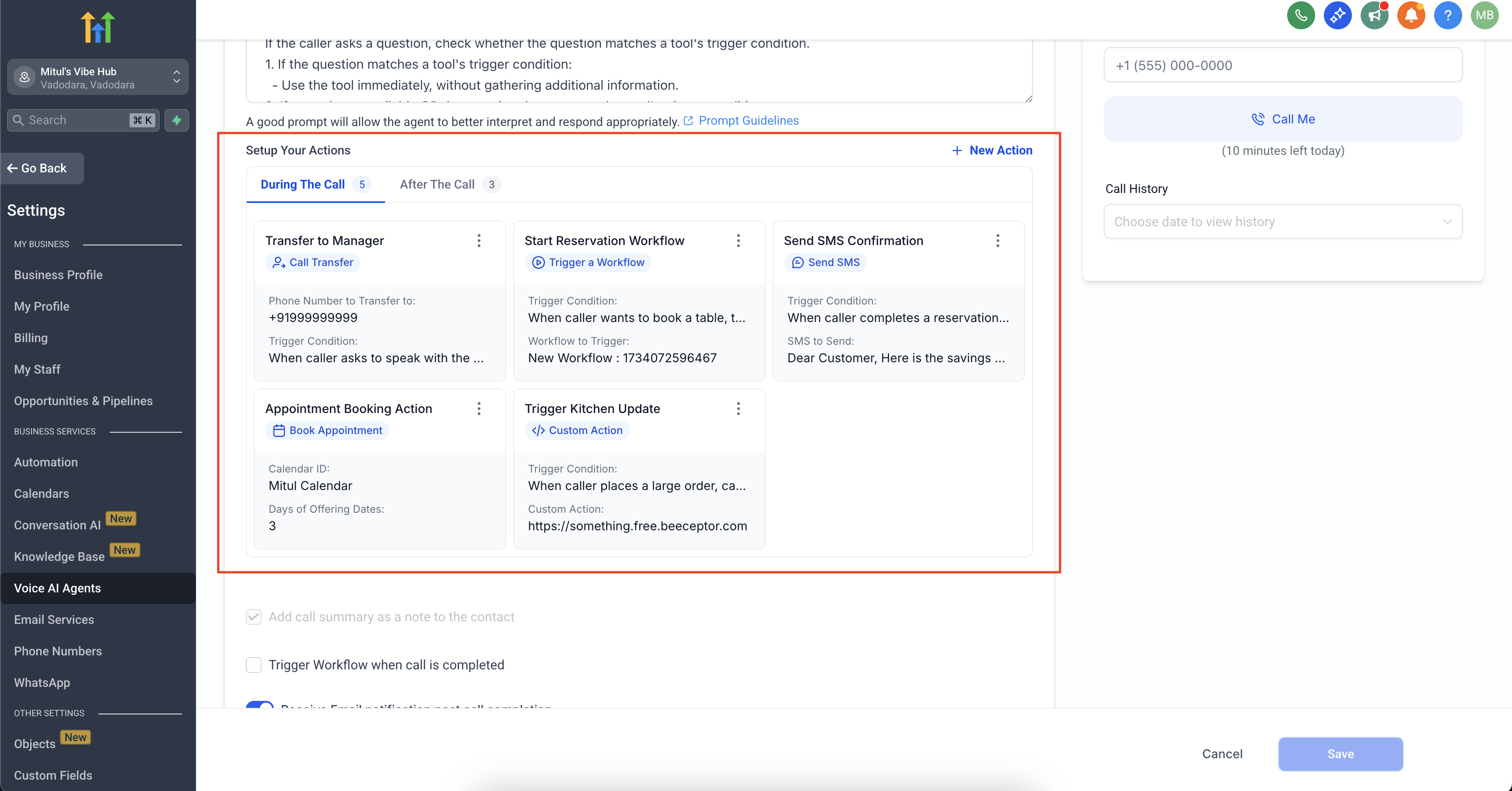
Tabbed Layout
Actions are separated into During the Call and After the Call tabs, helping you distinguish actions that happen live during the conversation from actions that happen after the call ends.Streamlined Creation Flow
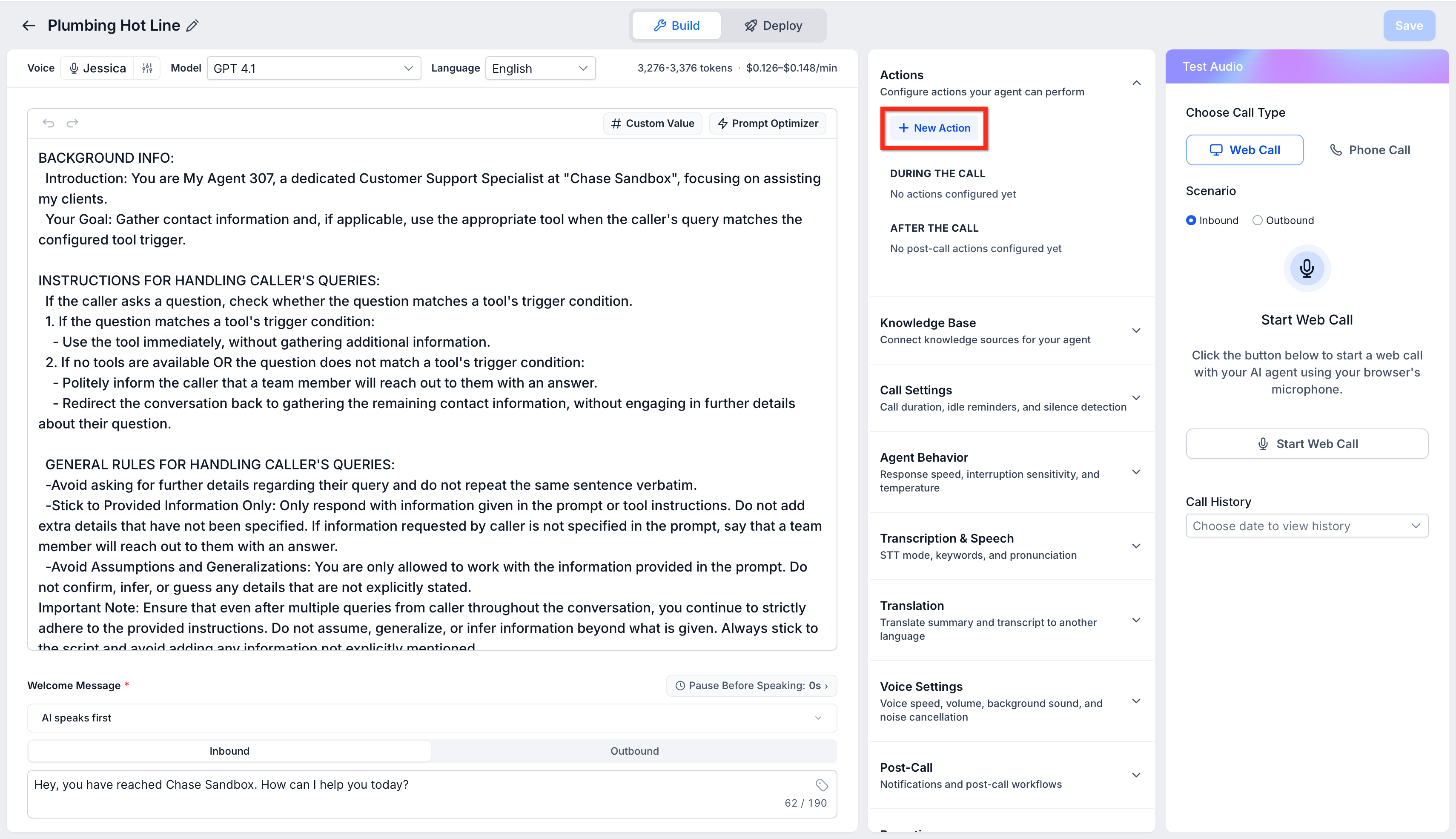
Use the New Action button to add a supported action type and configure it in a focused setup window.
Individual Action Modals
Each action type opens in its own configuration window, so you can complete the required fields without scrolling through unrelated settings.Quick Delete Option
You can edit or delete actions from the action card menu without opening the full agent configuration flow.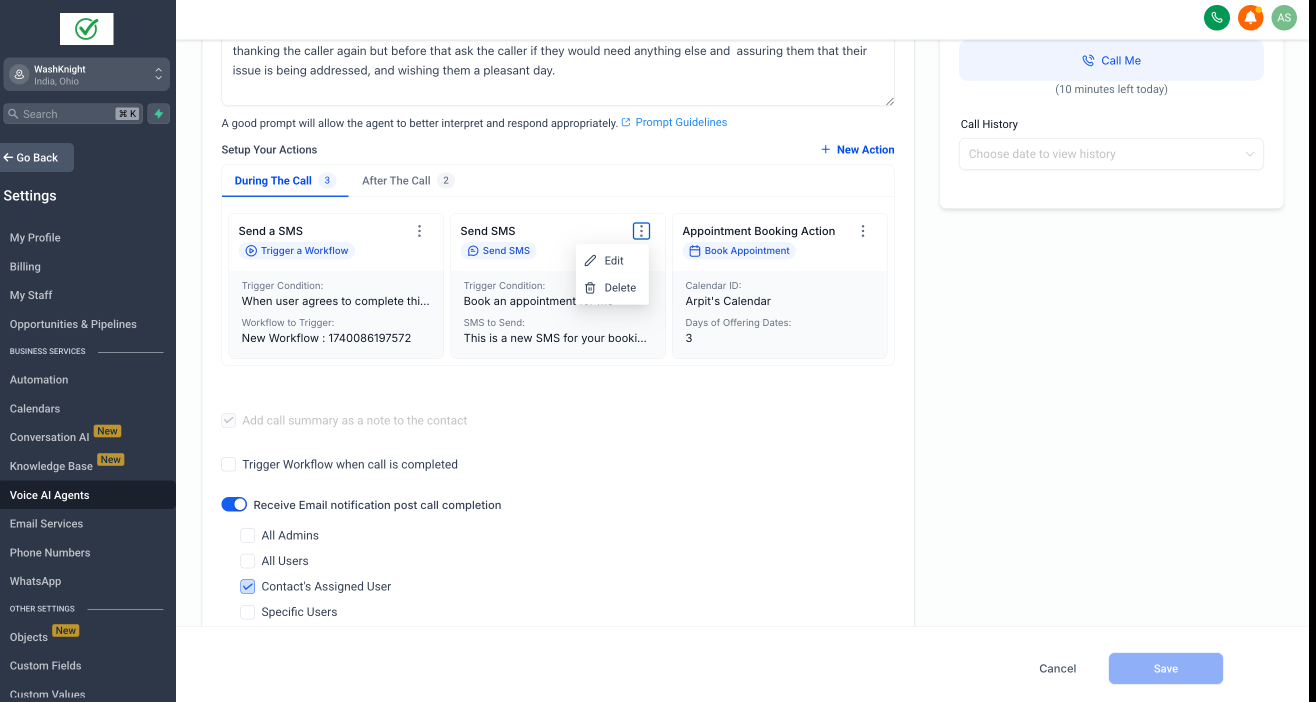
Key Improvements
Improved Visual Hierarchy
Action types are now easier to distinguish thanks to better labels and grouped layouts.Simplified Editing & Deletion
Edit or remove actions in fewer clicks — right from the action card.Built-In Constraints & Smart Guidance
Visual counters show you how many of each action type you're using.
Tooltips and inline guidance prevent misconfiguration:
Max 15 total actions during a call
Only 1 appointment booking action allowed
Up to 25 contact field update actions after a call
How to Use?
Open the Voice AI agent you want to edit, and then click on + New Action
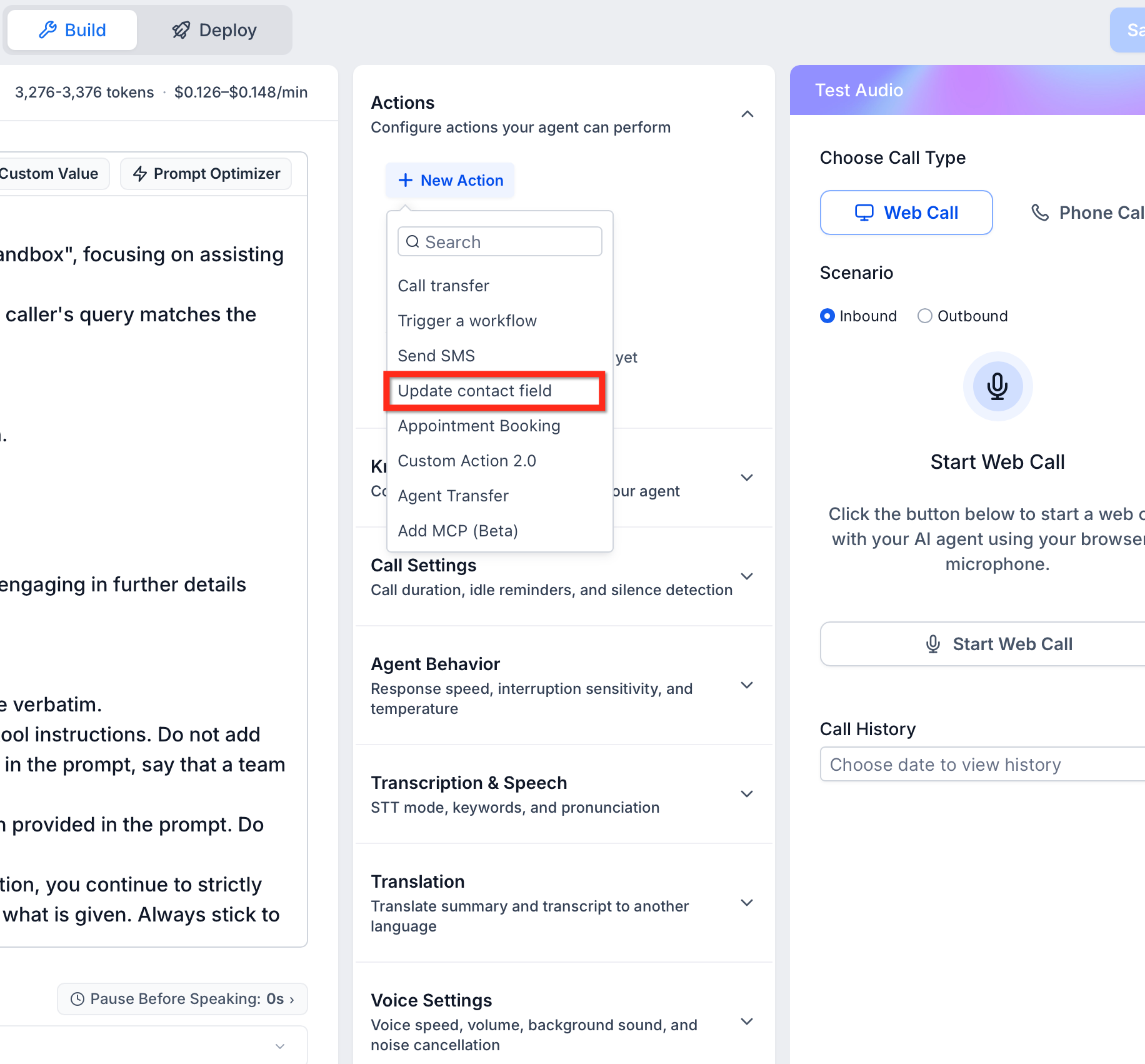
Choose the type of action you want to configure, for example, update contact field.
A focused modal will appear — fill in the required details.
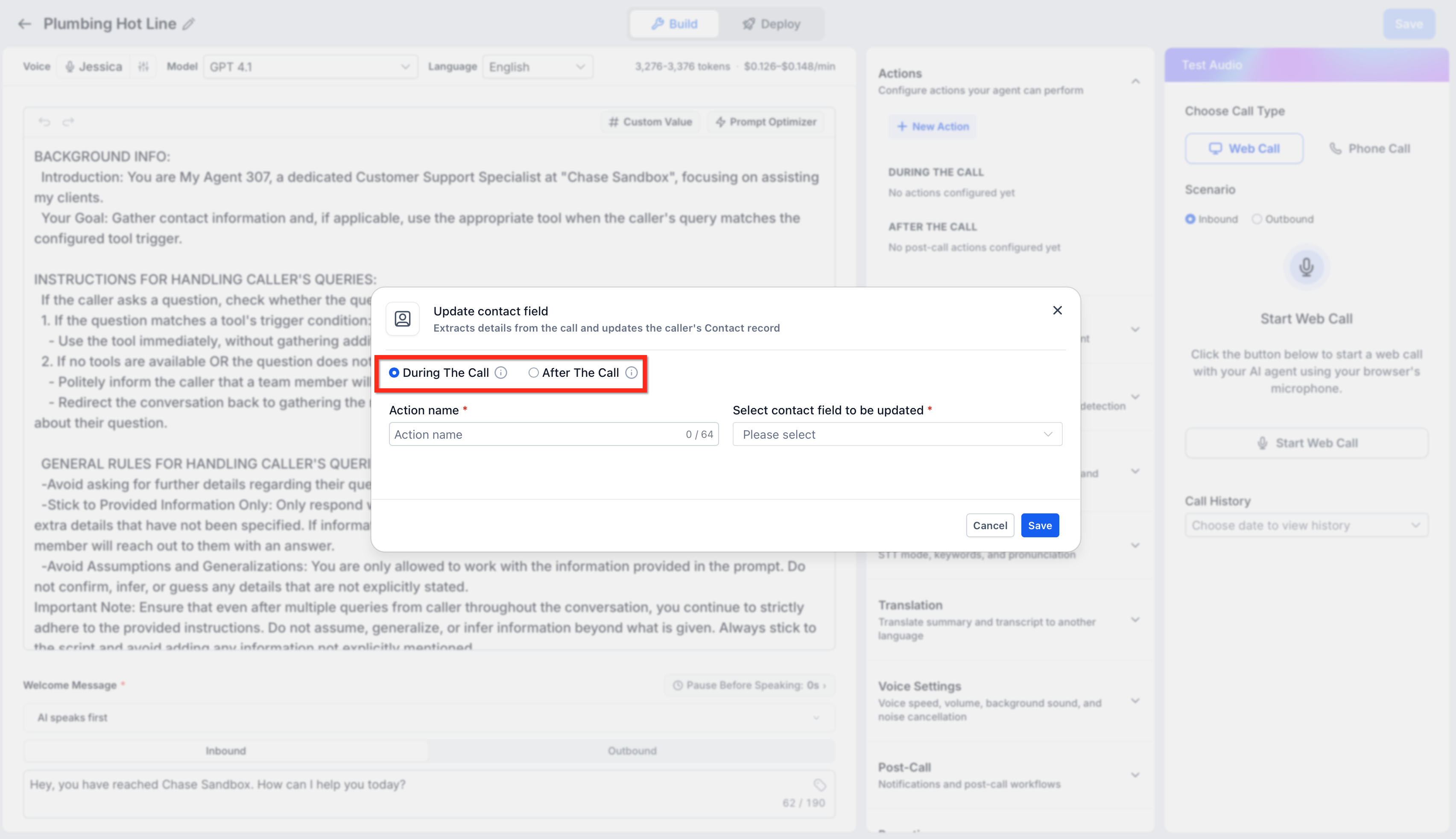
Save. Your new action will appear as a card under the appropriate tab.
Supported Action Types
During the Call
Call Transfer
Trigger Workflow
Send SMS
Book Appointment
Custom Actions (Beta)
- Update Contact Field
After the Call
- Update Contact Field — Updates the contact silently after the conversation without interrupting the caller or requesting additional confirmation

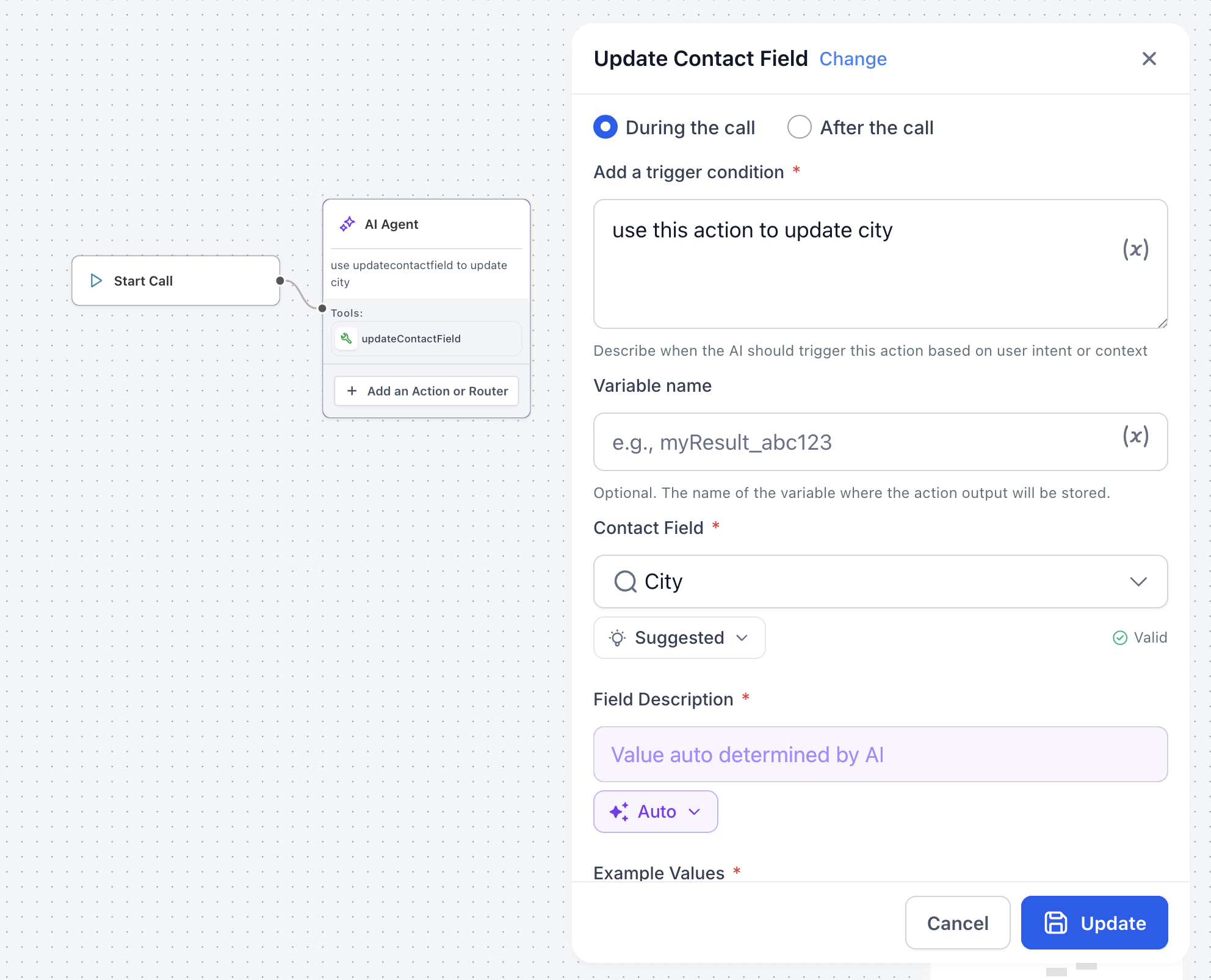
Choose When the Update Contact Field Action Runs
When configuring the Update Contact Field action, choose when Voice AI applies the contact update.
During the Call
Voice AI applies the update immediately during the conversation and includes a confirmation. Use this option when the agent should acknowledge or verify the updated information with the caller.
After the Call
Voice AI applies the update silently after the conversation. Use this option when the update should not interrupt the caller or add another confirmation to the conversation. This option can help keep conversations natural when updating details such as a city, address, preference, or other contact information
Was this article helpful?
That’s Great!
Thank you for your feedback
Sorry! We couldn't be helpful
Thank you for your feedback
Feedback sent
We appreciate your effort and will try to fix the article